La maggior parte dei proprietari di negozi sente "order bump" e presume di aver bisogno di un plugin funnel dedicato. Se utilizzi già Advanced Coupons Premium, puoi creare un'offerta di checkout simile con le funzionalità dei coupon che potresti già avere.
Un order bump di WooCommerce può aiutare ad aumentare il valore medio dell'ordine offrendo un piccolo componente aggiuntivo correlato a qualcuno che ha già deciso di acquistare. La chiave è rendere l'offerta facile da capire e mostrarla solo quando ha senso.
Questa guida copre cos'è un order bump di WooCommerce, in cosa differisce da un upsell e come ricreare la meccanica principale con Advanced Coupons quando tale configurazione si adatta al tuo checkout.
Cos'è un Order Bump?
Un order bump è una piccola offerta aggiuntiva opzionale mostrata al checkout, dopo che l'acquirente ha scelto il suo acquisto principale ma prima di pagare. È progettato per essere accettato o ignorato con un singolo clic, senza lasciare la pagina di checkout.
Le caratteristiche distintive sono il tempismo e la dimensione. Appare al momento dell'impegno e chiede una frazione di ciò che l'acquirente sta già spendendo. Un'aggiunta di $9 su un carrello da $60 è una decisione molto più piccola di un'aggiunta di $40. Man mano che il prezzo dell'incremento sale, l'offerta inizia a sembrare meno un'aggiunta rapida e più un acquisto separato.
Gli order bump sono comuni sulle piattaforme di corsi e sui funnel builder, che è dove la maggior parte dei proprietari di negozi incontra per la prima volta il termine. La meccanica in sé non è specifica della piattaforma, tuttavia, e nulla in essa richiede software costruito per i funnel.
Order Bump vs Upsell vs Cross-Sell
Questi tre vengono usati in modo intercambiabile e non sono la stessa cosa. La differenza sta in quando appare l'offerta e quanto pensiero richiede.
| Order bump | Upsell | Cross-sell | |
|---|---|---|---|
| Quando appare | Al checkout, prima del pagamento | Dopo la scelta principale | Accanto al prodotto |
| Cosa offre | Piccola aggiunta a basso attrito | Versione di livello superiore della stessa cosa | Prodotto complementare |
| Prezzo tipico | Ben al di sotto del valore del carrello | Superiore all'originale | Simile o inferiore |
| Sforzo decisionale | Un clic | Richiede confronto | Richiede navigazione |
| Rischio se fatto male | Rallenta il checkout | Sembra invadente | Distrae dalla vendita |
Un upsell chiede all'acquirente di riconsiderare ciò che ha scelto. Un order bump lascia invariata la decisione originale e aggiunge una piccola offerta correlata, quindi di solito richiede meno delibera. Se desideri un quadro più ampio sugli altri due, la nostra guida alle strategie di upsell li copre adeguatamente, e ci sono esempi pratici negli esempi di upselling e cross-selling con coupon.
Perché gli Order Bump aumentano il Valore Medio dell'Ordine
Al checkout, l'acquirente ha già deciso di acquistare. Una piccola offerta pertinente può essere più facile da considerare perché non gli chiede di rivisitare l'acquisto principale.
Tre cose rendono efficace il meccanismo:
- La decisione è già presa. Non stai convincendo qualcuno ad acquistare. Stai chiedendo se desiderano anche la piccola cosa accanto ad essa.
- L'ancora di prezzo è favorevole. Rispetto a un carrello che hanno accettato, un add-on di basso valore appare minore.
- Non c'è navigazione. Nulla allontana l'acquirente dal checkout, quindi non c'è una nuova opportunità di abbandono.
Il rovescio della medaglia è che un bump scelto male può aggiungere attrito. Qualsiasi cosa che richieda un pensiero extra al checkout compete con il completamento dell'ordine, specialmente se l'acquirente deve fermarsi e confrontare le opzioni.
Esempi di Order Bump che funzionano
I migliori bump sono ovvi. L'acquirente dovrebbe capire l'offerta senza leggere due volte.
- Il partner consumabile. Qualcosa che il prodotto principale consuma. Filtri, ricariche, lame, batterie.
- Protezione o cura. Un kit di pulizia, una custodia, un prodotto di estensione della garanzia. Basso costo, chiaramente correlato.
- Il fratello minore. Una versione da viaggio o una singola unità dell'articolo già nel carrello.
- Confezione regalo o presentazione. Particolarmente forte nel periodo che precede una stagione di regali.
- Un add-on digitale. Una guida, un modello, o istruzioni per la cura. Nessun costo di evasione.
Ciò che tende a non funzionare: qualsiasi cosa a un prezzo simile all'articolo principale, qualsiasi cosa che richieda una scelta di taglia o colore e qualsiasi cosa non correlata a ciò che è già nel carrello.
Come Costruire un Order Bump WooCommerce
Advanced Coupons non include una funzionalità chiamata "order bump", ma puoi ricreare la configurazione principale combinando Aggiungi prodotti con condizioni del carrello e un trigger coupon. Se stai abbandonando Iconic Sales Booster, questa stessa configurazione può sostituire i suoi order bump al checkout, che trattiamo nella nostra guida Alternativa a Iconic Sales Booster.
Se desideri gli order bump come funzionalità nativa del checkout, un plugin dedicato per funnel è la strada più pulita. Usiamo FunnelKit per il checkout sul nostro negozio, e include template di order bump e split testing appositamente creati. Abbiamo anche scritto come è stato effettivamente utilizzarlo. Se usi già Advanced Coupons Premium, la configurazione seguente mostra come creare un'offerta simile con gli strumenti coupon che hai già.
La funzionalità pertinente è Add Products, parte di Advanced Coupons Premium. Permette a un coupon di aggiungere prodotti specificati al carrello quando il coupon viene applicato, a un prezzo da te controllato. Combinato con le condizioni del carrello e One Click Apply o Auto Apply, puoi controllare quali carrelli si qualificano e come viene attivato il coupon.
Per questa configurazione, Add Products, One Click Apply e Auto Apply sono funzionalità Premium. Il plugin gratuito include sei tipi di condizioni del carrello, tra cui Cart Subtotal, Cart Quantity e Product Categories Exists In Cart. Premium aggiunge sedici tipi di condizioni in più.
Passaggio 1: Imposta la tabella Add Products
Crea un coupon come al solito, quindi dagli un codice e una descrizione chiari in modo da poter riconoscere facilmente l'offerta. Per questo esempio, stiamo usando FREECAT2026 per offrire una borsa tote gratuita per gatti quando il carrello si qualifica.
Nell'editor di coupon, apri il pannello Aggiungi Prodotti e attiva prima Abilita Aggiungi Prodotti. Per ogni prodotto che desideri aggiungere con il coupon, imposta il prodotto, la quantità e come deve essere prezzato.
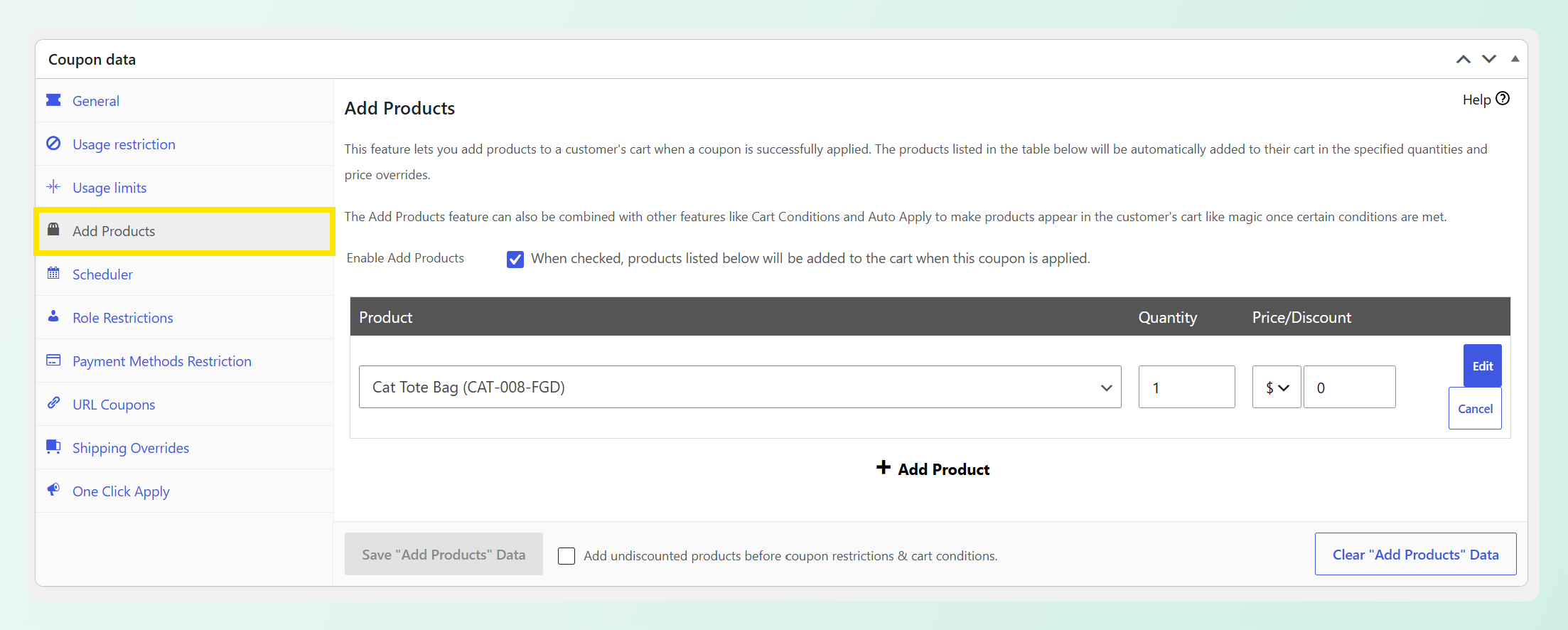
Ci sono quattro opzioni di prezzo: Nessuno sconto, Sconto fisso, Sconto percentuale e Sovrascrivi prezzo. Sovrascrivi è solitamente l'opzione giusta per un'aggiunta, perché ti permette di indicare un prezzo fisso di aggiunta anziché esprimerlo come sconto su qualcos'altro.
Sono supportati sia prodotti semplici che variabili, comprese variazioni specifiche, in modo da poter aggiungere una taglia o un colore particolare.
Passaggio 2: Imposta il prezzo di aggiunta
Sovrascrivi prezzo funziona bene quando vuoi che l'aggiunta abbia un prezzo finale fisso. Lo sconto percentuale è utile quando vuoi che l'offerta si adatti al variare del prezzo del prodotto.
Per questo esempio, abbiamo impostato la Borsa Tote Gatto per utilizzare un prezzo sovrascritto in modo che possa essere aggiunta come articolo gratuito quando l'acquirente riscatta il coupon.
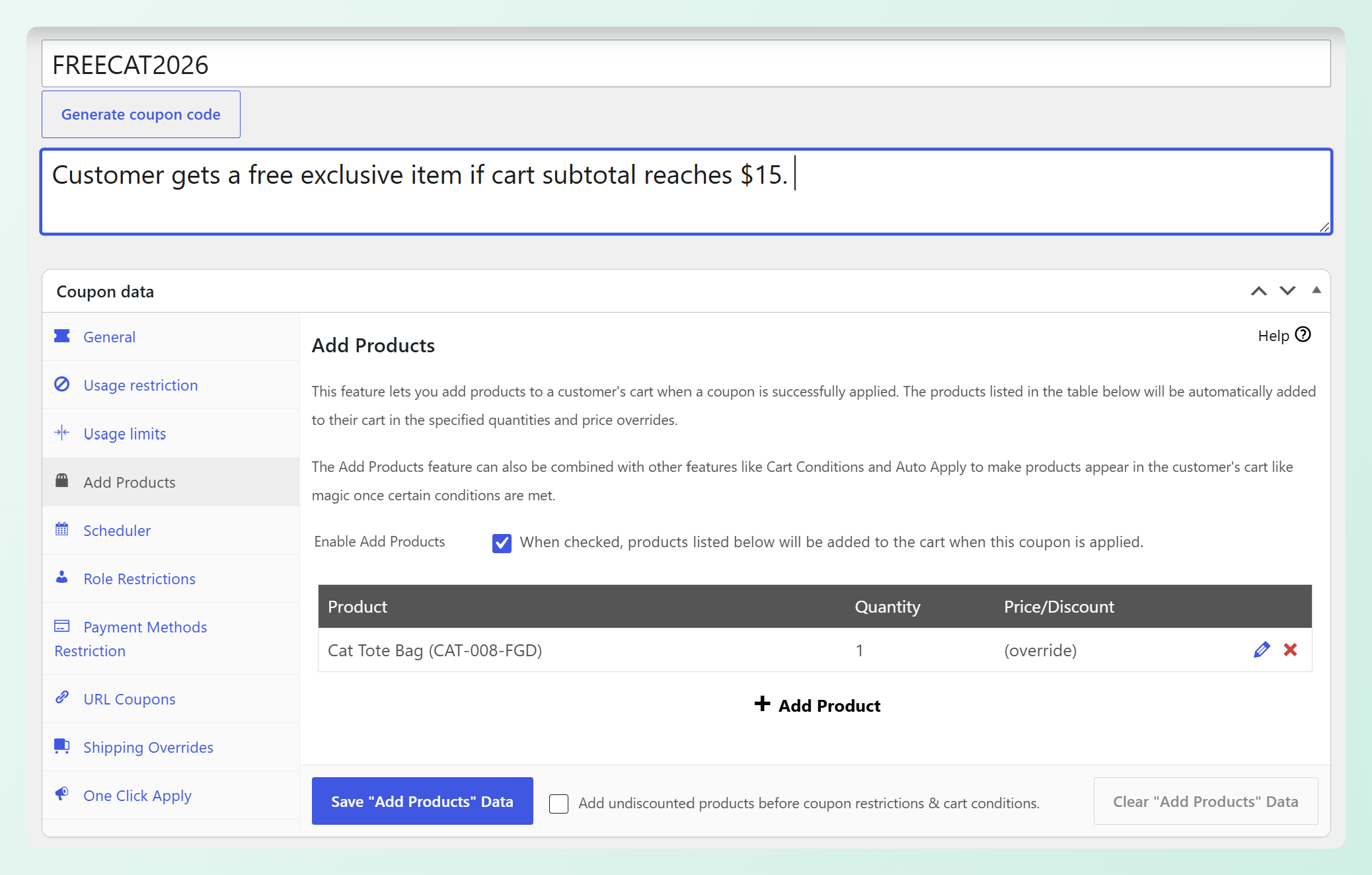
Usa Nessuno sconto solo se vuoi aggiungere il prodotto senza modificarne il prezzo.
Passaggio 3: Aggiungi una condizione del carrello per mantenere la pertinenza dell'offerta
Le condizioni del carrello ti consentono di limitare l'offerta ai carrelli in cui ha senso.
Condizioni utili per un'aggiunta: Subtotale carrello, in modo che l'aggiunta sia proporzionata. Categorie di prodotti presenti nel carrello, in modo che l'aggiunta sia veramente correlata. Quantità nel carrello, se l'aggiunta ha senso solo al di sopra di una certa dimensione. Queste tre sono nel plugin gratuito. Per puntare a un prodotto specifico anziché a un'intera categoria, desideri Quantità prodotto nel carrello, che è una delle condizioni Premium.
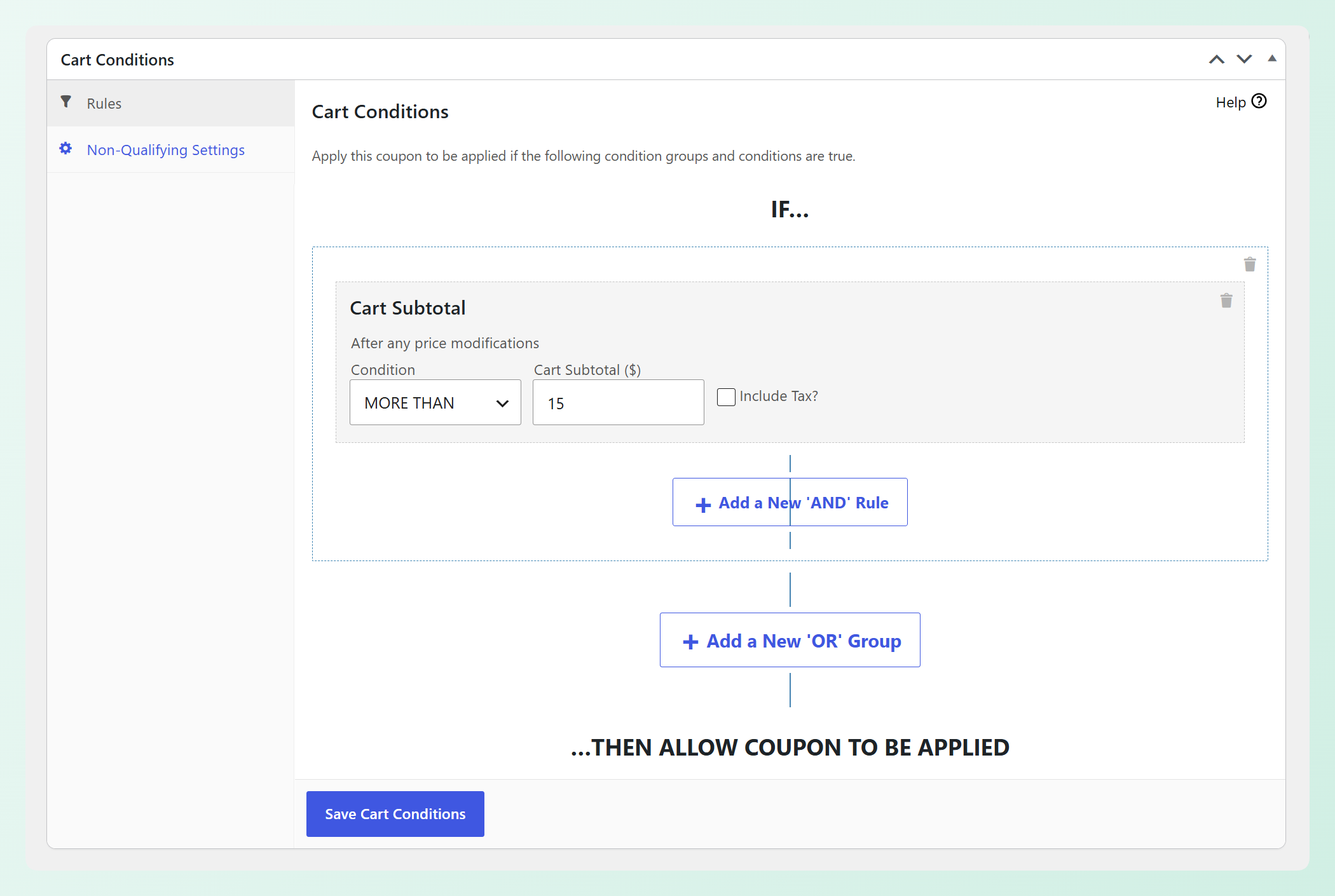
Nell'esempio seguente, abbiamo impostato Subtotale carrello a PIÙ DI $15. Ciò significa che il coupon diventa disponibile solo una volta che il carrello dell'acquirente supera tale importo.
Passaggio 4: Decidi se l'acquirente accetta
Ci sono due modi per attivare il coupon, e creano diverse esperienze per l'acquirente. Applica con un clic mostra ai clienti idonei un avviso con un pulsante di applicazione, in modo che scelgano se applicare il coupon e aggiungere il prodotto configurato. Applica automaticamente applica il coupon non appena il carrello è idoneo, in modo che l'articolo Aggiungi Prodotti venga inserito automaticamente. Entrambe sono funzionalità Premium.
Per il nostro esempio, abbiamo abilitato Applica con un clic e personalizzato sia il messaggio di notifica che il testo del pulsante. Gli acquirenti che si qualificano vedranno che hanno diritto a un articolo gratuito, insieme a un pulsante Richiedi ora.
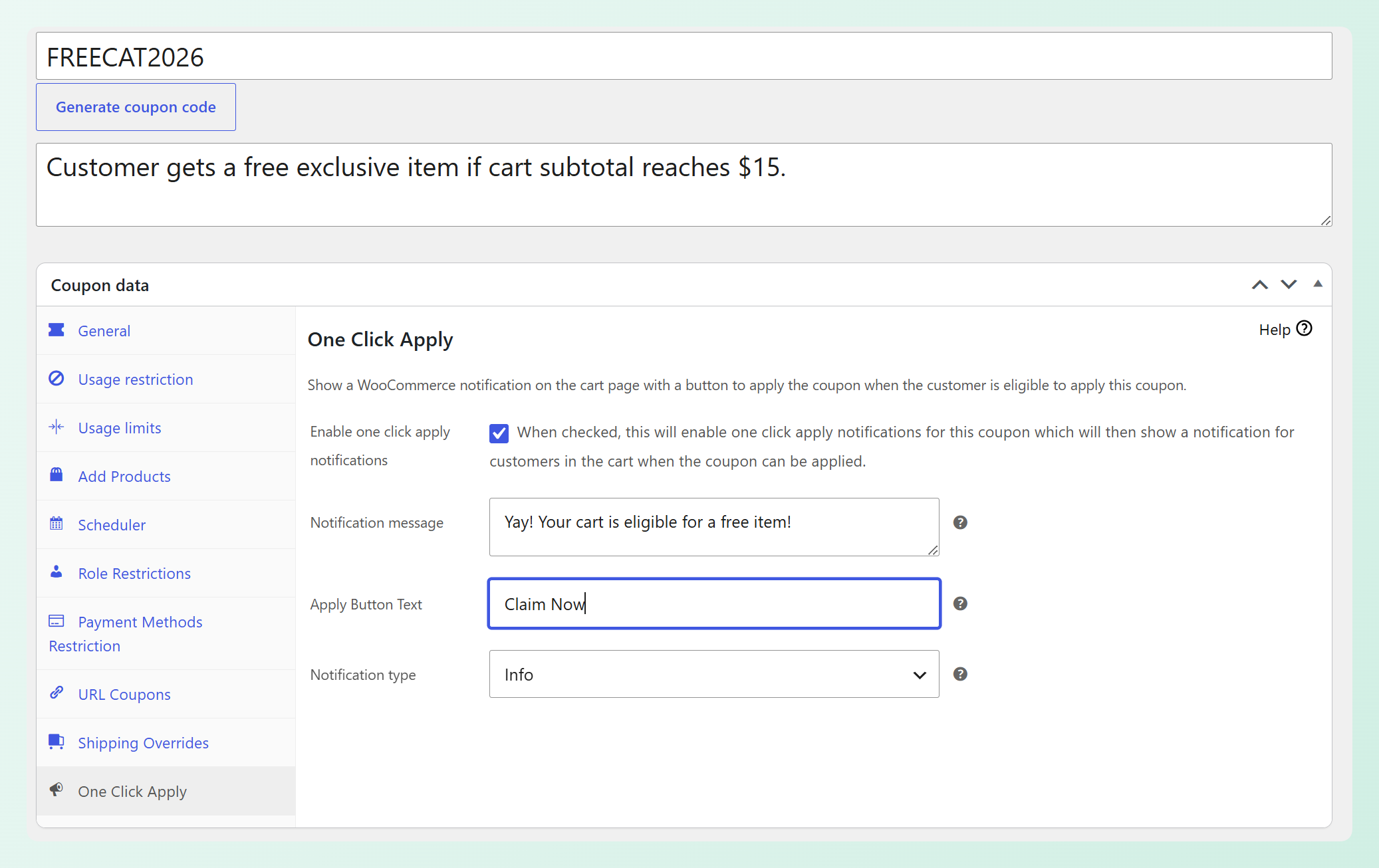
Per un classico ordine di adesione, One Click Apply è la corrispondenza più vicina. Funziona sia con le pagine del carrello e del checkout classiche sia con i blocchi Carrello e Checkout di WooCommerce. Se si desidera che l'add-on venga inserito automaticamente, Auto Apply può gestirlo quando le condizioni del carrello corrispondono.
Potresti anche vedere l'impostazione aggiungi prodotti non scontati prima delle restrizioni del coupon e delle condizioni del carrello. Influenza solo le righe Aggiungi prodotti impostate su Nessuno sconto. Poiché un bump a pagamento utilizzerà solitamente il prezzo di override, lo sconto fisso o lo sconto percentuale, normalmente puoi lasciare questa opzione disattivata.
Passaggio 5: Testa sia un carrello idoneo che uno non idoneo
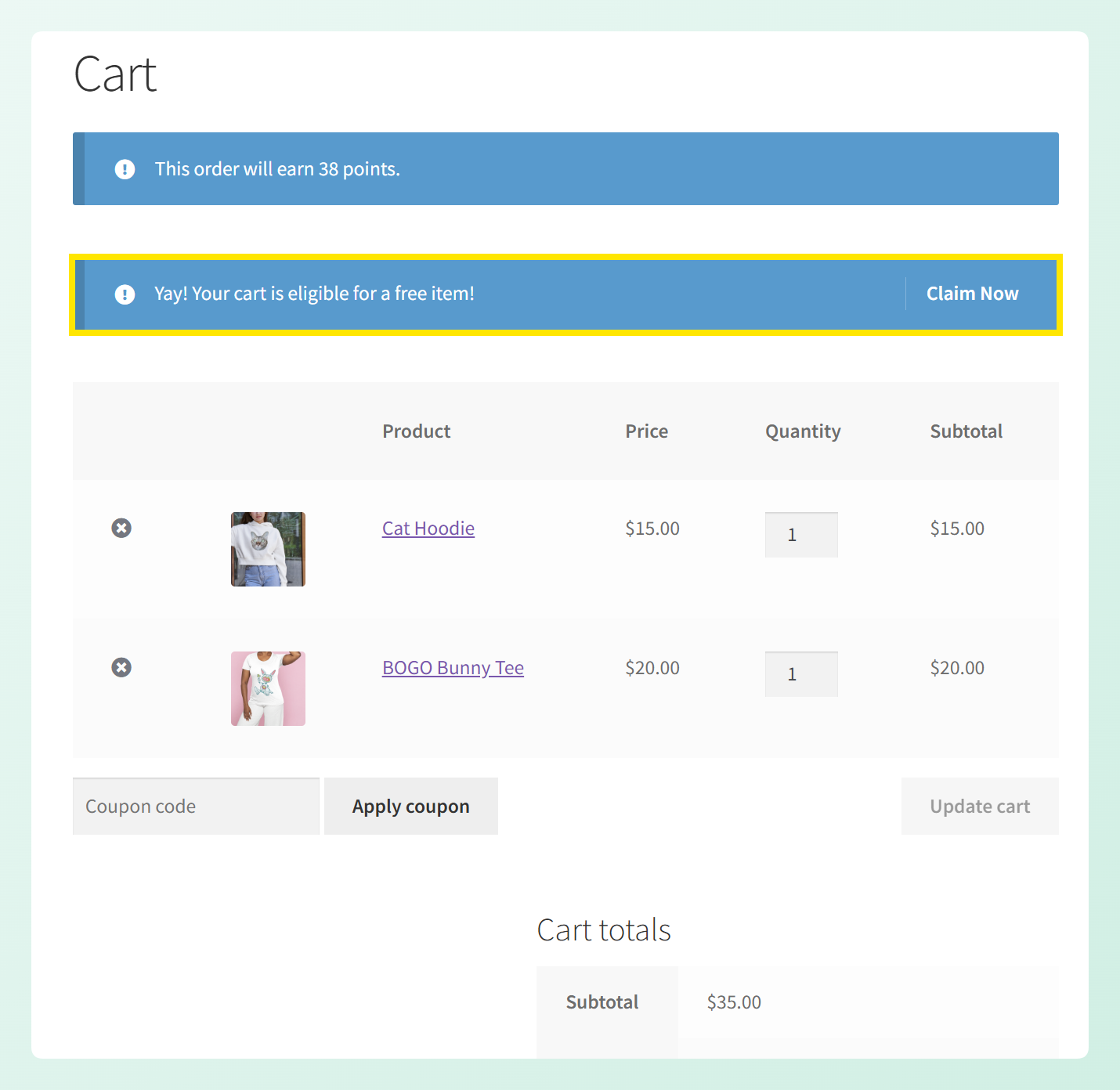
Se stai usando One Click Apply, crea un carrello idoneo e conferma che la notifica appaia, quindi fai clic su di essa e verifica che il prodotto venga aggiunto al prezzo impostato. Nel nostro esempio, il subtotale del carrello è superiore a $ 15, quindi l'acquirente vede la notifica di articolo gratuito e il pulsante Richiedi ora.
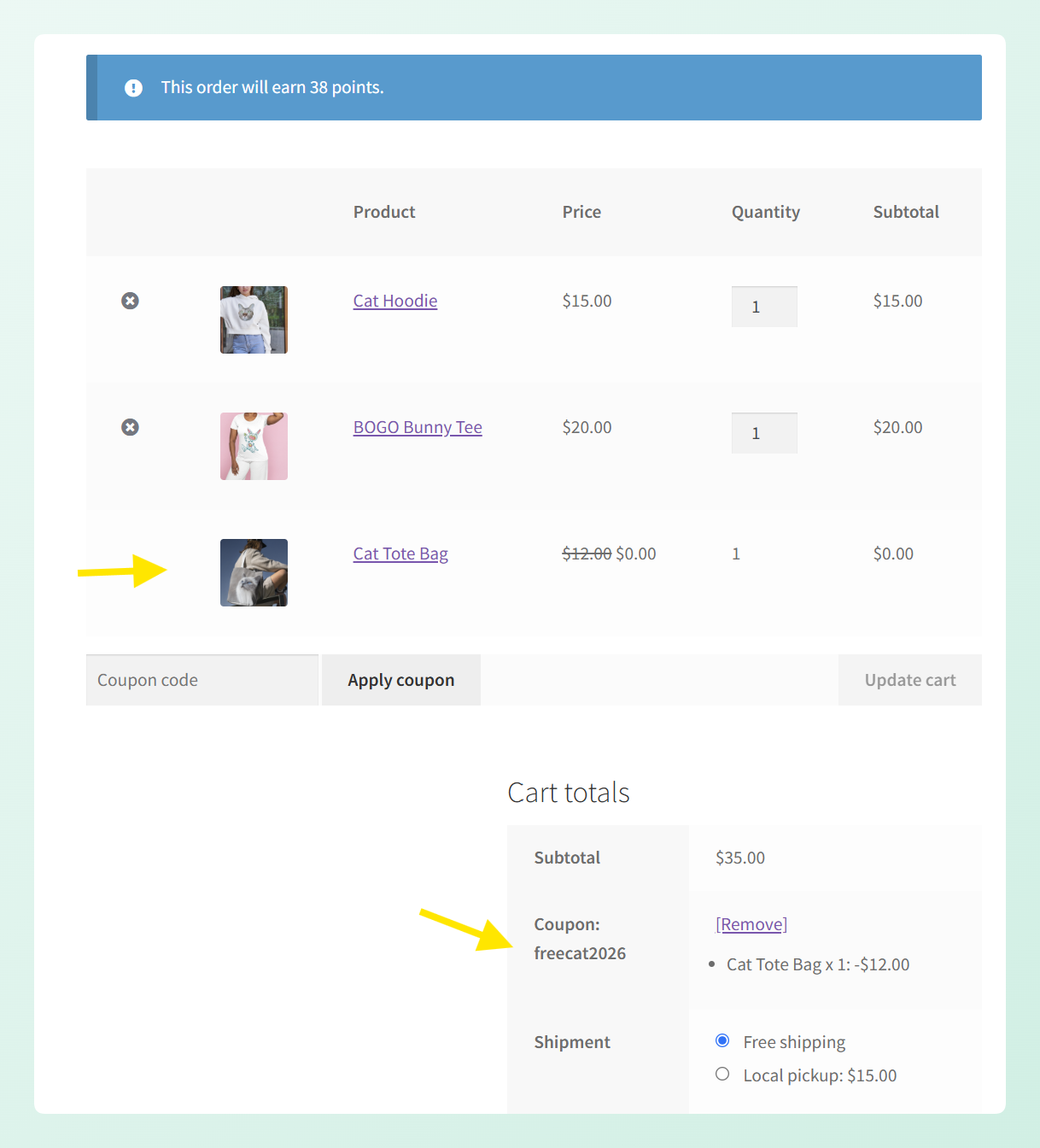
Dopo aver fatto clic su Richiedi ora, il coupon viene applicato e la Cat Tote Bag configurata viene aggiunta al carrello al prezzo di override che abbiamo impostato.
Infine, crea un carrello non idoneo e conferma che la notifica non appaia. Se stai usando Auto Apply, conferma che il carrello idoneo aggiunga il prodotto automaticamente e quello non idoneo no.
Cosa Offrire E Come Prezzarlo
Mantieni il prezzo del bump basso rispetto all'acquisto principale dell'acquirente. Dovrebbe sembrare un'aggiunta facile pur avendo senso per il prodotto che stai offrendo.
Scegli un bump per offerta. Due add-on in competizione al checkout creano un confronto, e i confronti appartengono a una fase precedente del percorso.
Se utilizzi una condizione di spesa minima, testa i carrelli su entrambi i lati della soglia. Un carrello appena sopra dovrebbe qualificarsi, mentre uno appena sotto no. Testare entrambi i lati ti aiuta a individuare errori nelle condizioni prima che i clienti li incontrino.
L'utilizzo del coupon può mostrare quanto spesso l'offerta finisce in un ordine, ma non misura quanti acquirenti hanno visto il bump o hanno fatto clic su Richiedi ora. Con Auto Apply, non può nemmeno dirti se un acquirente ha scelto attivamente l'add-on. Considera l'utilizzo come un segnale di performance di base piuttosto che un vero tasso di accettazione o conversione dell'order bump.
Domande Frequenti
Cos'è un order bump in WooCommerce?
Un order bump è un piccolo componente aggiuntivo opzionale offerto al momento del checkout, dopo che l'acquirente ha scelto il suo acquisto principale ma prima del pagamento. Ha un prezzo ben al di sotto del valore del carrello ed è progettato per essere accettato con un clic senza lasciare la pagina di checkout.
Qual è la differenza tra un order bump e un upsell?
Un upsell chiede all'acquirente di sostituire ciò che ha scelto con una versione di livello superiore, quindi rivisita una decisione che ha già preso. Un order bump lascia invariata la scelta originale e aggiunge semplicemente un piccolo articolo correlato, che di solito richiede meno riflessione.
Ho bisogno di un plugin separato per gli order bump in WooCommerce?
Non necessariamente. Advanced Coupons Premium può ricreare la meccanica di opt-in con Add Products, cart conditions e One Click Apply sia nelle pagine classiche del carrello e del checkout, sia nei blocchi Carrello e Checkout di WooCommerce. Non esiste una voce di menu chiamata "order bump", ma i componenti ci sono. Se desideri layout di bump specifici per lo scopo e test A/B, un plugin dedicato per funnel è la soluzione migliore, e noi ne utilizziamo uno nel nostro negozio.
Cosa dovrei offrire come order bump?
Qualcosa di piccolo, ovviamente correlato e che non richieda scelte. Consumabili che il prodotto principale utilizza, articoli di protezione o cura, una versione da viaggio di ciò che è già nel carrello, confezione regalo o un componente aggiuntivo digitale senza costi di evasione.
Un order bump può essere applicato automaticamente?
Puoi aggiungere l'offerta basata su coupon automaticamente con Auto Apply, ma si tratta di un'esperienza utente diversa da un classico order bump opt-in. Quando le condizioni del carrello corrispondono, Auto Apply applica il coupon e l'articolo Add Products configurato viene inserito automaticamente. Auto Apply è una funzionalità Premium.
Inizia ad Aggiungere Order Bump al Tuo Checkout
Un buon order bump offre agli acquirenti un modo semplice per aggiungere qualcosa di utile prima di pagare, dando al contempo un'altra opportunità per aumentare il valore dello stesso checkout.
Ecco da dove iniziare:
- Cos'è un Order Bump?: la tempistica e la dimensione che lo definiscono
- Order Bump vs Upsell vs Cross-Sell: scegli il meccanismo giusto
- Esempi di Order Bump che Funzionano: scegli qualcosa di ovvio
- Come Creare un Order Bump WooCommerce: Aggiungi Prodotti più una condizione del carrello
- Cosa Offrire E Come Prezzarlo: mantienilo proporzionato e testa entrambi i lati
Se hai già Advanced Coupons Premium, puoi creare un flusso di lavoro per gli order bump di WooCommerce con Aggiungi prodotti, condizioni del carrello e Applica con un clic senza aggiungere un altro plugin al tuo stack.