
Conditions control which products a label appears on. Without conditions, a label shows on every product in your store. With conditions, you can target specific products — sale items, products in a particular category, low-stock items, and more. This guide walks you through adding conditions to a label, combining multiple conditions with AND/OR logic, and using condition groups to build complex display rules.
Prerequisites
- Advanced Promo Kit Advanced Promo Kit installed and active
- WooCommerce installed and active
- A label already created — or you are in the process of creating one — in Promo Kit → Create Label How to Create Product Labels in Advanced Promo Kit, or editing an existing label via Promo Kit → Manage Labels How to Manage Labels in Advanced Promo Kit
Step 1: Open the Conditions Tab
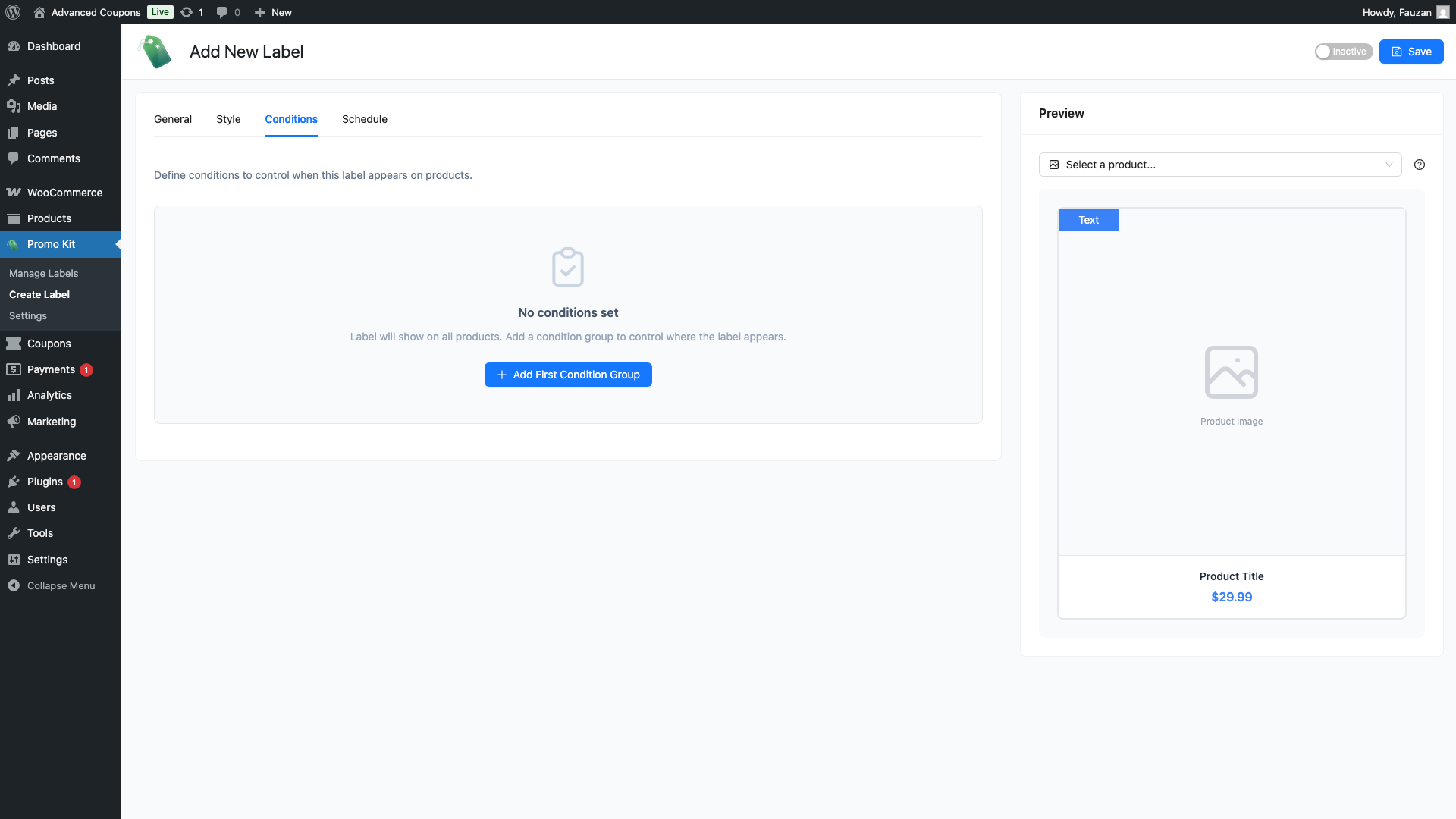
Go to Promo Kit → Create Label (or open an existing label for editing). Click the Conditions tab.
By default, the tab is empty. This means the label will appear on every product in your store. Add at least one condition to control which products the label targets.
Step 2: Add Your First Condition
Click Add Condition. A row appears with up to three fields: Condition Type, Operator, and Value.
Advanced Promo Kit includes 14 condition types:
| Condition | What it checks | Operators |
|---|---|---|
| On Sale | Whether the product has an active sale price | Is / Is Not |
| Featured Product | Whether the product is marked as Featured in WooCommerce | Is / Is Not |
| In Stock | Whether the product has stock available | Is / Is Not |
| Out of Stock | Whether the product is out of stock | Is / Is Not |
| On Backorder | Whether the product is available on backorder | Is / Is Not |
| New Arrival | Whether the product was published within a recent time window | Is / Is Not |
| Product Type | The WooCommerce product type (Simple, Variable, Grouped, External/Affiliate) | In / Not In |
| Product Category | The category the product belongs to | In / Not In |
| Product Tag | A tag assigned to the product | In / Not In |
| Specific Products | One or more individual products by name | In / Not In |
| Price Range | The product’s regular price | > / >= / < / <= |
| Stock Quantity | The number of units currently in stock | > / >= / < / <= |
| Discount Percentage | The percentage discount relative to the regular price | > / >= / < / <= |
| User Role | The WordPress role of the visitor viewing the product (supports Guest) | In / Not In |
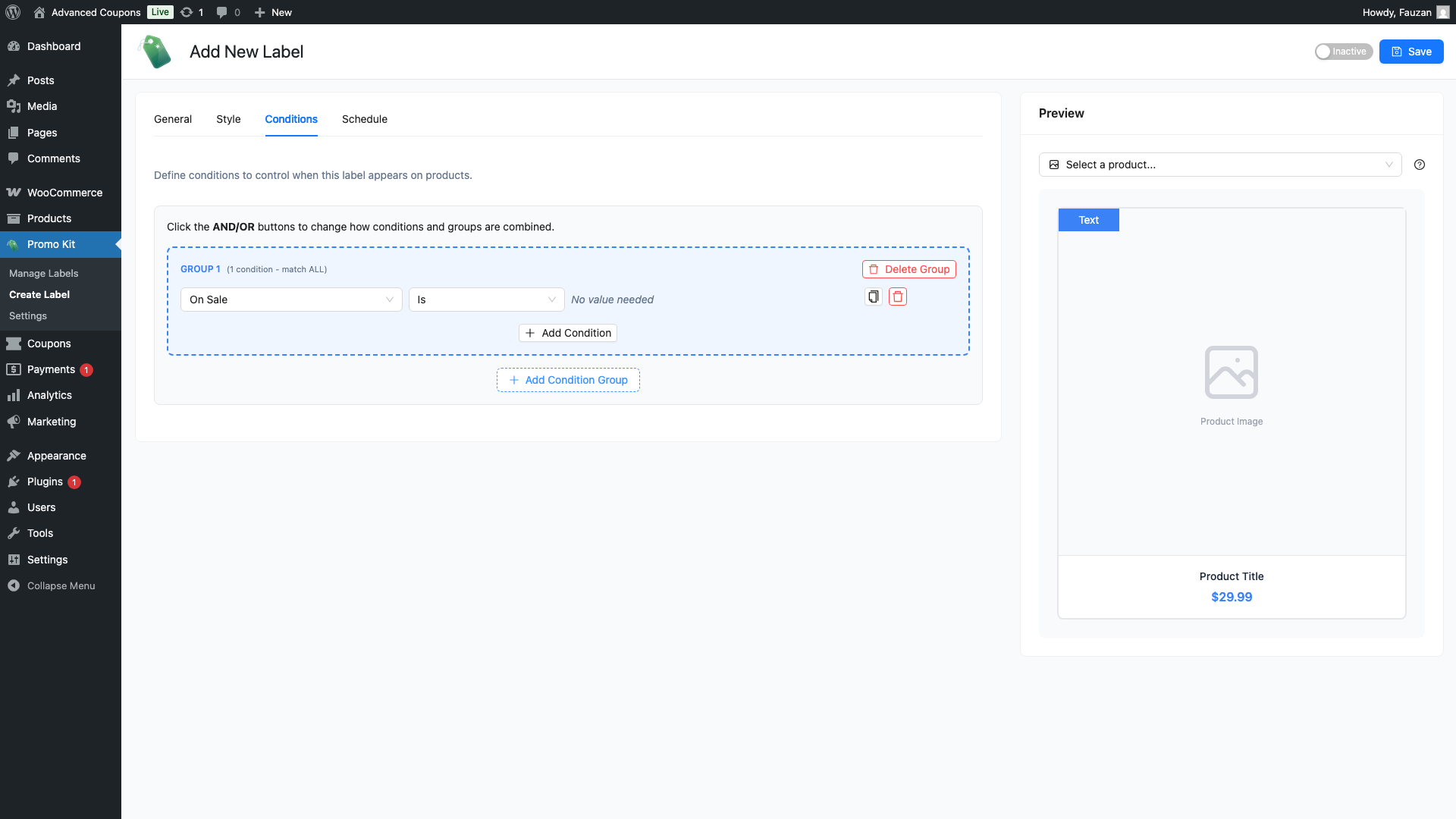
After selecting a condition type, choose an operator, then set the value:
- Boolean conditions (On Sale, Featured Product, In Stock, Out of Stock, On Backorder, New Arrival) — no value field appears; just choose Is or Is Not
- Multi-select conditions (Product Category, Product Tag, Product Type, Specific Products, User Role) — a searchable dropdown appears; select one or more options
- Numeric conditions (Price Range, Stock Quantity, Discount Percentage) — enter a number in the value field
Note: The User Role condition includes a Guest option — select it to target visitors who are not logged in to any account.
Step 3: Add Multiple Conditions in a Group
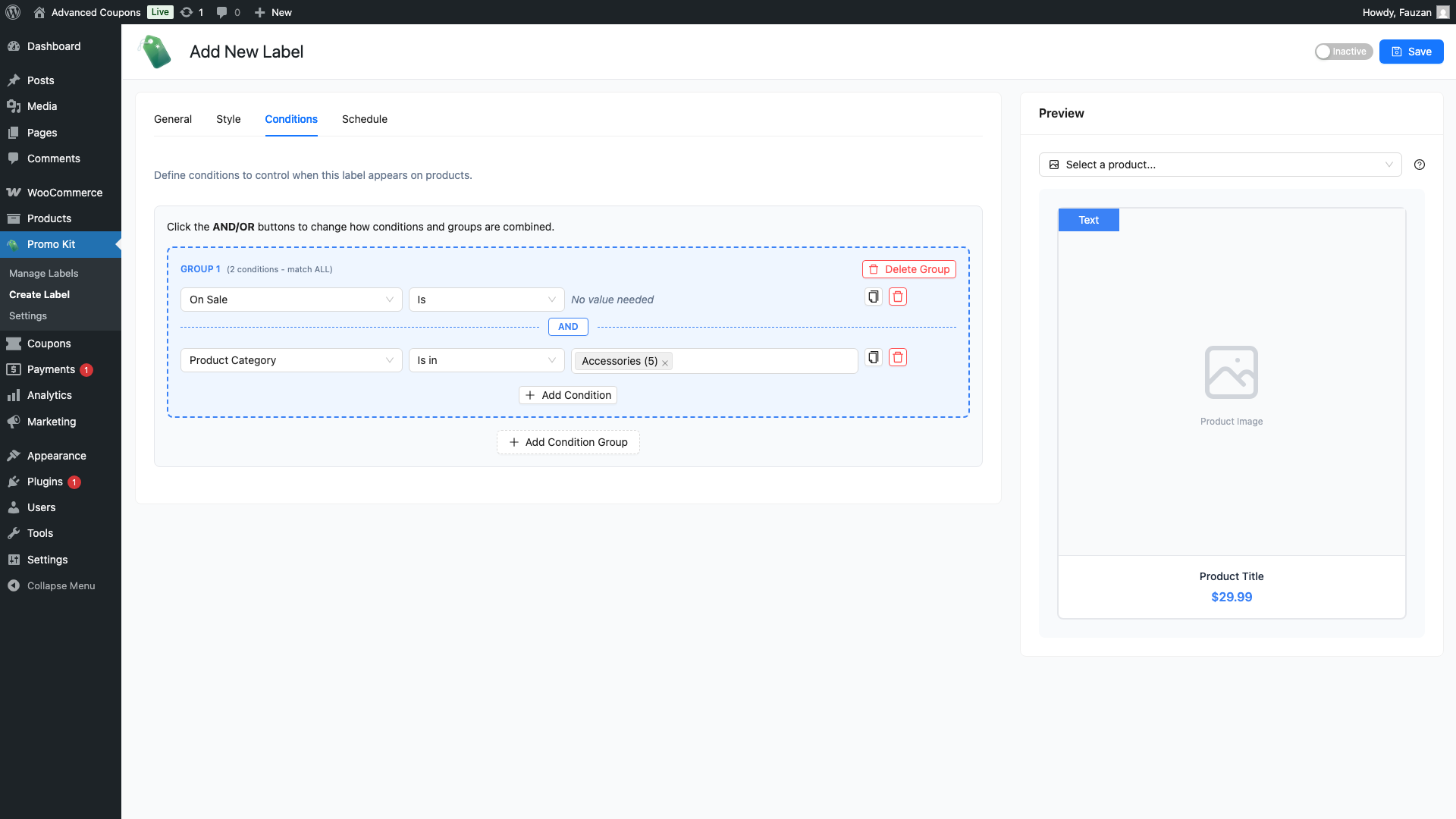
Click Add Condition again to add a second condition to the same group. When two or more conditions exist in a group, a logic connector appears between them — either AND or OR.
- AND — the product must match both conditions for the label to appear
- OR — the product only needs to match either condition for the label to appear
The connector defaults to AND. Click it to toggle to OR, and click it again to switch back.
Example: Product Category → In → Hoodies AND On Sale → Is — the label appears only on hoodies that are currently on sale.
Step 4: Add a Second Condition Group
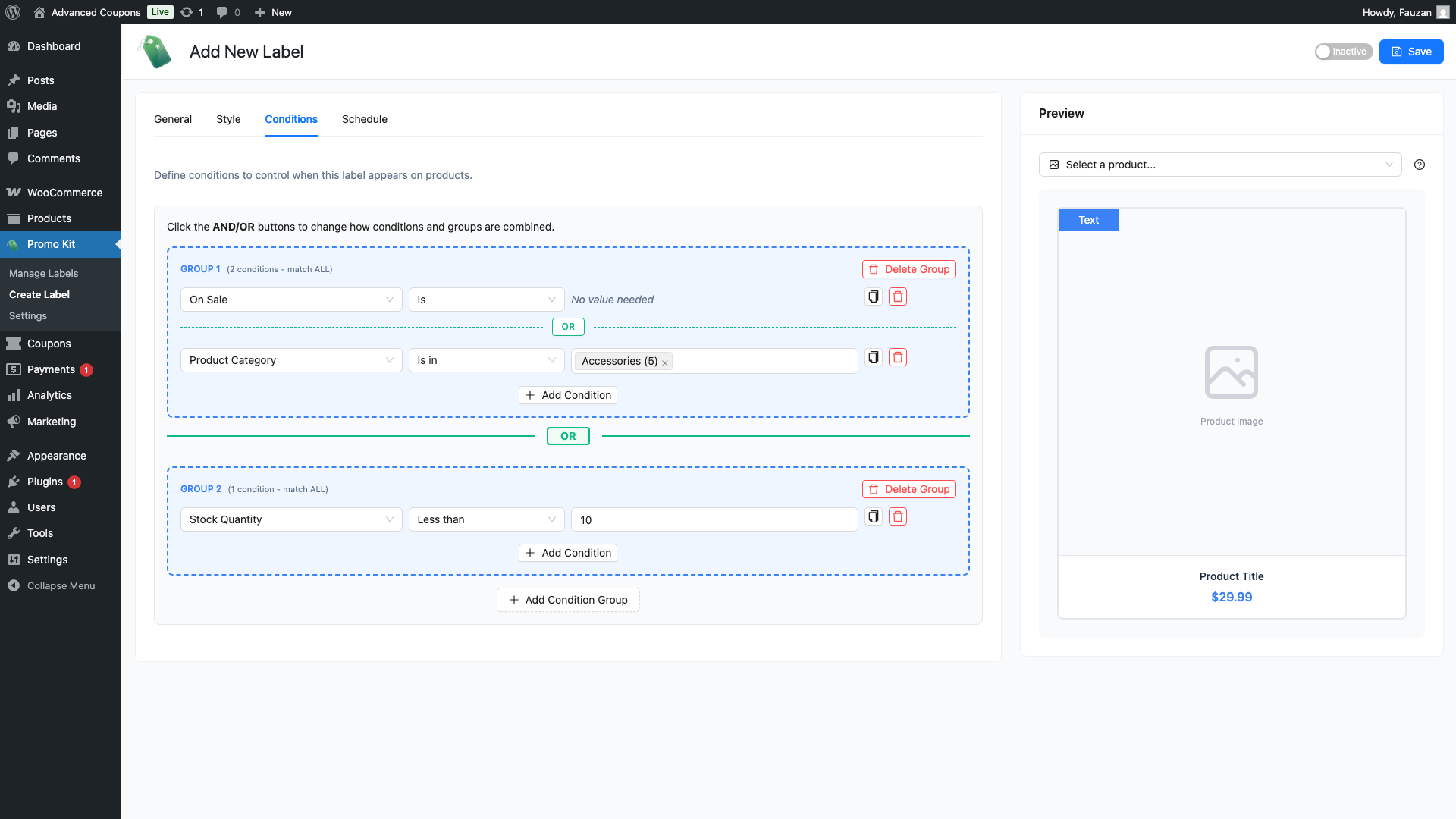
Click Add Group to create a second condition group. Groups are visually separated by a blue dashed border. You can add multiple conditions inside each group.
Between groups, there is another logic connector — also AND or OR — which you toggle by clicking it.
- AND between groups — the product must satisfy conditions in both groups
- OR between groups — the product only needs to satisfy conditions in either group
Use multiple groups when your targeting logic needs to branch. For example:
- Group 1: Product Category → In → Apparel
- OR
- Group 2: Product Tag → In → Summer
This label appears on any product in the Apparel category, or any product tagged “Summer” — regardless of category.
Step 5: Save the Label
Once you’ve configured your conditions, click Save Label. The label is now active and will only appear on products that match your conditions.
If you are editing an existing label, the updated conditions take effect immediately after saving.
Practical Examples
Here are common condition setups you can replicate in minutes:
Show a “SALE” badge on all sale products
- Condition: On Sale → Is
Show a “LOW STOCK” badge when fewer than 5 units remain
- Condition: Stock Quantity → < → 5
Show a “NEW” badge on recently published products
- Condition: New Arrival → Is
Show a “BIG DEAL” badge when discount exceeds 30%
- Condition: Discount Percentage → > → 30
Show a members-only badge to users with a specific role
- Condition: User Role → In → [your role name]
Show a badge on sale products in a specific category
- Group 1: On Sale → Is AND Product Category → In → [your category]
What Happens When No Conditions Are Set
If you save a label with the Conditions tab empty, it will appear on every product in your store. This is intentional — it is the right choice for universal labels like “Free Shipping” or “Handmade” that apply to your entire catalogue.
To restrict display on individual products regardless of global conditions, use the Advanced Promo Kit panel on the product edit screen. You can assign product-specific labels there, or enable Exclude Global Labels to prevent any global label from appearing on that product.
Frequently Asked Questions
Can I mix AND and OR within the same condition group?
No. Each group uses a single logic connector (AND or OR) that applies between all conditions in that group. To mix logic, create multiple groups — set the logic connector inside one group to AND, and connect the groups to each other using OR.
How is Discount Percentage calculated?
It compares the product’s current price to its regular price. For example, a product with a regular price of $100 and a sale price of $70 has a 30% discount. This condition is most useful when combined with On Sale → Is to target products that are actively discounted.
If I set User Role → In → Guest, will the label also show to logged-in users?
No. “Guest” targets only visitors who are not logged in. To show a label to both guests and a specific role, add two conditions in the same group joined by OR — one for Guest and one for the role.
What happens if multiple active labels match the same product?
All matching labels are displayed, up to the Max Labels Per Product limit in Promo Kit → Settings (default: 3). To control which labels appear first, reorder them on the Manage Labels screen — labels higher in the list take priority.
Need Help?
If you have a question or run into any issues, we’re here to help.
- Premium users: Open a support ticket
- Free users: Visit our community forum

