
If you run promotions using Advanced Coupons for WooCommerce, you can pull the discount details of any coupon directly into a product label — automatically. This means a label can show text like 25% Off, $10 Off, Buy 2 Get 1 Free, or 15% Cashback based on the actual coupon you configure, with no manual text updates needed when the discount changes.
This guide walks you through enabling the integration, inserting a coupon placeholder into your label text, and understanding what each coupon type displays.
Requirements
- Advanced Promo Kit — installed and activated
- Advanced Coupons for WooCommerce Advanced Coupons for WooCommerce (free or premium) — installed and activated. The integration toggle will be greyed out if this plugin is not active.
- At least one coupon created in Coupons → All Coupons
Step 1: Enable the Advanced Coupons Integration
- In your WordPress admin, go to Promo Kit → Settings Advanced Promo Kit Settings Reference.
- Click the Integrations tab.
- Find the Advanced Coupons for WooCommerce row and toggle it on.
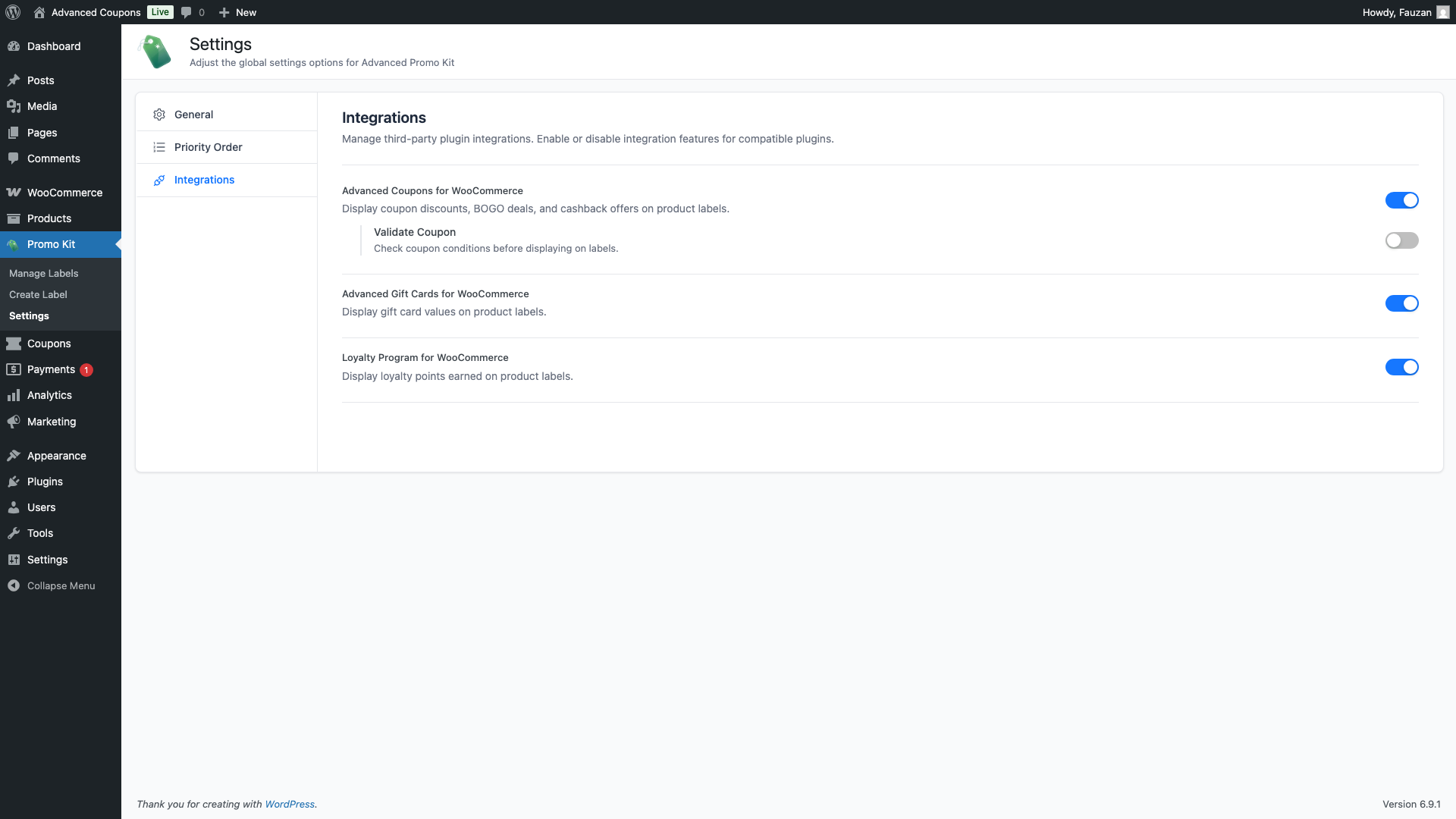
Once enabled, a Validate Coupon sub-option appears. This is off by default — see the Validate Coupon option section below for details on when to use it.
Step 2: Insert a Coupon Placeholder into a Label
With the integration enabled, a coupon search input appears in the Variables panel whenever you create or edit a label.
- Go to Promo Kit → Create Label (or edit an existing label).
- On the General tab, look for the Variables panel on the right side of the badge text field.
- Scroll to the Advanced Coupons for WooCommerce section within Variables.
- Type at least two characters of a coupon code into the search box — for example, type sum to find a coupon called SUMMER25. Select it from the dropdown.
- Click Insert. The placeholder
{ac_coupon-SUMMER25}is inserted into your badge text at the cursor position. - Build your full label text around it — for example: Save {ac_coupon-SUMMER25} Today.
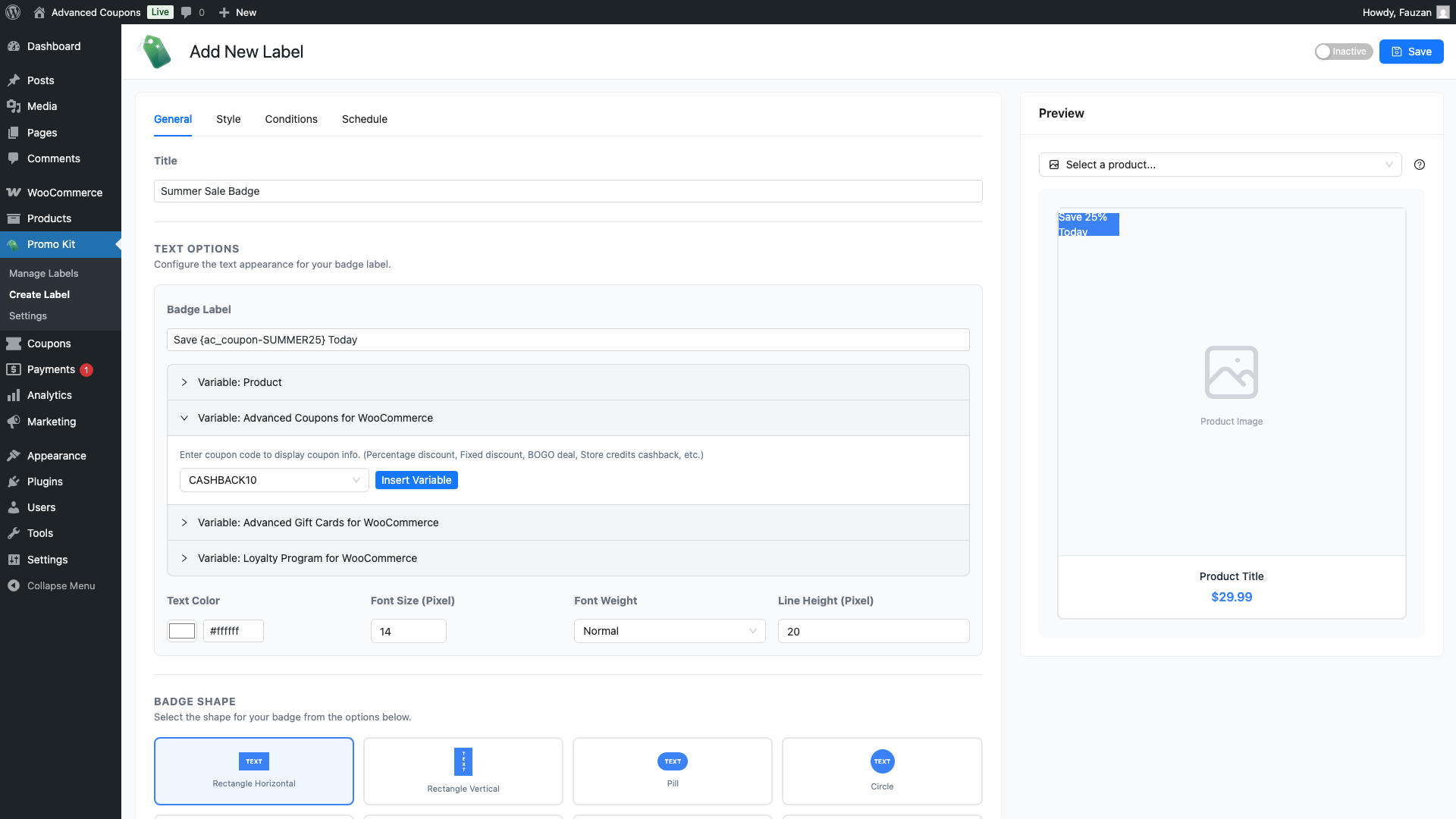
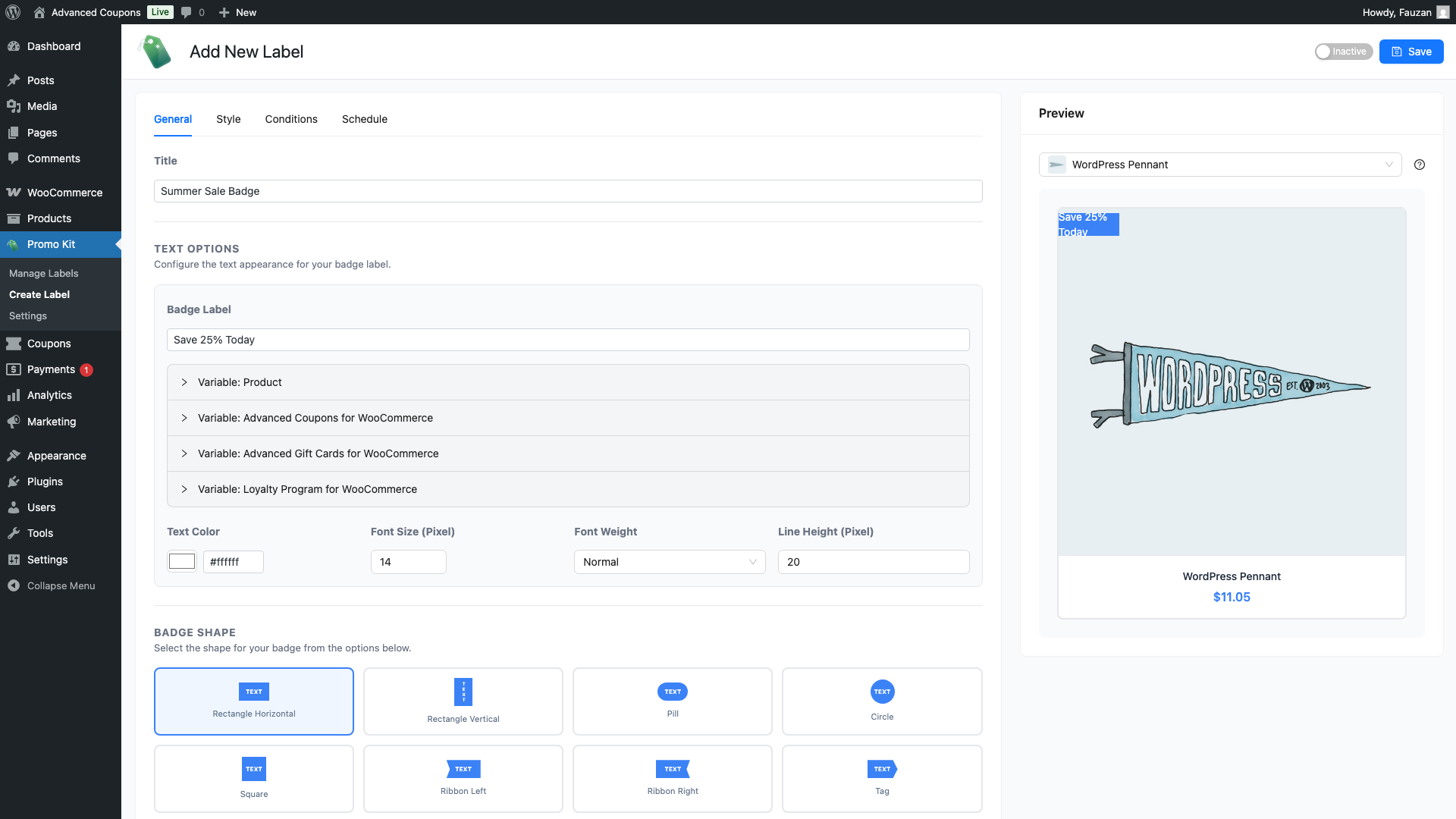
The live preview on the right updates immediately to show the resolved discount text — for example, Save 25% Today — so you can see exactly how the label will look on your shop before saving.
What Each Coupon Type Displays
The text that appears on the label depends on the coupon’s discount type in Advanced Coupons. Here is a reference for each type:
| Coupon Type | Example Coupon Value | Text Displayed on Label |
|---|---|---|
| Percentage discount | 25% | 25% |
| Fixed cart discount | $10 off cart | $10.00 |
| Fixed product discount | $5 off specific products | $5.00 (only shows on products the coupon applies to) |
| BOGO deal (free) | Buy 2, get 1 free | Buy 2 Get 1 Free |
| BOGO deal (partial discount) | Buy 2, get 1 at 50% off | Buy 2 Get 1 at 50% off |
| Store credits — percentage cashback | 15% cashback | 15% Cashback |
| Store credits — fixed cashback | $10 cashback | $10.00 Cashback |
Note on fixed product discounts: If the coupon is restricted to specific products or categories, the label will only show on products where the coupon actually applies. On all other products, the placeholder resolves to empty text and the label is hidden.
Note on BOGO deals: The label only shows on products that appear in the BOGO deal’s “buy” conditions. Products configured as “get” items (but not “buy” items) will not show the label.
The Validate Coupon Option
When Validate Coupon is turned on, Advanced Promo Kit checks that the coupon is valid and not expired before displaying the label. If the coupon fails validation, the placeholder resolves to empty text and the label is hidden from that product.
This option is off by default. Here is when to consider turning it on:
- Turn it on if your coupons have expiry dates and you want labels to disappear automatically when a promotion ends — without manually disabling the label.
- Leave it off if you want the label to always show the discount info regardless of whether the coupon is currently usable. This is the better choice for evergreen promotions where the coupon is always active.
Practical Examples
Example 1: Percentage Discount Badge
You have a coupon SAVE25 offering 25% off. In your label text, enter:
{ac_coupon-SAVE25} Off
On the shop page, this displays as: 25% Off
Example 2: BOGO Deal Badge
You have a BOGO coupon BOGODEAL set to “Buy 1 Get 1 Free”. In your label text, enter:
Deal: {ac_coupon-BOGODEAL}
On the shop page, this displays as: Deal: Buy 1 Get 1 Free
Example 3: Store Credits Cashback Badge
You have a store credits coupon CASHBACK10 offering $10 cashback. In your label text, enter:
Earn {ac_coupon-CASHBACK10}
On the shop page, this displays as: Earn $10.00 Cashback
Frequently Asked Questions
The integration toggle is greyed out — what does that mean?
It means Advanced Coupons for WooCommerce is not currently installed or activated on your site. Install and activate the plugin first, then return to Promo Kit → Settings → Integrations to enable the toggle.
Can I use multiple coupon placeholders in a single label?
Yes. You can insert multiple {ac_coupon-CODE} placeholders into one label’s text — for example, Save {ac_coupon-SAVE10} or get {ac_coupon-BOGODEAL}. Each placeholder is resolved independently. If any one of them resolves to empty text (e.g. the coupon doesn’t apply to that product), the entire label is hidden for that product.
Will the label show on every product, or only products the coupon applies to?
It depends on the coupon type. Percentage and fixed cart coupons are not product-specific, so the label shows on every product the label’s conditions match. Fixed product discounts and BOGO deals are product-specific — the label only shows on products the coupon actually applies to.
What happens when a coupon expires?
By default (with Validate Coupon off), the label continues to show the discount text even after the coupon expires. Turn on Validate Coupon in the integration settings to make the label automatically disappear once the coupon has expired.
Need Help?
If you have a question or run into any issues, we’re here to help.
- Premium users: Open a support ticket
- Free users: Visit our community forum

