

Loyaliteitspunten kunnen gemakkelijk verdiend worden en net zo gemakkelijk door klanten vergeten worden. Zelfs wanneer shoppers genoeg punten hebben om in te wisselen, kan de extra stap om ze om te zetten in winkelkrediet vertragen wanneer ze de beloning ontvangen.
Advanced Loyalty Program biedt winkel-eigenaren nu een extra optie. Met versie 1.9.3 kunt u uw winkel instellen om loyaliteitspunten automatisch in te wisselen als winkelkrediet wanneer het beschikbare saldo van een klant een door u gekozen drempelwaarde bereikt. U kunt het volledige saldo omzetten of elke automatische inwisseling beperken tot uw bestaande maximum.
Laten we kijken hoe automatische inwisseling werkt, waar u de instellingen kunt vinden en hoe de nieuwe shortcodes klanten helpen de punten die ze hebben verdiend te controleren.
Wat automatische loyaliteitspunteninwisseling doet
Automatische inwisseling controleert het beschikbare puntenaldo van een klant telkens wanneer ze punten verdienen. Zodra het saldo uw drempelwaarde bereikt, converteert de plugin het in aanmerking komende bedrag naar winkelkrediet op basis van de door u geselecteerde optie.
Dit regelt de functie:
- Het wordt geactiveerd op verdiende punten: wanneer een klant punten verdient en hun beschikbare saldo uw drempelwaarde bereikt, wordt de inwisseling automatisch uitgevoerd. Punten die nog in een wachtende of openstaande staat zijn, tellen niet mee totdat ze zijn goedgekeurd.
- Het converteert punten naar winkelkrediet: de punten van de klant worden Advanced Coupons winkelkrediet, dat ze bij het afrekenen van een toekomstige bestelling kunnen toepassen.
- U bepaalt hoeveel er wordt geconverteerd: u bepaalt de puntdrempel die het activeert en of het volledige saldo wordt geconverteerd of slechts een beperkt bedrag.
Automatische inwisseling werkt met de Store Credit-functie in Advanced Coupons. Advanced Loyalty Program en Advanced Coupons moeten beide actief zijn, met Store Credit ingeschakeld, om de conversie te laten plaatsvinden. U kunt ook loyaliteitspunten handmatig naar winkelkrediet converteren wanneer u meer controle nodig heeft.
Hoe loyaliteitspunten automatisch als winkelkrediet in te wisselen
U kunt automatische inwisseling configureren in uw Advanced Loyalty Program-instellingen. Volg deze stappen in volgorde.
Voordat u begint
Zorg ervoor dat beide van de volgende voorwaarden waar zijn:
- Advanced Loyalty Program versie 1.9.3 of nieuwer is geïnstalleerd en actief.
- Advanced Coupons is actief met de Store Credit-module ingeschakeld. Automatische inwisseling gebruikt Store Credit bij het converteren van de punten van de klant.
Stap 1: Open de instellingen voor Inwisseling & Vervaldatum
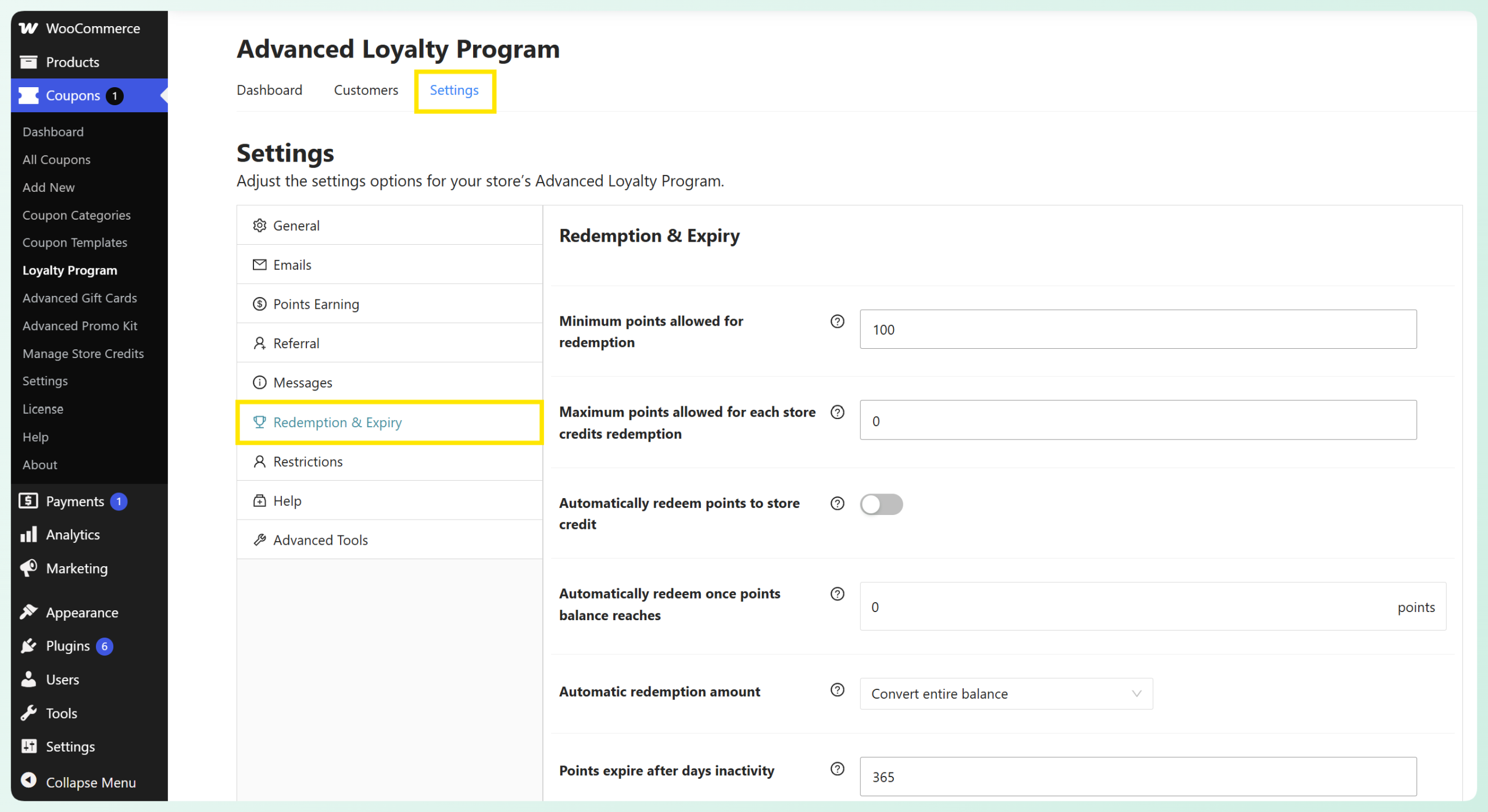
Ga vanaf uw WordPress-dashboard naar Coupons > Loyalty Program > Instellingen en klik vervolgens op het tabblad Inwisseling & Vervaldatum. Hier vindt u de inwisselingslimieten, vervalopties en instellingen voor automatische inwisseling.
Stap 2: Controleer eerst uw inwisselingsregels
Voordat u automatische inwisseling inschakelt, controleert u de bestaande inwisselingslimieten in dit gedeelte:
- Minimaal toegestane punten voor inwisseling: het laagste aantal punten dat is toegestaan bij een inwisseling.
- Maximaal toegestane punten voor elke winkelkredietinwisseling: het hoogste aantal punten dat in één inwisseling kan worden geconverteerd. Automatische inwisseling gebruikt deze waarde wanneer u Converteer tot maximaal limiet kiest in Stap 4.
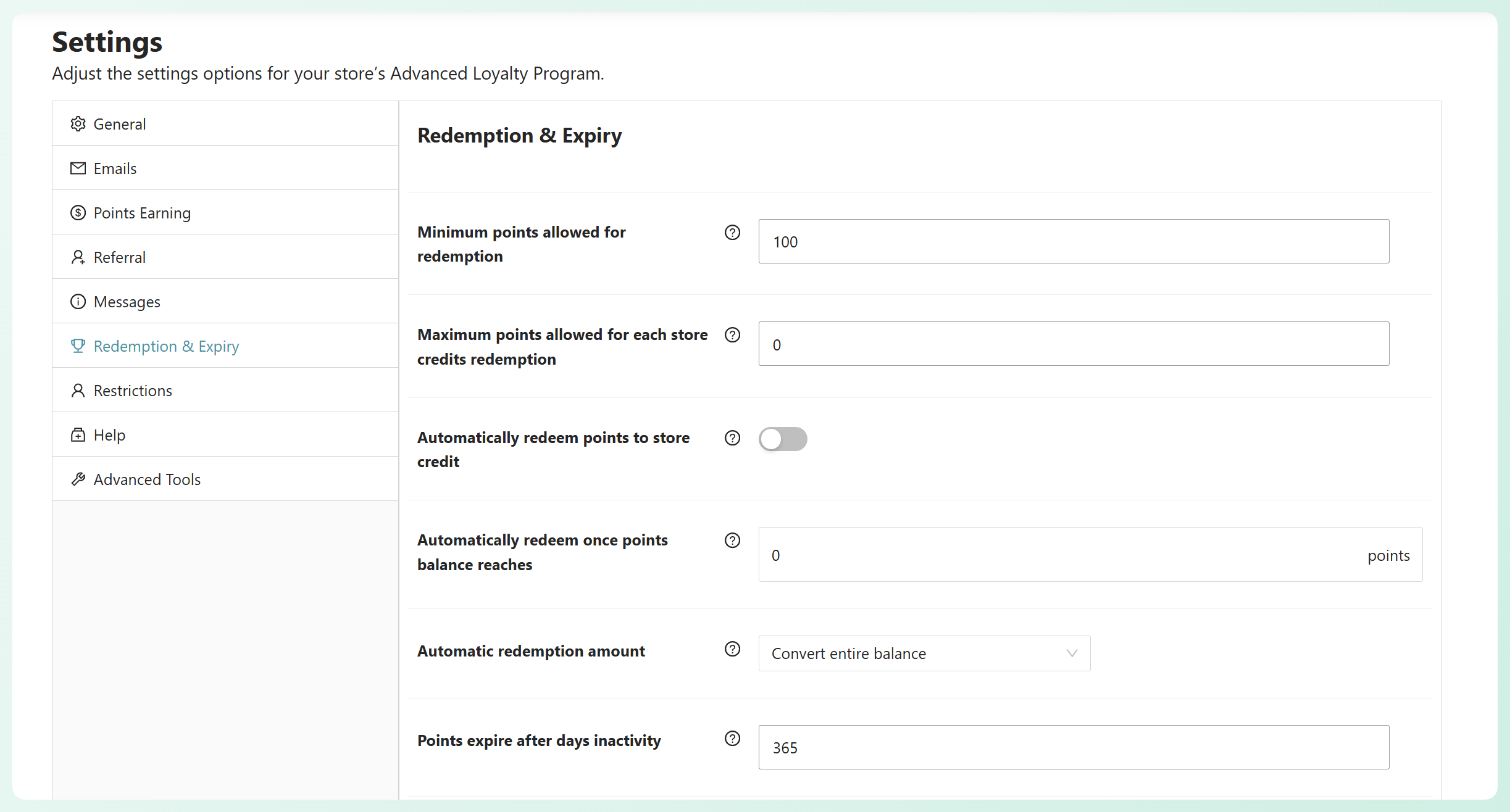
U stelt de aparte saldolimiet in die automatische inwisseling activeert in Stap 3.
Stap 3: Schakel automatische inwisseling in en stel de puntdrempel in
Zoek de instelling met het label Automatisch punten inwisselen voor winkelkrediet en schakel deze in. Wanneer deze is aangevinkt, worden de punten van een klant automatisch als winkelkrediet ingewisseld zodra hun saldo de drempelwaarde bereikt die u vervolgens instelt.
Voer in het veld met het label Automatisch inwisselen zodra het puntenaantal bereikt uw drempelwaarde voor punten in. Zodra het beschikbare saldo van een klant dit bedrag bereikt, wordt de automatische inwisseling uitgevoerd op basis van de optie die u in Stap 4 kiest. Als u bijvoorbeeld de drempelwaarde op 50 instelt, wordt de conversie uitgevoerd wanneer de klant 50 beschikbare punten bereikt.
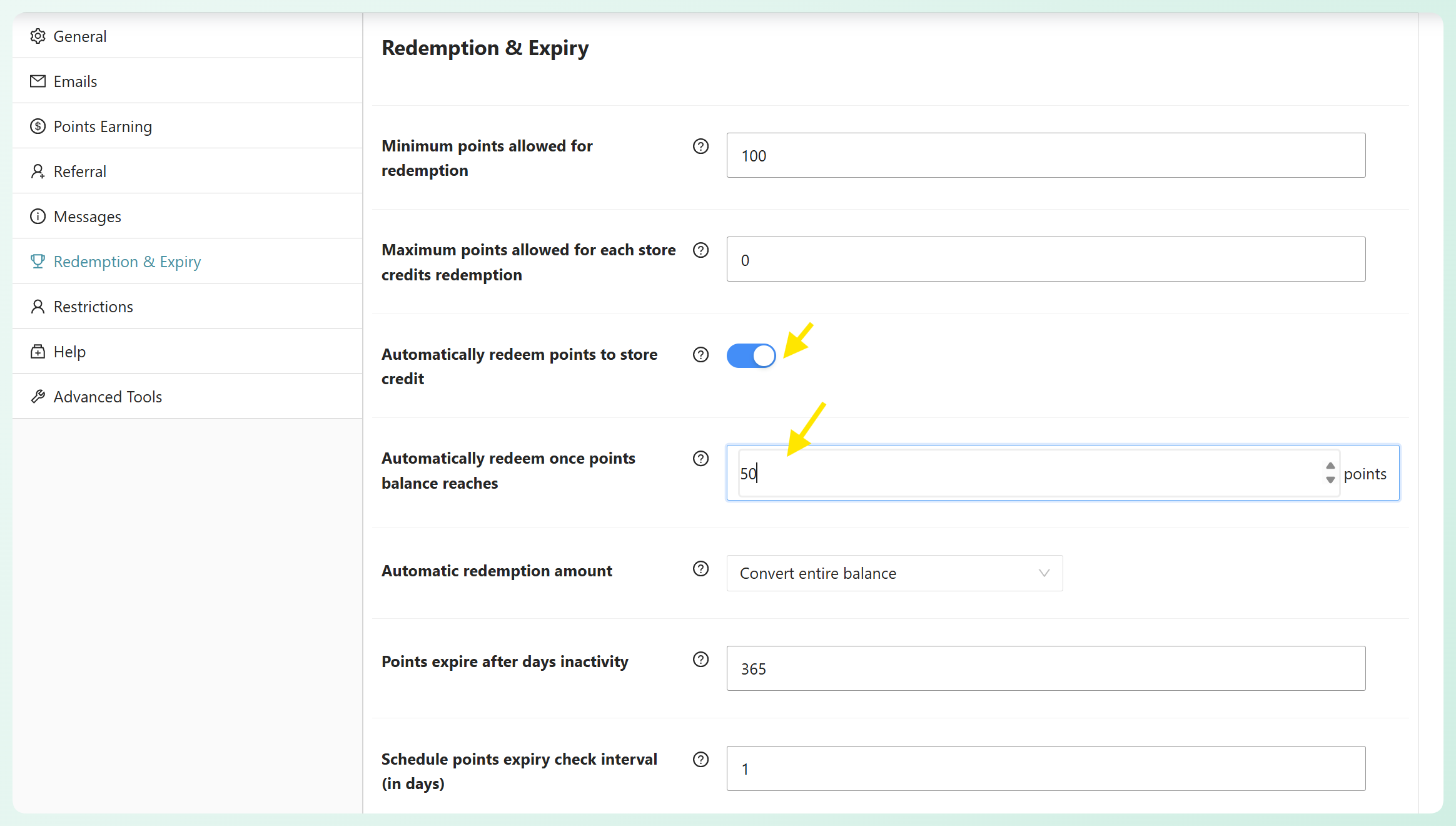
Laat dit op 0 staan als u de automatische inwisseling ooit wilt pauzeren zonder uw andere instellingen te wijzigen.
Stap 4: Kies hoeveel u wilt converteren
Gebruik de instelling Automatisch inwisselbedrag om te kiezen hoeveel punten elke keer worden geconverteerd wanneer de automatische inwisseling wordt uitgevoerd:
- Volledige saldo converteren: converteert alle beschikbare punten van de klant, zelfs als het saldo hoger is dan uw maximale punten per inwisseling. Kies deze optie als u wilt dat het volledige saldo in één keer wordt geconverteerd.
- Converteren tot maximumlimiet: converteert slechts tot de waarde van Maximale punten toegestaan voor elke winkelkredietinwisseling. Resterende punten blijven op de account van de klant staan voor een toekomstige inwisseling.
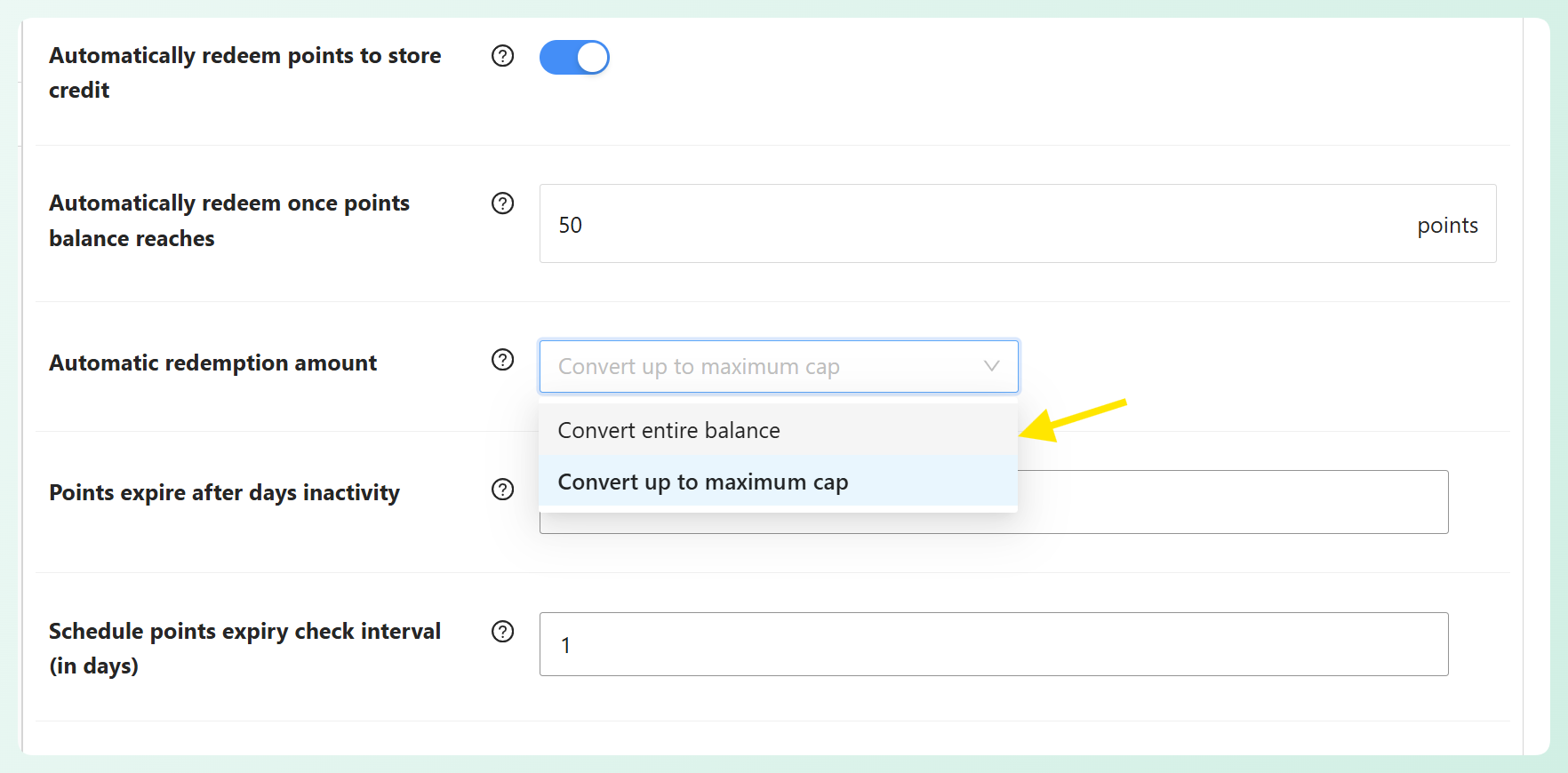
Uw wijzigingen worden automatisch opgeslagen terwijl u de instellingen bijwerkt. Telkens wanneer een klant punten verdient en uw drempelwaarde bereikt, converteert Advanced Loyalty Program het in aanmerking komende bedrag naar winkelkrediet op basis van de door u geselecteerde optie.
Waarom loyaliteitspunten automatisch omzetten in winkelkrediet
Het belangrijkste voordeel is simpel: klanten hoeven geen aparte inwisselingsstap meer te voltooien zodra hun beschikbare saldo uw drempelwaarde bereikt. U bepaalt nog steeds wanneer de conversie plaatsvindt en hoeveel er wordt geconverteerd.
Het verwijdert een extra inwisselingsstap
Klanten kunnen hun punten nog steeds handmatig inwisselen, maar automatische inwisseling biedt u een andere optie voor in aanmerking komende saldi. Zodra de drempelwaarde is bereikt, converteert Advanced Loyalty Program de punten volgens de door u geselecteerde bedraginstelling.
Het maakt de beloningswaarde gemakkelijker te herkennen
Punten kunnen abstract aanvoelen totdat klanten zien wat ze waard zijn. Door ze om te zetten in winkelkrediet, krijgen shoppers een duidelijk saldo dat ze bij het afrekenen van een toekomstige bestelling kunnen toepassen.
🎯 POWER TIP: Voeg de nieuwe punten shortcodes toe aan een beloningspagina, zodat ingelogde klanten hun beschikbare punten en huidige waarde kunnen controleren terwijl ze werken aan uw automatische inwisselingsdrempel.
Het geeft u controle over het conversiebedrag
U kunt het volledige beschikbare saldo van de klant converteren of uw maximale inwisselingslimiet gebruiken om elke automatische conversie te beperken. Dit maakt het gemakkelijker om de functie af te stemmen op de manier waarop uw loyaliteitsprogramma is gestructureerd.
Het vermindert routine administratieve inwisselingen
Winkel eigenaren kunnen nog steeds punten voor een klant inwisselen vanuit het dashboard wanneer nodig. Voor routine saldi die uw gekozen drempelwaarde bereiken, kan automatische inwisseling de conversie afhandelen zonder telkens dezelfde handmatige stap te vereisen.
Ook nieuw: Toon klantpunten met shortcodes
Versie 1.9.3 voegt ook twee shortcodes toe die je kunt gebruiken op pagina's of in andere gebieden die WordPress shortcodes ondersteunen:
[lpfw_customer_points]toont het beschikbare puntenaantal van de ingelogde klant.[lpfw_customer_points_worth]toont de waarde van die punten in de valuta van je winkel.
Je kunt ze bijvoorbeeld toevoegen aan een beloningspagina of een ander klantgericht gebied waar ingelogde shoppers hun beschikbare punten en huidige waarde kunnen controleren terwijl hun beloningen worden opgebouwd.
Veelgestelde Vragen
Heb ik Advanced Coupons nodig om automatische inwisseling te gebruiken?
Ja. Advanced Loyalty Program gebruikt de Store Credit-module van de Advanced Coupons-plugin wanneer punten worden ingewisseld. Beide plugins moeten actief zijn en Store Credit moet zijn ingeschakeld om automatische inwisseling te laten werken.
Hoe verschilt dit van het handmatig omzetten van punten naar winkelkrediet?
De handmatige methode laat jou of je klant kiezen wanneer punten moeten worden geconverteerd. Automatische inwisseling verwerkt de conversie zodra het beschikbare saldo van de klant je drempelwaarde bereikt. Als je liever de controle behoudt, blijft de handmatige conversiemethode beschikbaar, en je kunt beide opties gebruiken.
Welke punten tellen mee voor de drempelwaarde?
Automatische inwisseling kijkt naar het beschikbare puntenaldo van een klant. Punten die nog in behandeling zijn of in een wachttijd zitten, tellen niet mee totdat ze zijn goedgekeurd en aan dat saldo zijn toegevoegd. Zodra het beschikbare saldo uw drempelwaarde bereikt, vindt de inwisseling plaats.
Kunnen klanten hun punten nog steeds handmatig inwisselen?
Ja. Het inschakelen van automatische inwisseling verwijdert de handmatige inwisseling niet. Klanten kunnen nog steeds zelf punten inwisselen, en u kunt nog steeds namens hen punten omzetten. Automatische inwisseling regelt simpelweg de saldi die uw drempelwaarde bereiken.
Hoe verschillen de opties 'Volledige saldo omzetten' en 'Omzetten tot maximale limiet'?
Volledige saldo converteren zet het volledige beschikbare puntenaantal van de klant om in winkelkrediet en negeert het maximum per inwisseling. Converteren tot maximumlimiet volgt dat maximum en laat eventuele resterende punten op de account van de klant staan.
Verandert automatische inwisseling de vervaldatum van punten?
Nee. Het inschakelen van automatische inwisseling verandert je puntenvervalinstellingen niet. Het converteert beschikbare punten wanneer de klant je drempelwaarde bereikt, terwijl het verval afzonderlijk wordt beheerd onder de instellingen voor Inwisseling & Verval.
Begin met het automatisch inwisselen van loyaliteitspunten
Automatische inwisseling neemt de noodzaak weg voor klanten om in aanmerking komende punten zelf om te zetten. Zodra hun beschikbare saldo je drempelwaarde bereikt, converteert Advanced Loyalty Program het in aanmerking komende bedrag naar winkelkrediet op basis van de door jou geselecteerde optie.
Hier lees je hoe je kunt beginnen:
- Bevestig dat de module Winkelkrediet in Advanced Coupons actief is.
- Open je instellingen voor Advanced Loyalty Program en ga naar het tabblad Inwisseling & Verval.
- Schakel Automatisch punten omzetten naar winkelkrediet in en stel je punten drempelwaarde in.
- Kies of je het volledige saldo wilt converteren of je maximale inwisselingslimiet wilt volgen.
- Voeg optioneel de nieuwe punten shortcodes toe aan een klantgerichte beloningspagina.
Klaar om je loyaliteitsbeloningen eenvoudiger te maken? Ontdek Advanced Loyalty Program en stel automatische inwisseling in voor je winkel.