
Sometimes you need a badge that appears on one product only — a “Limited Edition” banner on a single item, or a custom offer message that doesn’t apply anywhere else in your store. Advanced Promo Kit lets you create a product-specific label directly on the WooCommerce product edit screen, with no conditions to configure. This guide shows you where to find the label builder and how to use it.
Requirements
- Advanced Promo Kit Advanced Promo Kit installed and active
- WooCommerce installed and active
- An administrator or Shop Manager account
Step 1: Open the Product in WooCommerce
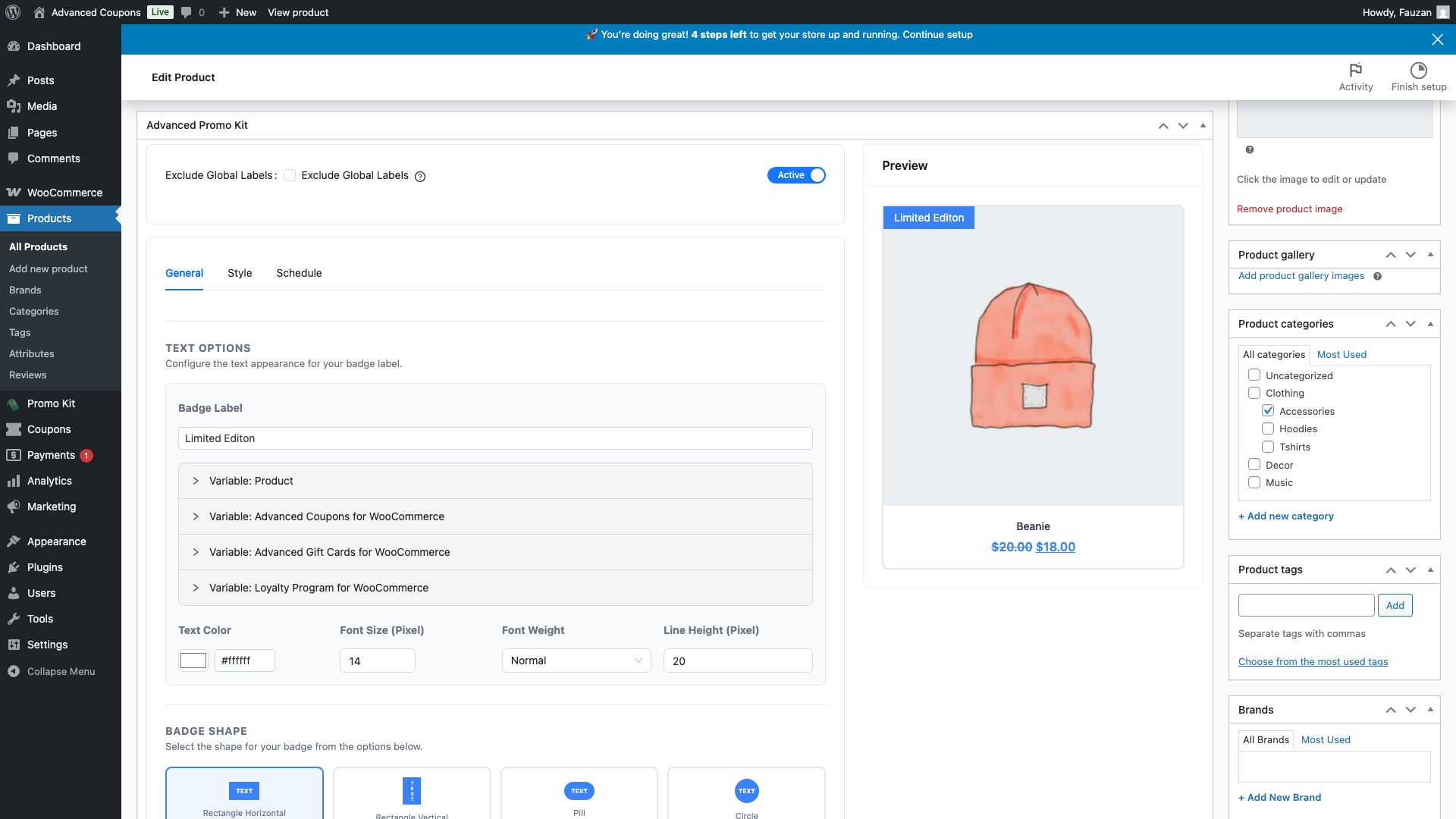
Go to Products → All Products and open the product you want to label. Scroll down past the product data tabs until you reach the Advanced Promo Kit metabox.
Step 2: Configure the Label
The label builder in the metabox works the same way as Promo Kit → Create Label How to Create Product Labels in Advanced Promo Kit. You get three tabs — General, Style, and Schedule — but no Conditions tab. You don’t need conditions here because this label is already tied to this one product.
In the General tab:
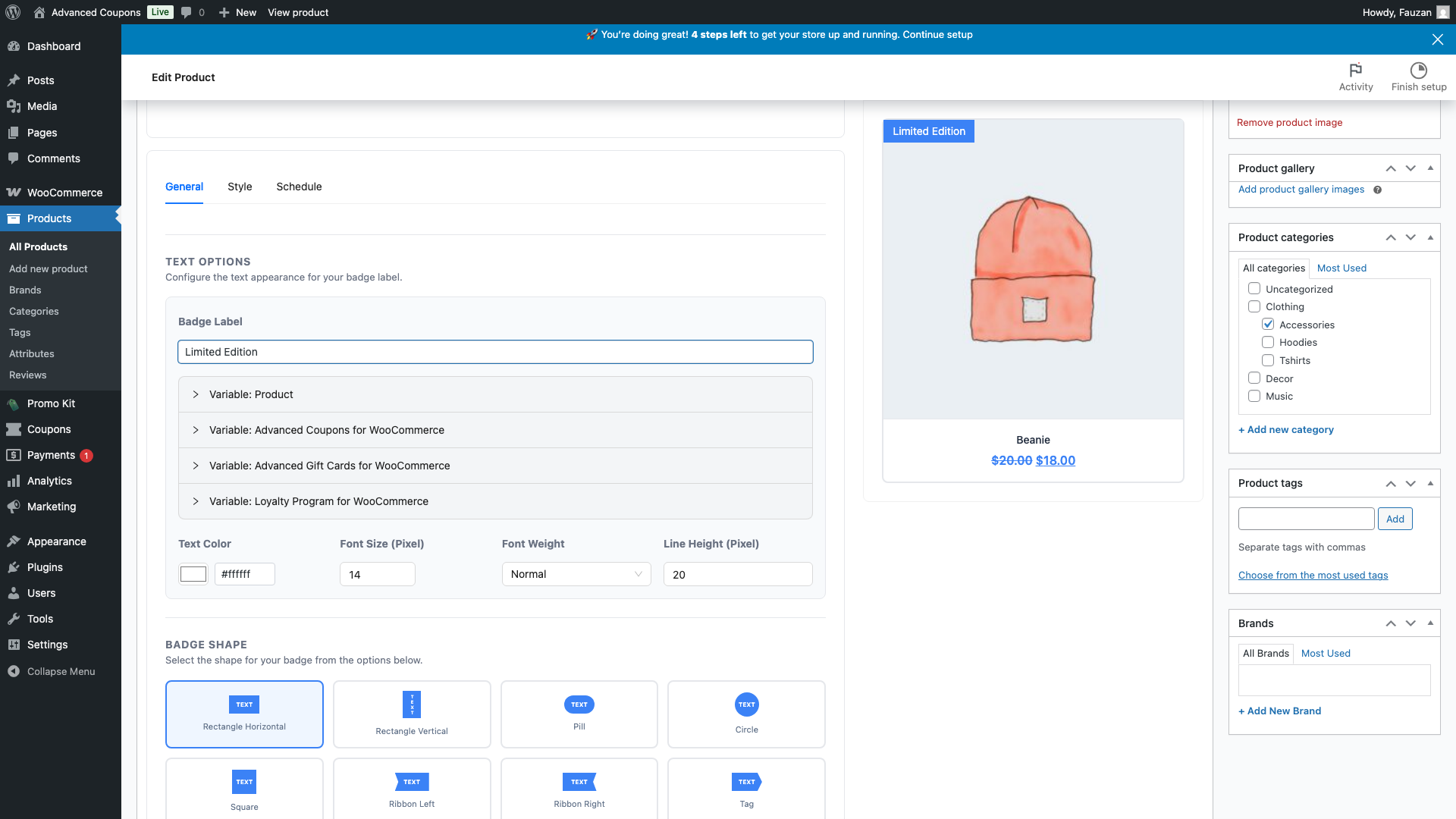
- Enter the badge text you want to display, for example Limited Edition
- Use the Variables panel to insert dynamic values like product price or sale amount
- The live preview on the right shows how your badge looks on this product’s actual image
Switch to the Style tab to choose a badge shape, colours, font, and other visual options. Switch to the Schedule tab if you want the badge to appear only during a specific date range.
Step 3: Set the Label Status
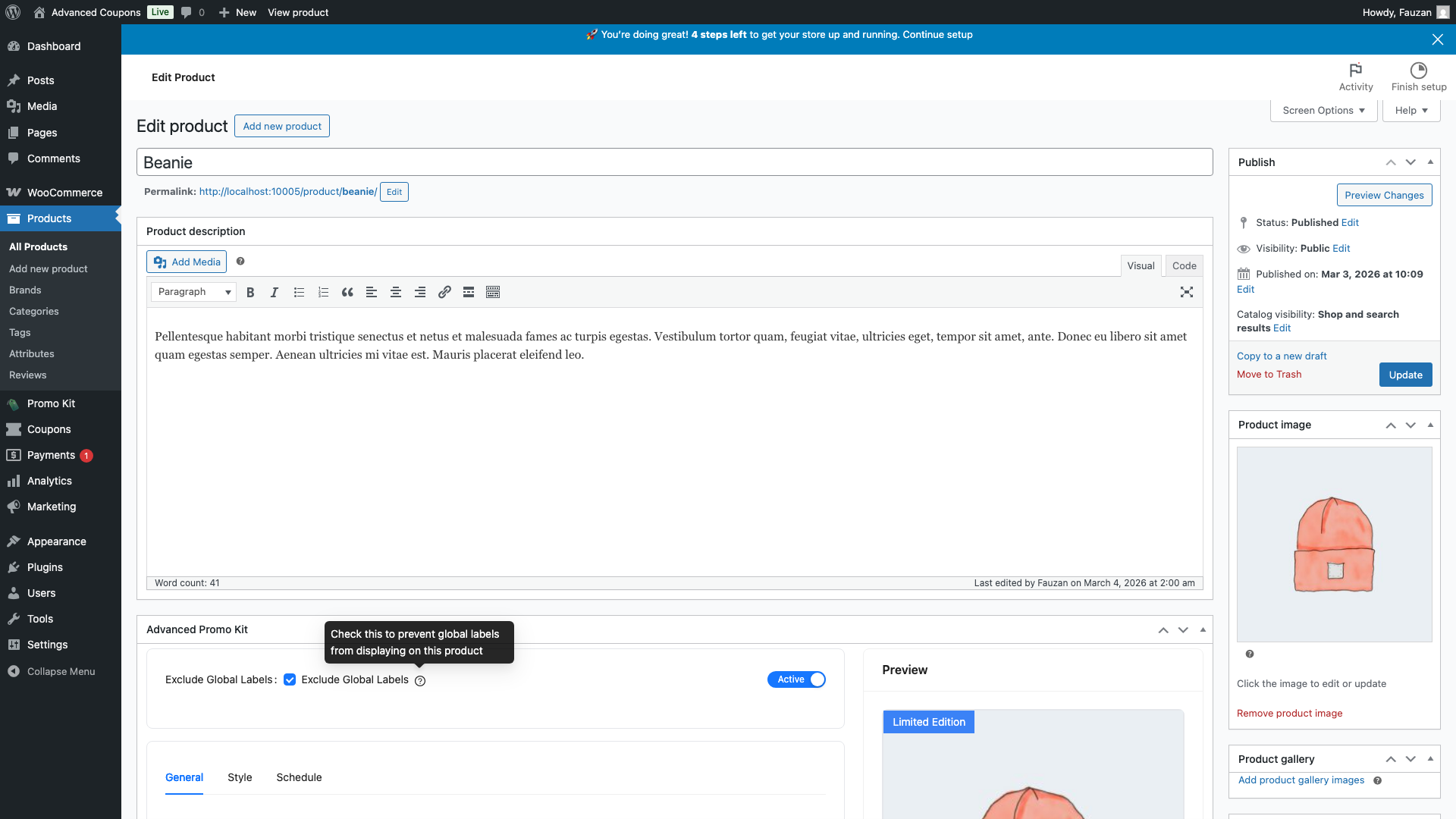
At the top of the metabox, use the Active / Inactive toggle to control whether the label shows on the frontend. Set it to Active to display the badge, or leave it Inactive to save the label without showing it yet.
Step 4: Choose Whether to Exclude Global Labels
The Exclude Global Labels checkbox controls whether global labels (created in Promo Kit → Create Label) also appear on this product alongside your product-specific label.
- Unchecked (default) — your product-specific label shows alongside any global labels that match this product
- Checked — only your product-specific label shows on this product; all global labels are suppressed, regardless of their conditions
Use “Exclude Global Labels” when a product needs a completely unique badge and you want to prevent any store-wide promotions from appearing on it.
Step 5: Save the Product
Click Update (or Publish if this is a new product) in the WordPress publish panel. The product-specific label is saved with the product — there is no separate Save button in the metabox.
Your badge now appears on that product’s listing on the shop page and on its single product page.
How Product-Specific Labels Relate to Global Labels
When a product has both a product-specific label and matching global labels, here is how they interact:
- The product-specific label always appears first — it has the highest display priority in Advanced Promo Kit
- Global labels then fill the remaining badge slots, up to the Max Labels Per Product limit in Promo Kit → Settings (default: 3)
- If Exclude Global Labels is checked, the product-specific label is the only one shown — no global labels appear on this product
- Only one product-specific label is supported per product
Frequently Asked Questions
Will the product-specific label show on both the shop page and the single product page?
Yes — by default it shows on both, just like global labels. You can turn off single product page display in Promo Kit → Settings using the Show on Product Page option.
What happens if I have multiple global labels that match this product?
The product-specific label always appears first. Global labels then fill the remaining spots up to the Max Labels Per Product limit. If that limit is 3 and you have a product-specific label, up to 2 global labels can also appear.
Can I use conditions on a product-specific label?
No. The Conditions tab is not available in the product metabox — it isn’t needed because the label is already scoped to one product. If you need condition-based display logic, use Promo Kit → Create Label to build a global label instead.
Need Help?
If you have a question or run into any issues, we’re here to help.
- Premium users: Open a support ticket
- Free users: Visit our community forum

