
Advanced Promo Kit lets you add eye-catching product labels — badges that sit directly on product images in your WooCommerce store. Labels are fully customisable: you choose the shape, text, colours, size, and position, and can optionally schedule them to appear only during a sale or campaign window. This article walks you through creating your first label from start to finish.
What You’ll Need
- WooCommerce installed and active
- Advanced Promo Kit installed and active Advanced Promo Kit
- At least one published WooCommerce product
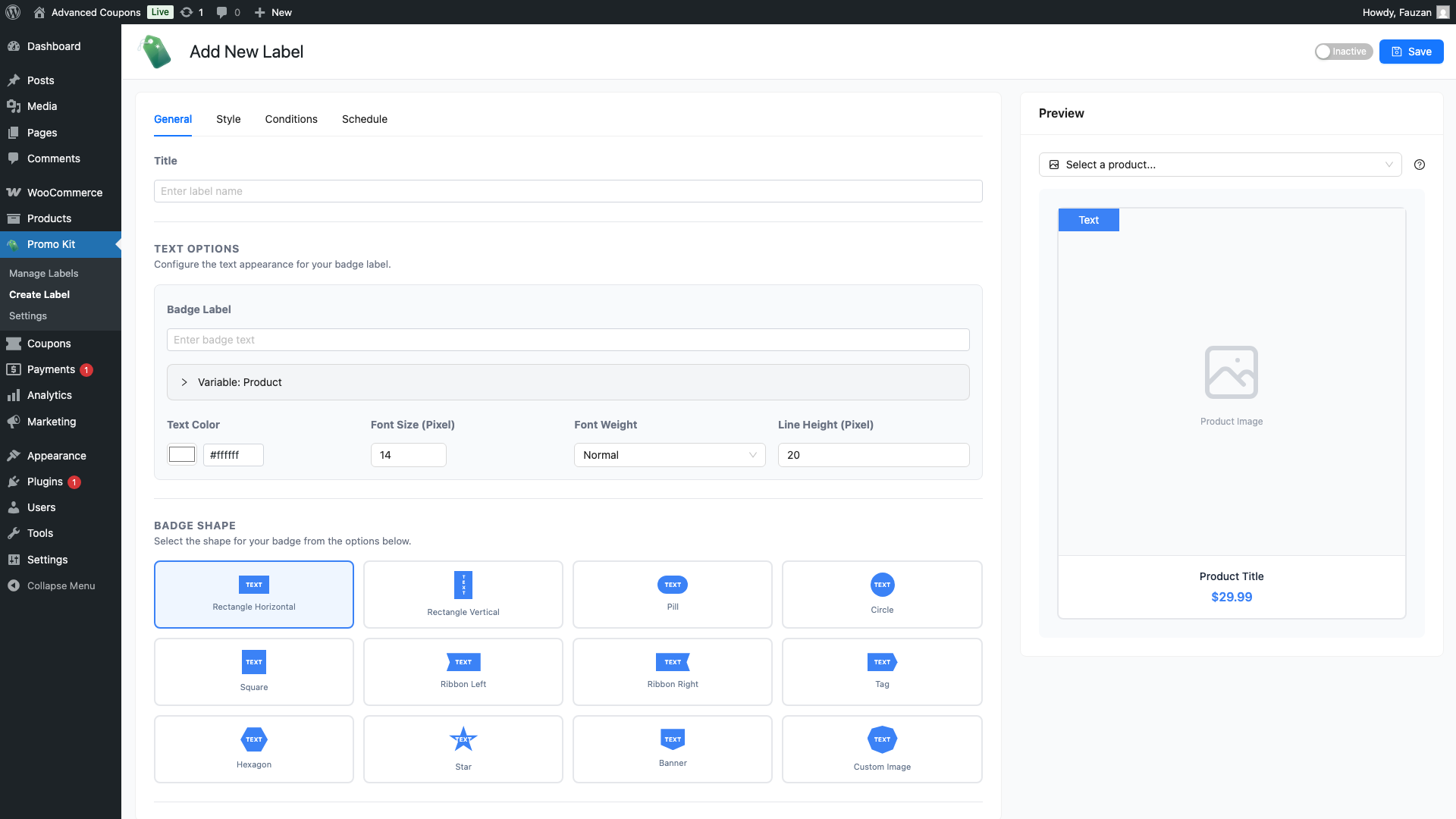
Step 1 — Open the Create Label Screen
In your WordPress dashboard, click Advanced Promo Kit in the left-hand menu, then click Create Label.
Step 2 — Fill In the General Tab
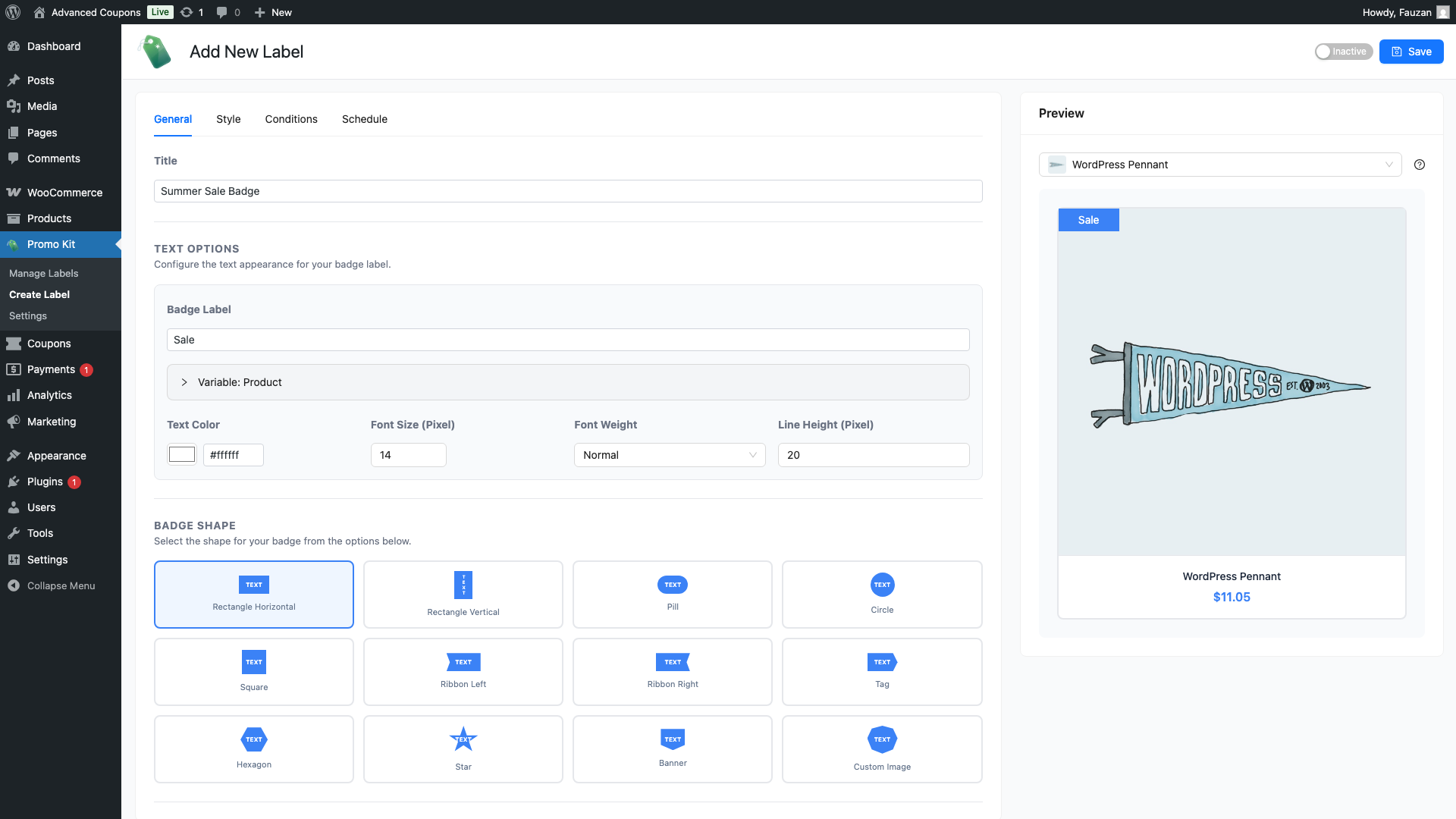
The General tab controls what your label says and what shape it takes.
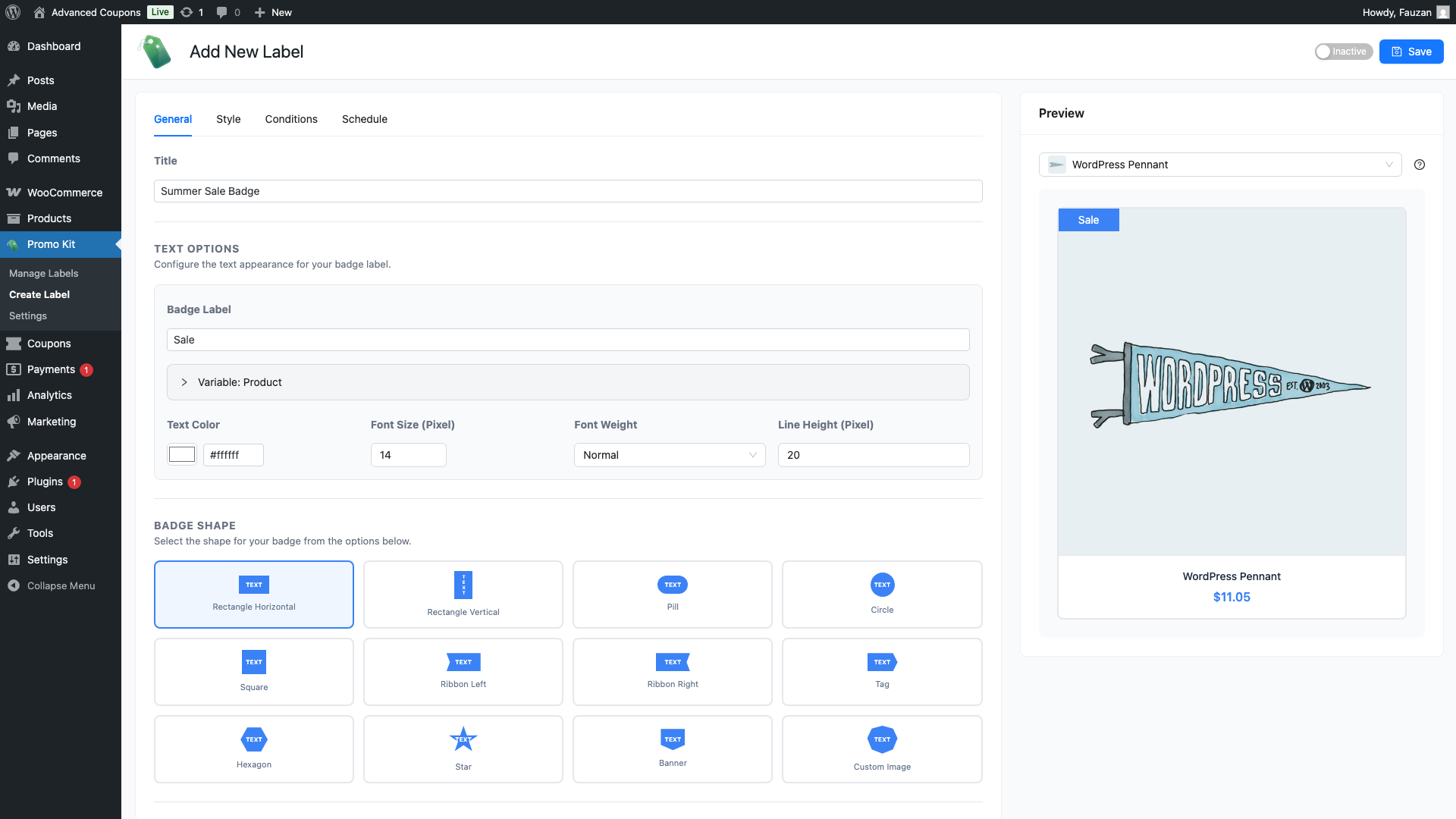
- In the Label Name field, enter an internal name for this label. This is for your reference only and is not shown to customers.
- In the Badge Label field, type the text you want to appear on the badge — for example, SALE, NEW, or −20%. You can use dynamic variables (see the table below) to show live product data automatically. How to Use Dynamic Content Placeholders in Product Labels
- Under Text Style, set the font size (8–72 px), font weight (Normal, Bold, SemiBold, or Light), and line height.
- Under Badge Shape, click the shape you want to use. There are 12 shapes available: Rectangle Horizontal, Rectangle Vertical, Pill, Circle, Square, Ribbon Left, Ribbon Right, Tag, Hexagon, Star, Banner, and Custom Image. If you choose Custom Image, an upload button appears so you can use your own image file as the badge.
Dynamic Variables
Type any of these codes into the Badge Label field. Advanced Promo Kit replaces them with real values when the label is shown on a product in your store.
| Variable | Replaced with |
|---|---|
{product_price} | The product’s current price |
{regular_price} | The product’s regular (non-sale) price |
{sale_price} | The product’s sale price |
{discount_percent} | The percentage discount, e.g. 20% |
{discount_amount} | The fixed discount amount, e.g. $10 |
{stock_quantity} | The product’s current stock count |
Step 3 — Customise the Style
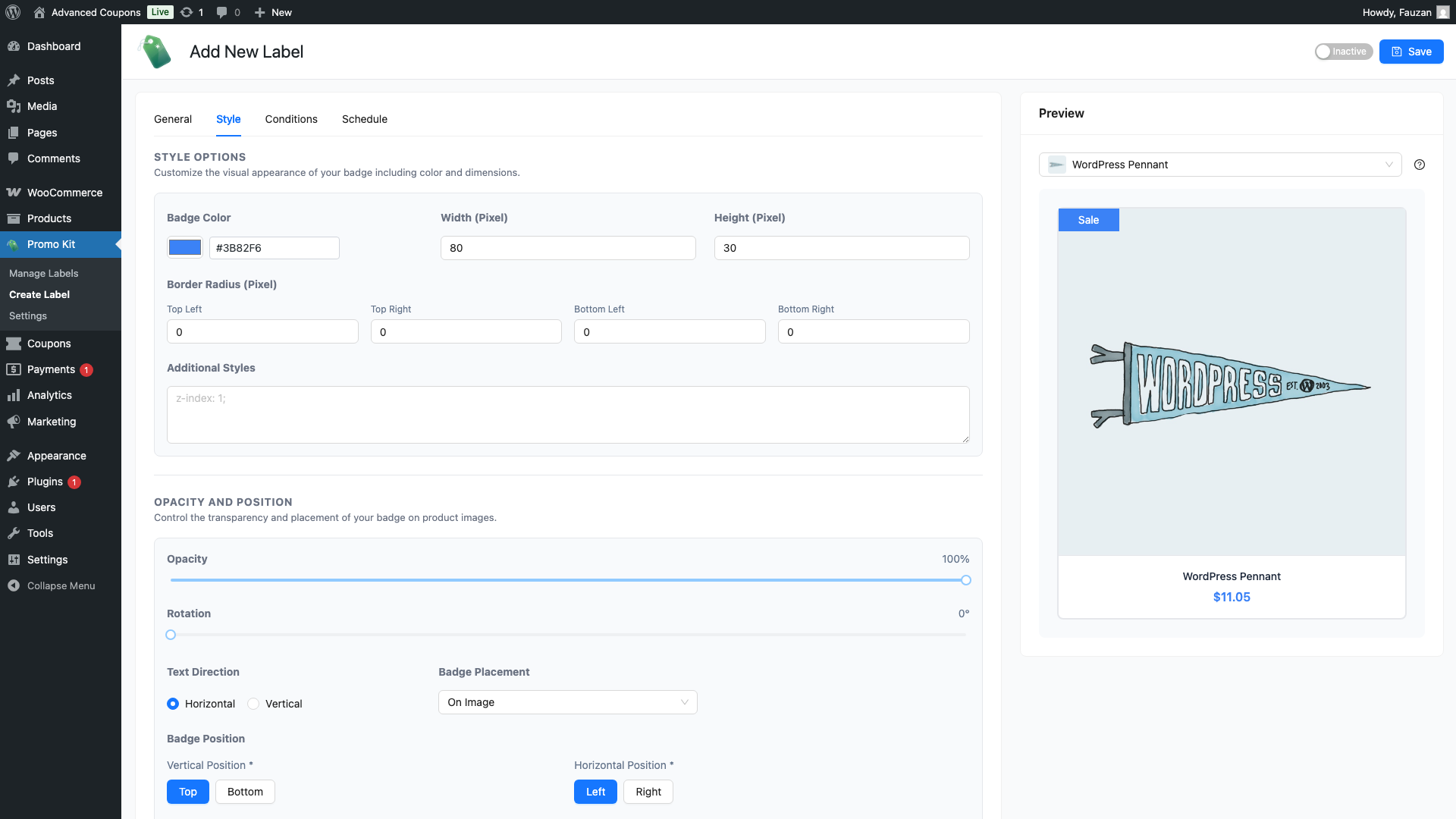
Click the Style tab to control how your label looks. The tab is divided into several sections.
Style Options
- Badge Colour — click the colour swatch to open the colour picker and choose a background colour for your label.
- Width and Height — enter pixel values (20–500 px) to set the badge size.
- Border Radius — adjust each corner independently to round the edges.
- Additional CSS — add any custom CSS you need for this specific label.
Opacity & Position
- Opacity — set the label transparency from 0 (invisible) to 100 (fully opaque).
- Rotation — rotate the badge between 0 and 360 degrees.
- Text Direction — choose Horizontal or Vertical.
- Badge Placement — choose whether the badge sits on the product image (overlapping it) or outside the image (beside it).
- Position — choose top or bottom, and left or right, then enter pixel offsets to fine-tune exactly where the badge appears.
Premium Features (Advanced Promo Kit Pro)
The following options are available in Advanced Promo Kit Pro:
- Gradient — enable a two-colour gradient fill. Choose from six gradient directions.
- Shadow — add a drop shadow to your badge with a custom colour, blur radius, and X/Y offsets.
- Animation — make the badge animate automatically. Available effects: Pulse, Flash, Shake, Bounce, Rotate, and Swing.
- Clickable URL — make the badge a clickable link that takes customers to a URL you specify.
- Tooltip — show a tooltip text when customers hover over the badge.
Step 4 — Set a Schedule (Optional)
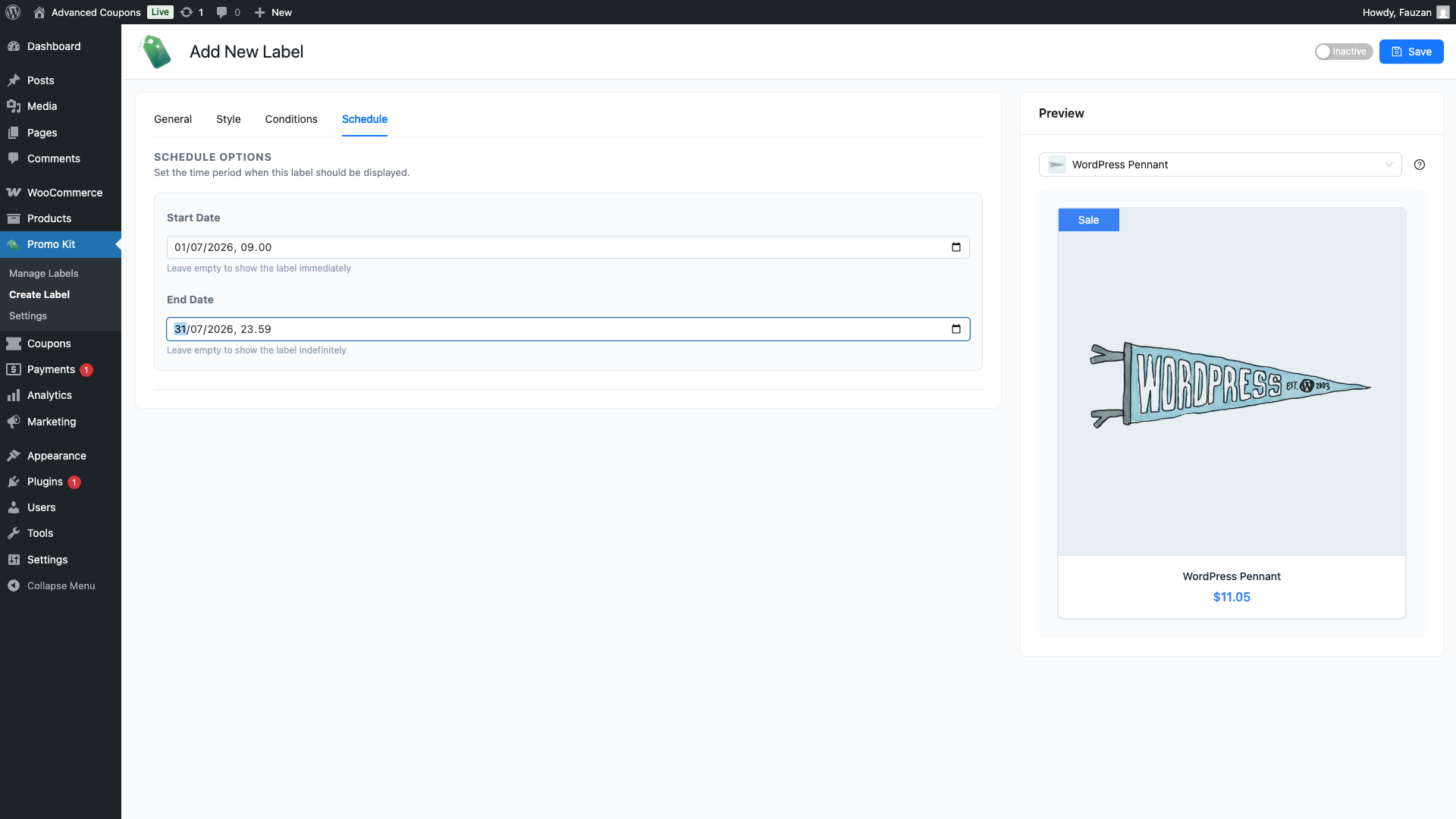
Click the Schedule tab if you want the label to appear only during a specific time window — for example, only during a weekend sale.
- Start Date — the date and time the label starts showing. Leave this empty to show the label immediately after saving.
- End Date — the date and time the label stops showing. Leave this empty to show the label indefinitely.
Step 5 — Save the Label
Once you’re happy with your settings, click Save Label. The label is created and will appear in your labels list. You can edit it at any time by clicking it in the list.
Using the Live Preview
As you fill in the General and Style tabs, the live preview on the right side of the screen updates in real time. It shows a sample product with your label applied so you can see how it will look before saving.
The preview uses dummy product values. Dynamic variables like {discount_percent} will display the correct values for each real product in your store once the label is live.
Frequently Asked Questions
How do I assign a label to specific products?
After saving a label, open the product you want to tag and find the Advanced Promo Kit metabox on the product edit screen. Select your label there. You can also use the Conditions tab when creating a label to automatically apply it to products that match criteria you define How to Set Up Label Display Rules and Conditions in Advanced Promo Kit — for example, all products in a particular category or on sale.
Can I use more than one label on the same product?
Yes. You can assign multiple labels to a product. Each label has its own position settings, so you can stack or spread them across the product image as needed.
Are animations and gradient backgrounds available in the free version?
Gradient, Shadow, Animation, Clickable URL, and Tooltip are premium features available in Advanced Promo Kit Pro. Badge shapes, colours, text, and scheduling are available on all plans.
My badge text looks cramped or cut off. How do I fix it?
Open the Style tab for your label and increase the Width (Pixel) and Height (Pixel) values. The default size (160×30px) works well for short text, but longer labels — including those that use dynamic placeholders — need more room. A good starting point is 240–280px wide and 36–40px tall. Preview the result and adjust until the text fits comfortably.
Need Help?
If you have a question or run into any issues, we’re here to help.
- Premium users: Open a support ticket
- Free users: Visit our community forum

