
When a product is a gift card created with Advanced Gift Cards for WooCommerce, you can show its value directly on the product label using the {agc_gift_card_value} placeholder. The value appears formatted as currency — for example, $150.00 — and the label only shows on actual gift card products, so you can apply it store-wide without worrying about it appearing on regular products. This article walks you through enabling the integration and using the placeholder in a label.
What You’ll Need
- Advanced Promo Kit installed and active
- Advanced Gift Cards for WooCommerce Advanced Gift Cards for WooCommerce installed and active — the integration toggle is greyed out if this plugin is not running
Step 1: Enable the Advanced Gift Cards Integration
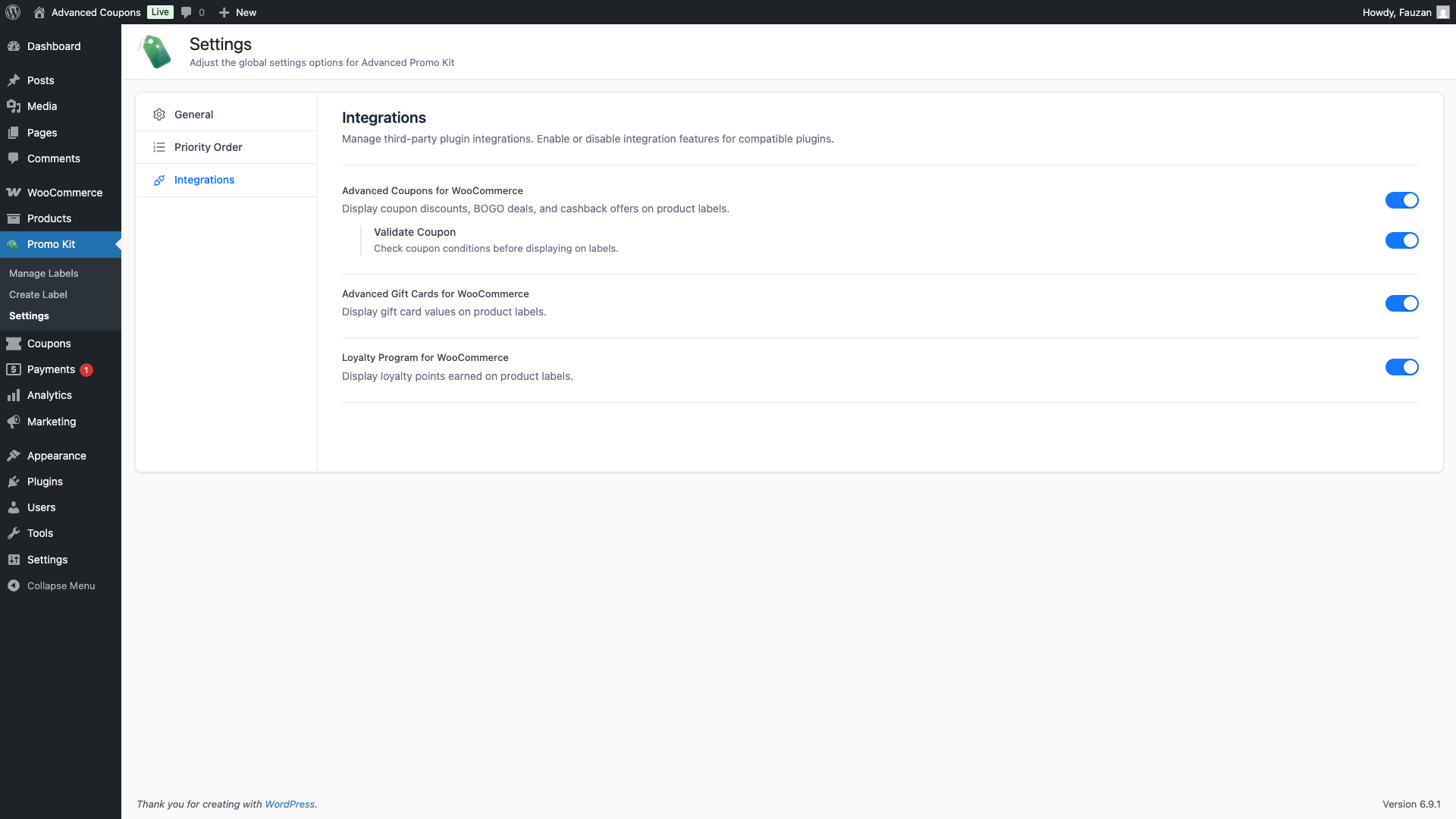
- Go to Promo Kit → Settings in your WordPress admin sidebar.
- Click Integrations in the left navigation panel.
- Find Advanced Gift Cards for WooCommerce and turn on its toggle.
The toggle saves automatically — no Save button needed. Once enabled, the {agc_gift_card_value} placeholder becomes available in the label editor.
Step 2: Add the Gift Card Value Placeholder to a Label
- Go to Promo Kit → Create Label (or open an existing label to edit it). How to Create Product Labels in Advanced Promo Kit
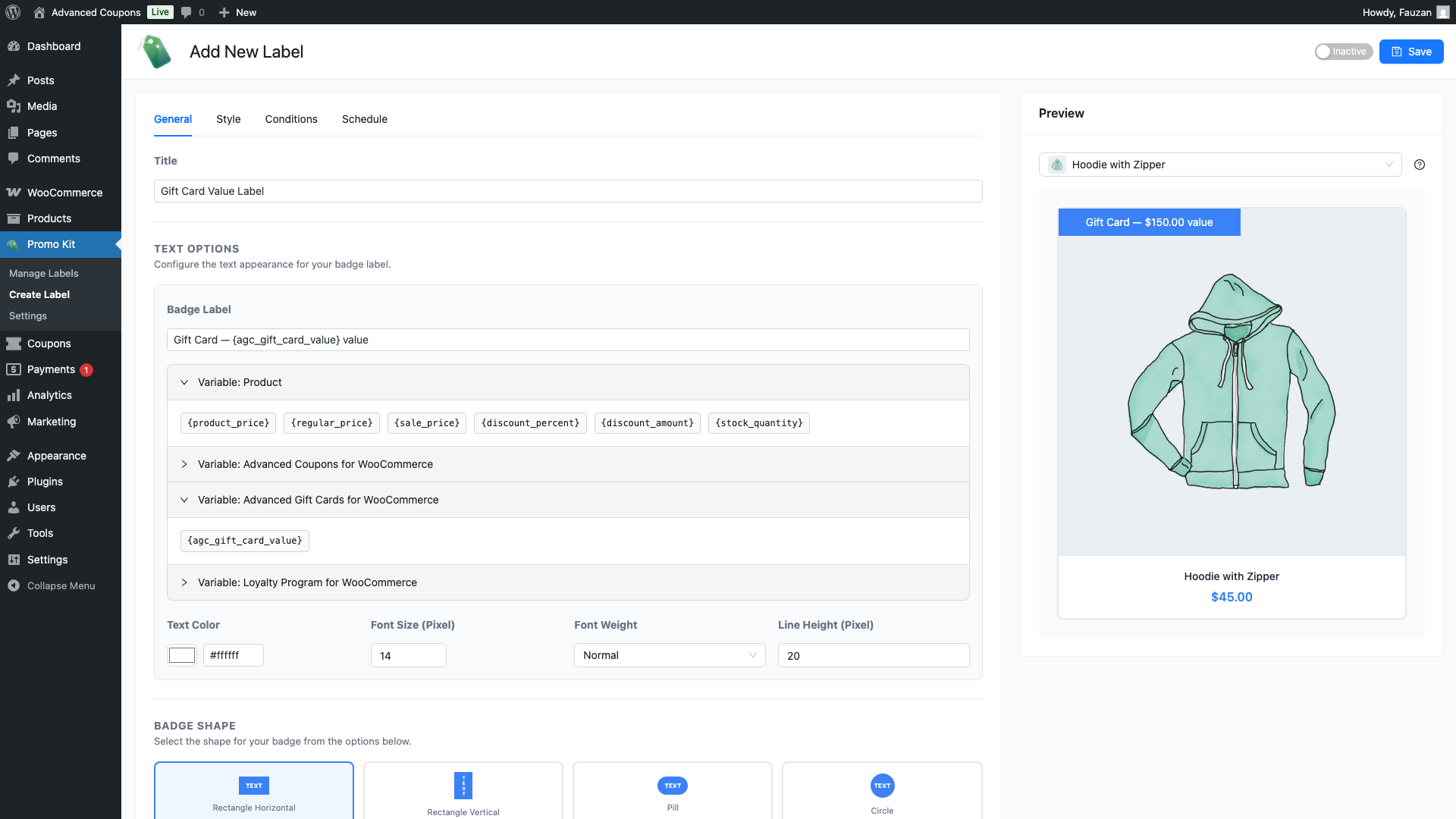
- On the General tab, click the Variables panel on the right to expand it.
- Under Variable: Advanced Gift Cards for WooCommerce, click
{agc_gift_card_value}to insert it into the Badge Text field. - Write your label text around the placeholder. For example: Gift Card — {agc_gift_card_value} value
- Style the label on the Style tab, then set any display conditions on the Conditions tab.
- Click Save.
The badge preview in the editor shows an example value of $150.00 for {agc_gift_card_value}. On your live storefront, the actual value is read from each gift card product’s price as set in WooCommerce.
When the Label Is Hidden
Advanced Promo Kit hides the label if {agc_gift_card_value} resolves to empty for a given product. This happens in two situations:
- The product is not a gift card. If a product is a standard WooCommerce product rather than one created as a gift card via Advanced Gift Cards for WooCommerce, the placeholder resolves to empty and the label is hidden for that product.
- Advanced Gift Cards for WooCommerce is not active. If the plugin is deactivated after the integration was enabled,
{agc_gift_card_value}cannot be resolved and the label is hidden on all products.
This means you can apply a label using {agc_gift_card_value} to your entire store and it will only appear on actual gift card products — no extra conditions needed.
Frequently Asked Questions
How is the gift card value formatted?
The value is formatted as a WooCommerce currency amount — using the same currency symbol, decimal separator, and position you have configured in WooCommerce → Settings → General. For example, a $150 gift card shows as $150.00.
The integration toggle is greyed out. What do I do?
Advanced Gift Cards for WooCommerce is not installed or is deactivated on your site. Install and activate it first, then return to Promo Kit → Settings → Integrations and reload the page. The toggle will become active.
Can I combine {agc_gift_card_value} with other placeholders in the same label?
Yes. How to Use Dynamic Content Placeholders in Product Labels For example, Gift Card — {agc_gift_card_value} value (save {discount_percent}!) uses two placeholders. If either resolves to empty for a product, the label will not be shown for that product.
My badge text looks cramped or cut off. How do I fix it?
Open the Style tab and increase Width (Pixel) and Height (Pixel). The default size (160×30px) suits short text, but longer labels benefit from something like 240–280px wide and 36–40px tall. The preview updates in real time so you can adjust until it looks right.
Need Help?
If you have a question or run into any issues, we’re here to help.
- Premium users: Open a support ticket
- Free users: Visit our community forum

