
The Manage Labels screen is your home base for every global label in Advanced Promo Kit. From here you can see all of your labels at a glance, activate or deactivate them, duplicate a label to use as a starting point for a new one, delete labels you no longer need, and apply changes to multiple labels at once using bulk actions.
Accessing Manage Labels
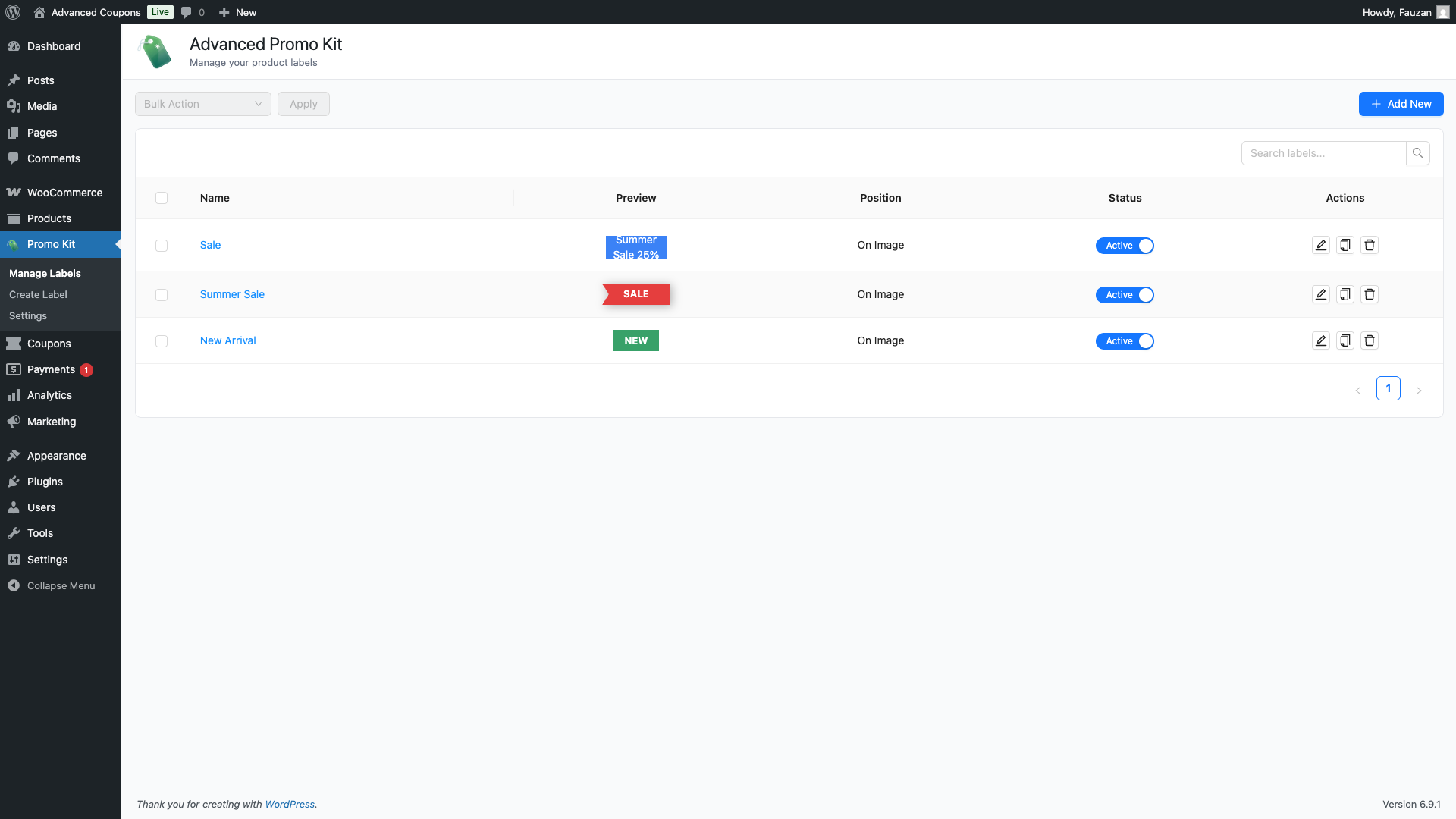
Go to Promo Kit → Manage Labels in your WordPress admin sidebar. Advanced Promo Kit The page lists all of your global labels in a table.
Understanding the Labels List
Each row in the table represents one global label. The columns tell you:
| Column | What it shows |
|---|---|
| Name | The internal name you gave the label. Click it to open the label editor. How to Create Product Labels in Advanced Promo Kit |
| Preview | A live preview of how the badge looks with its current styling. |
| Position | Where the badge is placed on the product image — for example, On Image or Out of Image. |
| Status | A toggle showing whether the label is currently active or inactive. |
| Actions | Quick-access buttons to edit, duplicate, or delete the label. |
This list shows only global labels. Labels assigned directly to a specific product (product-specific label How to Assign a Label to a Specific Product in Advanced Promo Kits) are managed from the product’s edit screen and do not appear here.
How to Activate or Deactivate a Label
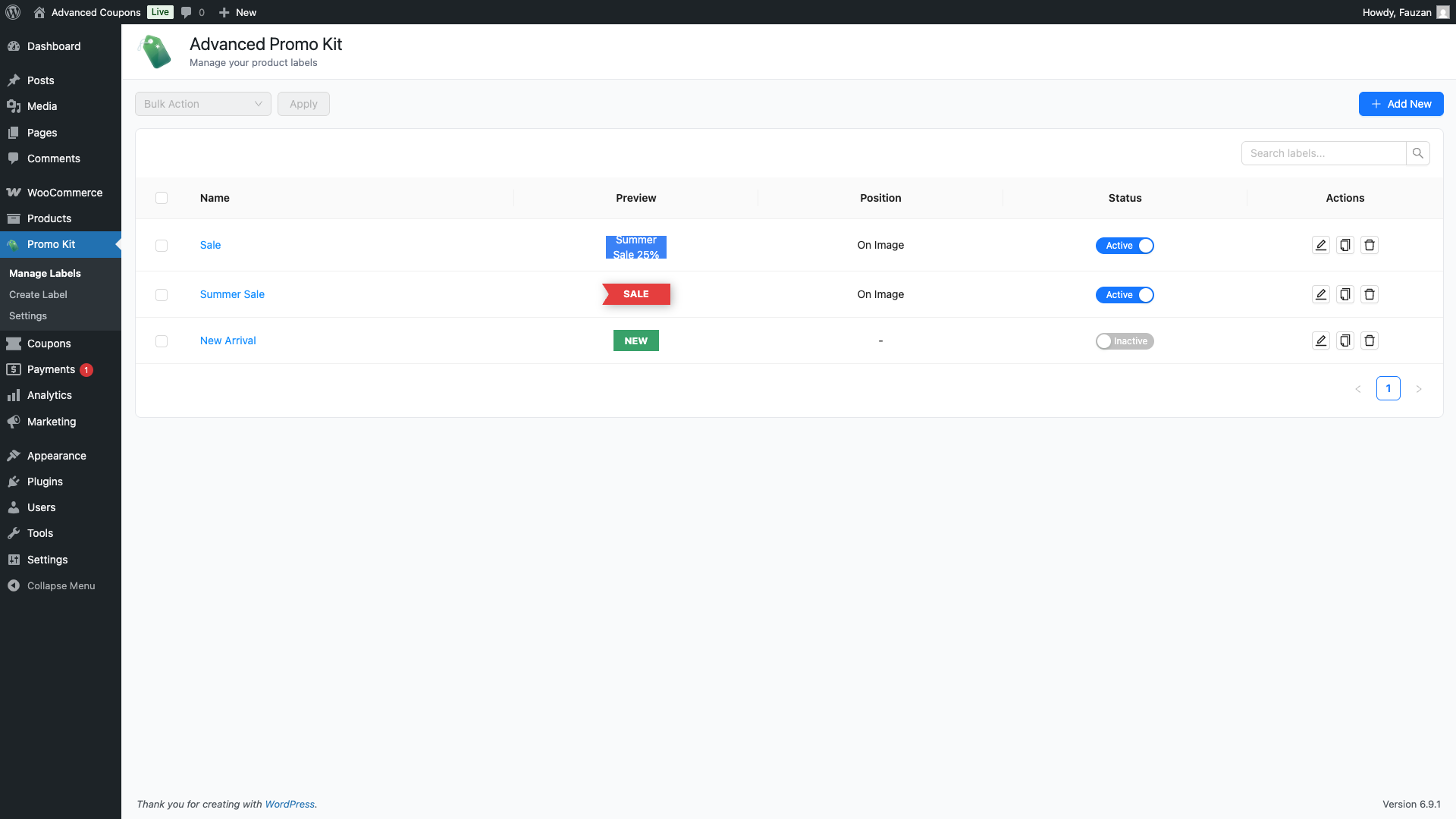
The Status column contains a toggle for each label. An active label is eligible to appear on your storefront (subject to its display conditions). An inactive label is saved but never shown.
- Locate the label in the table.
- Click the toggle in the Status column to switch it on or off.
- A success message confirms the change was saved.
How to Edit a Label
Click the label’s Name in the table, or click the pencil icon in the Actions column. Both open the label editor where you can change the badge text, styling, conditions, and schedule.
How to Duplicate a Label
Duplicating a label copies all of its settings — text, styling, conditions, and schedule — into a new label. The duplicate is saved as inactive by default so it does not appear on your storefront until you are ready.
- Find the label you want to duplicate.
- Click the copy icon in the Actions column.
- A confirmation dialog appears. Click Duplicate to confirm.
- The new label appears in the list with (Copy) added to its name and its status set to Inactive.
- Click the new label’s name to open it in the editor and make your changes.
How to Delete a Label
Deleting a label is permanent. It cannot be recovered after deletion.
- Find the label you want to delete.
- Click the trash icon in the Actions column.
- A confirmation dialog appears warning that this action cannot be undone. Click Delete to confirm.
Using Bulk Actions
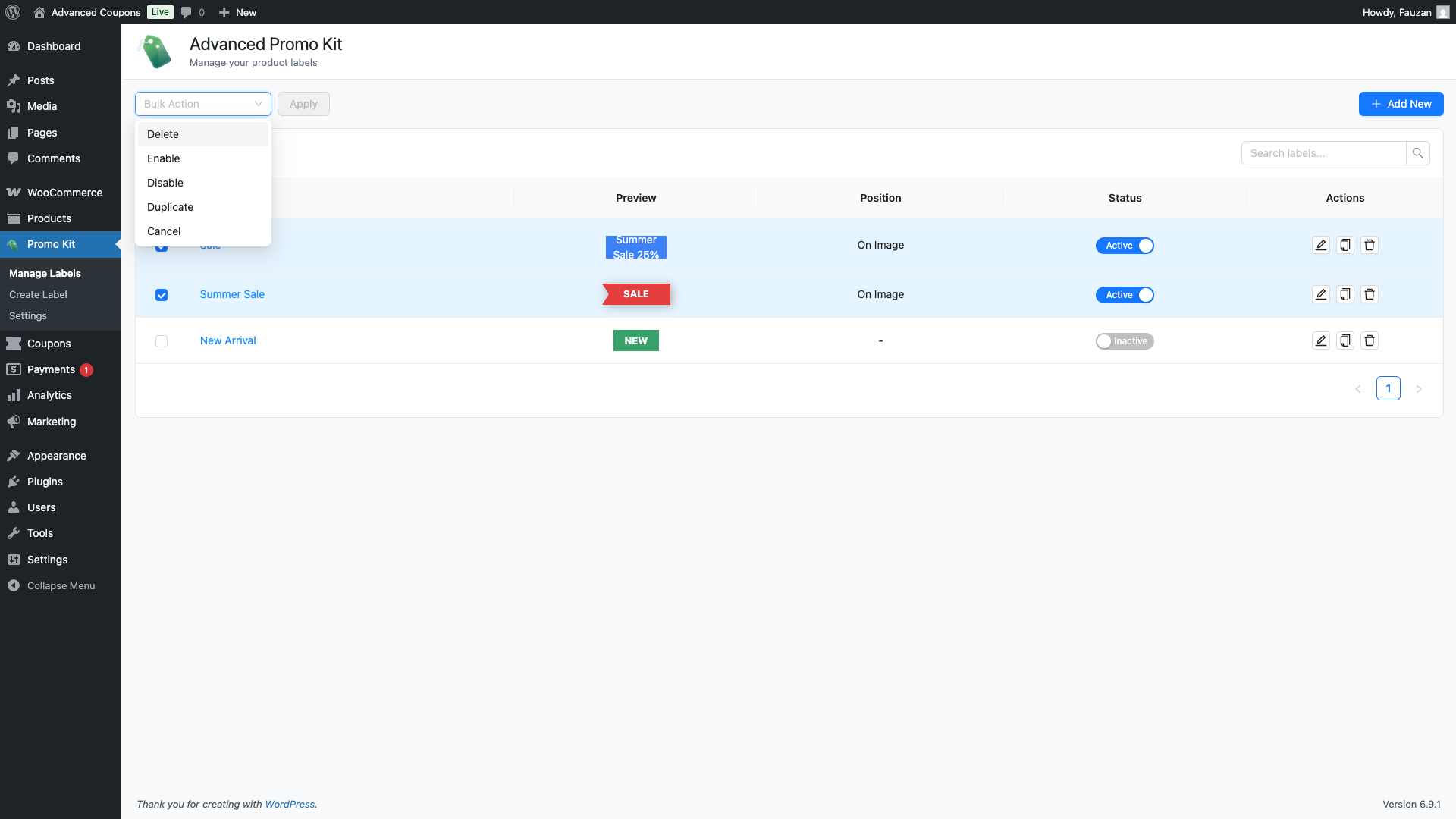
Bulk actions let you apply a change to multiple labels at once. The bulk action controls are in the top-left of the page, above the table.
- Select the labels you want to act on by checking the checkboxes on the left side of the table. You can check the box in the table header to select all.
- Open the Bulk Action dropdown and choose an action:
| Action | What it does |
|---|---|
| Enable | Sets all selected labels to Active. |
| Disable | Sets all selected labels to Inactive. |
| Duplicate | Creates an inactive copy of each selected label, appending (Copy) to each name. |
| Delete | Permanently deletes all selected labels. This cannot be undone. |
| Cancel | Clears the current selection without making any changes. |
- Click Apply.
- A confirmation dialog appears. Review the action and click Confirm to proceed.
Searching Labels
Use the Search labels… box in the top-right of the table to filter the list. The search checks the label’s name, badge text, and position. Clear the search to return to the full list.
Controlling Label Display Priority
When multiple labels are eligible to appear on the same product, Advanced Promo Kit uses priority to decide which ones show first. Priority is managed from Promo Kit → Settings → Priority Order, not from the Manage Labels screen. Drag labels up or down in the Priority Order list to change the order in which they appear on your storefront.
Product-specific labels — labels assigned directly on a product’s edit screen — always appear before global labels regardless of the priority order you set. Global labels fill the remaining slots up to the maximum set in Settings → General → Maximum Labels Per Product.
Frequently Asked Questions
Does deleting a label affect my products?
Yes. Once a label is deleted, it will no longer appear on any product. If you are unsure whether you still need a label, deactivate it instead of deleting it — deactivated labels are hidden from the storefront but remain saved and can be re-activated at any time.
Why is the Bulk Action dropdown greyed out?
You need to select at least one label before the dropdown becomes active. Check one or more checkboxes in the table, then the dropdown will become available.
Why does my duplicated label say Inactive?
All duplicated labels are created as inactive by default so they do not go live before you have had a chance to review and adjust them. Open the duplicate in the editor, make your changes, then activate it when you are ready.
Need Help?
If you have a question or run into any issues, we’re here to help.
- Premium users: Open a support ticket
- Free users: Visit our community forum

