
If you run seasonal promotions, member-only deals, or other coupon groups where only one coupon should be used at a time, Advanced Coupons Premium lets you enforce that rule at the category level. Instead of maintaining one-by-one coupon pairing rules, you can mark a coupon category as mutually exclusive and apply the rule to every coupon in that group. Follow the steps below to enable the category option, assign coupons correctly, and verify the restriction on the cart or checkout.
For broader coupon category setup, see How to create and use coupon categories.
Prerequisites
- WooCommerce is installed and active.
- Advanced Coupons Premium (which includes Advanced Coupons for WooCommerce as the base plugin) version 3.5.5 or higher is installed and active; this version adds the Mutually Exclusive field and the Enable Mutually Exclusive Option checkbox on the category screen.
- At least two coupons are planned for the same category, but only one coupon per cart is allowed.
How to set up mutually exclusive coupon categories
Step 1: Create or edit the coupon category
Use the flow that matches your setup:
Create a new category
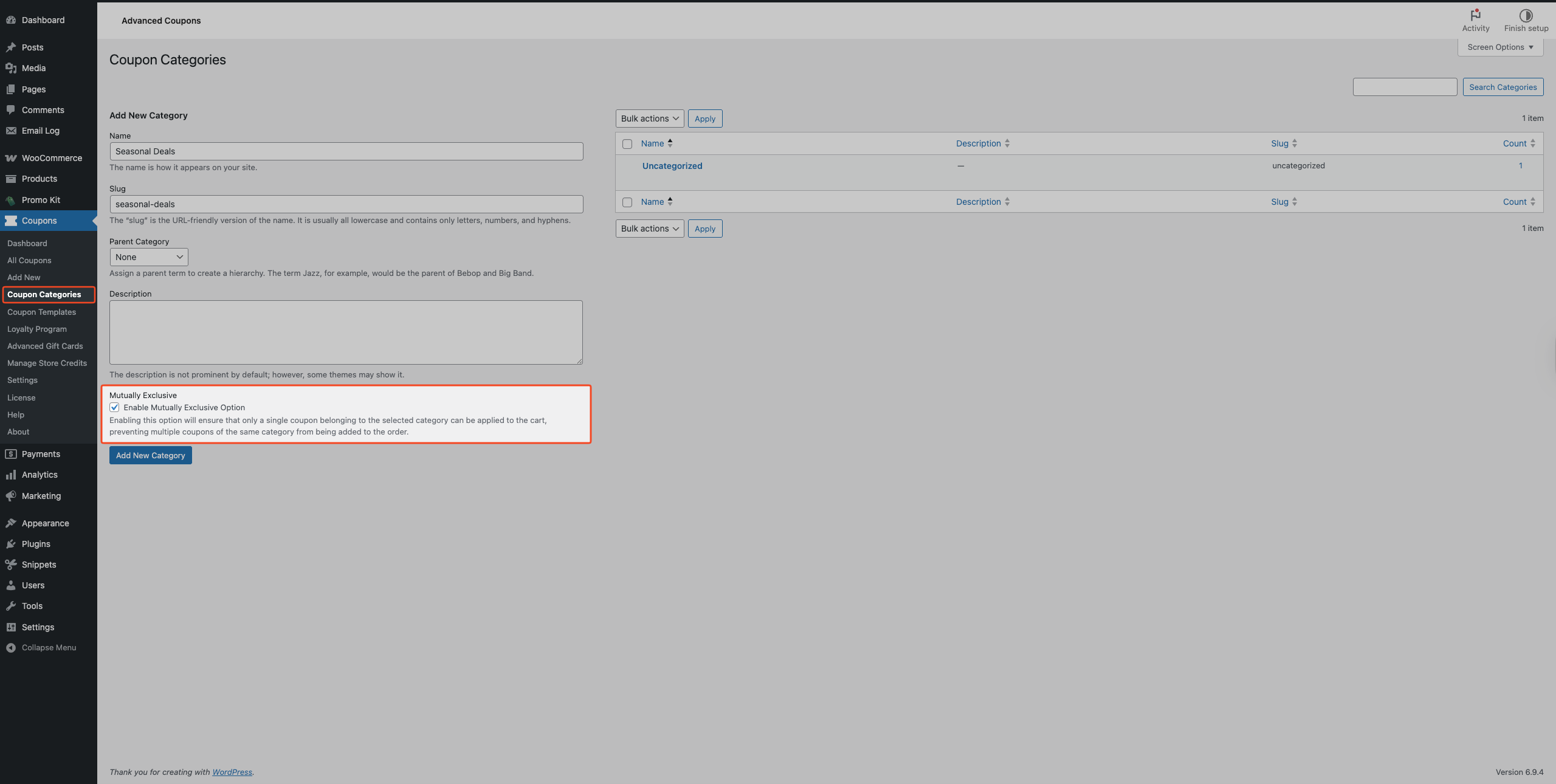
- Go to Coupons → Coupon Categories.
- Enter your category name under Add New Category.
- Tick the Enable Mutually Exclusive Option checkbox in the Mutually Exclusive field.
- Click the Add New Category button.
Edit an existing category
- Go to Coupons → Coupon Categories.
- Hover over the category you want to edit.
- Click the Edit link.
- Tick the Enable Mutually Exclusive Option checkbox in the Mutually Exclusive field.
- Click the Update Category button.
To disable this later, follow the same path and untick the Enable Mutually Exclusive Option checkbox.
Step 2: Assign coupons to the category
- Go to Coupons.
- Open the first coupon you want to include in this exclusive group.
- Tick the category in the Coupon Categories panel.
- Click the Update button.
- Repeat the same steps for every coupon that should be part of this restricted group.
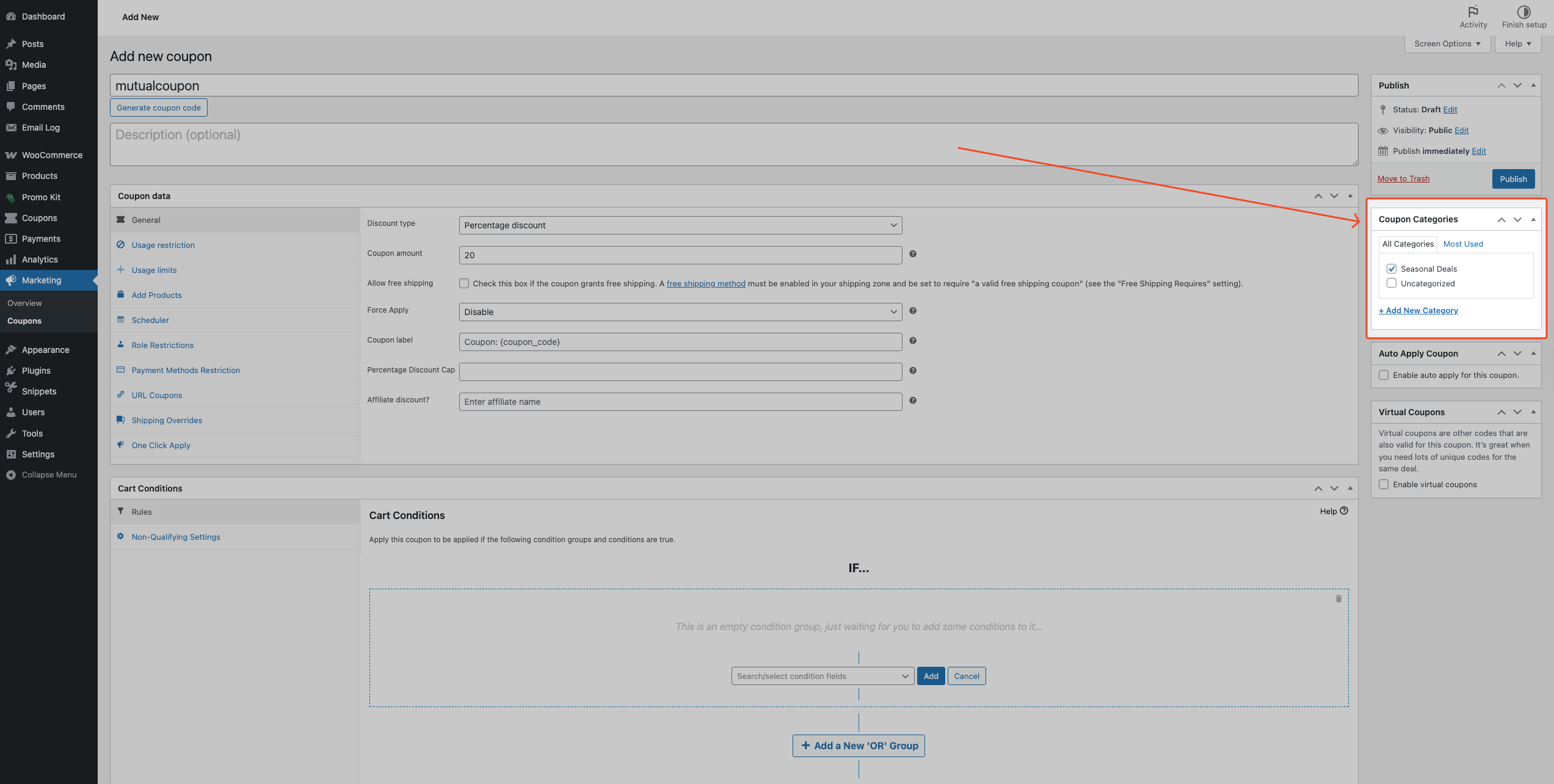
Once this is complete, customers can apply only one coupon from this category per cart.
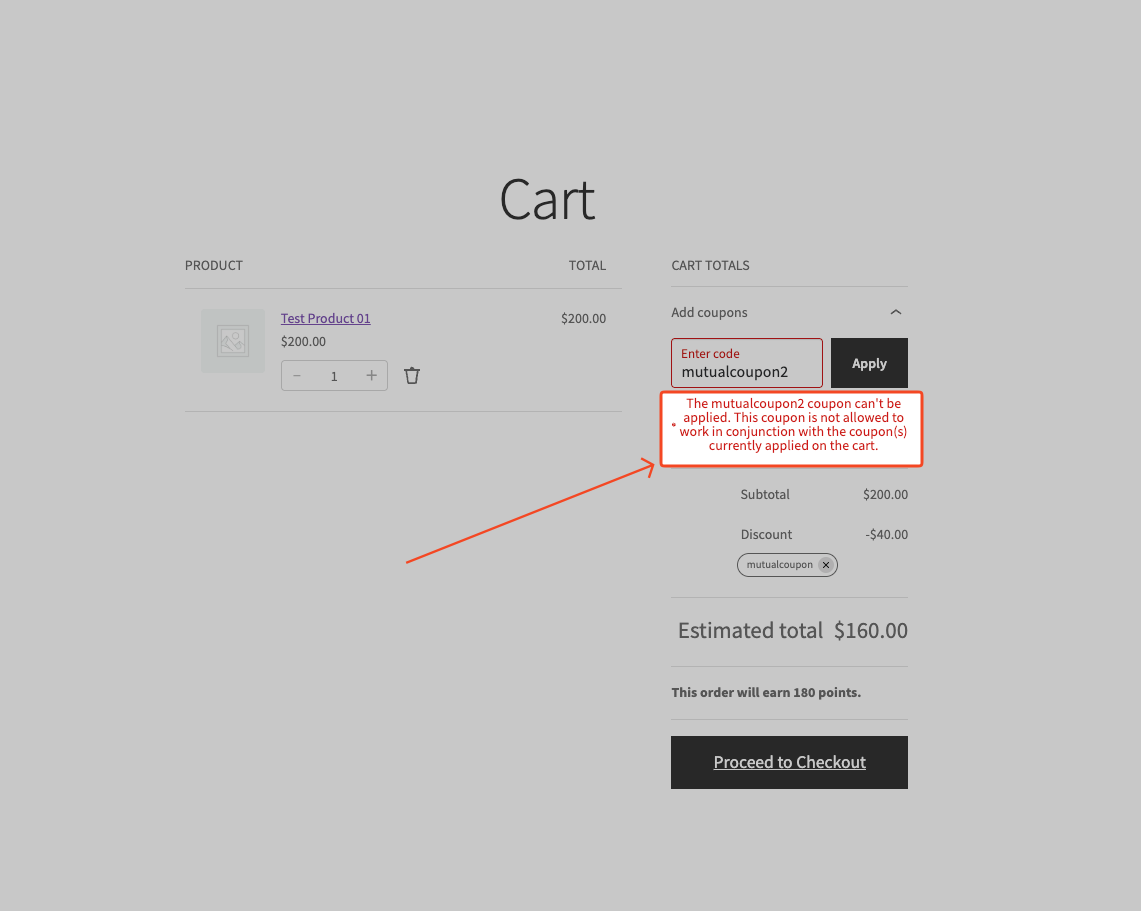
To verify the setup, add one coupon from this category to a test cart, then apply a second coupon from the same category. The second coupon is rejected, and the first coupon stays applied.
What customers see
When a shopper already has a coupon from the same mutually exclusive category in their cart and tries to apply another one, WooCommerce shows this notice:
“The [COUPON CODE] coupon can’t be applied. This coupon is not allowed to work in conjunction with the coupon(s) currently applied on the cart.”
How this differs from Exclude coupons and Allowed coupons
Advanced Coupons Premium includes three different stacking controls:
| Setting | Purpose | Where you configure it | Best for |
|---|---|---|---|
| Mutually Exclusive (category option) | Blocks other coupons in the same category from being applied together | Coupons → Coupon Categories on the category itself | Groups where any single coupon should be used alone |
| Exclude coupons | Blocks specific coupon pairings | Inside each coupon’s Usage restriction tab | One-off coupon pairings you want to block |
| Allowed coupons | Whitelists specific coupon pairings | Inside each coupon’s Usage restriction tab | One-off coupon pairings you explicitly want to allow |
Use the category-level option when you want one rule for an entire group. Use Exclude coupons or Allowed coupons when you need per-coupon control.
Troubleshooting
The Mutually Exclusive option is missing on Coupon Categories
Confirm Advanced Coupons Premium is active and updated to version 3.5.5 or higher in Plugins. If Premium is inactive or outdated, the Mutually Exclusive field does not appear.
Two coupons in the same exclusive category still apply together
Open each coupon and confirm the same category is ticked in the Coupon Categories panel. Enabling the category option alone is not enough; each coupon must be assigned to that category.
The second coupon is rejected, but the first coupon is also removed
Check the first coupon’s Usage restriction tab for Individual use only, Exclude coupons, or Allowed coupons settings that conflict with your intended stacking behavior.
Frequently asked questions
Can a coupon belong to multiple categories?
Yes. If any assigned category is mutually exclusive, that coupon follows the exclusive rule within that category.
Do different mutually exclusive categories block each other?
No. Each mutually exclusive category enforces its own rule independently.
Can I use more than one mutually exclusive category at the same time?
Yes. You can create multiple mutually exclusive categories, and each one works independently.
Does this change coupon cart conditions or usage limits?
No. This feature only controls whether coupons from the same exclusive category can be applied together. Other coupon rules still apply normally.
Need help?
If you have a question or run into any issues, we’re here to help.
- Premium users: Open a support ticket
- Free users: Visit our community forum on WordPress.org

