
Want to see which coupons are actually driving results in your store? Advanced Coupons gives you two reporting views so you can quickly check performance and export order-level data when needed. Use these reports to see where coupons perform best, review order-level details, and export data for reconciliation.
Report availability: The Coupon Activity Dashboard is available in the free plugin. The Orders with coupons report is available in Advanced Coupons Premium.
Prerequisites
- WooCommerce is installed and active.
- For Coupon Activity Dashboard, Advanced Coupons for WooCommerce is installed and active. For Orders with coupons, Advanced Coupons Premium (which includes the free plugin) is installed and active.
- You’re logged in as an administrator or a user with the WooCommerce shop manager role.
Part 1: coupon activity dashboard
How to access the coupon activity dashboard
- Go to Coupons → Dashboard in your WordPress admin sidebar.
- Wait for the dashboard widgets to load for the currently selected period.
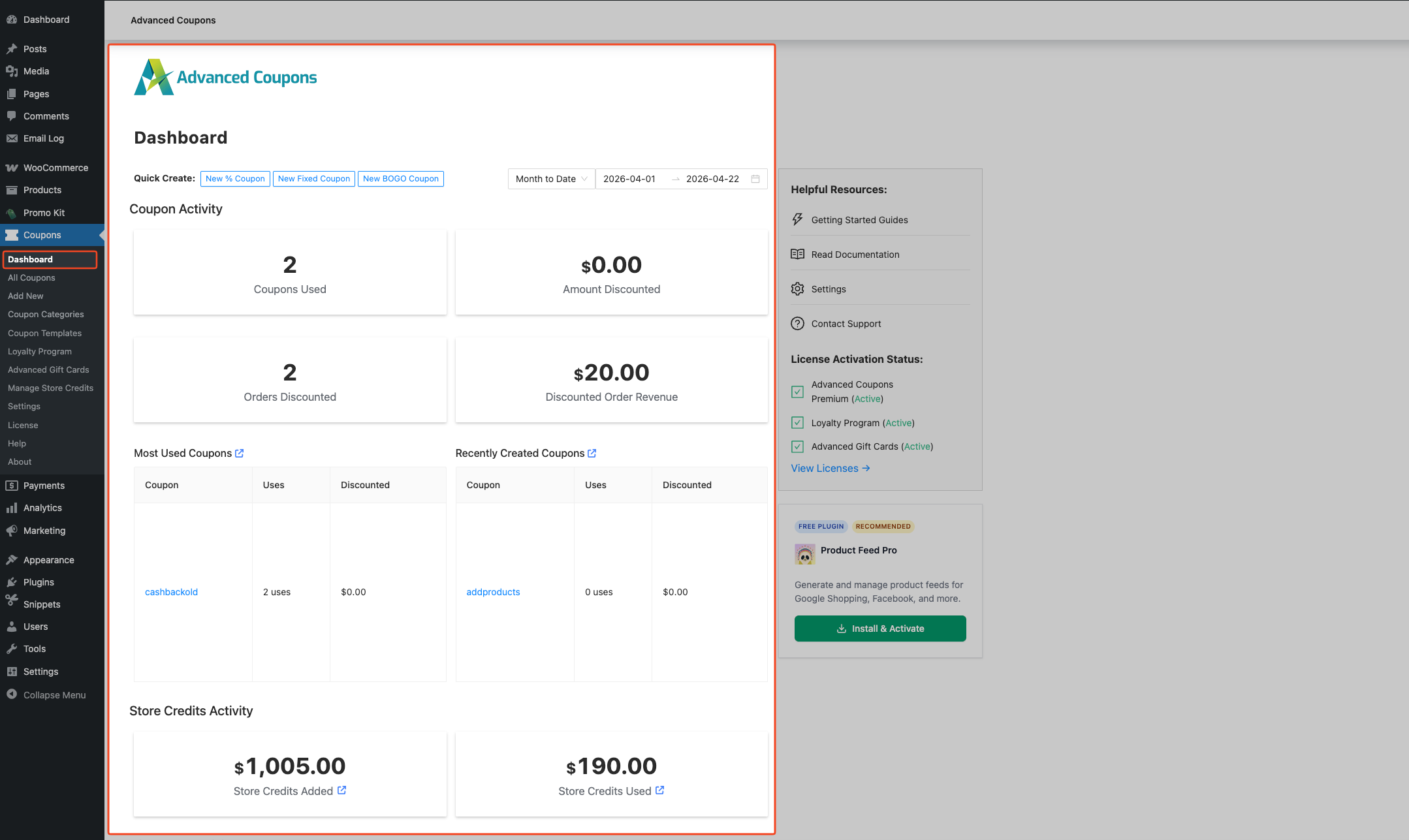
The dashboard loads a live summary of coupon activity for the selected date period.
Understanding the coupon activity widgets
The dashboard displays several metric widgets under Coupon Activity:
| Widget | What it shows |
|---|---|
| Coupons Used | The total number of individual coupon applications across all orders in the selected period. If two coupons were applied to a single order, both are counted. |
| Amount Discounted | The total discount applied across the period. This includes the discount itself, any tax WooCommerce recorded on that discount, and extra discounts from BOGO, Add Products, and Shipping Overrides coupons. |
| Orders Discounted | How many orders had at least one coupon applied during the period. |
| Discounted Order Revenue | Total order revenue from orders that had at least one coupon applied during the period (sum of order totals). |
| Most Used Coupons | A table listing your top-performing coupon codes, sorted from most-used to least. Each row shows the coupon code, total number of uses, and total discount value. |
| Recently Created Coupons | The five most recently created coupons as of the end of the selected period, with usage count and total discount value for the period. |
If you have the Store Credits module enabled, a Store Credits Activity section appears below the coupon widgets, showing Store Credits Added and Store Credits Used for the period.
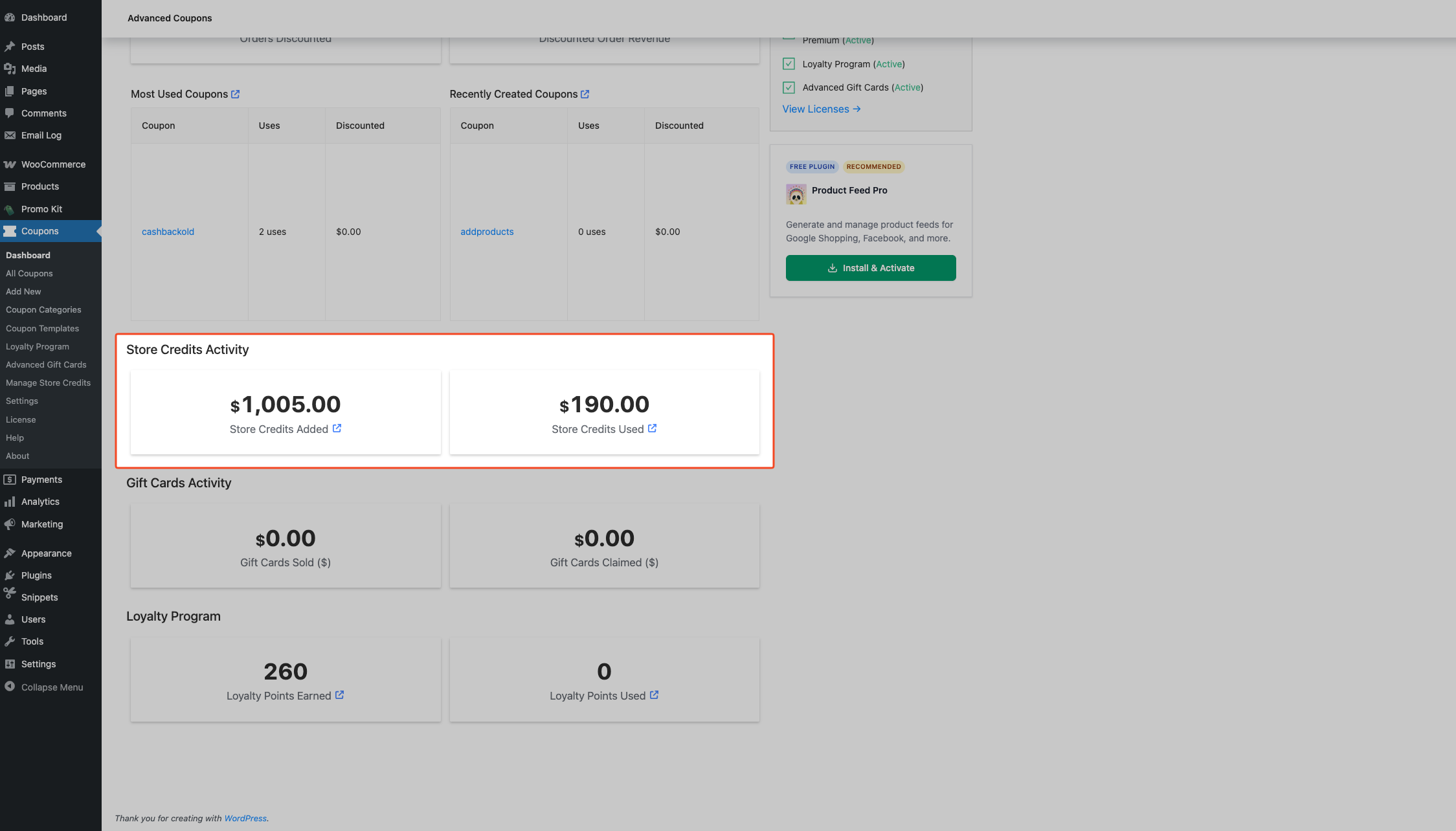
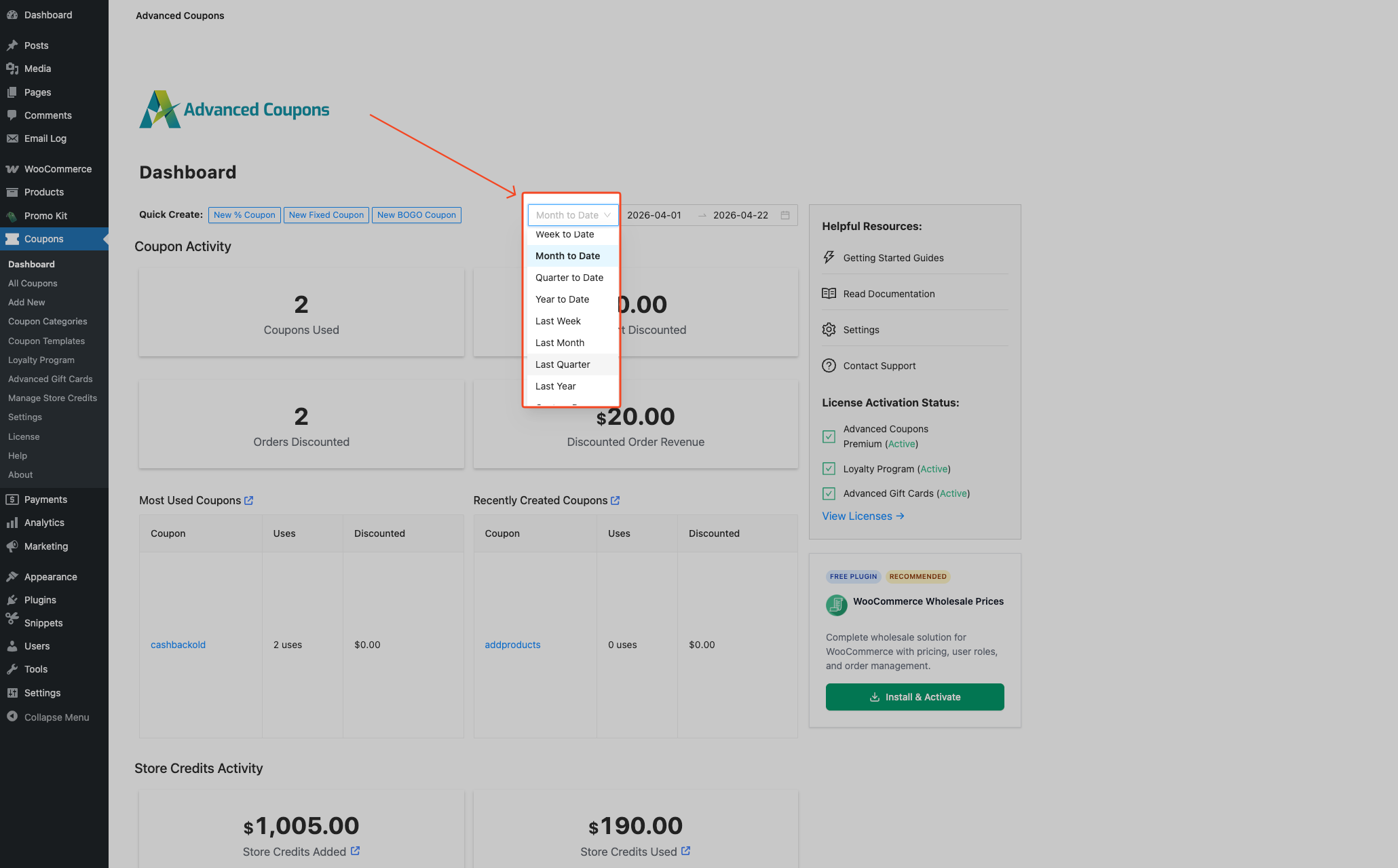
Filtering by date period
- Click the date range preset dropdown at the top of the dashboard (it shows the current preset, such as Month to Date).
- Pick the range you need from that same dropdown.
- If you chose Custom Range, set the start and end dates in the date picker that appears.
The dashboard updates automatically when you change the selected period.
Part 2: orders with coupons report (Premium)
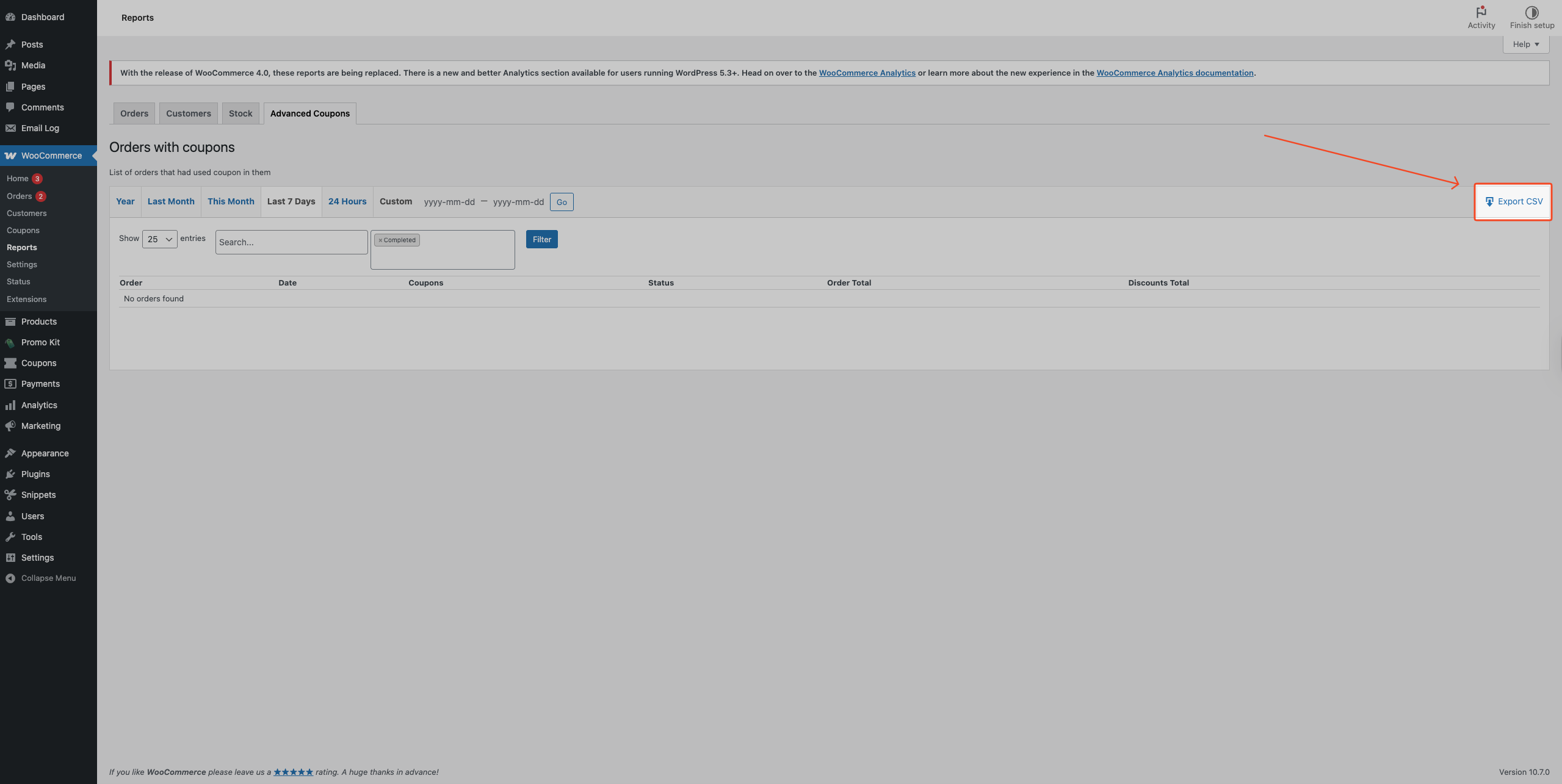
This report is available in Advanced Coupons Premium and is built into WooCommerce’s legacy reports screen. It lists all orders where a coupon was applied, with filtering by date range, order status, and search text. You can also export the results to CSV.
How to access the orders with coupons report
- Go to WooCommerce → Reports in your WordPress admin.
- Click the Advanced Coupons tab.
- Open Orders with coupons.
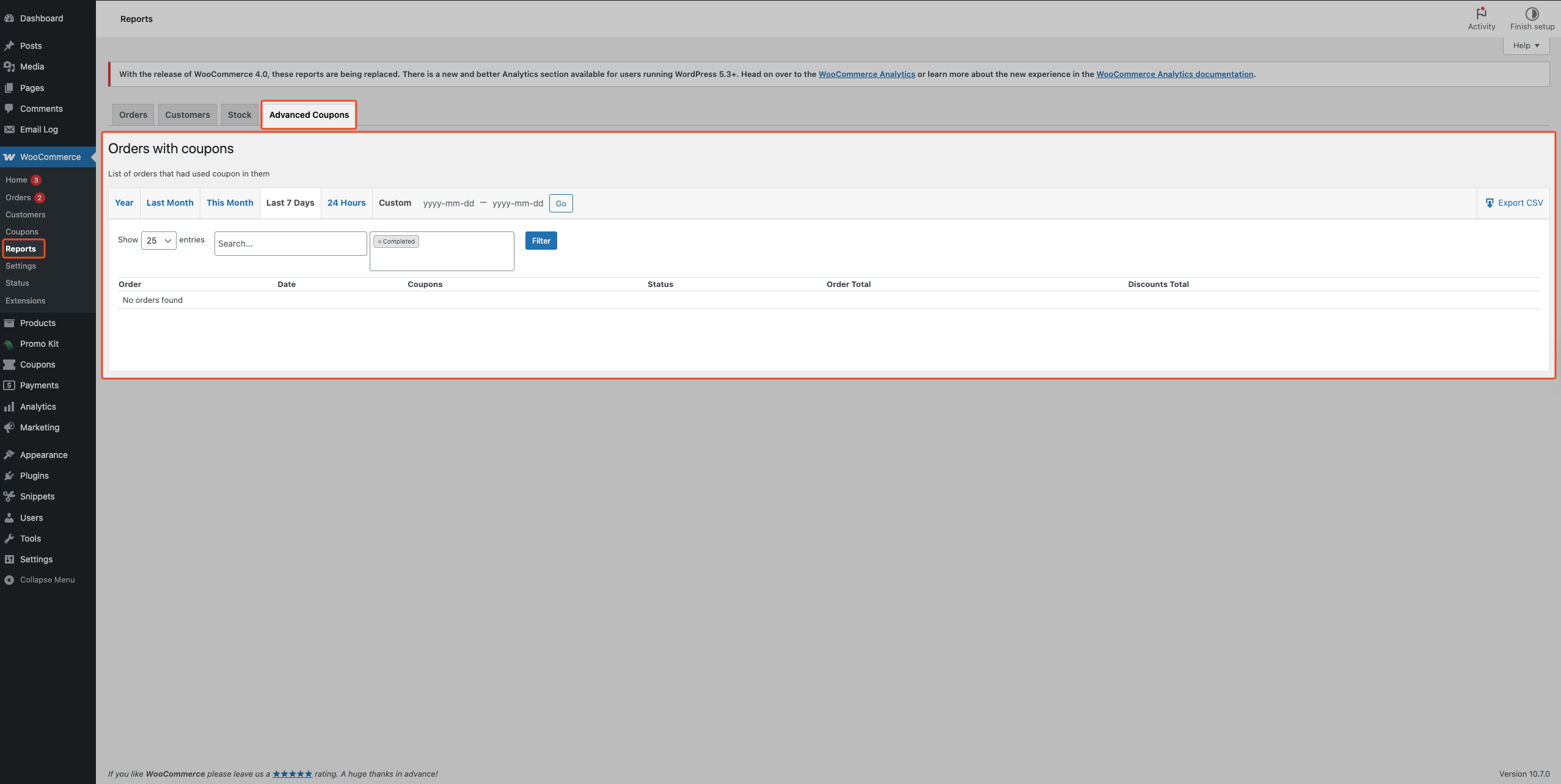
The report displays a paginated table of orders that had a coupon applied:
| Column | What it shows |
|---|---|
| Order | The order ID, linked to the full order detail screen. |
| Date | The date the order was placed. |
| Coupons | The coupon code(s) applied to the order. |
| Status | The current order status (for example, Completed or Processing). |
| Order Total | The full order total. |
| Discounts Total | The total discount applied by the coupon(s) on that order. |
Filtering the report
The report has three independent filtering mechanisms:
Date range presets: Click a date tab at the top of the report (Year, Last Month, This Month, Last 7 Days, or 24 Hours) to switch periods immediately. The default range is Last 7 Days.
Custom date range: Click Custom, enter start and end dates in yyyy-mm-dd format, then click Go.
Table filters: Use Show to control rows per page (25, 50, 75, or 100). Use the Search… field to find matching orders or coupon entries. Use the order status dropdown to choose statuses (with Completed selected by default), then click Filter.
Exporting report data to CSV
- Click a date preset tab (Year, Last Month, This Month, Last 7 Days, or 24 Hours) to set the export range.
- For a custom date range, click Custom and enter start and end dates in
yyyy-mm-ddformat. - Click Go.
- Use the Search… field if you need to narrow results by coupon code or order text.
- In the order status control, select the statuses you want included in the export.
- Click Filter so the table reflects those choices.
- Click the Export CSV button (download icon) at the top-right of the report. The export includes all matching records — the Show setting doesn’t limit the exported file.
- Download the generated file.
The filename format is orders-with-coupons-{range}-{date}.csv, and exported columns include order_id, order_date, coupons, order_status, order_total, and discount_total.
Troubleshooting
Dashboard widgets show zero values
Expand the date range so it covers when your orders were paid, then reload the dashboard. Totals only include paid orders (for example Completed or Processing), not Pending payment or On hold.
The orders with coupons report is empty
In the order status dropdown, select every status your coupon orders use, then click Filter. Widen the date range if those orders fall outside the window. Clear the Search… field if you entered search text and rows disappeared.
Only Completed is selected by default, which often hides Processing orders.
Frequently asked questions
Where is the orders with coupons report if I can’t find WooCommerce → Reports?
If WooCommerce → Reports is missing from your admin menu, you can still open the report directly. If you’re comfortable pasting an admin URL, paste [your-site]/wp-admin/admin.php?page=wc-reports&tab=acfw_reports into your browser’s address bar, replacing [your-site] with your site URL.
Does the coupon activity dashboard include all order statuses?
No. The dashboard widgets use WooCommerce paid statuses only. If you need status-specific filtering, use Orders with coupons and apply status filters there.
Does the Most Used Coupons table combine uses across multiple orders?
Yes. If a coupon code is used across multiple orders, the table combines those uses into one row. The Uses count and discounted total represent the combined values.
The dashboard data didn’t update after I created a test order. Is there caching?
The dashboard updates when you change the selected date range. If your test order doesn’t appear, confirm the order is within the selected range and in a paid status, then reload the dashboard.
Can I filter the coupon activity dashboard by one coupon code?
Not directly. For coupon-code-level filtering, use Orders with coupons and search by coupon code.
Why don’t dashboard totals match what I expect after refunds or deleted orders?
Dashboard totals won’t always match what you expect after refunds, deleted or trashed orders, or when dates and statuses don’t line up. Use Orders with coupons with the same date range and statuses to validate individual orders. The dashboard is for quick trends; Orders with coupons is better for order-level checks before you reconcile.
Need help?
If you have a question or run into any issues, we’re here to help.
- Premium users: Open a support ticket
- Free users: Visit our community forum on WordPress.org

