
Generated from ClickUp task: How to Use Dynamic Content Placeholders in Product Labels
Article type: How-to
Dynamic content placeholders let you write label text once and have it display live product data — like the current price, discount percentage, or stock quantity — automatically on every product it appears on. Instead of a static badge that says “20% Off”, you can use {discount_percent} and the label will show the actual discount for each product. This article explains every available placeholder, how to insert them into your labels, and how placeholder-based labels behave when a value is unavailable.
How to Add a Placeholder to a Label
- Go to Promo Kit → Labels and open the label you want to edit, or create a new one. How to Create Product Labels in Advanced Promo Kit
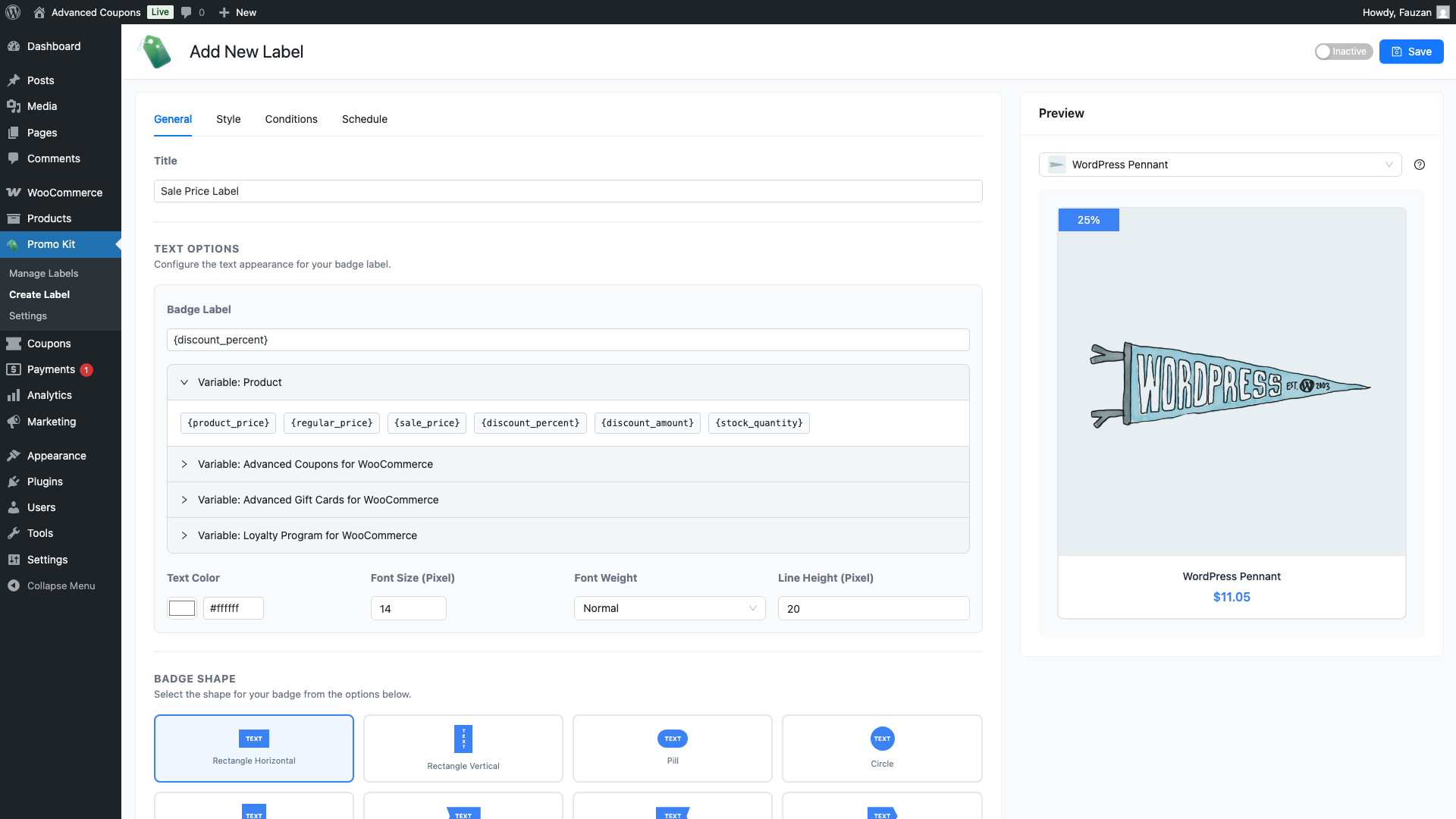
- On the General tab, find the Variables panel on the right-hand side of the editor. If it is collapsed, click it to expand it.
- Under Variable: Product, you will see a list of available placeholder codes.
- Click any placeholder code to insert it at the end of the Badge Text field. You can also type placeholders directly into the badge text — they are case-sensitive, so use the exact format shown.
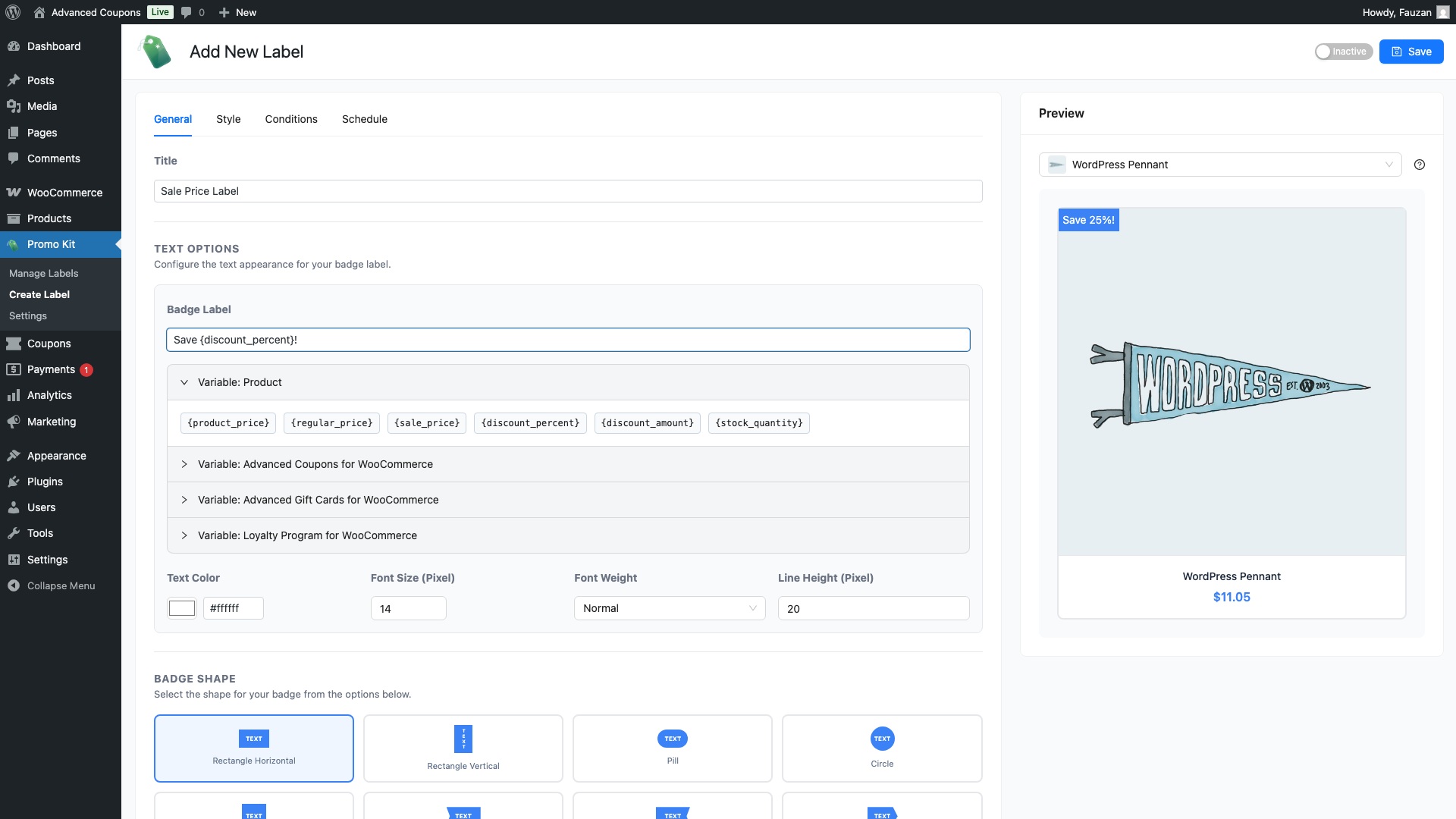
- The Badge Preview updates immediately to show example values, not real product data.
- Click Save when you are done.
Available Placeholders
These placeholders are built into Advanced Promo Kit and work on any product without any additional setup.
| Placeholder | What it displays | Empty when |
|---|---|---|
{product_price} | The product’s current selling price — the sale price if the product is on sale, otherwise the regular price. Formatted with your WooCommerce currency settings. | Never empty for products with a price set. |
{regular_price} | The product’s regular (non-sale) price, formatted with your WooCommerce currency settings. | Never empty for products with a regular price set. |
{sale_price} | The product’s sale price, formatted with your WooCommerce currency settings. | Empty when the product is not currently on sale. |
{discount_percent} | The percentage discount between the regular price and sale price, formatted as a number followed by % (e.g. 25%). | Empty when the product is not currently on sale. |
{discount_amount} | The absolute discount — the difference between the regular price and sale price, formatted with your WooCommerce currency settings (e.g. $10.00). | Empty when the product is not currently on sale. |
{stock_quantity} | The number of units currently in stock. | Empty when stock management is not enabled for the product. |
Integration Placeholders
If you have enabled any of the Advanced Coupons family integrations in Promo Kit → Settings → Integrations Advanced Promo Kit Settings Reference, additional placeholder sections will appear in the Variables panel.
| Placeholder | Requires | What it displays |
|---|---|---|
{ac_coupon-COUPONCODE} | Advanced Coupons for WooCommerce How to Display Advanced Coupons Discount Info on Product Labels | Information about a specific coupon — its discount value, BOGO deal details, or store credits amount. Replace COUPONCODE with your actual coupon code. |
{agc_gift_card_value} | Advanced Gift Cards for WooCommerce How to Display Gift Card Values on Product Labels | The value of the gift card product. |
{lp_points} | Loyalty Program for WooCommerce How to Display Loyalty Points on Product Labels | The number of loyalty points the customer earns for purchasing the product. |
If the required plugin is not installed or active, the corresponding placeholder section will not appear in the Variables panel and the placeholder code will not be processed on the storefront.
How the Preview Works
The badge preview in the label editor uses fixed example values rather than real product data. This lets you see how your label will look without needing to view it on an actual product page. The example values used in the preview are:
{product_price}→ $29.99{regular_price}→ $39.99{sale_price}→ $29.99{discount_percent}→ 25%{discount_amount}→ $10.00{stock_quantity}→ 15
On your live storefront, these values are replaced with each product’s actual data at the time the page loads.
When Placeholder-Based Labels Are Hidden
Before displaying a label, Advanced Promo Kit checks every placeholder in the badge text. If any placeholder resolves to an empty value for a given product, the label is not shown on that product.
Common examples:
- A label with text Save {discount_percent}! will not appear on products that are not currently on sale, because
{discount_percent}is empty for those products. - A label using
{stock_quantity}will not appear on products where WooCommerce stock management is disabled, because the stock quantity is not tracked.
This behaviour is intentional — it prevents labels from showing incomplete or misleading text. If you want a label to appear on all products regardless of sale status, use {product_price} or {regular_price}, which are never empty for products with a price set, or use static text.
Frequently Asked Questions
Can I mix static text and placeholders in the same label?
Yes. You can combine text and placeholders freely — for example, Only {stock_quantity} left in stock! or Now {product_price} — was {regular_price}.
Why is my label not showing on some products?
If the label text contains a placeholder that resolves to empty for a product (for example, {sale_price} on a product that is not on sale), the label will be hidden for that product. Check which placeholders you are using and whether the data they depend on exists for the affected products.
Are placeholders case-sensitive?
Yes. Placeholders must be entered exactly as shown — lowercase with curly braces. {Product_Price} will not be recognised; use {product_price}.
Can I use multiple placeholders in the same label?
Yes. You can use as many placeholders as you like in a single label text. However, if any one of them resolves to empty for a product, the entire label will be hidden for that product.
My placeholder text looks cramped in the badge. How do I fix it?
Dynamic placeholders often produce longer resolved values than the default badge dimensions can fit. Go to the Style tab and increase Width (Pixel) and Height (Pixel) — try 240–280px wide and 36–40px tall as a starting point. For full guidance on badge styling, see How to Create Product Labels in Advanced Promo Kit.
Need Help?
If you have a question or run into any issues, we’re here to help.
- Premium users: Open a support ticket
- Free users: Visit our community forum

