
When a customer already has a coupon in their cart, applying a second one can sometimes fail, especially if the existing coupon is set to individual use or if an auto-applied discount is already present. The Force Apply setting in Advanced Coupons Premium lets you mark a specific coupon so it overrides those conflicts instead of failing with an error. When the coupon is applied, Advanced Coupons temporarily removes all currently applied coupons from the cart, validates the Force Apply coupon, then re-adds any of the previously removed coupons that are still valid and compatible.
You’ll pick the right Force Apply mode for your scenario, enable it on a coupon, and understand what customers see when the coupon overrides an existing cart discount.
Prerequisites
- WooCommerce is installed and active.
- Advanced Coupons for WooCommerce (Free) is the base plugin. It must be installed and active.
- Advanced Coupons Premium is installed and active. Force Apply is a Premium-only feature; the Force Apply dropdown won’t appear without it.
How to enable Force Apply on a coupon
- In your WordPress admin, go to Coupons → All Coupons, then open an existing coupon or click Add New to create one.
- In the Coupon data panel, click the General tab.
- Scroll down to the Force Apply dropdown and select one of the available options (see Force Apply options below).
- Click Update (or Publish for a new coupon) to save.
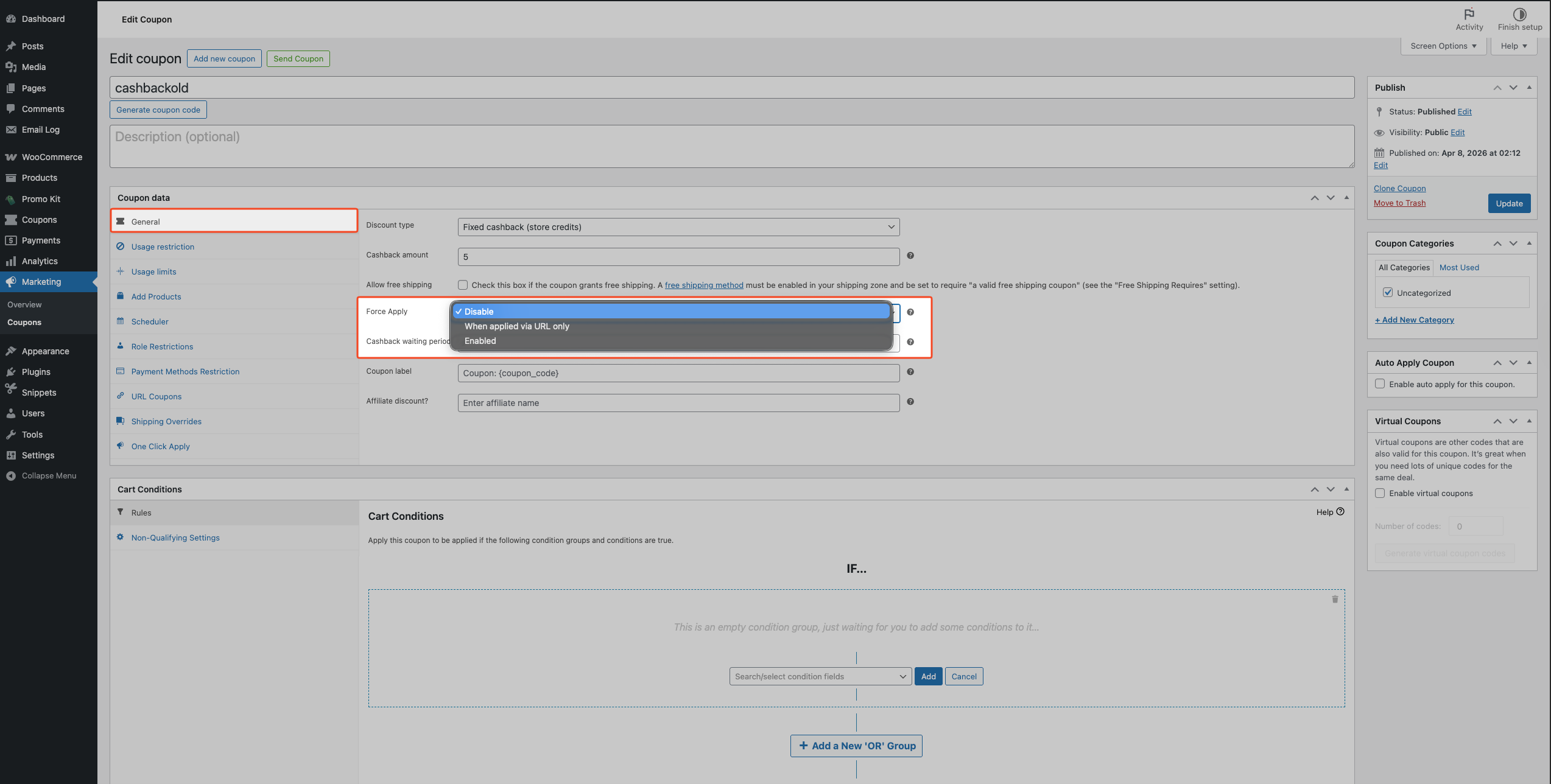
Force Apply options
Disable: Force Apply is off. The coupon behaves normally. WooCommerce applies it alongside existing coupons unless it’s set to Individual use or fails a cart condition. This is the default.
When applied via URL only: Force Apply runs only when the coupon is applied through a URL link using the URL Coupons feature. If a customer enters the code manually at checkout, standard conflict handling applies. This is a good fit for targeted campaigns where you want the coupon to always succeed when a customer clicks a specific link.
Enabled: Force Apply runs every time a customer applies the coupon through the cart or checkout, whether they enter the code manually, use a URL link, or apply it through the WooCommerce Blocks-powered cart or checkout. Use this when you want the coupon to succeed reliably regardless of what else is in the cart.
Important: Avoid combining Force Apply = Enabled with Auto Apply on the same coupon unless the coupon is genuinely mandatory, for example a loyalty reward or a site-wide mandatory promotion. When both are active, customers who try to remove the coupon will see it re-appear after the page reloads, because Auto Apply re-adds it automatically. This is the most common cause of “coupon stuck in cart” support tickets. For typical promotional codes, leave Auto Apply off.
If the Force Apply coupon itself is also set to Individual use only (in the Usage restriction tab), other applied coupons are cleared and are not re-added afterward, even if they would otherwise have been valid.
When to use Force Apply
Mandatory loyalty reward: If you’re running a loyalty program and want returning customers to always receive a reward coupon even when they’ve already applied another code, set Force Apply to Enabled. The reward coupon validates and takes precedence, and any compatible codes are re-added automatically.
Site-wide mandatory promotion: For store-wide discounts that must take precedence over any other cart-level coupon, for example, a sitewide sale event setting Force Apply to Enabled ensures the promotion applies reliably for every customer, regardless of what they’ve already entered.
URL-campaign coupons: When running a targeted campaign where customers arrive via a specific link, use When applied via URL only. The coupon overrides conflicts exclusively when customers click your campaign URL, leaving standard manual-entry behavior unchanged for customers who type the code at checkout directly.
What happens when Force Apply runs
When a customer applies a Force Apply coupon, Advanced Coupons temporarily removes all currently applied coupons from the cart. The Force Apply coupon is then validated and added. After that, any previously removed coupons that are still valid and compatible with the current cart are automatically re-added. Coupons that fail their own validation rules for the updated cart state are not restored.
Force Apply does not activate during the automatic application of coupons (Auto Apply). It only runs when a coupon is applied directly by the customer.
One exception: when a URL coupon with When applied via URL only was deferred (because the cart wasn’t eligible at the time of the URL click) and is later applied, any auto-applied coupons in the cart are removed and are not re-added.
Troubleshooting
The Force Apply coupon isn’t overriding an existing coupon
Confirm the Force Apply dropdown on the coupon is set to Enabled (or When applied via URL only if you’re testing via a URL link). The setting defaults to Disable. Re-open the coupon editor after saving to verify the value was stored correctly.
Also, check that Advanced Coupons Premium is active. Force Apply is a premium feature and doesn’t work with the free plugin alone.
A removed coupon didn’t return after Force Apply ran
After a Force Apply coupon is applied, removed coupons are only re-added if they still pass validation for the current cart. If a removed coupon fails its own validation rules, for example because the new coupon changed the cart total past a minimum order threshold, it won’t be restored. Review the usage restrictions and conditions on the removed coupon to see whether they still apply.
If you’re using a deferred URL coupon with When applied via URL only, auto-applied coupons removed during that flow are not re-added (see What happens when Force Apply runs above).
Frequently asked questions
Does Force Apply permanently remove existing coupons from the cart?
No. Force Apply temporarily removes all currently applied coupons so the new coupon can validate. Any coupons that are still valid and compatible are automatically re-added after the Force Apply coupon is accepted. Only coupons that fail validation for the updated cart state are not restored.
Can I use Force Apply together with URL Coupons?
Yes, this is one of the primary use cases. Setting Force Apply to When applied via URL only ensures the coupon overrides conflicts exclusively when customers arrive via a campaign link, leaving normal manual-entry behavior unchanged.
Does Force Apply work with the WooCommerce Blocks checkout?
Yes. Force Apply supports both the classic WooCommerce checkout and the Cart and Checkout blocks, but the outcome differs slightly.
On the classic checkout, Force Apply removes the other coupons and then puts back any that still pass their own rules. On the Cart and Checkout blocks, from version 4.0.7 onward, the force-applied coupon is the only one left in the cart. Nothing is put back.
This was deliberate. Re-adding coupons through the blocks produced conflicting cart totals, so the blocks now settle on the force-applied coupon alone. If a customer reports losing a coupon at the blocks checkout that survives at the classic one, this is why.
Can I combine Force Apply with Auto Apply?
You can, but use caution. If a coupon has both Force Apply = Enabled and Auto Apply turned on, customers who try to remove it from the cart will see it reappear on the next page reload because Auto Apply re-adds it automatically. Reserve this combination for genuinely mandatory coupons such as loyalty rewards or site-wide promotions. For standard promotional codes, leave Auto Apply off.
Need help?
If you have a question or run into any issues, we’re here to help.
- Premium users: Open a support ticket
- Free users: Visit our community forum on WordPress.org

