
If a specific customer is abusing a coupon or you need to lock one person out without disabling it for everyone, Advanced Coupons Premium lets you block them by account. You’ll add their account to the Disallowed customers list on the coupon, and the next time they try to apply it, WooCommerce rejects it with an error. This guide covers how to add accounts to that list, what the blocked customer sees, and how this restriction compares to role-based and email-based restrictions.
If you want the opposite behaviour (only allow specific customers to use a coupon), see How to Restrict Coupons to a Certain User?.
Prerequisites
- WooCommerce is installed and active.
- Advanced Coupons Premium (which requires the free Advanced Coupons base plugin) version 4.0.4 or higher is installed and active.
- The customers you want to block already have WordPress/WooCommerce user accounts.
How to add customers to the disallowed list
- Go to Marketing → Coupons in your WordPress dashboard.
- Open the coupon you want to edit.
- In the coupon data panel, open the Usage restriction tab.
- Click the Disallowed customers search field.
- Type a customer name or email to find the account(s) you want to block.
- Select each customer to add multiple accounts to the list.
- Click Update to save the coupon (or Publish if it’s a new coupon).
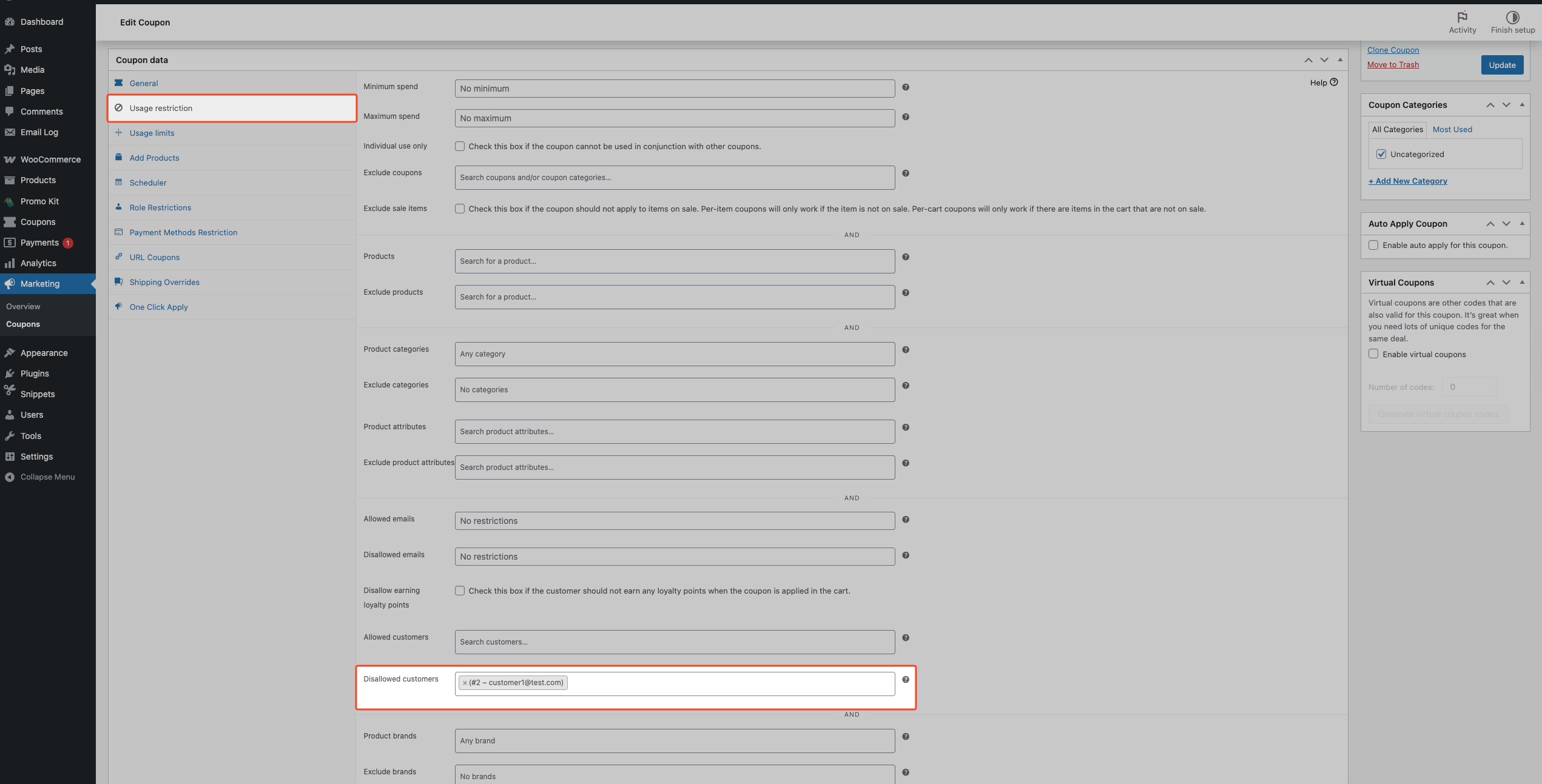
To unblock a customer later, reopen the coupon, remove their name from the Disallowed customers field, and click Update.
About the disallowed customers field
The Disallowed customers field uses customer accounts (user IDs), not free-text email entries. Each selected entry shows the customer name, user ID, and email so you can confirm the exact account before saving.
How does this differ from role restrictions and disallowed emails?
Disallowed customers are account-specific. You manually select exact customer accounts to block on one coupon.
Role Restrictions are role-based. They apply to groups of users by role (for example, guest, customer, wholesale), not individual accounts.
Disallowed emails are email-based. They validate the logged-in user’s email against blocked values.
Use account blocking when you need person-by-person control, role restrictions when the rule should apply to all users in a role, and disallowed emails when the rule should follow email/domain patterns.
What do blocked customers see?
When a blocked customer tries to apply the coupon, WooCommerce rejects it and shows an error in the cart or checkout:
You are not allowed to use this coupon.
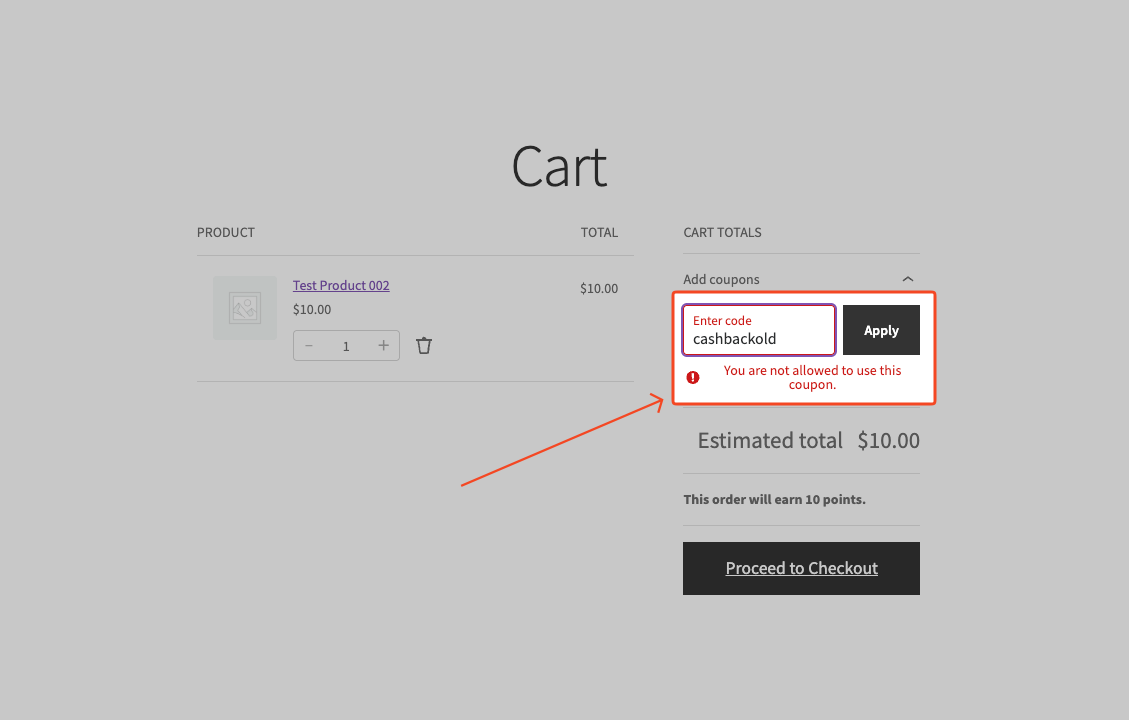
Exception: If the coupon has the Virtual Coupons feature enabled, the Disallowed customers restriction doesn’t apply. Virtual Coupons are applied by the store rather than the customer, so per-customer restrictions are bypassed by design.
Troubleshooting
A blocked customer can still apply the coupon
Confirm you selected the correct account in Disallowed customers and clicked Update. Then test while logged in to that exact account — this rule validates by logged-in user ID, so testing while logged out or in a different account produces different results.
If the coupon has the Virtual Coupons feature enabled, see the exception note above — this is expected behaviour.
The disallowed customers field is missing
Check the Advanced Coupons Premium version under Plugins → Installed Plugins. The Disallowed customers field requires version 4.0.4 or higher. If it’s active and below 4.0.4, update it, then refresh the coupon edit page. If you don’t have Advanced Coupons Premium yet, you can get it from our pricing page.
Frequently asked questions
Can I add more than one customer to the disallowed list?
Yes. The Disallowed customers selector supports multiple accounts on the same coupon.
Does this block guest checkout users, too?
No. This setting checks customer account IDs and only applies to registered users who are logged in to a specific account, so guest checkouts are not covered.
Can I combine this with Role Restrictions or Disallowed emails?
Yes. You can combine these restrictions on the same coupon for tighter control.
Can I change the blocked-customer error message?
This is an advanced change that requires a code edit. It’s not available in the coupon settings. A developer can customise it using the acfwp_disallowed_customers_error_message filter in your theme’s functions.php or a custom plugin.
What if I need to block a group, not individual accounts?
To block everyone in a specific role — like all wholesale customers or all guests — use Role Restrictions instead. To block by email address or domain (for example, everyone from *@competitor.com), use the Disallowed emails field in the same Usage restriction tab.
What happens if a blocked customer changes their email or creates a new account?
Changing their email address doesn’t unblock them — the restriction is tied to their user ID, not their email. However, if they create a brand-new WordPress account, that account has a different user ID and won’t be blocked. You’d need to add the new account to the Disallowed customers list manually.
Need help?
If you have a question or run into any issues, we’re here to help.
- Premium users: Open a support ticket
- Free users: Visit our community forum on WordPress.org support

