
The Advanced Loyalty Program in Advanced Coupons helps you create a flexible, points-based rewards system that keeps your customers engaged and increases your Customer Lifetime Value (CLV).
By awarding points for purchases, referrals, and other actions, you can encourage repeat business and turn happy shoppers into loyal brand advocates.
Here’s what the Loyalty Program offers and how it appears to your customers:
Loyalty Program display to customers
The loyalty program creates multiple touchpoints in your store to show customers the value they’re earning:
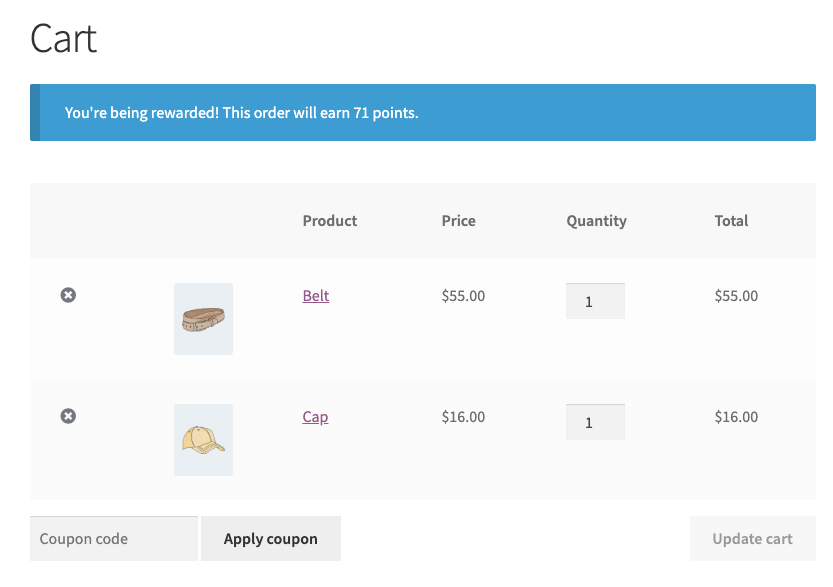
In the cart
The Cart page shows customers a summary of the points they can earn for their order. See the Points to earn message in cart settings below for how to control this message.
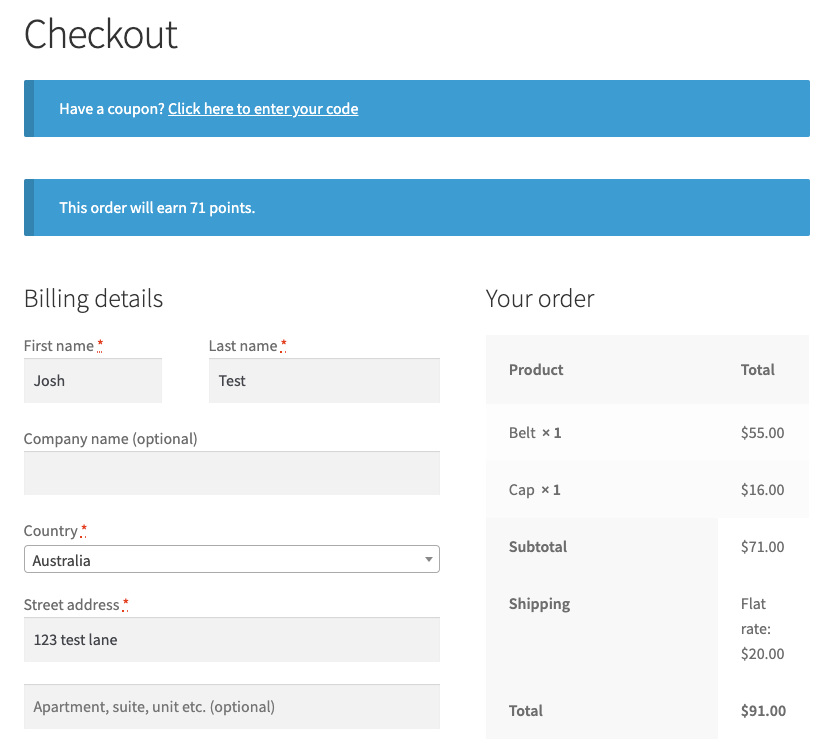
At the checkout
When a customer visits the Checkout page on your store, a summary of the point that will be earned for the order is displayed. See the Points to earn message in checkout setting below for how to control this message.
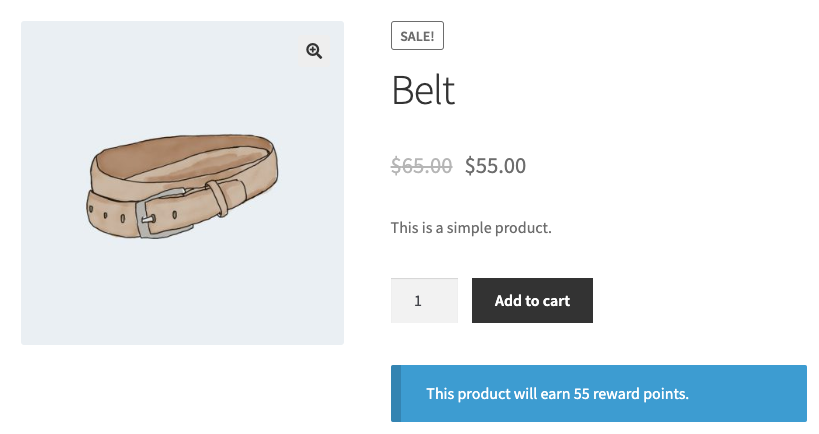
Product pages
The product page displays how many points customers can earn by purchasing that product. See the Points to earn message in single product page setting below for how to control this message.
In the My Account area
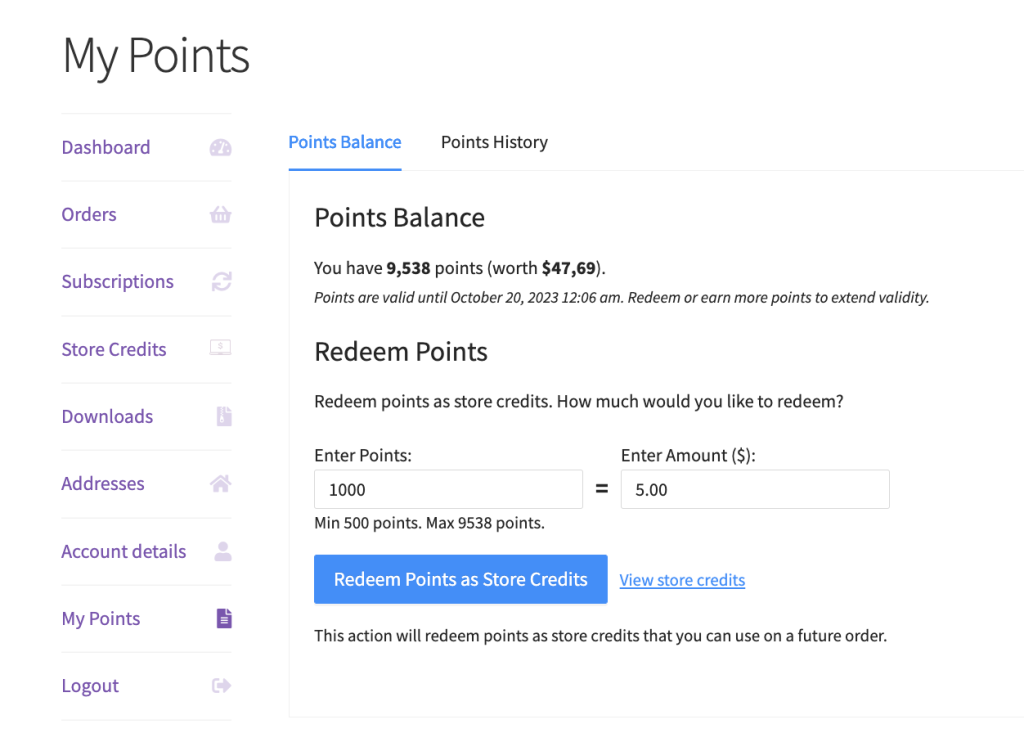
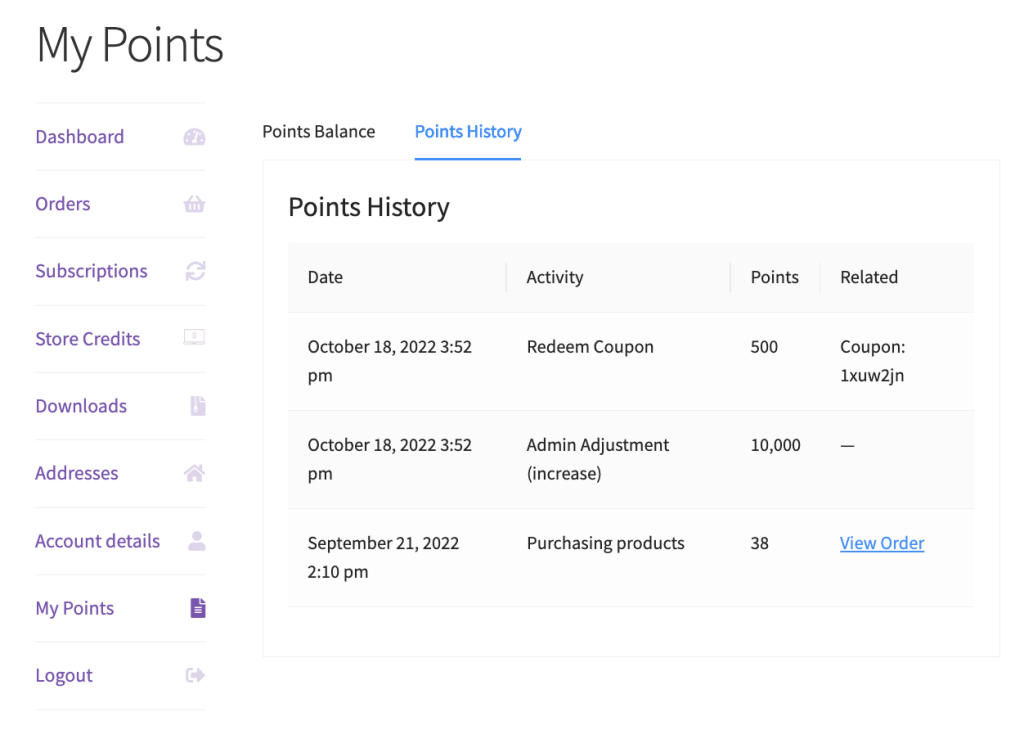
The My Account area includes a new section called My Points.
This section shows the number of points earned by the customer, the redemption form, redeemable rewards, any redeemed coupons, and points history.
Settings
You can find the settings for your loyalty program under Coupon -> Loyalty Program.
If you don’t see the Loyalty Program sub‑menu, check the Modules sub‑menu and enable the Loyalty Program module there.
- Price to points earned ratio – Set how many points customers earn for each dollar spent.
For example:- A ratio of 1 means customers earn 1 point per dollar.
- A ratio of 5 means they earn 5 points per dollar.
- Points to price redeemed ratio – Set the value of each point when customers redeem it.
For example:- A ratio of 1 makes each point worth $1.00.
- A ratio of 10 means customers need 10 points to get $1.00 off.
- Points name – Change the default “Points” label to any name that fits your brand.
- Disallow points accumulations for roles – Choose which roles should NOT accumulate points for purchases. If users with those roles make a purchase, they will not accumulate points, nor will they see the points section on their My Account or Checkout pages.
- Minimum threshold to earn points – Set a minimum spend for a customer to be eligible to accumulate points for an order. Once an order is eligible, the customer will receive points for the entire subtotal.
- Minimum points allowed for redemption – Set the minimum number of points customers must have before they can redeem them as store credit.
- Points to earn message in cart – Shows a message on the cart page indicating how many points the current order will earn. Use {points} placeholder in your message for displaying the points amount. Leave blank to disable.
- Points to earn message in checkout – Shows a message on the checkout page indicating how many points the current order will earn. Use {points} placeholder in your message for displaying the points amount. Leave blank to disable.
- Points to earn message in single product page – Shows a message on the single product page indicating how many points this particular product will earn. Use the {points} placeholder in your message for displaying the points amount. Leave blank to disable.
Earning points
Customers must create an account to earn points; guest users can’t earn points because the system needs a user ID.
When customers place an order:
- The system checks whether the customer’s role can earn points.
- If the customer creates an account during checkout, they still get points for that order.
- Customers receive points once the order status changes to ‘processing’ or ‘completed’ (after payment).
By default, customers earn points based on the order subtotal multiplied by your price-to-points earned ratio.
Other ways to earn bonus points include:
- Extra points on the first order or account signup
- Bonuses for higher spend levels
- Leaving product reviews
- Commenting on blog posts
- Special promotional periods
These options give you flexibility to reward a range of customer actions.
Redeeming points
Customers can self-manage their points and redeem them into store credits at a time that suits them.
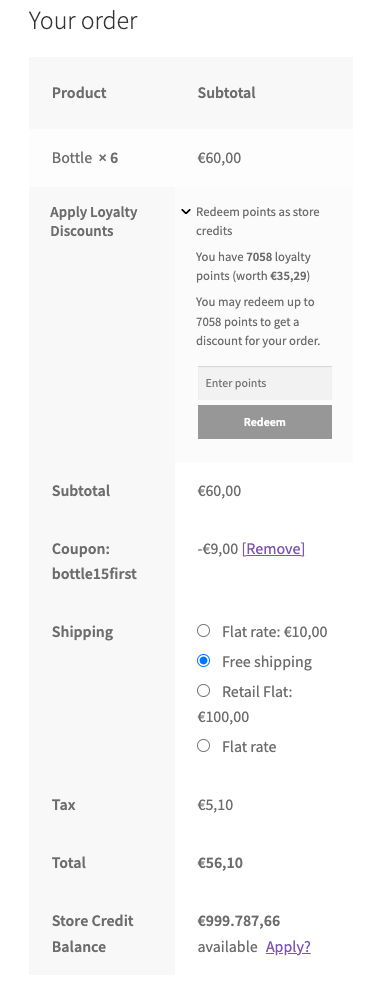
They can redeem points from the custom interface in the My Account section or directly on the checkout page.
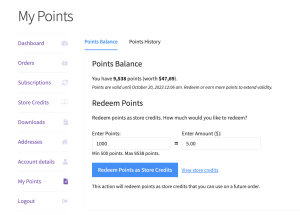
Points balance
This section shows how many points the customer has collected and their store credit value. Each new purchase extends the points’ validity.
Redeem points
Customers can redeem points as store credits.
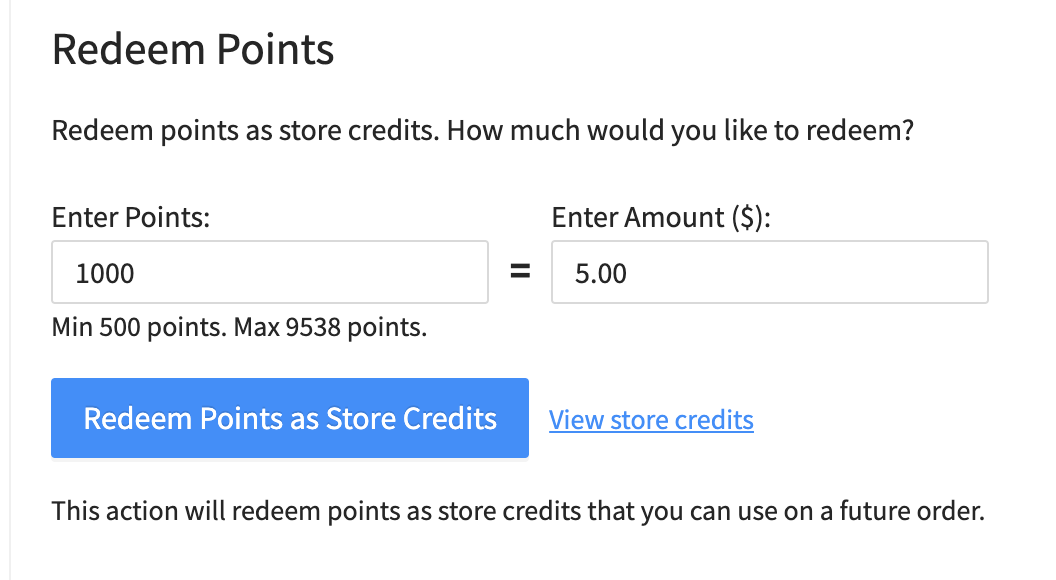
The redemption form uses AJAX, so it updates without reloading the page.
After customers redeem points, the system adds them to their store credits. They can view redemption logs in the Points History and see their total credit in the Store Credits tab.
Minimum points allowed for redemption
The Minimum points allowed for redemption setting sets the lowest number of points customers can redeem at once.
If they enter fewer points, the system disables the redeem button.

Points rewards
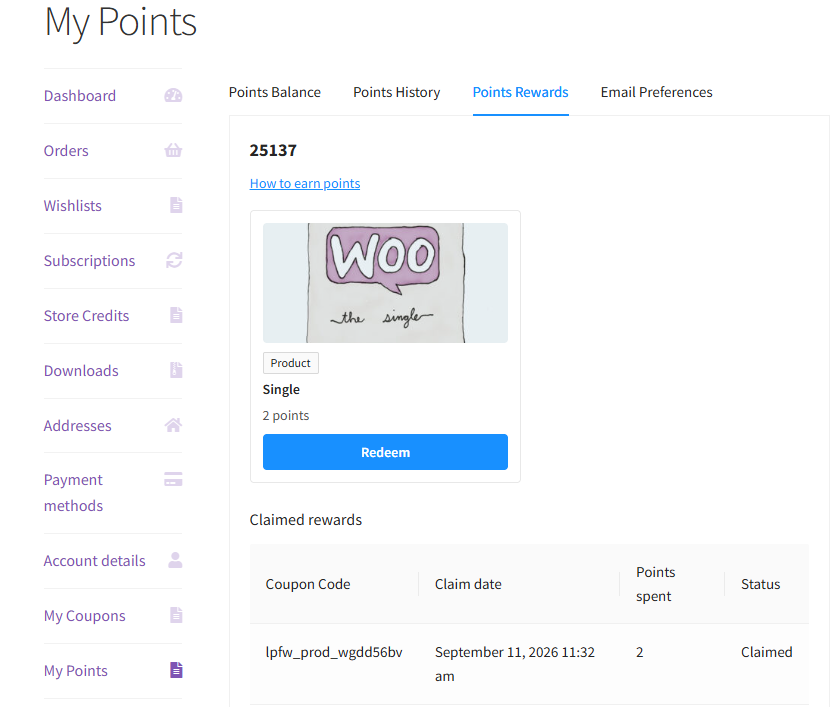
Besides converting points into store credit, you can let customers spend their points on specific products or coupons that you choose as rewards.
Rewards appear in a dedicated Rewards tab (labelled with your configured Points name, e.g. “Points Rewards”) on the My Points page in My Account, alongside History, Redeem, and Coupons.
Offering a product as a reward
- Edit the product you want to offer as a reward.
- In the Product data box, open the General tab.
- Check Offer as Loyalty Reward.
- Set Points Required To Redeem, or leave it blank to auto-fill it from the product’s price and your Points to price redeemed ratio setting. You can override the auto-filled value at any time.
- Update the product.
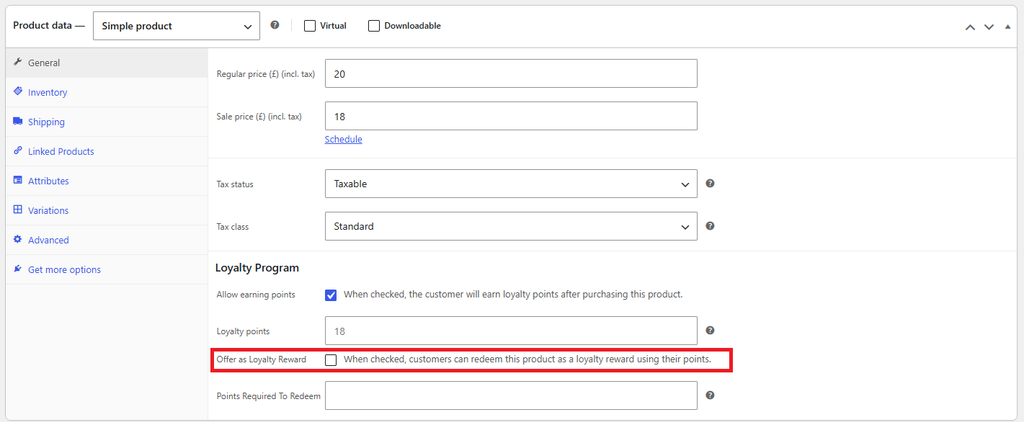
Reward stock follows the product’s own stock status. If you later uncheck Offer as Loyalty Reward, the product is removed from the Rewards tab going forward, but any coupons customers already claimed for it keep working.
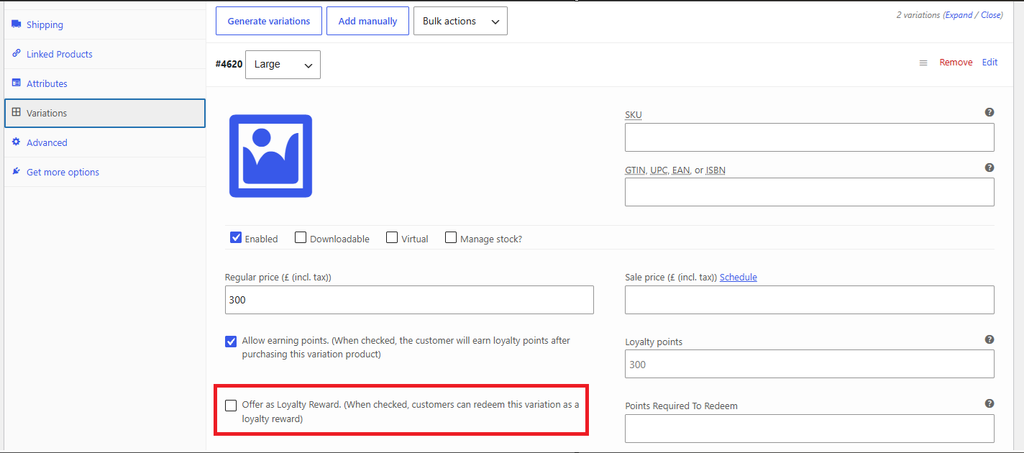
Offering a variation as a reward
Variable products need each variation set up individually.
- In the Product data -> Variations tab, each variation has its own Offer as Loyalty Reward checkbox and Points Required To Redeem field.
- If you leave a variation’s points field blank, it inherits the parent product’s Points Required To Redeem value.
- Only variations with their own checkbox enabled show up as rewards; stock follows each variation’s own stock status.
On the storefront, a variable product reward appears as a single card showing “From {X} points” (its lowest points cost). Clicking Redeem lets the customer choose which variation to claim.
Offering a coupon as a reward
Any coupon, including a plain discount coupon you already use for other purposes, can also be offered as a reward.
- Go to Marketing -> Coupons and edit the coupon you want to offer.
- In the Loyalty Reward box in the sidebar, check Offer as Loyalty Reward.
- Enter Points Required To Redeem. Coupons have no price to calculate a default from, so you need to set this manually.
- Update the coupon.
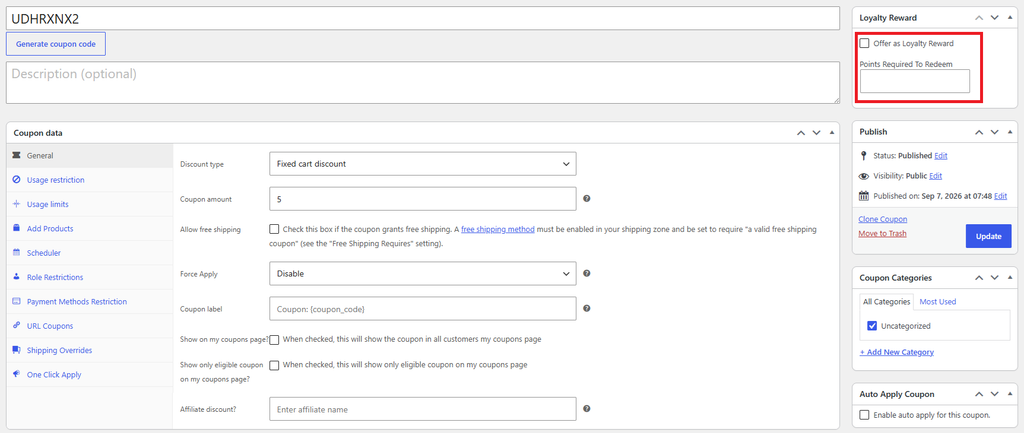
A coupon reward’s stock is based on its own Usage limit per coupon setting (Usage restriction tab), minus how many times it has already been used. Leave the usage limit blank for an unlimited coupon reward.
How customers claim a reward
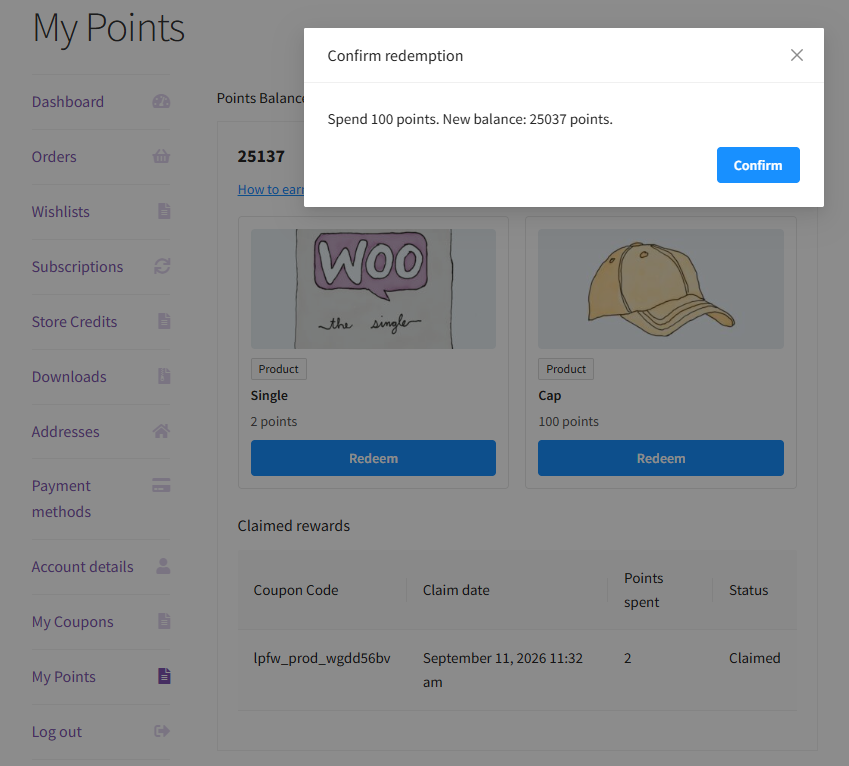
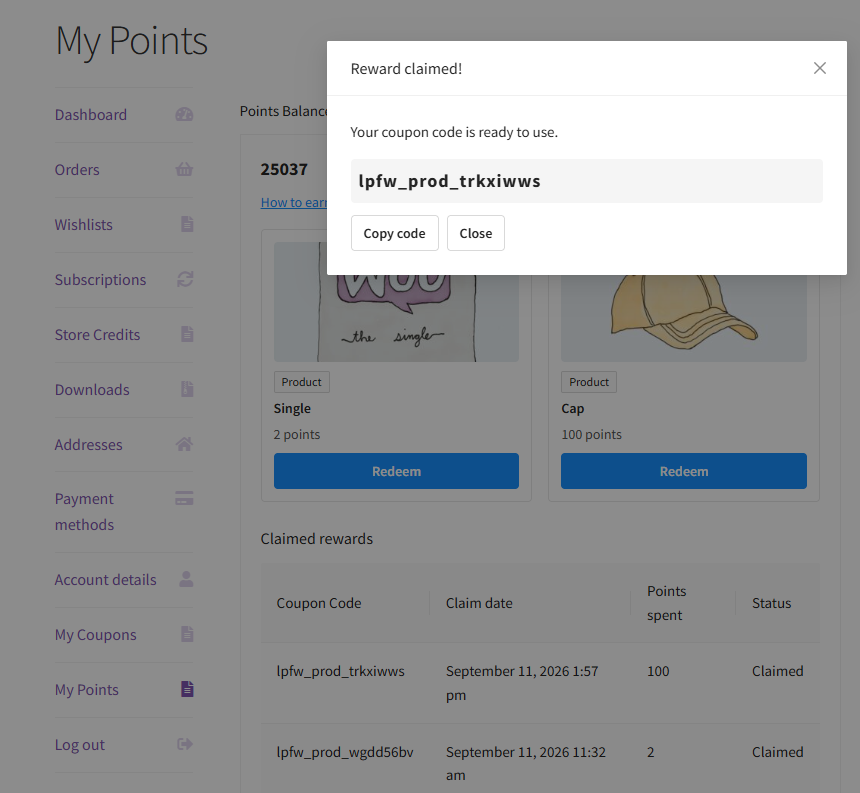
Each reward card in the Rewards tab shows the product image (or a coupon icon), its name, a Product or Coupon badge, and its points cost.
- If the customer doesn’t have enough points, the Redeem button is disabled and shows “Need {X} more points”. The reward stays visible so the customer knows it’s available once they earn more.
- If the reward is out of stock, the button shows “Unavailable” instead, even if the customer can otherwise afford it.
- The customer’s points balance is shown at the top of the tab, along with a “How to earn points” link for anyone who needs more.
To claim a reward:
- The customer clicks Redeem on an available reward.
- A confirmation prompt shows how many points will be spent and the resulting balance, for example “Spend 800 points. New balance: 250 points.”
- After confirming, the reward is claimed and a single-use coupon code is generated. The customer can copy it with the Copy code button and enter it at checkout like any other coupon.
Customers also receive a reward claim confirmation email with their coupon code and instructions on how to use it. You can customize this email’s subject, heading, message, and “How to use” instructions under WooCommerce -> Settings -> Emails -> Loyalty Program – reward claim confirmation.qReferral Rewards
The Referral Rewards feature lets your existing customers help grow your store by sharing a special referral link.
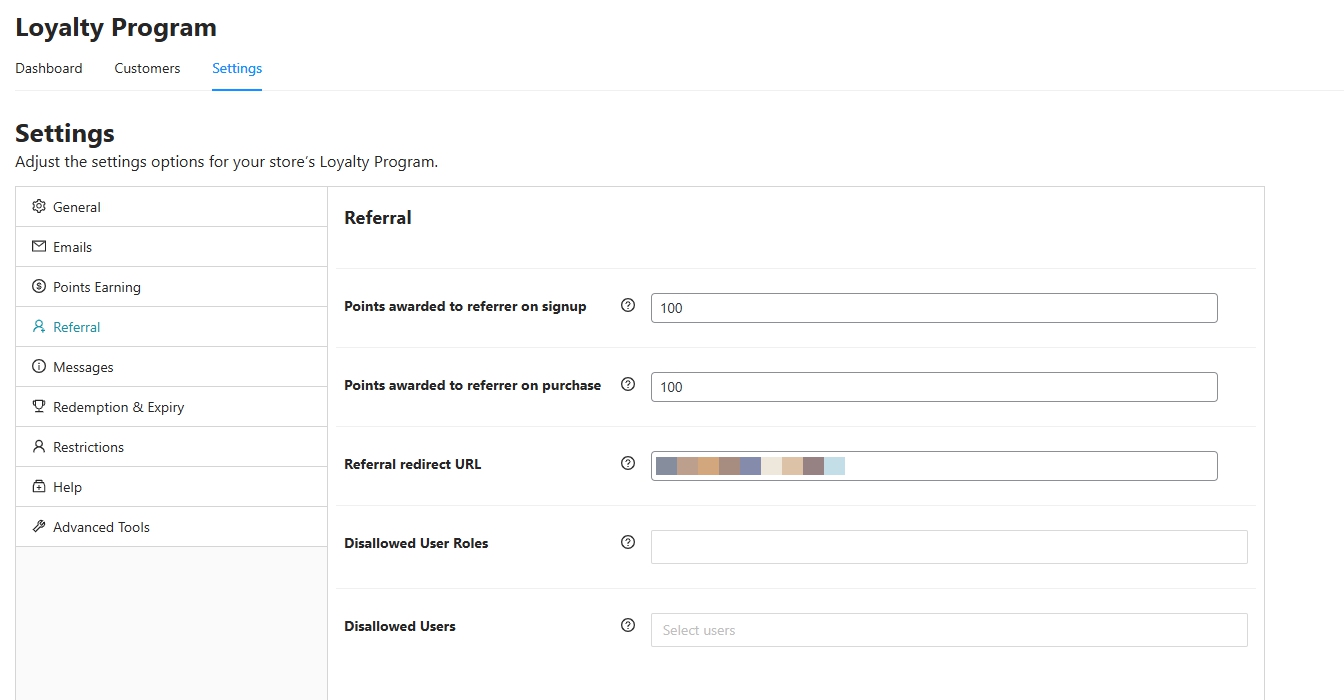
From the Referral settings tab, you can customize:
- Points awarded to referrer on signup: Give points when someone signs up via a referral link.
- Points awarded to referrer on purchase: Give points when the referred customer places their first order.
- Referral redirect URL: Choose where to send users after they click the referral link (e.g., your homepage, shop page, or a special landing page).
- Disallowed User Roles / Users: Exclude certain user roles or specific users from earning referral points to help prevent abuse.
Referral Rewards help your store grow organically by turning customers into advocates, and boost your Customer Lifetime Value (CLV) by encouraging more repeat purchases and new customer acquisition.
👉 For detailed setup instructions, see: How to Set Up Referral Rewards in Loyalty Program
Summary
The Loyalty Program lets you:
- Reward customers for shopping and referring friends
- Show points across your store (cart, checkout, product pages, My Account)
- Set earning rates, redemption rules, and advanced restrictions
- Track points activity to see what drives engagement
- Let customers redeem points directly for specific product or coupon rewards
Together, these features help increase repeat business and grow your Customer Lifetime Value (CLV).
Help & Support
We have a dedicated support team for Advanced Coupons who know our products, WooCommerce, and the industry very well. You’re welcome to make use of their expertise at any time, worldwide.
If you are an existing customer, please go to the support ticket request form and send us a message.
If you are a free plugin user, please send us a support request on the forum, we actively monitor the WordPress.org support forums for the free plugin and help our users there as best as we can.

