
If a customer is abusing a coupon or you want to stop everyone from a specific email domain from redeeming it, Advanced Coupons Premium gives you a per-coupon Disallowed emails field for exactly that. Enter individual addresses or wildcard patterns like *@gmail.com, and when a matching logged-in user tries to apply the coupon, WooCommerce rejects the coupon.
The check uses the shopper’s WordPress account email (the address on their user profile), which may differ from the billing email they type at checkout. Use this when you need domain patterns or a quick block without looking up an account record. To block specific registered accounts from a picklist instead, use Disallowed customers on the same Usage restriction tab.
Prerequisites
- WooCommerce is installed and active.
- Advanced Coupons Premium (includes the free Advanced Coupons base plugin), version 4.0.4 or higher, must be installed and active — that version adds the Disallowed emails field on the coupon edit screen.
How to add email restrictions to a coupon
- Go to Coupons in your WordPress dashboard.
- Open the coupon you want to restrict.
- In the coupon data panel, open the Usage restriction tab.
- Click the Disallowed emails field.
- Enter one or more email addresses or patterns, separated by commas (for example:
[email protected], *@competitor.com). - Click Update (or Publish) to save the coupon.
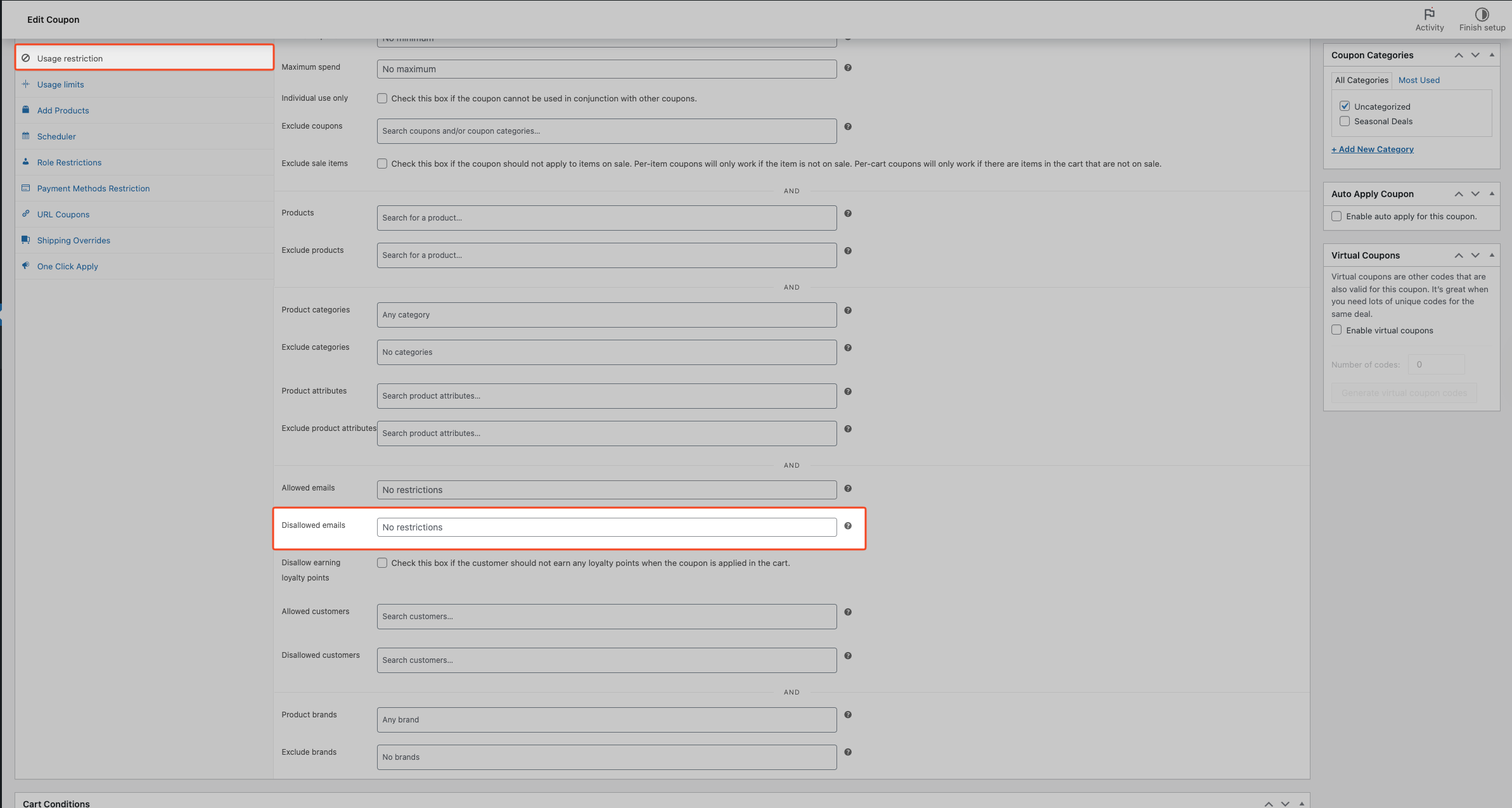
To disable a restriction later, reopen the coupon, clear the address or pattern from the Disallowed emails field, and click Update.
How wildcard patterns work
The Disallowed emails field supports * as a wildcard that matches any number of characters. This lets you block an entire email domain without listing every address individually.
Common patterns:
*@gmail.com— blocks all logged-in users whose accounts use a Gmail address*@competitor.com— blocks everyone from that domain[email protected]— blocks only that exact address
Patterns are case-insensitive, so [email protected] and [email protected] are treated as the same. Separate multiple patterns with commas.
How does this differ from other customer restrictions?
The Usage restriction tab includes several ways to control who can use a coupon. The table below compares the main fields. For step-by-step user picklists, see How to restrict coupons to a certain user.
| Field | What it does |
|---|---|
| Allowed emails (WooCommerce built-in) | Whitelist — only those email addresses can use the coupon |
| Allowed customers (Advanced Coupons Premium) | Whitelist — only specific registered accounts can use the coupon |
| Disallowed customers (Advanced Coupons Premium) | Blocklist — specific registered accounts can’t use the coupon |
| Disallowed emails (Advanced Coupons Premium) | Blocklist — email addresses or domain patterns can’t use the coupon (logged-in account email) |
Disallowed emails is the right choice when you need to block by email domain pattern (which none of the other fields support), or when you want to block someone based on their email without having to search for their account record.
These restrictions are independent — failing any one of them rejects the coupon.
What do blocked customers see?
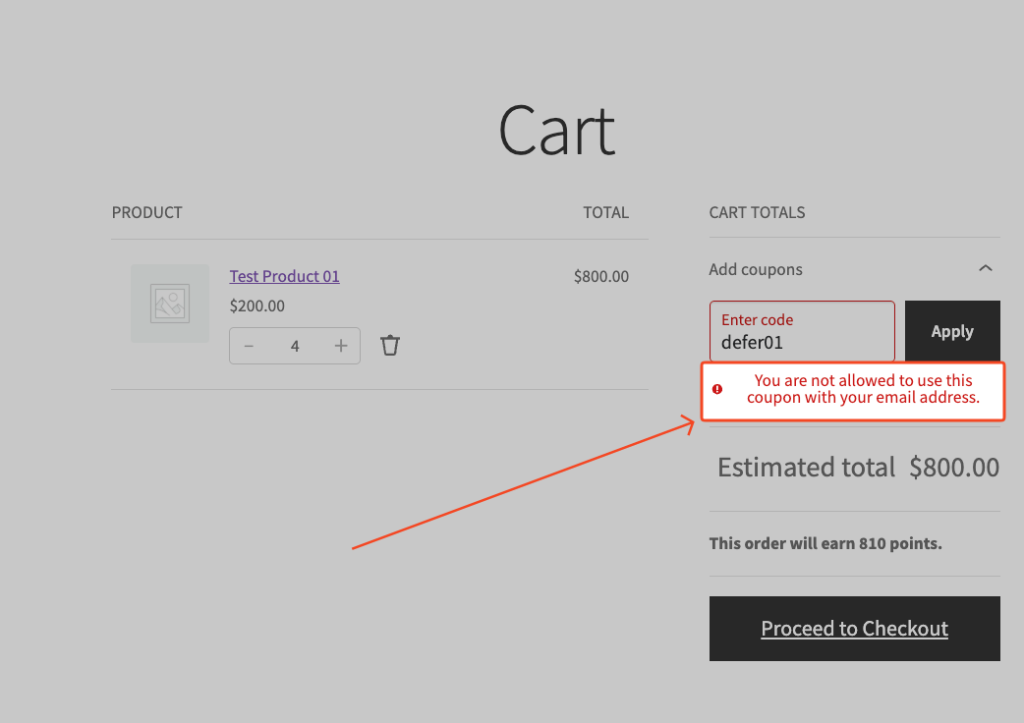
When a matching logged-in customer tries to apply the coupon, WooCommerce rejects it and shows a notice in the cart or checkout notice area. The customer can clear the coupon field and try another code, sign in with a different account, or contact the store for help:
You are not allowed to use this coupon with your email address.
If Enable virtual coupons is turned on for the coupon, the Disallowed emails check does not run. Those unique codes are issued and redeemed outside the normal customer-applied flow, so per-email restrictions are skipped by design. See How to use Virtual coupons for details.
Troubleshooting
The restriction isn’t blocking the customer
The customer is checking out as a guest. The Disallowed emails check evaluates the logged-in customer’s WordPress account email from their user profile, not the billing email they enter at checkout. Guests have no account email in that check, so the plugin does not reject the coupon from this rule alone. WooCommerce Allowed emails on the same tab is a whitelist (only addresses that match the list may use the coupon); it does not recreate a guest-facing blocklist for Disallowed emails. To enforce email rules when people are not logged in, require a customer account (so Disallowed emails applies), add other rules such as Cart Conditions on the coupon, or use a small custom validation snippet.
The coupon has Virtual Coupons enabled. When virtual coupons are active on a coupon, the Disallowed emails check is skipped entirely. These two features can’t be used together on the same coupon.
The pattern doesn’t match. A wildcard (*) matches any string of characters but must match the full email address. For example, *@gmail.com blocks [email protected] but not [email protected]. Check the pattern against the customer’s exact account email, which is visible under WooCommerce → Customers.
The Disallowed emails field is missing
This field requires the Advanced Coupons Premium version 4.0.4 or higher. Check that it’s installed and active under Plugins → Installed Plugins. If you don’t have it yet, you can get it from our pricing page. If it’s already active, update it to at least version 4.0.4 and refresh the coupon edit page.
Frequently asked questions
Does this apply to guest checkouts?
No — the same account-email limitation is explained under The restriction isn’t blocking the customer in Troubleshooting.
Can I use a wildcard to block an entire email domain?
Yes. Enter a pattern such as *@domain.com, and every logged-in user whose account email belongs to that domain is blocked from using the coupon.
What if I use both WooCommerce’s Allowed emails and the Disallowed emails field?
They work independently. WooCommerce’s Allowed emails field in the Usage restriction tab is a whitelist; only addresses listed can use the coupon. Advanced Coupons’ Disallowed emails is a blocklist on top of that. A customer must pass both checks for the coupon to apply.
Can I change the error message that blocked customers see?
Not from the coupon settings. A developer can customise it using the acfwp_disallowed_emails_error_message filter in their theme functions.php file or a custom plugin.
What if a blocked customer creates a new account with a different email?
The restriction follows the email address, not the person. If their new account email doesn’t match any blocked pattern, WooCommerce does not reject the coupon. Add a pattern that covers the new address, or block their account directly using the Disallowed customers field in the same Usage restriction tab.
Need help?
If you have a question or run into any issues, we’re here to help.
- Premium users: Open a support ticket
- Free users: Visit our community forum on WordPress.org

