
Thank you for purchasing the Advanced Loyalty Program!
This document is a guide to help you get started with the Advanced Loyalty Program.
This plugin provides a comprehensive loyalty program to encourage your customers to come back to your store and shop more often as you give them valuable rewards to do so.
Retaining your current customers is just as important as acquiring new customers. They will earn more rewards as they shop more, which means more revenue that they will bring for you.
Here’s what this guide will cover:
- Overview – we describe what the plugin does.
- Earning Options – customers can earn points by making orders and doing other tasks.
- Redeem Points into Store Credits – customers can redeem points into store credits by themselves.
- Points Messaging – customers are prompted about how many points they are potentially earning for each product and for their order as a whole.
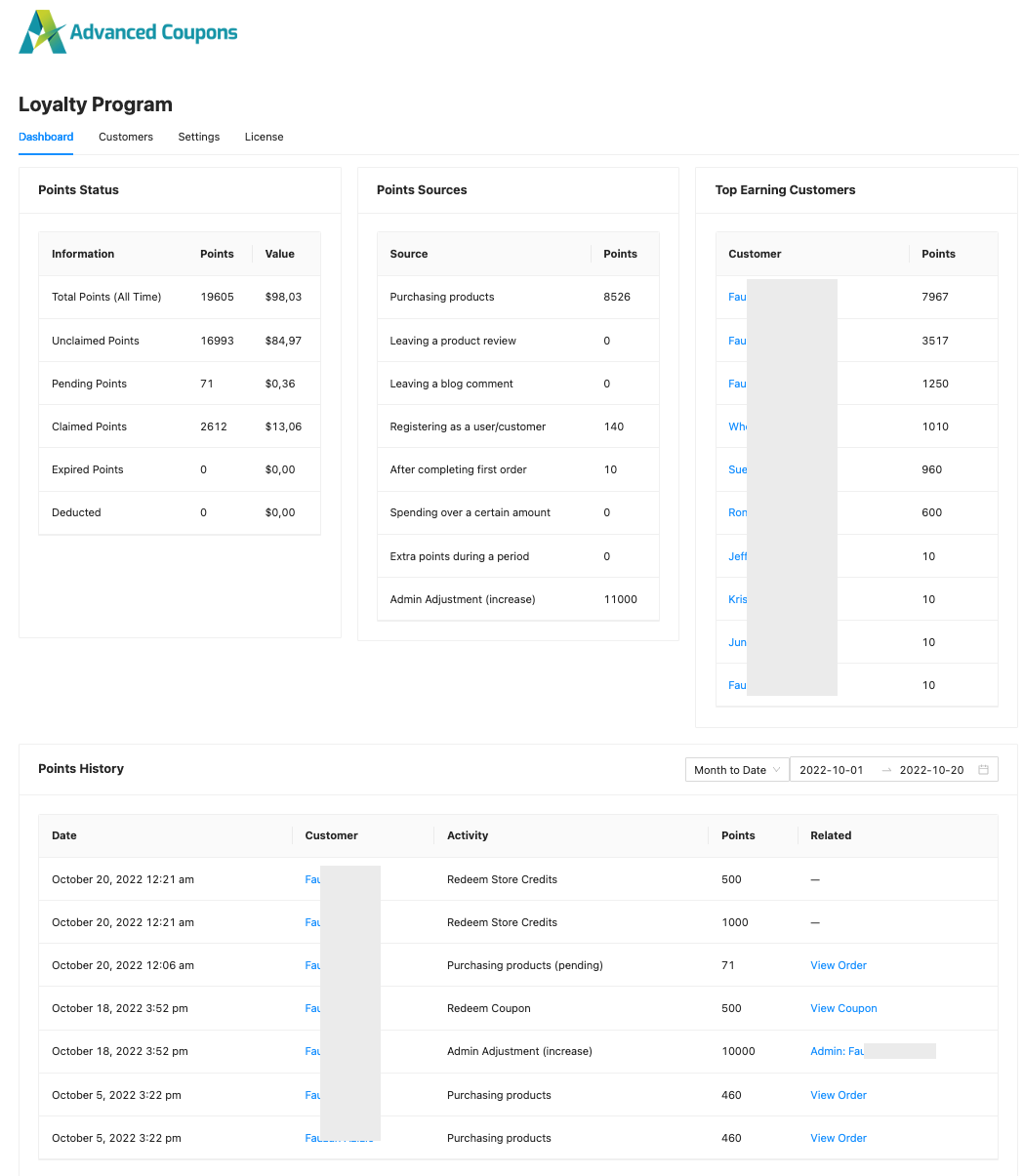
- Dashboard & Reports – a full admin dashboard is provided showing how many points are in the system, how many have been redeemed, and what is working.
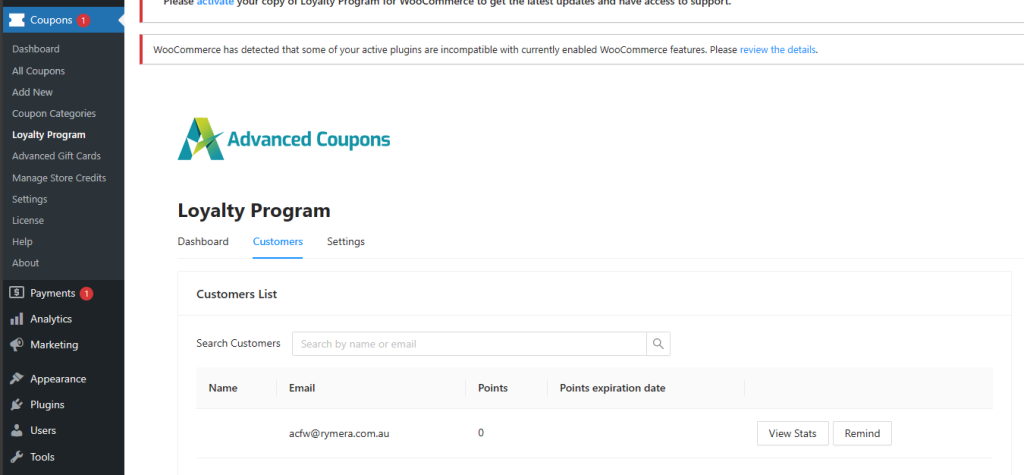
- Manage Customers – showing you the earning and redemption actions of a single customer, allowing you to grant or remove the points.
Overview
With our Advanced Loyalty Program, you can easily create a loyalty program for your online store and utilize it to boost customer retention by growing repeat purchases.
It requires you to install and activate this free Advanced Coupons For WooCommerce plugin for it to work. It also requires the Advanced Coupons Store Credit module to be active, because points are redeemed as store credit. If the module is not active, the plugin shows a notice asking you to enable it and does not run until you do.
Earning Options
The customers must be logged in to earn points. This means that guest users who are not registered will not earn any points as the system requires a user ID for it to work.
We recommend allowing customers to create an account upon checkout before placing the order, this will allow them to earn points for that order.
Creating an account might be perceived as a big commitment for some customers and fortunately, our plugin lets you give them points as a welcome gift for registering their account.
We also have the “Disallow points accumulations for roles” feature that lets you control which user roles can participate in this program.
Product purchase
When customers make a purchase, they will earn points for the amount of money spent on the order.
The points will be calculated based on the order subtotal multiplied by the value set on the “Price to points earned ratio” setting.
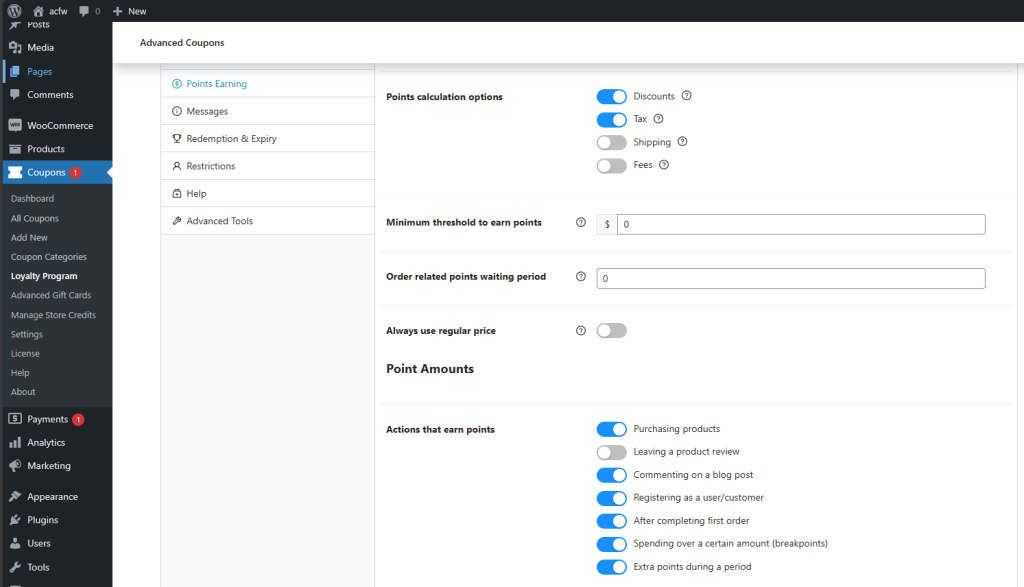
By default, points are based on the order subtotal. You can also include discounts, tax, shipping, or fees in the calculation from the Points calculation options under Settings → Points Earning.
Choosing what counts toward points
Points calculation options has four tick boxes. All four are ticked by default, so a new store awards points on the full order amount.
- Discounts: include the discount amount in the calculation.
- Tax: include the tax amount.
- Shipping: include the shipping amount.
- Fees: include any order fees.
Untick a box to leave that amount out. If you do not want customers earning points on postage, untick Shipping.
Tax on an excluded amount is left out too. With Shipping unticked, the shipping cost and the tax charged on that shipping are both dropped from the calculation. The same applies to Fees. Advanced Loyalty Program 1.9.3 fixed an earlier version that kept the shipping tax in the total even when Shipping was off, which awarded slightly more points than expected.
Points can only be earned by the customer when the order status has been changed to either processing or completed which indicates that the order has been paid for.
There are a variety of other actions that your customer can take to earn points:
- Earn extra points on first order/account signup
- Earn bonus points for higher spend
- Earn points for leaving a review
- Earn points for leaving a blog comment
- Earn extra points during a given promotional period
Redeem Points
Customers can self-manage their points and redeem them into store credits at a time that suits them.
You can also set sensible expiry periods for the points so they don’t last forever. It is an effective method to motivate them to shop again and take advantage of the points before they expire.
Points Redemption Form
Points can be redeemed at the My Account page ➝ Points Balance tab.
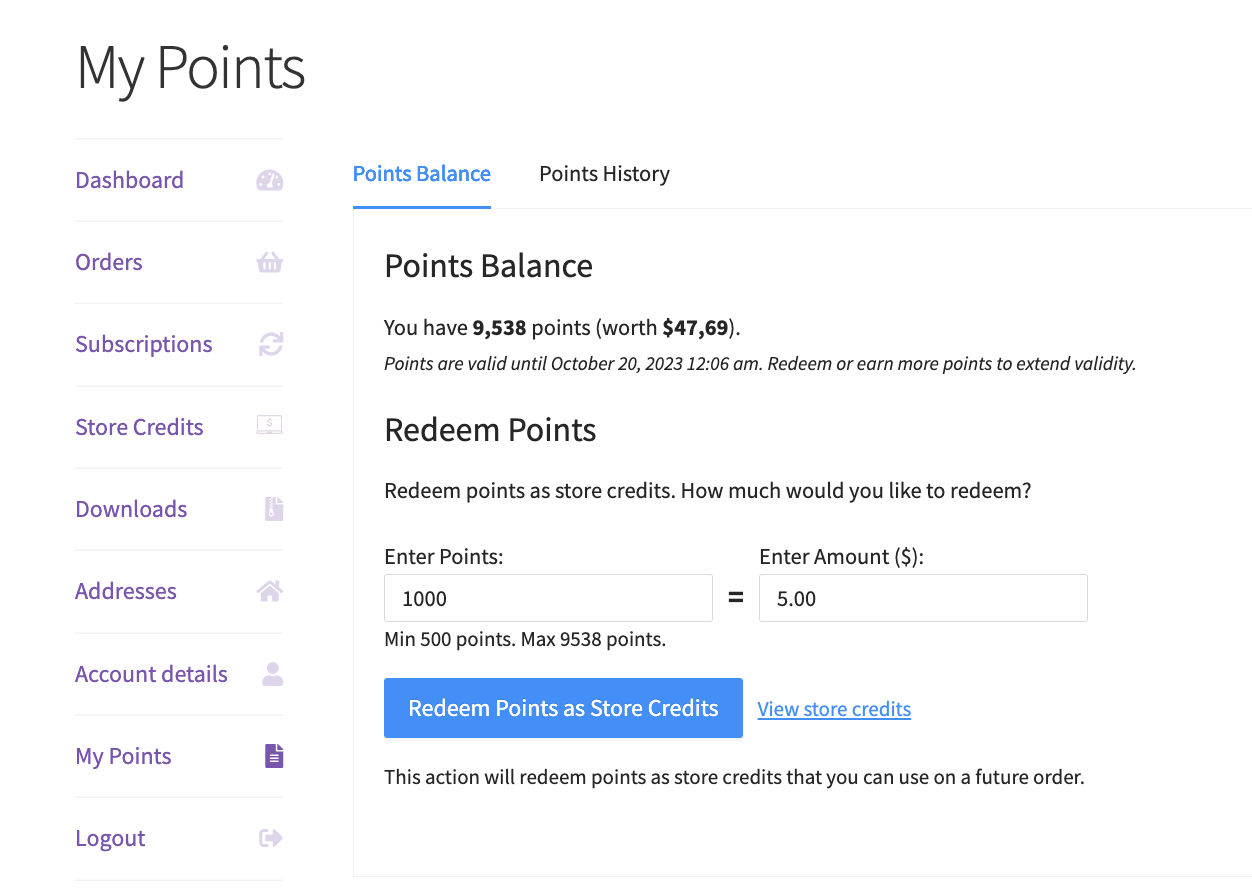
The redemption form is AJAX-driven and doesn’t require a page refresh.
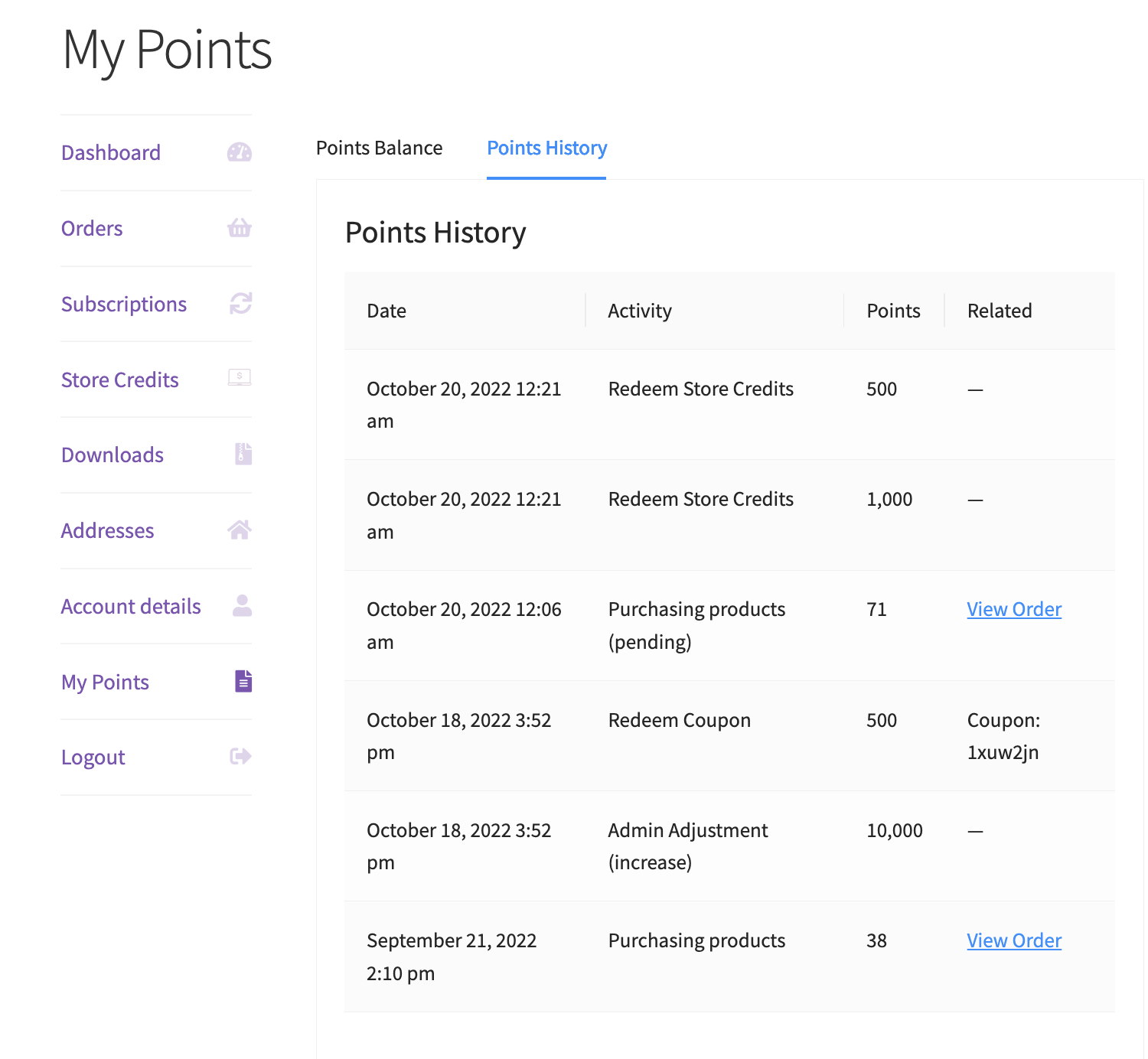
When the points have been redeemed successfully, they will be added to the store credits. You can check the Point History to see your redemption logs and check the Store Credits tab for your accumulated credit.
Minimum points allowed for redemption
This plugin lets you define the minimum points that can be redeemed at a time. If the points entered are less than the set minimum, the redeem button will be disabled.
Points Messaging
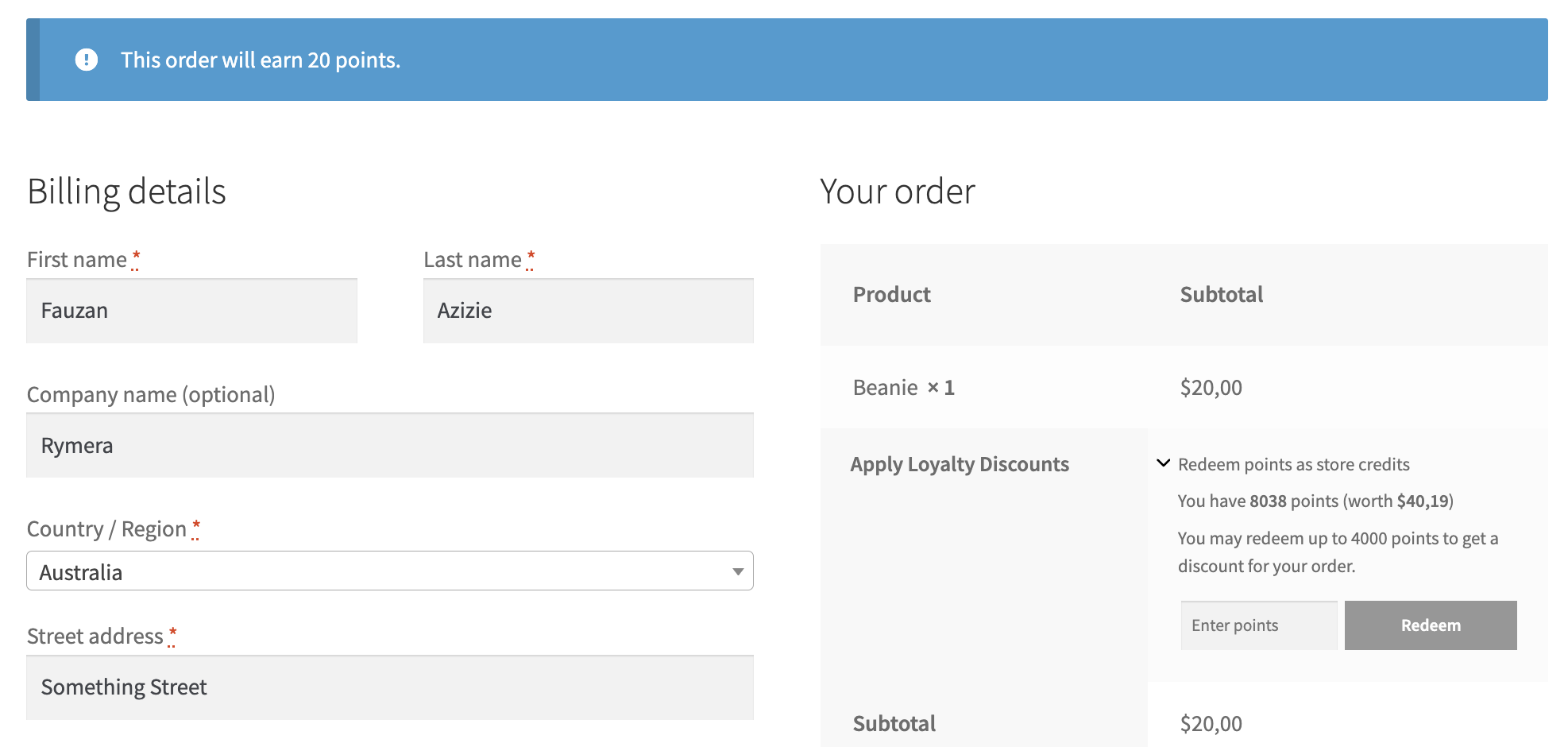
The plugin will display a notice that shows how many points your customers are potentially earning for each product on the single product page and the accumulated points for their order as a whole on the cart/checkout page.
Customers may also redeem their points or use the loyalty points upon checkout.
Dashboard & Reports
You’ll have access to a comprehensive admin dashboard showing valuable information on how your loyalty program is performing.
This includes being able to know how many points are out there in your customer base, what their value is, how many people have redeemed, who’s your top earning customers and the points history logs.
Manage Customers
You can search for a customer and easily adjust the points as needed. This section also shows you the details of the points earned and what actions earned them their rewards.
Help & Support
We have a dedicated support team for Advanced Loyalty Program who knows our products, WooCommerce, and the industry very well. You’re welcome to make use of their expertise at any time, worldwide.
If you would like to know more about this plugin or find any issues with it, please go to the support ticket request form and send us a message.
Need help?
If you have a question or run into any issues, we’re here to help.
- Premium users: Open a support ticket
- Free users: Visit our community forum

