
If you’re moving from another store credits plugin, rebuilding balances one customer at a time quickly becomes tedious and risky. Advanced Coupons for WooCommerce includes a built-in importer that pulls supported third-party store credit balances into the Advanced Coupons store credits balances.
What this importer does
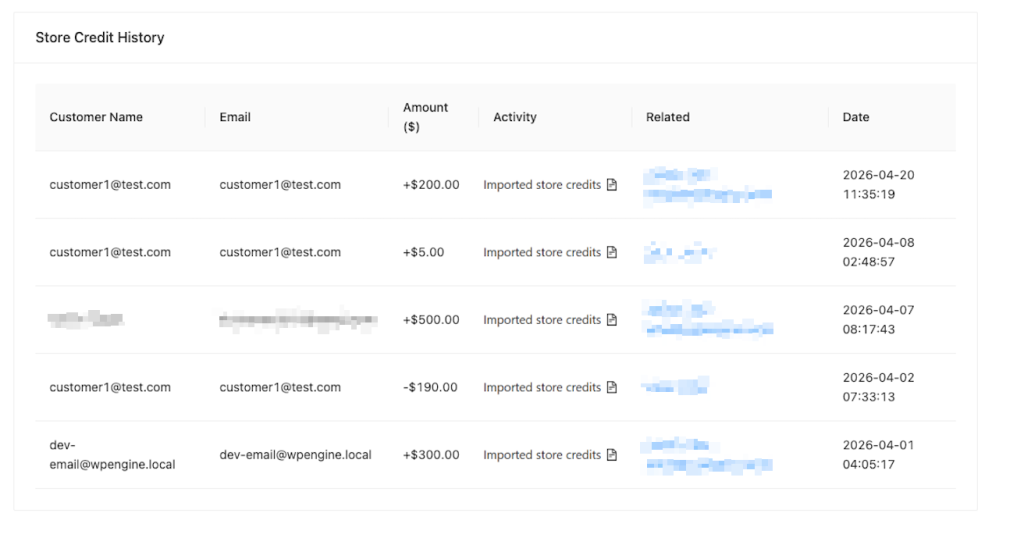
The importer reads supported store credit data tied to WordPress user emails, then creates an Advanced Coupons store credit entry with the note Imported store credits from [Plugin Name].
Only customers who already have a WordPress user account on your site are included in the import. Records tied to guest checkouts, deleted users, unmatched emails, unpublished coupons, unsupported coupon types, or non-positive amounts are skipped during the import.
You can safely run the importer again. It stores how much was already imported per customer and only imports any remaining difference, so re-running does not double previously imported balances.
Prerequisites
- WooCommerce is installed and active.
- Advanced Coupons for WooCommerce (Free) version 4.6.8 or higher is installed and active (the third-party store credits importer shipped in 4.6.8 per the plugin changelog on WordPress.org).
- The Store Credits module is enabled on the Modules tab under Coupons → Settings (see the free version getting started guide for an overview).
- Your source plugin is installed and active when you run the import. Supported plugins:
- A full site and database backup is strongly recommended before you run any migration.
How to import store credits
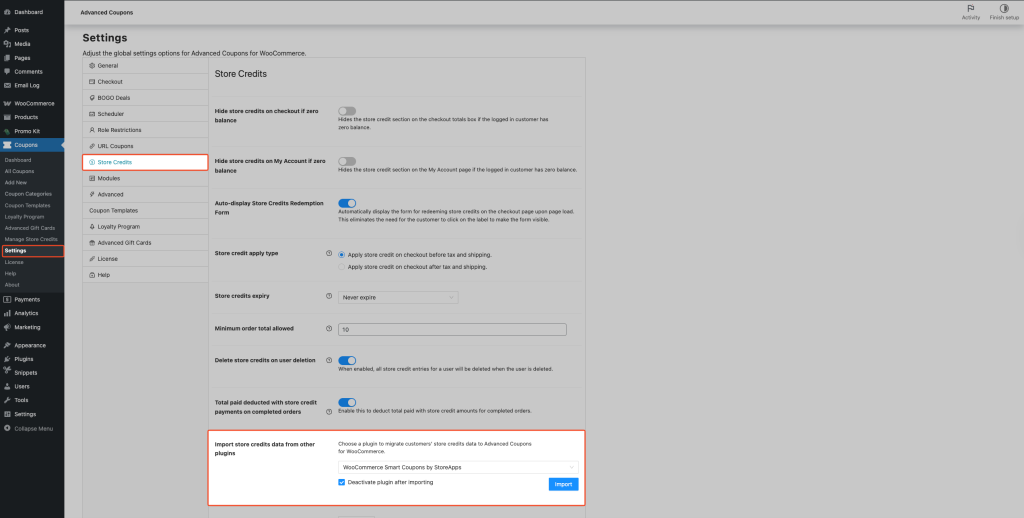
- Go to Coupons → Settings in your WordPress admin.
- Click the Store Credits tab.
- Scroll to Import store credits data from other plugins.
- Open the Select a plugin… dropdown and choose your source plugin.
- Deactivate plugin after importing is ticked by default. Untick it only if you want the source plugin to stay active after the import completes.
- Click the Import button.
Advanced Coupons starts the import in the background through WooCommerce’s Action Scheduler queue. Import status appears with Import progress for [Plugin Name] plugin, and the percentage updates as the importer processes customers in batches.
After the import finishes, a summary appears in place of the progress area with three rows: Processed, Failed, and Total imported store credits. Processed is the total number of customers in batches that finished successfully. Failed is the total number of customers in batches that errored, so a single batch failure counts every customer in that batch as failed.
Verifying customer balances after import
- Go to Coupons → Manage Store Credits after the import completes.
- Compare customer counts so the number of imported customers matches your source plugin’s eligible customer count.
- Spot-check known accounts. On the Manage Store Credits page, search 2-3 known customer emails and check that each imported balance matches the source plugin.
- Confirm the import note. Open imported entries and verify each includes the note Imported store credits from [Plugin Name] so imported balances are easy to identify later.
- Compare overall totals. Cross-check Total imported store credits in the import summary against the total eligible source balance.
If there are differences, they usually come from skipped records (guest or deleted users, unmatched emails, ineligible coupon data, or zero amounts).
Troubleshooting
The source plugin isn’t showing in the dropdown
The importer only lists plugins that are installed, active, and supported.
- Go to Plugins and confirm the source plugin is active.
- Return to Coupons → Settings → Store Credits and check again.
If no supported plugin is active, the importer returns this exact text: No compatible third-party plugins found. Please install one to enable store credit imports.
You see “There are no customer store credits data to be imported.”
This appears when no eligible import records are found for the selected plugin. Common causes are no matching customer-linked source data, no qualifying positive store credit amounts, or all previously eligible balances are already fully imported.
Review your source data and confirm credits are tied to registered WordPress user accounts.
The import appears stuck or stops progressing
The import runs through Action Scheduler. Go to Tools → Scheduled Actions and search for the hook acfw_import_third_party_store_credits.
If you see failed actions, run the import again from Coupons → Settings → Store Credits after resolving the underlying issue. Re-running is safe because previously imported amounts are tracked per customer.
You see “There are no detected import process for the selected plugin. Please try again.”
This message appears when the progress check cannot find a matching background job for the selected plugin, often after a run has already finished, after a failed attempt left no scheduled actions behind, or when a stale browser tab keeps polling.
Refresh Coupons → Settings → Store Credits, select the source plugin again, and click Import to start a new run if you still need to import data.
Frequently asked questions
Can I import from both supported plugins?
Yes. Run one import per plugin. After the first import completes, select the second plugin and run Import again.
Will running the import twice double my customers’ balances?
No. The importer stores imported amounts per customer and only imports any remaining difference on re-runs.
What if my store credits plugin isn’t supported?
The importer currently supports only WooCommerce Smart Coupons by StoreApps and Smart Coupons for WooCommerce by WebToffee. If your plugin is not one of these, it won’t appear in the importer dropdown even when active. As a fallback, add balances manually via Coupons → Manage Store Credits, then contact support to ask us to add support for your plugin.
What happens to the source plugin after the import?
If you tick the Deactivate plugin after importing checkbox, Advanced Coupons deactivates the selected source plugin when the import completes. If you leave it unticked, the source plugin stays active.
Can I undo the import?
There is no automatic rollback. To reverse changes, adjust or remove customer entries in Coupons → Manage Store Credits.
Need help?
If you have a question or run into any issues, we’re here to help.
- Premium users: Open a support ticket
- Free users: Visit our community forum on WordPress.org

