
When you adjust a customer’s store credit balance from the admin, it’s often helpful to let them know right away, especially if the change is related to a refund, goodwill credit, or an account correction. This guide shows you how to enable the Advanced Coupons – store credit adjustment email in WooCommerce, send it when adjusting, and optionally customize the email content.
Prerequisites
- WooCommerce is installed and active.
- Advanced Coupons for WooCommerce Free is installed and active.
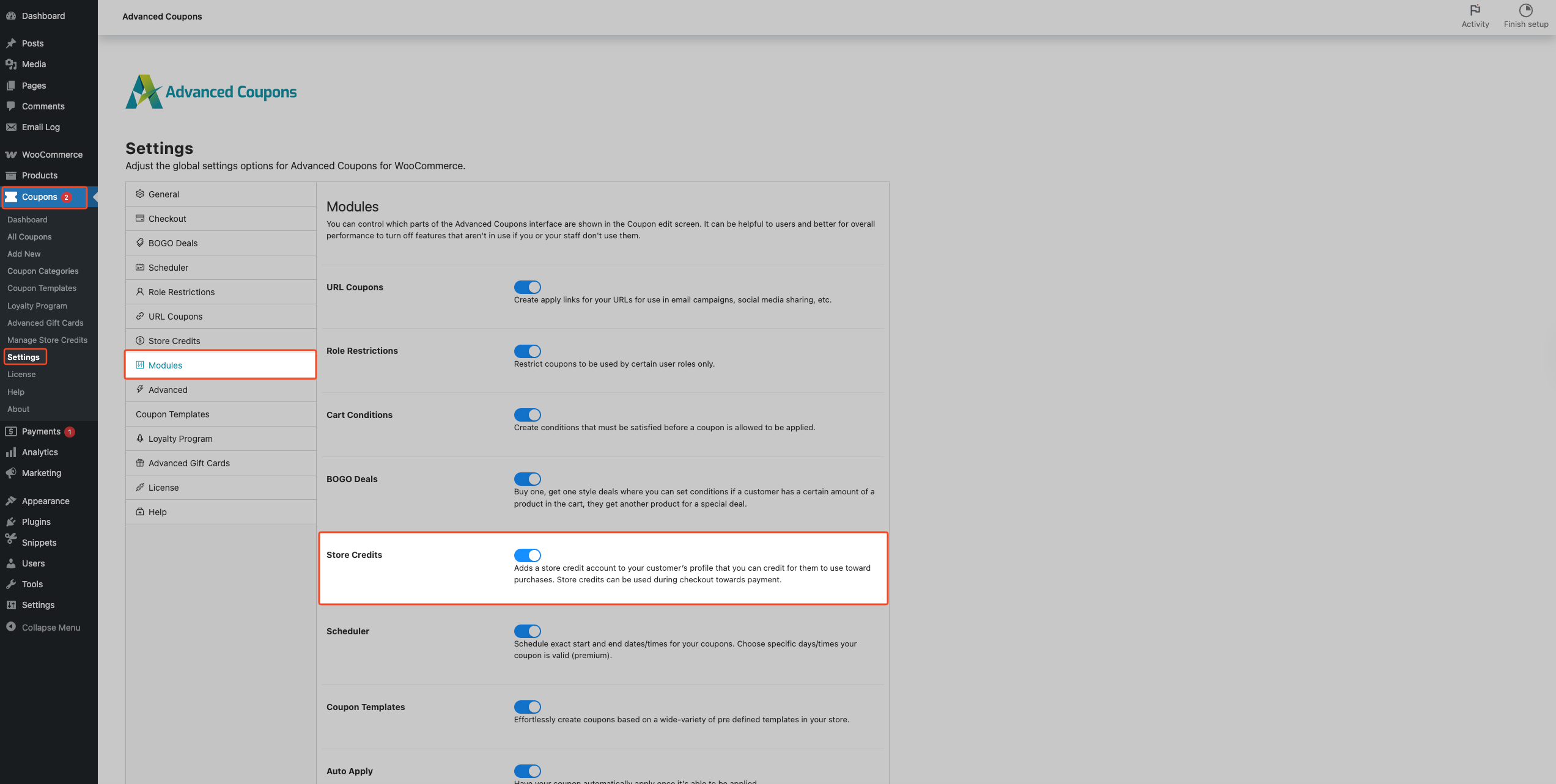
- The Store Credits module is enabled in Advanced Coupons:
- Go to Coupons → Settings → Modules.
- Ensure Store Credits is turned on.
How to Enable and Use Store Credit Adjustment Emails
1) Enable the email in WooCommerce
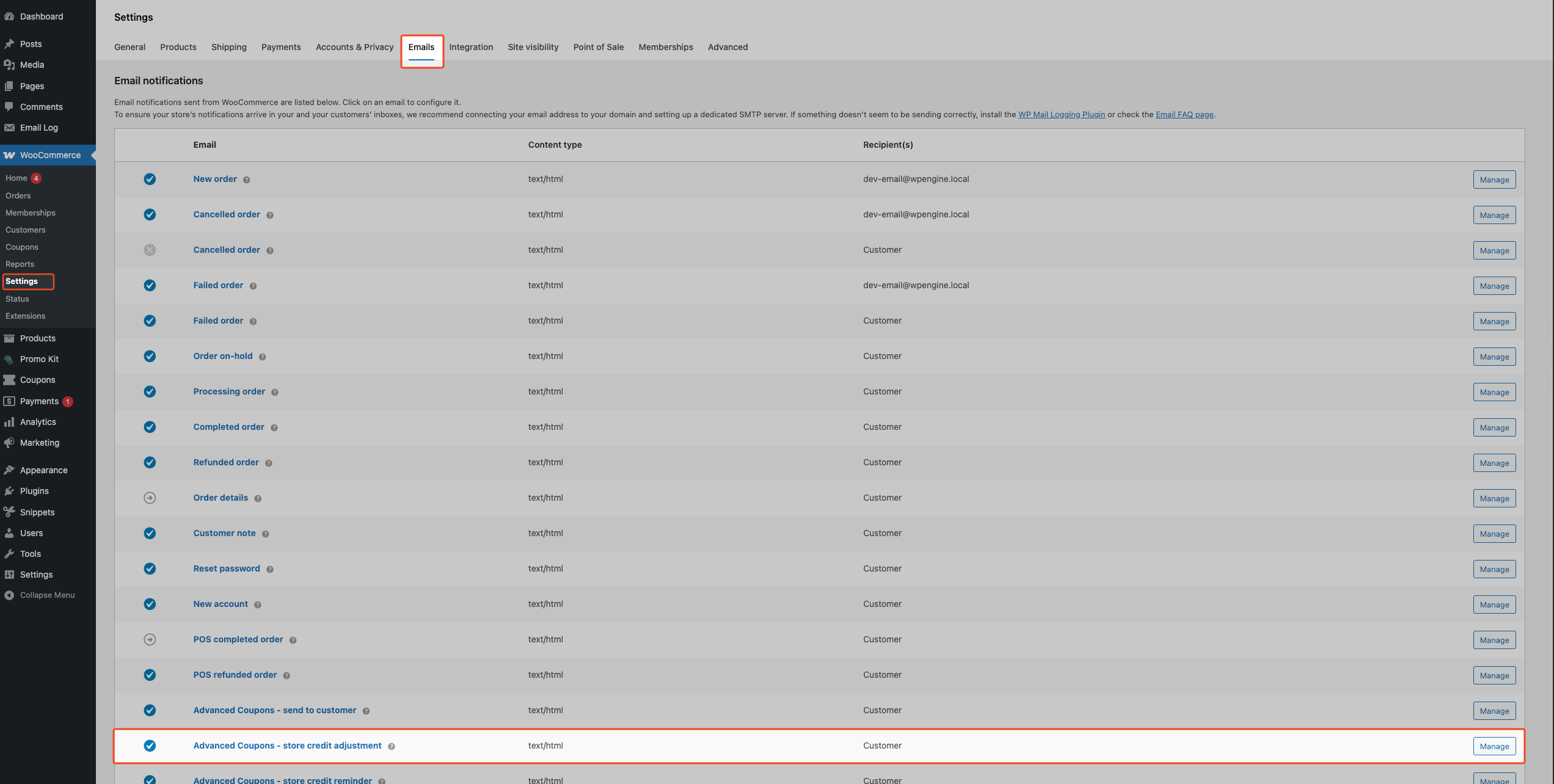
- In your WordPress admin, go to WooCommerce → Settings.
- Open the Emails tab.
- In the email list, click Advanced Coupons – store credit adjustment to open its settings.
- Check Enable this email.
- (Optional) Customize the email fields:
- Subject
- Email heading
- Message
- Button text
- Additional content
- Click Save changes.
You can use placeholders in any of the text fields — WooCommerce replaces them with actual values when the email is sent: {customer_name}, {customer_email}, {adjustment_amount}, {adjustment_type}, {new_balance}.
Once enabled, the email is sent only when you choose to notify the customer during a store credit adjustment (see step 2).
2) Send the notification when you adjust store credit
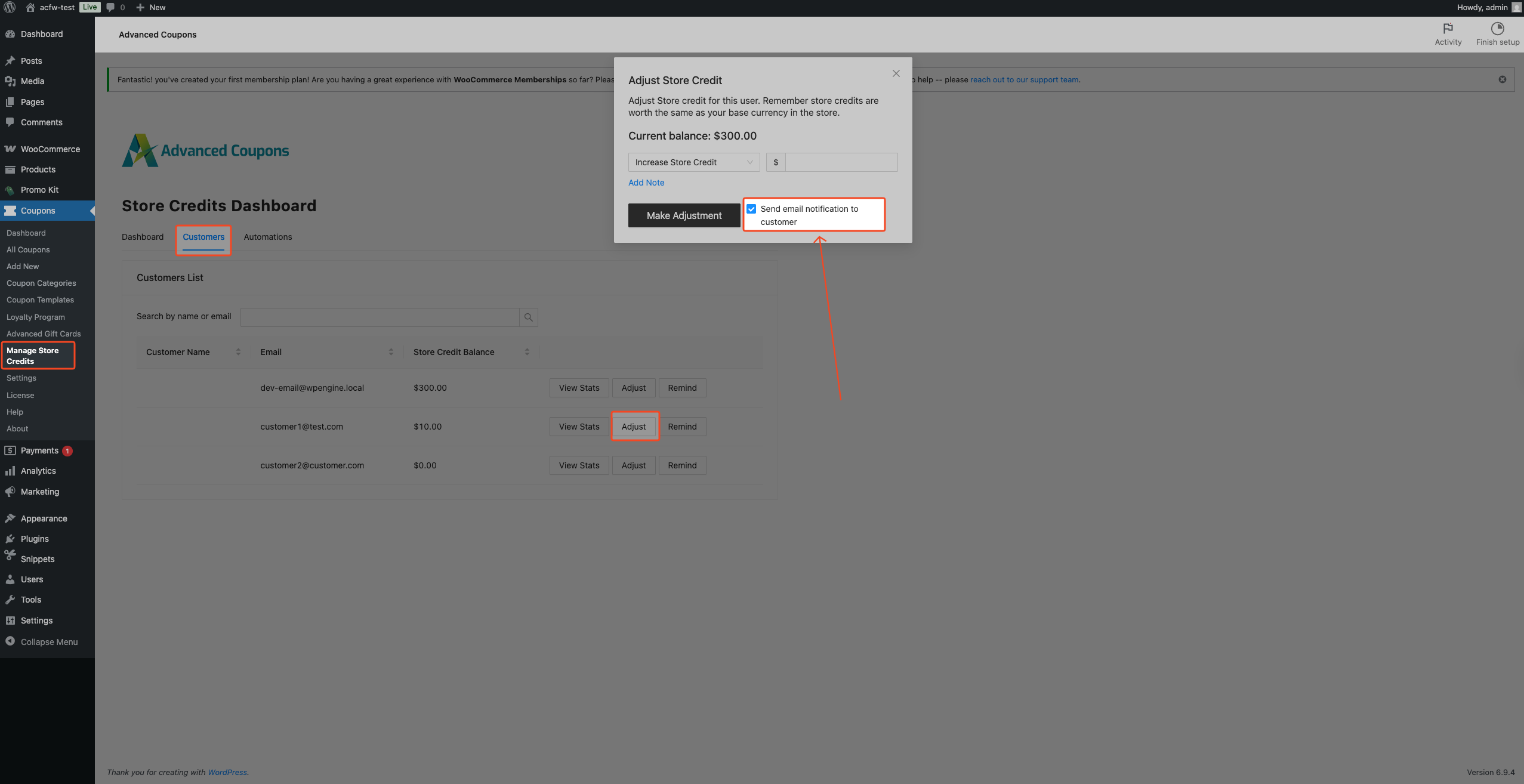
- In your WordPress admin, go to Coupons → Manage Store Credits → Customers tab.
- Find and open the customer you want to adjust (for example, by searching their name or email).
- Click on the “Adjustment” button.
- Choose whether you want to Increase Store Credit or Decrease Store Credit.
- Enter the amount.
- (Optional) Click Add Note, then enter a note (for example, “Refund for order #1234”).
- Keep Send email notification to customer checked.
- Click Make Adjustment.
The customer receives an email showing the adjustment amount, whether it was credited or deducted, their new balance, and the note (if you entered one). It also includes a Shop Now button linking to your store.
3) (Optional) Customize the email content
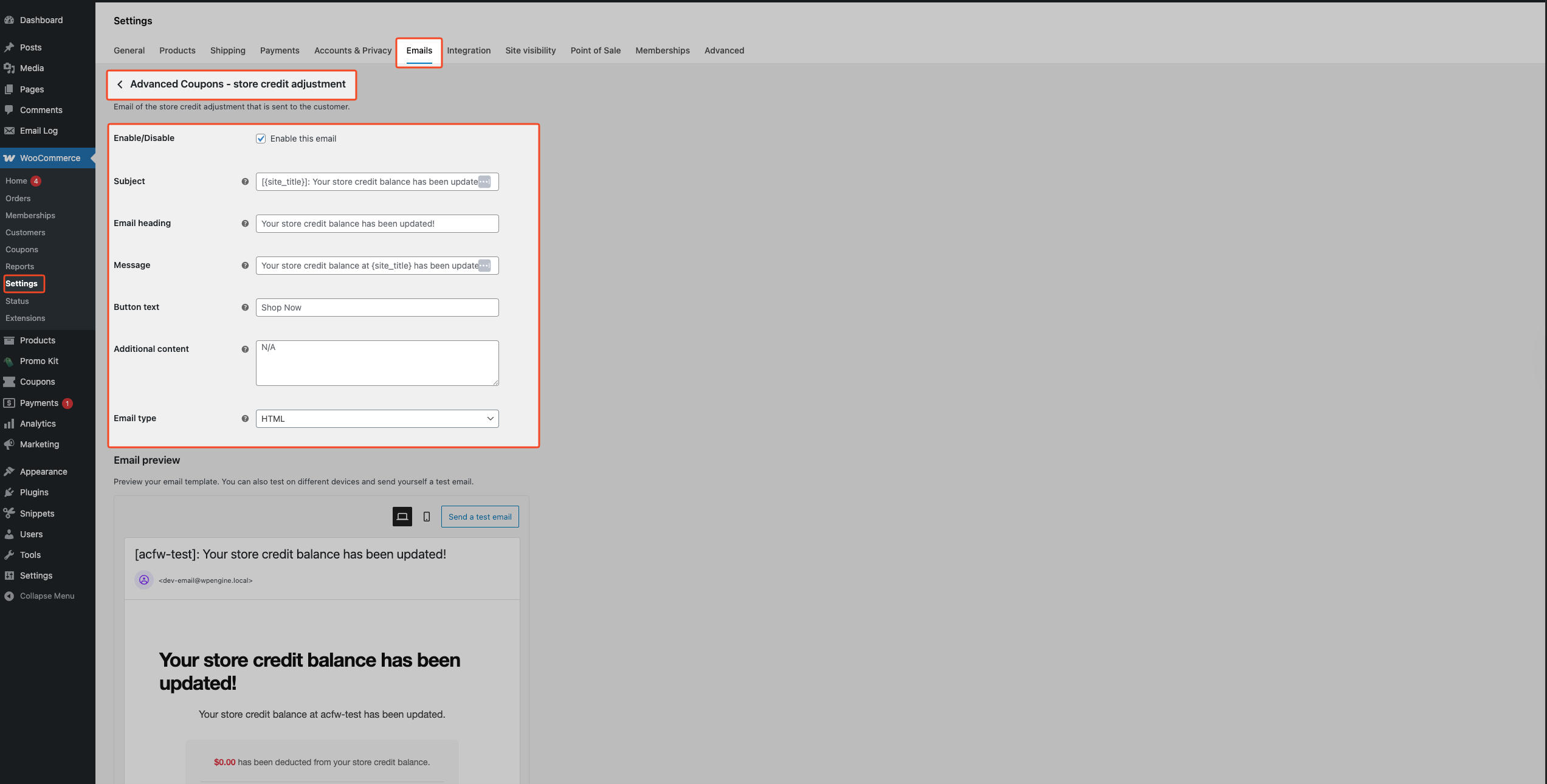
- Go to WooCommerce → Settings → Emails.
- Click Advanced Coupons – store credit adjustment.
- Edit any of the fields you want to change, such as Subject, Email heading, Message, or Button text.
- Enter text in the Additional content field if you want to add a note below the main message.
- Click Save changes.
How to Disable Store Credit Adjustment Emails
>If you want to stop sending these emails entirely:
- Go to WooCommerce → Settings → Emails.
- Click Advanced Coupons – store credit adjustment.
- Uncheck Enable this email.
- Click Save changes.
If you only want to skip the email for a specific adjustment, leave the email enabled and uncheck Send email notification to customer before clicking Make Adjustment.
Sending emails for bulk adjustments (Advanced Coupons Premium)
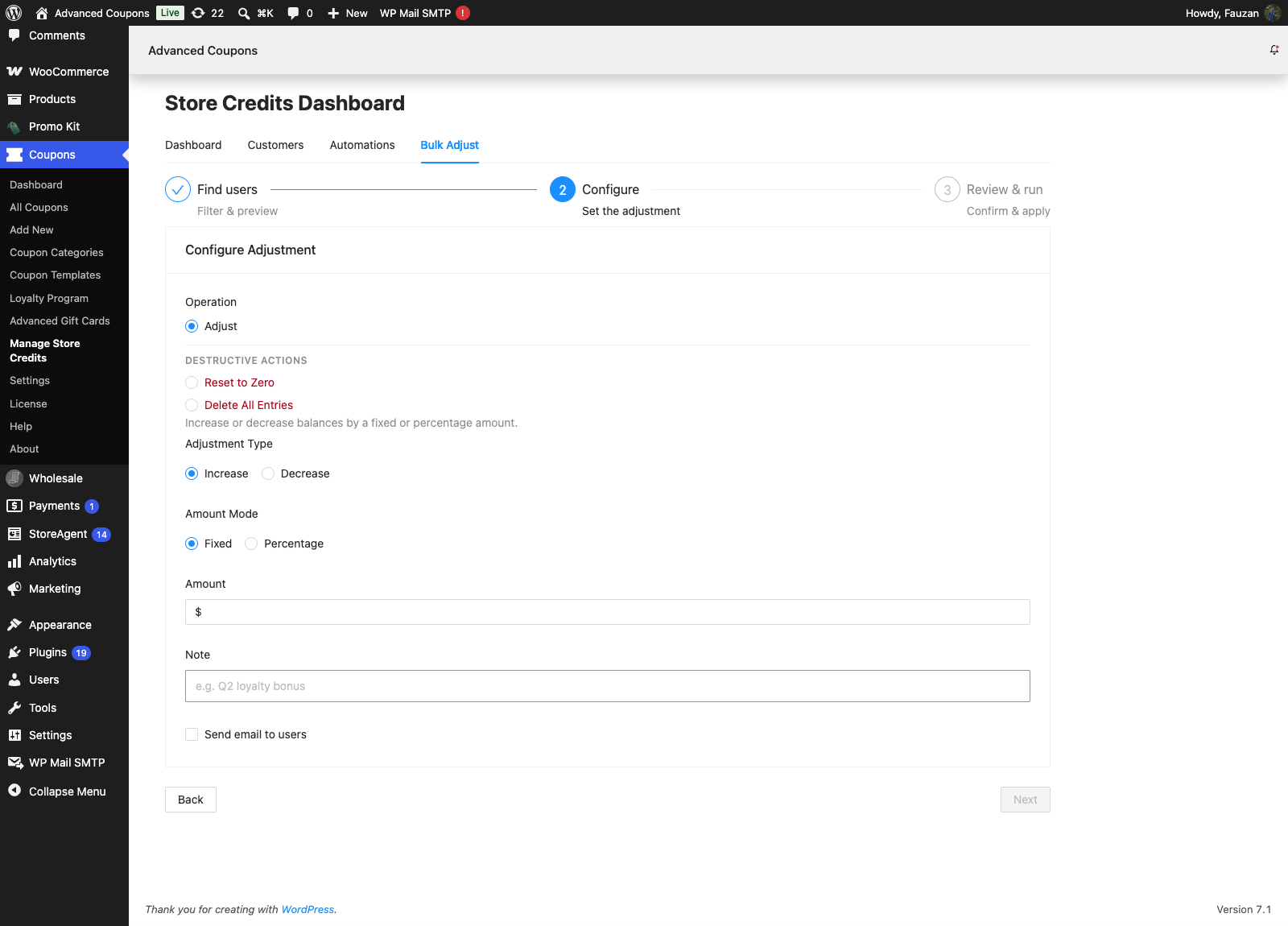
Advanced Coupons Premium’s Bulk Adjust tool can also notify customers when you increase or decrease store credit for many users at once.
- In your WordPress admin, go to Coupons → Store Credits and open the Bulk Adjust tab.
- Set your filters and choose Increase or Decrease as the operation.
- Check Send email to users to notify each affected customer.
- Review and run the bulk operation.
Each customer still only receives an email if Advanced Coupons – store credit adjustment is enabled under WooCommerce → Settings → Emails. The Send email to users checkbox is an additional opt-in for that bulk operation. It doesn’t override the global email setting.
Troubleshooting
The customer didn’t receive the adjustment email
First, confirm the email is enabled under WooCommerce → Settings → Emails → Advanced Coupons – store credit adjustment.
Then, when making the adjustment in Coupons → Store Credits, make sure Send email notification to customer is checked before you click Make Adjustment. The email isn’t sent unless that box is enabled for that adjustment.
If the settings are correct, verify the customer’s email address and test whether your site can send emails. You can also log outgoing emails to diagnose delivery issues by using the WP Mail Logging plugin.
The “Advanced Coupons – store credit adjustment” email isn’t in the Emails list
Make sure Advanced Coupons for WooCommerce (free) is active and the Store Credits module is enabled under Coupons → Settings → Modules.
If you’re using caching (object cache or a persistent page cache), clear it and reload WooCommerce → Settings → Emails.
Frequently Asked Questions
When is the Store Credit Adjustment email sent?
Only when you adjust a customer’s store credit from the admin, and keep Send email notification to customer checked for that adjustment.
Can I make “Send email notification to customer” always enabled by default?
In the current UI, this checkbox is enabled by default in the adjustment modal, but you still control it per adjustment (you can uncheck it before clicking Make Adjustment). There isn’t a separate “always send” setting required—just leave the checkbox ticked when you want the customer to be notified.
Does the email work for both increases and decreases?
Yes. The email can be sent for both Increase Store Credit and Decrease Store Credit adjustments, and it shows the adjustment direction and the updated balance.
Need Help?
If you have a question or run into any issues, we’re here to help.
- Premium users: Open a support ticket
- Free users: Visit our community forum

