
Say a couple sets up a WooCommerce gift registry in your store. They share it with 80 guests. Half the list gets bought. Then the wedding passes, and the unclaimed items just sit there, still wanted.
That leftover list is a great chance to make more sales. Running the registry in your own store, rather than on a marketplace, is what makes it reachable. The couple already chose those products. Yet nobody has given them a reason to come back and finish the order.
Big retailers solved this years ago with a registry completion discount. Some store owners skip this idea, but it’s actually a very helpful tool for your customers. In practice, it’s a scheduled coupon pointed at a list your customer already built.
This guide covers what the perk is, why it works, and how to build one. We’ll pair Advanced Coupons with the new SaveTo Wishlist Gift Registry Addon. Plus, we’ll cover exactly where the two products meet.
Table of Contents
- What Is A Registry Completion Discount?
- Why Completion Discounts Work So Well On A WooCommerce Gift Registry
- Setting Up A WooCommerce Gift Registry With The SaveTo Wishlist Addon
- How To Build A Registry Completion Discount With Advanced Coupons
- How The Gift Registry Addon And Advanced Coupons Work Together
- Layering Store Credit And Loyalty Points For Registry Guests
- What To Track When You Run A Registry Promotion
- Start Running WooCommerce Gift Registry Completion Discounts
- Frequently Asked Questions: WooCommerce Gift Registry
What Is A Registry Completion Discount?
A registry completion discount is a one-time offer. It lets registry owners buy their remaining unpurchased items at a discount after the event. In fact, the big registry programs have run some version of it for years. That’s why most shoppers recognise it without an explanation.
How it works is simple. Guests buy some of the gifts. The remaining items become a custom shopping list for the couple. Then a small discount encourages them to buy the rest.
Three things define the offer:
- A trigger: the event date passes, or the registry is marked complete.
- A window: a fixed redemption period that opens once the event is over.
- A limit: one use per customer, so a single household gets a single order.
Shoppers already know this perk exists, because they’ve met it elsewhere. So you rarely have to explain the concept. You just have to offer it.
Why the offer converts so reliably
The products carry no discovery cost. A registry is a list the customer built by hand. As a result, every item on it has already cleared their own filter on style, price, and need. Compare that to a win-back email pushing products a shopper never looked at.
There’s a timing advantage too. The couple is dealing with a half-finished home right after the event. So the gap between wanting an item and buying it is at its narrowest.
Why Completion Discounts Work So Well On A WooCommerce Gift Registry
People usually spend a lot of money on registries, which makes the leftover items very valuable to your store. The Knot Worldwide’s 2026 Real Weddings Study puts the average 2025 wedding at $34,000. Guest spending ran to $292 a head. Those figures come from 10,474 US couples married during 2025.
Guest spending follows the same pattern. Naturally, a registry tied to an event that size holds more items, at higher prices, than an everyday wishlist.
The other half of the argument is cart abandonment. Baymard Institute puts the average documented rate at 70.22%, averaged across 50 separate studies. Registry traffic isn’t immune to that. Fortunately, a wedding registry completion discount offers a unique way to solve this problem.
Instead of chasing a cart abandoned an hour ago, you re-open a list built weeks ago and never finished.
Where the revenue actually comes from
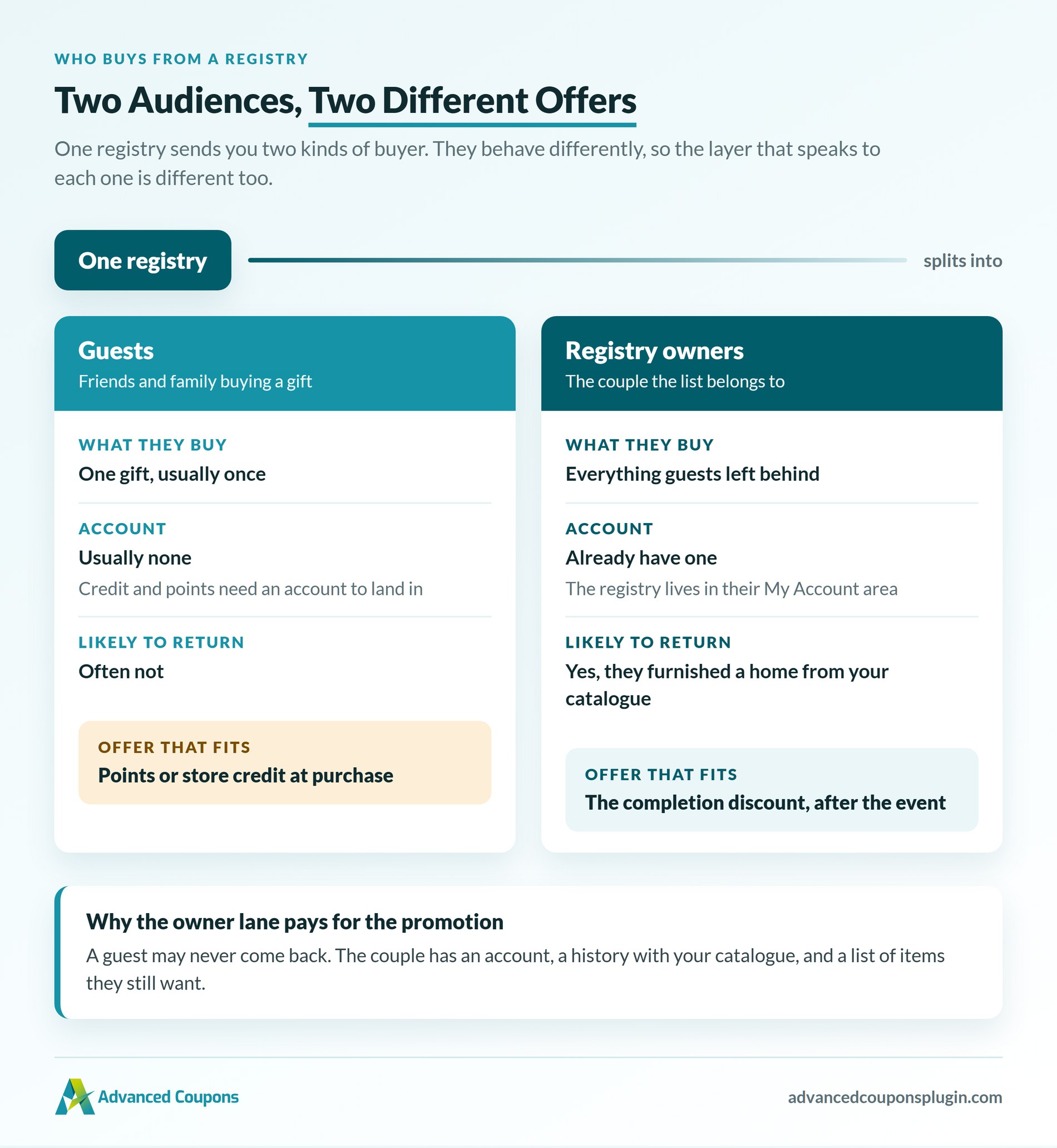
Two audiences buy from a registry. The completion discount only speaks to one of them.
- Guests buy individual gifts, usually once, usually without an account.
- Registry owners buy the remainder, and they’re the ones who become repeat customers.
That second group is the reason to run the promotion. A guest may never return to your store. By contrast, the couple who furnished half their home from your catalogue has every reason to.
Setting Up A WooCommerce Gift Registry With The SaveTo Wishlist Addon
The SaveTo Wishlist Gift Registry Addon supplies the registry half of this promotion. It turns any wishlist into a shareable registry, then tracks what guests buy.
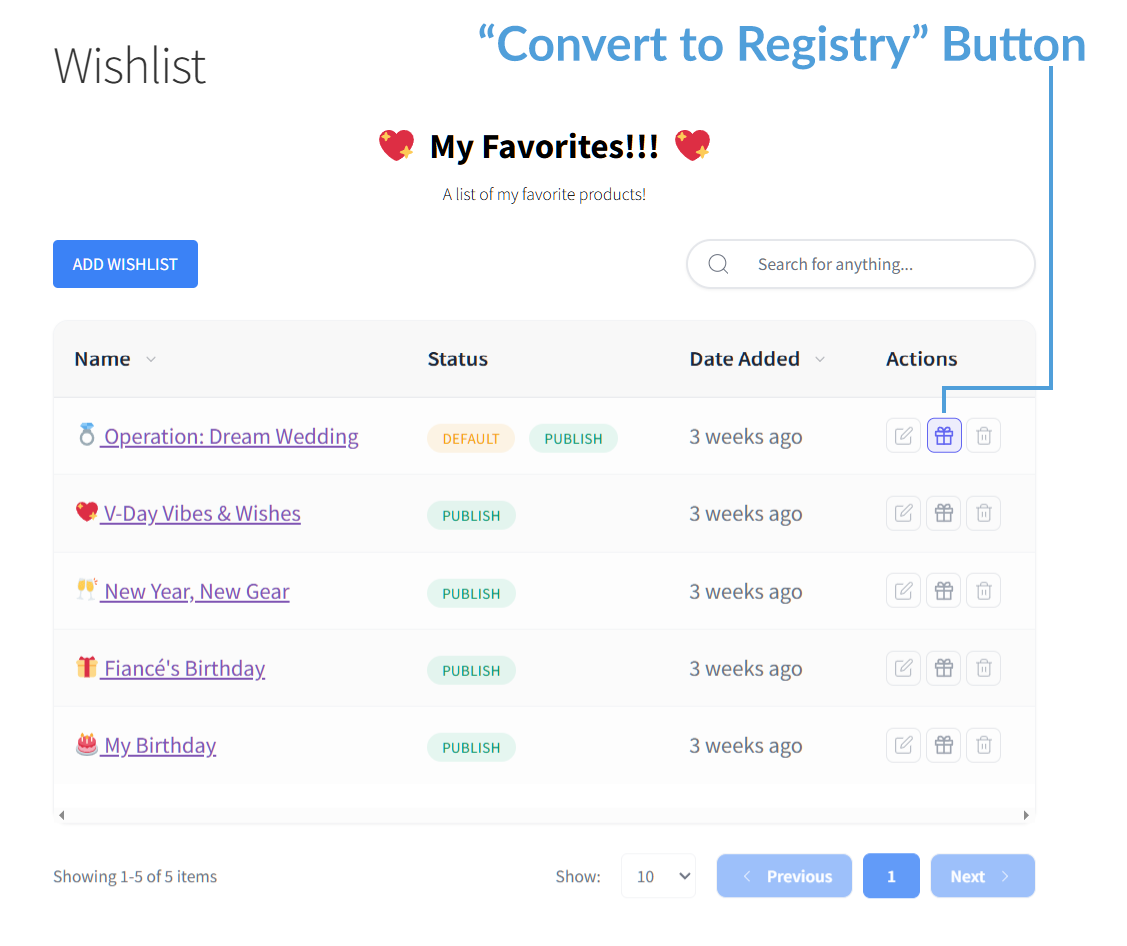
Registry owners get a “Convert to Registry” action on their wishlist. From there they pick an event type, such as a wedding, baby shower, or birthday. They also add an event date, registrant names, an optional message, and a cover image.
What the addon handles for you
In addition, the addon handles the parts that are genuinely fiddly to build yourself:
- Public sharing: each registry gets its own link, plus an owner-only share button for email and social.
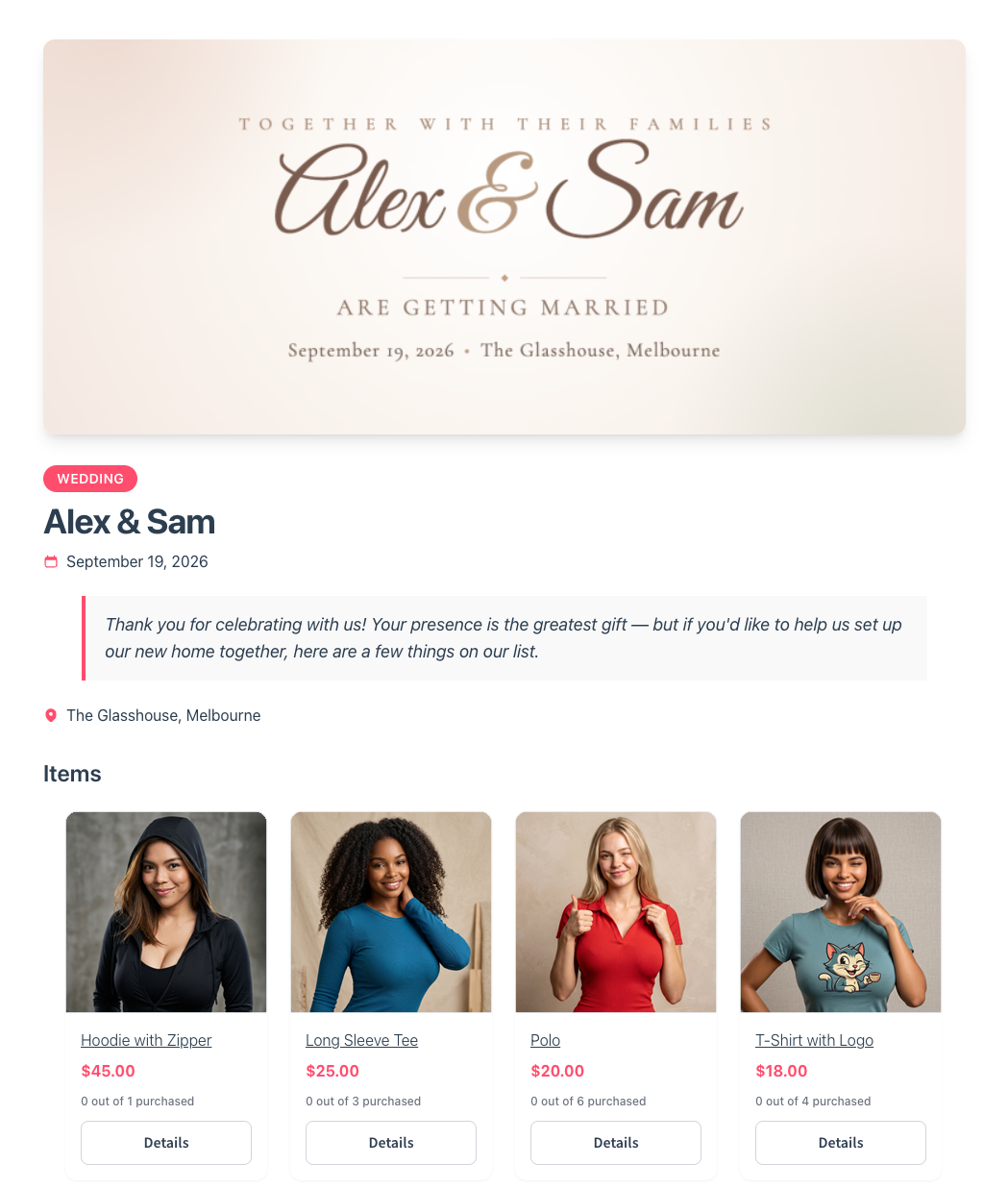
- Purchase tracking: guests see how many of an item were requested, bought, and still needed. Once it’s fully bought, the add-to-cart control is replaced with a “Fully purchased” badge.
- A “Find a Registry” search page: activation publishes one for you. A guest who lost the link can search by name.
- An owner dashboard: a private Gift Registries tab in My Account, showing who bought what, when, and on which order.
- Admin management: a central Registries screen for viewing, editing, archiving, or restoring a customer’s registry. Deleting one hides it everywhere but keeps the purchase records.
- Email notifications: the owner hears about purchases and refunds, and you hear about new registries.
One design decision matters for the promotion below. Adding a gift to a cart doesn’t reserve it. Items only count as bought once the order goes through. So two guests can both buy the last unit, and a refund puts it back on the list.
Which plans include the addon
The addon is available on the SaveTo Wishlist Plus and Business plans. Plus is $99.50 for the first year and renews at $199. Business is $199.50 and renews at $399. There’s also a free Lite tier and a Growth plan at $49.50, renewing at $99.
However, neither Lite nor Growth includes the addon. Current figures are on the SaveTo Wishlist pricing page.
How To Build A Registry Completion Discount With Advanced Coupons
You can assemble a completion discount from features Advanced Coupons already has. In other words, no registry-specific logic is needed. The build rests on three things: the Scheduler, Cart Conditions, and a percentage or fixed discount.
Here’s the approach that fits the way the perk usually works.
Step 1: create the coupon and set the discount
Create a new coupon in Marketing > Coupons and set a percentage discount. We’d start at 10% and test upward from there. Because the products are already chosen, a deeper cut rarely buys you more orders.
Next, give it a code the customer will recognise in an email. Something like REGISTRY15 works better than an auto-generated string.
Step 2: set the redemption window in the Scheduler
Open the Coupon data > Scheduler tab and enable Date Range Schedules. Then set a coupon start date and a coupon expiry date. That gives the offer the fixed window the mechanic depends on.
One thing is worth knowing before you build this. The Scheduler carries two schedule types: Date Range Schedules and Day/Time Schedules. Both can be active on the same coupon. However, for a completion discount you only want the date range.
Make sure you turn off the day and time restrictions, so your customers don’t run into errors when they try to use the coupon. Otherwise, customers will report that a valid code won’t apply on a Sunday.
Step 3: add cart conditions so the offer behaves
Cart Conditions let you gate the coupon on what’s actually in the cart. A Cart Subtotal minimum keeps the discount on meaningful orders. Similarly, Product Categories Exists In Cart narrows it to the categories your registries draw from.
Conditions group with AND and OR logic. So one coupon can carry both a subtotal floor and a category requirement.
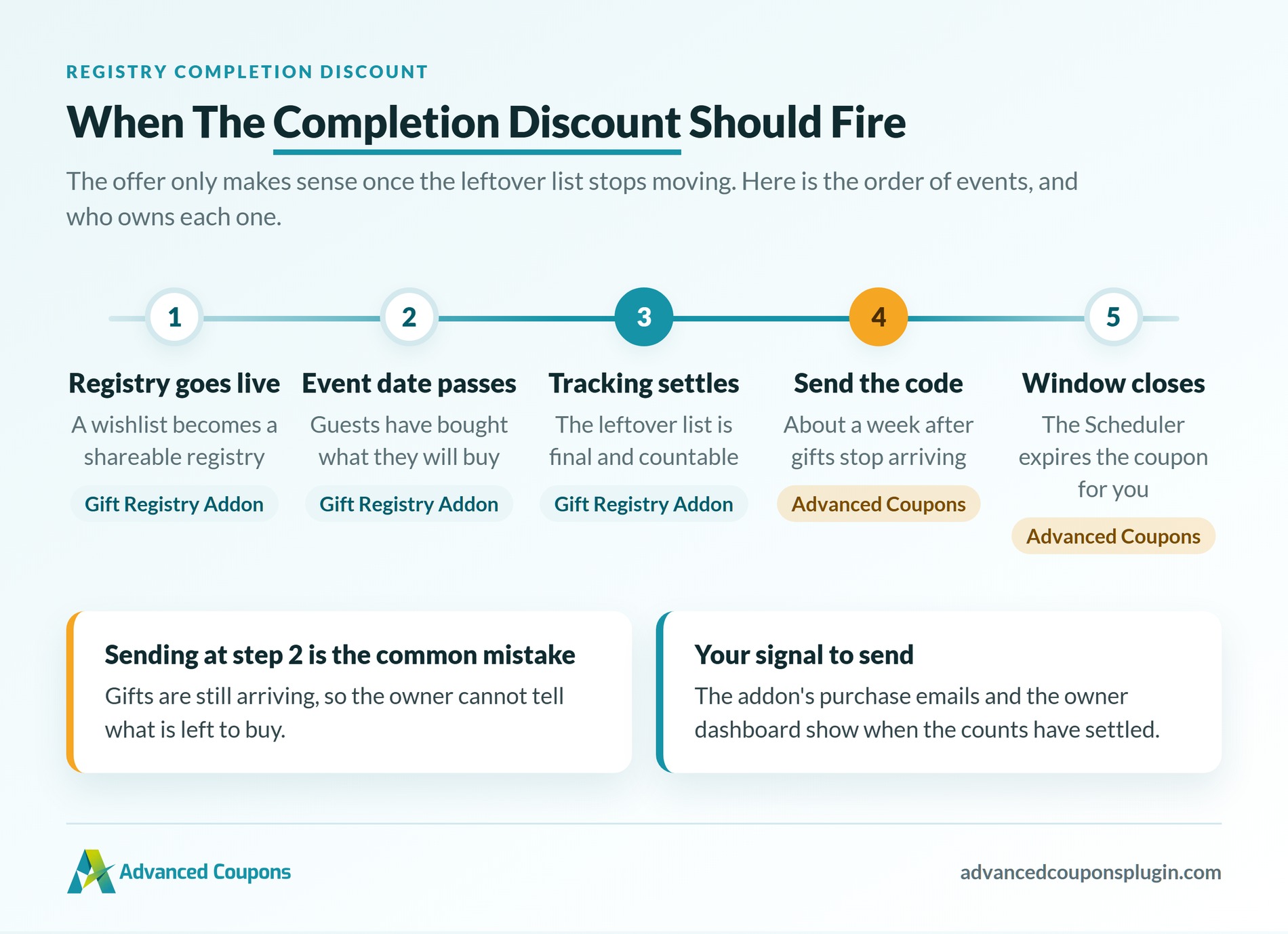
🔍️ One thing we commonly see: the discount is set up perfectly, then sent the same week as the event. The registry owner is still receiving gifts, so they can’t tell what’s left. Wait until the event date passes and purchase tracking settles. The offer only makes sense once the leftover list is final.
Step 4: restrict usage and send it
Set the usage limit to one per user under WooCommerce’s own usage restriction fields. Then send the code once the event date has passed. The addon’s purchase emails and owner dashboard tell you when a registry has settled.
How The Gift Registry Addon And Advanced Coupons Work Together
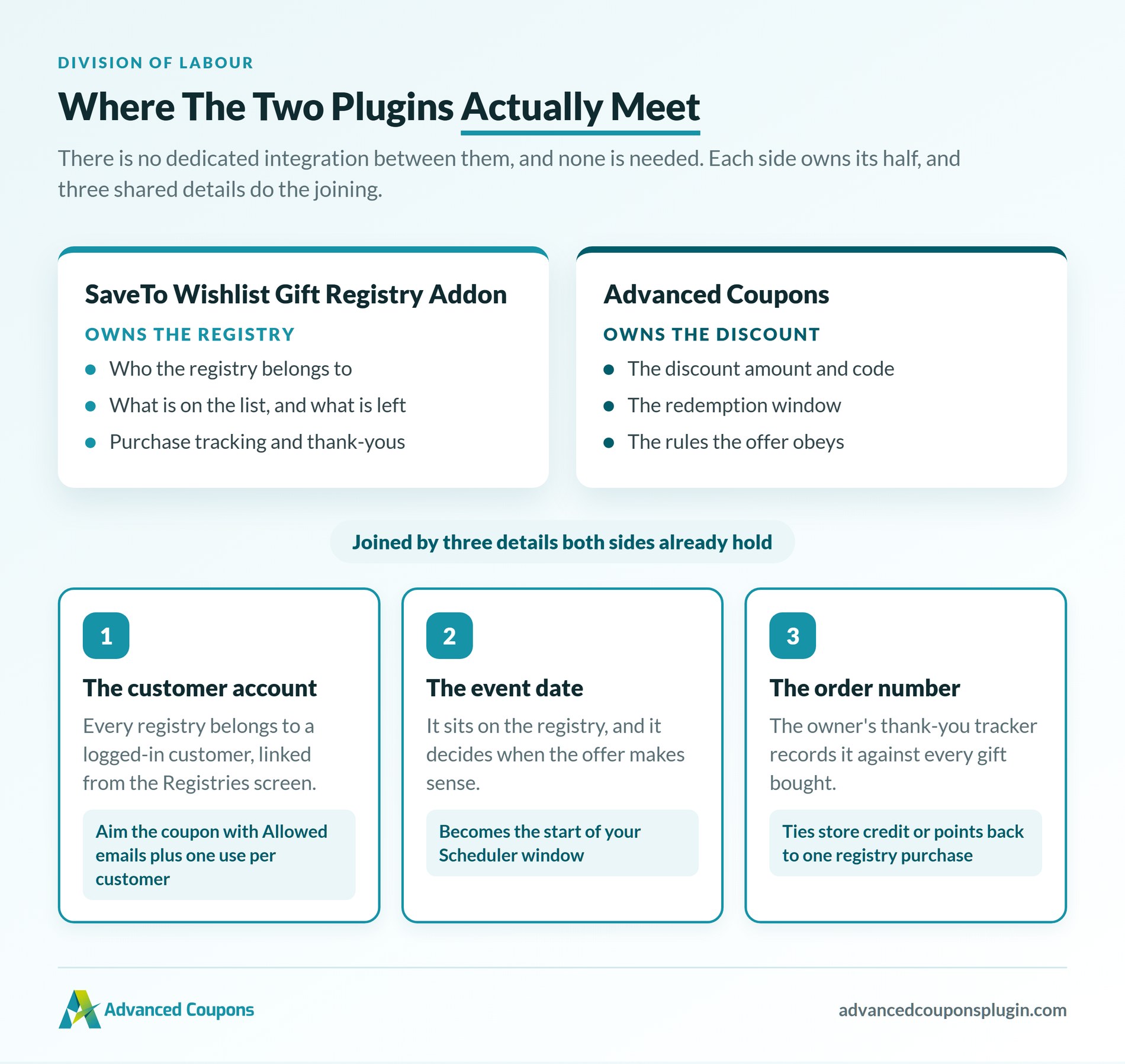
Advanced Coupons and the Gift Registry Addon are separate plugins with no dedicated integration. That’s a division of labour, not a gap. The addon owns the registry: who it belongs to, what’s on it, what’s left. We own the discount and the rules it obeys.
They don’t need to share code, because they already share three pieces of data.
- The customer account is the join on the owner side. Every registry belongs to a logged-in customer. The admin Registries screen lists that owner and links to their user account.
- The event date is the join on timing. It sits on the registry, and it’s what you type into the Scheduler.
- The order number is the join on the guest side. The owner’s thank-you tracker records it against every gift. So anything you award off an order traces back to one registry purchase.
Make the coupon personal to one registry owner
A shared REGISTRY15 code is the quickest way to run this. For most stores it’s enough. Still, a completion discount is meant for one couple, and emailed codes travel.
WooCommerce’s own Usage restriction tab closes that gap. Put the registry owner’s email in Allowed emails. Then set Usage limit per user to one.
You’ll find that email on the owner’s account, linked from the Registries screen. One catch to plan around: allowed emails match the billing email at checkout. If your customer pays under a different address, a valid code bounces.
So either tell them to use the email their registry is under. The alternative is a shared code with a per-user limit.
What cart conditions can’t do is see whether a product was on a registry. Nothing carries that flag through to the cart. That’s why the category plus usage limit route is the practical answer here.
Two timing traps worth knowing
The addon credits a gift as soon as the order reaches Processing. That includes cash on delivery, bank transfer, and cheque. So the leftover list can be final while those orders sit weeks from Completed.
If you only give rewards when an order is completely finished, the timing won’t match up. The registry will show an item as bought before the guest’s points exist. As a result, pick the status you award on before you launch.
The second trap follows from cart-adds not reserving stock. When the last unit sells twice, one order gets refunded. The addon returns the item to the list on its own. Store credit or points you granted won’t reverse themselves, so check those on refund.
Our guide to processing store credit refunds covers that side of it.
Layering Store Credit And Loyalty Points For Registry Guests
The completion discount speaks to registry owners. A second layer lets you do something for the guests, who are otherwise one-time buyers.
Two Advanced Coupons products cover this. It’s worth being precise about which is which.
- Store credit ships with Advanced Coupons itself. The free version includes it, and the Premium Growth and Business plans carry the full functionality. You can grant credit straight to a customer account, which makes it a clean thank-you for a guest.
- Advanced Loyalty Program is a separate plugin, available in the All Access Bundle. It awards points for orders, reviews, signups, and referrals. Customers redeem points as store credit from their account page or at checkout. You control the points-to-price ratio and the per-redemption limits.
One practical limit on the guest side: credit and points need an account to land in. Guests check out without one. So treat guest rewards as a reason to register at checkout.
Here’s what a layered registry promotion looks like in practice. The figures are examples, not real store data.
| Audience | Offer | Timing | Mechanic |
|---|---|---|---|
| Guest | 200 loyalty points on a registry gift purchase | At purchase | Advanced Loyalty Program |
| Guest | $10 store credit on orders over $150 | At purchase | Store credit |
| Registry owner | 15% off remaining items | Event date + 1 week, 90 day window | Scheduled coupon with cart conditions |
| Registry owner | Points redeemable on the completion order | During the window | Advanced Loyalty Program |
Our guide to building a WooCommerce promotion stack shows how these layers reinforce each other. Treat it as one campaign, not four separate offers. Gift cards fit the same pattern, and custom amount gift cards suit guests who’d rather let the couple choose.
What To Track When You Run A Registry Promotion
Track the completion rate first, because it’s the number the whole promotion exists to move. Divide items purchased by items requested across your registries. Then compare registries that got a completion offer against those that didn’t.
Beyond that, four other measures are worth watching:
- Completion coupon redemption rate: codes redeemed divided by codes sent. This tells you whether the discount level and timing are right.
- Average order value on completion orders: track it against your store average. A completion order can cover several leftover items at once.
- Guest-to-customer conversion: how many registry guests come back and order again on their own account.
- Registry creation rate: registries created per month. This tells you whether the feature is being discovered at all.
The first two come from Advanced Coupons’ own coupon reporting. Meanwhile, the registry numbers come from the admin Registries screen and the owner dashboards.
Start Running WooCommerce Gift Registry Completion Discounts
This promotion is worth setting up once and reusing. Every registry that runs through your store generates a fresh leftover list. The offer that converts it is the same offer every time. Build the coupon once, then send it whenever an event date passes.
Here’s the short version of what to do:
- Decide your discount level and window. Start at 10% over 90 days.
- Get registries running on a Plus or Business plan.
- Build the coupon: the discount, the Scheduler window, your cart conditions.
- Decide how personal the code should be, and which order status your rewards fire on.
- Give guests a reason to come back too.
- Watch registry completion rate above everything else.
You can build the basic version on the free plugin. It schedules coupons and checks cart conditions like subtotal and products in the cart. Premium adds advanced scheduling and the premium cart conditions, while the loyalty layer sits in the All Access Bundle.
Pair that with the Gift Registry Addon on a Plus or Business plan. Together, that gives you both halves of the promotion. Then set your first registry completion discount up this week.
Frequently Asked Questions: WooCommerce Gift Registry
What discount should I offer on a registry completion coupon?
Start with a 10% discount and only increase it if you don’t get many sales. Customers already want these items, so you don’t need a massive discount. If you offer too large of a discount, customers might just wait for your next big sale.
When should I send the completion discount?
Give it a week after the last gifts stop arriving. If you send the coupon before the event ends, the couple’s gift list is still changing. Their own dashboard shows you when the counts have settled.
Do I need a plugin to run a WooCommerce gift registry?
Yes, in practice. Something has to let shoppers build and share the list. Something also has to tick items off as they sell. SaveTo Wishlist’s Gift Registry Addon keeps both on your own domain. Without that layer, there’s no leftover list to discount.
Which SaveTo Wishlist plan includes the Gift Registry Addon?
Two of the four: Plus and Business. Plus opens at $99.50 and renews at $199. Business opens at $199.50 and renews at $399. The free Lite tier and the Growth plan leave it out.
Does Advanced Coupons integrate directly with the Gift Registry Addon?
No, and neither needs the other to work. Registries and purchase tracking sit on one side. The discount and its rules sit on ours. They meet at three details: the owner’s account, the event date, and the order number behind each gift.
Can I limit the completion discount to items that were on the registry?
Not to one household’s exact items. Registry membership isn’t a flag the cart can read. Cart conditions do see subtotal, categories, and quantities. So fence the offer to whichever categories your registries pull from, then cap it at one use per customer.