

Coupon conditions just got a lot more flexible! The Coupons Applied In Cart condition now supports WooCommerce coupon code pattern matching, letting you recognize groups of related coupon codes using a shared prefix, suffix, or text pattern.
Instead of selecting every qualifying coupon one by one, you can create one rule that works across matching codes, including new ones you add later. That means less manual upkeep and more flexibility as your promotions grow. Here’s how it works.
How WooCommerce Coupon Code Pattern Matching Works
Coupons Applied In Cart is one of the cart conditions in Advanced Coupons. It checks whether specific coupons are already applied before allowing another coupon to be used. Previously, you selected those qualifying coupons one by one from a dropdown.
The condition now includes a Match type dropdown with four options. Three let you match coupon codes by text pattern instead of selecting a fixed list.
- EXACT keeps the coupon dropdown. Existing conditions default to EXACT, preserving the original dropdown behavior.
- STARTS WITH, ENDS WITH and CONTAINS swap the dropdown for a text field. You type the pattern rather than picking coupons.
- Patterns can match codes that do not exist yet. A rule you create today can also recognize matching codes you add later.
- You can enter several patterns at once. The field takes comma-separated text, so one condition can watch for more than one code family.
The Coupons Applied In Cart condition, including coupon code pattern matching, comes with Advanced Coupons Premium.
How To Set Up A Coupon Code Pattern
You’ll need Advanced Coupons Premium installed and updated to use this feature. If you haven’t done so already, you can get Advanced Coupons Premium.
We’ll use a simple affiliate example. Say your codes run AFF-1001, AFF-1002 and upward, and you want a coupon called EXTRA10 to be valid only when one of those affiliate codes is already applied. You can do that with a STARTS WITH condition using the aff- prefix.
Step 1: Create the coupon and set its discount
Head to WordPress dashboard > Marketing > Coupons and click Add coupon. Give it a code, EXTRA10 for our example, and a short description so the rest of your team knows what it’s for.
In the Coupon data box, open the General tab and set Discount type to Percentage discount with a Coupon amount of 10. Then click Publish.
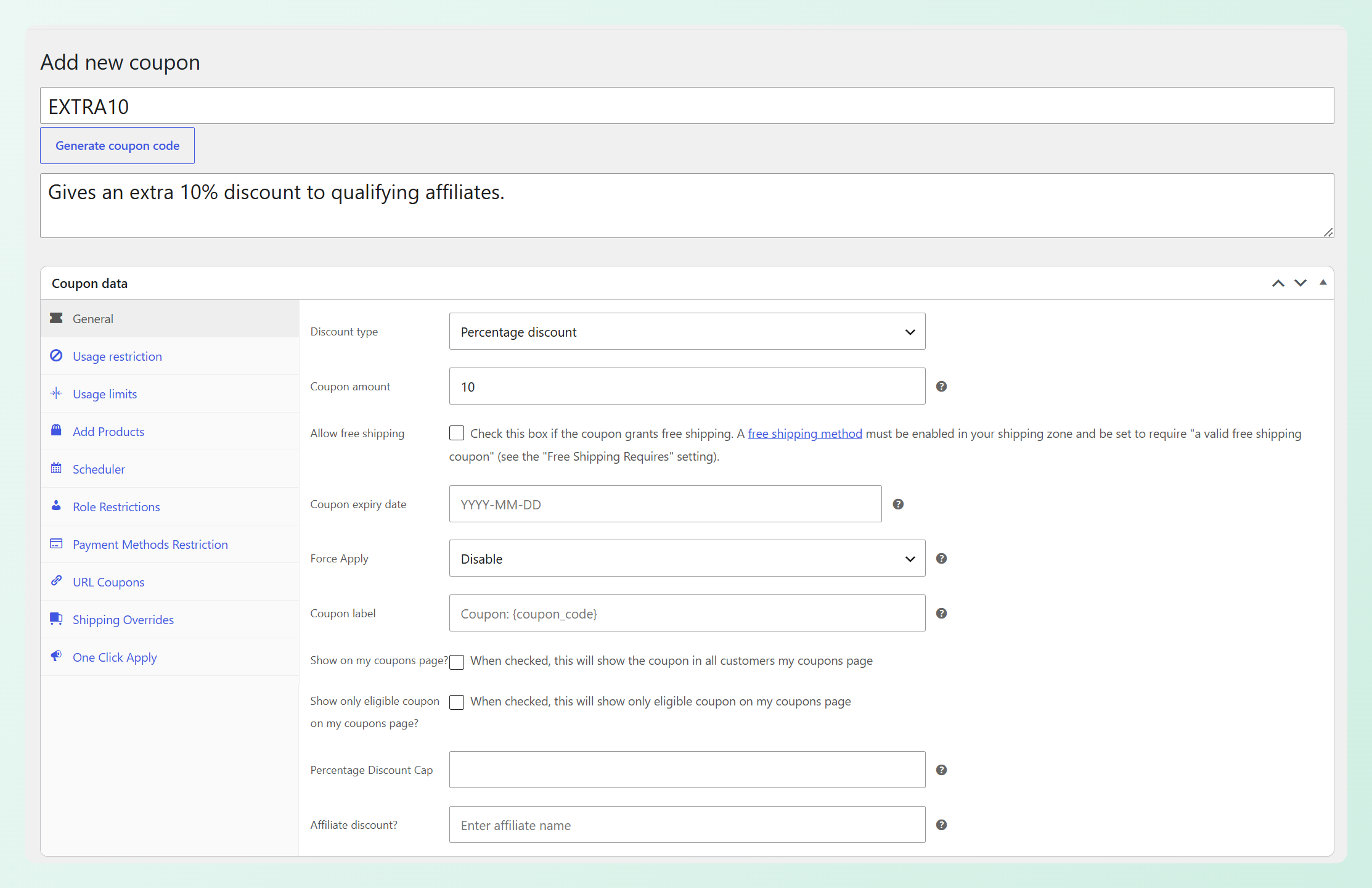
Nothing here is conditional yet. As it stands, EXTRA10 is a plain 10% coupon that anyone could use. The pattern rule is what ties it to your affiliate codes, and that lives in the next box down.
Step 2: Add the Coupons Applied In Cart condition
Scroll past the Coupon data box to the Cart Conditions box below it, and on the Rules tab pick Coupons Applied In Cart from the condition dropdown.
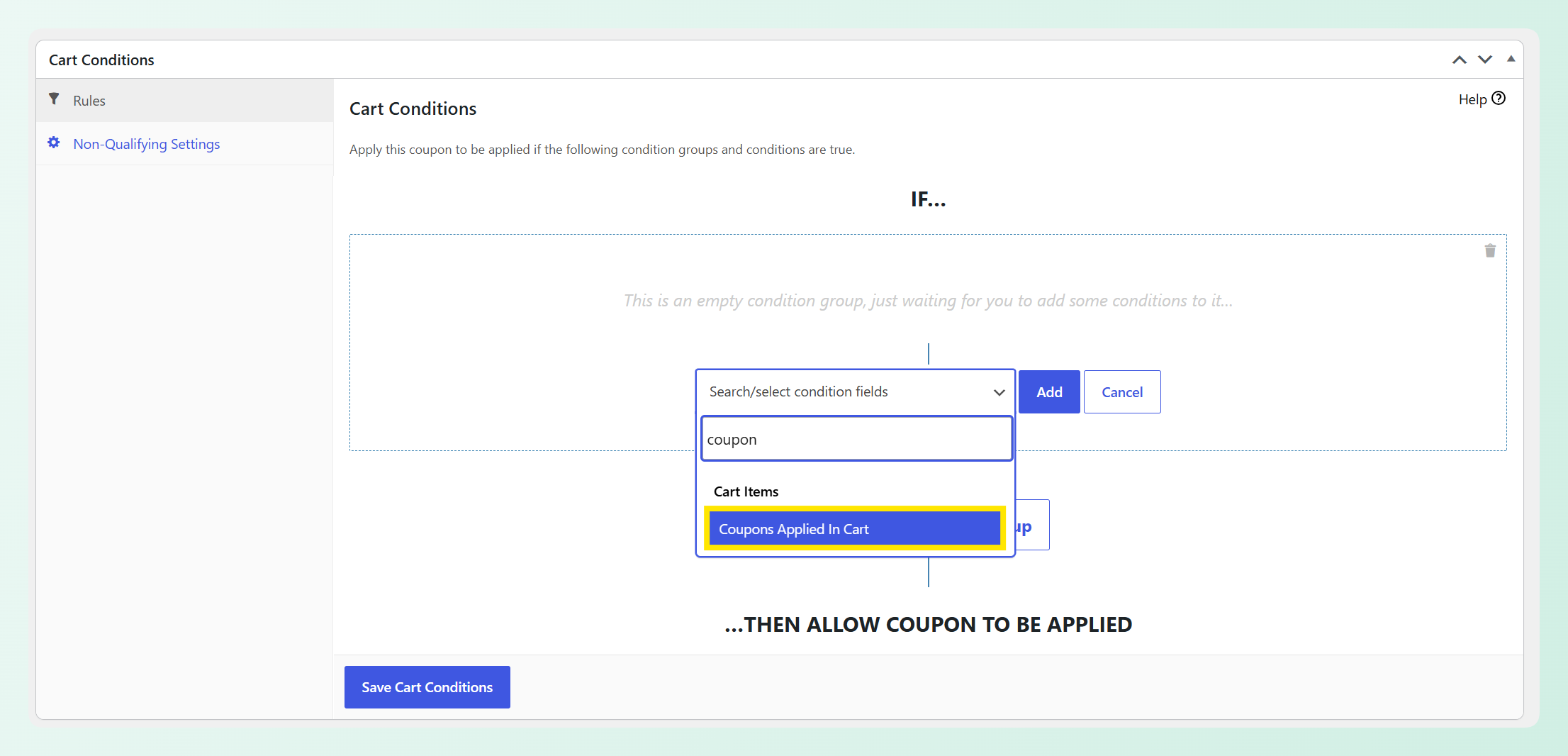
Step 3: Choose your match type
Set Match type to STARTS WITH, ENDS WITH or CONTAINS. Leaving it on EXACT keeps the coupon dropdown, so switch away from it to get the pattern field.
Because our example codes all share the aff- prefix, choose STARTS WITH.
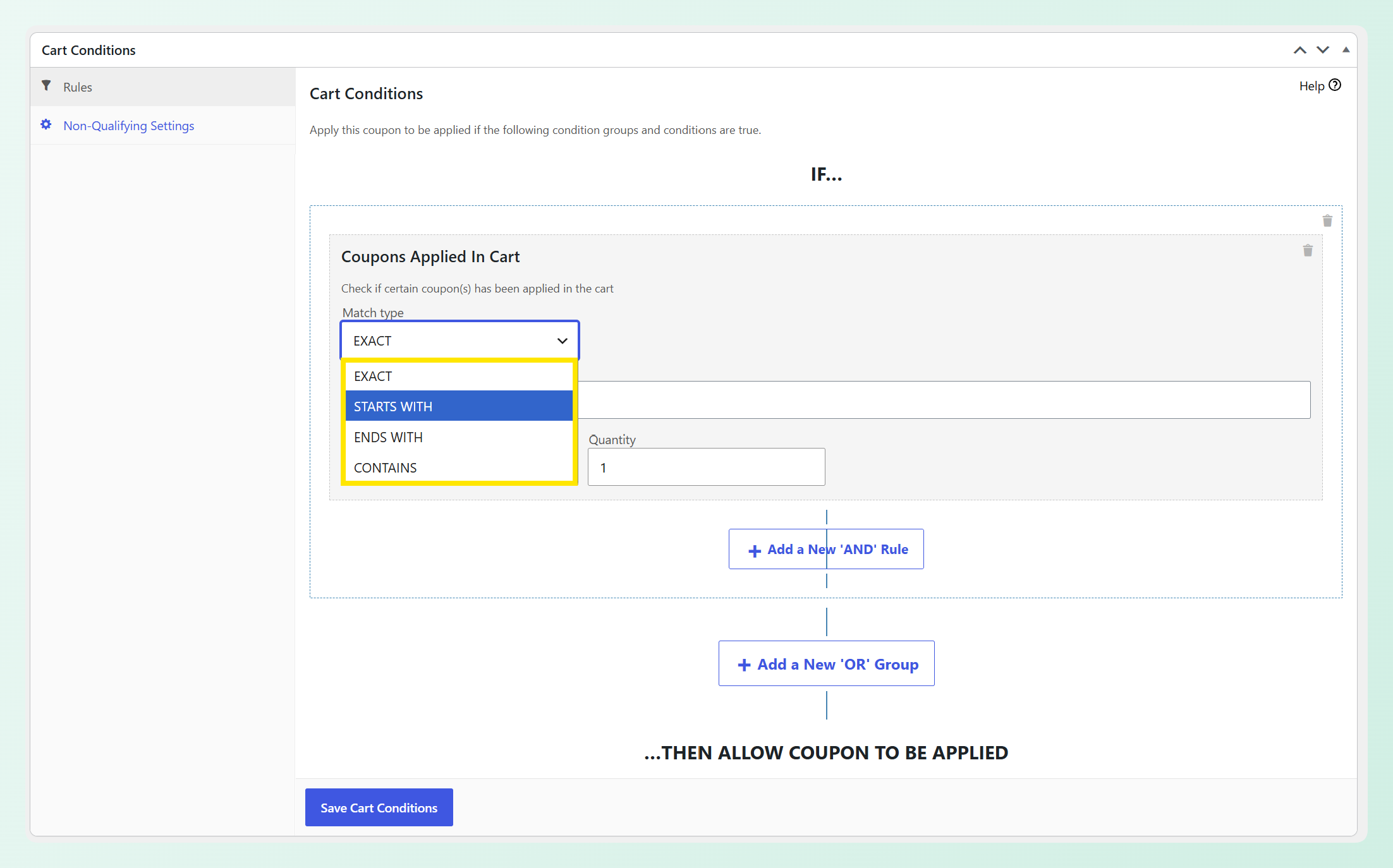
Step 4: Type your pattern
The coupon dropdown is replaced by a Pattern(s) field. Enter aff- for our example. To match more than one pattern, separate them with commas, such as black-friday, summer.
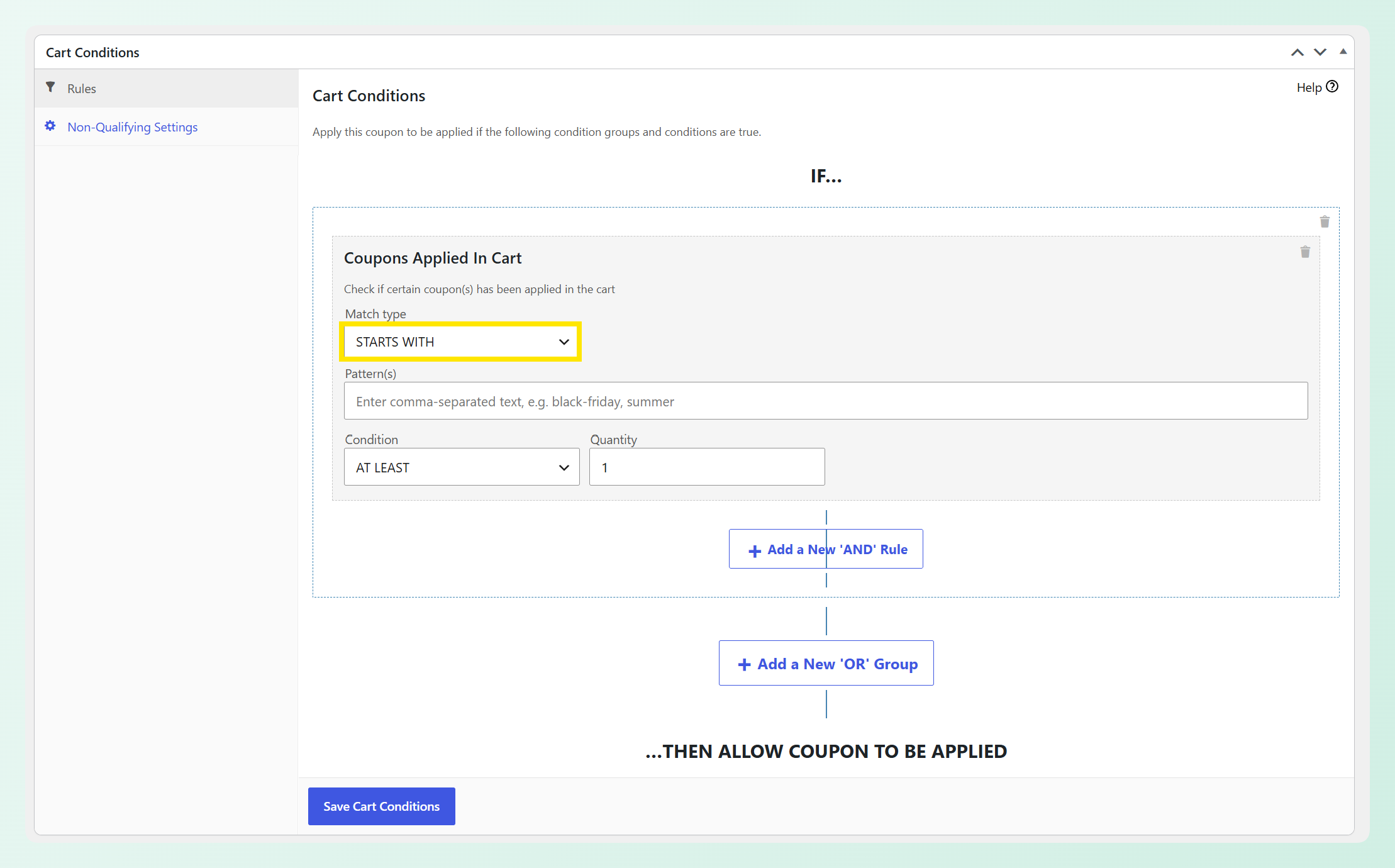
Step 5: Set the condition and quantity, then save
Below the pattern field, Condition offers AT LEAST or ALL, with a Quantity box beside it. One matching affiliate code is enough to qualify for EXTRA10 in our example, so leave Condition on AT LEAST and Quantity at 1. Then click Save Cart Conditions.
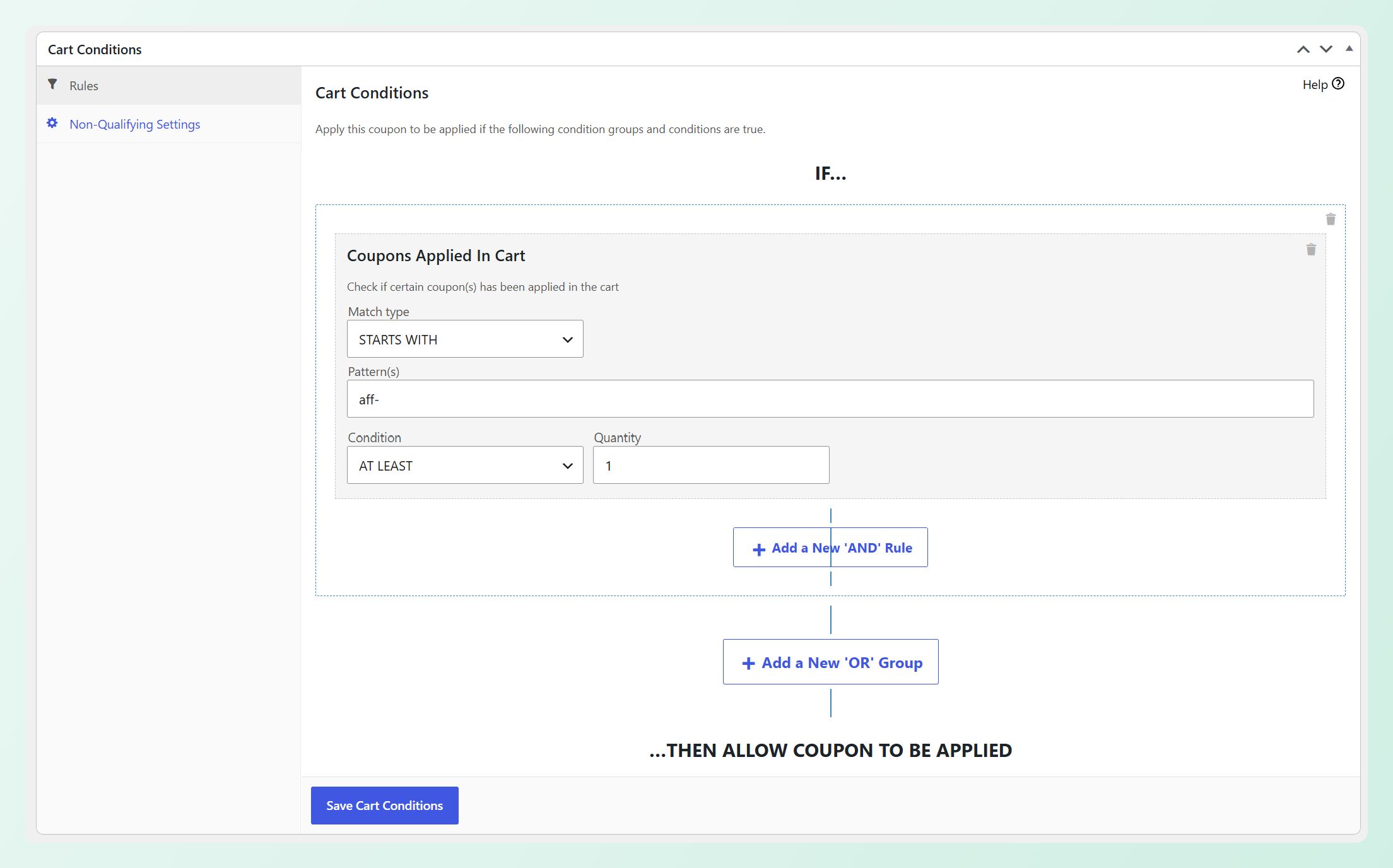
aff- and AT LEAST 1, then save your Cart Conditions (click to zoom)That save button belongs to the Cart Conditions box and is separate from the coupon’s Update button, so use it or your rule won’t be stored.
In the example below, aff-092026 matches the aff- prefix in our condition. Because that qualifying coupon is already applied, EXTRA10 can be applied in the same cart for an additional 10% discount.
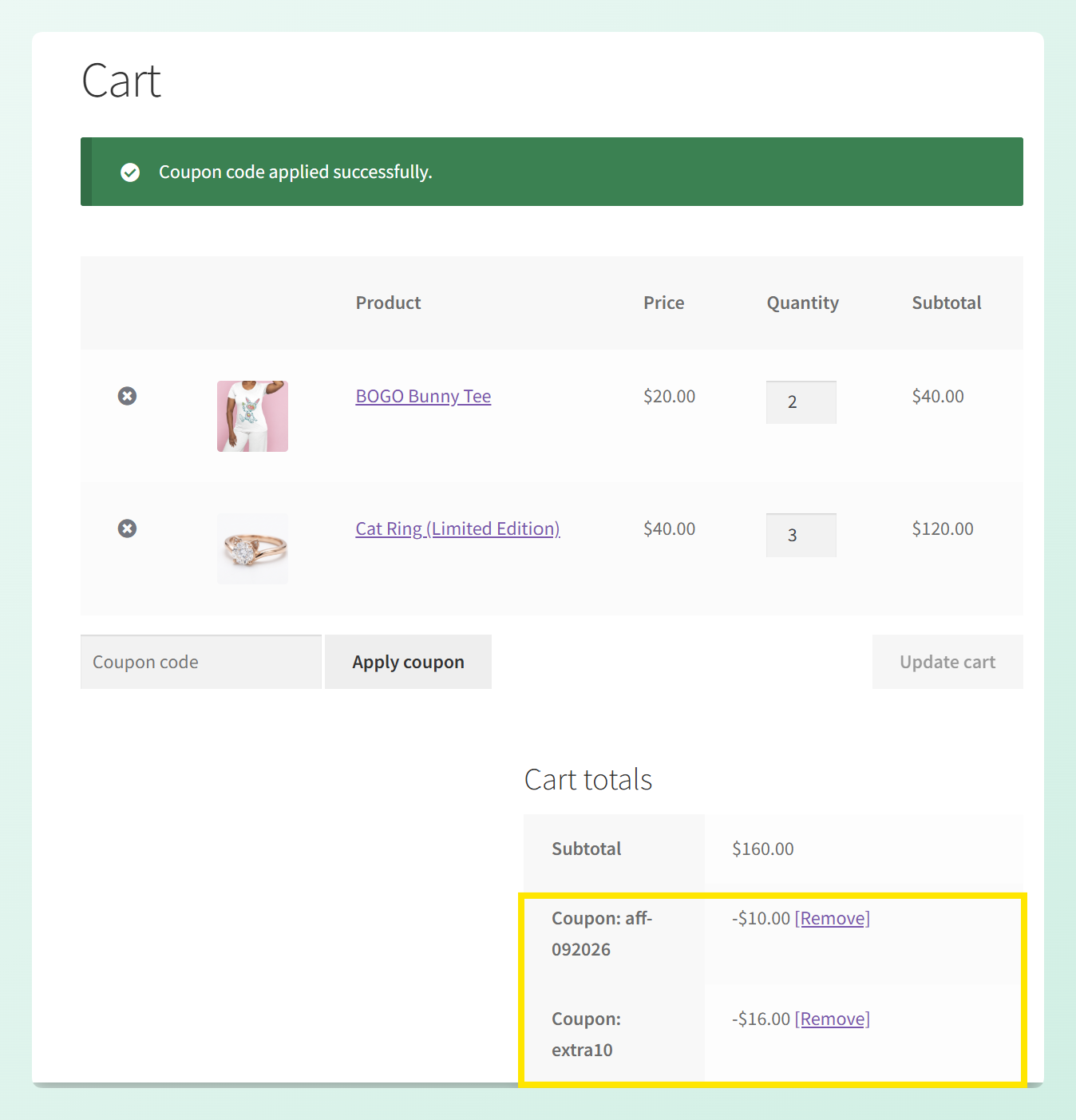
aff-092026 matches the aff- pattern, EXTRA10 can be applied in the same cart (click to zoom)Tip: Test the coupon both ways before you promote it. Try EXTRA10 on its own first; it shouldn’t apply. Then add a qualifying aff- coupon and try again to confirm the condition works as expected.
Choosing between AT LEAST and ALL
With one pattern and AT LEAST 1, the setup is straightforward. These options matter more when you enter several patterns.
- AT LEAST counts matching codes. With patterns
aff-andref-and a quantity of 2, the cart needs two matching codes in it. One code satisfying both patterns is not enough, because the count is of distinct codes. - ALL requires every pattern to find a match. With the same two patterns, the cart needs at least one
aff-code and at least oneref-code before the coupon applies.
The Four Match Types, With Examples
Here is how each type behaves against example codes.
| Match type | Pattern | Matches | Does not match |
|---|---|---|---|
| EXACT | chosen from the dropdown | the coupons you selected | anything else |
| STARTS WITH | aff- | AFF-1001, aff-10011 | MYAFF-1001 |
| ENDS WITH | -xyz | PROMO-XYZ | XYZ-PROMO |
| CONTAINS | xyz | A-XYZ-B, PROMO-XYZ | PROMOTION |
Matching a WooCommerce coupon code prefix
STARTS WITH is useful when related coupon codes share a consistent prefix. If your affiliate codes run AFF-1001, AFF-1002 and upward, use aff- as the pattern.
Include the separator in the pattern where you have one. Writing aff rather than aff- would also catch a code like AFFILIATEONLY, which may not be what you meant.
Four Ways To Use Coupon Code Patterns
1. Stack a store bonus on matching affiliate codes
Create a bonus coupon and give it a Coupons Applied In Cart condition set to STARTS WITH aff-. The bonus coupon can then be used whenever the cart already has a matching affiliate code, with no need to maintain a separate list as new codes are created.
2. Run one rule across a whole campaign
Give a seasonal campaign a shared prefix, say bf26- for your Black Friday codes, and a single condition can recognize every matching code in the campaign. This works well when different channels use different codes but qualify for the same extra offer.
3. Require a referral code before a second offer unlocks
Because the condition controls when the coupon can be used, you can make one offer depend on another. A free shipping coupon with a STARTS WITH ref- condition only works when a matching referral code is already applied in the cart, which keeps the perk tied to the offer you intended.
4. Match text anywhere in the coupon code
Some coupon codes put the important identifier in the middle, like US-VIP-2026. CONTAINS lets you match vip wherever it appears in the code, so it works well when your naming system isn’t tied to a prefix or suffix.
Three Things To Know Before You Launch
Patterns are plain text
Type the characters you want to match and nothing else. There is no wildcard syntax here, so an asterisk is treated as an ordinary character rather than a stand-in for “anything.” A pattern of aff* treats the asterisk as part of the text to match and will not match AFF-1001.
The match type is what decides where the text has to appear, which is why the pattern itself stays simple. Write aff- and pick STARTS WITH.
Case does not matter
Matching ignores capitalization on both sides, so the pattern sale matches a code like SALE2026. You don’t need to match the capitalization exactly.
A coupon never satisfies its own pattern
The coupon being checked is left out of the comparison, so a rule cannot validate itself. Give a coupon the code aff-bonus and a STARTS WITH aff- condition, and it still needs a different matching code in the cart before it will apply.
The condition keeps being checked after the coupon is applied. If the qualifying code is removed, the dependent coupon is removed too.
Frequently Asked Questions
Can I use wildcards like an asterisk in WooCommerce coupon codes?
No. Coupon code patterns use literal text rather than wildcard syntax. Choose STARTS WITH, ENDS WITH or CONTAINS to control where the text should appear. An asterisk is treated as an ordinary character, so use aff- with STARTS WITH rather than aff*.
Does coupon pattern matching work with codes that do not exist yet?
Yes, and it is the main reason to use a pattern instead of the dropdown. The condition compares the pattern against whatever codes are in the cart at the time, so it never needs the coupon to have existed when you wrote the rule. New affiliate, referral, or bulk-generated codes are covered as soon as they are created, as long as they match your pattern.
Is coupon code matching case sensitive?
No. Patterns and coupon codes are compared without regard to capitalization, so SALE, Sale and sale all behave the same way. Duplicate patterns are also treated as one, which means listing both AFF- and aff- in the same field counts once rather than twice.
Can one coupon satisfy its own pattern condition?
No. The coupon being validated is excluded from the list of applied codes the pattern is checked against, so it can never be its own qualifying code. That keeps a rule like STARTS WITH aff- meaningful even on a coupon whose own code happens to start the same way.
What happens if the matching coupon is removed from the cart?
Your conditional coupon comes off too. Once the qualifying code is removed, the condition no longer passes and the dependent coupon is removed with a notice explaining it is no longer valid.
Wrapping Up
Pattern matching is especially useful when your coupon codes follow a consistent naming system. Instead of maintaining a long list of individual codes, you can build the condition around a shared prefix, suffix or text pattern and have new matching codes follow the same rule.
Here’s what to do next:
- Add your first pattern rule in the Cart Conditions box.
- Check the match type table to pick between STARTS WITH, ENDS WITH and CONTAINS.
- Review the three things to know before you put a pattern rule live.
Want to use WooCommerce coupon code pattern matching in your store? Get Advanced Coupons Premium to start creating pattern-based Cart Conditions.