

Good news! With Advanced Gift Cards, you can now defer WooCommerce gift card redemption until the order is placed. Shoppers can enter their code at checkout and see the amount applied right away, while the gift card stays unused until they place the order.
If someone leaves checkout without placing an order, their gift card stays unused. And if they return to the same cart while their session is active, the discount will still be applied. Here’s how to turn the feature on, what customers will see at checkout, and how any unused gift card value is handled.
Feature Overview: Deferred Gift Card Redemption
By default, when a shopper redeems a gift card from Advanced Gift Cards, its value goes straight into their store credit balance and the gift card is marked as used. From there, they can spend that store credit on their orders.
With deferred redemption switched on, shoppers can enter a gift card code while they have items in their cart, and an eligible amount is applied to the order right away. With the default store credit settings, this appears as a Store Credit Discount line in the order totals. The gift card itself stays unused until they place the order.
Here’s how the setting itself describes it:
“When checked, redeeming a gift card code at checkout will not immediately convert its value to store credit. Instead, the value is applied as a discount and the store credit entry is only created once the customer places their order.”
Here’s why this is a nice change for your store:
- The gift card is redeemed when the order is placed. If a shopper leaves checkout without placing an order, the gift card stays unused.
- Applying the code feels familiar. Shoppers can enter their gift card code at checkout and see how much comes off their order, much like applying a coupon.
- The gift card and the order stay connected. The gift card is marked as used when the order is placed, so you can see which gift card went with which order.
The setting is off by default, so your existing gift card redemption flow stays the same unless you enable it.
How To Turn On Deferred Gift Card Redemption
You’ll need Advanced Gift Cards version 1.4.5 or newer to use this setting. If you haven’t installed it yet, you can get Advanced Gift Cards before following the steps below.
To get started, head to your WordPress dashboard > Coupons > Settings, then click the Checkout tab. This is where you’ll find the options for the redeem forms on your checkout page.
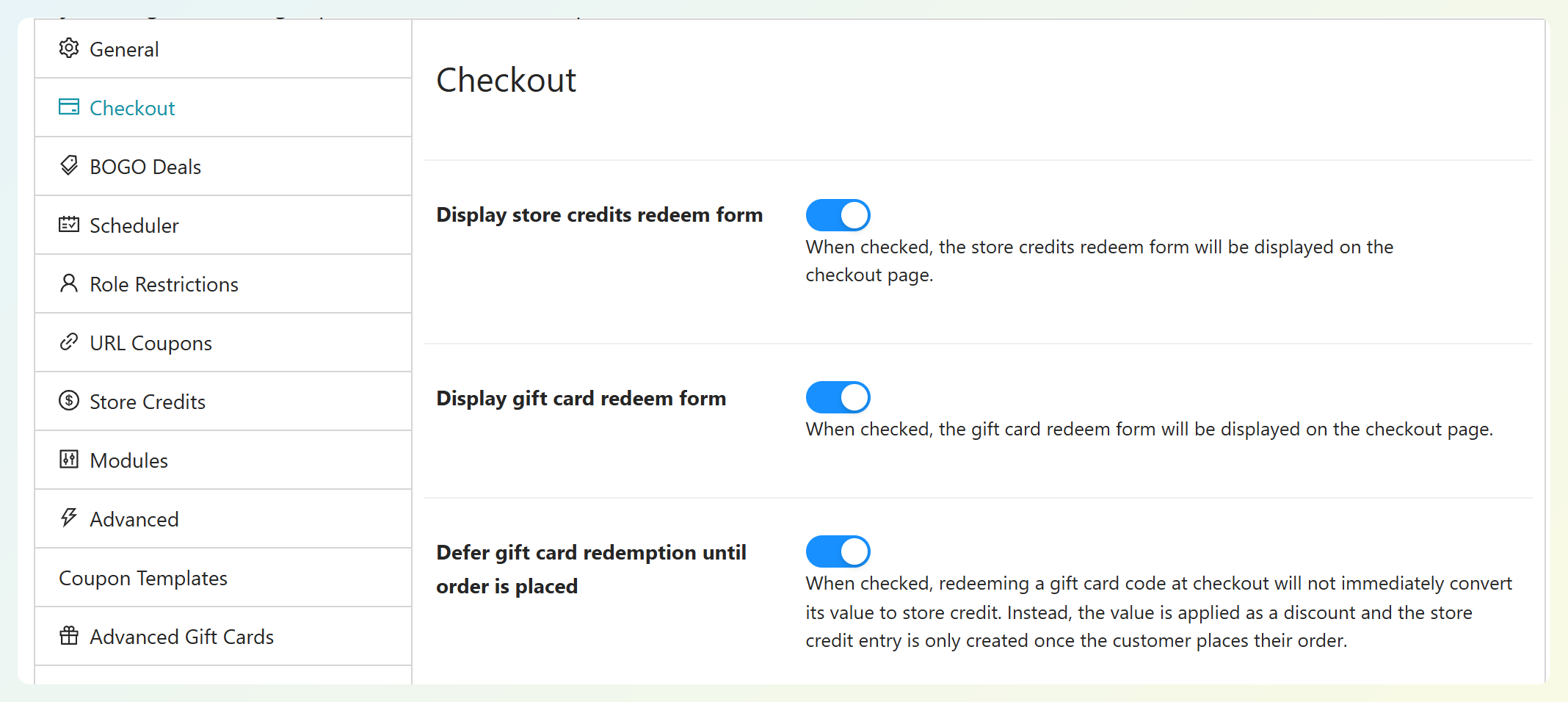
Right below Display gift card redeem form, you’ll see the new Defer gift card redemption until order is placed setting. Switch it on to enable deferred redemption.
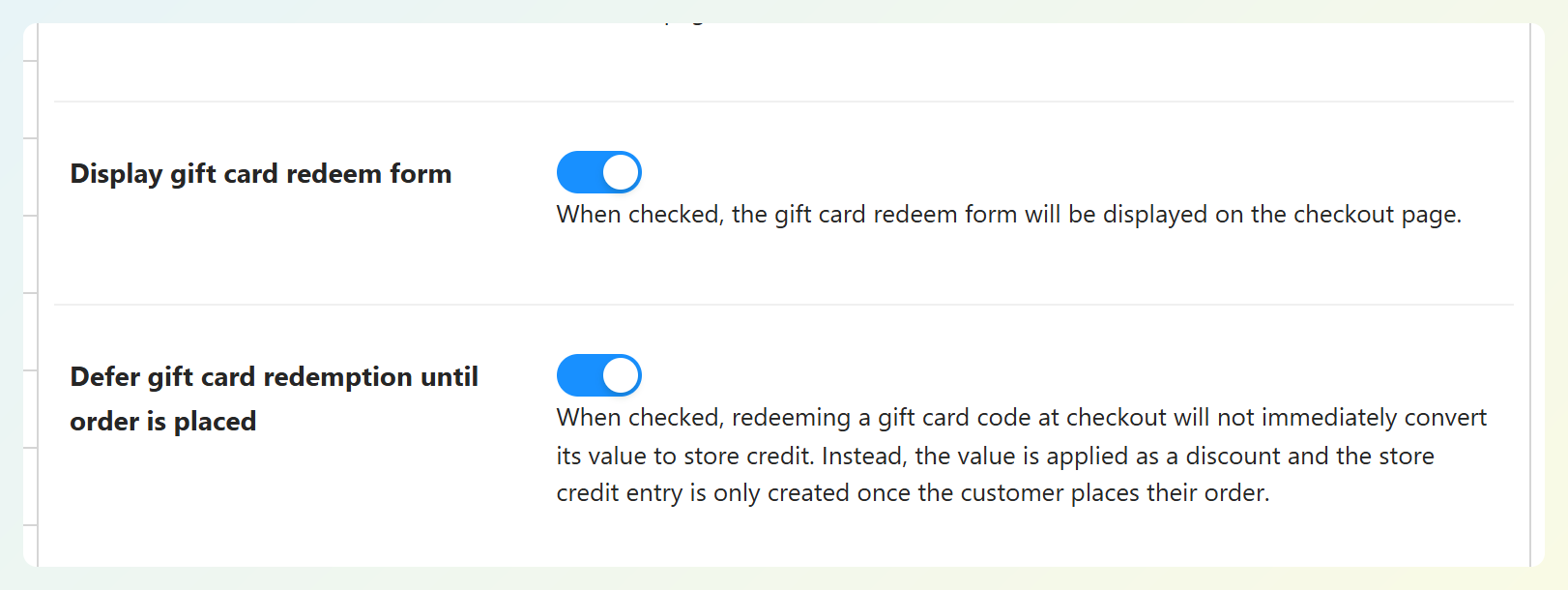
And that’s basically it!
🎯 POWER TIP: Keep Display gift card redeem form switched on as well. This is what shows the “Redeem a gift card?” form on your checkout page, so shoppers can enter their code right where they pay.
What Your Customers See At Checkout
Here’s what checkout looks like with deferred redemption turned on. In this example, our shopper has two Cat Mugs worth $60 in their cart and a $25 gift card to use.
Applying the gift card
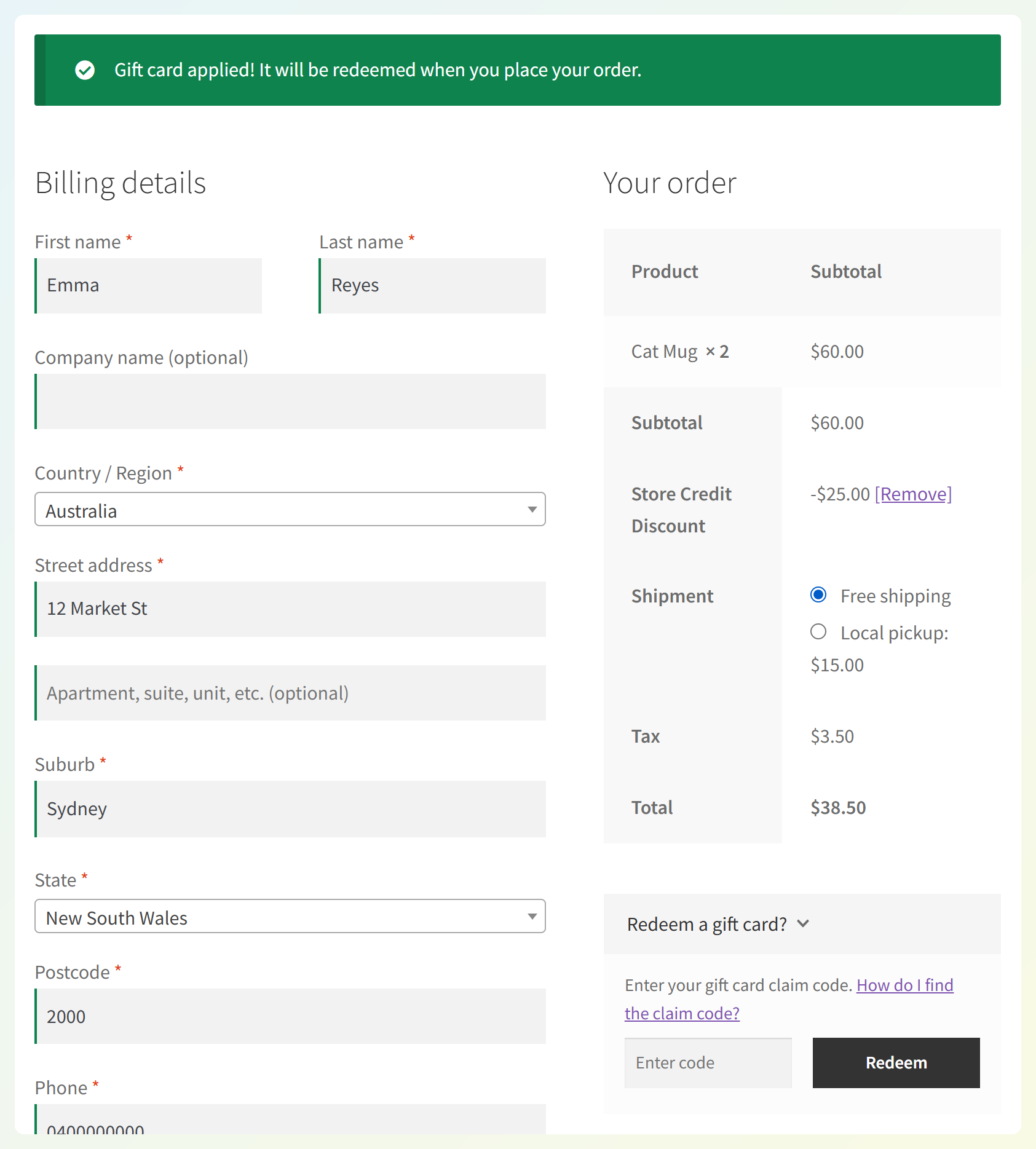
At checkout, the shopper opens the Redeem a gift card? form, enters their gift card code, and clicks Redeem. They’ll see this message straight away: “Gift card applied! It will be redeemed when you place your order.”
Seeing the discount in the order totals
The amount applied from the gift card shows in the order totals before the shopper places their order. With the default store credit apply type, it’s labeled Store Credit Discount.
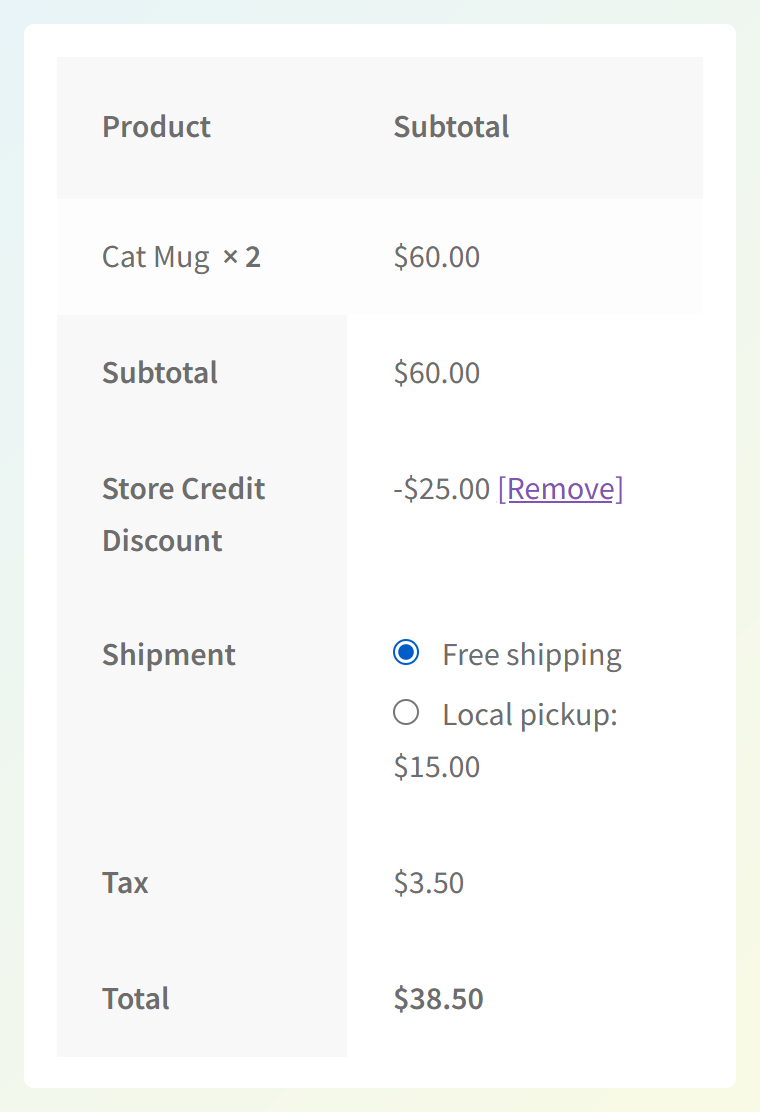
Here, $25 comes off the $60 in items. With the other checkout charges included, the total shown is $38.50.
Coming back to checkout later
If the shopper leaves checkout to keep browsing, the discount stays applied when they return to the same cart during their active session.
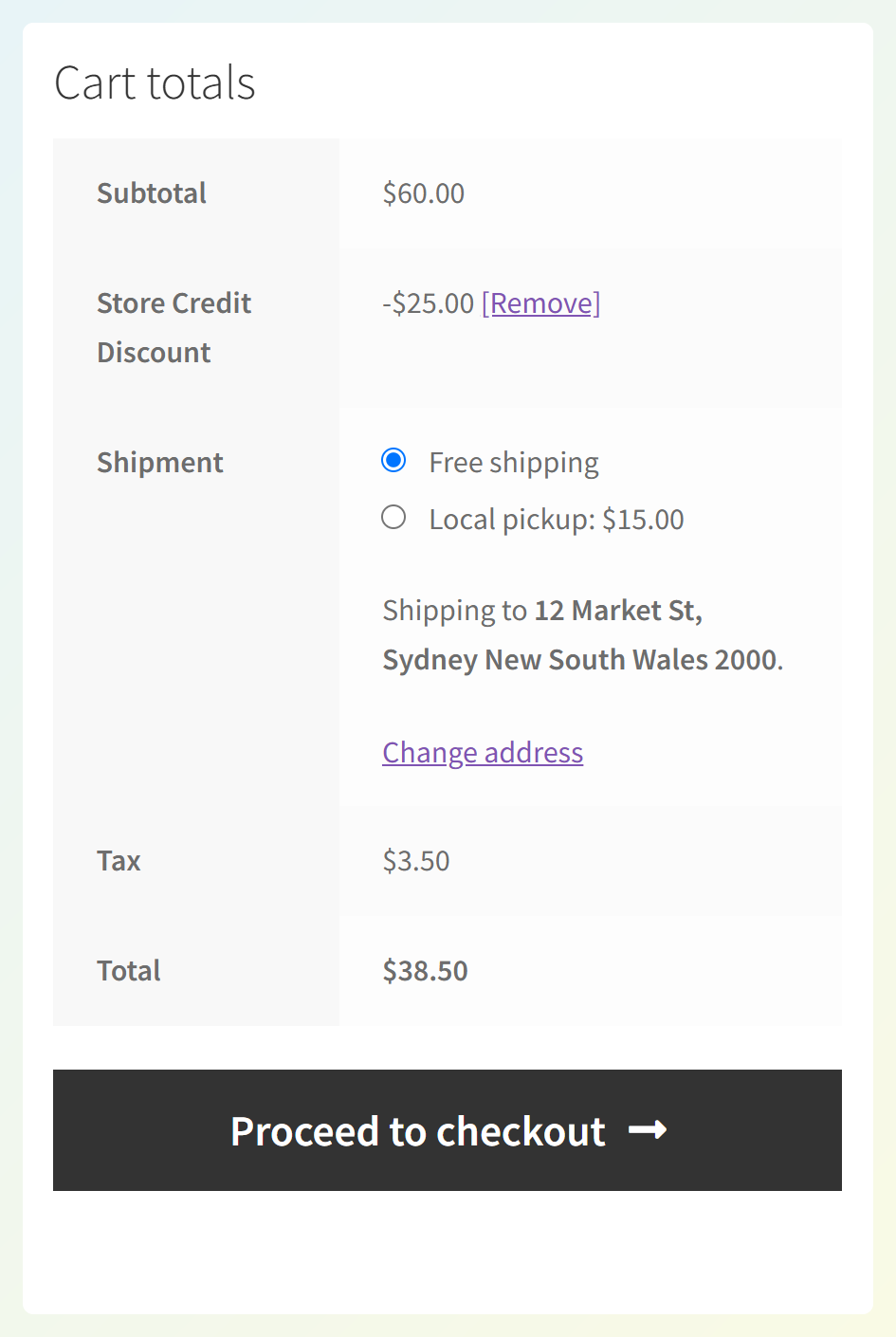
If they enter the same gift card code again, they’ll see the confirmation message instead of an error. The discount won’t be applied twice.
Placing the order
Once the shopper places their order, the gift card is redeemed and marked as used. With the default store credit apply type shown here, the amount appears as Discount on the order received page.
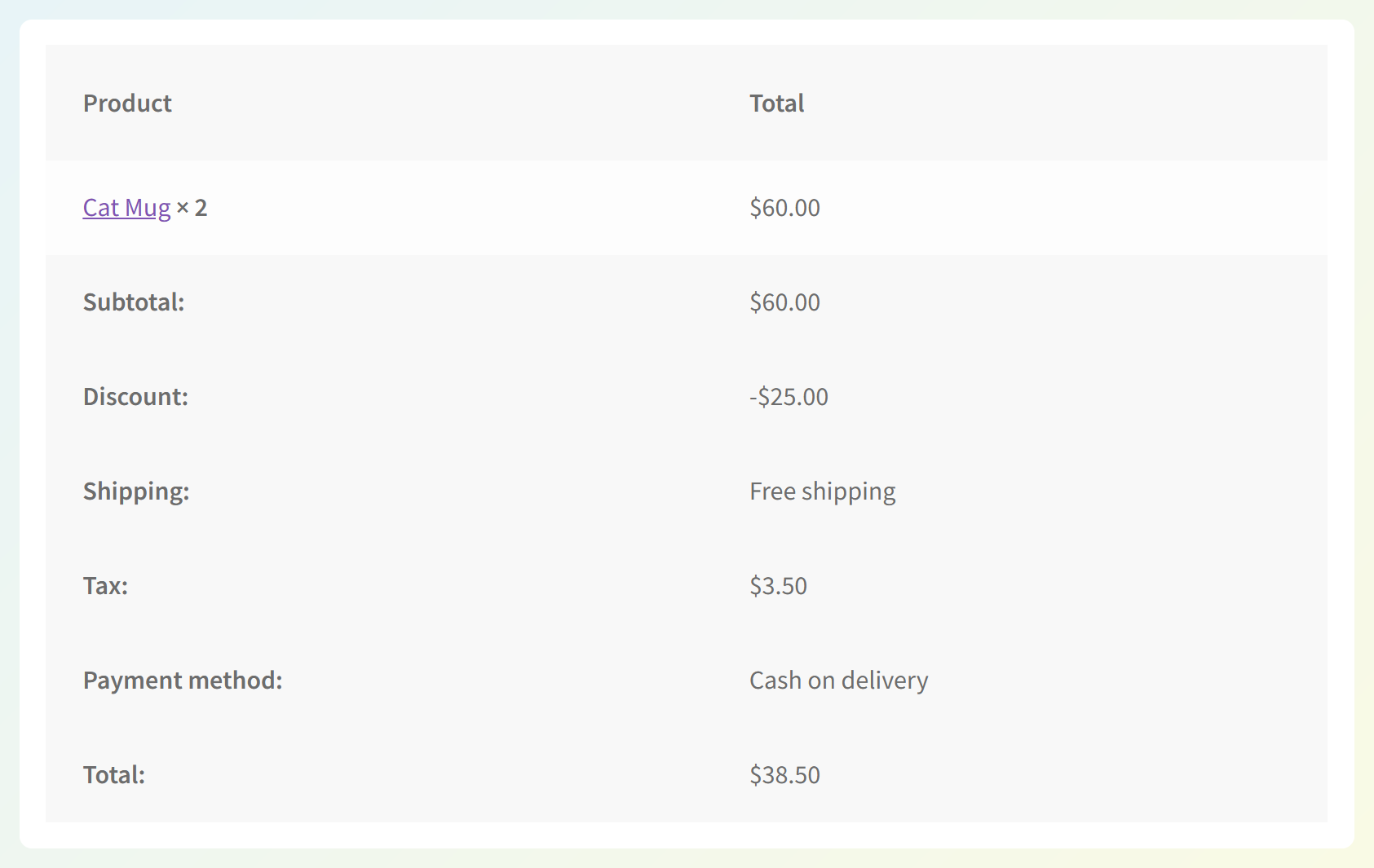
Checking their store credit afterwards
When the order is placed, the gift card’s value is added to the shopper’s store credit and the discount is taken from it at the same time. If part of the gift card wasn’t needed for this order, that amount stays in their store credit balance for next time.
Shoppers can see their balance and history under My Account > Store Credits. Here, our customer used another $25 gift card on a smaller order, where only $15 of it could be applied. The remaining $10 is waiting in their balance:
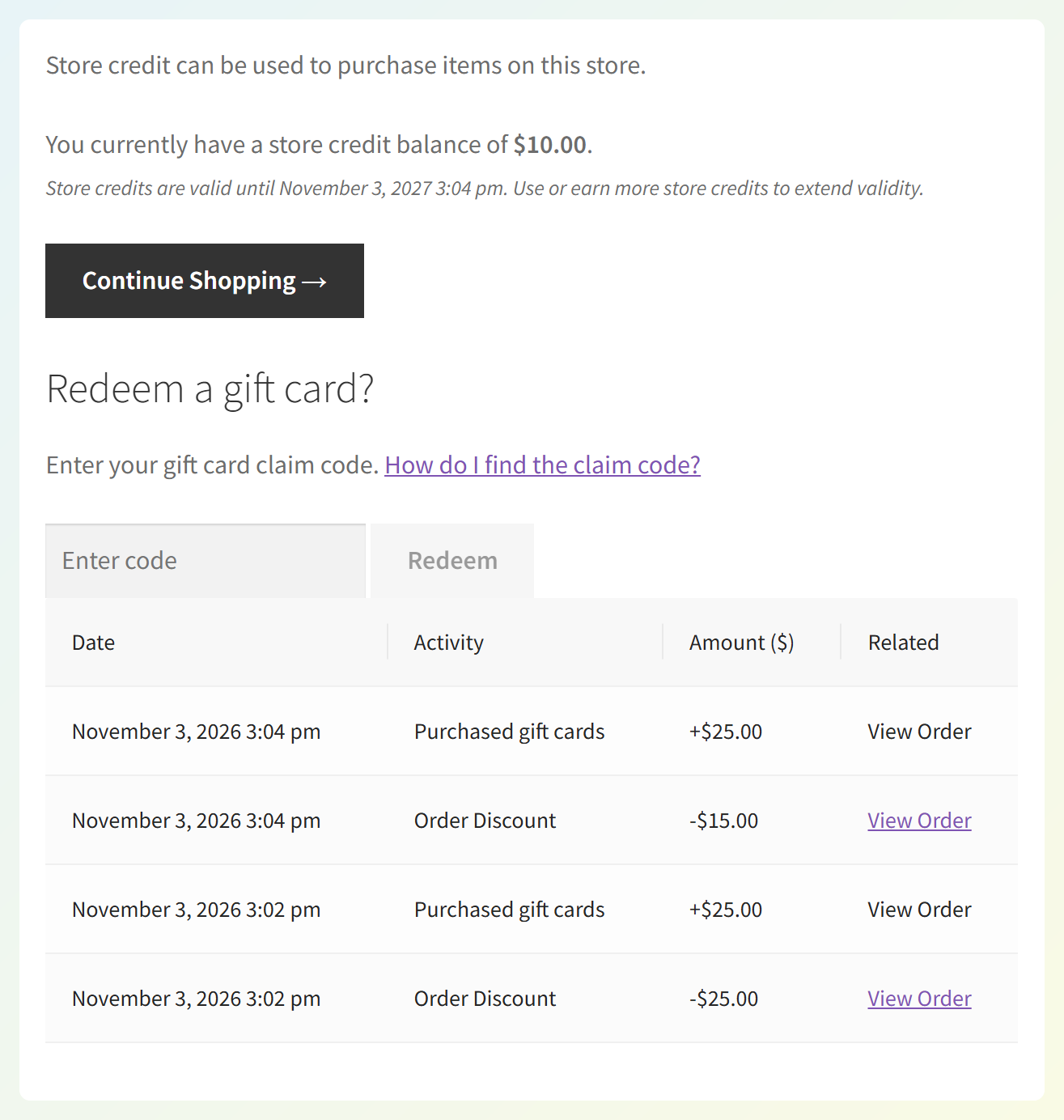
In your WooCommerce orders, you’ll also see a note showing which gift card was used. For example: “This order applied store credits related to gift card(s): GIFT-7Q4K-M2XP ($25.00).”
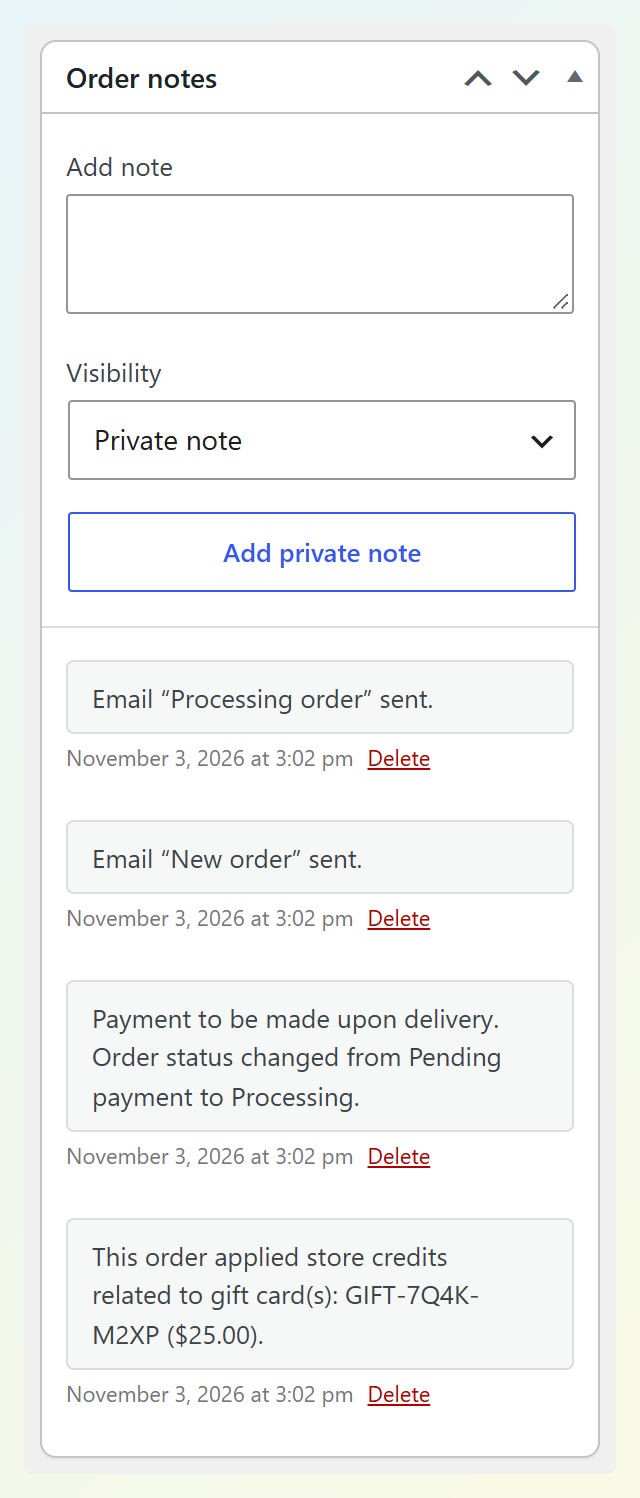
That gives your team a quick reference if a shopper asks about their gift card.
Tips And Reminders Before You Turn It On
Here are a few details worth knowing as you set this up:
- Some store credit limits can affect the discount. Under Coupons > Settings > Store Credits, the Minimum order total allowed setting (Advanced Coupons Free) and Maximum percentage of store credits redemption allowed per order (Advanced Coupons Premium) can limit how much is applied. After the order is placed, any unused gift card value remains in the customer’s store credit balance.
- Customers need to be logged in. Gift card redemption is tied to a customer account. Guests see a Login or sign up link in the gift card form that takes them to their account page.
- The cart determines how redemption works. Even if a shopper enters a gift card code from My Account, redemption is deferred when there are items in their cart. With an empty cart, the card is redeemed immediately and its value goes to store credit as usual.
- Gift cards are checked again at checkout. If a held gift card expires or is disabled before the order is placed, it’s removed and the shopper sees a notice. They can review the updated total and place their order again.
For example, with the Premium maximum percentage set to 50% and the default store credit apply type, a $25 gift card on a $30 item subtotal applies $15. After the order is placed, the other $10 remains in the customer’s store credit balance for next time.
How This Update Benefits Your WooCommerce Store
Here’s what deferred redemption changes for shoppers and the people managing your store:
1. Gift cards feel as familiar as coupon codes
Entering a gift card code at checkout feels familiar to anyone who has used a coupon. Shoppers can see the amount applied to their order before they place it.
2. The gift card stays unused until the order is placed
Not every shopper places an order on their first visit. If they apply a gift card and leave checkout without ordering, the card stays unused. It’s redeemed when they place the order.
3. A handy record of gift card use
Advanced Gift Cards also adds a note to the order listing the gift card used. Your support team can check it when a customer asks about a gift card redemption.
4. Any leftover gift card value stays available
If only part of the gift card’s value can be applied to an order, the remainder stays in the customer’s store credit balance after they place it. They can use that credit on a future order.
RELATED READ: How To Create And Sell Gift Cards In WooCommerce

Frequently Asked Questions
How do customers redeem a gift card in WooCommerce?
With Advanced Gift Cards, logged-in customers enter their gift card code in the “Redeem a gift card?” form at checkout or on their My Account page. With deferred redemption switched on and items in the cart, the value is applied as a discount and the gift card is redeemed when the order is placed. You can find the full steps in our guide on how to redeem gift cards.
What happens if a customer applies a gift card and leaves without ordering?
The gift card stays unused. If the customer returns to the same cart during an active session, the discount is still applied. If they leave without placing an order, the gift card isn’t marked as used.
Does deferred gift card redemption still use store credit?
Yes. When the order is placed, the gift card’s value is added to the customer’s store credit and the amount applied to the order is deducted. Limits such as Minimum order total allowed and the Premium maximum percentage per order can affect how much is used. For a closer look, see our guide on store credit vs gift cards.
Can guests redeem gift cards?
Gift cards are redeemed to a customer account, so shoppers need to log in first. Guests see a “Login or sign up” link in the gift card form, which takes them to the account page. Once they’re logged in, they can redeem their gift card as usual.
Is deferred gift card redemption turned on automatically?
No. It’s off by default, so your store keeps working the same way until you switch it on. You’ll find it under Coupons > Settings > Checkout, labeled “Defer gift card redemption until order is placed.”
Wrapping Up
Deferred redemption gives shoppers a familiar way to use gift cards at checkout. When you defer WooCommerce gift card redemption until the order is placed, they see the amount applied right away, while the gift card stays unused until they place the order.
In this guide, we learned:
- How deferred gift card redemption works
- How to turn on deferred gift card redemption
- What your customers see at checkout
- Tips and reminders before you turn it on
- How this update benefits your WooCommerce store
Ready to try it out? Head to Coupons > Settings > Checkout and switch on deferred redemption for your store. ❤️
Do you have any questions about this update? Let us know in the comments. Happy to help!