
Wanting to give your customers a free gift with their purchase in WooCommerce?
Then watch this video because it will show you exactly how to do so in Advanced Coupons:
On your coupon edit screen, go to the Add Products tab.
Tick Enable Add Products first. Its description reads “When checked, products listed below will be added to the cart when this coupon is applied.” Until you tick it, the product rows below are greyed out and you cannot use them.
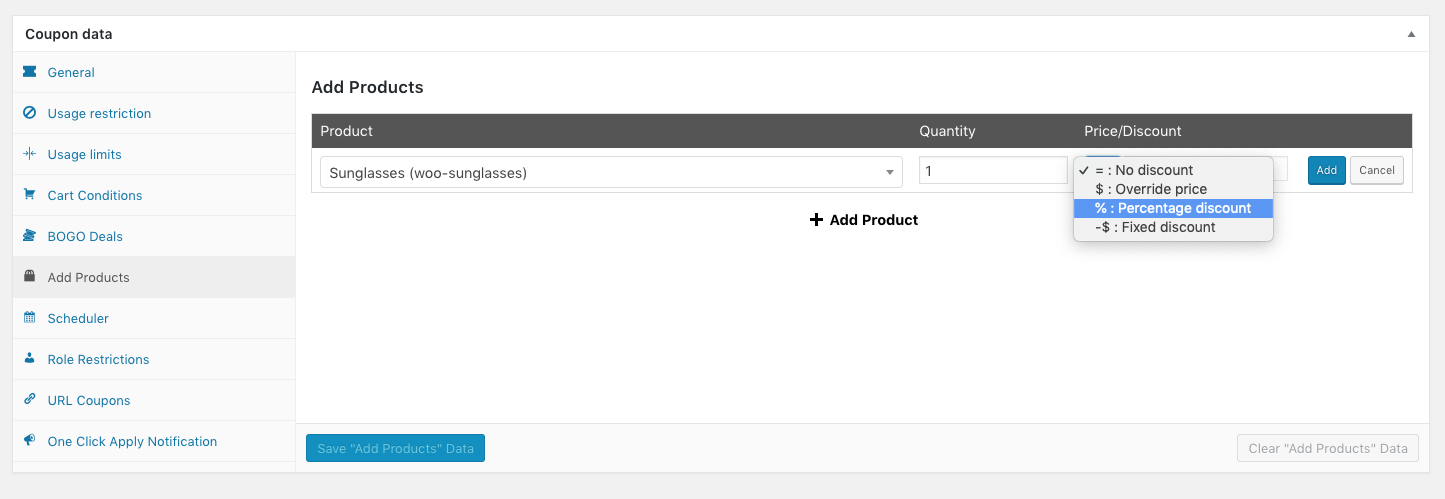
On this screen, you can do a product search for the product you want to give away with this coupon.
Set the quantity and hit Add.
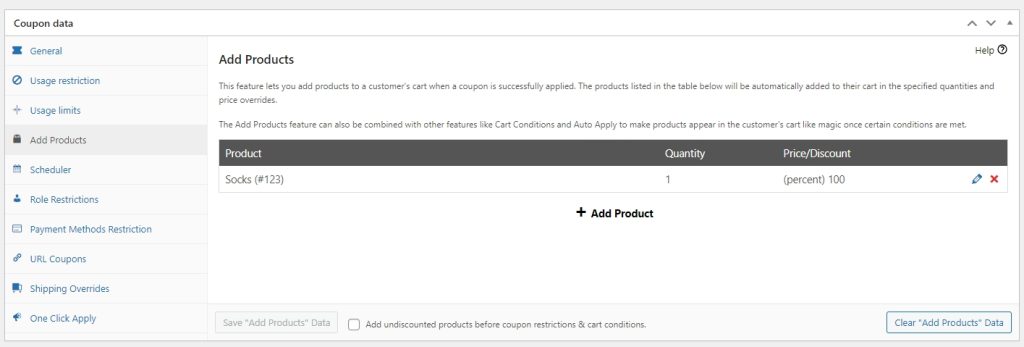
In the Price/Discount column, choose Percentage discount and enter 100 so the product is added free. Leaving the row on No discount adds the product at its full price, and it is not attached to the coupon, so it stays in the cart even if the coupon stops applying. You can also use Override price and enter 0 for the same result. Save with the Save “Add Products” Data button, then applying the coupon adds the product to the cart.
The other place you might want to check is the Cart Conditions where you can define all the things that need to be true in order to apply this coupon.
This means you can restrict it so the coupon can only be applied when a certain other product is in the cart for example. Here’s a great guide on how to give away free products with purchase in WooCommerce that might help.
Some other popular coupon scenarios that you can use alongside the Cart Conditions are:
- Give a free product when the customer cart subtotal is more than $100.
- Give 50% of Product A when the customer added more than 10 items to the cart
- Give a free product when the customer from a certain shipping region
and many others coupon scenarios that you could give a try.
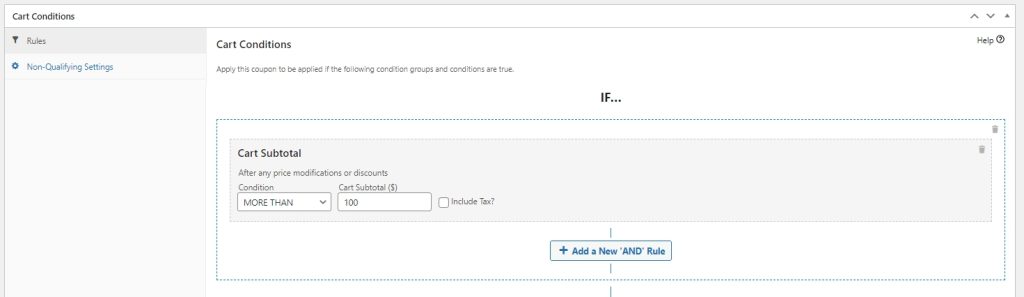
Here’s an example that gives free product when the customer cart subtotal is more than $100:
Add the free product on the Add Products tab.
Then, on the Cart Condition, add Cart Subtotal with condition More Than 100.
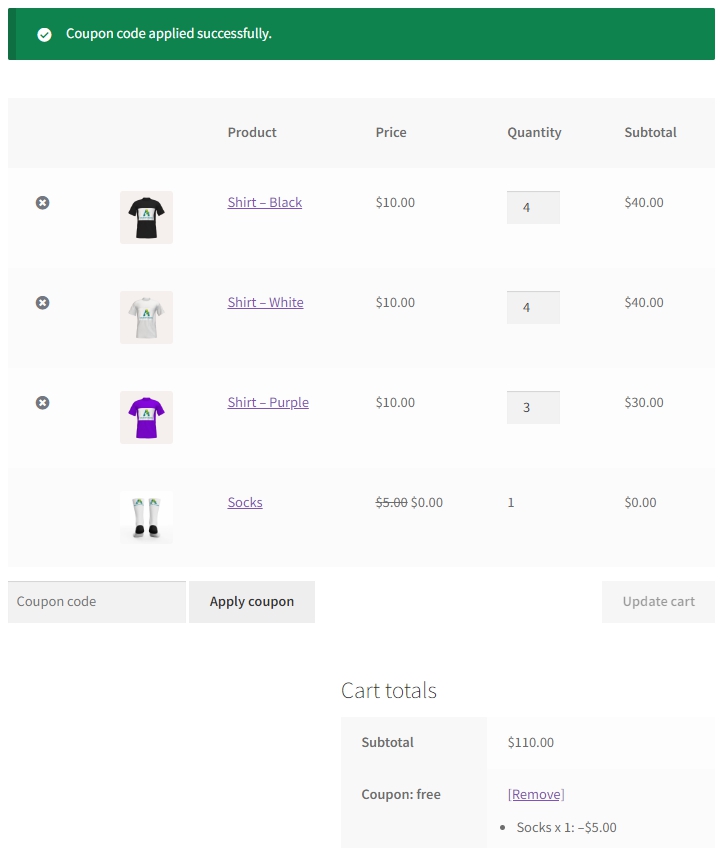
This is how it looks like on the Cart Page when the Cart Condition is met.
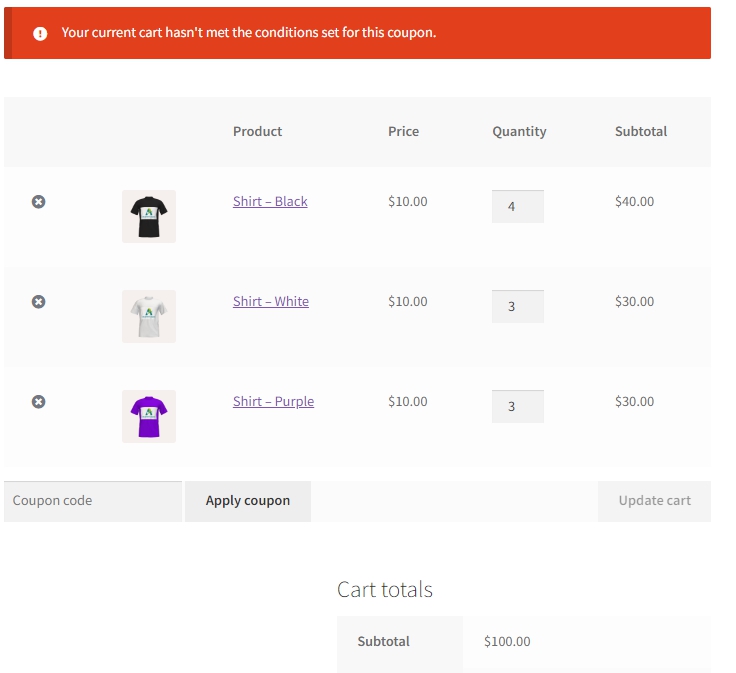
An error message will appear if your customer tries to add the coupon but does not meet the minimum spend requirement.
Help & Support
We have a dedicated support team for Advanced Coupons for WooCommerce plugin who understands our products, WooCommerce, and the industry very well. You’re welcome to make use of their expertise at any time, worldwide.
If you would like to know more about certain coupon scenarios that you would like to try, please go to the support ticket request form and send us a message.

