
The Settings page in Advanced Promo Kit is where you control how labels behave across your entire store. You can limit how many labels appear per product, adjust the spacing between stacked labels, switch off label display on single product pages, and enable or disable integrations with Advanced Coupons, Advanced Gift Cards, and Loyalty Program. This reference covers every option available.
Accessing Settings
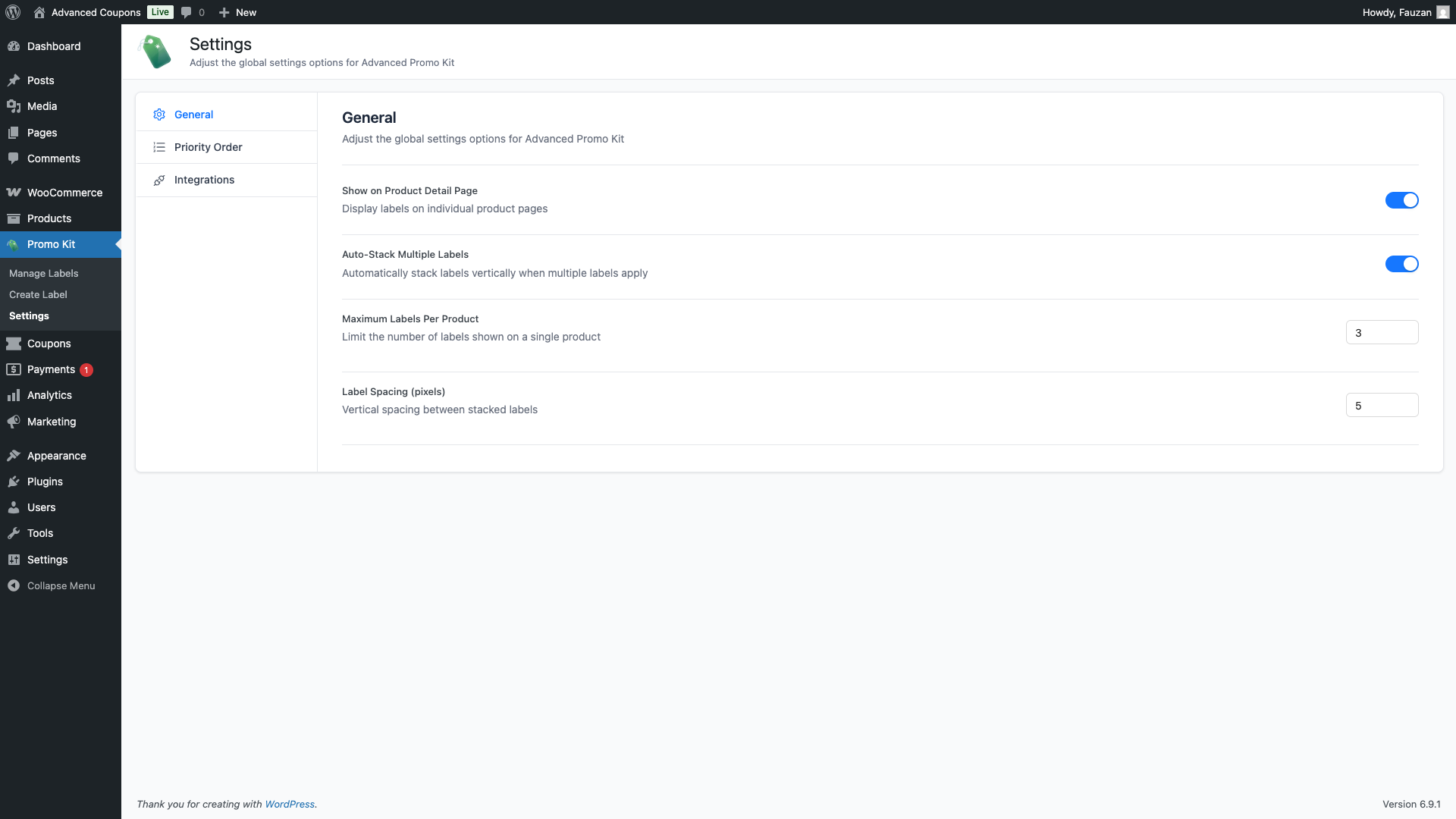
Go to Promo Kit → Settings in your WordPress admin sidebar. Advanced Promo Kit The settings page is divided into three sections, accessible from the left navigation panel: General, Priority Order, and Integrations.
General Settings
The General tab controls how labels are displayed on your storefront. Changes take effect immediately — there is no Save button. Each toggle or number input saves automatically when you interact with it.
| Setting | Description | Default |
|---|---|---|
| Show on Product Detail Page | When enabled, labels appear on individual product pages as well as the shop page. Disable this to show labels only on archive/shop pages and not on the single product page. | On |
| Auto-Stack Multiple Labels | When enabled, multiple labels flow vertically using the spacing set below. When disabled, each label is positioned using its own badge position settings, so labels can overlap. The number of labels shown is set by Maximum Labels Per Product either way. | On |
| Maximum Labels Per Product | The maximum number of labels that can appear on any single product. Accepts a value between 1 and 10. Product-specific labels always count toward this limit and always appear first. | 3 |
| Label Spacing (pixels) | The vertical gap between stacked labels, in pixels. Accepts a value between 0 and 50. Only applies when Auto-Stack Multiple Labels is enabled and more than one label is showing. | 5 |
Priority Order
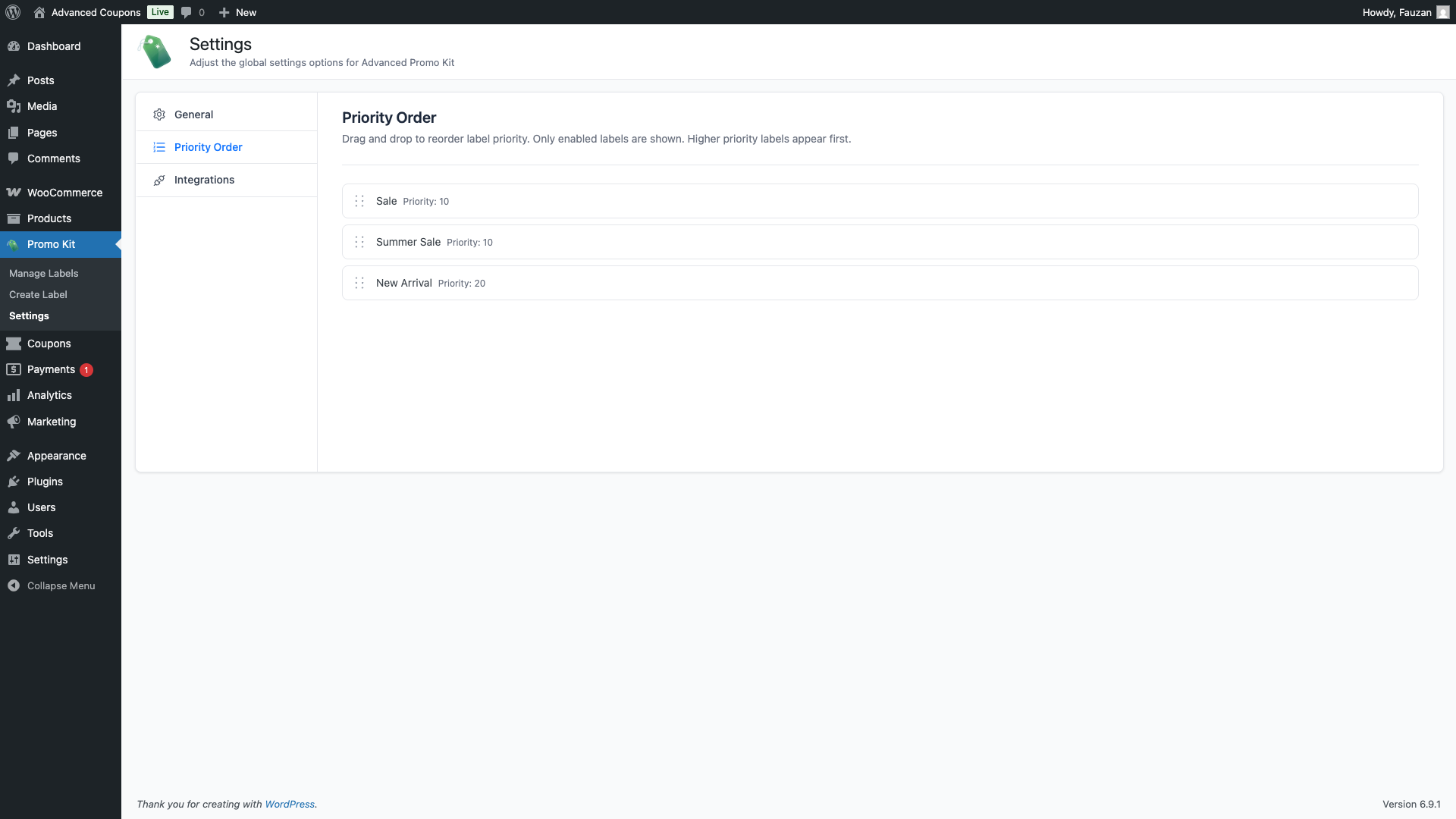
The Priority Order tab lets you control which global labels appear first when multiple labels match a product. The list shows all currently enabled labels. Drag a label up to give it higher priority — it will appear before labels lower in the list.
Only enabled global labels appear in this list. Disabled labels are not shown and do not take up a priority slot. Product-specific labels (assigned directly on a product edit screen) always appear before global labels, regardless of the order set here.
Integrations
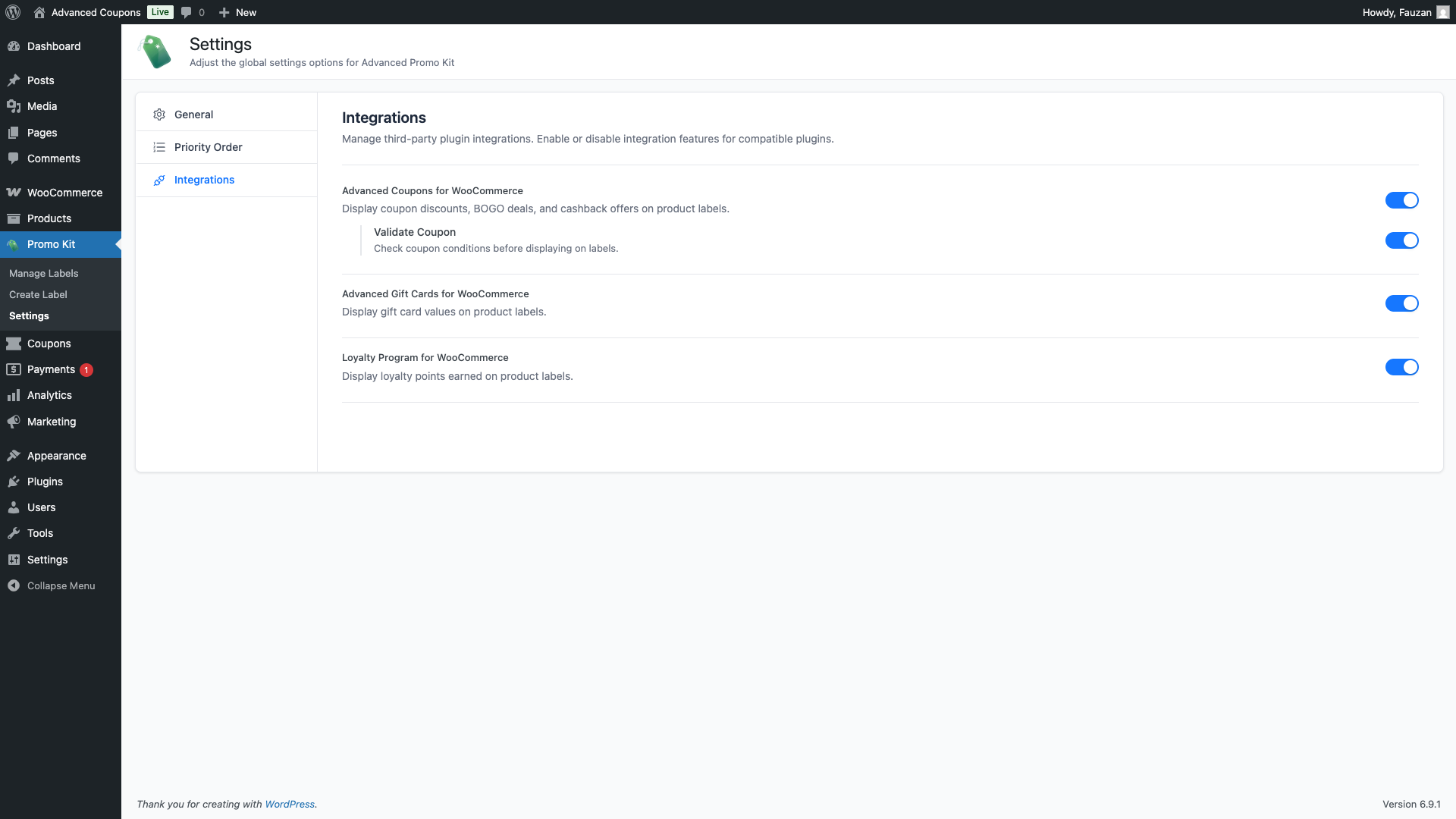
The Integrations tab lets you enable or disable Advanced Promo Kit’s built-in integrations with other plugins from the Advanced Coupons family. Each integration unlocks additional dynamic placeholder variables you can use inside badge text.
If the required plugin is not installed or active, the integration toggle is greyed out and a Learn more link appears below the description. Install and activate the plugin first, then return here to enable the integration.
| Integration | What it unlocks | Sub-options |
|---|---|---|
| Advanced Coupons for WooCommerce How to Display Advanced Coupons Discount Info on Product Labels | Adds the {ac_coupon-COUPONCODE} placeholder. Use it to display a coupon’s discount value, BOGO deal details, store credits cashback, or other coupon information dynamically in badge text. | Validate Coupon (default: off) — when enabled, Advanced Promo Kit checks whether the coupon is still valid and its conditions are met before displaying it on a label. If the coupon is expired or conditions are not met, the label is hidden. Disable this for simpler stores where coupon expiry does not affect label display. |
| Advanced Gift Cards for WooCommerce How to Display Gift Card Values on Product Labels | Adds the {agc_gift_card_value} placeholder. Use it to display the value of a gift card product on its label. | None |
| Loyalty Program for WooCommerce How to Display Loyalty Points on Product Labels | Adds the {lp_points} placeholder. Use it to display the number of loyalty points a customer earns for purchasing the product. | None |
Frequently Asked Questions
Do I need to save after changing a setting?
No. Every setting saves automatically the moment you toggle the switch or change the number. You will see a brief success message at the top of the screen confirming the change was saved.
Why is my integration toggle greyed out?
The integration’s required plugin is not installed or not active on your site. Install and activate the plugin (Advanced Coupons, Advanced Gift Cards, or Loyalty Program) and then reload the Settings page. The toggle will become interactive.
What does “Validate Coupon” actually check?
When enabled, Advanced Promo Kit verifies that the coupon exists, has not expired, and meets its own usage conditions (such as minimum order amount or usage limits) before including it in a label. If any check fails, the label is not displayed for that product. This is useful if you want coupon-based labels to disappear automatically when the promotion ends.
Need Help?
If you have a question or run into any issues, we’re here to help.
- Premium users: Open a support ticket
- Free users: Visit our community forum

