
Advanced Promo Kit lets you add product labels and badges to your WooCommerce store. For example, you can display “SALE”, “NEW”, or “20% OFF” on any product. In this guide, you’ll install the plugin, explore the admin menu, and create your first label.
Requirements
- WordPress installed and running
- WooCommerce installed and activated — Advanced Promo Kit requires WooCommerce to function
- An administrator or Shop Manager account to access the Promo Kit menu
Step 1: Install and Activate Advanced Promo Kit
To install Advanced Promo Kit, start with the plugin zip file you received.
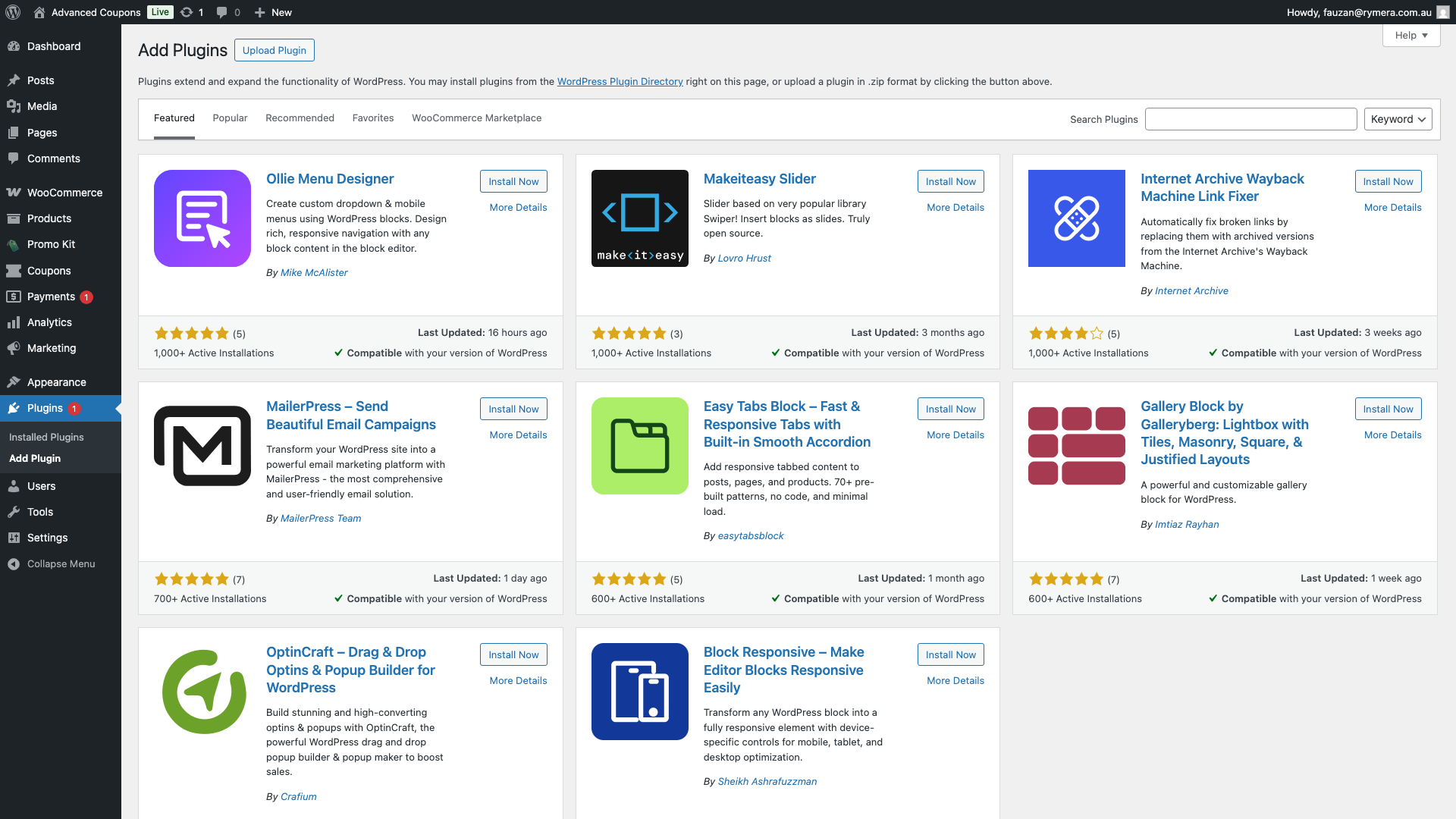
- In your WordPress admin, go to Plugins → Add New Plugin.
- Click Upload Plugin at the top of the page.
- Click Choose File and select the zip file. Then click Install Now.
- Once installed, click Activate Plugin.
If WooCommerce is not active, you’ll see an admin notice. It will ask you to activate WooCommerce first. Once you do, activate the Advanced Promo Kit again.
Step 2: Find the Promo Kit Menu
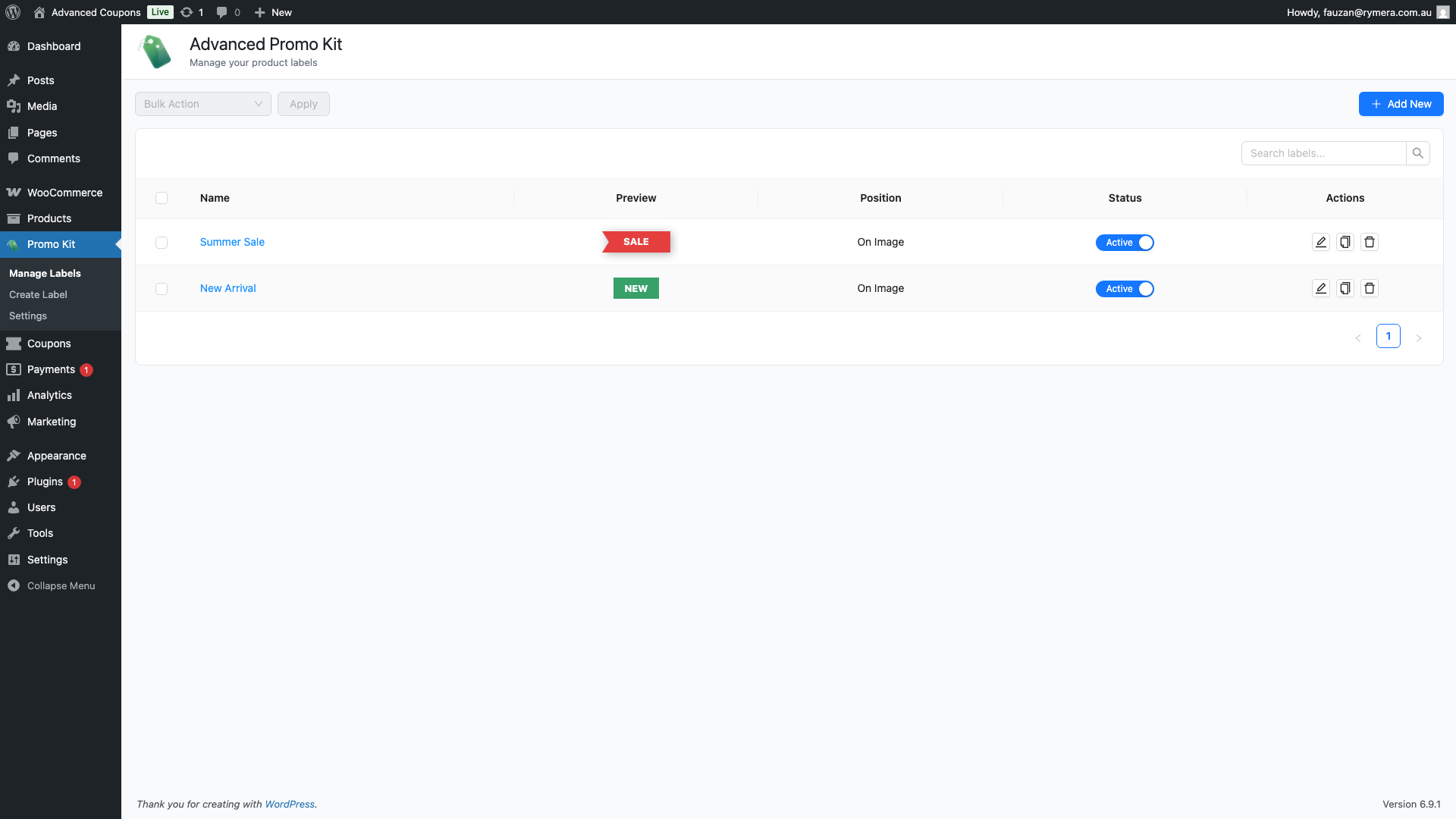
After activation, a new Promo Kit item appears in your WordPress admin sidebar. It contains three sections:
- Manage Labels — view, activate, reorder, duplicate, and delete all your global labels
- Create Label — build a new label with custom styles, conditions, and scheduling
- Settings — control how labels display across your store and manage third-party integrations
Understanding Label Types: Global vs Product-Specific
Advanced Promo Kit gives you two ways to add labels to your products. Understanding the difference helps you choose the right approach.
Global Labels
Global labels are created in Promo Kit → Create Label and managed in Promo Kit → Manage Labels. They can appear on any product in your store. You control which products they show on using conditions. For example, you can limit a label to products that are on sale. Alternatively, you can restrict it to a specific product category. In both cases, a single label can apply to hundreds of products at once.
Overall, global labels are the right choice for store-wide promotions and automatic product badges.
Product-Specific Labels
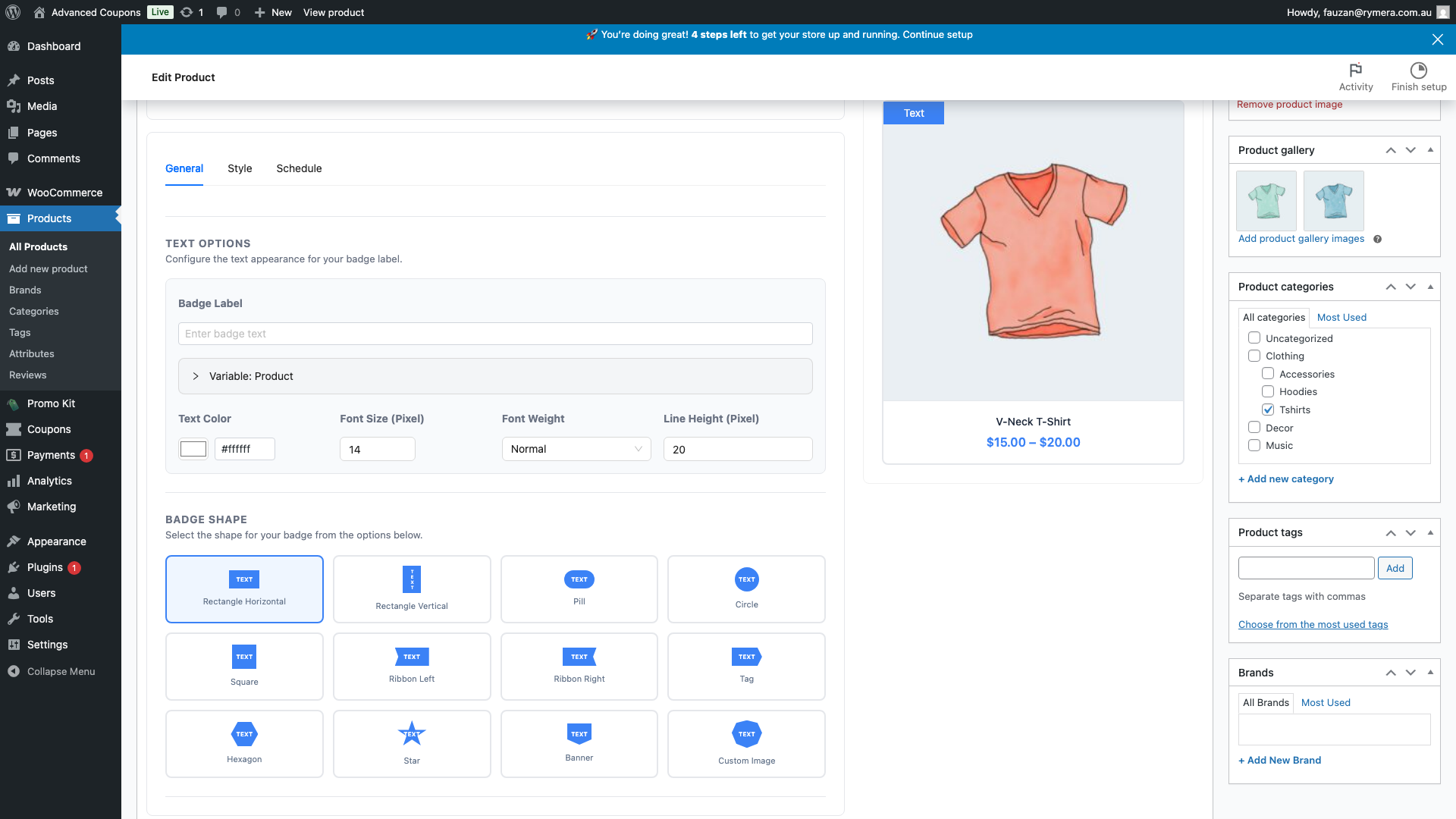
Product-specific labels are assigned on the product edit screen via the Advanced Promo Kit panel. They appear on that one product only. You can also enable the Exclude Global Labels option. This prevents any global labels from appearing on that product. Use this when a product needs its own unique badge.
Step 3: Create Your First Label
The quickest way to see Advanced Promo Kit in action is to create a simple global label.
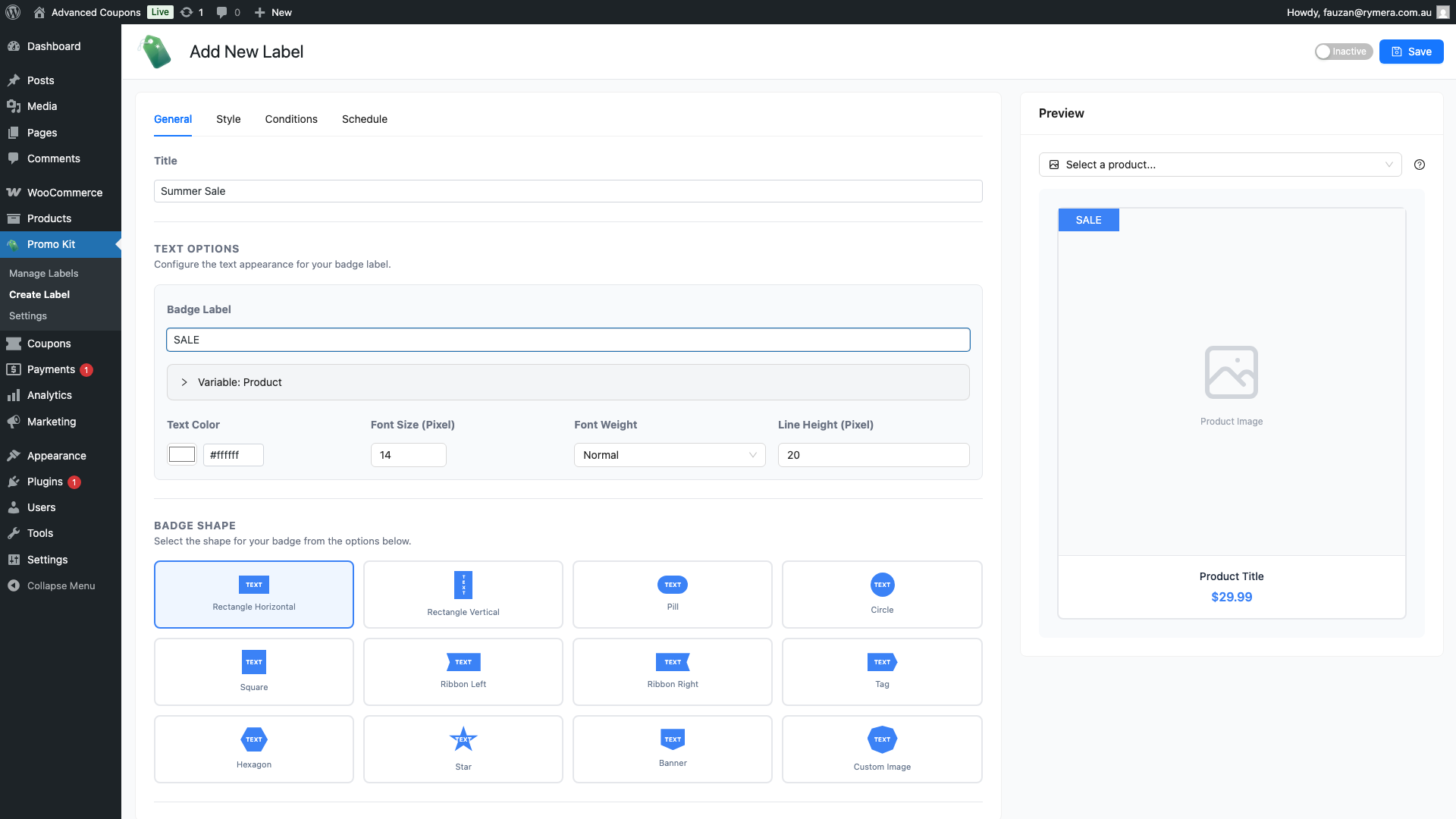
- Go to Promo Kit → Create Label.
- Enter a label name for internal reference. Then enter the badge text — for example, SALE.
- Switch to the Style tab. Choose a badge shape, background colour, and text colour. The preview updates in real time.
- Next, switch to the Conditions tab. Add a display rule — for example, On Sale → Is. This makes the label appear only on products with a sale price.
- Finally, click Save Label.
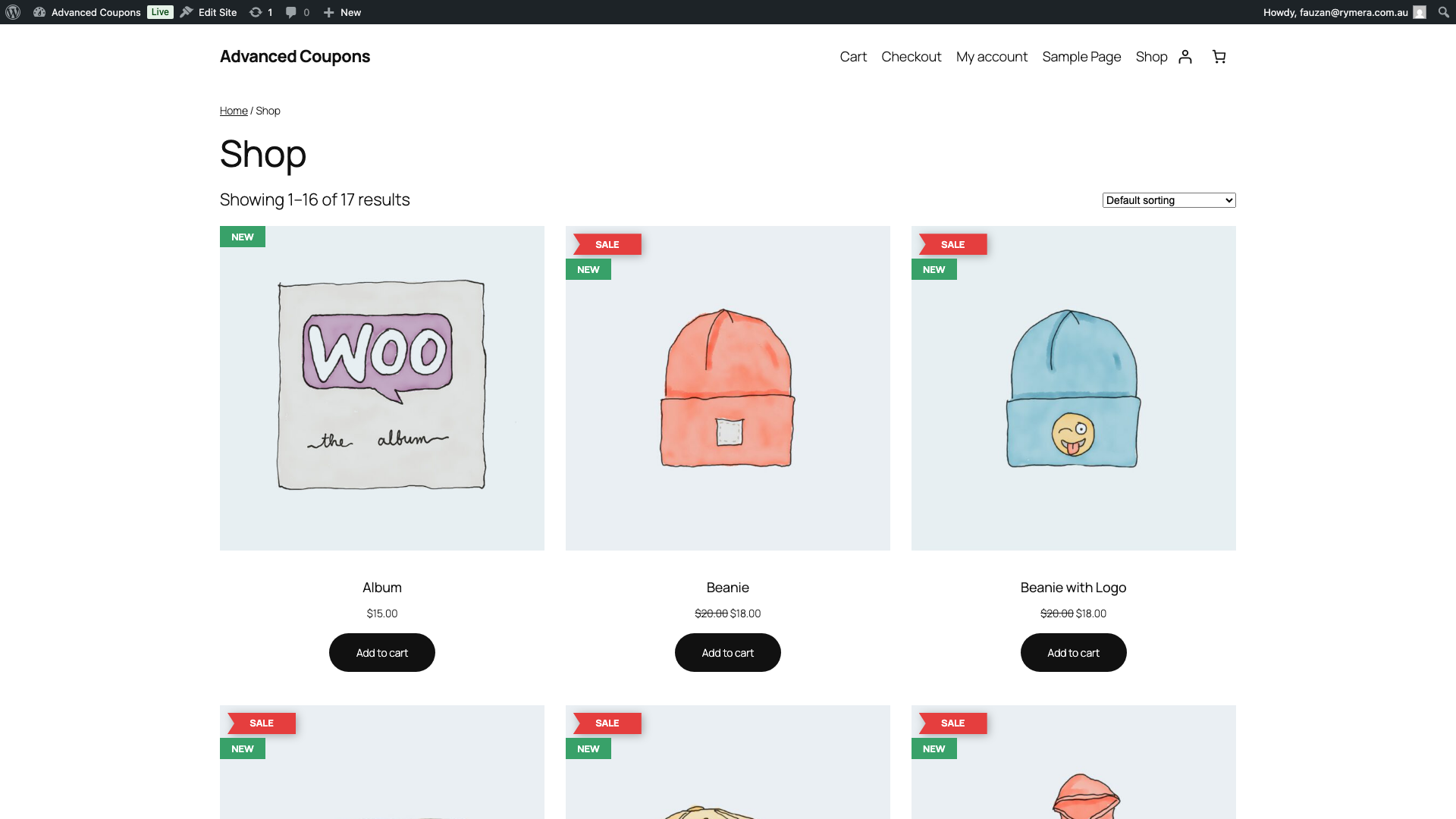
Next, visit your WooCommerce shop page. Any product matching your condition will now show the badge. If no products are on sale yet, add a sale price to one. Then reload the shop — the label should appear.
What’s Next
Once you have your first label working, explore the rest of what Advanced Promo Kit can do:
- Style your labels further — gradients, shadows, animations, tooltips, clickable URLs, and more How to Create Product Labels in Advanced Promo Kit
- Set up display conditions — control exactly which products a label appears on using 14 condition types How to Set Up Label Display Rules and Conditions
- Manage all your labels — activate, reorder by priority, duplicate, or bulk-delete from the Manage Labels screen How to Manage Labels in Advanced Promo Kit
- Assign a label to one product — use the product edit screen for product-specific badges How to Assign a Label to a Specific Product
- Configure display settings — control stacking, spacing, and the maximum number of labels per product How to Configure Advanced Promo Kit Settings
Frequently Asked Questions
Do I need Advanced Coupons or any other plugin for Advanced Promo Kit to work?
No. The only hard requirement is WooCommerce. However, integrations with Advanced Coupons, Advanced Gift Cards, and Loyalty Program are available. These are optional. They unlock additional dynamic label content, but only if you have those plugins installed and active.
Will my labels show on both the shop page and individual product pages?
By default, labels appear on the shop page. They also appear on single product pages. The only exception is if you turn off the Show on Product Page toggle in Promo Kit → Settings.
What happens when multiple global labels match the same product?
All matching active labels display, up to the Max Labels Per Product limit in Promo Kit → Settings (default: 3). To control which labels appear first, reorder them on the Manage Labels screen. Labels higher in the list are displayed first.
Need Help?
If you have a question or run into any issues, we’re here to help.
- Premium users: Open a support ticket
- Free users: Visit our community forum

