
Asking customers to copy a coupon code into the checkout adds friction. Auto-apply coupons skip that step: when the cart meets the coupon’s rules, WooCommerce applies the discount automatically. This guide shows you how to turn on auto-apply for a coupon, which settings stop it from applying, how to set priority when several coupons qualify, and what the auto-apply cache tools do.
Prerequisites
- Advanced Coupons Premium installed and activated (the Auto Apply module ships with Premium only. The free plugin doesn’t include it).
- The Auto Apply module enabled under Coupons → Settings → Modules (on by default; if you’ve disabled it, re-enable it before continuing).
- At least one WooCommerce coupon already created. If you’re starting fresh, create a coupon under Coupons → Add New first.
Step 1: Open the coupon you want to auto-apply
- Go to Coupons → All Coupons in your WordPress admin.
- Click the coupon code to open the edit screen.
Step 2: Enable auto-apply on the coupon
On the right-hand side of the coupon edit screen, find the Auto Apply Coupon metabox.
- Tick Enable auto apply for this coupon.
- Click Update at the top of the coupon edit screen.
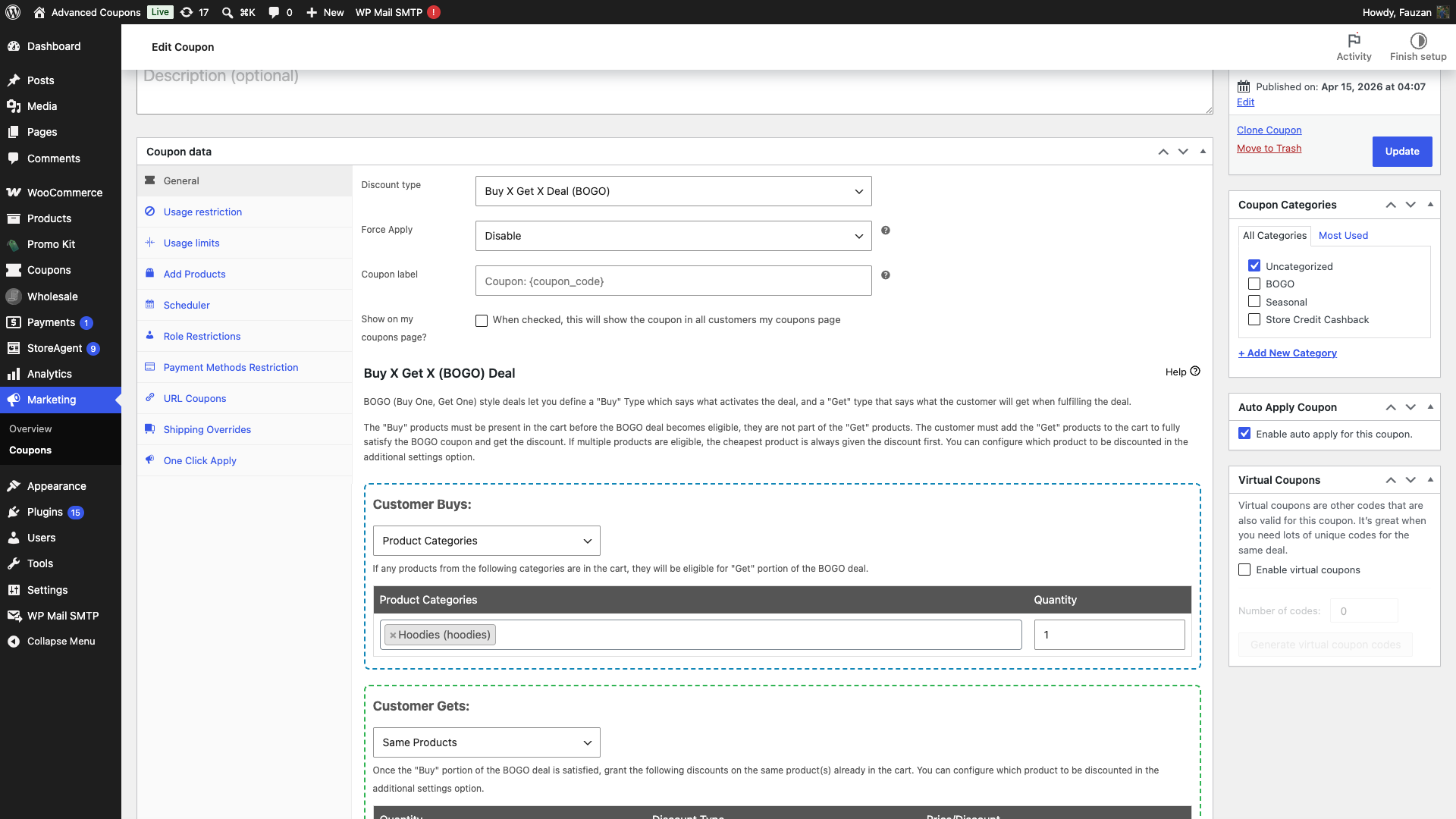
The next time a shopper’s cart matches this coupon’s rules, the discount is applied automatically with no code entry.
Settings that block auto-apply
In Advanced Coupons Premium 4.1.0 and later, two things stop a coupon from being auto-applied. On 4.0.9 and earlier the list is longer. See A usage-limited coupon never auto-applies below.
Virtual coupons. This is Advanced Coupons’ bulk-coupon feature, where each shopper gets a unique generated code. Auto-apply can only apply the main coupon code, and that code is blocked on purpose so shoppers use their own generated one.
Usage limit per user, for a guest shopper. A logged-in customer with an unused allowance still gets the coupon auto-applied. A guest never does, because WooCommerce can only track a per-customer limit once it knows who the shopper is.
Usage limit per coupon does not block auto-apply. The coupon applies automatically while its overall allowance lasts, and stops applying by itself once the limit is reached. If the coupon is already sitting in a shopper’s cart when the allowance runs out, WooCommerce removes it and shows a notice ending in “it has now been removed from your order” instead of letting the order go through with an invalid coupon.
To hand a coupon with a per-user usage limit to a guest anyway, set up One Click Apply instead. It shows the shopper a notice with an apply button rather than applying the discount silently, which sidesteps the guest restriction.
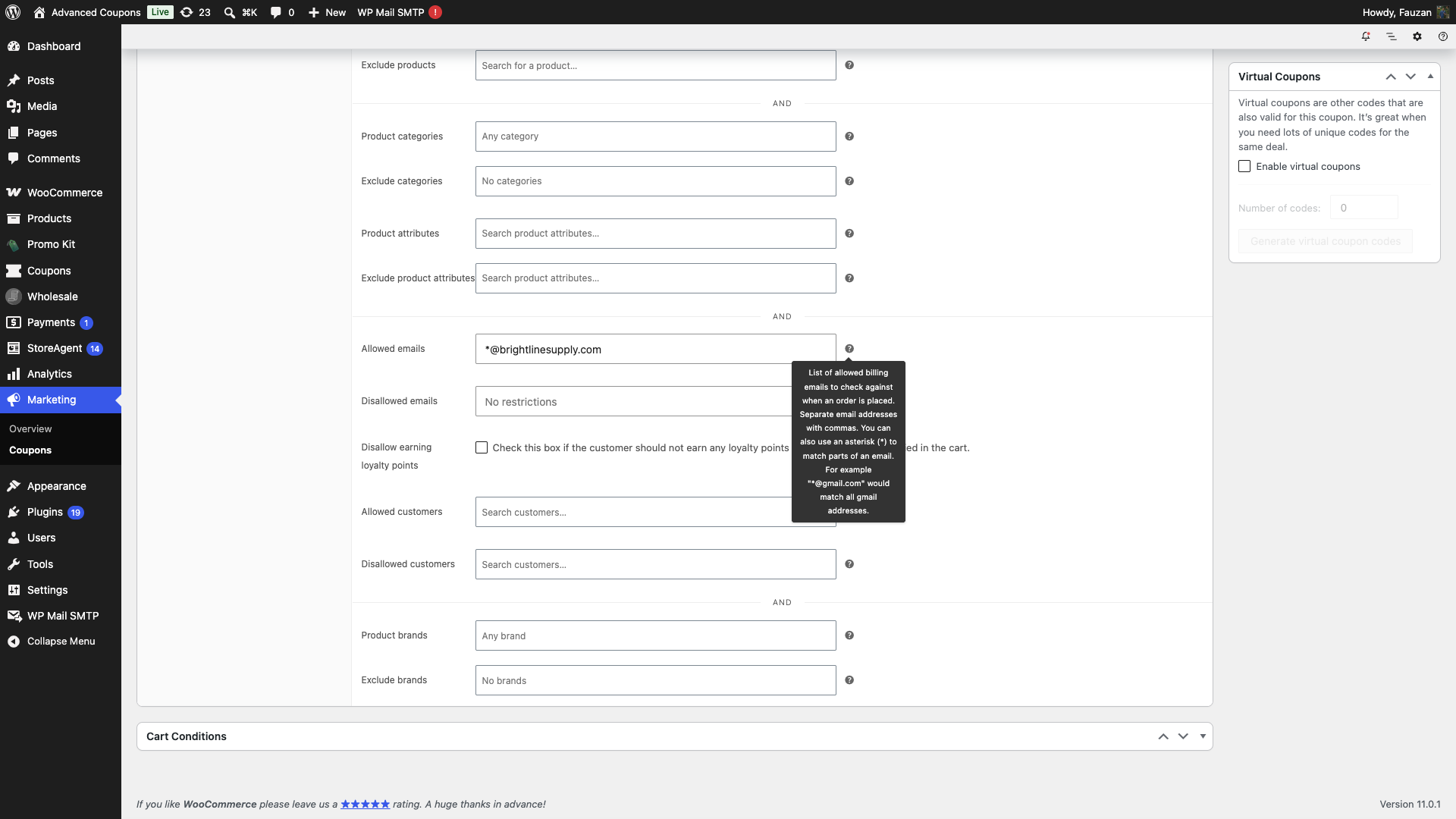
How auto-apply handles Allowed emails
An Allowed emails restriction never blocks auto-apply. It works once the shopper’s email address is known, and whether that happens depends on who is shopping and which checkout your store uses.
Logged-in customers. It works on either checkout. The address comes from their account, so the coupon applies as soon as the cart qualifies.
Guests on the Cart and Checkout blocks. It works. Nothing is shown while the email field is empty, then the coupon applies on its own the moment the shopper enters a matching address.
Guests on the classic shortcode checkout. It doesn’t work. WooCommerce does not send the email address to the server while a guest fills in that form, so there is nothing to check the restriction against.
You can cover a whole company domain instead of listing single addresses. Enter *@company.com in Allowed emails and every address at that domain qualifies. That makes staff and partner discounts workable for guests who will never create an account.
Combining auto-apply with Cart Conditions
Auto-apply works best with Advanced Coupons’ Cart Conditions feature. Without conditions, an auto-apply coupon applies to every cart that meets the standard WooCommerce usage restrictions, which is rarely what you want.
Common pairings:
- Cart subtotal ≥ $100 → auto-apply a 10% off coupon (threshold incentives).
- Cart contains products from Category X → auto-apply free shipping (category-specific shipping promos).
- Customer has the wholesale role → auto-apply a wholesale-only discount.
- Cart contains 3+ items of Product A → auto-apply BOGO logic.
To set conditions: on the coupon edit screen, scroll to the Cart Conditions box below Coupon data and add the rules the cart must satisfy. The coupon is auto-applied only when both the conditions match AND the standard WooCommerce coupon validation passes.
Setting priority when multiple coupons could apply
If more than one of your auto-apply coupons could apply to a cart, Advanced Coupons uses each coupon’s sort priority to decide which runs first.
- Go to Coupons → Settings → Modules and enable Sort Coupons in Cart.
- Open each coupon you want to prioritize and set its Sort priority in cart field (lower numbers run first).
- Update the coupon as you normally would. There’s no separate settings screen to save; the priority is stored on the coupon itself.
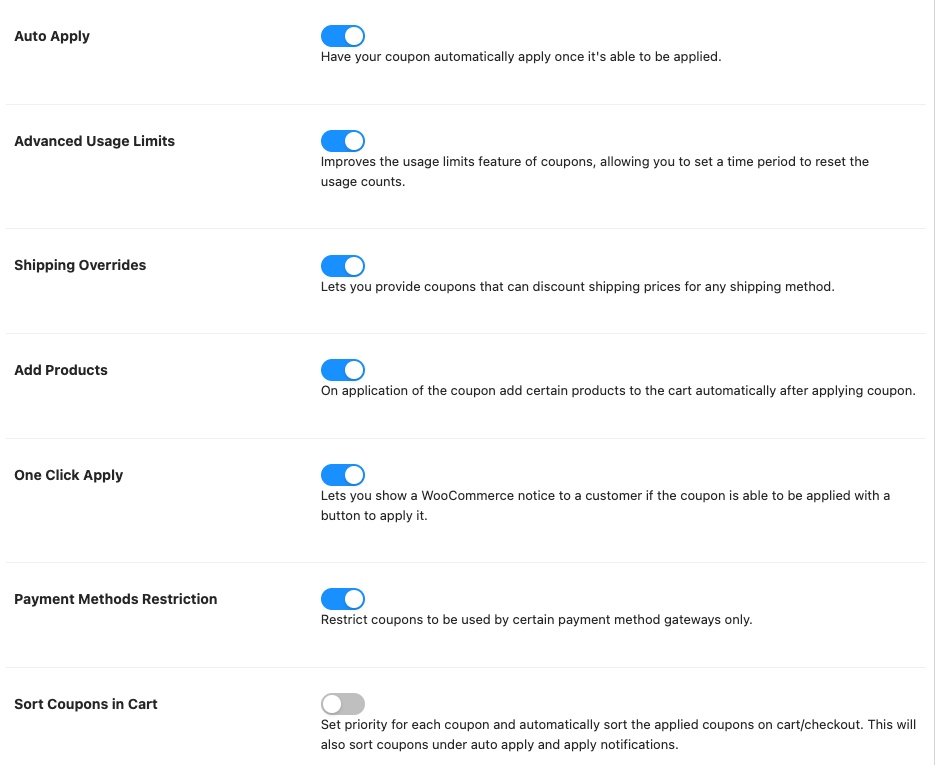
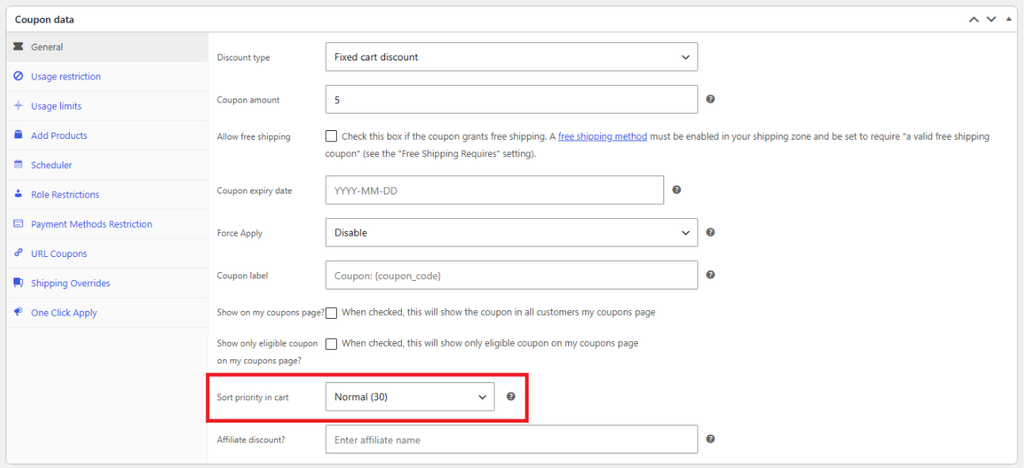
The same order applies when customers enter coupons by hand, so one priority setting covers both manual and auto-applied coupons.
Rebuilding the auto-apply cache
Advanced Coupons keeps one list of all auto-apply coupons, called the auto-apply cache. When you tick Enable auto apply for this coupon. and click Update, the coupon is added to that list. When you clear the box and click Update, it’s removed. To remove deleted or unpublished coupons from the list:
- Go to Coupons → Help.
- Scroll to the Utilities section.
- Under Rebuild/Clear Auto Apply Coupons Cache, click Rebuild cache.
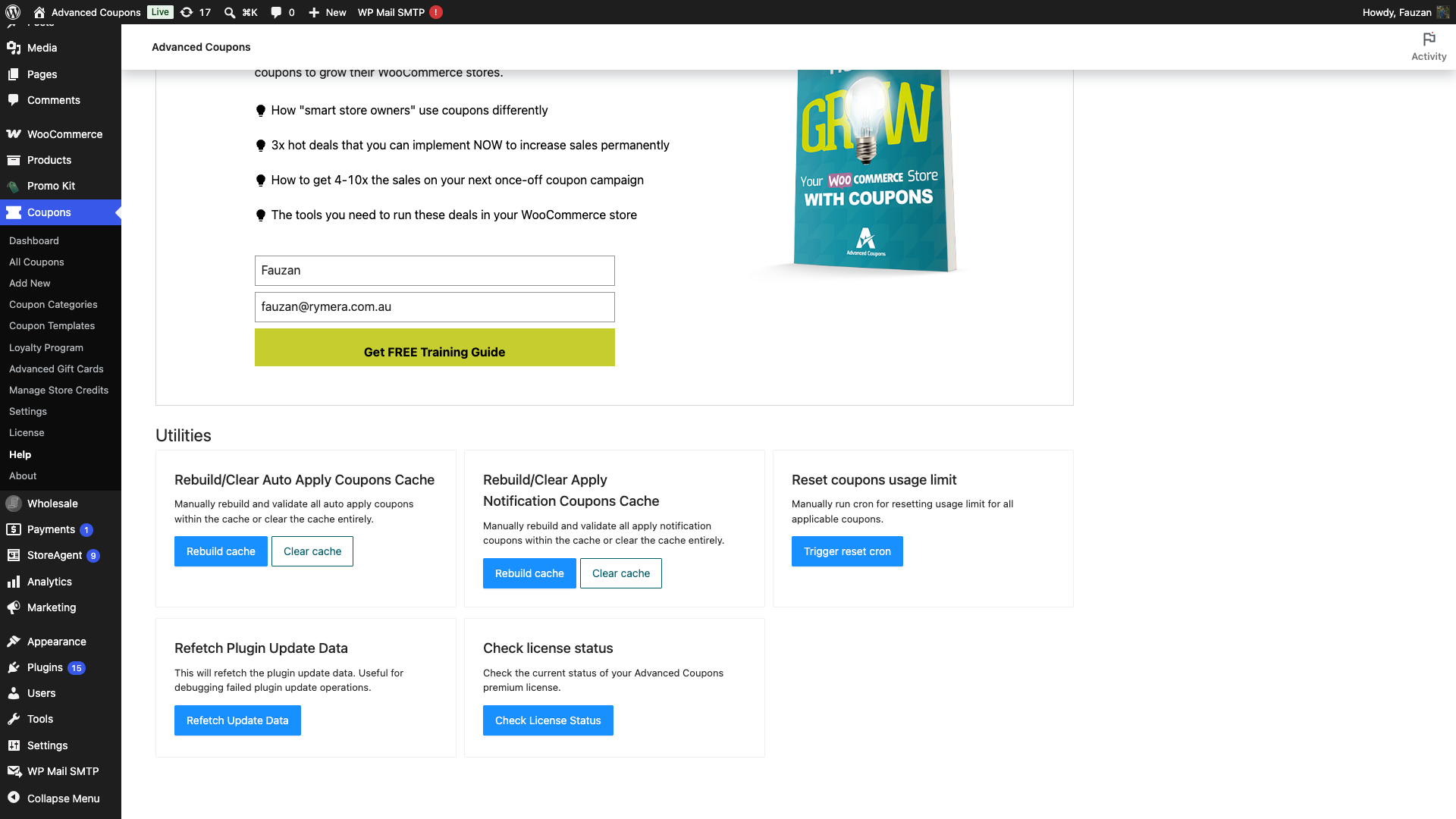
Rebuild cache keeps every published coupon on the list and removes coupons that were deleted, trashed or unpublished. It doesn’t add coupons to the list. If a coupon doesn’t auto-apply after an import, open the coupon, check that Enable auto apply for this coupon. is ticked, and click Update.
Only click Clear cache if you want to turn off auto-apply on every coupon. It empties the list, and nothing rebuilds it. After a clear, open each coupon that should auto-apply, tick Enable auto apply for this coupon. again, and click Update.
Troubleshooting
The Auto Apply Coupon metabox is missing on the coupon edit screen
Confirm the Auto Apply module is enabled under Coupons → Settings → Modules. The metabox only renders when the module is on. If you’re using Advanced Coupons Free, note that the module is Premium-only. Install Advanced Coupons Premium to unlock it.
I ticked the checkbox but the coupon isn’t auto-applying
Check the coupon for the two settings that block auto-apply: Virtual coupons, and a Usage limit per user restriction on a guest shopper (a logged-in customer is not affected by that one). Clear the setting you do not need, or have the shopper log in, then test the cart again. A Usage limit per coupon does not block auto-apply, so that setting is never the cause.
If the coupon has an Allowed emails restriction, check who is shopping and which checkout you run. A guest on the classic shortcode checkout never receives an email-restricted coupon. The section How auto-apply handles Allowed emails above covers each case.
If none of those apply, check the coupon’s Cart Conditions and its standard WooCommerce usage restrictions: minimum spend, allowed products and categories, and exclude sale items.
If everything looks valid, open the coupon, check that Enable auto apply for this coupon. is still ticked, click Update, and test the cart again in a private browser window.
A usage-limited coupon never auto-applies
Check your Advanced Coupons Premium version under Plugins → Installed Plugins. Update it to 4.1.0 or later to auto-apply coupons that have a usage limit.
In Advanced Coupons Premium 4.0.9 and earlier, auto-apply skips any coupon that has Usage limit per coupon or Usage limit per user set, even when the limit still has room left, and it also skips Virtual coupons. If you stay on one of those versions, use One Click Apply for coupons that need a usage limit. The note in the Auto Apply Coupon metabox on those versions also lists Allowed emails, but an email restriction works with auto-apply there too, following the same rules as the How auto-apply handles Allowed emails section above.
In 4.1.0 and later, only Virtual coupons and a Usage limit per user on a guest shopper block auto-apply.
A BOGO auto-apply coupon shows the wrong price with WooPayments multicurrency
Update Advanced Coupons Premium to 4.0.7 or later under Plugins → Installed Plugins, then re-test the affected cart. In 4.0.6 and earlier, auto-applied BOGO coupons on multicurrency stores could show a price in the cart total that did not match the WooPayments multicurrency display.
Products priced by another plugin show $0 in the cart
Update Advanced Coupons Premium to 4.0.9 or later under Plugins → Installed Plugins, then re-test the affected cart. In 4.0.8 and earlier, when any coupon had auto-apply enabled, products whose price is set by another plugin could show $0 in the cart, whether or not the coupon applied to them. Donation amounts and pre-order prices were the common cases.
Two auto-apply coupons should both apply, but only one does
WooCommerce respects each coupon’s Individual use only setting. If the first coupon to apply has that ticked, no further coupons (including other auto-apply ones) can apply on the same cart. Untick Individual use only on both coupons if you want them to stack, or use Advanced Coupons’ Allowed coupons override feature on the Individual-use coupon to whitelist the other.
Auto-apply works on the cart page but not at checkout
Make sure your theme uses the standard WooCommerce cart and checkout templates (or the Cart and Checkout blocks). Themes that heavily customise the cart layout can sometimes bypass the hooks Advanced Coupons uses. Test on a default WooCommerce-supported theme (e.g. Storefront) to confirm the issue is theme-related.
Frequently asked questions
Can I auto-apply a coupon to logged-out (guest) shoppers?
Yes, as long as the coupon has no Usage limit per user. A Usage limit per coupon does not stop it from auto-applying for guests, it only stops applying once the overall allowance runs out. An Allowed emails restriction is also fine for guests, but only on the Cart and Checkout blocks, where the coupon applies once the shopper types a matching address. On the classic shortcode checkout a guest never receives an email-restricted coupon. The coupon’s standard WooCommerce restrictions, such as minimum spend and allowed products, still apply either way.
Does auto-apply work with the WooCommerce Cart and Checkout Blocks?
Yes. Advanced Coupons supports the block-based cart and checkout, and auto-apply runs during the same calculation phase on both.
One behaviour does differ. A coupon with an Allowed emails restriction applies for a guest on the blocks, because the blocks send the email address to the server as the shopper types it. The classic shortcode checkout does not send it, so a guest never receives that coupon there. If you run email-restricted auto-apply coupons for guests, use the blocks.
Can I hide an auto-applied coupon from the customer’s cart view?
The coupon line item is part of WooCommerce’s standard cart rendering, so it’s visible by default. If you want to hide the line and just show the discount in the totals, that’s a theme-template customisation. See How to hide auto-apply coupons until cart rules are met for a related setup pattern.
What’s the difference between Auto Apply and One Click Apply?
Auto Apply runs silently. The coupon applies the moment the cart qualifies. One Click Apply instead shows the shopper a notice with an apply button, which they choose to accept. Use Auto Apply for friction-free discounts, for example “Save 10% over $100”. Use One Click Apply when a guest shopper needs a coupon that has a per-customer usage limit, since Auto Apply skips that combination for guests, or when you want the shopper to accept the discount deliberately. See The difference between One Click Apply and Auto Apply coupons.
Need help?
If you have a question or run into any issues, we’re here to help.
- Premium users: Open a support ticket
- Free users: Visit our community forum

