
Checking a gift card balance, sending a thank-you card, or resending a missing email doesn’t have to mean opening each gift card in wp-admin. With Advanced Gift Cards 1.4.5, you can manage WooCommerce gift cards with AI by asking your assistant in plain language.
An easy way to set this up is with StoreAgent’s free WooCommerce MCP. It connects Claude or ChatGPT to your store with no code, and you get to choose exactly which gift card tasks your assistant is allowed to run.
These new abilities work alongside the coupon and loyalty abilities available across the Advanced Coupons plugins. Here’s what you can do with them and how to connect your store through StoreAgent.
What Is The WordPress Abilities API?
The WordPress Abilities API gives plugins a standard way to describe tasks (called abilities) that outside tools, like an AI assistant, can find and run. It’s been part of WordPress since version 6.9. Each ability spells out what it does, what information it needs, and who’s allowed to use it.
To reach those abilities, your AI assistant needs an MCP (Model Context Protocol) connection to your store. That’s what StoreAgent provides. If you’d like the longer explanation, we cover it in our guide to managing coupons with the WordPress Abilities API.
What Your AI Assistant Can Do With Your Gift Cards
Advanced Gift Cards 1.4.5 adds nine gift card abilities. Four let your assistant look up information, while five can make changes to your store. Here’s what each one does:
| Ability | What it does | Type |
|---|---|---|
| List Gift Cards | Lists your gift cards with their code, balance, recipient, and status. It can filter by status or customer, or search for a code, name, or email. | Read only |
| Get Gift Card | Shows one gift card’s full details and its history, like when it was issued, its order, its expiry, and when it was redeemed. | Read only |
| Get Gift Card Liability | Shows the total balance still sitting on unused gift cards, with a breakdown by status. | Read only |
| List Giftable Products | Lists your gift card products and their settings. | Read only |
| Issue Gift Card | Creates a gift card for a recipient and sends them the gift card email. | Makes changes |
| Adjust Gift Card Balance | Adds to or takes from a gift card’s balance, with the reason saved on the card. | Makes changes |
| Disable Gift Card | Stops a gift card from being redeemed, while keeping its balance on record. | Makes changes |
| Resend Gift Card Email | Sends the gift card email to the recipient again. | Makes changes |
| Update Giftable Product | Changes a gift card product’s amount, expiry, delivery date option, design, or custom amount options. | Makes changes |
Things you can ask your assistant
Once your store is connected, you can try requests like these:
- “What’s the total balance left on our unused gift cards?”
- “Issue a $50 gift card to Maya Chen with a happy birthday message.”
- “Add $10 back to gift card HAPPYBDAY-50 and note that it was a goodwill credit.”
- “Resend the gift card email for HAPPYBDAY-50.”
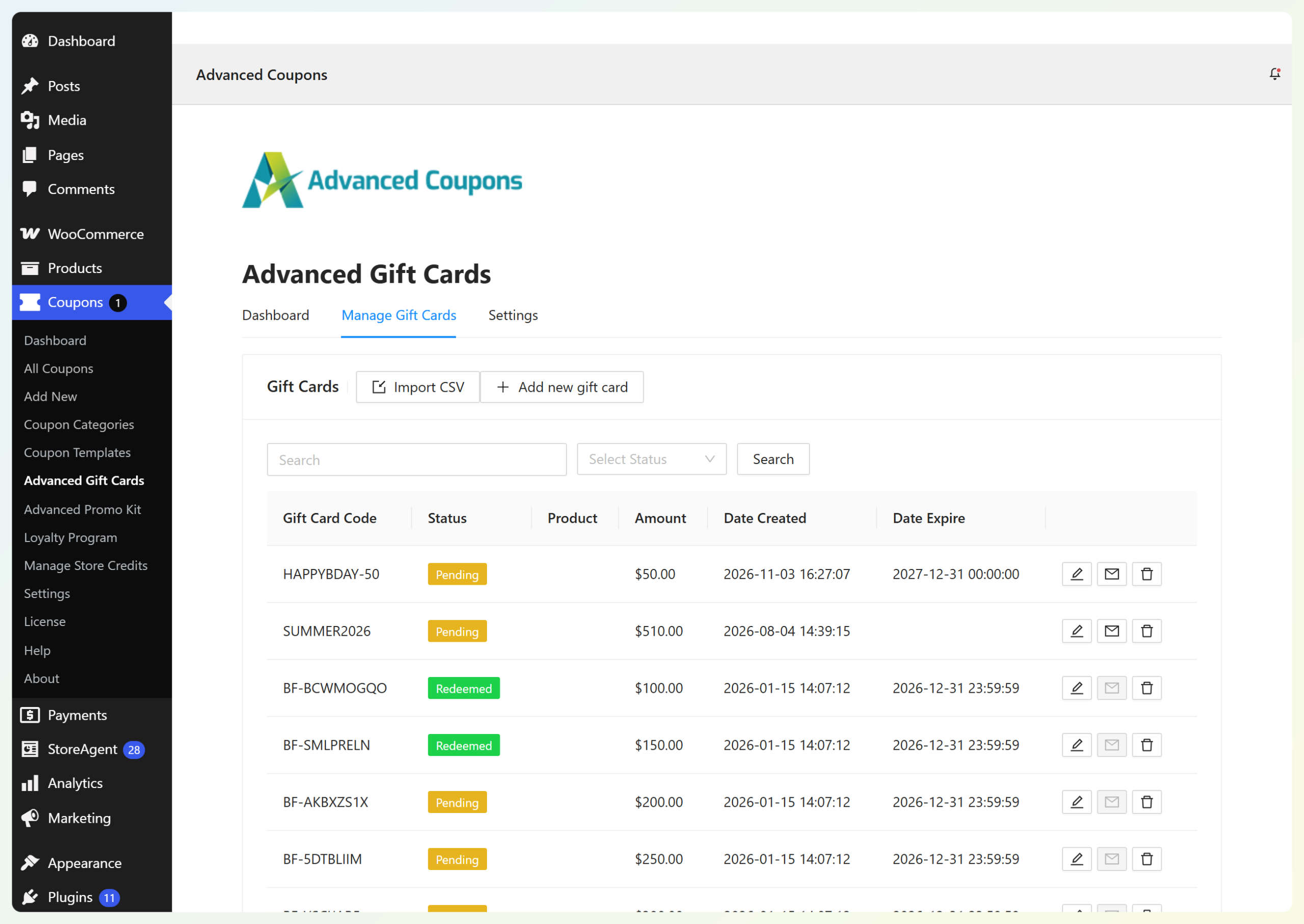
A gift card issued this way is just like one you’d create yourself. Here’s the $50 gift card we issued with the Issue Gift Card ability on our test store, sitting at the top of the Manage Gift Cards list:
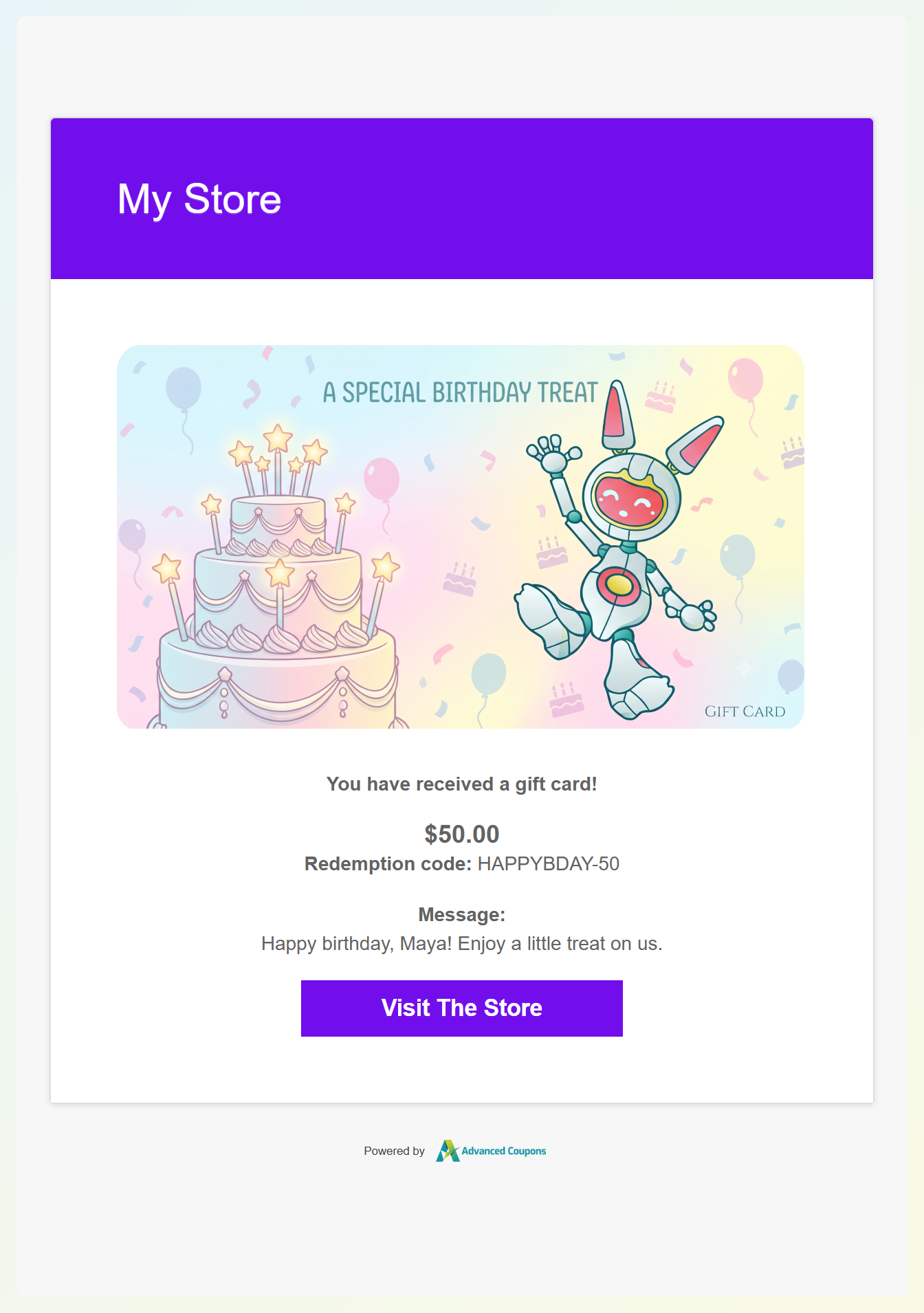
The recipient also got the usual “You have received a gift card!” email, with the amount, the redemption code, and the personal message:
How the abilities keep you in control
Because gift cards carry value, it’s worth knowing who can access them and what happens when a balance changes. Here’s how the abilities help you stay in control:
- Access is limited to store management accounts. Every ability, including the read-only ones, requires the WooCommerce management permission (typically held by administrators and shop managers). Customers and logged-out visitors can’t run them.
- Every balance adjustment has a reason. Adjusting a balance adds or takes away an amount, and the reason is saved as a note on the gift card. A balance also can’t drop below zero.
- Disabling a gift card keeps its history. A disabled gift card can’t be redeemed anymore, but its balance stays on record.
- Changes are flagged. The five abilities that make changes are marked as such, so AI apps like Claude can ask you to confirm before running them.
💡 PRO TIP: Ask for your gift card liability before a big sale or at the end of the month. It’s a quick way to see how much value is still sitting on unused gift cards. For the bigger picture, the Advanced Gift Cards dashboard shows your gift card activity right in wp-admin.
How To Connect Your Gift Cards To AI With StoreAgent
There are a few ways to connect your AI assistant to these abilities. One of the easiest is StoreAgent’s WooCommerce MCP, which works without writing code or setting up a server. Here’s how to set it up. Before you start, you’ll need:
- WordPress 6.9 or newer
- Advanced Gift Cards 1.4.5 or newer (you can get the plugin here)
- The StoreAgent plugin, version 1.1.9 or newer, linked to a StoreAgent account (the free plan works)
Step 1: Switch on MCP in StoreAgent
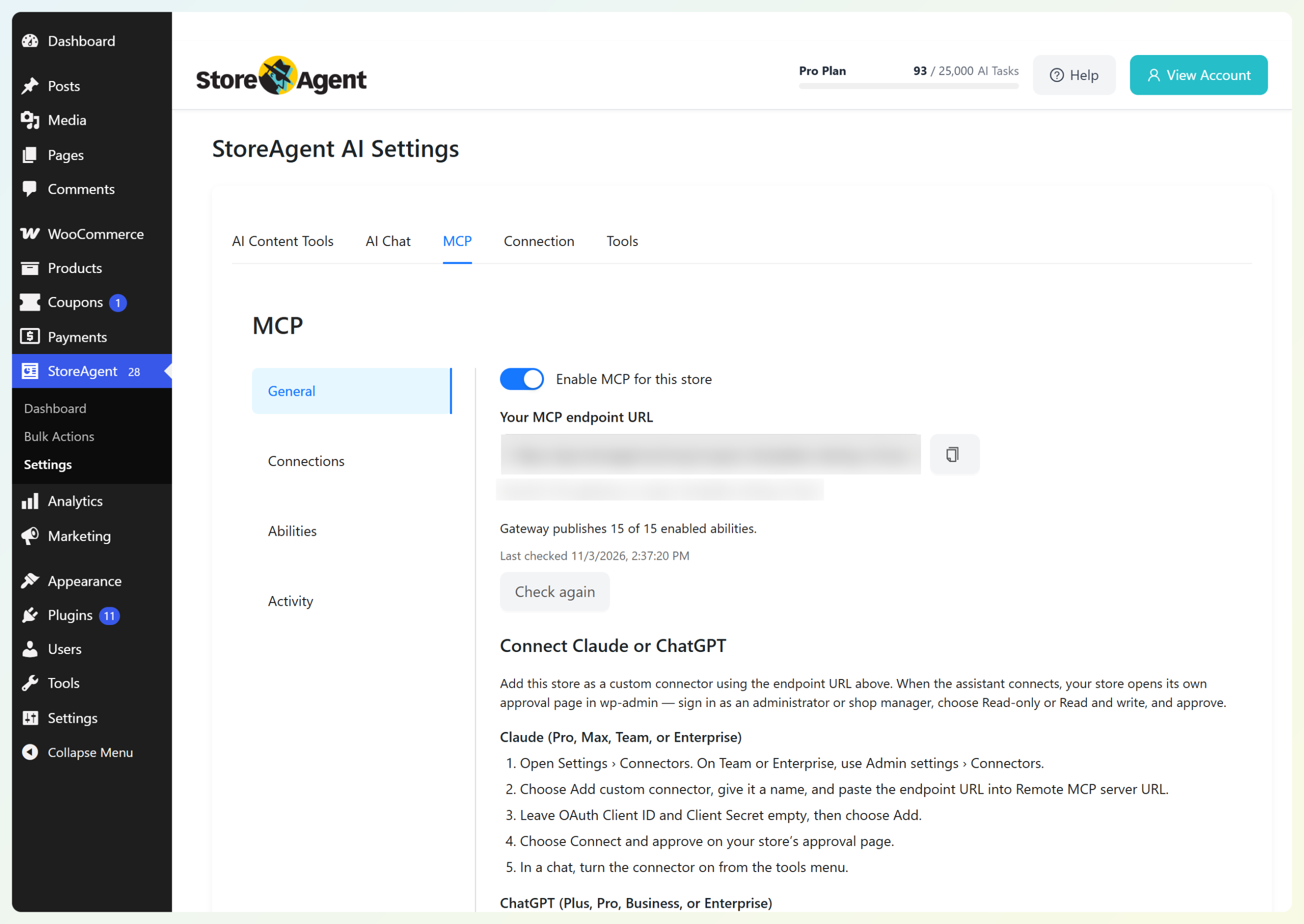
Head to StoreAgent > Settings > MCP. On the General tab, switch on Enable MCP for this store. Your MCP endpoint URL will appear right below it, with a button to copy it.
Step 2: Add your store to Claude or ChatGPT
Next, add your store as a custom connector in Claude or ChatGPT. The setup is a little different for each app:
- Claude (Free, Pro, Max, Ultra, Team, or Enterprise): Open Plugins (or Customize > Connectors if you still have the earlier layout) and add a custom connector. Give it a name, paste your MCP endpoint URL, and follow the authentication steps to sign in through your store. Claude Free supports one custom connector; on Team and Enterprise plans, an organization owner may need to add it first.
- ChatGPT (on plans with custom MCP access): On ChatGPT web, open Plugins, choose the + icon, then Add custom MCP server. Enter a name and your endpoint URL, configure sign-in through your store, review the security notice, and choose Create as a plugin. Install it when prompted. ChatGPT plans have different MCP permissions: full read-and-write access is available in supported Business and Enterprise/Edu workspaces, while Pro custom MCP access is read-only. Workspace admins may need to approve the plugin.
Step 3: Approve the connection on your store
Connect from your AI app, then sign in on the approval page that opens for your store. Read-only is selected by default, which is a good place to start. If you want your assistant to issue gift cards or adjust balances, choose Read and write and approve the connection. You’ll also need to enable those specific abilities in the next step.
Step 4: Choose which gift card abilities to allow
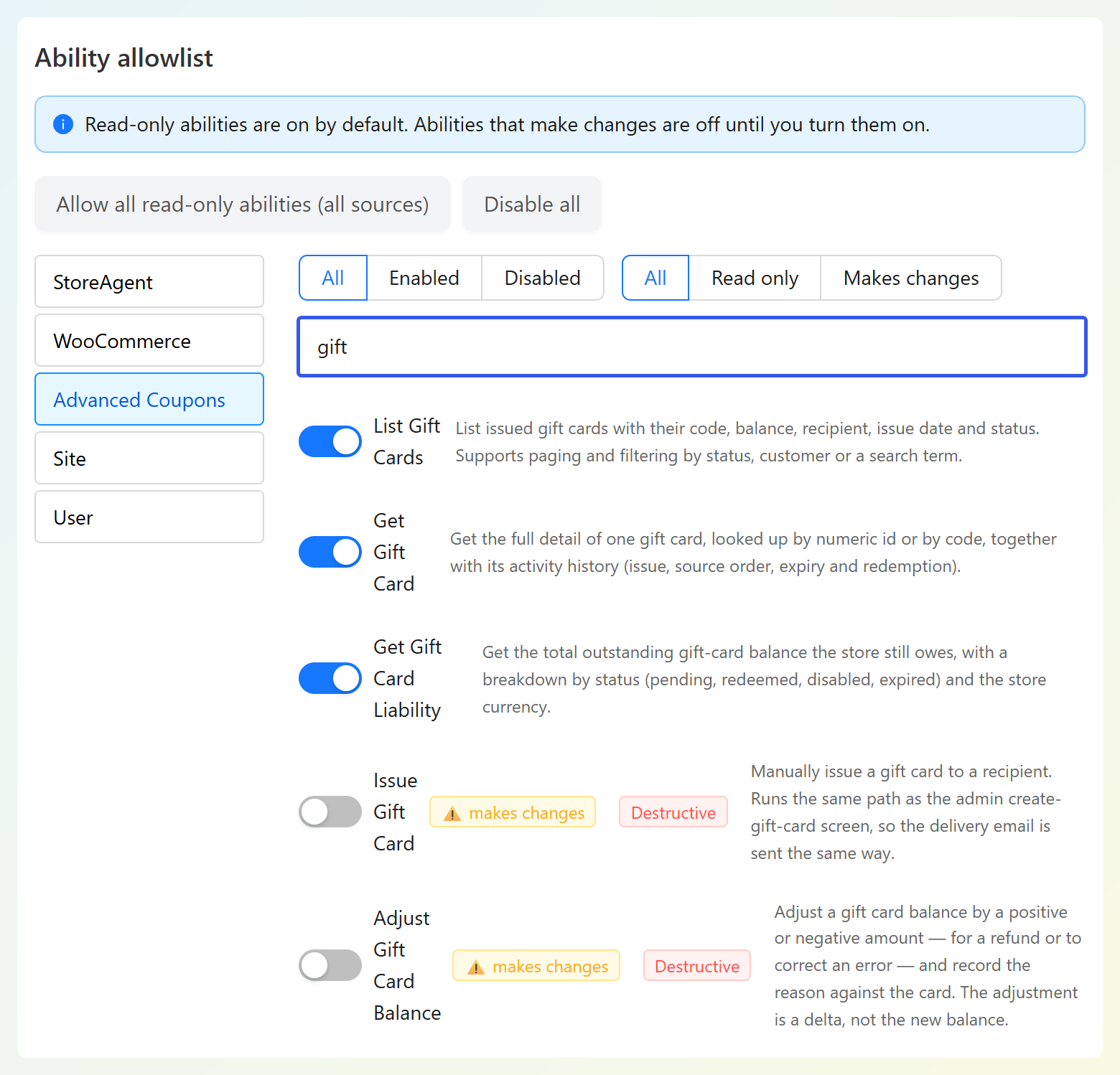
Now go to the Abilities tab in StoreAgent’s MCP settings and click the Advanced Coupons source. Your gift card abilities sit here, next to your coupon and store credit abilities. Type “gift” in the search box to see all 9 at once.
The 4 read-only abilities are switched on by default. The 5 that make changes stay off until you switch them on, so you decide exactly what your assistant can do.
Step 5: Start with a quick lookup
In a new chat, enable your store’s connector in Claude or select its plugin in ChatGPT (you can type @ to find it). Then try a read-only request, like “What’s our total gift card liability?” If your assistant retrieves the figures from your store, your connection is working.
StoreAgent also keeps a 30-day log of the tool calls made through the connection. You can check the Activity tab to see what was run and when.
If you’d rather use the WordPress MCP Adapter, that’s an option too. Our Abilities API knowledge base guide explains the connection options and links to the adapter instructions.

Frequently Asked Questions
Is it safe to let AI manage my gift cards?
You choose what your assistant can access. Gift card abilities require WooCommerce management permissions, normally held by administrators and shop managers. In StoreAgent, abilities that make changes are off until you allow them, and a read-only connection can’t use them. AI apps may also ask you to confirm a change before running it, depending on the app. A developer can disable all nine gift card abilities with a single code filter if needed.
Do I need to pay extra to manage gift cards with AI?
There’s no separate charge to unlock the nine abilities if you already use Advanced Gift Cards 1.4.5 or newer. StoreAgent’s WooCommerce MCP is available on every plan, including its free option, but each ability call uses AI Tasks from your plan. Your chosen AI assistant may also require a paid subscription. See the StoreAgent pricing page for plan details.
Which WordPress version do I need for the gift card abilities?
WordPress 6.9 or newer is the simplest option because the Abilities API is built in. If your site doesn’t have the Abilities API, Advanced Gift Cards won’t register the AI abilities, but the rest of the plugin continues to work as usual.
Can my AI assistant manage coupons and loyalty points too?
Yes. Advanced Coupons has its own coupon abilities, and in StoreAgent they sit right next to your gift card abilities. Advanced Loyalty Program has abilities for points and rewards as well. Learn more in our guides to managing coupons with AI and managing your loyalty program with AI.
Will the gift card email still send when AI issues a gift card?
Yes. Issuing a gift card through AI follows the same steps as creating one in wp-admin, so the recipient gets the gift card email in the same way. And if the email ever goes missing, your assistant can resend it with the Resend Gift Card Email ability.
Start Managing Your Gift Cards With AI
From checking balances to resending emails and issuing new cards, your assistant can help with everyday gift card tasks. You decide which abilities it can use, so you can start with simple lookups before allowing any changes.
Here’s how to get started:
- See what your assistant can do with your gift cards
- Update Advanced Gift Cards to 1.4.5 and make sure you’re on WordPress 6.9 or newer
- Connect Claude or ChatGPT with StoreAgent and choose which gift card abilities to allow
- Start with a lookup, like your gift card liability
Ready to manage WooCommerce gift cards with AI? Set up StoreAgent’s WooCommerce MCP and connect your store today. And if you’re new to Advanced Gift Cards, you can grab it from our pricing page. ❤️
Do you have any questions about this update? Let us know in the comments. Happy to help!