
Some stores offer a standing staff discount to partner companies, and creating an account for every employee is not practical. You can restrict a coupon to a whole email domain and have it apply itself as soon as the shopper types a matching address. This article shows you how to set that up in Advanced Coupons, and the limits you need to know before you rely on it.
Before you start
- Auto Apply is an Advanced Coupons Premium feature. You need version 4.1.0 or later. Earlier versions do not auto apply a coupon that has Allowed emails set.
- Your store must use the WooCommerce Cart and Checkout blocks if you want this to work for guests. See the limits section below.
- Have the partner company’s email domain ready, for example
company.com.
Create the coupon and set the discount
- Go to Coupons > Add New.
- Enter a coupon code, for example
STAFF10. - On the General tab, set Discount type and the Coupon amount.
Restrict the coupon to the company domain
- Open the Usage restriction tab.
- In Allowed emails, enter the domain with an asterisk in front of the @ sign, like this:
*@company.com. - Add more domains separated by commas if several partner companies share the same discount.
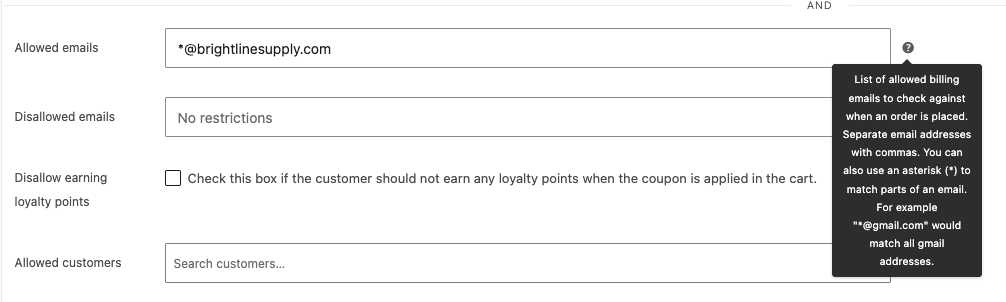
The asterisk is a WooCommerce feature and the field’s own tooltip documents it: “You can also use an asterisk (*) to match parts of an email. For example ‘*@gmail.com’ would match all gmail addresses.” Every address at the domain you enter will match. To keep certain addresses out instead, see How to block customer email addresses from using a coupon.
Turn on auto apply
- Find the Auto Apply Coupon box in the right sidebar.
- Tick Enable auto apply for this coupon.
- Publish the coupon.
For how auto apply works in general, see How to set up auto-apply coupons in WooCommerce.
You can set a total usage limit on this coupon if you want to cap how many times the discount is used. A per-person limit behaves differently for guests, and virtual coupons cannot auto apply at all. Both are covered in the section below.
What the shopper sees
Nothing happens while the email field is empty. The coupon simply waits, so shoppers who do not qualify never see an error or a mention of a discount they cannot have.
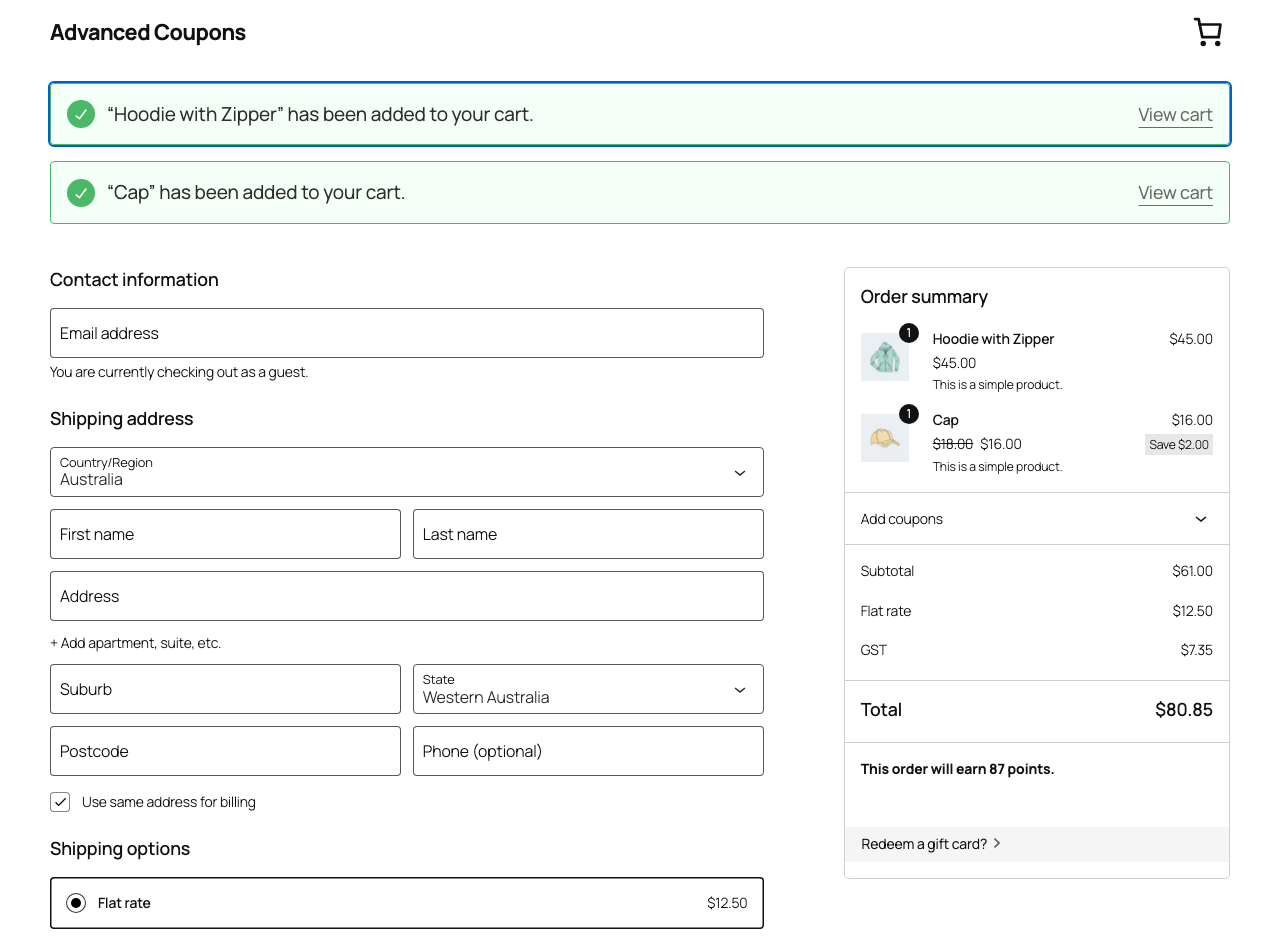
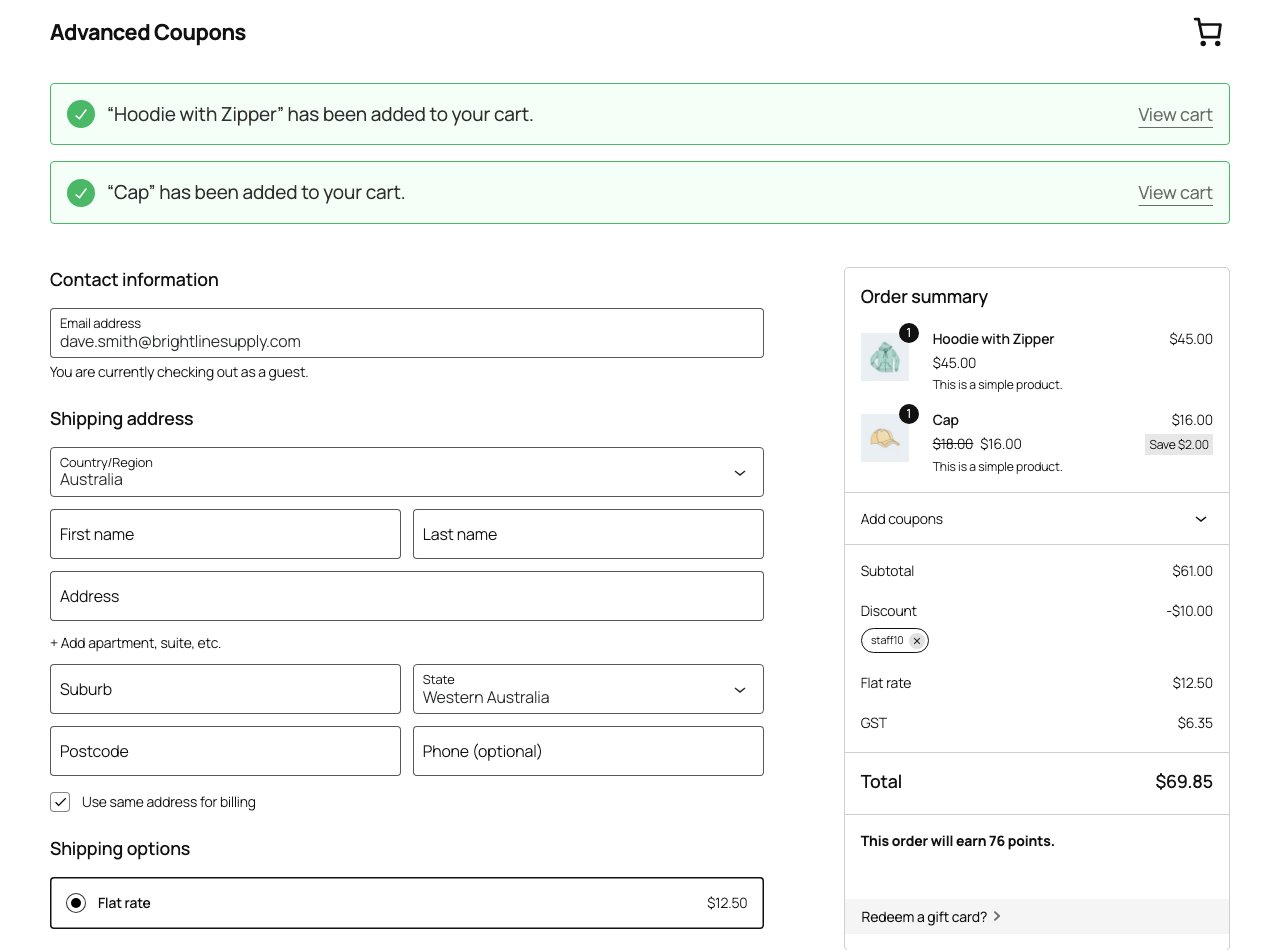
As soon as the shopper types an address at the allowed domain, the discount appears and the coupon shows as applied. They never type a code.
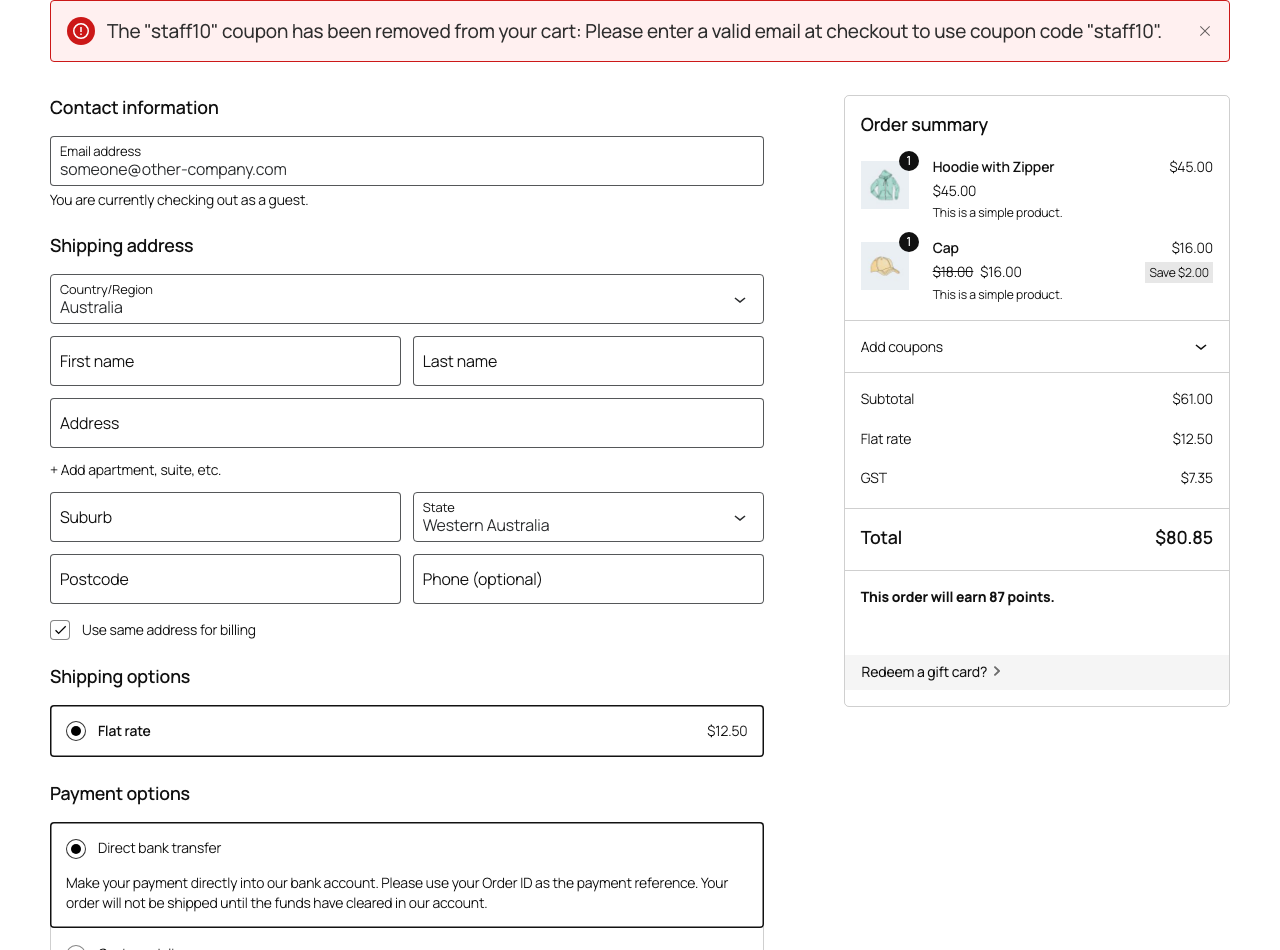
If they change to an address outside the domain, WooCommerce removes the coupon and explains why, with a message like “The “staff10” coupon has been removed from your cart: Please enter a valid email at checkout to use coupon code “staff10”.”
Limits you need to know
Guests need the Cart and Checkout blocks
On the block checkout the shopper’s email is sent to the server as they type, so the coupon can be tested and applied straight away. The classic shortcode checkout does not send the billing email during a recalculation, so for a guest the coupon never applies there. Typing the address does not trigger a recalculation at all, and forcing one by changing the country still leaves the coupon unapplied.
Signed-in customers are not affected. Their address comes from their account, so the discount applies on both the block and the classic checkout.
Per-person limits do not apply for guests
Usage limit per coupon works normally. Use it to cap the total number of times the staff discount can be used across everyone.
Usage limit per user is the exception. A coupon with a per-person limit will not apply itself for a guest, because WooCommerce cannot enforce a per-person cap before it knows who the shopper is. The coupon stays valid and the guest can still type the code, but it will not apply automatically.
That matters here, because this whole setup is aimed at guests. If you need a per-person cap on a staff discount, ask those customers to create an account, and the limit then works with auto apply as normal.
Virtual coupons cannot auto apply
If the coupon has virtual coupons enabled, the parent code is rejected on purpose so that each customer uses their own generated code. Auto Apply can only apply the parent code, so the two features cannot be combined.
Troubleshooting
The discount never appears for a guest. Check whether the page is the block checkout or the classic shortcode checkout. For guests this only works on the blocks. Test the same coupon while signed in to confirm the restriction itself is correct.
The discount never appears for a guest, but works when signed in. Open the Usage limits tab and check Usage limit per user. A per-person limit stops the coupon applying itself for guests. Clear it, or ask those customers to create an account.
The wrong people are getting the discount. Check the entry in Allowed emails. *@company.com matches every address at that one domain. It does not match subdomains such as mail.company.com, which need their own entry.
The coupon disappears part way through checkout. That is the restriction working. WooCommerce removes the coupon when the billing email stops matching, and shows a notice explaining why.
Frequently asked questions
Do partner staff need an account on my store?
No. On the block checkout the discount applies to guests as soon as they enter a matching address.
Can I use several domains on one coupon?
Yes. Separate the entries with commas in Allowed emails.
Can I cap it at one order per person?
Yes for signed-in customers, using Usage limit per user. It will not apply itself for guests, because the per-person count cannot be checked until the shopper is identified.
Will shoppers who do not qualify see an error?
No. Nothing is shown until a matching address is entered, so the offer stays invisible to everyone else.
Need help?
If you have a question or run into any issues, we’re here to help.
- Premium users: Open a support ticket
- Free users: Visit our community forum

