
Thinking of a promo but unsure how to set it up? Don’t worry, we got you!
With Coupon Templates, creating a coupon is easier than ever!
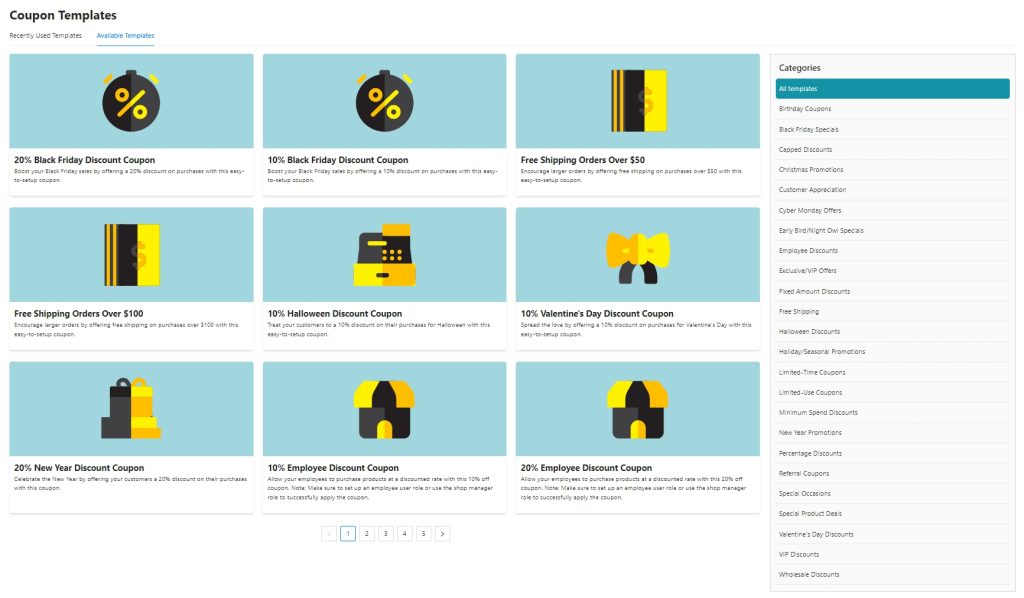
We’ve created numerous templates so you’ll never run out of promotional deals. Visit Coupons > Coupon Templates to explore suggested deals that can enhance your marketing strategies.
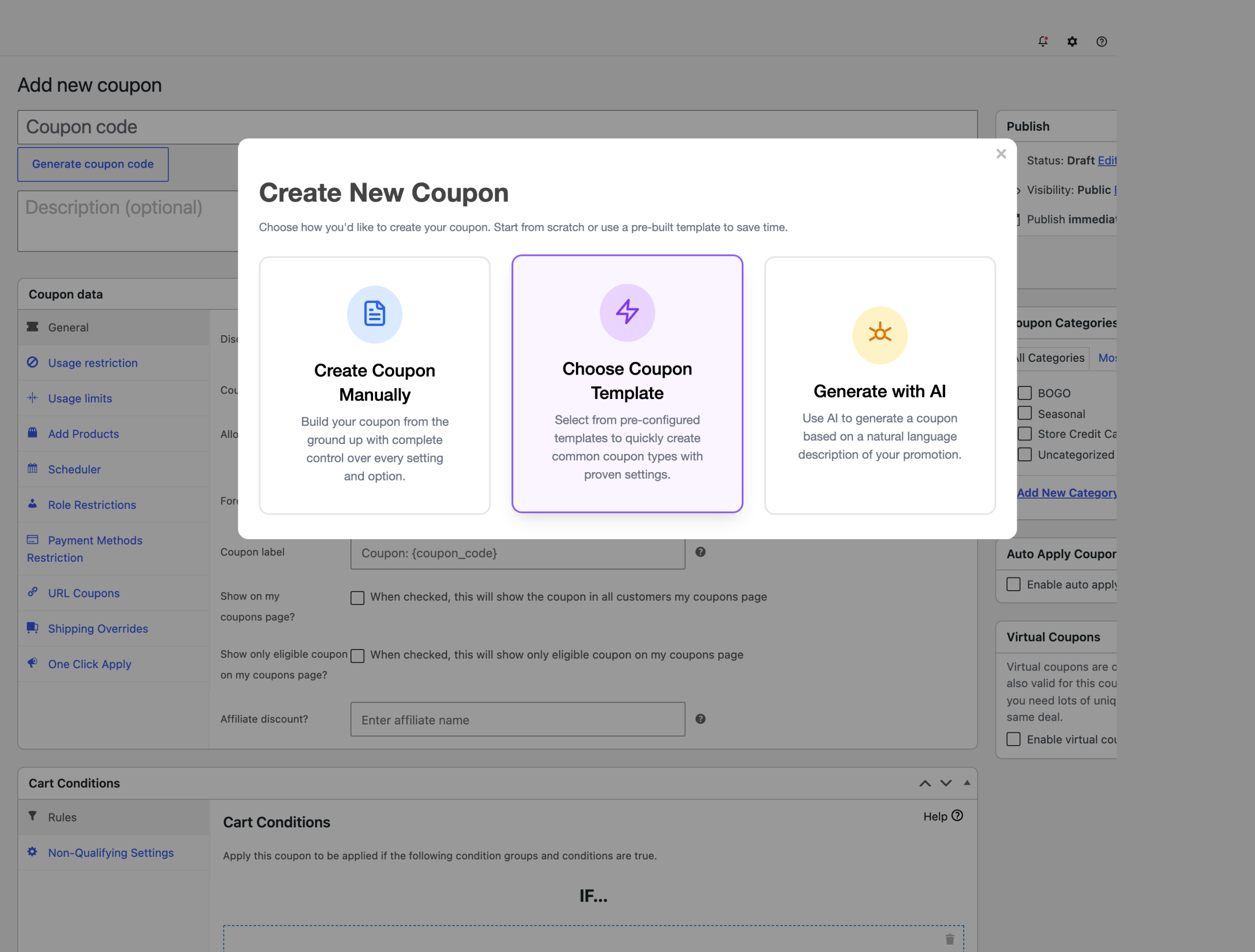
The Create New Coupon popup
When you add a new coupon, Advanced Coupons opens a Create New Coupon window first and asks how you want to start. Coupon templates are one of the choices here.
- Create Coupon Manually: build the coupon from scratch with every setting under your control.
- Choose Coupon Template: start from a pre-configured template, which is the route this article covers.
- Generate with AI: describe the promotion in your own words and have the coupon built for you. This choice only appears when your store is connected to StoreAgent.
Turning the popup off
If you always build coupons the same way, you can skip the window and go straight to the coupon editor.
- Go to Coupons → Settings.
- On the General tab, tick Hide coupon creation popup.
- Save your settings.
The setting is off by default, so the popup shows unless you turn it off. You can still reach templates at any time from Coupons → Coupon Templates.
Setting up a Coupon Using Coupon Template
On the Coupons Template Dashboard, select the template you’d like to use. This will allow you to create or customize your coupon using the pre-defined template settings, making it quicker and easier to set up your discount offers.
Here’s an example where the 20% Black Friday Discount Coupon is selected for editing. A pre-filled form will appear, allowing you to adjust the coupon details as needed.
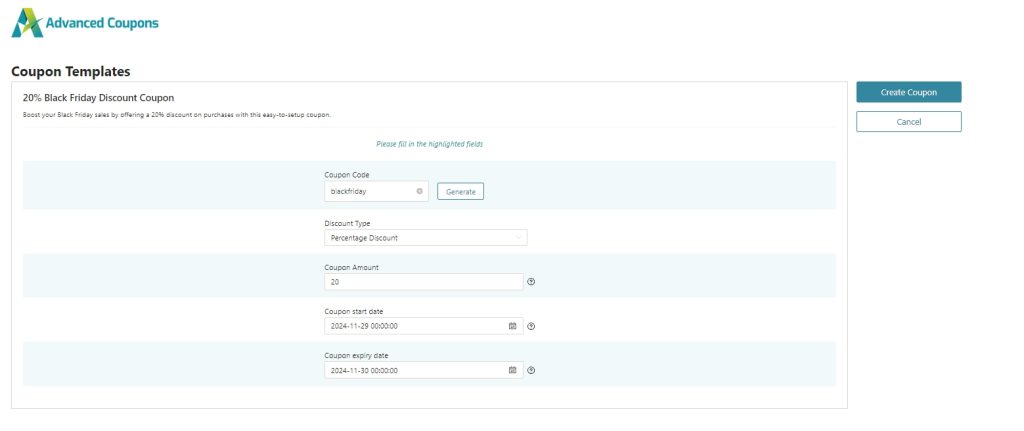
Based on the screenshot, you can configure the following:
- Coupon Code – you can fill in your own coupon code or generate a random coupon code.
- Discount Type: while the discount type is set to a percentage discount, you can still change it to fixed cart discount or fixed product discount.
- Coupon Amount: the 20% off template sets this, and you can change it to any amount before you create the coupon.
- Coupon Start Date and Expiry Date: since this is a Black Friday deal, we’ve added this field targeting only the date of Black Friday.
Once you’re happy with the current configuration, just click the Create Coupon button.
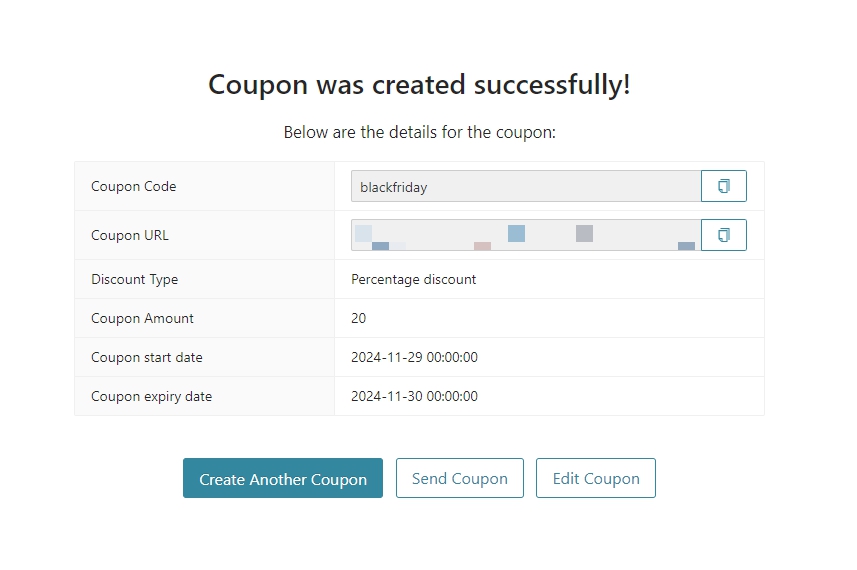
A success message will appear confirming that the coupon has been successfully created. That’s it! Your coupon is now ready to use.
Recently Used Templates
In this tab, you’ll find a list of the coupon templates you have recently created. This feature allows for swift access to your preferred promotional setups, enabling you to efficiently create new coupons based on past configurations.
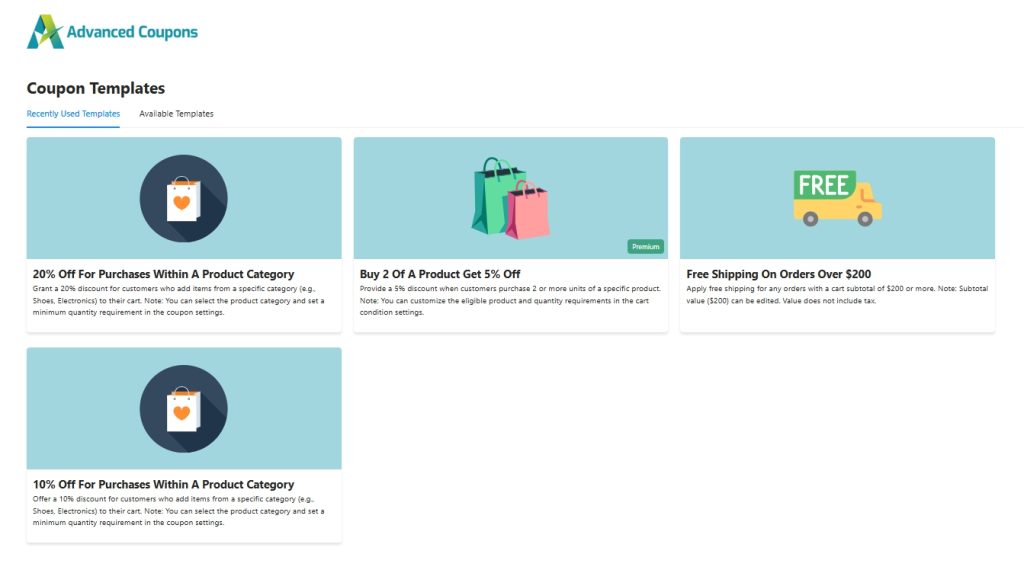
By utilizing the “Recently Used Templates” feature, you can expedite the coupon creation process, ensuring consistency and efficiency in your promotional strategies.
If you want to reconfigure your coupon at any time, go to Coupons → All Coupons in your WordPress admin and select the coupon you wish to edit.
Need help?
If you have a question or run into any issues, we’re here to help.
- Premium users: Open a support ticket
- Free users: Visit our community forum

