Love running BOGO deals in your store? You’ll adore this update! Our newest Same Product BOGO option lets you automatically apply the deal to the same item your customer buys—no extra setup needed! This simplifies promo creation and lets you launch classic BOGO offers faster than ever. 🎉
Exciting, right? Below, let’s take a closer look at what’s new, how it works, and how your store benefits from this update. Let’s go!
How This New BOGO Feature Works
Our latest update makes creating a buy-one-get-one promotion a lot faster and simpler.
Previously, if you wanted to offer a promo like “Buy 1, Get 1 Free” for a specific item, you had to manually configure the item in both the Customer Buys and Customer Gets fields.
This works well, but can quickly become tedious and time-consuming when managing multiple products or applying the same deal logic for a huge catalog. That’s where the new Same Product option comes in handy!
Now, when setting up a same product BOGO deal, you’ll see a new option in the Customer Gets dropdown called “Same Products.” When selected, this option tells the system to apply the BOGO deal to the same item(s) the customer added to their cart. This eliminates the need to manually select each product for BOGO coupons.
📝 IMPORTANT NOTE: The Same Product BOGO feature works when paired with trigger types like “Any Combination of Products,” “Product Categories,” or “Any Products.” It does not support the Specific Product/s option due to how quantities and combinations are calculated in that setting. If you want to apply the deal to selected products only, we recommend using “Any Combination of Products” and choosing your preferred items from there.
No worries, this update doesn’t change the current BOGO system. You can still use the “Specific Product” option to create targeted BOGO promos as usual. It simply adds an easier way to set up same product BOGO deals, especially for repeat-product promos that previously needed to be configured manually.
Benefits Of The Same Product BOGO Feature
This update makes coupon creation and management a lot easier for store owners. Here are just a few key benefits this feature brings you:
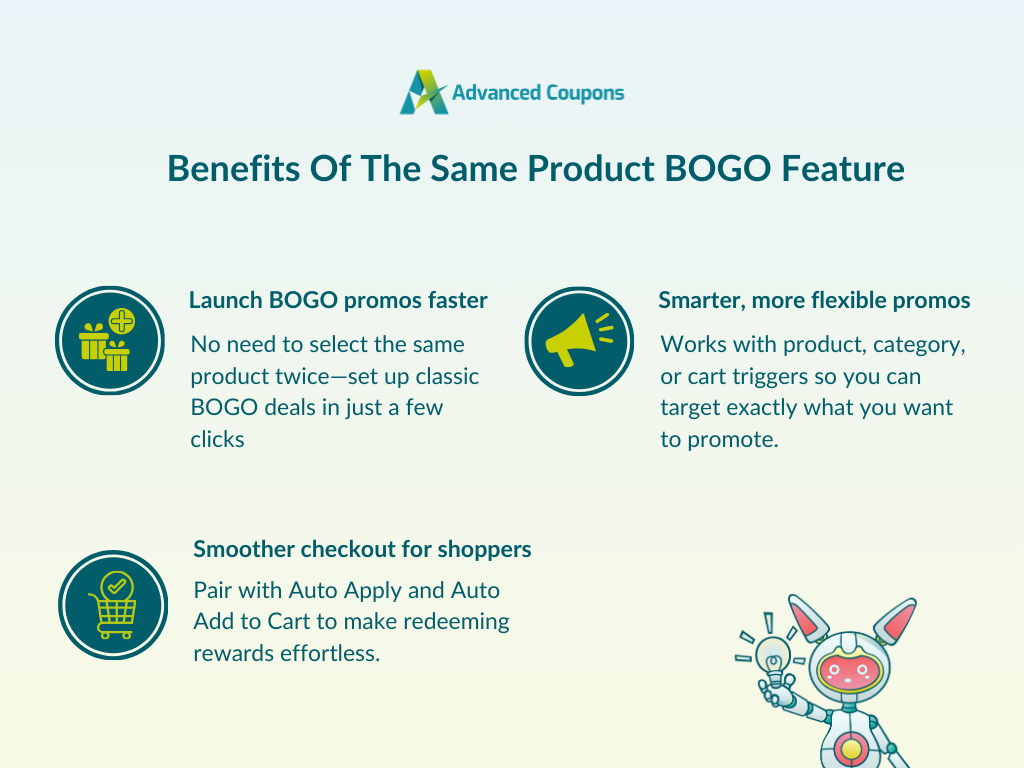
Saves time and helps you launch faster
Before, setting up same product BOGO promotions meant selecting the item twice in the “Customer Buys” and “Customer Gets” sections. With this update, you can build classic BOGO promos in fewer clicks, saving time and reducing setup errors. This is especially helpful when you’re creating multiple BOGO promotions for big sales seasons like Black Friday, Christmas, or clearance events.
Create smarter, more flexible promotions
This new BOGO logic works with any product, category, or cart combination, which gives you more freedom to tailor BOGO deals that match your campaign goals. It’s perfect if you want to highlight certain items or categories, clear out slow-moving inventory, or spotlight seasonal favorites.
Gives shoppers a smoother checkout experience
Pair your same product BOGO deals with features like Auto Apply Coupon and Auto Add to Cart features to cart features to give customers a smooth shopping experience. There’s no need for customers to enter a code manually, making it a lot easier to redeem their reward.
How To Set Up A Same Product BOGO Deal In WooCommerce
Excited to try the new same product BOGO feature? Let’s quickly walk through how you can use it to set up BOGO deals!
📝 IMPORTANT NOTE: This new feature is available for Advanced Coupons Premium users. Before following along with this tutorial, make sure that you’ve updated your Advanced Coupons Premium plugin. You can upgrade your plan here if you’re not using Premium yet.
1. Create your BOGO coupon
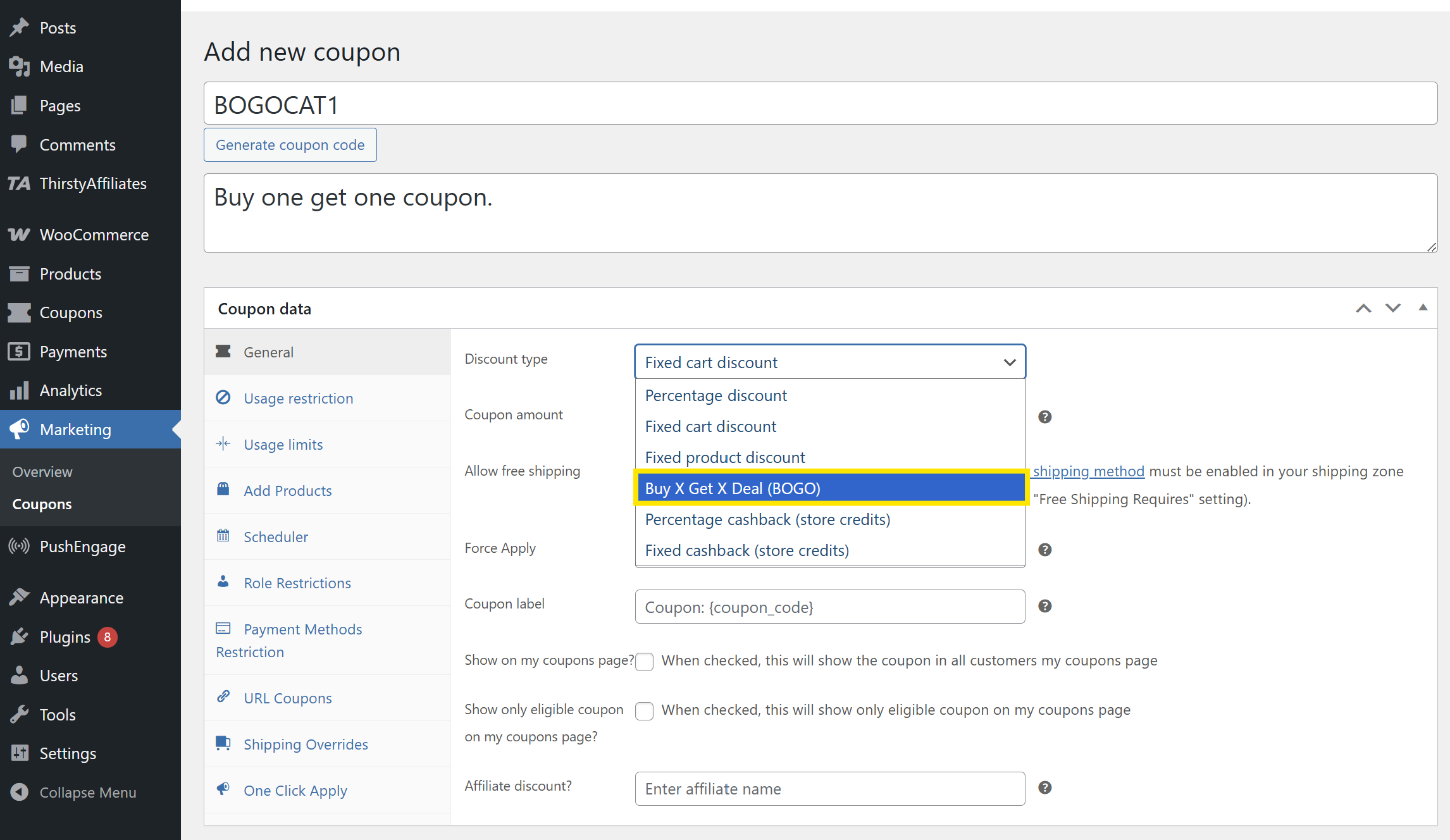
To get started, head to your WordPress dashboard > Marketing > Coupons and click “Add New”. This will take you to the coupon creation page, where you can name your coupon and add a description as usual. With Advanced Coupons installed, you’ll notice a lot more tabs and options available to modify your promotion.
Head to the General tab and select “Buy X Get X Deal (BOGO)” from the Discount type dropdown.
You can also configure other general options here, such as enabling Force Apply or setting a custom Coupon label.
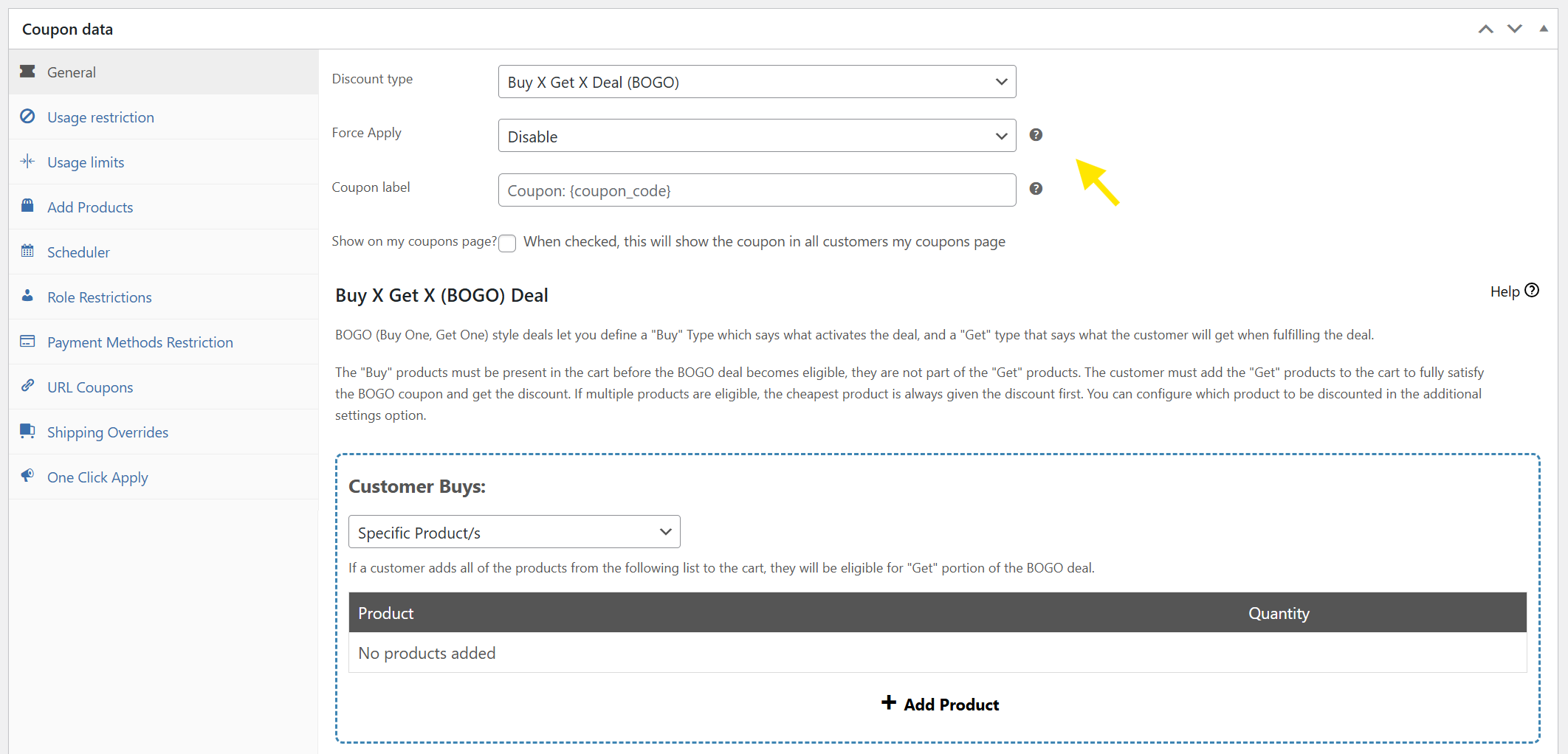
Once you’re happy with your settings, scroll down to the Buy X Get X (BOGO) Deal section. This is where you’ll define what the customer needs to buy and what they’ll get in return!
2. Configure your same product BOGO deal
With Advanced Coupons, you have full flexibility to control exactly how your same product BOGO deal works through the Customer Buys and Customer Gets section.
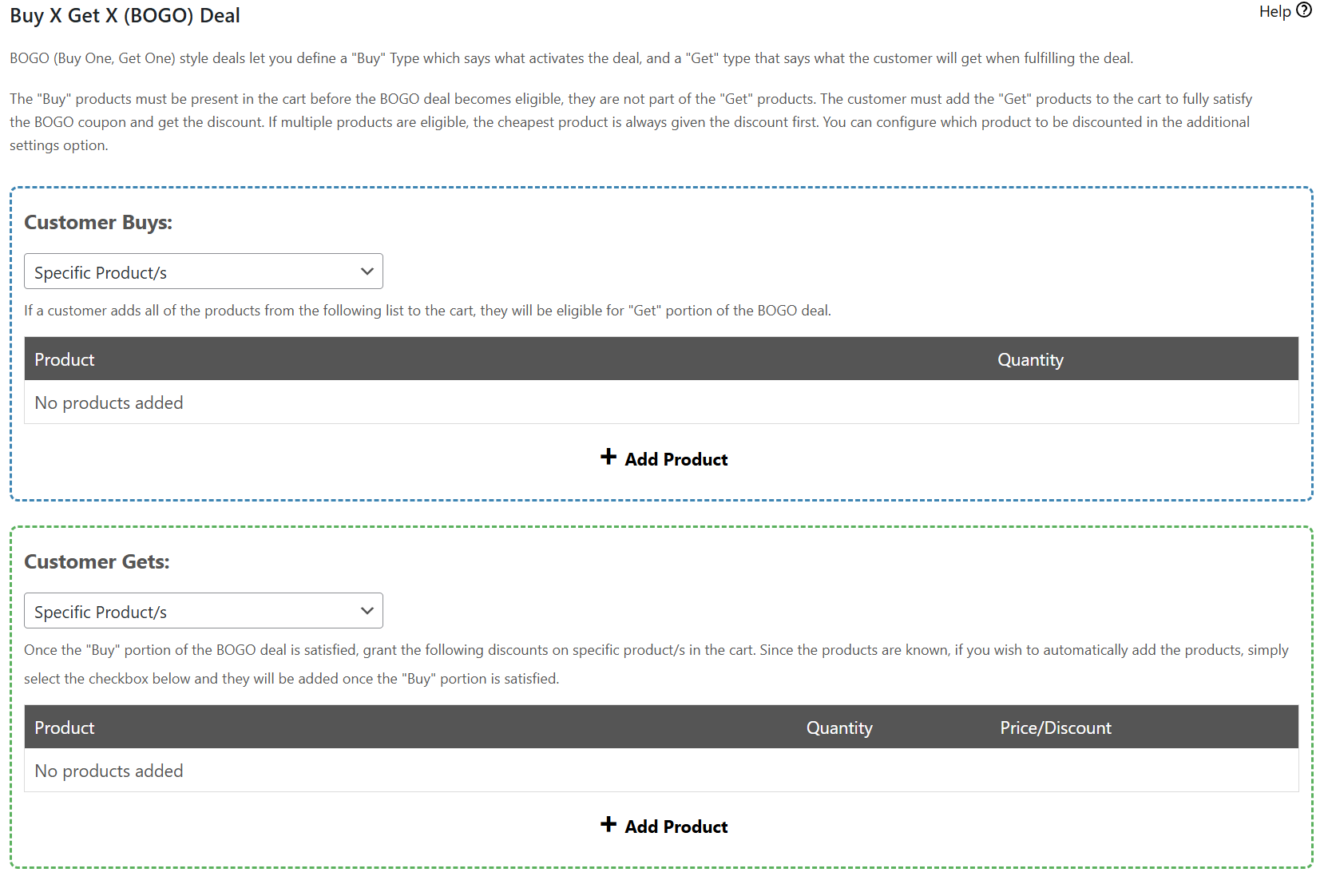
Setting the trigger
The Customer Buys section is where you define what the customer needs to add to their cart to activate the deal. You have four options to choose from:
- Specific Product/s: Shoppers must buy the specific items you select
- Any Combination of Products: Customers can buy any item from a chosen list
- Product Categories: The customer must buy items from a particular category
- Any Products: The offer triggers from any purchase in the store
📝 IMPORTANT NOTE: The new Same Product BOGO feature only works with trigger types like Any Products, Any Combination of Products, and Product Categories. If you want to apply the same product BOGO to select items only, we recommend using Any Combination of Products.
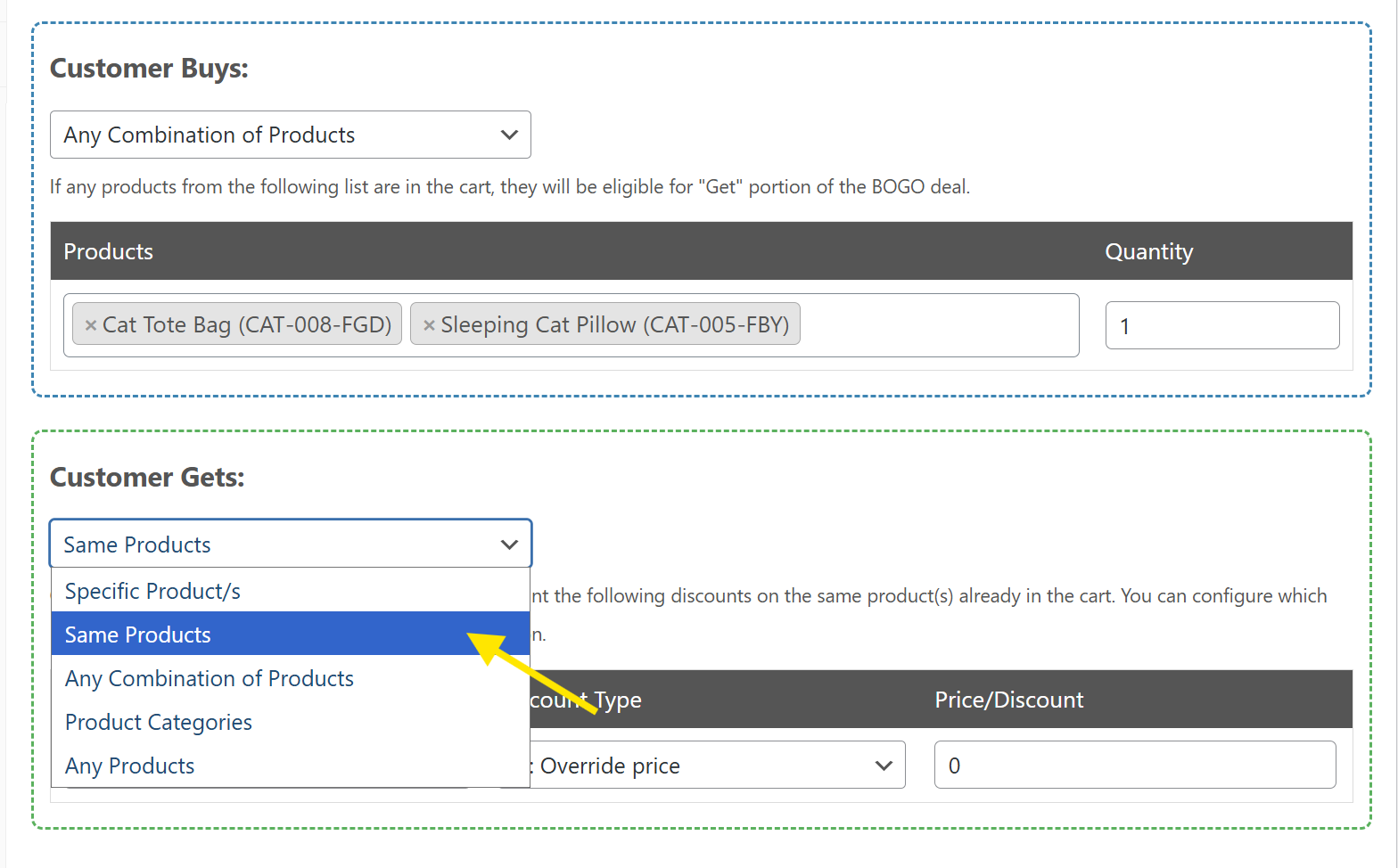
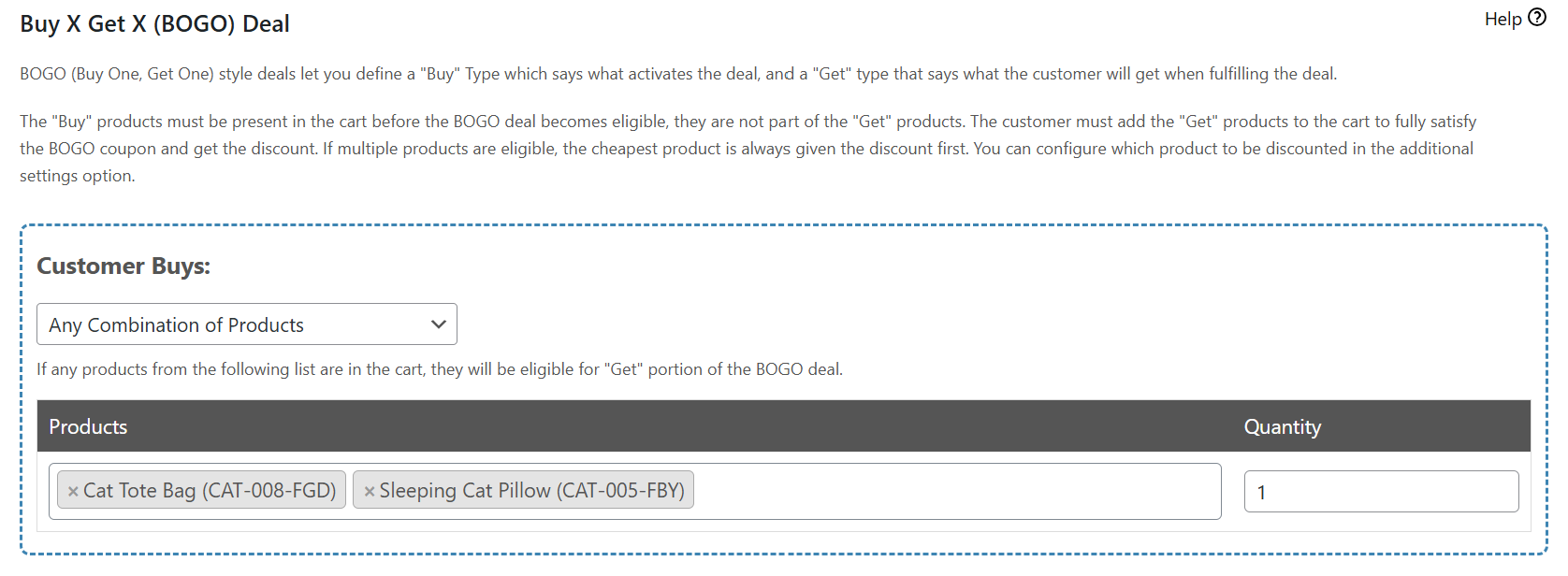
For this tutorial, we’ll use “Any Combination of Products.” Select this option from the Customer Buys dropdown, click “+ Add Product,” then choose the items you want to trigger the deal. After that, set the required quantity that the customer needs to purchase to activate the BOGO offer.
In the example below, we’ve added two products (“Cat Tote Bag” and “Sleeping Cat Pillow” ) and set the Quantity to 1. This means that the deal will trigger when any one of these products is added to the cart.
Setting the reward
The Customer Gets section lets you define what the shopper receives after meeting the trigger condition. Select the “Same Products” option to automatically apply the BOGO deal to the same product the shopper added to their cart.
From here, you can set:
- Quantity: How many of the same item to give
- Discount Type:
- Override price: Set a fixed price
- Percentage discount: Apply a percentage discount
- Price discount: Deduct a fixed amount
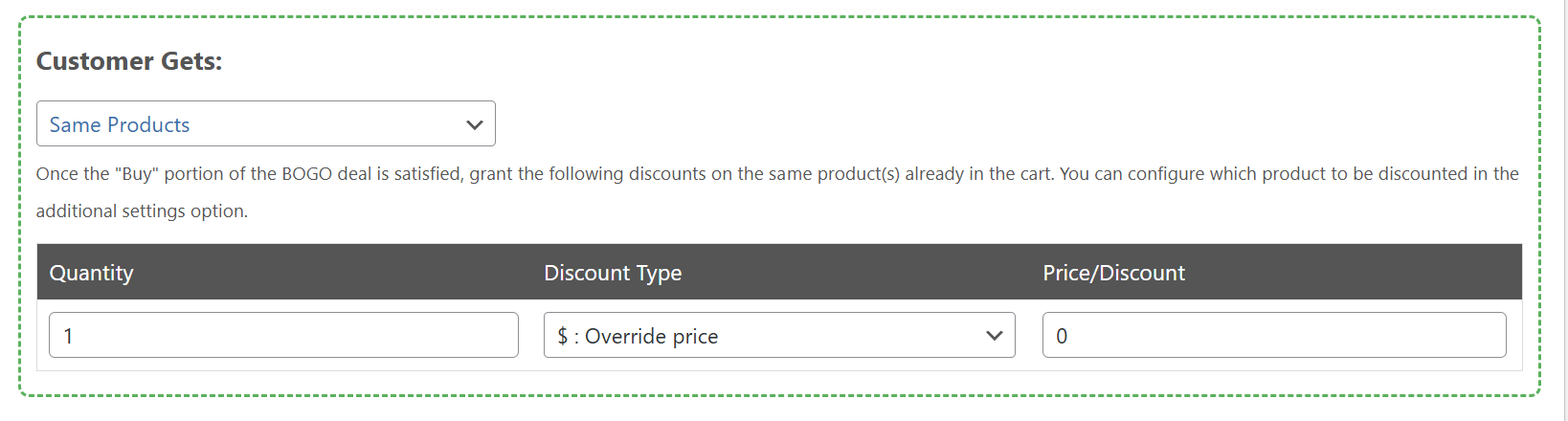
If you want to give the item as a full freebie, select Override price and set the value to 0, like how set it up in the screenshot above.
3. Set additional BOGO settings
Now that your trigger and reward are set, you can configure additional BOGO settings just below the Customer Gets section. These settings give you more control over how the discount is applied and how customers get notified.
Here’s a quick rundown of what you can do:
- Automatically add deal products to cart: Tick this box to auto-add the free or discounted item once the condition is met.
- Apply discount to: Choose which item to discount if multiple eligible products are in the cart. By default, this is set to Cheapest eligible products.
- Apply the BOGO deal: Select whether the deal should apply only once or repeatedly if the condition is met again.
- Show a notice when the reward product isn’t in the cart: Display a custom message when the deal is eligible but not fully triggered.
- Customize deal button: You can also customize the Button text, URL, and notice type to match your brand tone.
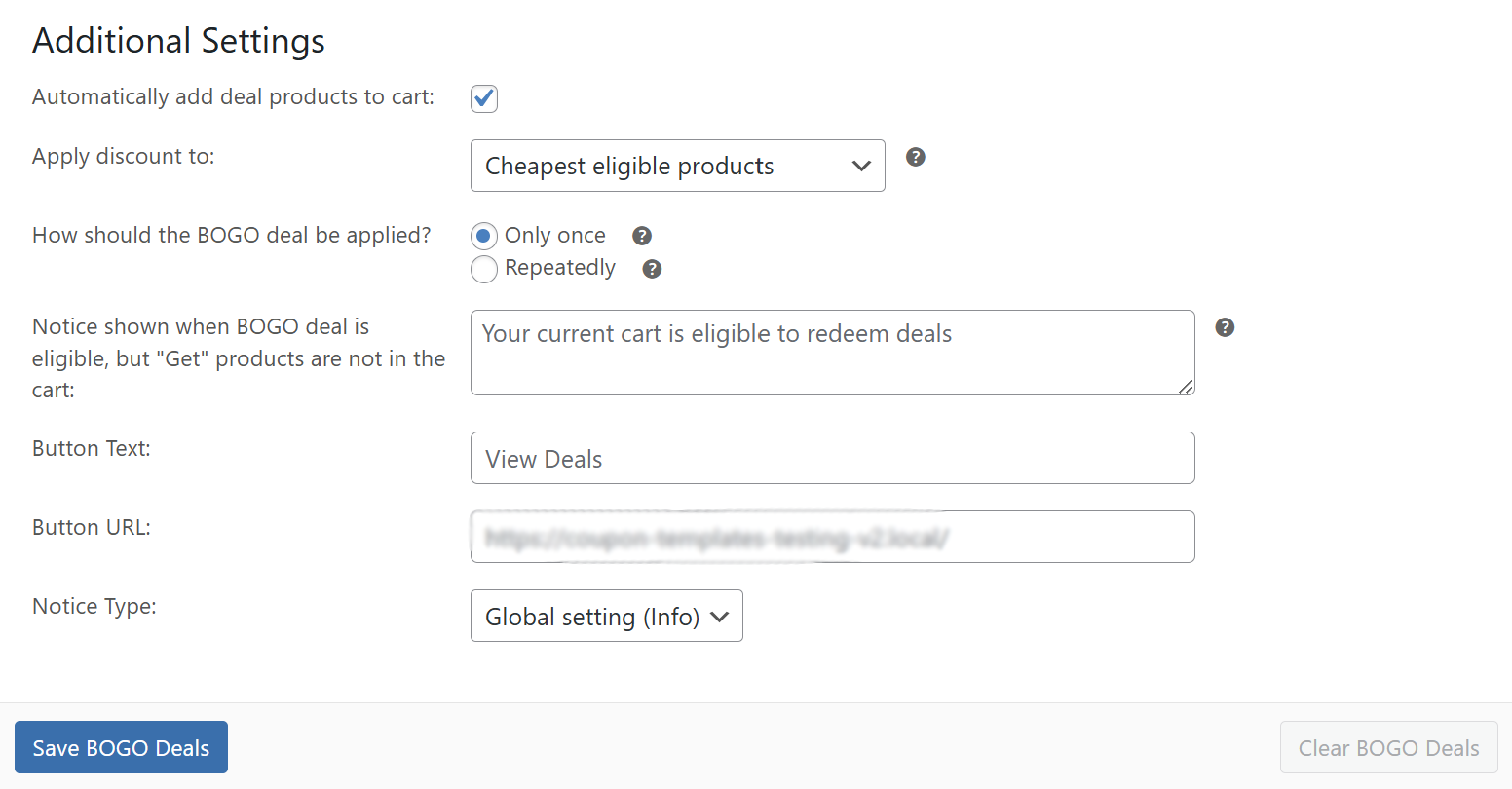
Feel free to explore these settings and tailor them to match your BOGO promotional strategy. Once you’re happy with your settings, click “Save BOGO deals” to save your progress.
4. Save and test your coupon
You’re almost there! Before publishing your offer, you might also want to check out other Advanced Coupons settings to fine-tune your promotions.
Here are a few tabs you might want to check out:
- Usage Restrictions: Add product exclusions, minimum spend, or user role restrictions.
- Usage Limits: Control how many times the coupon can be used per user or in total.
- Scheduler: Schedule start/end dates if your promotion is a limited-time or seasonal.
- Shipping Overrides: Provide a shipping discount alongside your BOGO deal.
- URL Coupons: Instantly apply your BOGO offer through a shareable link.
Feel free to explore these options and adjust them based on your campaign goals! Once you’re done, it’s time to hit “Publish” to make your BOGO deal live.
It’s also a great idea to test your coupon before promoting it on your website, newsletter, or social media. Simply add the qualifying item to the cart, then check if the discount applies as expected. Check out how our deal looks from the customer’s perspective:
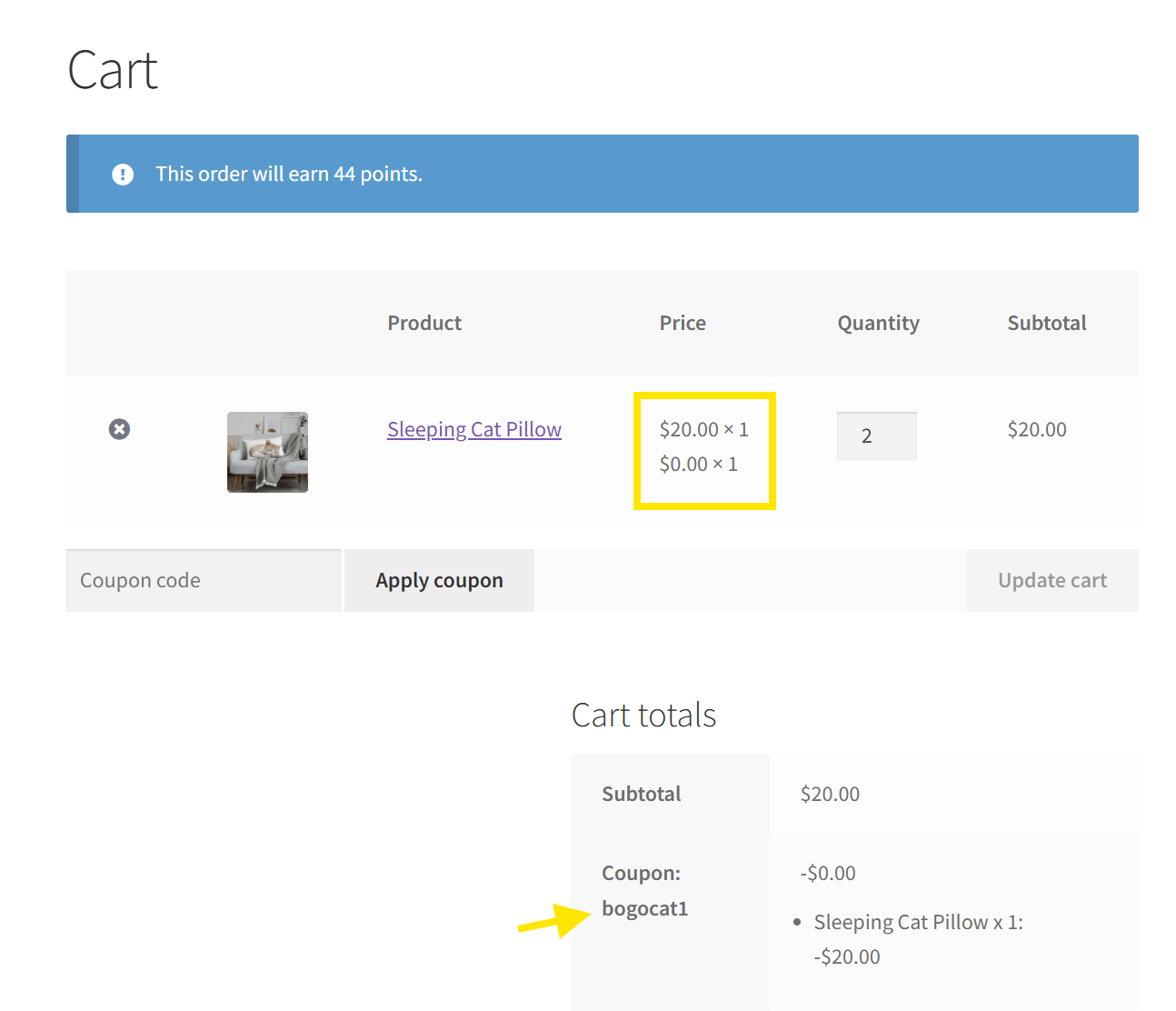
🎯 POWER TIP: To make coupon redemption a lot simpler for customers, enable the “Auto Apply Coupon” settings before publishing the offer. This ensures the discount applies automatically when conditions are met.
Wrapping Up
BOGO deals are a classic customer favorite—and with the new Same Product feature in Advanced Coupons, they’re now much easier to set up and manage in WooCommerce! In this feature guide, we walked you through:
- What the new Same Product BOGO feature does
- Key benefits of using this feature in your store
- How to set up a same product BOGO deal step by step
This new feature is available in Advanced Coupons Premium. This powerful plugin unlocks advanced coupon features in WooCommerce, including BOGO, URL coupons, loyalty rewards, store credit, shipping overrides, and more.
Hope this guide helped out and sparked some new ideas for your next big promotion! ⭐