
Advanced Loyalty Program lets you manually add or remove points for any customer directly from the WordPress admin — useful for correcting mistakes, rewarding customers outside normal earning rules, or adjusting balances after a support issue. Every adjustment is recorded in the customer’s points history as “Admin Adjustment (increase)” or “Admin Adjustment (decrease)” with your admin username.
Prerequisites
- WooCommerce is installed and active.
- Advanced Coupons for WooCommerce (free) is installed and active.
- Advanced Loyalty Program is installed and active.
- Your user account has the Manage WooCommerce capability (e.g., Administrator or Shop Manager).
How to Manually Adjust a Customer’s Loyalty Points
1. Open the Loyalty Program customers screen
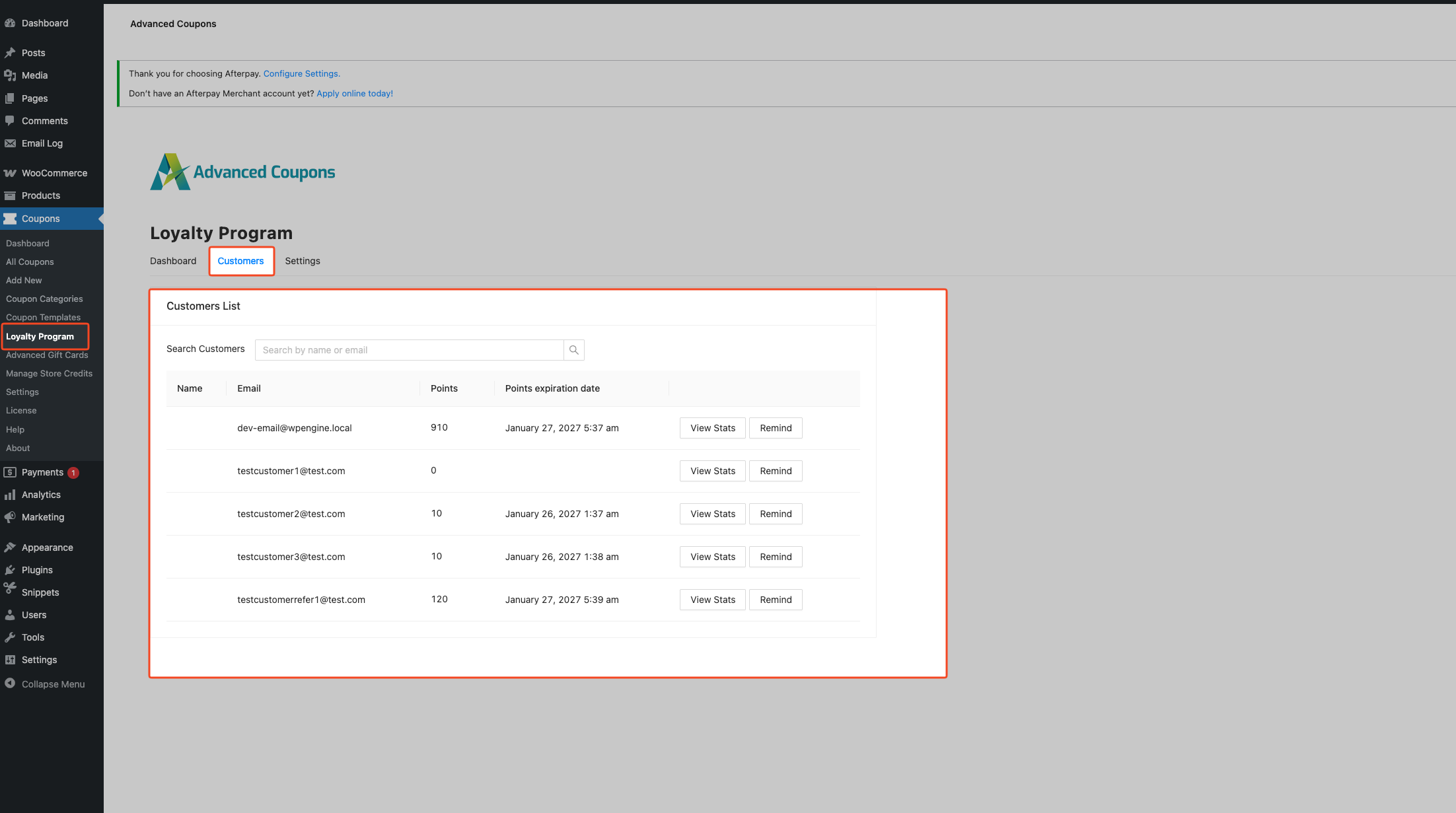
- In the WordPress admin, go to Coupons in the left menu (the Advanced Coupons top-level menu).
- Click Loyalty Program. This opens the screen where you can search customers and adjust their points.
2. Find and select the customer
- Use the search or customer list to find the customer whose points you want to adjust.
- Click the customer so their details and current points balance are shown.
- Note the current points balance displayed. When decreasing points, you can’t remove more than this balance.
3. Increase points (add points to the customer)
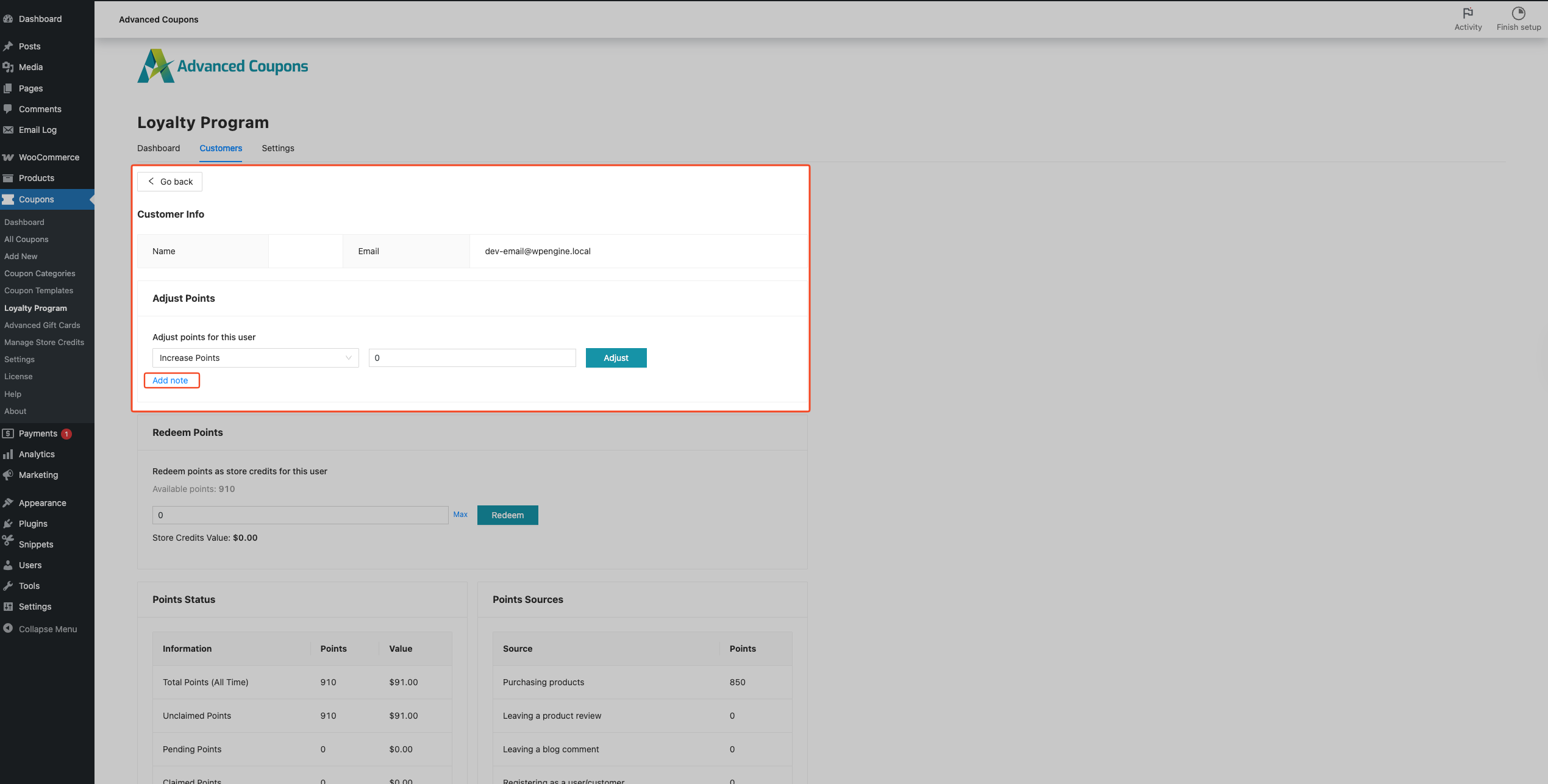
- In the points adjustment area, choose Increase (or “Add points”).
- Enter the number of points to add (positive whole number).
- Optionally enter Notes (e.g., “Manual reward for feedback,” “Correction for order #1234”). Notes are stored with the adjustment and appear in the customer’s points history.
- Click Apply to save the adjustment.
- Confirm the balance has updated and the new row shows Admin Adjustment (increase) with your admin name in the points history.
4. Decrease points (remove points from the customer)
- In the points adjustment area, choose Decrease (or “Remove points”).
- Enter the number of points to remove. The system removes up to their current balance only — if you enter a higher number, only the available balance is removed.
- Optionally enter Notes (e.g., “Duplicate earn correction,” “Support adjustment”). Notes are stored and shown in the points history.
- Click Apply to save the adjustment.
- Confirm the balance has updated and the new row shows Admin Adjustment (decrease) with your admin name in the points history.
5. Verify the adjustment in the points history
- On the same customer screen, scroll to the Points history section.
- Find the new row with the date and time of your adjustment.
- Confirm the activity shows “Admin Adjustment (increase)” or “Admin Adjustment (decrease)” and that the points and notes match what you entered.
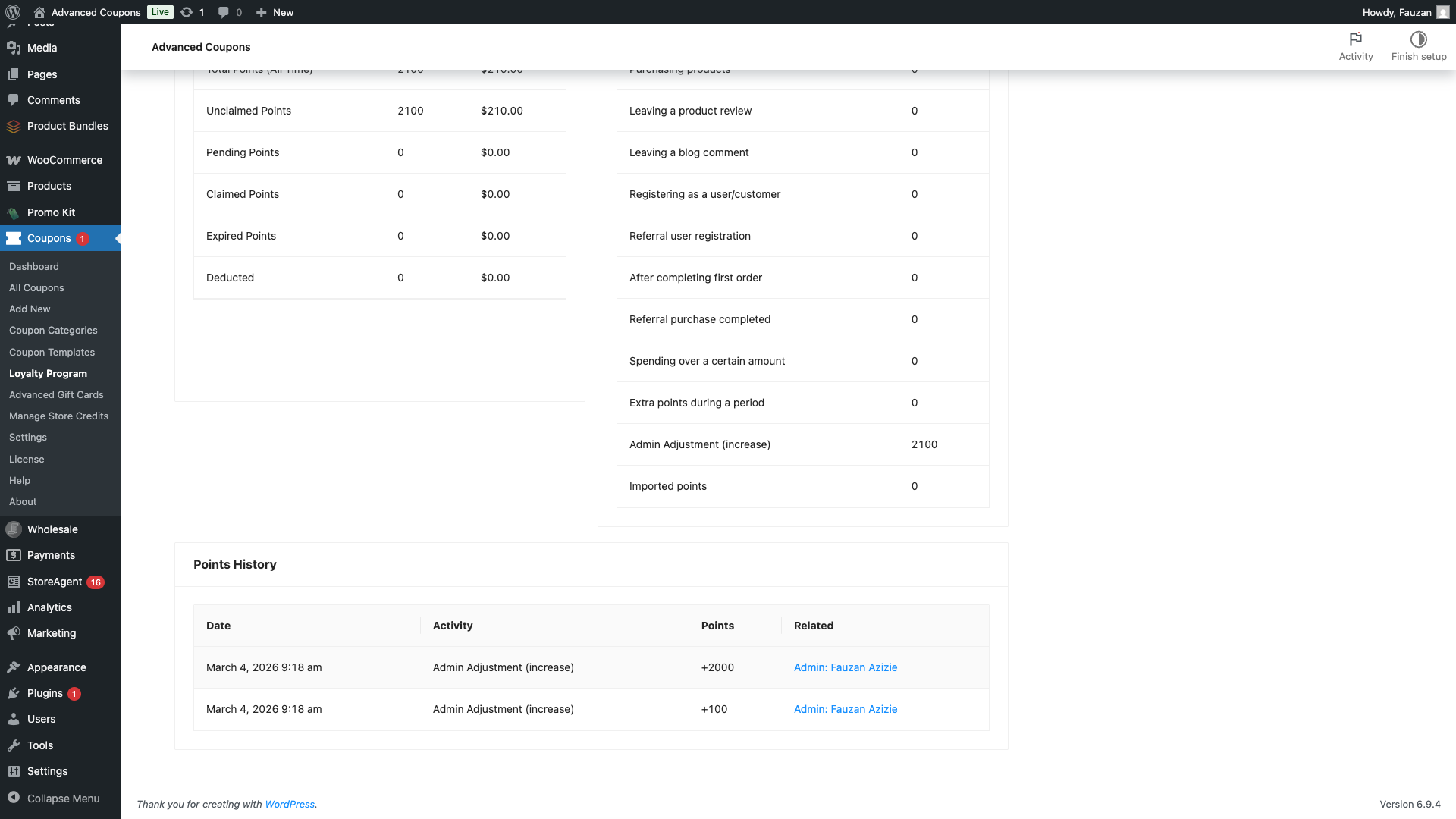
Manual adjustments are recorded as separate entries and count toward the customer’s total points balance, keeping history accurate for reporting and support.
Troubleshooting
I don’t see a Loyalty Program option or a way to adjust points
Make sure Advanced Loyalty Program and Advanced Coupons (free) are both installed and active. Your user must have the Manage WooCommerce capability. If the Loyalty Program submenu still doesn’t appear, try refreshing or clearing your cache. If you use a custom admin menu plugin, check it isn’t hiding the Coupons submenus.
The decrease didn’t remove the full amount I entered
The system never removes more than the customer’s current balance. If you entered a number higher than the available balance, only that balance was removed. Check the displayed balance before decreasing and enter a number equal to or less than it.
The adjustment isn’t showing in the points history
After applying an adjustment, refresh the customer’s points history or reopen the customer record. If the balance updated but the new row is missing, check you’re viewing the right customer. If the problem continues, disable other plugins temporarily to rule out conflicts with the Loyalty Program admin.
Frequently Asked Questions
Can I set a customer’s points to an exact number in one action?
The plugin only supports increase and decrease actions. To reach an exact balance, calculate the difference from the current balance and apply one adjustment (e.g., if they have 100 points and you want 250, add 150; if they have 100 and you want 30, decrease 70).
Who can manually adjust points?
Any user with the Manage WooCommerce capability — typically Administrator or Shop Manager. The points history records which admin made each adjustment.
Do manual adjustments affect points expiry or redemption rules?
Yes — manual adjustments change the customer’s total balance like any other earn or redeem event. Expiry and redemption rules (e.g., minimum points to redeem) still apply to the updated balance.
Can I undo an adjustment?
There’s no built-in undo. Reverse the effect by doing the opposite adjustment and add a note explaining the correction (e.g., if you added 50 by mistake, decrease 50 with a note “Correction — accidental increase”).
Where do “Admin Adjustment (increase)” and “Admin Adjustment (decrease)” come from?
These labels are how the plugin records manual adjustments in the points history — indicating the change was made by an admin in the WordPress backend, not by an order, redemption, or automatic rule.
Need Help?
If you have a question or run into any issues, we’re here to help.
- Premium users: Open a support ticket

