
Coupon categories let you organize coupons just like you organize products or posts — by campaign, season, product line, or any grouping that fits your store. Advanced Coupons for WooCommerce (free) adds a dedicated Coupon Categories screen, a Categories column on your coupons list, and a default category for uncategorized coupons. If you also use Advanced Coupons Premium, you can mark any category as mutually exclusive. That way, only one coupon from that category applies per cart at a time.
This article covers creating and managing coupon categories, assigning them to coupons, and setting a default category. Premium users will also find steps for enabling mutually exclusive behavior.
Prerequisites
- WooCommerce is installed and active.
- Advanced Coupons for WooCommerce (free) is installed and active. The free plugin provides coupon categories.
- Advanced Coupons Premium adds the mutually exclusive option and other category-based features.
How to Create and Manage Coupon Categories
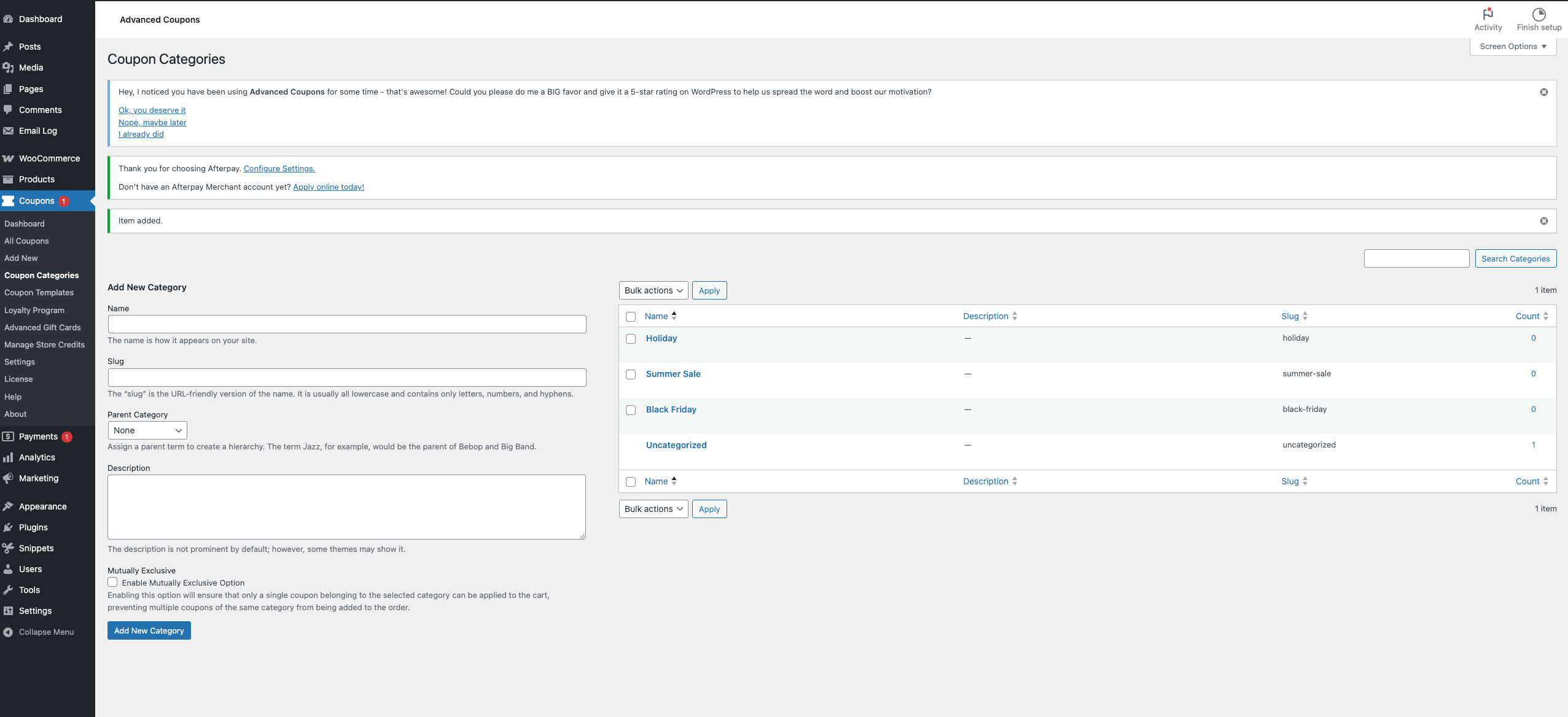
1. Open Coupon Categories
- In the WordPress admin, go to Coupons in the left menu (the Advanced Coupons top-level menu).
- Click Coupon Categories.
The Coupon Categories page opens with a list of existing categories. On first use, the plugin may have created a default Uncategorized category and assigned it to existing coupons.
2. Create a New Coupon Category
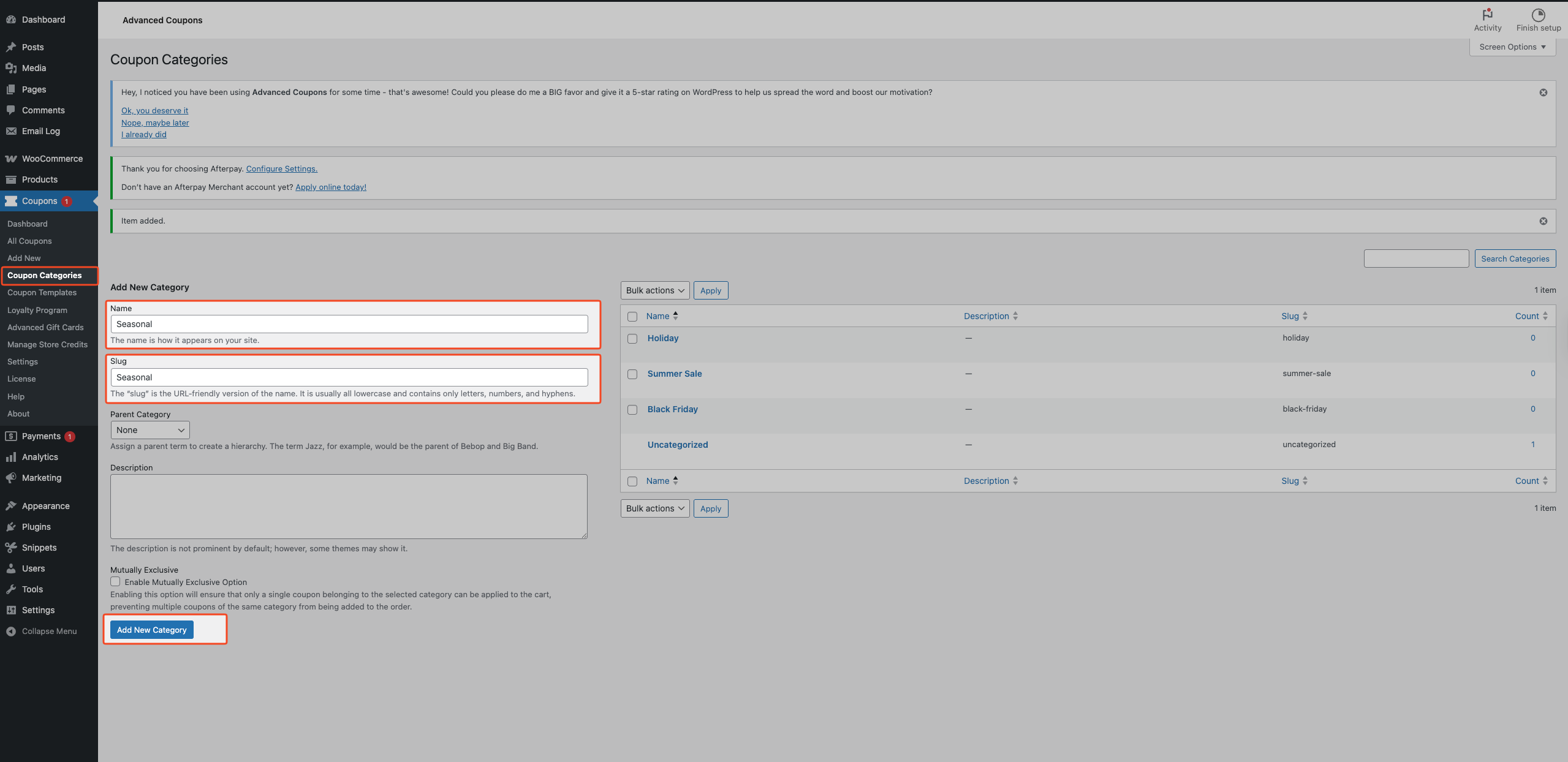
- On the Coupon Categories screen, enter a Name (e.g., “Black Friday”, “Email Campaign”, “Free Shipping”).
- Optionally set a Slug (URL-friendly name; leave blank to auto-generate from the name).
- Optionally choose a Parent category to create a hierarchy (e.g., “2024” as parent, “2024 Black Friday” as child).
- Click Add New Coupon Category.
The new category appears in the list and is available when editing any coupon.
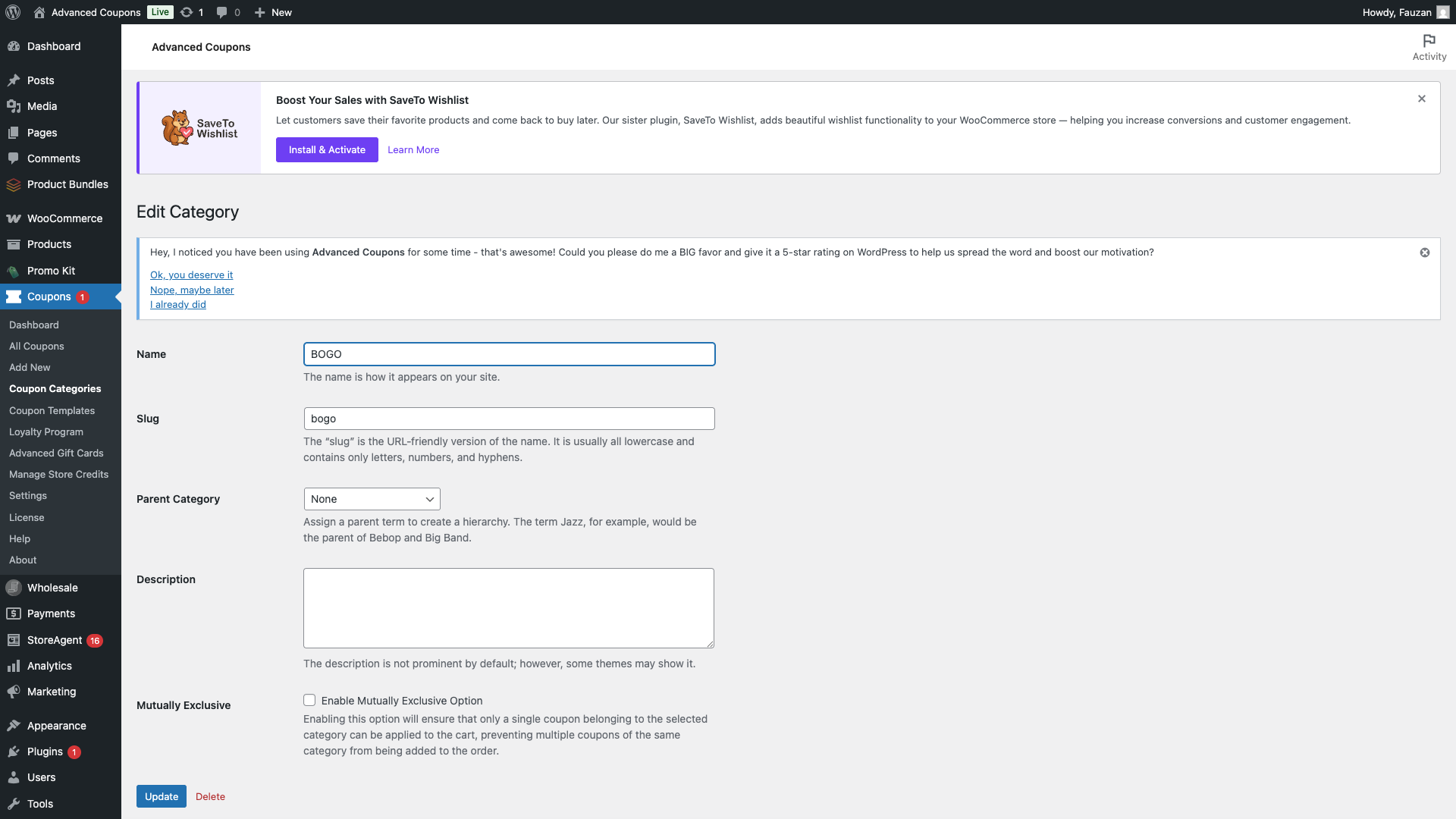
With Advanced Coupons Premium: When adding (or editing) a category, you’ll see a Mutually Exclusive checkbox. Enabling it means only one coupon from this category can apply to the cart at a time; adding a second one automatically removes the first. Use this for categories like “Single use per order” or “One promotion per cart.”
3. Assign Categories to Coupons
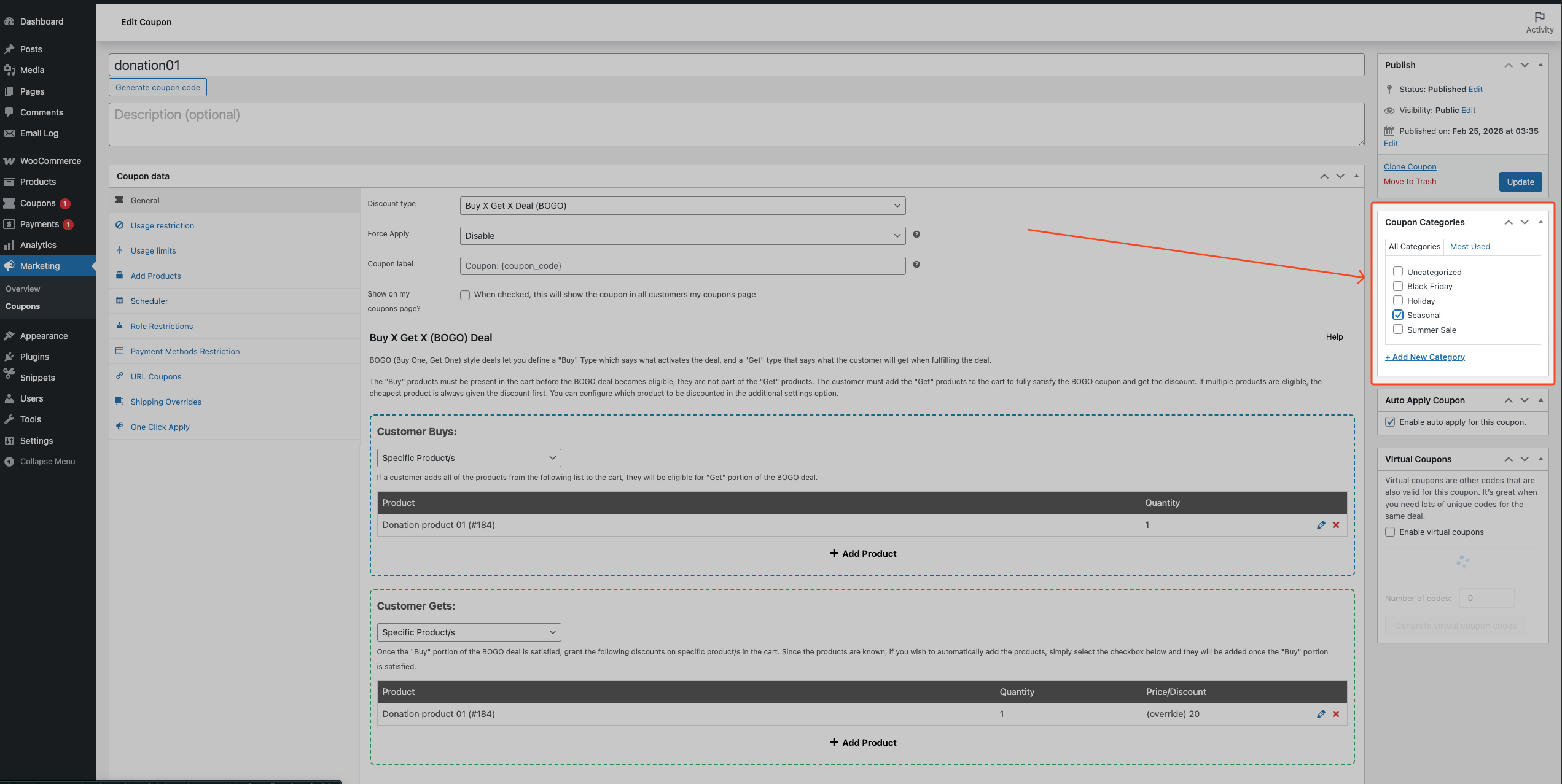
- Go to Coupons → All Coupons and add a new coupon or edit an existing one.
- In the coupon edit screen, find the Coupon Categories panel (sidebar or block, depending on your editor).
- Check one or more categories for this coupon. You can also use the “Add or remove categories” or “Choose from the most used” quick-add links that appear directly below the category checkbox list in the sidebar panel.
- Click Update (or Publish for a new coupon).
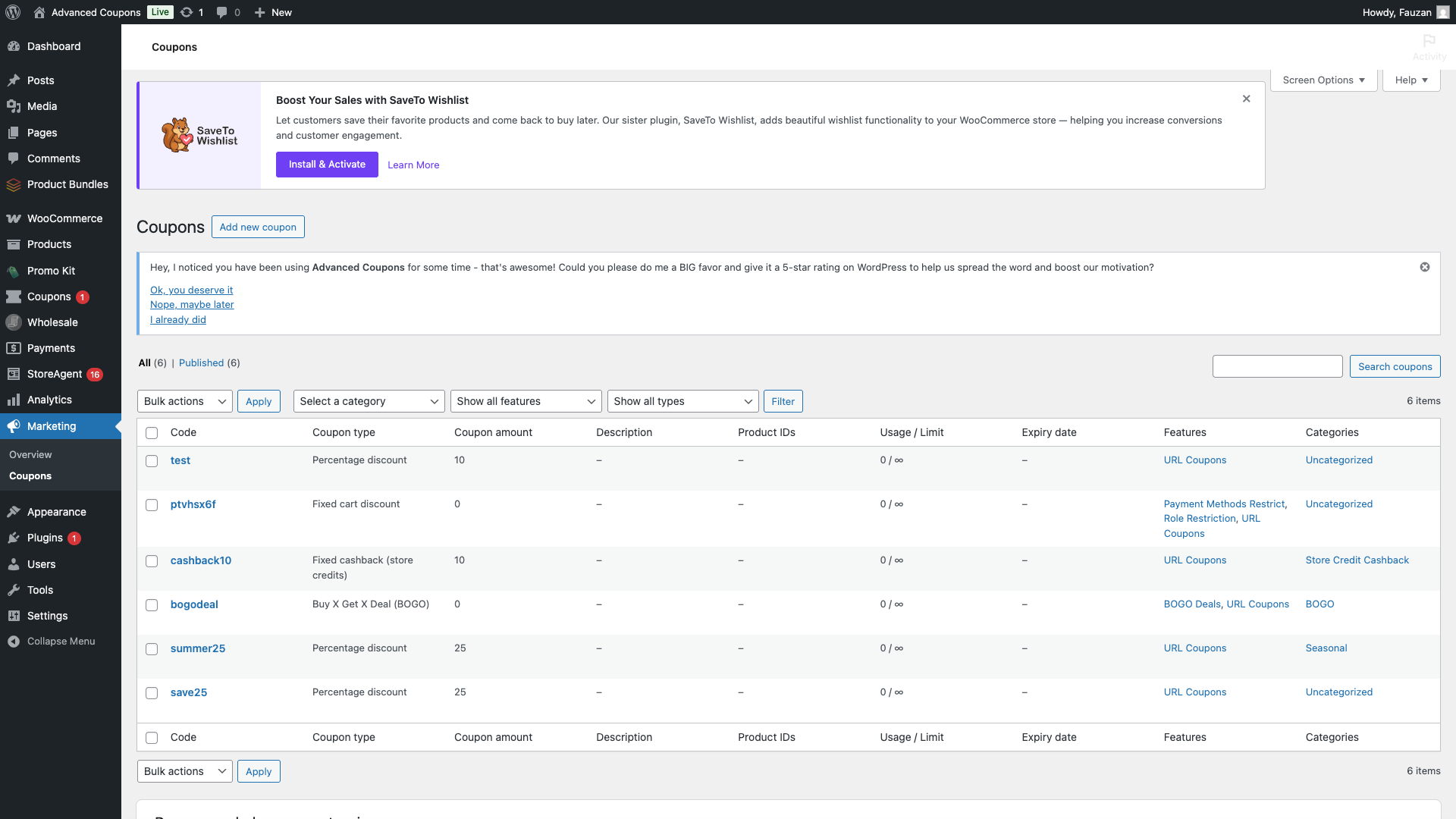
Coupons can belong to multiple categories. The Categories column on the Coupons list shows the assigned categories. Click any category name in that column to jump to a filtered view.
4. Set a Default Coupon Category
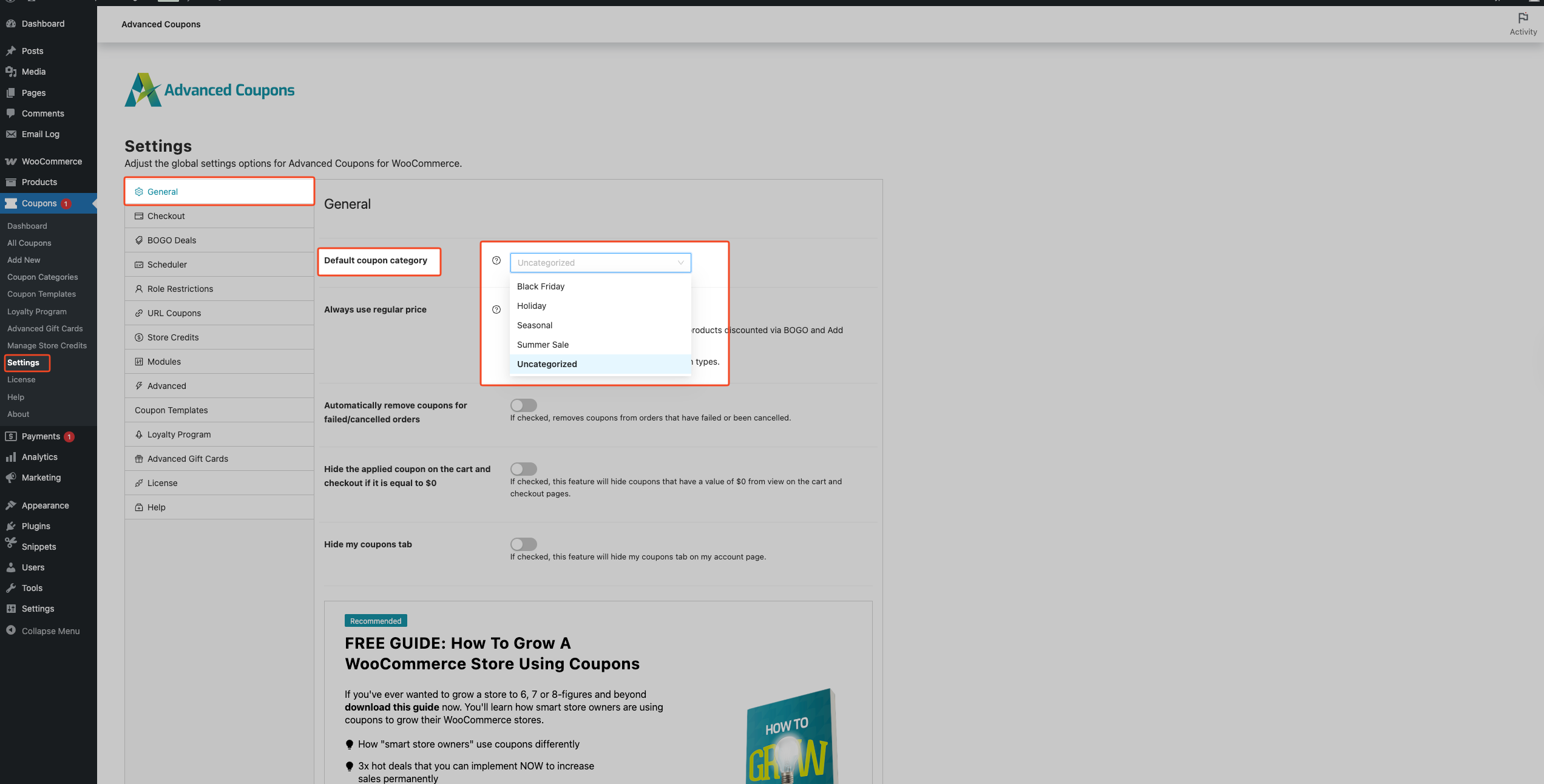
When you save a coupon without a category, Advanced Coupons automatically assigns it to the default category you choose. This is useful for coupons created by third-party plugins, imports, or the API.
- Go to WooCommerce → Settings.
- Open the Advanced Coupons tab.
- Select the General section.
- Find the Default coupon category and choose the category from the dropdown (e.g., “Uncategorized” or a dedicated “Imported” category).
- Click Save changes.
After that, any coupon saved without a category gets this default. Also, on first activation, the plugin creates an Uncategorized category and assigns it to existing coupons that had none.
5. Filter Coupons by Category
- Go to Coupons → All Coupons.
- Use the category dropdown above the coupon list (e.g., “Select a category”).
- Choose a coupon category, and the list shows only coupons in that category.
- You can also click a category name in the Categories column of a coupon row to jump to the same filtered view.
6. Edit or Delete a Coupon Category
To edit a category
- On the Coupon Categories screen, click the category name or Edit in the row actions.
- Change the Name, Slug, or Parent as needed. With Advanced Coupons Premium, you can also toggle the Mutually Exclusive option.
- Click Update.
To delete a category
- On the Coupon Categories screen, hover over the category row and click Delete in the row actions.
The default category (set in WooCommerce → Settings → Advanced Coupons → General) can’t be deleted. Advanced Coupons hides its Delete action and excludes it from bulk delete.
Troubleshooting
The category isn’t showing on the coupon edit screen
First, make sure Advanced Coupons (free) is active and that your user role can manage coupon categories. Next, refresh the coupon edit page. If you’re using the block editor, the panel may appear in the right sidebar under “Coupon Categories.” If it still doesn’t appear, temporarily switch to a default theme and disable other plugins to rule out conflicts.
The default category isn’t being applied
The default category applies only when you save a coupon with no categories selected. First, confirm you clicked Save changes in WooCommerce → Settings → Advanced Coupons → General. Then, make sure you’re saving the coupon after creating or editing it. The default never overwrites coupons that already have a category.
Frequently Asked Questions
Does the default category apply retroactively to existing coupons?
On first activation, the plugin can create an Uncategorized category and assign it to existing coupons that had no category. After that, the default applies only when you save a coupon without a category — for example, new coupons or edits. However, existing coupons that already have a category stay unchanged.
Can I nest coupon categories under a parent?
Yes. When creating or editing a category, use the Parent dropdown to choose another coupon category. You can build hierarchies (e.g., “2024” → “2024 Black Friday”, “2024 Cyber Monday”) the same way you do for post categories.
What happens if a coupon has no category assigned?
If you’ve set a Default coupon category in WooCommerce → Settings → Advanced Coupons → General, any coupon saved without a category will get that default. However, if you haven’t set a default, the coupon simply has no category until you assign one. Saving it again later will apply the default if you configure one.
Can a coupon belong to multiple coupon categories?
Yes. A single coupon can belong to one or more categories. This is useful when you want to group coupons by multiple dimensions (e.g., “Black Friday” and “Free Shipping”). The Categories column in the coupons list will show all assigned categories.
How do I quickly find coupons in a specific category?
Go to Coupons → All Coupons, then use the category dropdown above the list to filter coupons by category. You can also click a category name in the Categories column to jump to the filtered view.
What does “Mutually Exclusive” do (Premium)?
When a category is marked Mutually Exclusive, only one coupon from that category can apply per cart at a time. If a shopper applies a second coupon from the same mutually exclusive category, Advanced Coupons removes the first coupon automatically.
Why can’t I delete a coupon category?
If you’ve set this category as your Default coupon category (in WooCommerce → Settings → Advanced Coupons → General), Advanced Coupons hides the Delete action and excludes it from bulk delete.
Does setting a Default coupon category override categories I assign manually?
No. The default category applies only when you save a coupon with no categories selected. If you assign categories manually, those stay assigned.
Need Help?
If you have a question or run into any issues, we’re here to help.
- Premium users: Open a support ticket
- Free users: WordPress.org support forum for Advanced Coupons

