WooCommerce Subscriptions is the plugin that lets WooCommerce stores sell products and services on a recurring billing schedule. Instead of charging a customer once, it can handle ongoing payments such as weekly, monthly, or annual renewals, along with sign-up fees, free trials, and subscription status changes over time. While WooCommerce Subscriptions is the most established option, alternatives like Sublium Subscriptions offer similar recurring billing functionality with a more modern setup, and the discount logic in this guide applies to both.
That recurring structure is exactly why a WooCommerce subscription discount needs more care than a standard one-time coupon. With a regular order, the discount is used once, and the transaction is done. With a subscription, the setup can affect future payments too — and if you get that wrong, the discount can quietly keep reducing renewal revenue long after the campaign should have ended.
That’s why subscription offers need to be planned around the exact outcome you want. Are you trying to lower the first payment, waive a sign-up fee, discount renewals for a limited time, or send a one-time save offer to an at-risk subscriber?
This guide walks through four practical WooCommerce subscription discount scenarios, how WooCommerce Subscriptions handles them, and where Advanced Coupons can help you control how those offers are delivered and managed.
How WooCommerce Subscription Coupons Work
WooCommerce Subscriptions extends the normal WooCommerce coupon logic to account for recurring payments. That matters because a subscription order is not just one checkout — it can include an initial payment, a sign-up fee, a free trial, and future renewal charges.
Standard WooCommerce cart and product coupons apply to the first payment of a subscription only. That makes them useful for sign-up offers when there is an upfront charge.
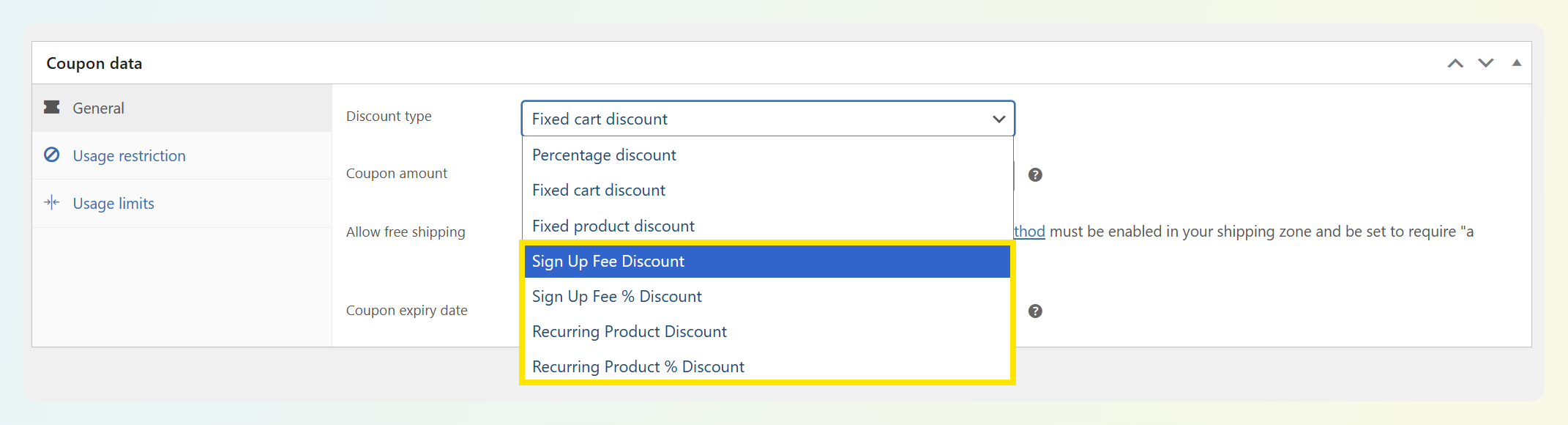
For subscription-specific discounts, WooCommerce Subscriptions adds its own coupon types: recurring product discounts and sign-up fee discounts. Recurring product discounts are used when you want to reduce renewal payments. Sign-up fee discounts are used when you want to reduce or remove the sign-up fee.
One important catch: if a subscription has a free trial and no sign-up fee, there may be no initial payment at checkout. In that case, a standard first-order coupon will not discount anything.
That’s why the first step in any WooCommerce subscription discount setup is being clear about what you’re trying to discount: the sign-up fee, the first payment, or future renewals.
Scenario 1: First-Payment Discount To Acquire New Subscribers
Use case: “50% off your first month” acquisition offer.
Setup: Create a standard WooCommerce coupon for the initial charge. Standard WooCommerce cart and product coupons apply to the first payment only when there is an upfront charge, while renewals continue at full price. If you want the discount to carry over to renewals, that should be set up as a recurring subscription discount instead.
Add a cart condition: In Advanced Coupons Premium, you can tighten this offer with cart conditions and order-history-based rules so it’s aimed at qualifying new subscription customers, rather than being left open to everyone.
The mistake to avoid: Using a recurring renewal discount when the offer was only meant for the initial charge. That’s how a short-term acquisition offer quietly turns into a long-term revenue leak.
Scenario 2: Free Or Discounted Trial Period
Use case: “Try free for 14 days” or “$1 first month” intro pricing.
If you want a true free trial, start with WooCommerce Subscriptions’ native trial settings. The subscription product editor lets you set the trial length and trial period directly, which is the cleanest way to offer something like a 14-day free trial.
Coupons are more useful when you want to discount a payment rather than change the trial itself. For example:
- Use a standard WooCommerce coupon when you want to reduce the first payment and there is an actual upfront charge
- Use a sign-up fee discount when you want to waive or reduce the sign-up fee
- Use a recurring product discount with a payment limit when you want to discount the first few billing cycles
One important limitation to keep in mind: coupons do not change the trial length itself. And if the subscription has a free trial with no sign-up fee, there may be no initial payment for a standard coupon to discount.
Scenario 3: Recurring Discount On All Renewals
Use case: Founding member pricing, long-term loyalty discount, or a permanent segment price.
Setup: Use WooCommerce Subscriptions’ recurring discount setup when you want the coupon to apply to renewal payments, not just the initial charge.
Limited-time recurring: If you want the discount to apply for a defined period — first 3 months at 20% off, then full price — WooCommerce Subscriptions supports a renewal limit on the coupon. Set the number of renewals the discount applies to before it stops. After the limit is reached, subsequent renewals charge at full price automatically.
The mistake to avoid: Using a recurring coupon without a renewal limit on a broad acquisition campaign. “20% off forever” is a meaningful promise — if you’re making it, make it intentionally. If the intent was “20% off for 3 months,” set the renewal limit explicitly.
Scenario 4: Retention Discount For Cancellation-Intent Subscribers
Use case: A subscriber initiates cancellation. You want to offer a discount to keep them subscribed.
Setup:
- Create the coupon you want to offer for the save attempt
- If you want the offer to be one-time only, set usage limit per user to 1
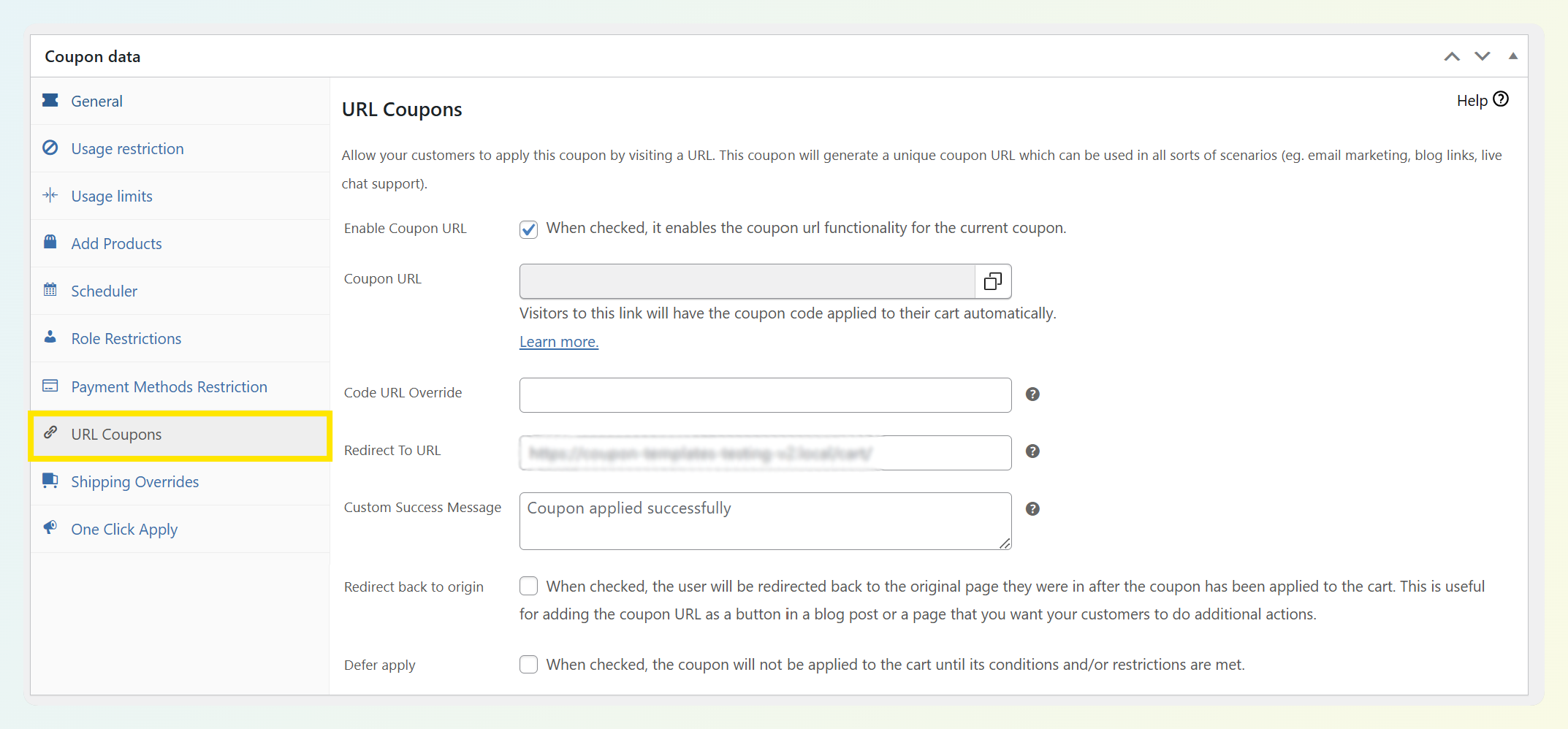
- If the customer is completing a manual renewal, failed renewal, or similar checkout flow, use an Advanced Coupons URL coupon so the discount is easy to apply
- Use product targeting or cart conditions where appropriate so the offer stays tied to the intended subscription purchase context
This is the safer way to use a retention coupon: when the subscriber is actually going through checkout to complete a renewal-related payment.
If your subscriptions renew automatically, be careful with your wording. A coupon link sent later does not automatically change the next automatic renewal just because the customer clicked it. For automatic renewals, recurring discounts need to be set up as part of the subscription coupon strategy itself.
A retention discount works best when it solves a specific renewal-risk moment, not when it becomes an ongoing pricing habit. That’s why it’s smart to combine a one-time offer with usage limits and clear campaign rules.
The qualification rules matter: A retention offer should stay tied to the intended customer and checkout context, rather than being left open as a broad public discount. That can mean combining usage limits, product rules, URL-based delivery, or other qualifying conditions that fit your setup.
Using Store Credit For Subscription Renewals
Advanced Coupons integrates with WooCommerce Subscriptions to allow accumulated store credit to apply against subscription renewal charges. This is different from a discount coupon — it’s earned credit being applied to a recurring obligation.
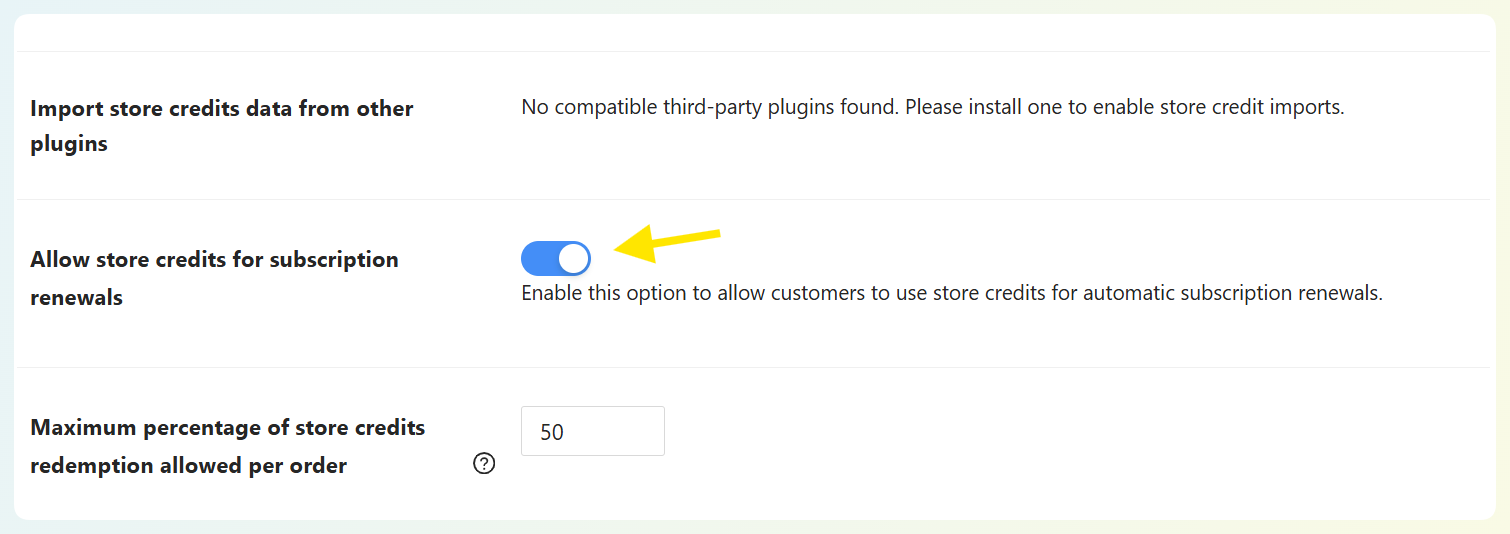
When a subscriber has store credit balance in their account, that credit can be applied to renewal charges once you enable the relevant store credit setting for subscription renewals. That option is not on by default, so it needs to be toggled on in your settings page.
To do so, head to Coupons > Settings > Store Credits. Scroll down until you see the setting “Allow store credits for subscription renewals”, then toggle it on.
This is most useful for rewarding long-term subscribers without a blanket discount. Instead of giving every subscriber 10% off, you give high-value subscribers store credit as a loyalty reward — credit they apply toward renewals at their own discretion. See our guide on store credit for WooCommerce subscription renewals for the full setup.
Cart Conditions To Qualify Subscription Discount Eligibility
Advanced Coupons gives you a few practical ways to tighten subscription offers:
Order-history-based rules
These help you narrow welcome-style promotions to qualifying customers instead of leaving the offer open to everyone. Advanced Coupons includes conditions such as Customer Has Ordered Products Before, Within Hours After Customer Registered, Within Hours After Customer Last Order, and Customer Spend. In practice, these help you shape offers around customer history instead of making every subscription discount available to every shopper.
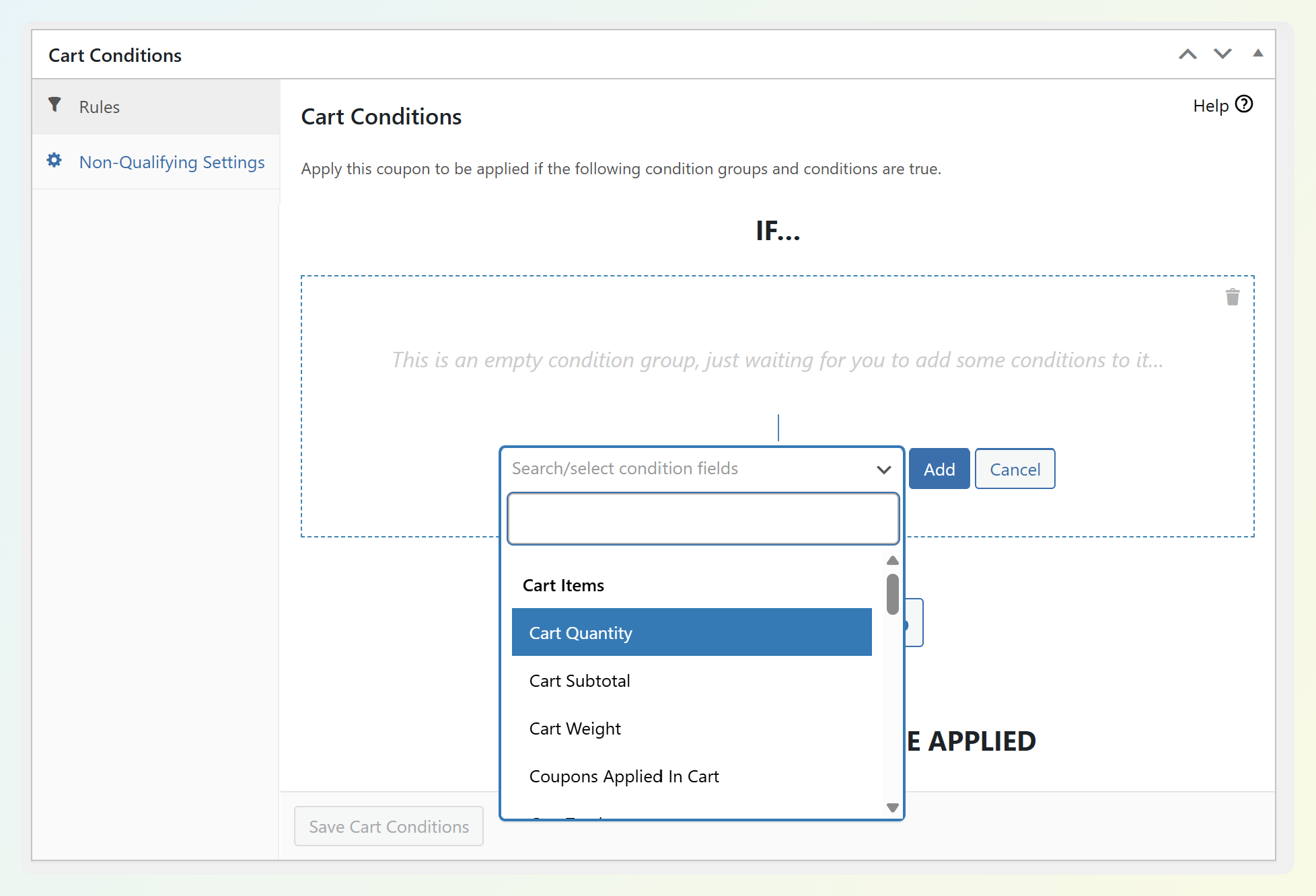
Product- or cart-based rules
These help you control when the coupon can be applied based on what is in the cart or how the promotion is being used. Examples include Product Category Exists In Cart, Product Quantities Exist In Cart, Cart Quantity, and Cart Subtotal. These are useful when your subscription promotion should only apply if the cart meets certain requirements, such as containing a qualifying product category, reaching a minimum subtotal, or including a specific quantity.
Usage restrictions and delivery controls
Alongside cart conditions, Advanced Coupons gives you more control over who can access a subscription offer and how that offer is delivered with tools like role restrictions, advanced scheduling, cart conditions, and URL coupons. That means you can make a subscription promotion feel more intentional — for example, by limiting when it runs, narrowing who should be able to use it, or sending it through a direct link.
Frequently Asked Questions
Does a WooCommerce coupon apply to subscription renewals?
By default, standard WooCommerce coupons apply to the first subscription payment only, while renewals charge at full price. WooCommerce Subscriptions also adds coupon types for recurring discounts, which are used when you want the discount to carry over to renewal payments. Check the coupon type first before publishing a subscription discount campaign so the offer matches the outcome you actually want.
How do I give a discount to long-term subscribers without discounting new signups?
Use a renewal discount only when it is meant for an existing subscriber segment, and pair it with clear coupon rules so it is not treated like a broad acquisition offer. If the goal is a time-boxed loyalty incentive, a recurring discount with a renewal limit is usually the safer approach.
Can I offer a free trial on WooCommerce subscriptions without a coupon?
Yes. WooCommerce Subscriptions has a native Trial Length and Trial Period setting in the subscription product editor. Set these directly for a free or discounted trial that applies to all new subscribers automatically. Use a coupon-based approach only when you need to target the trial offer to a specific segment or test different trial lengths.
How do I prevent a retention discount from being used more than once per subscriber?
Set Usage Limit Per User to 1 if you want each subscriber to redeem the offer only once. If the subscriber is going through a manual renewal or failed-renewal checkout flow, that helps keep the save offer from turning into a repeat discount.
Wrapping Up
A WooCommerce subscription discount works best when it matches the exact job you want it to do. WooCommerce Subscriptions gives you the core subscription discount logic, while Advanced Coupons helps you control how those offers are delivered and managed with tools like URL coupons, usage limits, and store credit for renewal orders when enabled.
The key decisions usually come down to this:
- Acquisition discount: Use a first-payment discount when you want to lower the upfront cost without affecting future renewals
- Trial offer: Use WooCommerce Subscriptions’ native trial settings when you want to change the trial itself
- Recurring renewal discount: Use a recurring subscription discount only when you intentionally want to reduce renewal pricing
- Retention offer: Use a one-time, tightly controlled discount when you want to save an at-risk subscriber without turning it into a long-term pricing concession
The biggest mistake is using a subscription discount that is broader than intended. When you’re clear on whether you’re discounting the sign-up fee, the first payment, or renewal charges, it becomes much easier to build a WooCommerce subscription discount that supports conversions while still protecting your margins.