
If you run gift-with-purchase, bundle, or free sample campaigns, Advanced Coupons Premium lets you push specific products into the cart as soon as a coupon is applied. For a video-first walkthrough of free gifts with purchase, see How to give free products with a coupon in WooCommerce. By the end of this guide you’ll have the Add Products module enabled, a coupon configured to push specific items into the cart, and a clear picture of what shoppers see when the coupon is applied or removed.
You can combine Add Products with cart conditions and Auto Apply coupons.
Prerequisites
- WooCommerce is installed and active.
- Advanced Coupons Premium version 2.0 or higher (which includes the Advanced Coupons for WooCommerce Free base plugin) is installed and active. To use the per-coupon Enable Add Products checkbox, update to the latest version of Advanced Coupons Premium.
- At least one product already exists in your catalog.
Enable the Add Products module
- Go to Coupons → Settings.
- Click the Modules tab.
- Enable Add Products.
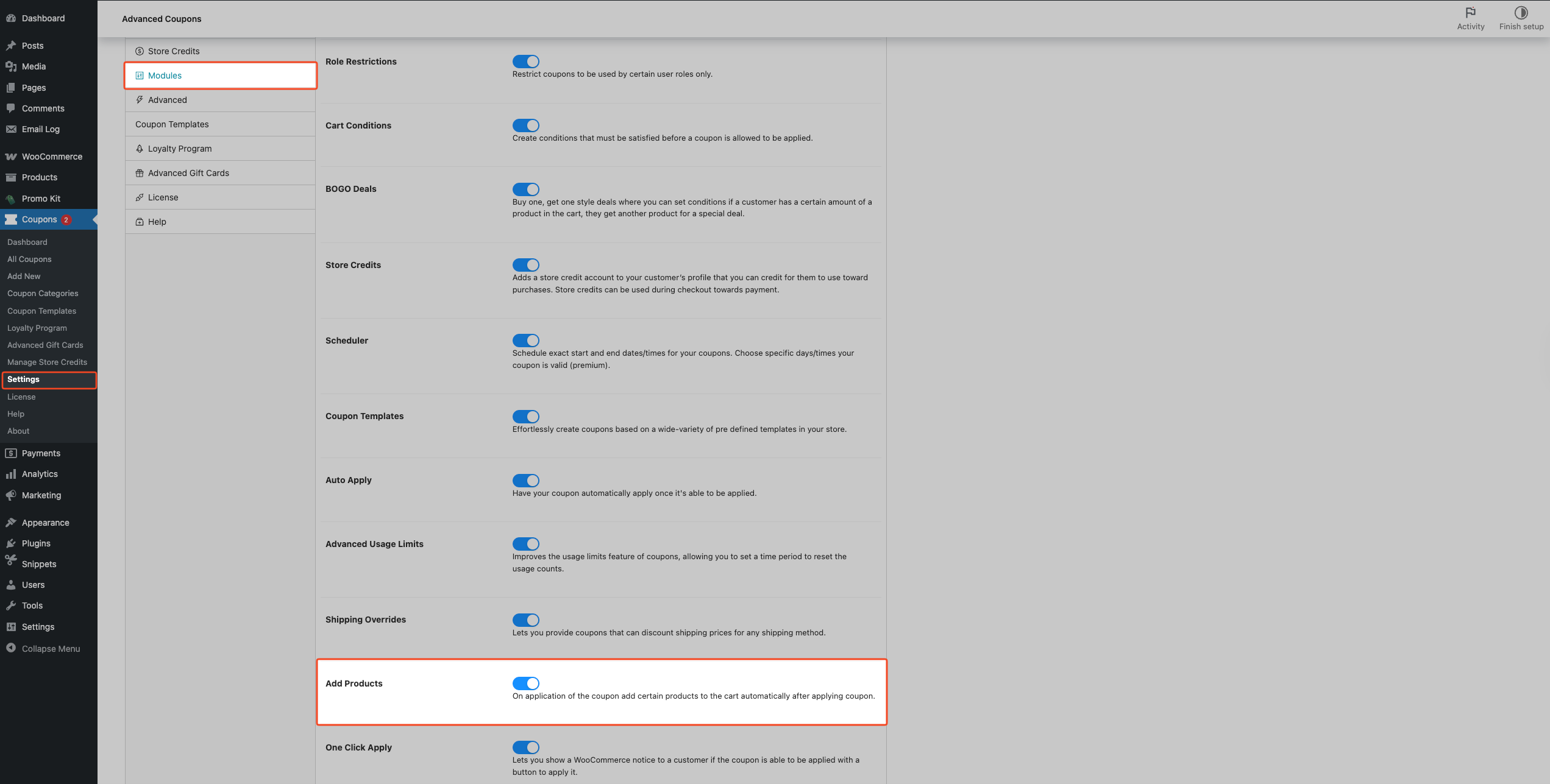
The module setting saves automatically when you toggle it.
Configure Add Products on a coupon
- Go to Coupons → Add New, or open an existing coupon.
- Click the Add Products tab in the coupon data panel.
- Tick the Enable Add Products checkbox.
- Click Add Product.
- Select a product (or product variation) in the Product field.
- Enter the quantity in the Quantity field.
- Choose a value in the Price/Discount dropdown.
- Repeat steps 4–7 for each additional product row.
- Click the Save “Add Products” Data button.
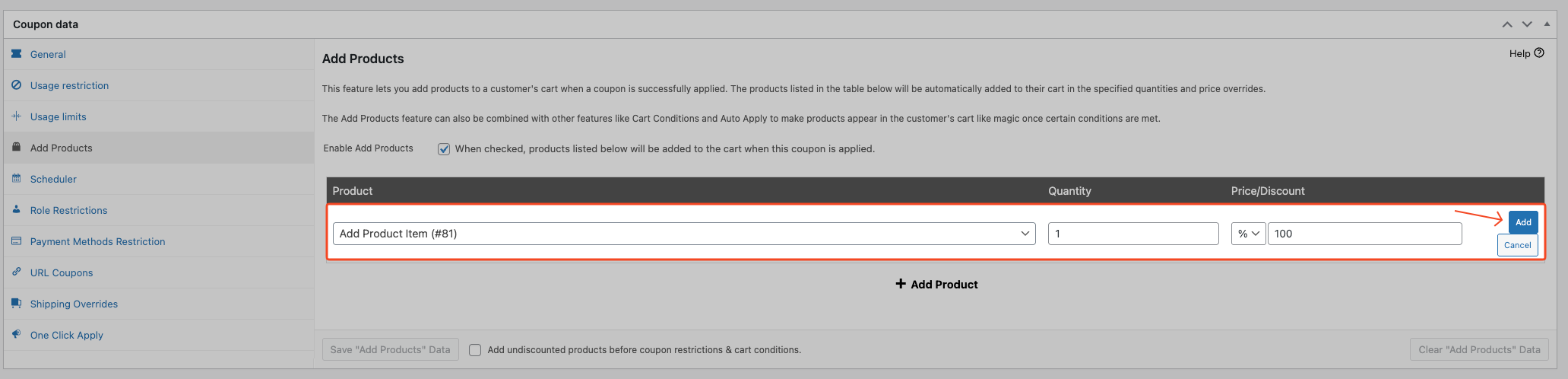
To remove all configured product rows at once, use the Clear “Add Products” Data button.
In older releases where the per-coupon Enable Add Products checkbox is not available, Add Products runs when rows are saved in the table. After upgrading, coupons that already have saved Add Products data stay eligible until you change Enable Add Products.
Add undiscounted products before coupon restrictions & cart conditions
If you need a qualifying product to exist in the cart before cart conditions are checked, for example a coupon that requires a specific item before its rules apply, tick Add undiscounted products before coupon restrictions & cart conditions. in the Add Products tab.
Click Save “Add Products” Data.
Only rows set to No discount are added before restrictions and cart conditions are checked. Rows using Override price, Percentage discount, or Fixed discount still go through the normal post-apply flow.
Understanding the price/discount options
- Override price sets the cart item to a fixed final amount. Enter
0to make the item free. - Percentage discount deducts a percentage from the product price. Enter
100to make the item free. - Fixed discount deducts a fixed amount from the product price, in your store currency.
- No discount adds the product at its normal price. This option is commonly used with Add undiscounted products before coupon restrictions & cart conditions. when a cart condition requires the product to exist first.
Use Override price when you want a guaranteed final price, like a free sample (0) or a capped promo price for a bundle item.
Use Percentage discount when you want a flexible discount that scales with product price, such as 10% off a bonus add-on.
Use No discount when you need to preload a qualifying product before cart conditions run, while still charging the normal catalog price.
No discount rows are not attached to the coupon. They are not auto-removed, quantity-locked, or recalculated when the coupon’s conditions change. As soon as one row is set to No discount, the Add Products tab shows a note explaining this.
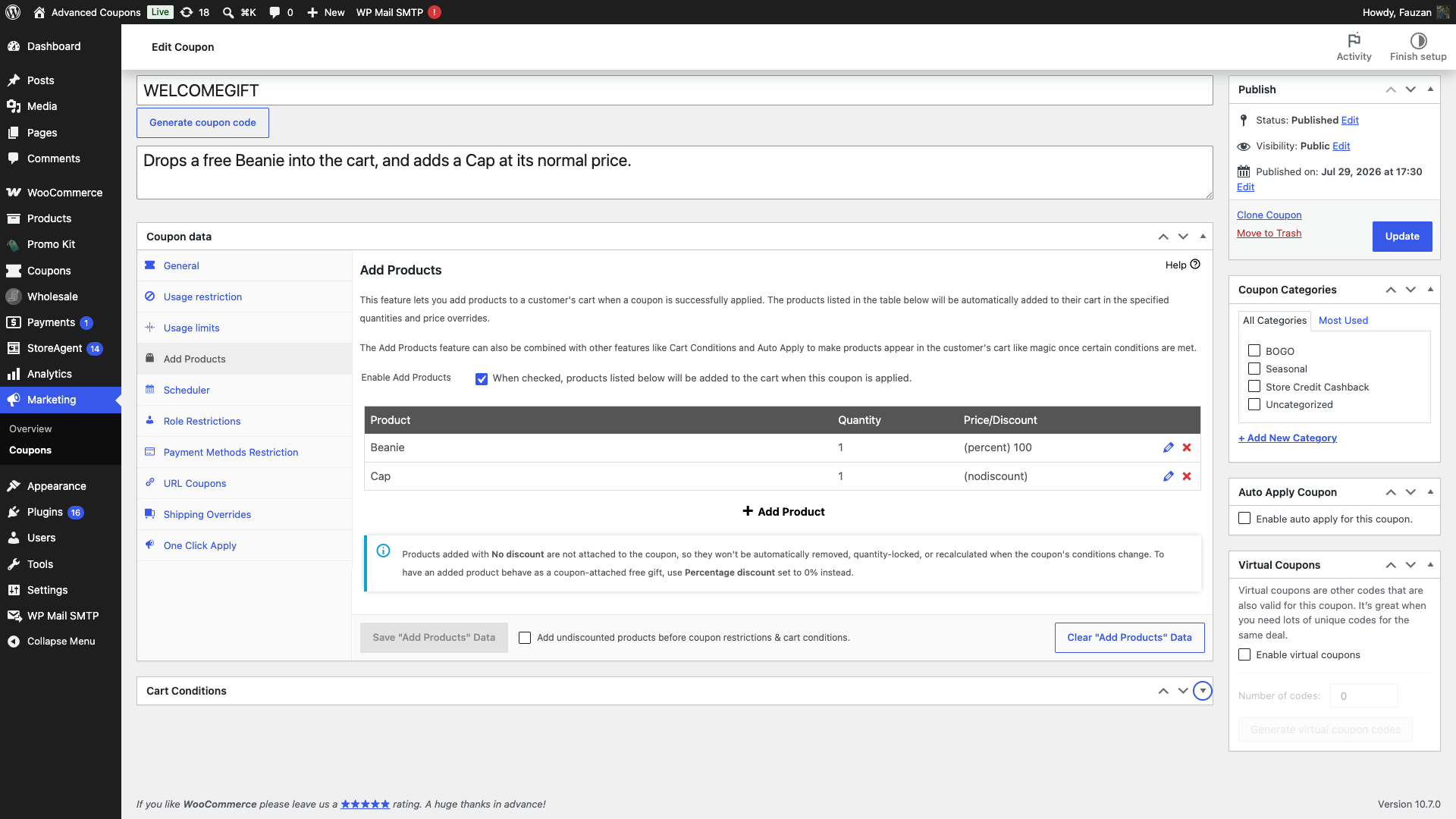
To keep an added product attached to the coupon while still charging the normal price, set the row to Percentage discount with a value of 0 instead of No discount. The customer pays the same amount, and the row keeps the locked quantity, the hidden remove link, and the auto-removal on coupon removal.
Choose how the Add Products discount is applied
A site-wide setting controls where the discount on an added product is recorded. For the full rundown of this setting and how it works across features, see How to set the discount application mode.
- Go to Coupons → Settings.
- Click the General tab.
- Pick an option under Add Products discount application mode.
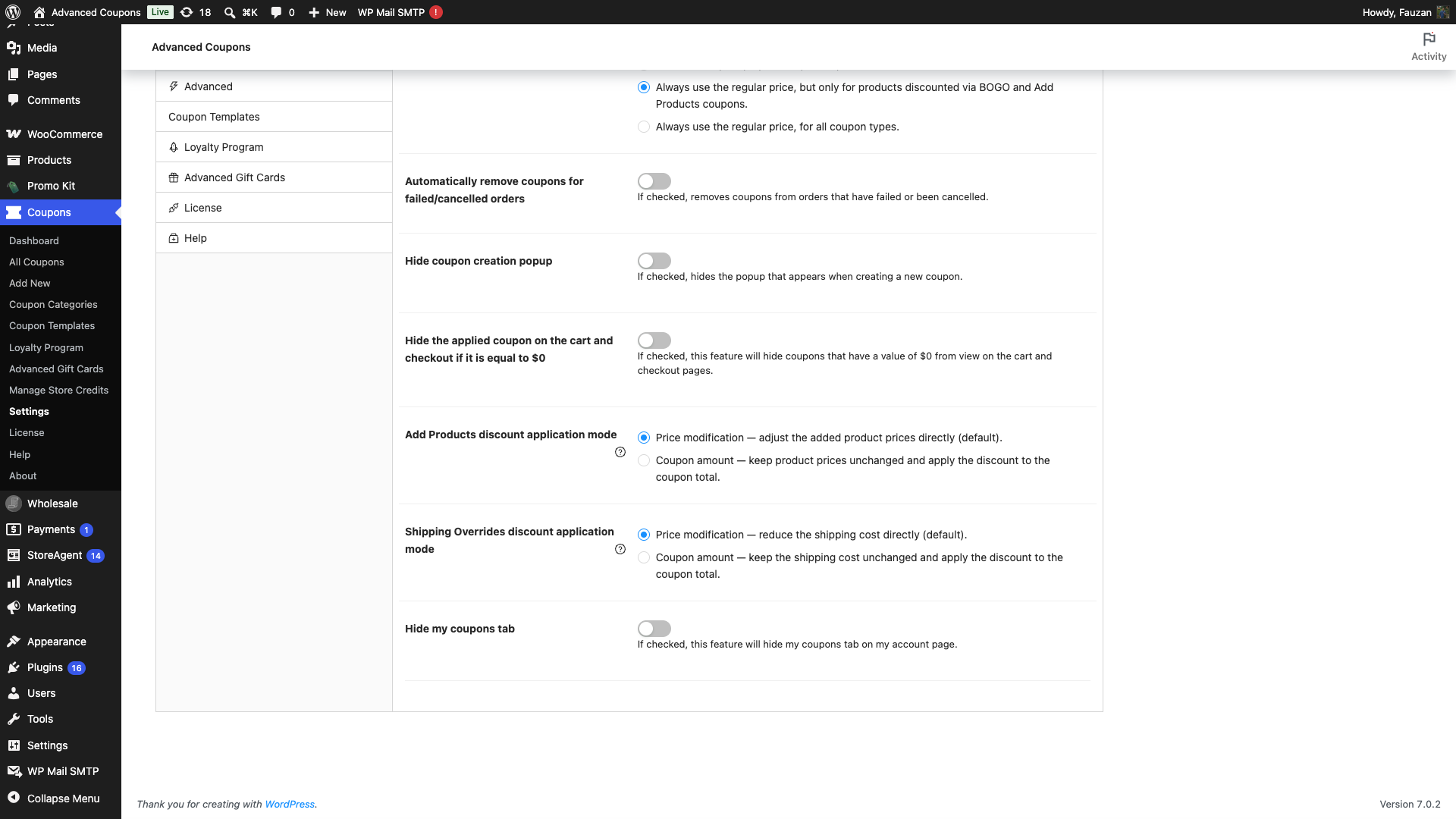
The setting saves as soon as you pick an option, so there is no separate save button. It only appears while the Add Products module is enabled.
There are two options:
- Price modification adjusts the price of the added products directly. This is the default, and it is how Add Products has always behaved.
- Coupon amount keeps the added product at its normal price and applies the discount to the coupon total instead. The discount then shows on the coupon line and is included in coupon reporting.
The customer pays the same pre-tax amount either way. The difference is where the discount lands: on the product line, or on the coupon line.
Tax is the one place the two modes differ. In Coupon amount mode, product tax is calculated on the unmodified product price and the discount comes off the coupon total after tax. On taxable products, that can produce slightly different tax figures than Price modification mode.
This setting needs Advanced Coupons Premium 4.0.9 together with Advanced Coupons for WooCommerce Free 4.7.5. If Premium is running alongside an older free version, Add Products falls back to Price modification.
Common use cases
Free sample or gift-with-purchase. Use Override price with 0, or Percentage discount with 100, so the item lands in the cart at no charge.
Bonus add-on at a special price. Use Percentage discount or Fixed discount to drop the price by a set amount while still letting the customer pay something for the add-on.
Preload a qualifying item before cart conditions run. Use No discount together with Add undiscounted products before coupon restrictions & cart conditions. when a cart condition needs the product to already be in the cart at its normal price.
What customers see in the cart
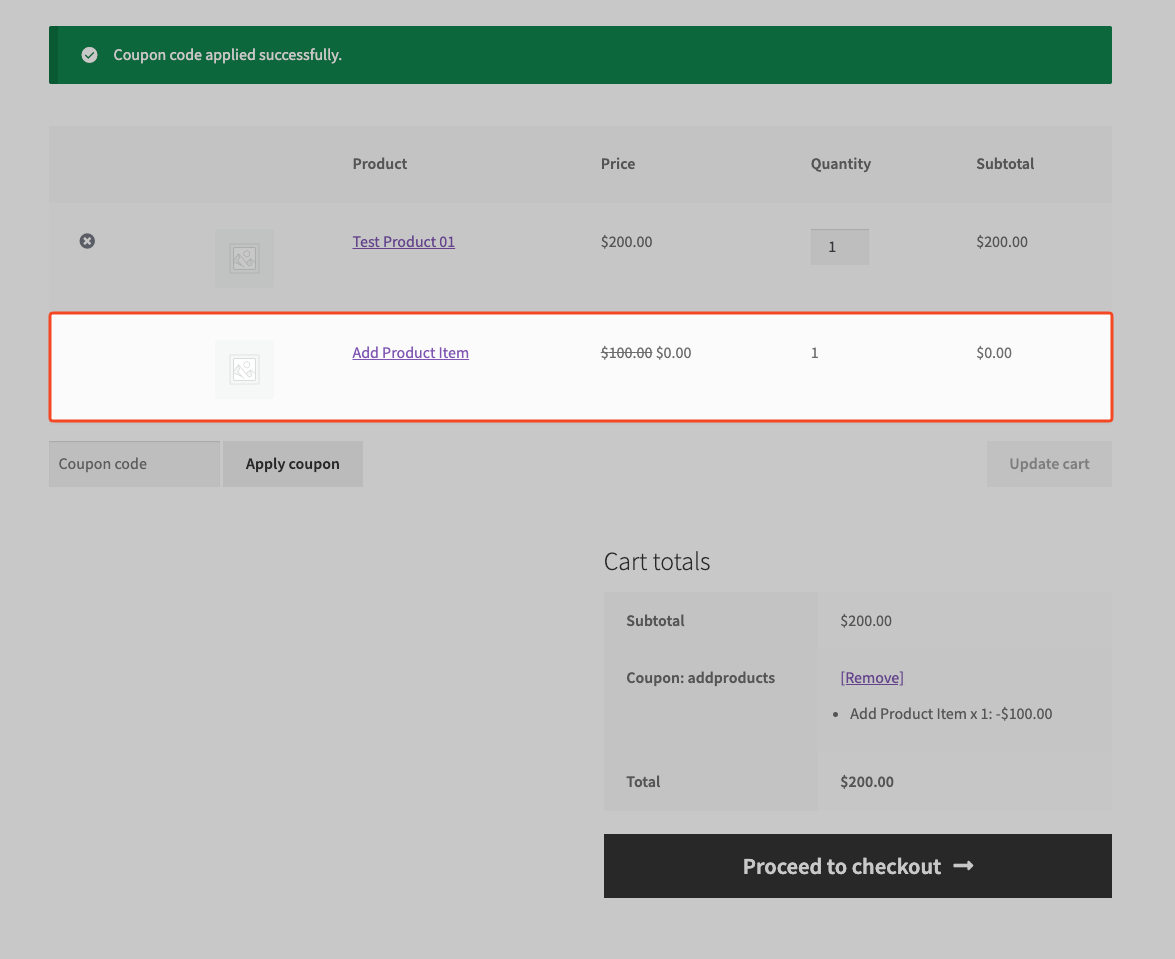
When the coupon is applied, the plugin adds configured products automatically.
For rows using Override price, Percentage discount, or Fixed discount:
- The plugin locks the quantity.
- The plugin hides the remove link while the coupon is applied.
- If the customer tries to change the quantity, WooCommerce shows the error: The quantity of the [product_name] can’t be modified.
- If the coupon is removed, the plugin removes those coupon-tracked rows from the cart.
For rows using No discount:
- The row behaves like a regular cart item.
- Customers can change the quantity or remove it.
- The item can remain in the cart after coupon removal because the plugin only removes rows it added itself when the coupon was applied, and No discount rows are added like any other cart item.
Troubleshooting
The Add Products tab is not visible on my coupon
Enable the module first: go to Coupons → Settings → Modules, then switch on Add Products.
The coupon applies, but the products are not added
Common causes include:
- The Add Products module is disabled under Coupons → Settings → Modules.
- The coupon does not have Enable Add Products enabled (coupons that already have saved rows stay eligible until you explicitly disable this).
- The coupon has no saved rows in the Add Products table, or you have not clicked Save “Add Products” Data after editing rows.
- The selected product is out of stock, not purchasable, or WooCommerce blocks adding it because stock rules fail for that line item.
If Add undiscounted products before coupon restrictions & cart conditions. is enabled, that early path only adds No discount rows and skips virtual coupon main codes (see virtual coupons). Rows using Override price, Percentage discount, or Fixed discount still follow the normal coupon-apply flow.
The added product shows its normal price, with no discount
Check Add Products discount application mode under Coupons → Settings → General. In Coupon amount mode the product keeps its normal price by design, and the discount appears on the coupon line instead. Switch to Price modification if you want the discount shown against the product itself.
I removed the coupon, but some products stayed in the cart
That behavior is expected for rows using No discount. These rows are added as regular cart items, so coupon removal does not automatically remove them. Rows with Override price, Percentage discount, and Fixed discount are coupon-tracked and removed when the coupon is removed.
Set the row to Percentage discount with a value of 0 if you want the product to be removed with the coupon while still being charged at its normal price.
Frequently asked questions
Is this the same as a BOGO deal?
No. BOGO depends on buy/get logic. Add Products pushes a predefined list of products when the coupon is applied.
Can I use Add Products with Auto Apply?
Yes. When Auto Apply conditions are met, the coupon applies, and the configured Add Products rows are inserted automatically.
Can I use Add Products with cart conditions?
Yes. By default, Add Products rows are inserted in the normal apply flow. If you need a qualifying product to exist before conditions are checked, use No discount plus Add undiscounted products before coupon restrictions & cart conditions.
What happens if the customer already has this product in the cart?
For rows using Override price, Percentage discount, or Fixed discount: if that coupon already added the same product or variation as a tracked Add Products line item, the plugin keeps the existing row and does not add a second one. For No discount rows: if the same product or variation is already in the cart as a normal line item (no Add Products tracking), the plugin does not add another.
Does Add Products support variations?
Yes. You can select product variations in the Product field.
How do I turn off Add Products?
For a single coupon, open the coupon, go to the Add Products tab, and untick Enable Add Products. To turn the feature off for the whole site, go to Coupons → Settings → Modules and disable Add Products.
Need help?
If you have a question or run into any issues, we’re here to help.
- Premium users: Open a support ticket
- Free users: Visit our community forum on WordPress.org

