
Run a BOGO deal and the discount usually shows up as a reduced product price, not as an amount on the coupon row. That makes coupon reports look empty even when the promotion is doing its job. Advanced Coupons for WooCommerce lets you choose which of those two things happens, and you set it separately for each feature. This guide explains both modes, shows you where to set them for BOGO Deals, Add Products, and Shipping Overrides, and helps you decide which one fits your store.
What each mode does
Every discount has to land somewhere. The discount application mode is the store-wide choice of where it lands: on the item price, or on the coupon.
Price modification (the default)
In Price modification mode the discount is written into the price itself. A BOGO deal product is added to the cart at its reduced price, a product added by a coupon shows its discounted price, and a discounted shipping method shows a lower cost. Because the saving is already inside those figures, the coupon row often shows no amount at all.
This is the behaviour these features have always had, so a store that leaves the setting alone sees no change.
Coupon amount
In Coupon amount mode prices stay exactly as they are. The deal product keeps its catalog price, added products keep their normal price, and the shipping method keeps its full cost. The saving is attributed to the coupon instead, so it appears as a figure on the coupon row on the cart and checkout, and it is written to the order’s coupon line when the order is created.
That last part is the practical payoff: the discount is recorded the same way a percentage or fixed cart discount is, so it flows into WooCommerce’s coupon reporting instead of quietly disappearing into product prices.
Which mode should you pick
Stay on price modification if you want customers to see the deal on the product line itself, or if your theme or another plugin reads the discounted line price to display savings. It is also the safer choice for Add Products in a store that charges tax on products, for the reason covered further down.
Switch to coupon amount if you report on promotion performance by coupon, or if you want the saving spelled out on the coupon row so customers can see what the code was worth. It also keeps product prices on the cart consistent with the prices shown on your catalog pages, which cuts down on “why did the price change?” emails.
You do not have to pick one answer for the whole store. Each of the three features has its own setting, so you can put Shipping Overrides on coupon amount and leave BOGO Deals on price modification.
Before you start
- Advanced Coupons for WooCommerce Free 4.7.5 or newer. The free plugin owns the setting and resolves the mode, even for the premium features.
- Advanced Coupons for WooCommerce Premium 4.0.9 or newer, if you want to set the mode for Add Products or Shipping Overrides.
- The matching module switched on under Coupons → Settings → Modules. Each radio only appears when its module is active: BOGO Deals, Add Products, and Shipping Overrides.
Set the mode for BOGO Deals
This one ships in the free plugin, so every Advanced Coupons store has it.
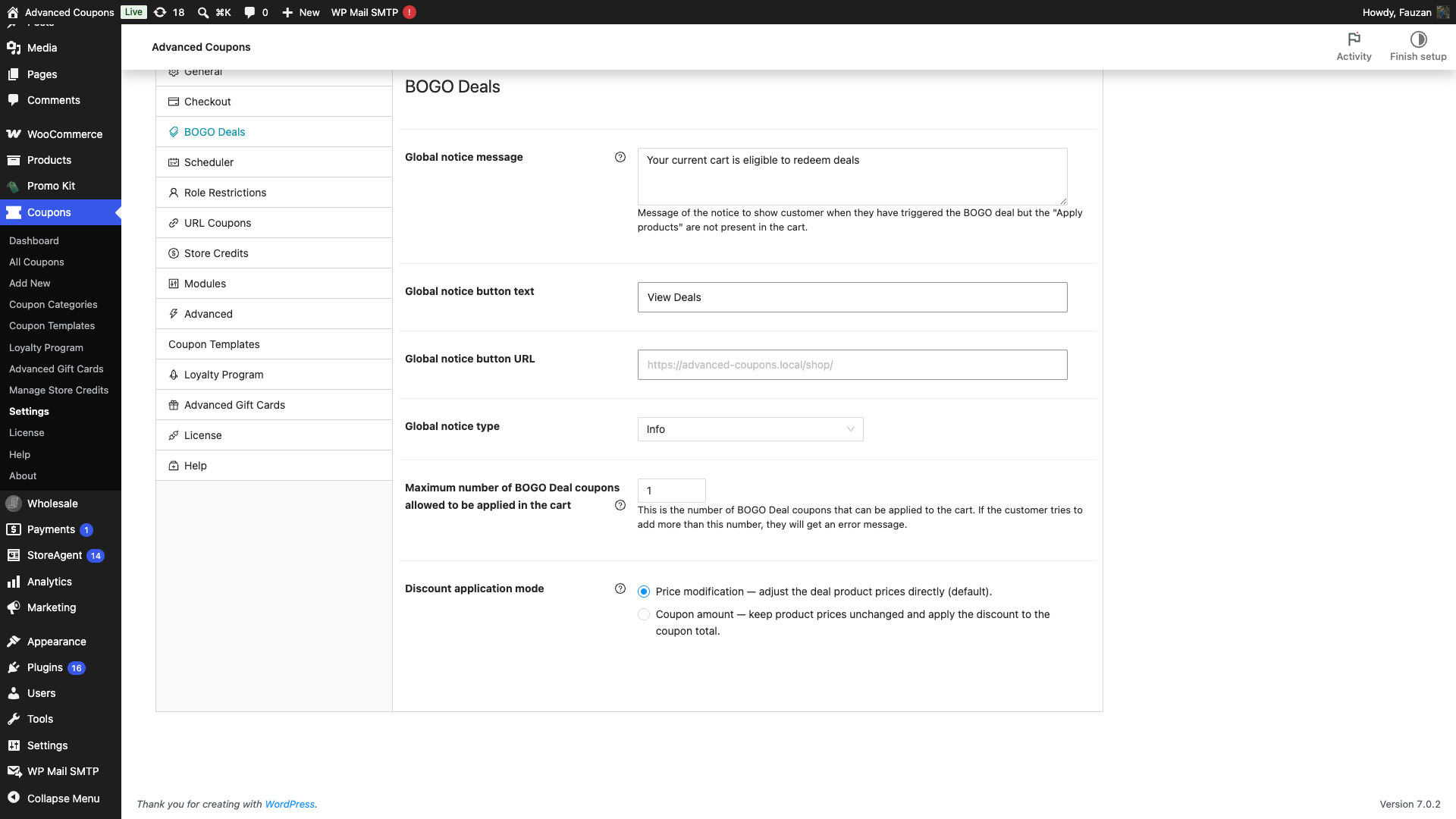
- Go to Coupons → Settings.
- Open the BOGO Deals tab.
- At Discount application mode, select Price modification or Coupon amount.
- The setting saves as soon as you pick it. There is no save button on this screen.
- The choice applies to every BOGO Deal coupon on the store. There is no per-coupon override.
- Default: Price modification.
Set the mode for Add Products and Shipping Overrides
These two radios come from the premium plugin, and they live on the General tab rather than in their own sections.
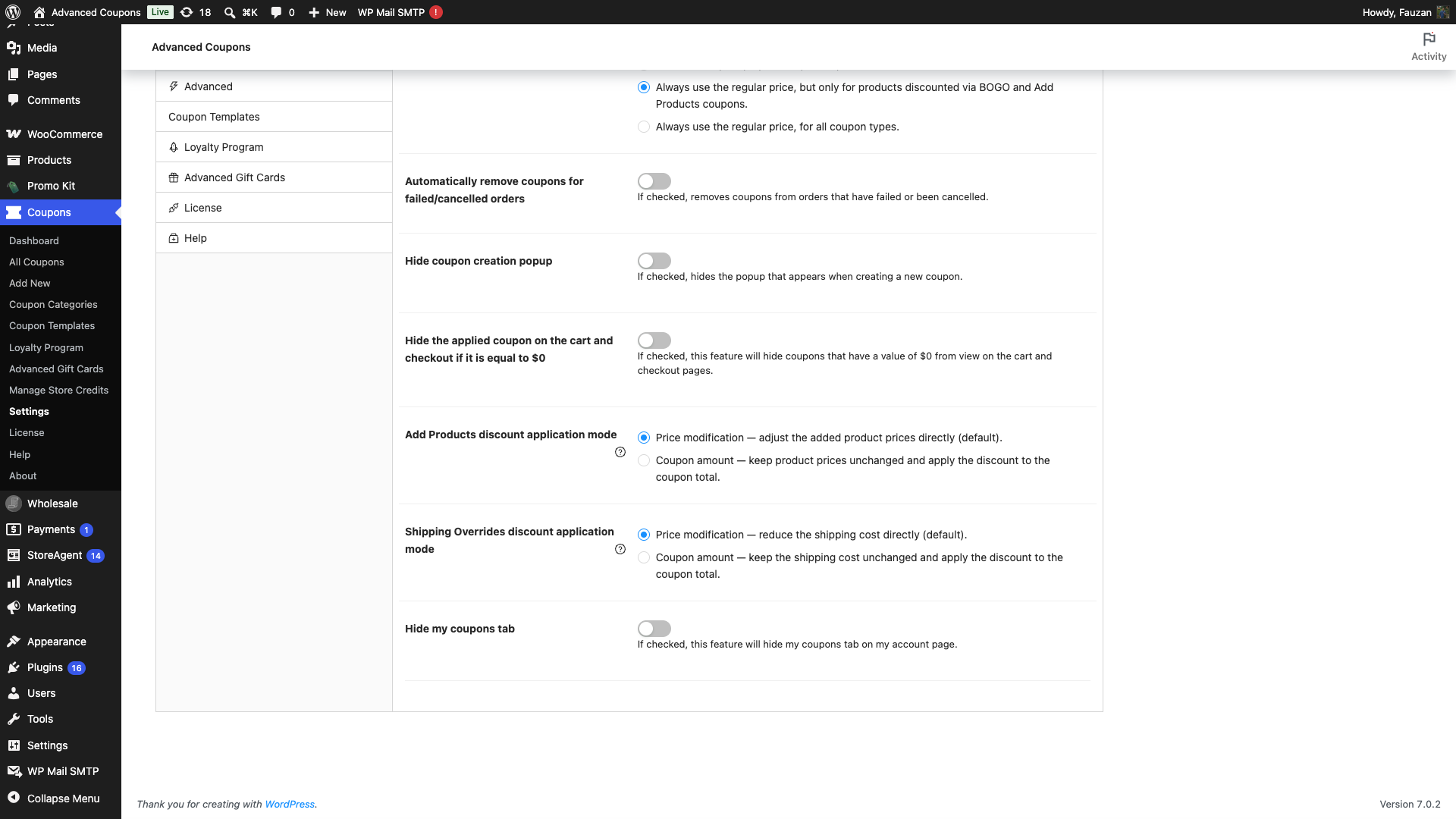
- Go to Coupons → Settings.
- Open the General tab.
- At Add Products discount application mode, pick the mode you want.
- At Shipping Overrides discount application mode, pick the mode you want.
- Both settings save as soon as you pick them. There is no save button on this screen.
- If you only see one of the two radios, the other module is switched off on the Modules tab.
- Default for both: Price modification.
Settings reference
| Setting | Where it lives | What it controls | Default |
|---|---|---|---|
| Discount application mode | BOGO Deals tab (free plugin) | How BOGO deal discounts reach the cart. Options: “Price modification — adjust the deal product prices directly (default).” and “Coupon amount — keep product prices unchanged and apply the discount to the coupon total.” | Price modification |
| Add Products discount application mode | General tab (premium plugin) | How discounts on products a coupon adds to the cart reach the cart. Options: “Price modification — adjust the added product prices directly (default).” and “Coupon amount — keep product prices unchanged and apply the discount to the coupon total.” | Price modification |
| Shipping Overrides discount application mode | General tab (premium plugin) | How shipping override discounts reach the cart. Options: “Price modification — reduce the shipping cost directly (default).” and “Coupon amount — keep the shipping cost unchanged and apply the discount to the coupon total.” | Price modification |
Changes take effect on the next cart calculation. If you have a cart open in another tab, reload it.
What changes on the cart and checkout
BOGO Deals
In price modification mode the price column splits the line: the full price for the quantity that is not part of the deal, then the reduced price for the deal quantity. In coupon amount mode the price column shows the normal product price and the saving moves to the coupon row. The itemised summary lines under the coupon row, one per deal product with its quantity and amount, show up in both modes.
Add Products
In price modification mode the added product’s line shows its normal price struck through next to the discounted price. In coupon amount mode it shows the normal price only, with no strikethrough, and the saving appears on the coupon row. The summary lines under the coupon row still name each added product and its amount.
Shipping Overrides
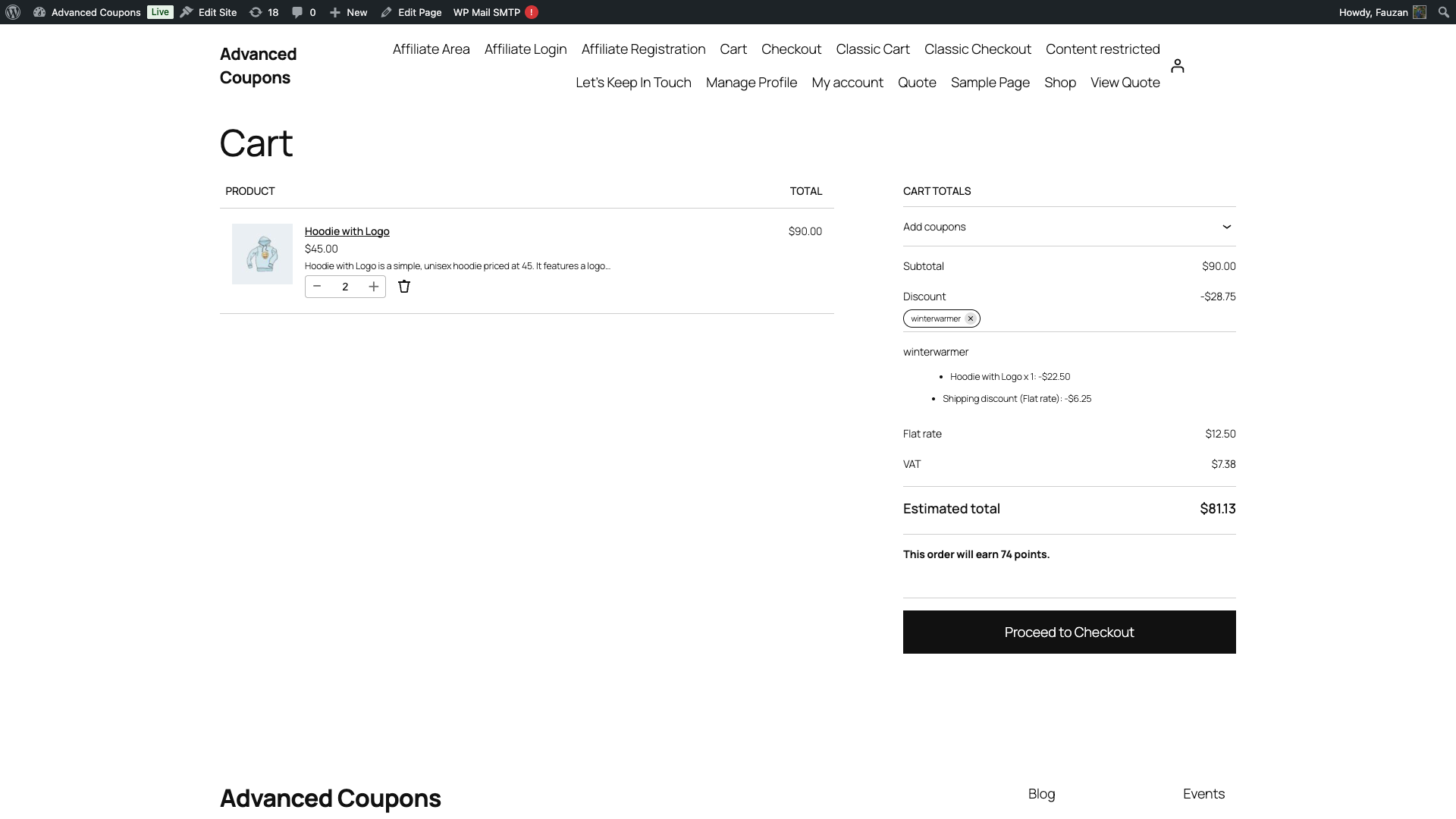
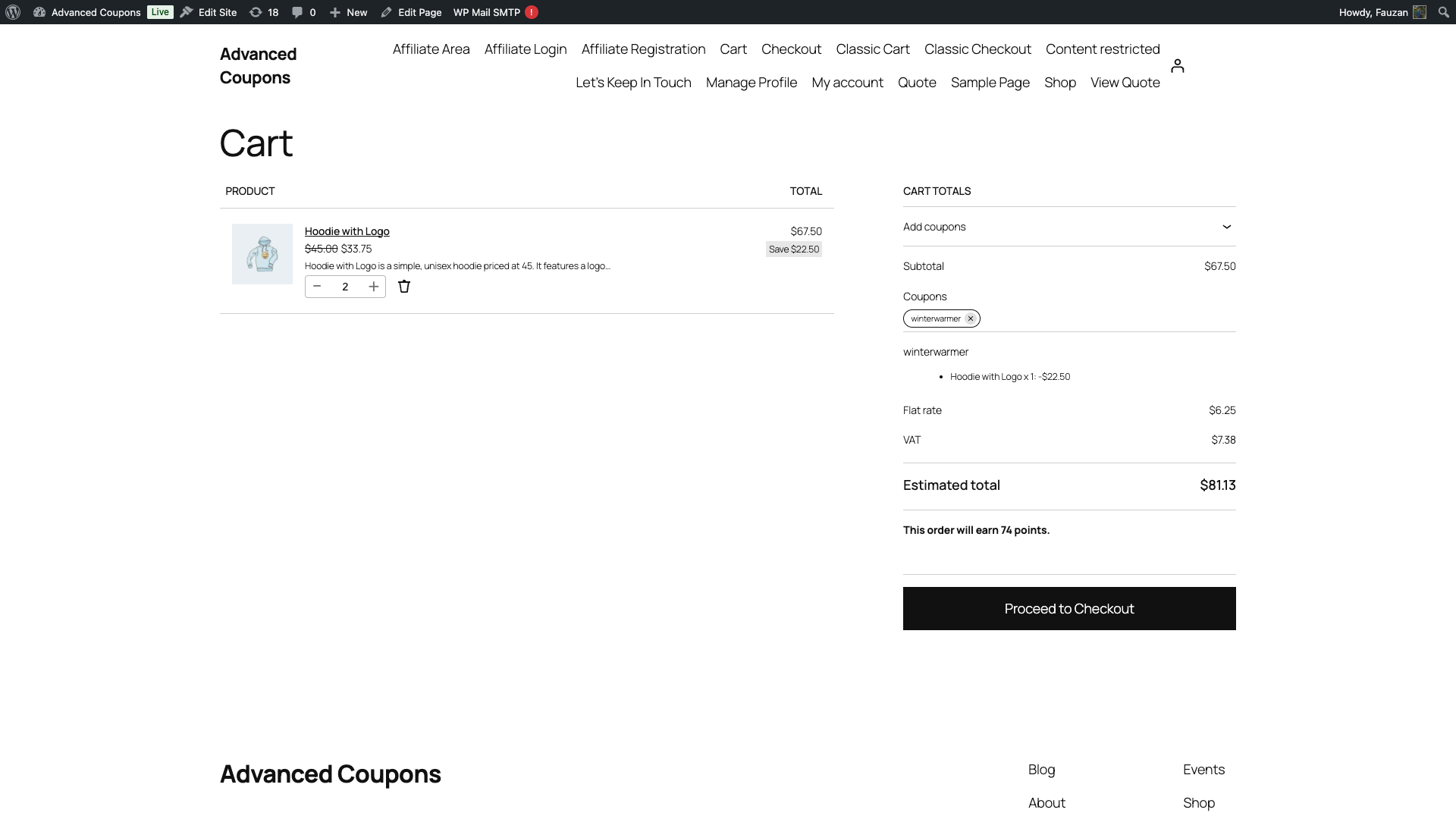
In price modification mode the shipping method shows the reduced cost. In coupon amount mode the shipping method shows its full cost and a line reading Shipping discount (Flat rate): is added under the coupon row, with your own shipping method’s name inside the brackets. Shipping tax is reduced by the same proportion in both modes, so the customer pays the same shipping tax either way.
Do the customer’s totals change?
For BOGO Deals and Shipping Overrides, no. BOGO discounts in coupon amount mode go through WooCommerce’s own coupon discount handling, so the item tax bases match what price modification mode would have produced. Shipping taxes are reduced proportionally in both modes. The customer pays the same amount either way; only the presentation moves.
Add Products is the exception, and only in a store that charges tax on products. In coupon amount mode the added product keeps its normal price, so its tax is worked out on that unmodified price and the discount comes off the coupon total afterwards. The pre-tax amount the customer pays is the same in both modes, but the tax portion can be higher in coupon amount mode.
This is intentional rather than a rounding fault. The discount is applied as a tax-exclusive adjustment on the coupon total, which is the same approach store credits take when they are applied after tax. If exact tax parity matters more to you than coupon-line visibility, leave Add Products on price modification.
Troubleshooting
I switched to coupon amount but nothing changed on the cart
Update Advanced Coupons for WooCommerce Free to 4.7.5 or newer, then empty the cart and re-apply the coupon. The Add Products and Shipping Overrides radios are added by the premium plugin, but the mode itself is resolved by the free plugin. On an older free version both features quietly fall back to price modification and the radio has no effect.
The shipping method still shows the discounted cost
Reload the cart page, or change the shipping address so shipping recalculates. WooCommerce caches calculated shipping rates in the customer’s session, and the cached rate was worked out under the old mode. The mode is part of the package data, so the cache invalidates itself on the next fresh calculation.
The coupon row shows no amount
That is expected in price modification mode. The saving is already inside the product price or the shipping cost, so there is nothing left to show at the coupon level. Switch that feature to coupon amount if you need a figure on the coupon row.
A deal that raises a product’s price stopped working
Switch that feature back to price modification. A coupon discount can only ever reduce a total, so in coupon amount mode an override price set above the product’s own price is treated as no discount at all. Price modification is the only mode that can push a price up.
Frequently asked questions
Can I use a different mode on individual coupons?
No. Each setting is store-wide and applies to every coupon that uses that feature.
Does switching modes change orders that were already placed?
No. Existing orders keep the totals and coupon amounts they were created with. The setting only affects carts calculated after you save it.
Do store credits still behave the same way?
Yes. Coupon amount discounts are applied to the cart total before store credits are, so a customer’s credit still comes off the already discounted total.
Will the discount show up in WooCommerce’s coupon reports?
In coupon amount mode it will, because the amount is recorded on the order’s coupon line as a native coupon discount. In price modification mode the saving lives in the product price or shipping cost instead, which is why the coupon’s own total can read as zero.
Do I need to change anything after updating?
No. All three settings default to price modification, so your store keeps behaving exactly as it did until you change one.
Need help?
If you have a question or run into any issues, we’re here to help.
- Premium users: Open a support ticket
- Free users: Visit our community forum

