
Want customers who buy a product to get more of that same product free or discounted? The Same Products option in Advanced Coupons Premium does this in one BOGO coupon, with no need to duplicate products or set up complex rules. This guide shows you how to set it up, which Customer Buys types work with it, and how to fix a deal that won’t save.
Before you begin
- Advanced Coupons Premium installed and active, together with the free Advanced Coupons plugin
- At least one product you want to put on the deal
What is the Same Product BOGO option?
When creating a BOGO coupon, under Customer Gets, you will see Same Products. This option needs Advanced Coupons Premium. In the free plugin, it shows as Same Products (Premium).
This means the discount applies to the same item the customer is buying. You only define the “buy” product once, and the system automatically applies the deal to that same product.
Common examples:
- Buy 1, Get 1 Free
- Buy 2, Get 1 at 50% Off
- Buy 3, Get 1 Free
This allows flexible promotions that encourage bulk buying with very little setup.
Step-by-step: create a Same Product BOGO
Step 1: Create a new coupon
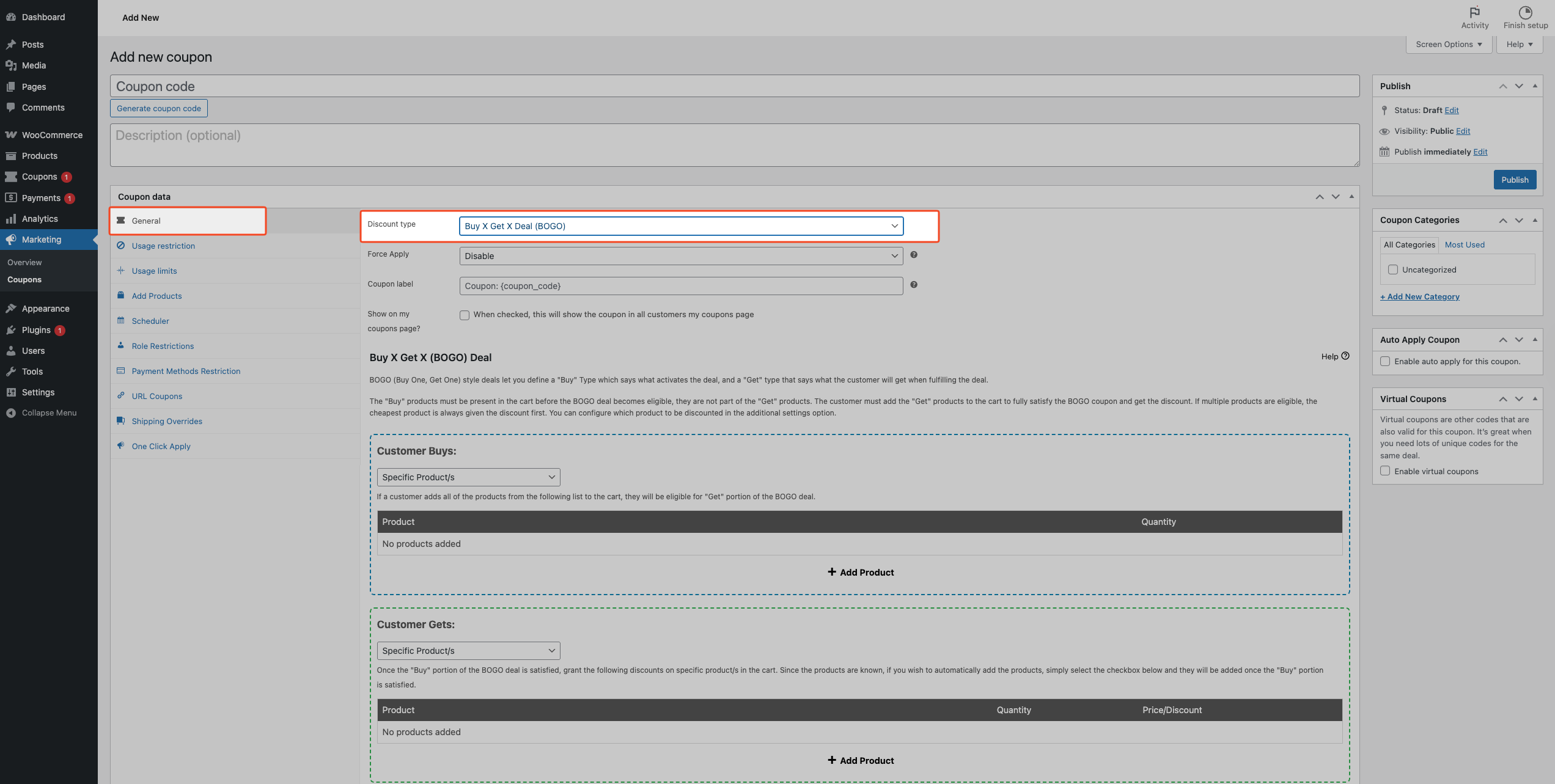
- Go to Coupons > Add New.
- Enter your Coupon code (example:
BUY1GET1). - In the General tab, set Discount type to Buy X Get X Deal (BOGO).
Pick this type, or the BOGO deal won’t work. - Scroll down to the BOGO Deals section.
Step 2: Configure Customer Buys (trigger)
Define what the customer must purchase to activate the deal. Same Products works with these Customer Buys types: Any Combination of Products, Product Categories, and Any Products.
Specific Product/s does not work with Same Products. If you pick it, the coupon will not save and you’ll see this message: “Same Products” GET type is not compatible with “Specific Products” BUY type. Please select a different combination. To run the deal on one product, use Any Combination of Products and add just that product.
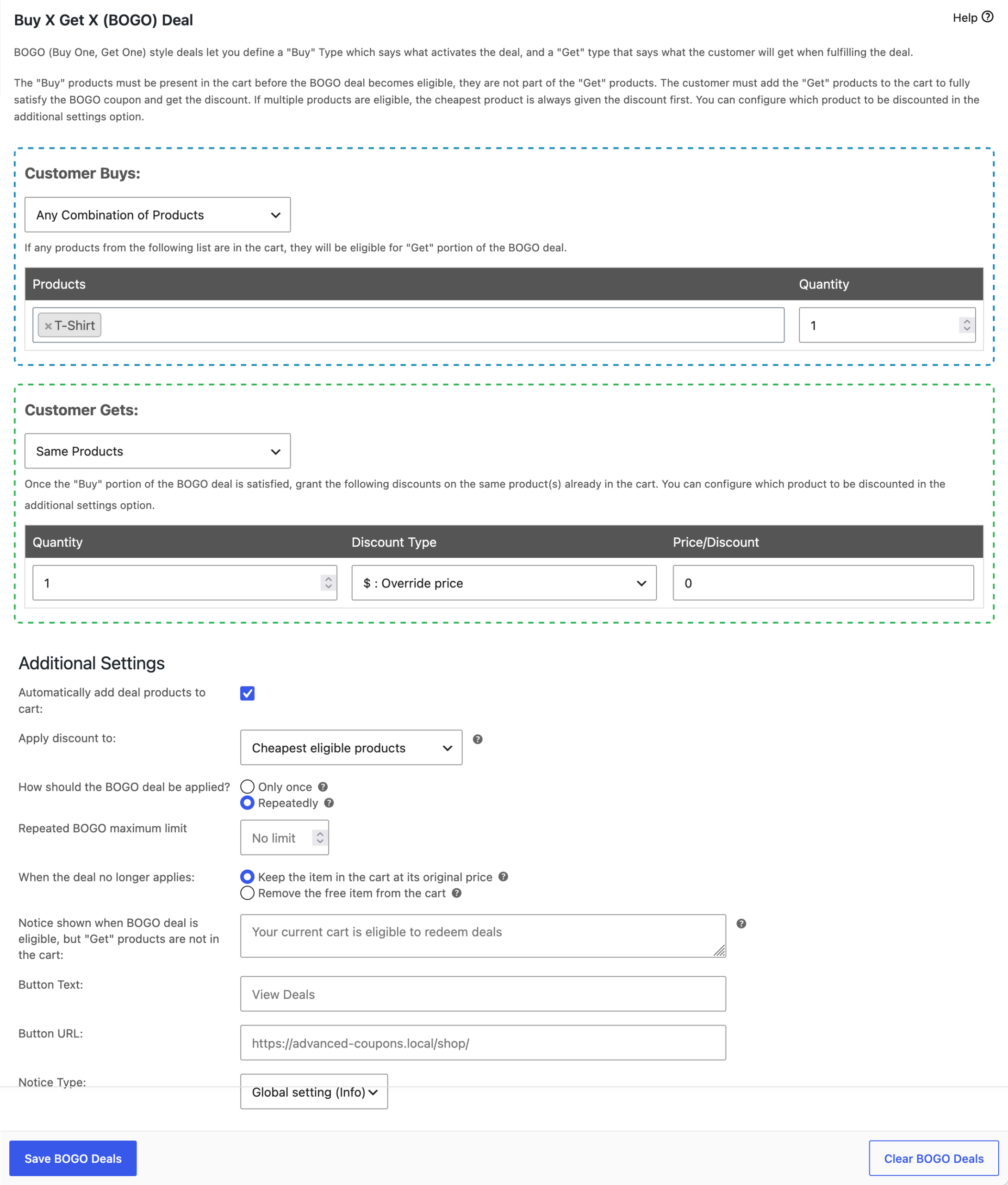
Option A: Any Combination of Products
- Select Any Combination of Products.
- Add the product or products (example: T-Shirt).
- Set Quantity:
- 1 = Buy 1
- 2 = Buy 2
- 3 = Buy 3
The deal applies to each listed product on its own. A customer who buys T-Shirts gets T-Shirts, not a different product from the list.
Option B: Product Categories
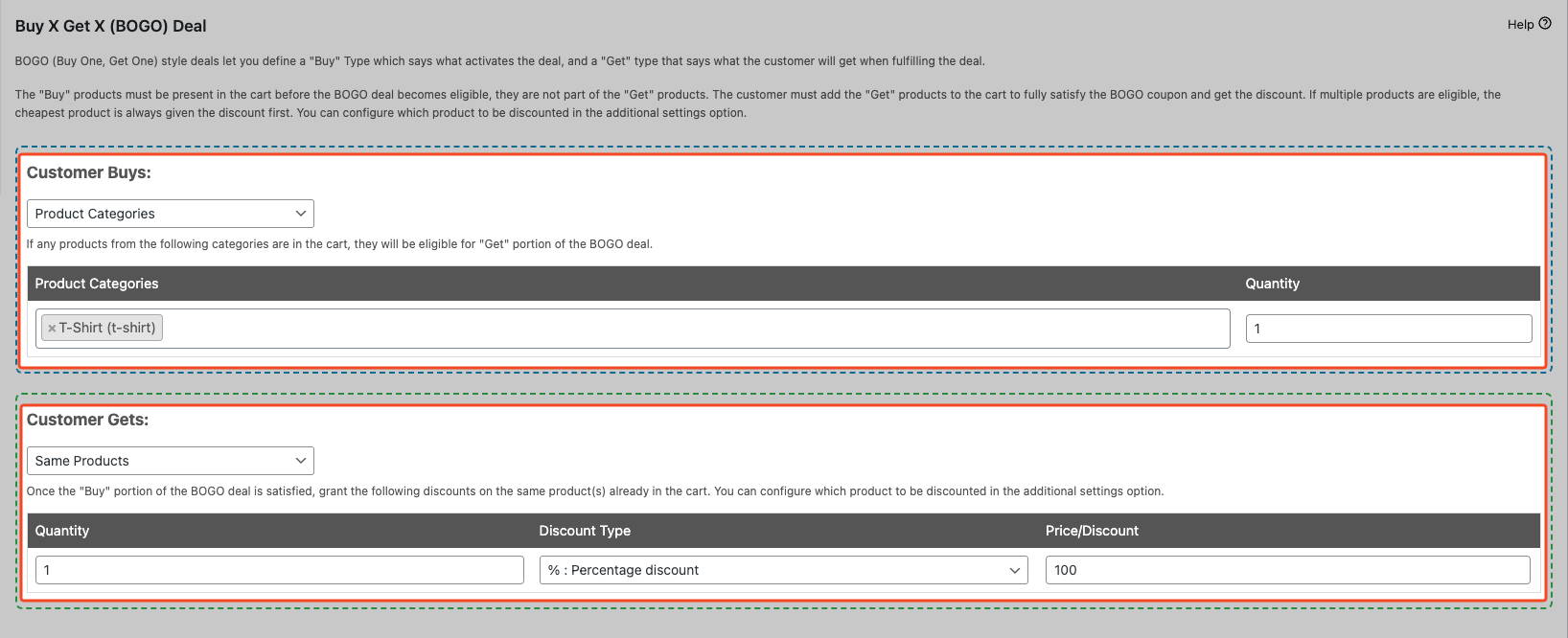
- Select Product Categories.
- Choose the category (example: T-Shirts).
- Set Quantity (example: 1).
The deal will apply per product inside that category.
Option C: Any Products
- Select Any Products.
- Set Quantity (example: 1).
Every product in the cart can trigger the deal, and each one is discounted with more of itself.
Step 3: Configure Customer Gets → Same Products
- Under Customer Gets, select Same Products.
- Set Quantity (how many discounted/free items the customer receives).
- Choose Discount type and value:
- Override price = 0 → Free
- Percentage discount → Example: 50%
- Fixed discount → Example: $10 off
For variable products, the deal matches each variation on its own. If a customer buys a red T-Shirt, the discount goes on a red T-Shirt, not a blue one.
Examples
- Buy 1, Get 1 Free → Quantity 1, Override price = 0
- Buy 2, Get 1 at 50% → Quantity 1, Percentage = 50
- Buy 3, Get 1 Free → Quantity 1, Override price = 0
Step 4: Additional settings
Choose how the BOGO should apply:
- Only once → Applies one time per order
- Repeatedly → Applies every time the condition is met
Example: Buy 2 Get 1 Free, cart has 4 → customer gets 2 free
You can also set a repeat limit if needed.
Step 5: Save and publish
- Click Save BOGO Deals.
- Click Publish or Update.
Your Same Product BOGO deal is now active.
Example: Buy 1 Get 1 Free
Goal: Buy 1 Organic Coffee, get 1 Organic Coffee free.
- General → Discount type = Buy X Get X Deal (BOGO)
- Customer Buys → Any Combination of Products → Organic Coffee → Quantity 1
- Customer Gets → Same Products → Quantity 1 → Override price = 0
- Apply → Repeatedly (optional)
Result: For every 1 purchased, 1 more becomes free.
Example: Buy 2 Get 1 at 50% off
Goal: Buy 2 Protein Bars, get 1 Protein Bar at 50% off.
- General → Discount type = Buy X Get X Deal (BOGO)
- Customer Buys → Any Combination of Products → Protein Bar → Quantity 2
- Customer Gets → Same Products → Quantity 1 → Percentage = 50
- Apply → Only once or Repeatedly
Troubleshooting
The BOGO deal won’t save and shows a “not compatible” message. Change Customer Buys to Any Combination of Products, Product Categories, or Any Products, then click Save BOGO Deals again. Same Products can’t be saved with Specific Product/s, and the message reads: “Same Products” GET type is not compatible with “Specific Products” BUY type. Please select a different combination.
The BOGO deal still won’t save. Check that Customer Gets is set to Same Products and that Only once or Repeatedly is selected.
A different variation of the product didn’t get the discount. This is expected. For variable products, the deal matches each variation on its own, so a customer who buys a red T-Shirt gets the discount on a red T-Shirt, not a blue one. To discount the second item, the customer needs to add more of the same variation.
Best practice tips
- Use Repeatedly if customers should receive the deal multiple times in one order.
- Add Cart Conditions to control when the BOGO applies.
- Use Scheduler to run the promotion for specific dates.
- Enable Automatically add deal products to cart if you want the free item added automatically.
- Choose whether the discount applies to the cheapest or the most expensive item first.
Need help?
We have a dedicated support team for Advanced Coupons who know our products, WooCommerce, and the industry very well. You’re welcome to make use of their expertise at any time, worldwide.
If you’re an existing customer, please go to the support ticket request form and send us a message.
If you’re a free plugin user, please send us a support request on the forum, we actively monitor the WordPress.org support forums for the free plugin and help our users there as best as we can.

