
A flat “1 point per $1” rate works fine until you want to reward customers more for high-margin categories or less for clearance categories. The Advanced Loyalty Program plugin lets you set a different price-to-points ratio per product category, overriding your global ratio for products in that category. This article walks through enabling per-category ratios, setting a custom multiplier, and what happens when a product belongs to more than one category.
Prerequisites
- Advanced Loyalty Program installed and activated.
- WooCommerce active with at least two product categories. Set up product categories under Products → Categories if you haven’t already.
- A global price-to-points ratio configured under Coupons → Loyalty Program → Settings → Earn points. The per-category ratio overrides this value for products in that category.
How per-category ratios work
Loyalty Program calculates earned points by multiplying the price spent by a points-per-currency ratio. By default that ratio comes from your global setting. Every product in your store uses the same multiplier. The per-category override lets you set a different multiplier on a category, so any product assigned to that category earns at the category’s rate instead of the global rate.
The override chain runs in this order, highest priority first:
- Per-product custom points (set on individual products): if set, this skips ratio calculation entirely and awards a flat number of points per unit.
- Per-category ratio (set on the product category): used when the product has no custom points.
- Global ratio (default 1): used when neither of the above is set.
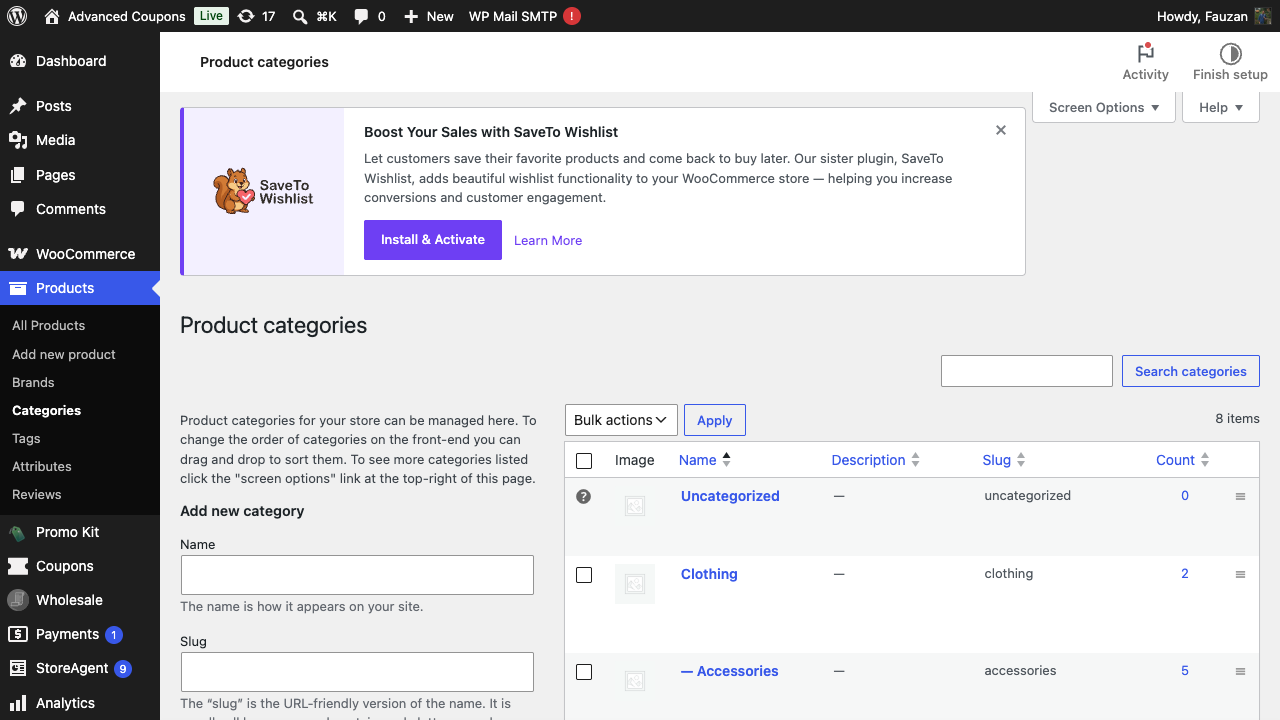
Step 1: Open the category you want to customize
- In your WordPress admin, go to Products → Categories.
- Find the category you want to set a ratio for and click Edit.
Step 2: Configure the Loyalty Program section
Scroll to the bottom of the edit-category screen. The Loyalty Program plugin adds a section called Loyalty Program with two fields:
- Allow earning points: checkbox. When checked, customers earn points buying products in this category. Uncheck to exclude this category from earning entirely (useful for clearance items, gift cards, or low-margin SKUs).
- Price to points earned ratio: number input. Enter the ratio of points earned per unit of currency spent. A ratio of
5means customers earn 5 points per $1 (or per unit of your store currency) on products in this category. Leave blank to fall back to the global ratio.
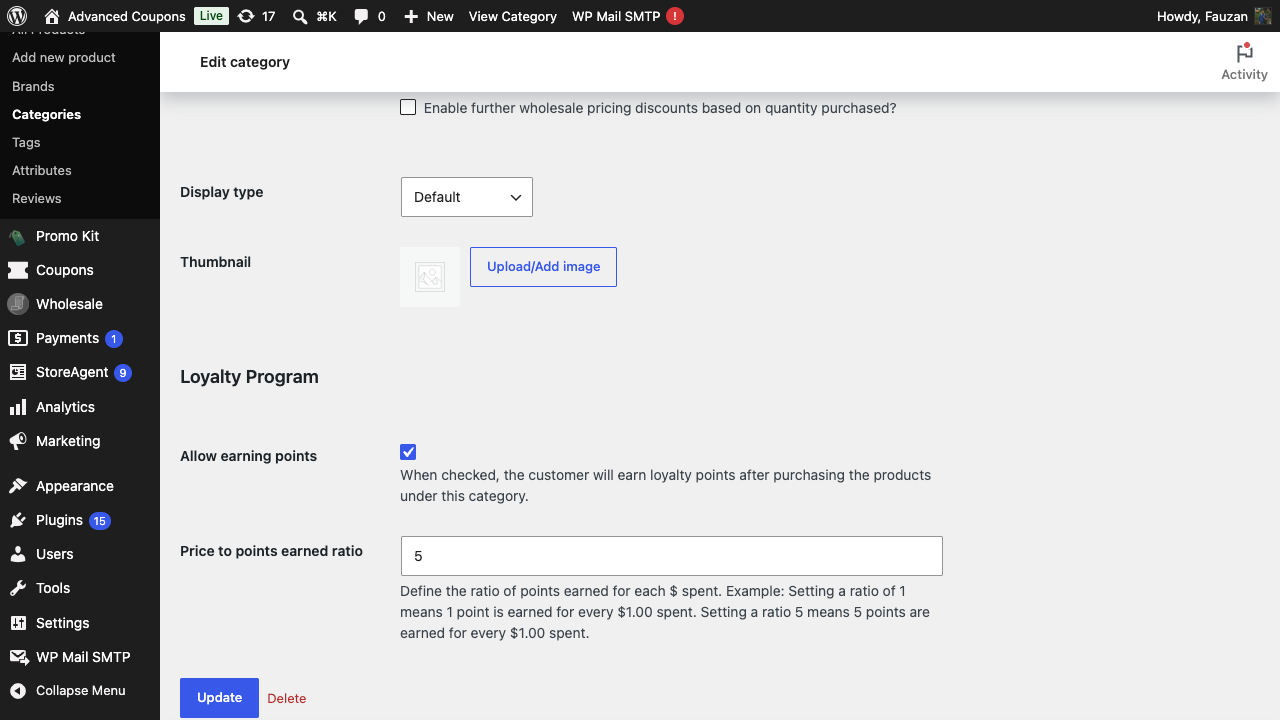
- Confirm Allow earning points is checked (or uncheck it to disable points for this category entirely).
- Enter a value in Price to points earned ratio. The placeholder shows your current global ratio for reference.
- Click Update at the bottom of the page.
Step 3: Verify the new ratio
Open your storefront in a private browser window. Add a product from the category to your cart and check the loyalty-points message under the cart total. The points awarded should reflect the new ratio.
For example, with a global ratio of 1 and a category ratio of 5:
- A $20 product in the global-ratio category earns 20 points.
- A $20 product in the boosted-ratio category earns 100 points.
When a product belongs to multiple categories
A WooCommerce product can be in more than one category. When that happens and the categories have different ratios, Loyalty Program uses the minimum ratio across the product’s categories.
Example: a product is in two categories. Category A has a ratio of 5, Category B has a ratio of 2. The product earns at the rate of 2 points per $1, not 5. This is intentional. It prevents customers from earning unintended bonus points by stacking boosted categories on the same product.
If you want a specific high-value product to use the higher rate regardless of its categories, set a custom points value on the product itself (under the product edit screen’s Loyalty Program tab). That overrides the category logic entirely.
Troubleshooting
The Loyalty Program section is missing on the category edit page
Confirm Advanced Loyalty Program is active under Plugins → Installed Plugins. If it’s active and the section still doesn’t appear, deactivate any plugin that aggressively overrides the WooCommerce product-category UI (some marketplace and category-management plugins do), reload the page, and re-check. If the section appears after that, you’ve found the conflict.
A product is earning the global rate, not the category rate
Check whether the product has a custom points value set on its own edit screen. A custom value overrides the category ratio. Also confirm the product is actually assigned to the category you set the ratio on (under Product data → Categories on the product edit screen).
Cart shows the old points after I changed the ratio
Loyalty Program caches cart-points calculations against the current settings hash. After changing a ratio, the cache automatically invalidates on the next cart change (add item, remove item, change quantity). If you’re testing in the same browser session you opened before changing the ratio, refresh the cart page or remove and re-add the product to force a recalculation.
Customers in a no-points category are still earning points
This happens when the customer’s order also contains items from a category that does earn points. The order total still produces some points from those items. Per-category points are calculated per line item, not for the whole order. If you want a strict cutoff, also check whether the product has a custom points value set (custom values bypass the category’s “Allow earning points” toggle).
Frequently asked questions
Does the category ratio apply to subcategories automatically?
No. Each category (parent or child) holds its own ratio. If you want a child category to inherit the parent’s ratio, leave the child’s ratio blank. Products in the child will fall back to the global ratio, not the parent’s. To boost both parent and children at the same rate, set the ratio on each one (or assign products directly to the boosted parent).
Can I override the per-category ratio in code?
Yes. The filter lpfw_product_cat_points_to_price_ratio lets you return any ratio you want per product. Useful for date-based promotions, customer-role pricing, or wholesale logic. The filter receives the calculated ratio and the product object; return the modified ratio.
Does the category ratio affect points redemption?
No. The category ratio only controls how points are earned. Redemption uses a separate global “points per currency” ratio set under the Loyalty Program settings. Categories don’t have a per-category redemption value.
Need help?
If you have a question or run into any issues, we’re here to help.
- Premium users: Open a support ticket
- Free users: Visit our community forum

