Buy X Get Y promotions are one of the most effective ways to increase sales without slashing prices across the board. These deals give customers more value by offering a free or discounted second product when they purchase a specific item. For store owners like you, it’s a smart way to move inventory, increase cart value, and encourage customer loyalty.
We’re here to help you get started! In this guide, we’ll explore what Buy X Get Y promotions are and how you can set them up in WooCommerce. With Advanced Coupons, it’s quick, flexible, and easy. Let’s get right into it!
What Are Buy X Get Y Discounts?
In a Buy X Get Y promotion, customers receive a free or discounted product (Y) after purchasing a specific item or quantity (X).
Unlike traditional BOGO (Buy One, Get One) offers, this type of promotion offers more customization and flexibility. As the store owner, you get to decide the trigger (X) and the reward (Y) to suit your inventory and business goals. For instance, you can mix and match different items, set a minimum purchase quantity, or apply discounts in percentage or fixed values.
Here are some typical Buy X Get Y examples:
- Buy Product A, get Product B for free
- Buy any 3 skincare items, get 1 travel-size cleanser at 50% off
- Buy 1 coffee machine, get 2 packs of coffee beans free
- Buy from Category X, get an item from Category Y
These types of deals are especially useful for bundling, clearing excess inventory, or encouraging customers to try something new.
💡GOOD TO KNOW: Advanced Coupons let you easily set up Buy X Get Y offers in WooCommerce. Get full control over cart conditions, product matching, and discount logic, so you can create tailored promotions that work for your unique store setup.
Why Offer Buy X Get Y Promotions?
Buy X Get Y offers help guide customer shopping behavior and support specific business goals. They’re flexible enough to support product launches, inventory clearouts, or customer reward strategies.
Here are just some of the top reasons why they’re worth running in your store:
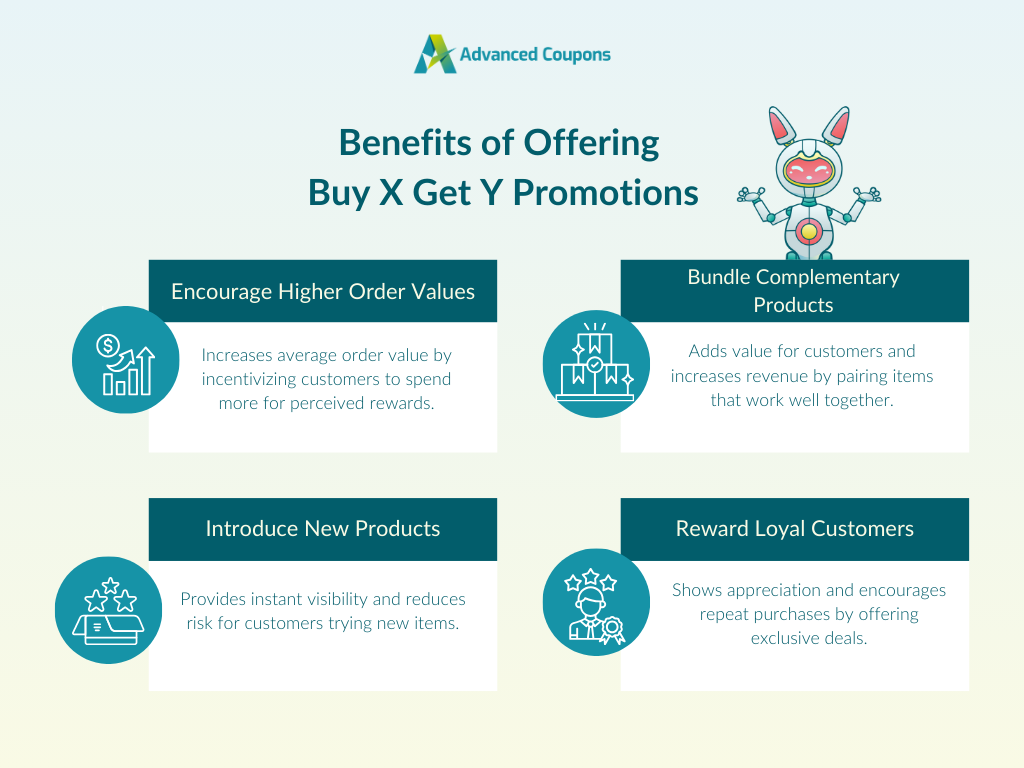
1. Encourages higher-order values
Customers love getting more value for their money, which often means they’re willing to spend more than planned if it grants them a perceived reward.
Setting up quantity-based Buy X Get Y deals can nudge customers to add more to their carts in order to unlock the bonus. This helps increase your average order value without cutting deep into your profit margins. You can do this by requiring them to hit a minimum quantity or cart total before the reward applies.
2. Perfect for introducing new products
Buy X Get Y offers are also a great way to encourage customers to try out new products. Instead of waiting for shoppers to discover your new item, you can include it as a free or discounted Y product in your deal. This gives the product instant visibility and reduces the perceived risk for shoppers as they try something unfamiliar.
3. Great for bundling complementary products
Pairing complementary products on your Buy X Get Y offers adds more value for your customers, while also increasing your store’s revenue. These are products that naturally go well together or are often used as a set.
For instance, if your store sells laptops, you can offer accessories like a wireless keyboard or mouse at a discounted price. By making curated bundles that work well together, you improve the overall shopping experience. It’s also a great way to move slower-moving items that pair well with bestsellers.
4. Rewards loyal customers
Loyal, returning customers spend 67% more than new shoppers. One way to show appreciation for your top customers is by running exclusive Buy X Get Y deals.
You can set up the promotion deal to reward shoppers who meet specific conditions, such as returning for a third purchase, spending above a certain amount, or buying from a specific product category. Plugins like Advanced Coupons allow you to set specific cart conditions, such as total customer spend, total number of orders, or product-specific triggers.
🎯 POWER TIP: You can combine exclusive promotions with a points-based rewards system to create a more rewarding loyalty experience. This is easy to set up with a plugin like WooCommerce Loyalty Program.
How To Set Up Buy X Get Y Offers In WooCommerce
While WooCommerce doesn’t offer built-in functionality for Buy X Get Y promotions, you can use Advanced Coupons to set them up. This plugin offers immense flexibility, letting you define the promo trigger, reward, and specific cart conditions to make sure your offer only applies when the right items are in the cart.
Below, we’ll walk you through the full setup process step by step.
1. Create your BOGO coupon
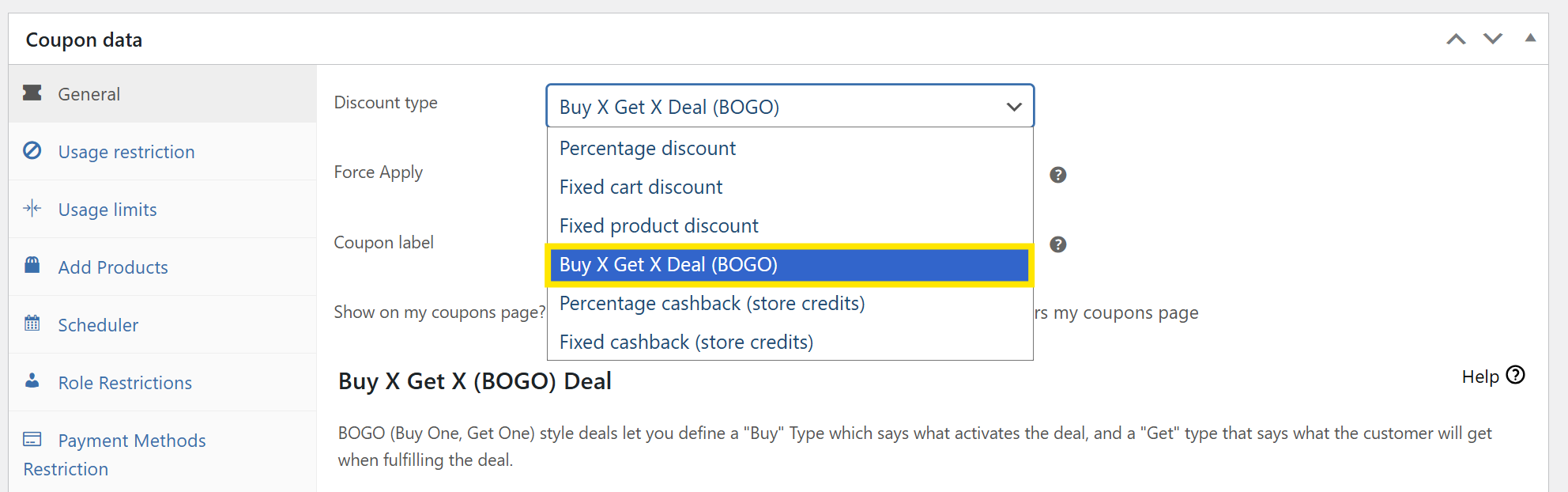
Get started by heading to your WordPress dashboard > Coupons, then click “Add New.” This brings you to the coupon creation screen, where you can name your coupon and add a short description.
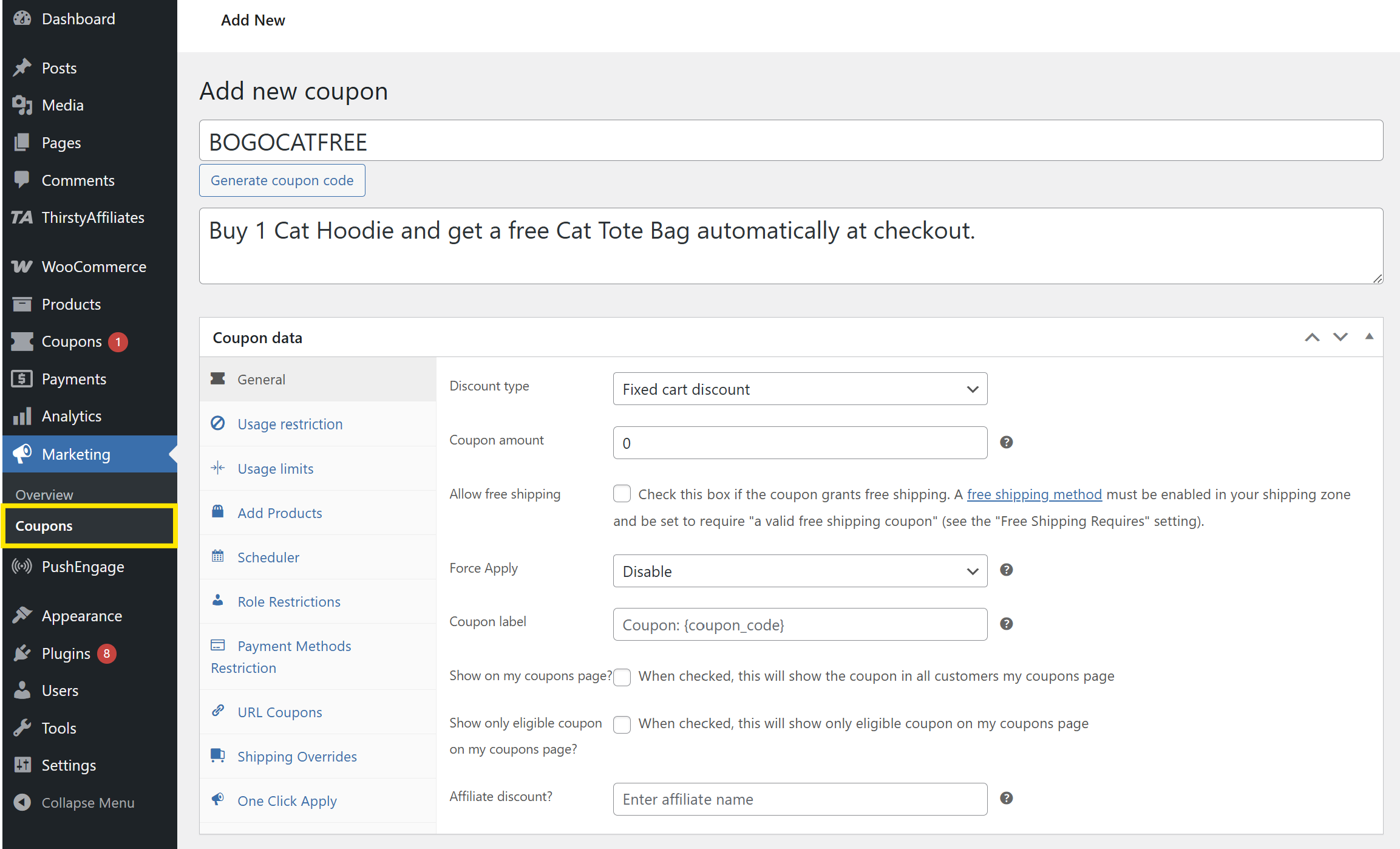
With Advanced Coupons installed, you’ll notice a lot of additional tabs you can configure for your promotions. In the General tab, select “Buy X Get X Deal (BOGO)” from the Discount Type dropdown menu. You’ll also see more coupon options, including BOGO, percentage cashback, and fixed cashback rewards.
2. Set your trigger (X)
After selecting BOGO as the offer type, you’ll gain access to the “Customer Buys” and “Customer Gets” sections. These options define the logic behind your promotion: what the customer must purchase (the trigger), and what reward they receive afterward.
Let’s configure the trigger first!
In the “Customer Buys” section, choose what should activate the offer. You’ll see multiple options, including:
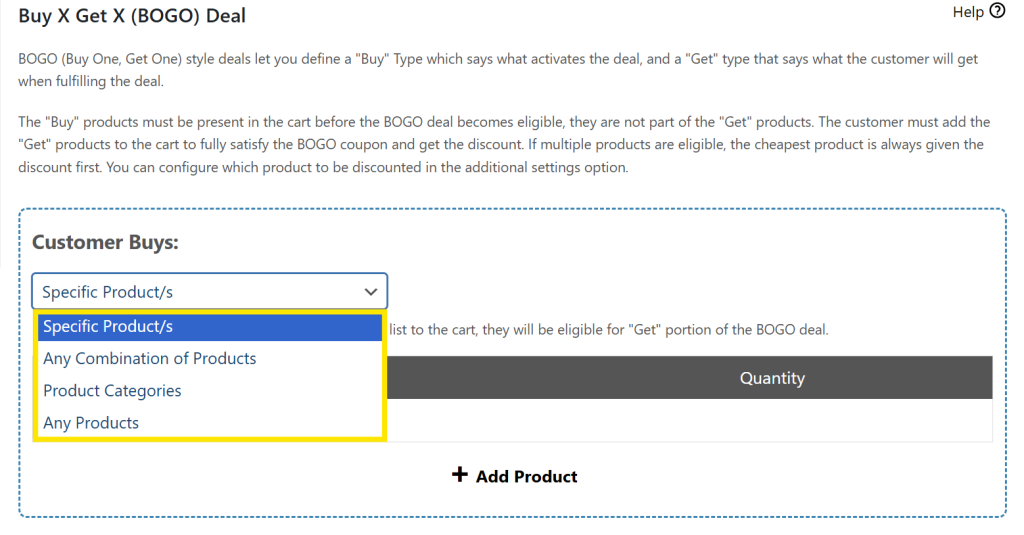
- Specific Product/s: The customer must buy specific items you select
- Any Combination of Products: The customer can buy any item from a chosen list
- Product Categories: The customer must buy items from a particular category
- Any Products: The offer triggers from any purchase in the store
You can use these options to create hyper-targeted promotions, depending on the products or categories you want to target. In our example below, we’re configuring the deal to activate when the item “Cat Hoodie” is in the customer’s cart.
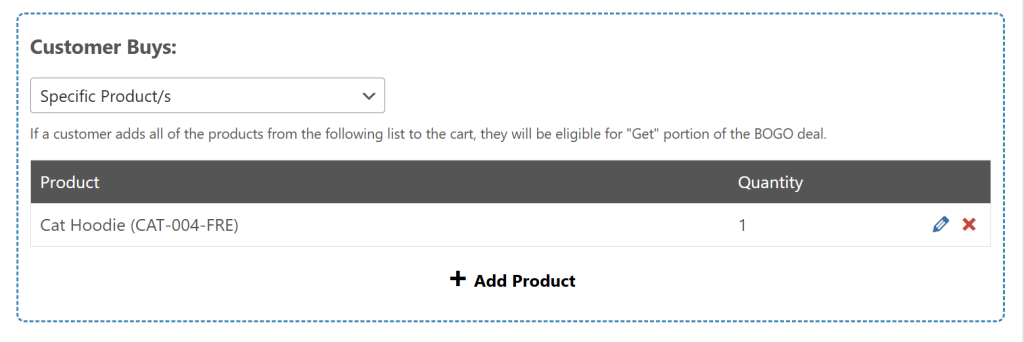
After selecting the trigger type, make sure to set the quantity required to activate the deal.
Once you’re done doing so, click “Add Product.”
3. Set your reward (Y)
Now that we’ve configured the offer trigger, it’s time to set the reward our customers get! In the “Customer Gets” section, you’ll find several options for how you want to grant the reward:
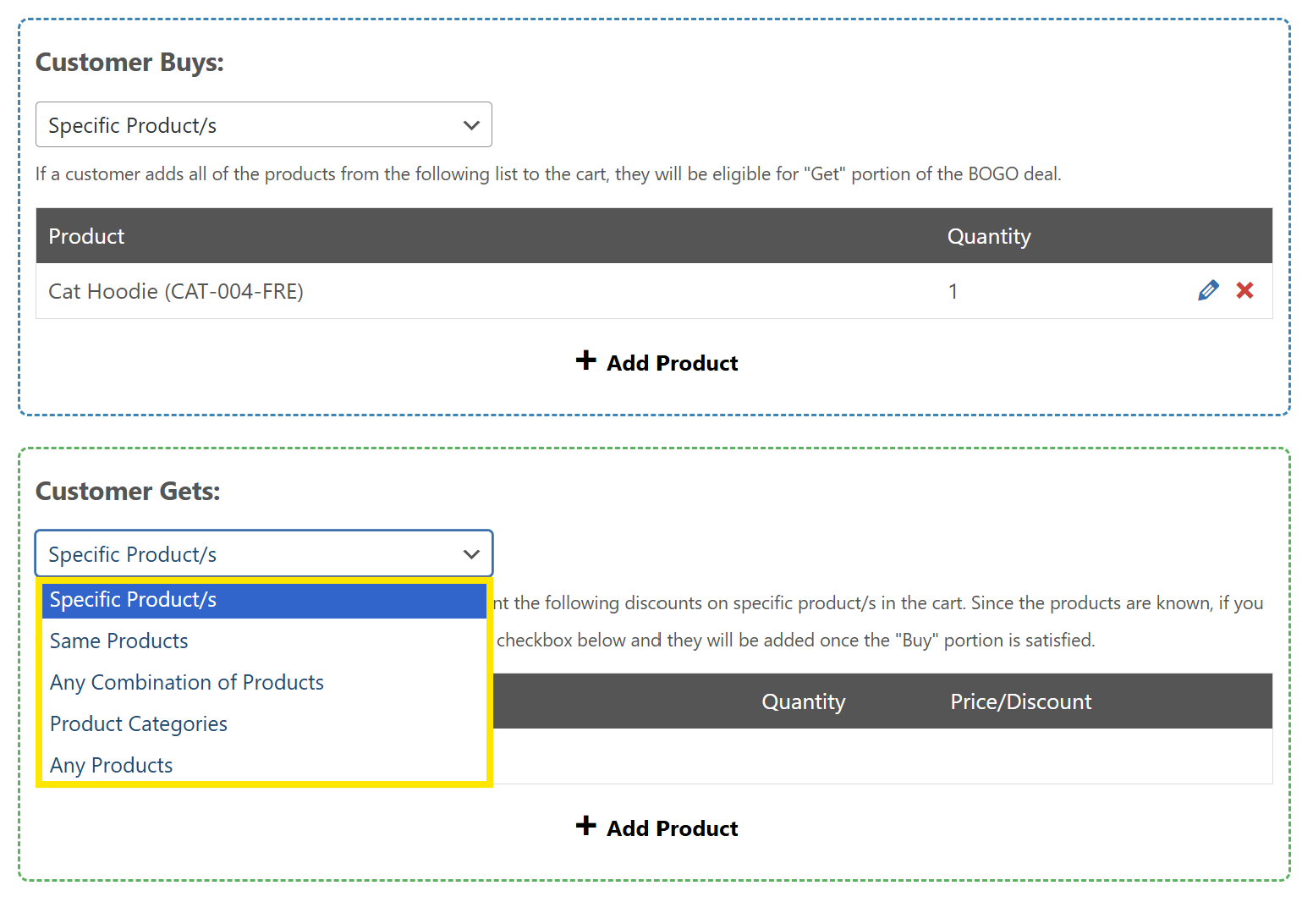
- Specific Product/s: Offer a particular product as the reward
- Same Products: Reward the same item the customer bought
- Any Combination of Products: Let customers receive any item from a predefined list
- Product Categories: Reward customers with any product from a certain category
- Any Products: Let the customer choose any product from your store as their reward
These options allow you to tailor how your rewards work, whether you want to specify which products are offered or want to offer flexible choices based on certain categories.
In our example, let’s choose a specific product to reward our shopper. After adding the product, you’ll notice that you can also define the quantity given and how the discount can be applied.
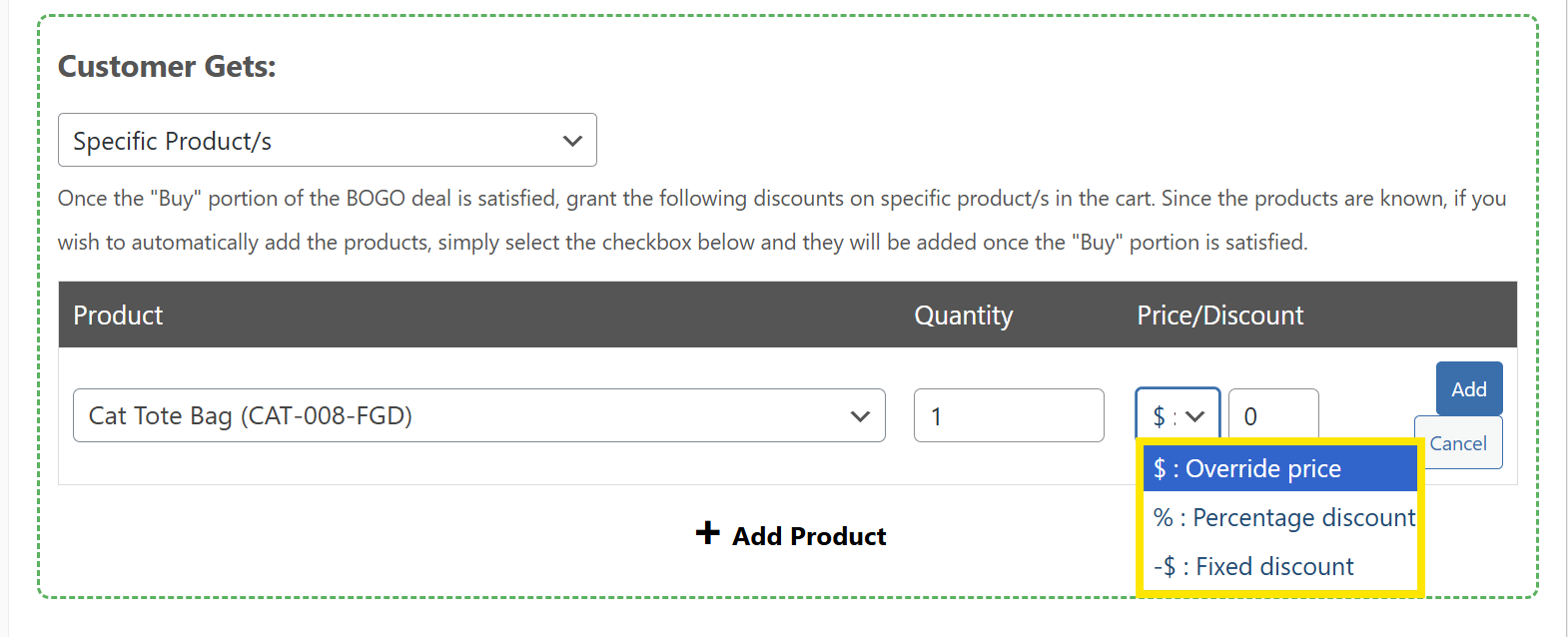
There are three pricing options available:
- Override Price ($): Set a fixed price for the reward item (e.g., get it for $5)
- Percentage Discount (%): Apply a percentage discount (e.g,. 50% off)
- Fixed Discount (-$): Deduct a specific amount from the item price (e.g. $10 off)
In our example, we’re giving the item “Cat Tote Bag” completely free by setting an Override Price of 0.
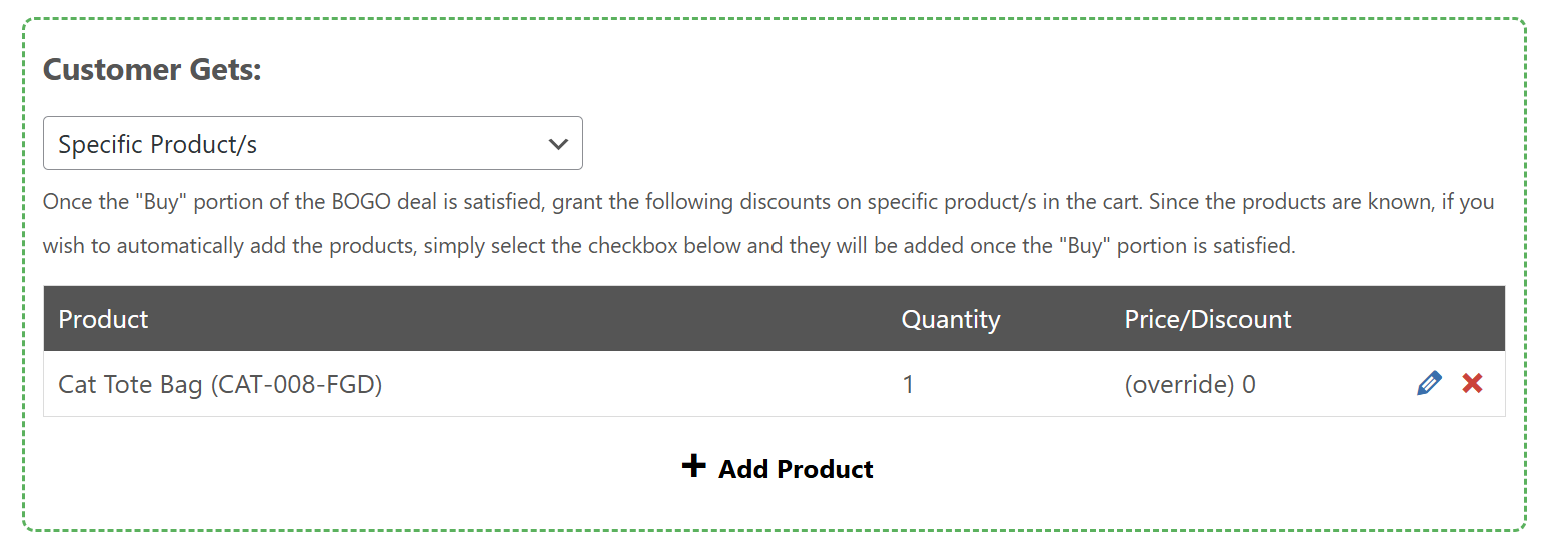
4. Configure additional BOGO settings
After setting up your main offer, we recommend checking out the additional BOGO setup settings under the “Customer Gets” section. In here, you can choose whether to apply the discount to the cheapest or most expensive eligible product (helpful if multiple items qualify), or decide whether the deal should apply only once or repeatedly within a single order.
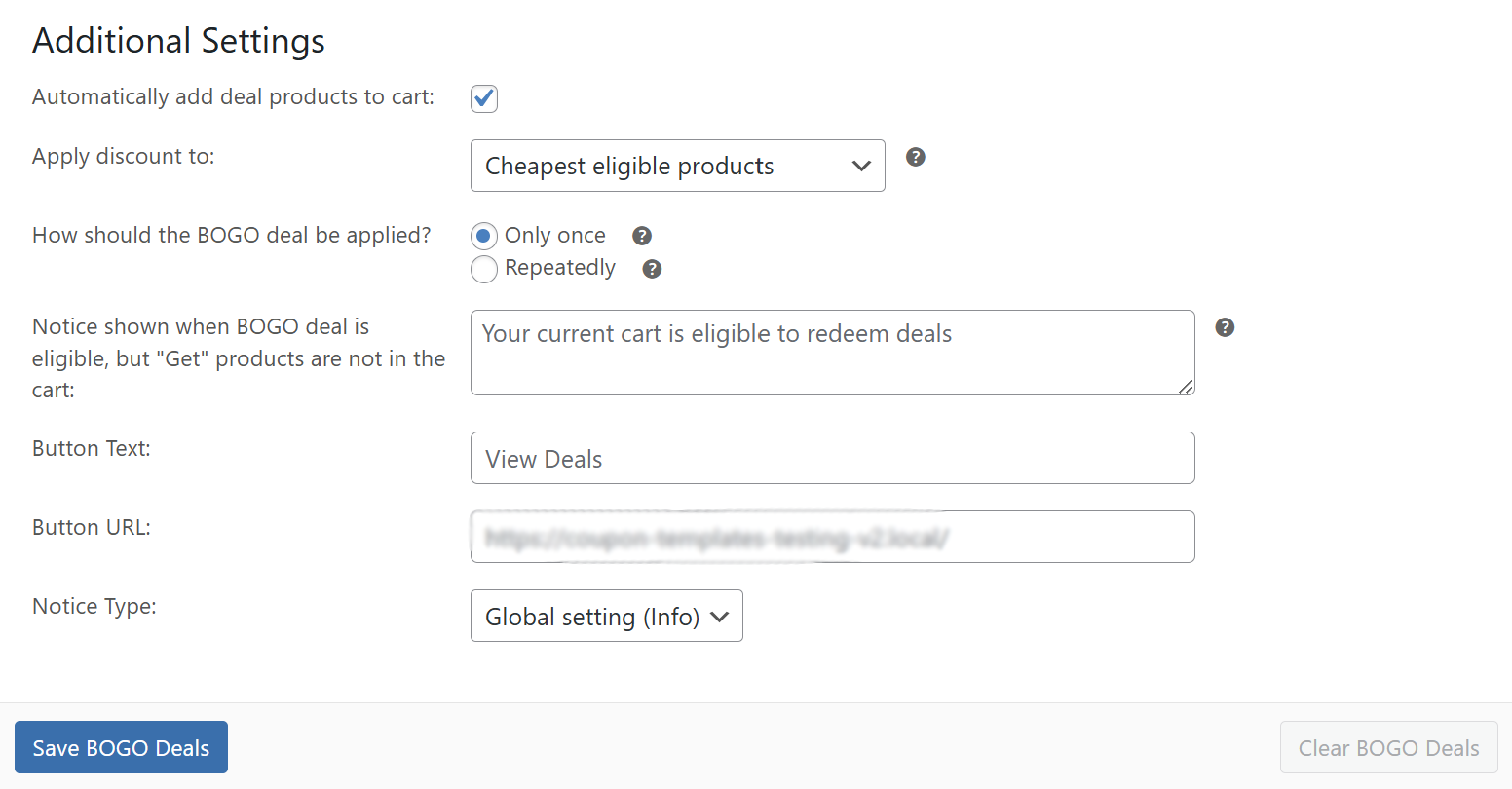
It’s also where you can customize the notice and button that appear when the cart qualifies for the reward, but the shopper hasn’t added their “Get” item yet. It’s a great opportunity to highlight ongoing BOGO offers that they might have missed.
Once you’re happy with your setup, click “Save BOGO Deals” to set your offer.
5. Add cart conditions (Optional)
This step is optional, but it’s perfect if you want more control over when and how your deal is applied.
💡GOOD TO KNOW: Cart conditions let you set extra rules that must be met before your Buy X Get Y offer applies. It’s one of the most powerful features of Advanced Coupons, giving you the ability to stack conditions using “AND” and “OR” logic. This means you can create highly targeted deals that only trigger based on order value, cart contents, customer behavior, user roles, and more.
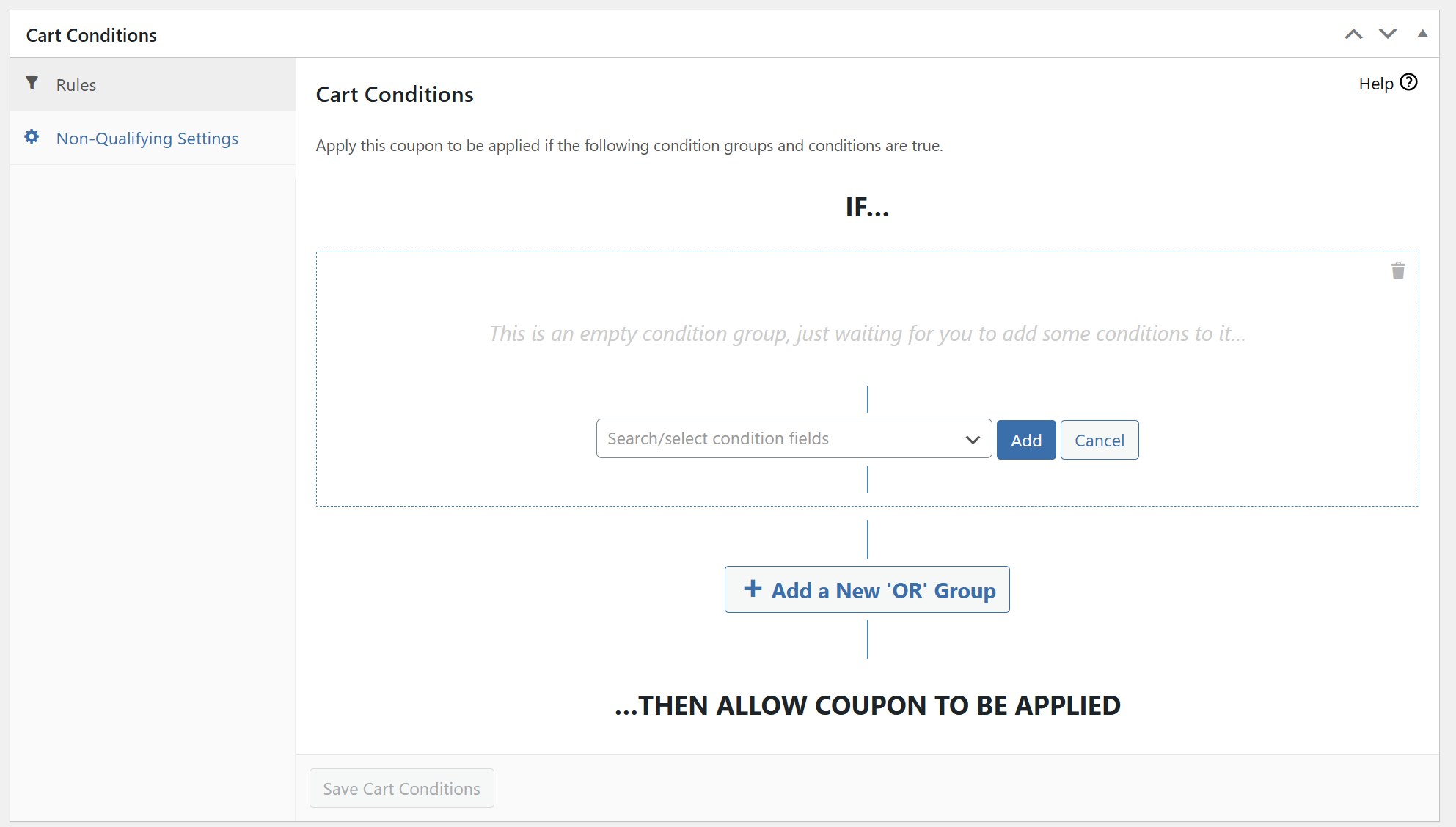
To set cart conditions, scroll down to the Cart Conditions settings. From here, you can choose from dozens of condition types, including:
- Customer has previously ordered X times
- Cart subtotal is above a certain amount
- Product from Category Y is in the cart
- Customer is logged in / user role is X
- Specific shipping zone is selected
In the example below, we’re setting the offer to activate only when a customer is logged in. This is useful if you want to limit your deal to registered customers only.
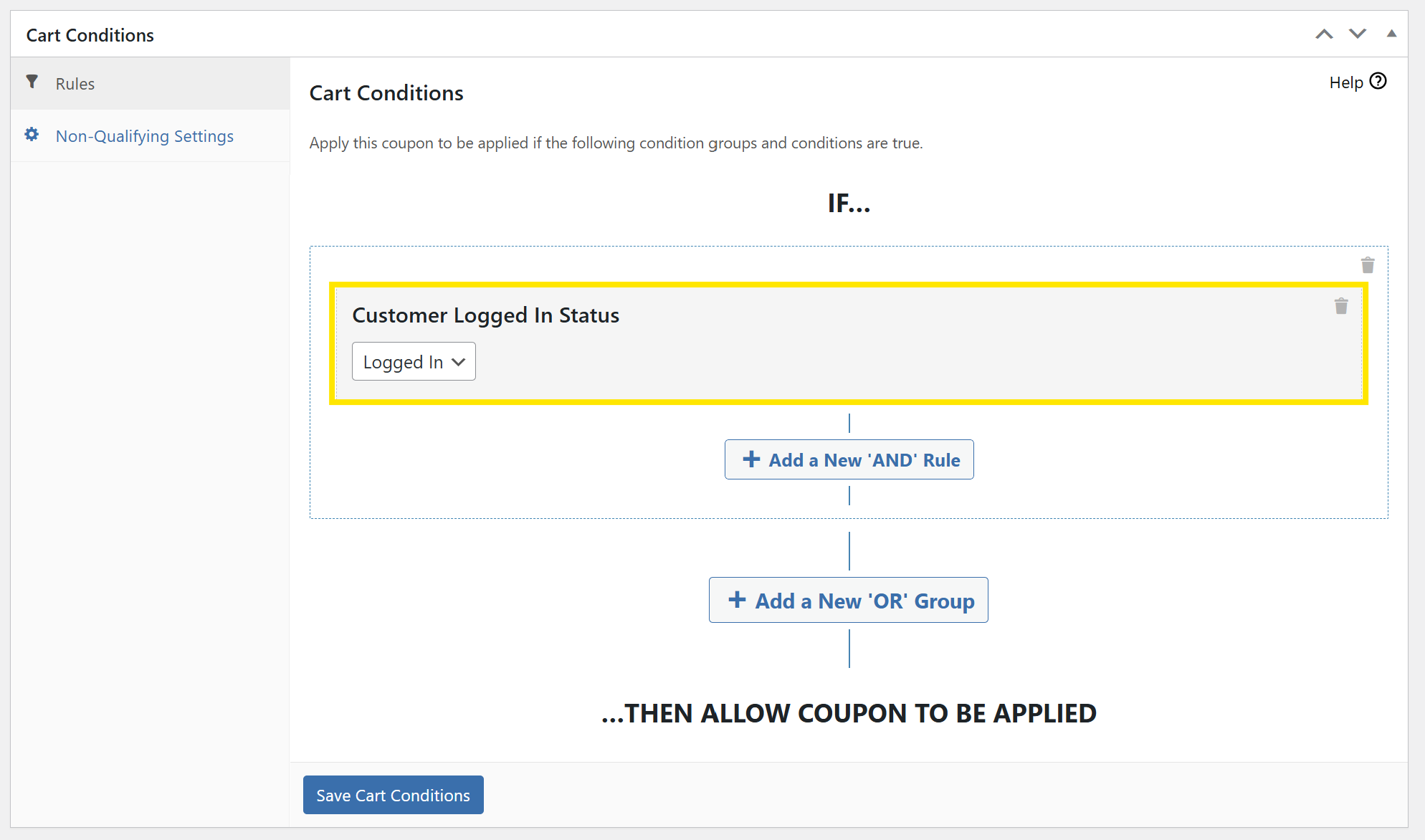
Feel free to explore all other cart conditions available. For a more detailed overview of each condition, you can check our complete guide here.
Once you’re happy, click “Save Cart Conditions” and publish your offer!
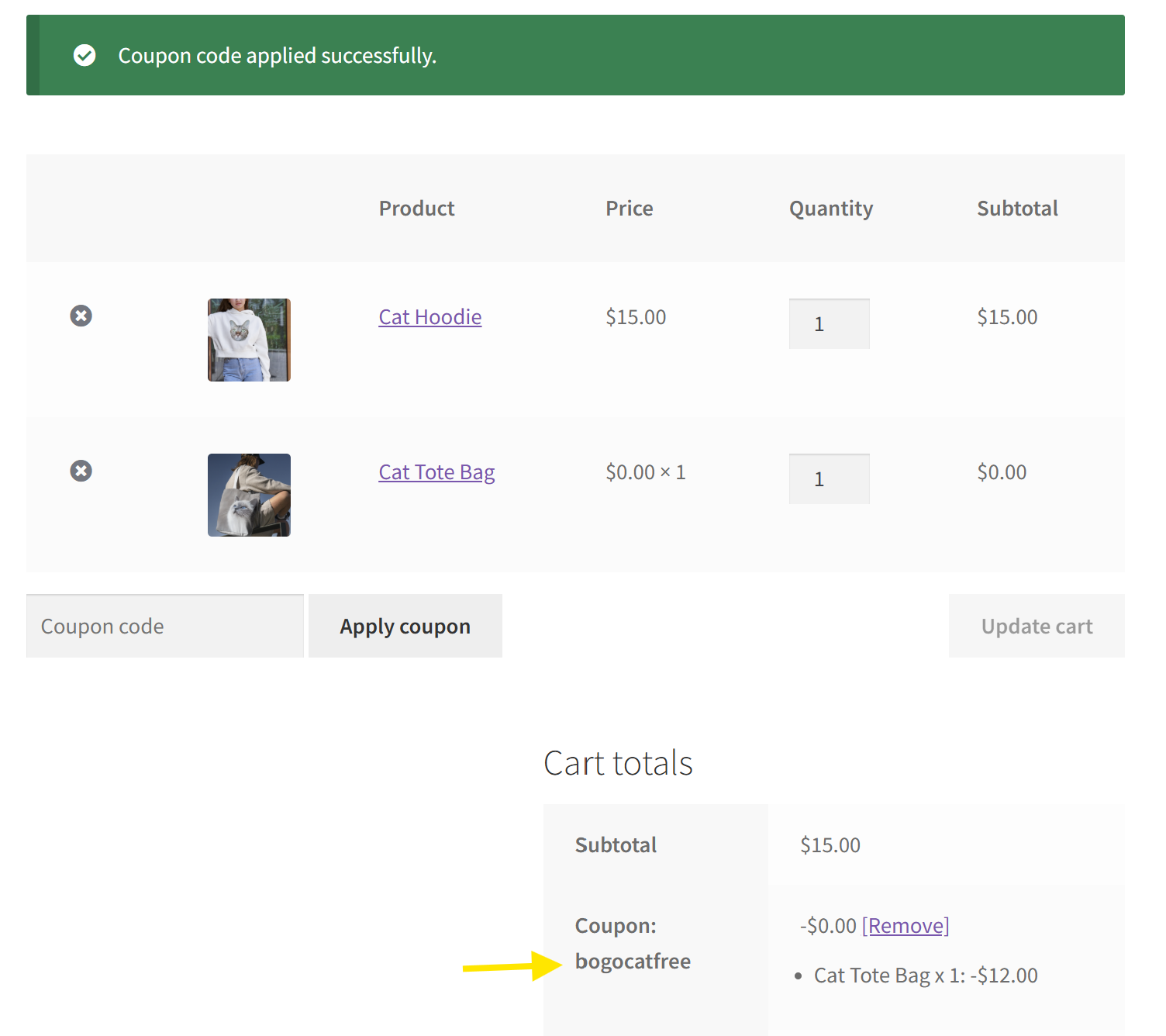
🎉 Here’s how our Buy X Get Y offer looks when applied to the cart:
Frequently Asked Questions
What are Buy X Get Y promotions and how do they work?
Buy X Get Y promotions are special deals where customers receive a free or discounted product (Y) after purchasing a specific item or quantity (X). They are customizable, allowing store owners to define triggers and rewards to suit their inventory and goals.
Why should I consider offering Buy X Get Y deals in my WooCommerce store?
Offering Buy X Get Y deals can encourage higher order values, help introduce new products, bundle complementary items, and reward loyal customers, all of which support your business growth and customer engagement.
How can I set up Buy X Get Y offers in WooCommerce?
You need a plugin like Advanced Coupons. Once installed, create a coupon as usual and select the ‘Buy X Get X Deal’ option. From here, you can define the trigger conditions (X) and rewards (Y), configure additional settings if needed, and finally add any cart conditions before saving and publishing your offer.
Wrapping Up
Buy X Get Y offers are so effective because they give shoppers more value and encourage them to explore products they might otherwise have missed. For store owners, this translates to higher order values, smarter inventory management, and more engaging customer experiences.
In this guide, we walked you through:
- What Buy X Get Y offers are and how they work
- The benefits of offering them in your WooCommerce store
- How to set up the full offer using Advanced Coupons
Advanced Coupons extends the default coupon features of WooCommerce, letting you craft hyper-targeted promotions that go beyond basic discounts.
We hope this guide helped out! 😊 Let us know if you have any questions.