Most WooCommerce store owners treat product badges as an afterthought. A red “SALE” rectangle gets slapped onto discounted items, and that’s where the strategy ends. The problem is that this approach ignores what UX researchers have spent years studying: how shoppers actually process visual information on product pages.
The gap between “having badges” and “having badges that convert” is wider than most store owners realize. Without understanding what drives visual attention, label placement, and purchase triggers, those badges might be doing nothing at all. Worse, poorly used labels can actually create confusion and push shoppers away.
This guide breaks down what the research says about how product labels increase conversions, which label types perform best in testing, and how to build a data-driven badge strategy for your WooCommerce store using Advanced Promo Kit.
The Psychology Behind Product Labels (Why They Work)
Product labels work because they tap into well-documented cognitive shortcuts that influence how shoppers make purchase decisions. Understanding these shortcuts is the foundation of any effective badge strategy.
Visual hierarchy and attention flow
Shoppers don’t read product pages from top to bottom. According to Nielsen Norman Group’s eye-tracking research, users scan web pages in an F-shaped pattern, focusing first on the upper-left area before moving across and down. This scanning behavior means that elements placed in the top portion of a product thumbnail or product page get disproportionately more attention.
Product badges sit right in this high-attention zone. When a label appears in the corner of a product image, it’s one of the first things a shopper’s eyes land on. That initial visual contact happens before the shopper reads the product title, checks the price, or scrolls to the description.
According to Baymard Institute’s product page benchmark, 52% of desktop ecommerce sites and 62% of mobile sites have “mediocre or worse” UX performance on their product pages. This matters for badge strategy because in a poorly designed product page environment, a well-placed label can be one of the most effective tools for directing attention where it needs to go.
Cognitive shortcuts and decision triggers
Badges function as heuristic cues, which are mental shortcuts that help people make faster decisions without processing every piece of information on the page.
A “SALE” label reduces comparison effort because the shopper immediately knows this product is discounted without hunting for the original price. A “NEW” badge triggers novelty bias, a psychological pull toward fresh and unfamiliar options. A “BESTSELLER” label activates social proof, signaling that other shoppers have already validated this product.
There’s also the anchoring effect at work. When a shopper sees a “20% OFF” badge before looking at the price, the discount becomes the frame through which they evaluate value. The badge anchors their perception around the deal rather than the absolute price.
For stores with large catalogs, these shortcuts are especially powerful. Decision fatigue sets in when shoppers face too many similar options with no clear way to differentiate them. Badges help shoppers navigate that catalog faster by highlighting which products deserve their attention right now.
What Product Page Research Says About Label Strategy
Product page research supports the bigger idea behind label strategy: shoppers rely on visual cues, clear hierarchy, and timely information when deciding what to click, compare, and buy.
A/B testing insights for product pages
Testing data from ecommerce conversion research consistently shows that product page changes can influence buyer behavior. According to Brillmark’s ecommerce A/B testing analysis, product detail page experiments accounted for 38% of the tests it reviewed, while broader PDP optimization can improve conversion rates when executed well. For product labels, the takeaway is not that every badge guarantees a lift, but that visual cues should be tested as part of the wider product-page experience.
For product label strategy, the most useful badge types usually fall into three categories. Urgency labels (like countdown timers and “low stock” alerts) create timely action cues. Discount labels (like “20% OFF” or “BOGO”) communicate direct value. Social proof labels (like “bestseller”) help reduce hesitation by showing that other shoppers have already engaged with the product.
However, more labels doesn’t always mean more conversions. Testing consistently reveals a point of diminishing returns, where adding too many badges to a product catalog actually hurts performance.
Which label types drive the most action?
Each label type works through a different psychological mechanism, and the right choice depends on your promotion strategy.
Urgency labels (countdown timers, “low stock” alerts) leverage the scarcity principle. They can be useful when inventory is genuinely limited or an offer is truly time-sensitive, but they should be used carefully. The goal is to help shoppers make timely decisions, not create artificial pressure.
Social proof labels (“bestseller,” “top rated,” “most popular”) work through herd behavior. When shoppers see that others have bought and validated a product, it reduces their perceived risk.
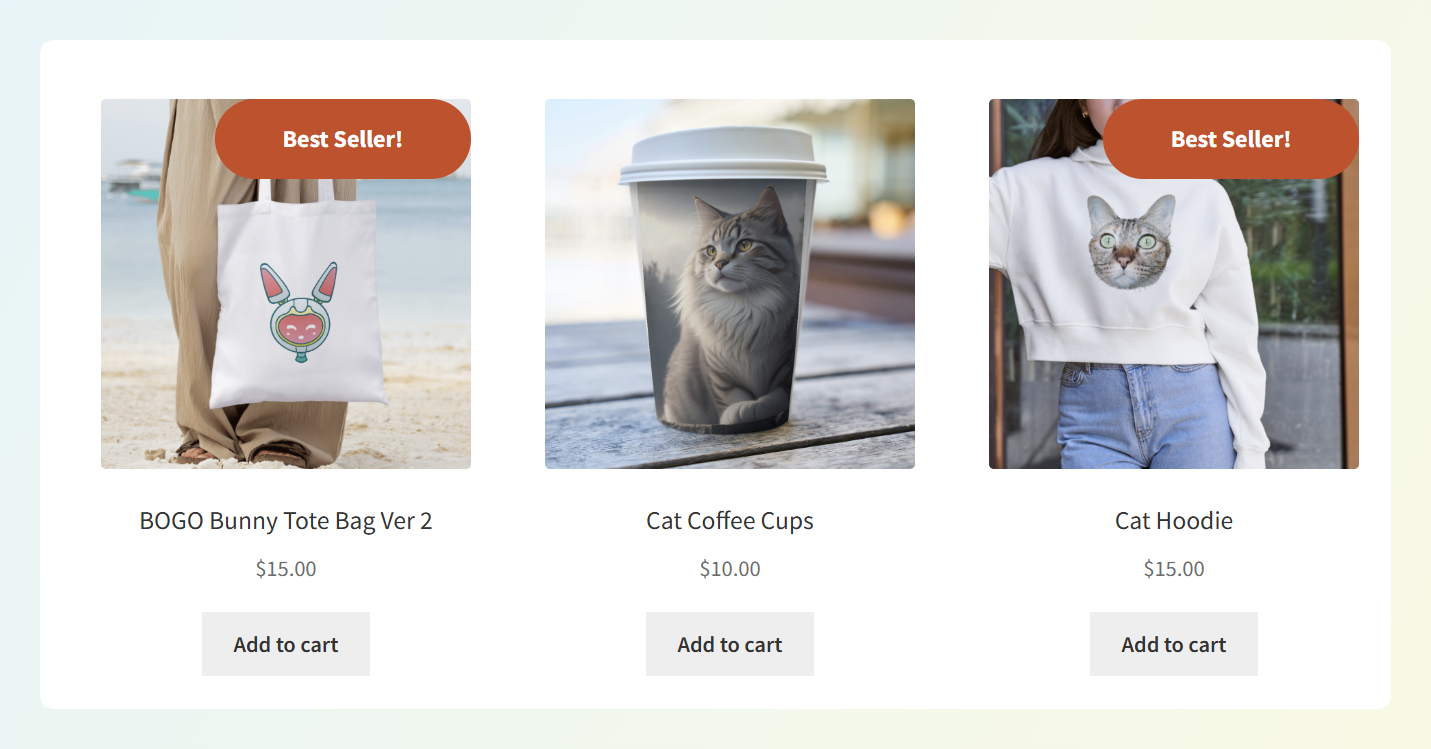
Discount labels (“20% OFF,” “BOGO”) communicate value directly. These are the most straightforward badge type, and they perform best during active promotional periods.
New arrival labels tap into novelty bias. Shoppers browsing a familiar store are naturally drawn to what’s different. These labels work especially well for stores that add new inventory regularly.
Tip: A common mistake is using labels on too many products at once. When every item has a badge, nothing feels special. A stronger approach is to reserve labels for products tied to active campaigns, clear product status, or meaningful shopper cues, then rotate them as your promotions change.
5 Visual Hierarchy Principles For High-Converting Product Labels
Knowing that labels work is only half the picture. How you design and place them determines whether they actually drive clicks. These five principles come from UX research and practical testing across WooCommerce stores.
1. Contrast: labels must pop against product images
A badge that blends into the product image is a badge nobody sees. Use high-contrast color combinations: dark background with light text, or bright colors against neutral product photography. Check that your badge colors don’t clash with your store’s brand palette, but make sure they stand out enough to grab attention in a product grid.
2. Placement: start with top-left or top-right
Eye-tracking research suggests that shoppers often start scanning in the upper areas of a page, so top-left or top-right badge placements are usually a strong starting point. These corner positions can catch attention without covering too much of the product image, but it is still worth testing placement against your own product grid.
3. Brevity: two to three words maximum
Cognitive load research shows that shorter messages process faster and stick longer. A label that says “SALE” or “20% OFF” registers in a fraction of a second. A label that reads “Special Limited-Time Promotional Offer” forces the shopper to stop and parse the text, which breaks their scanning rhythm. Keep every label to two or three words at most.
4. Relevance: labels must match active promotions
Nothing erodes trust faster than a “SALE” badge on a full-price product. Static badges that outlive their promotions can confuse shoppers and weaken trust. That’s why rule-based, scheduled labels are so useful: they help your badges appear and disappear with the campaigns they support. The label should always reflect the current reality.
5. Hierarchy: not every product deserves a badge
A three-tier approach works well for most stores. Primary labels (sale, urgency) go on actively promoted products. Secondary labels (new, bestseller) highlight evergreen standouts. Informational labels (categories, tags) fill a supporting role for catalog navigation. Prioritize hero products first, and resist the temptation to badge everything, as covered in 15 sale badge designs that actually convert.
How To Build Data-Driven Product Labels In WooCommerce
With the principles established, here’s how to put them into practice. The process starts with strategy and ends with testing.
Step 1: Define your label strategy before touching any plugin
Before configuring a single badge, map out which products should be labeled and why. Align label types with your promotion types. Urgency labels pair with flash sales and limited inventory. Social proof labels work on evergreen products with strong sales data. Discount labels match active coupon campaigns. New arrival labels suit products published within the last two to four weeks.
This planning step prevents the most common mistake: applying badges reactively without a system.
Step 2: Set up rule-based labels with Advanced Promo Kit
Advanced Promo Kit automates label logic through smart conditions, so you don’t need to manually tag every product.
You can set rules like auto-applying a “NEW” label to products published in the last 14 days, targeting labels by stock-related product conditions, or showing dynamic discount values when using the supported Advanced Coupons integration. The rule-based condition builder lets you define these triggers once, and the labels apply themselves across your catalog.
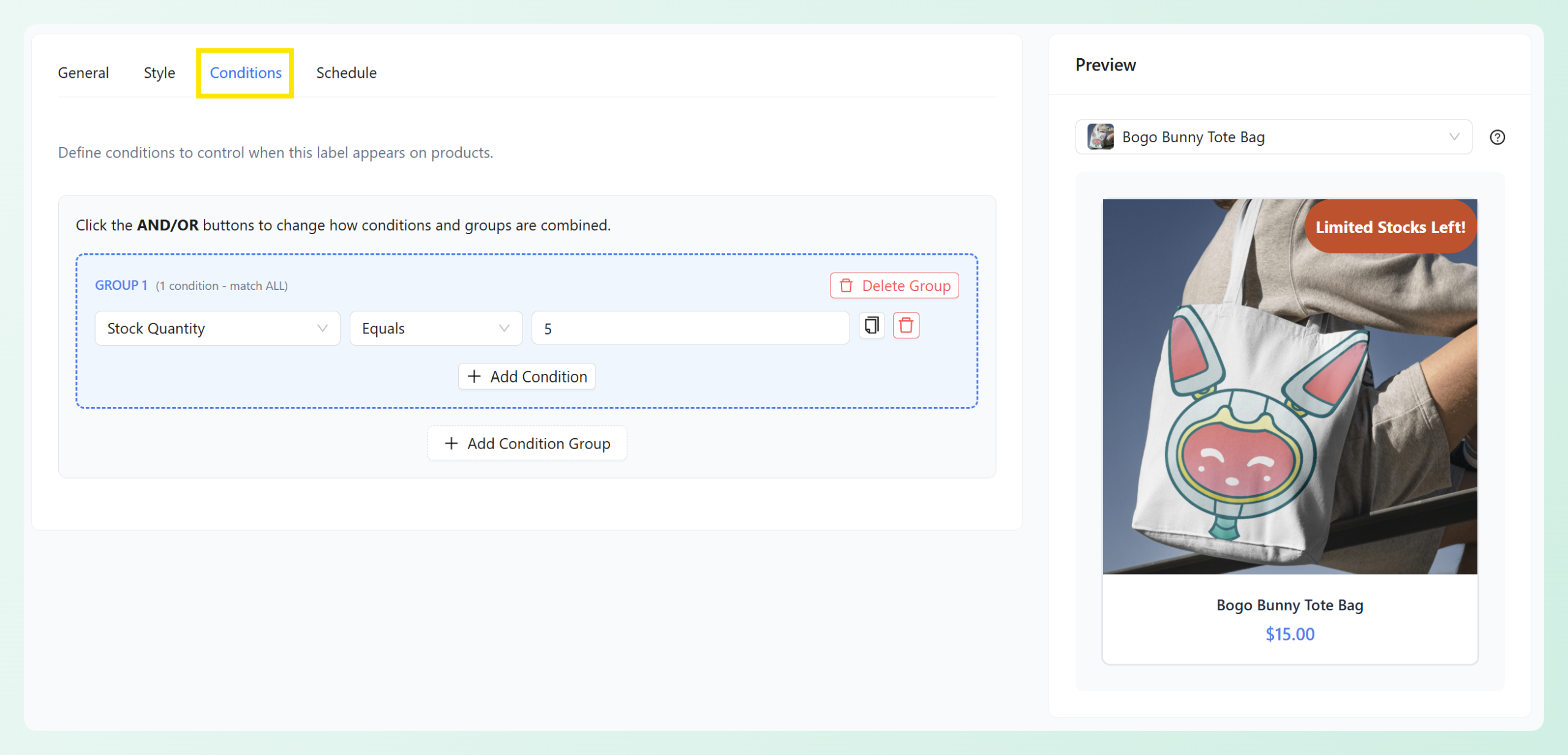
The live preview mode lets you see exactly how each badge will look on your product thumbnails before it goes live, so you can verify contrast, placement, and readability without publishing changes to your store.
For a detailed walkthrough of badge creation, see how to create custom product badges in WooCommerce.
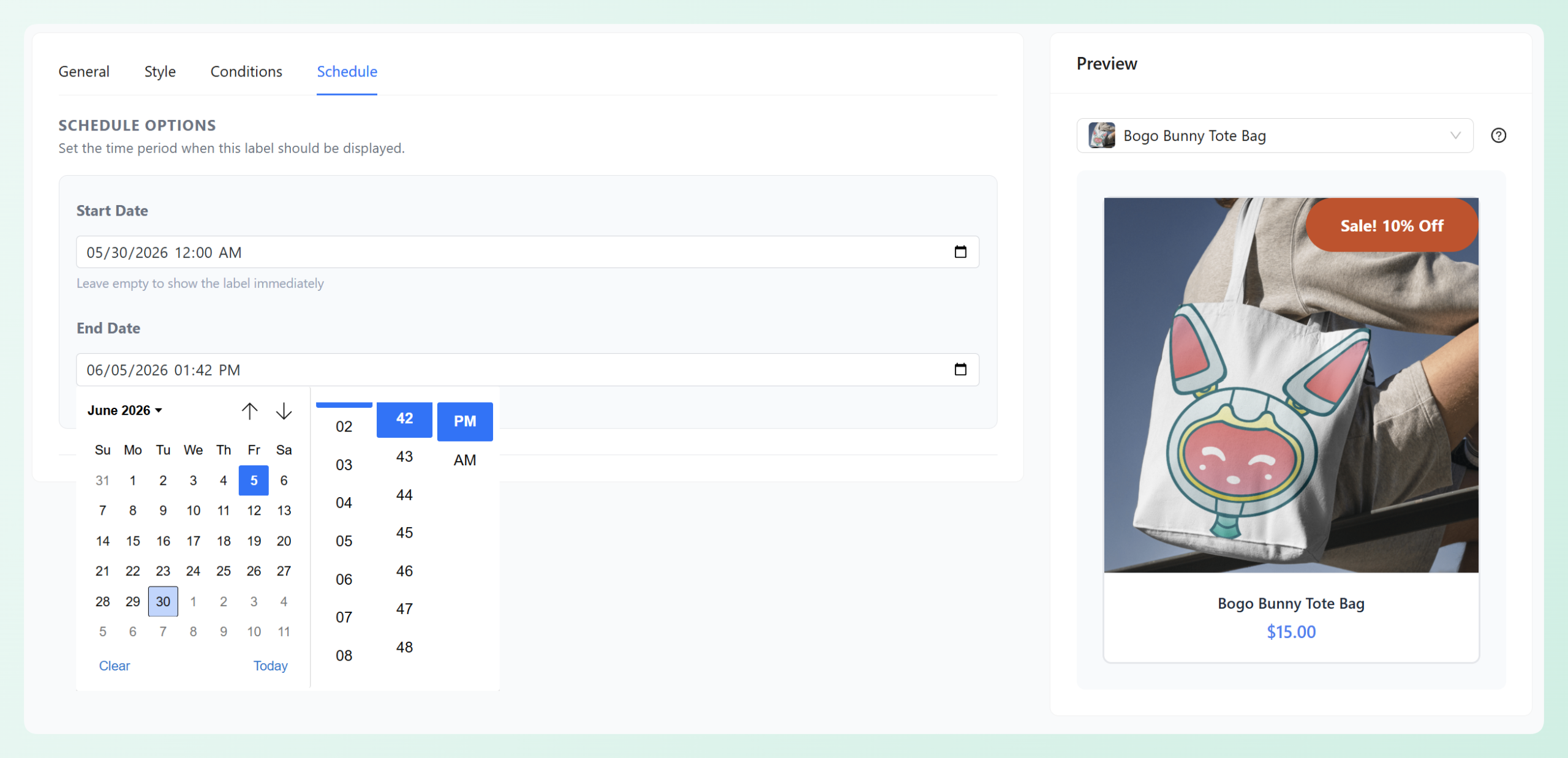
Step 3: Schedule labels to match your promotion calendar
Scheduling badges with date ranges means they appear and disappear automatically. This prevents “badge decay,” where labels outlive their promotions and erode shopper trust. Set start and end dates for seasonal promotions, flash sales, and limited-time offers so your labels always reflect what’s actually happening in your store.
Step 4: Test and iterate
Track three metrics for every badge strategy: click-through rate on labeled products, add-to-cart rate compared to unlabeled products, and overall conversion rate during badge campaigns. Run each strategy long enough to collect meaningful data, then adjust. Swap badge colors, test different placements, and experiment with copy variations. Small changes in label design can produce measurable differences in performance.
Common Product Label Mistakes That Hurt Conversions
Even with the right tools, badge strategy can go wrong. These are the most frequent mistakes that undermine label effectiveness.
Badge fatigue from over-labeling. When every product has a badge, the visual signal loses its meaning. Shoppers stop noticing labels entirely because there’s no contrast between labeled and unlabeled products.
Static badges on expired promotions. A “SALE” badge that leads to a full-price product doesn’t just fail to convert. It actively damages trust. Shoppers who encounter this disconnect often leave the store entirely rather than continuing to browse.
Poor contrast and readability. Badges that match the dominant color of product images become invisible. Always test badge visibility against your actual product photography, not a blank background.
Inconsistent styling across categories. Mismatched badge designs, fonts, and sizes across different product categories create visual chaos. Use a consistent design system for all your labels, varying only the text and color to indicate different badge types.
Ignoring mobile readability. According to Firework’s mobile commerce research, mobile devices account for roughly 60% of global ecommerce sales in 2026. Badges designed for desktop thumbnails often become unreadable on smaller screens. Always preview your labels at mobile dimensions before going live.
🎯 Tip: One of the easiest ways to protect trust is to schedule labels around the promotion itself. If a shopper clicks a sale badge and lands on a full-price product, that mismatch can make the offer feel unreliable.
Frequently Asked Questions
Do product labels really increase conversions?
Yes, product labels can help increase conversions when they are used strategically. They work best when they highlight real promotions, genuine scarcity, verified social proof, or useful product status information. The key is selective use: labels should guide attention and support the buying decision, not overwhelm every product in the catalog.
How many product labels should I use on my store?
Use product labels on a focused subset of your catalog rather than every item at once. This keeps badges meaningful and helps shoppers quickly identify the products tied to active promotions, new arrivals, low-stock messaging, bestsellers, or other important buying cues.
What is the best placement for product badges?
Top-left or top-right corner placement on product thumbnails performs best based on eye-tracking research. These positions align with natural scanning patterns, catching the shopper’s gaze before they process the product title or price. Avoid center overlay bars that obscure the product image.
Can I show different labels to different customer segments?
Yes. Advanced Promo Kit supports rule-based conditions that let you target labels by product details and shopper role. For example, you can show different badges to logged-in users versus guest shoppers, or display labels based on product category, tag, sale status, stock status, price range, product type, new-arrival timing, and other supported product conditions.
How often should I rotate my product badges?
Align badge rotation with your promotion calendar. Discount and urgency labels should match the exact duration of each campaign. Social proof labels (“bestseller,” “top rated”) can stay active longer since they reflect ongoing data rather than time-limited offers. Review and refresh all labels at least monthly to prevent staleness.
Turn Product Labels Into A Data-Driven Conversion Strategy
Product labels aren’t decorative flourishes. They’re strategic visual cues informed by UX principles, from scanning behavior to the cognitive shortcuts that shape purchase decisions. The strongest badge strategies treat labels as part of the buying experience, not as an afterthought.
Here’s what to do next:
- Map your label types to your promotion strategy before configuring any badges
- Use rule-based conditions to automate badge logic and prevent stale labels
- Apply visual hierarchy principles to make every badge readable and attention-grabbing
- Test and iterate with real data over a full campaign or a meaningful testing period
- Avoid common mistakes like over-labeling and ignoring mobile readability
Ready to build a product label strategy that’s grounded in data? Advanced Promo Kit gives you rule-based labels, scheduled badges, and live preview, so you can apply these principles across your WooCommerce store more easily. Pair it with the All Access Bundle for the complete suite of WooCommerce plugins to increase sales.