
Dealing with stockouts can be frustrating, especially when it halts sales and leads to missed opportunities. Enabling WooCommerce backorders is one way to keep the momentum going and capture demand, even when items aren’t currently in stock.
With backorders, you can continue accepting orders, manage demand, and keep customers engaged. Best part? It’s easy to set up in WooCommerce!
In this guide, we’ll walk you through what WooCommerce backorders are, how to set them up, and how to maximize their potential using strategic promotions.
What Are WooCommerce Backorders?
WooCommerce backorders allow shoppers to place an order for an item even if it’s currently out of stock. Instead of disabling the checkout process for these products, backorders give customers the option to purchase now and have the order fulfilled once the item is available. This is especially useful for bestsellers, made-to-order items, or products with predictable restock timelines.
In WooCommerce, backorders can be enabled on a per-product level through the Inventory settings. From there, you have three options to choose from:
- Do not allow: The product will be marked as out of stock and cannot be purchased.
- Allow, but notify customers: Shoppers are informed that the item is on backorder before placing an order. We recommend using this option, as it informs customers and helps manage expectations, especially if order fulfillment will take longer than usual.
- Allow: Customers can purchase the product, but they won’t receive any notice that it’s on backorder.
Depending on your needs, these default options give you the flexibility to decide how stockouts are handled on your WooCommerce store.
Why Allow WooCommerce Backorders?
Enabling backorders in your store lets you stay flexible, keep orders flowing, and maintain strong customer relationships. Here are just a few reasons why it can be a smart move for your business:
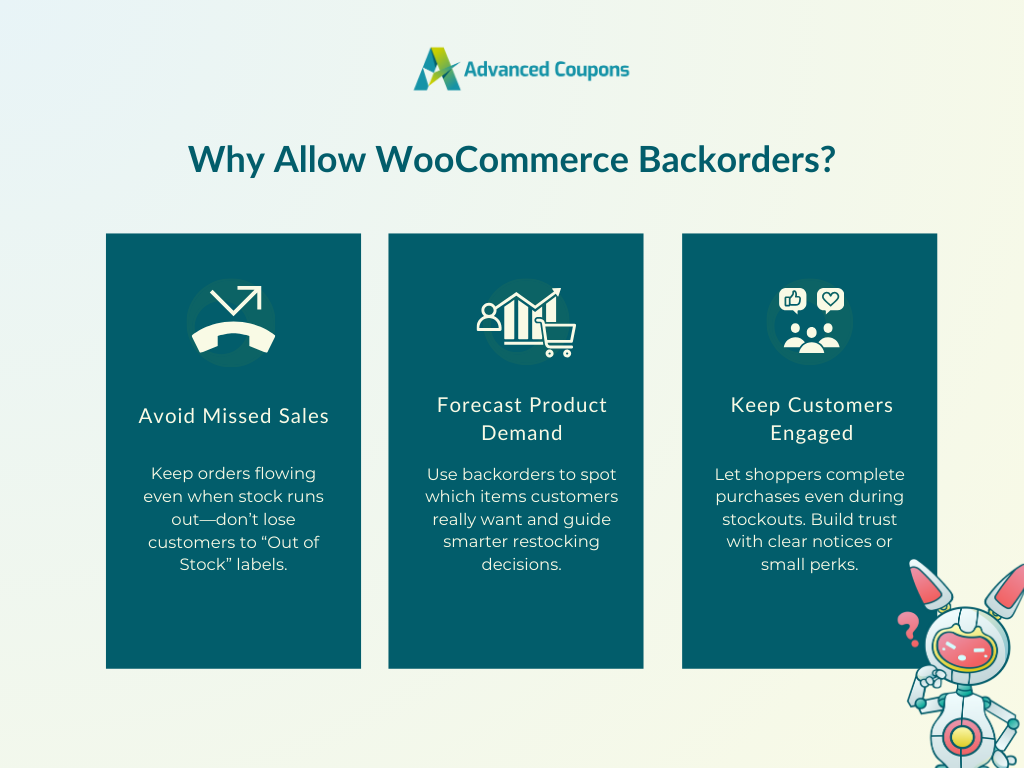
1. Avoid missed sales opportunities
When interested customers land on a product page and see “Out of Stock,” that’s a lost opportunity for your store. According to industry estimates, retailers lose nearly $1 trillion every year due to stockouts.
By enabling backorders, you can continue accepting orders even when inventory temporarily runs out. This means you don’t have to turn away interested customers, especially for your most popular or in-demand products.
2. Helps forecast demand
By enabling backorders, you gain valuable customer insights about which products are truly in demand in your store. If certain items continue to get backordered, it’s a strong indication that they’re worth restocking or promoting further. These insights can guide your future inventory planning, purchasing decisions, and promotional strategies.
3. Keep customers engaged even when stock runs out
Stockouts can frustrate customers, especially when they’ve already decided to buy. With backorders enabled, you can allow shoppers to complete their purchase and feel reassured that their order will be fulfilled once it’s restocked. This keeps them in your sales funnel and reduces the risk of losing them to a competitor.
When paired with a transparent notice, follow-up, or even perks like free shipping, it turns a potentially disappointing moment into an opportunity to strengthen customer relationships.
How To Enable Backorders For WooCommerce Products
WooCommerce backorders can easily be enabled per product. Here’s how:
Method 1: Quick edit via stock status
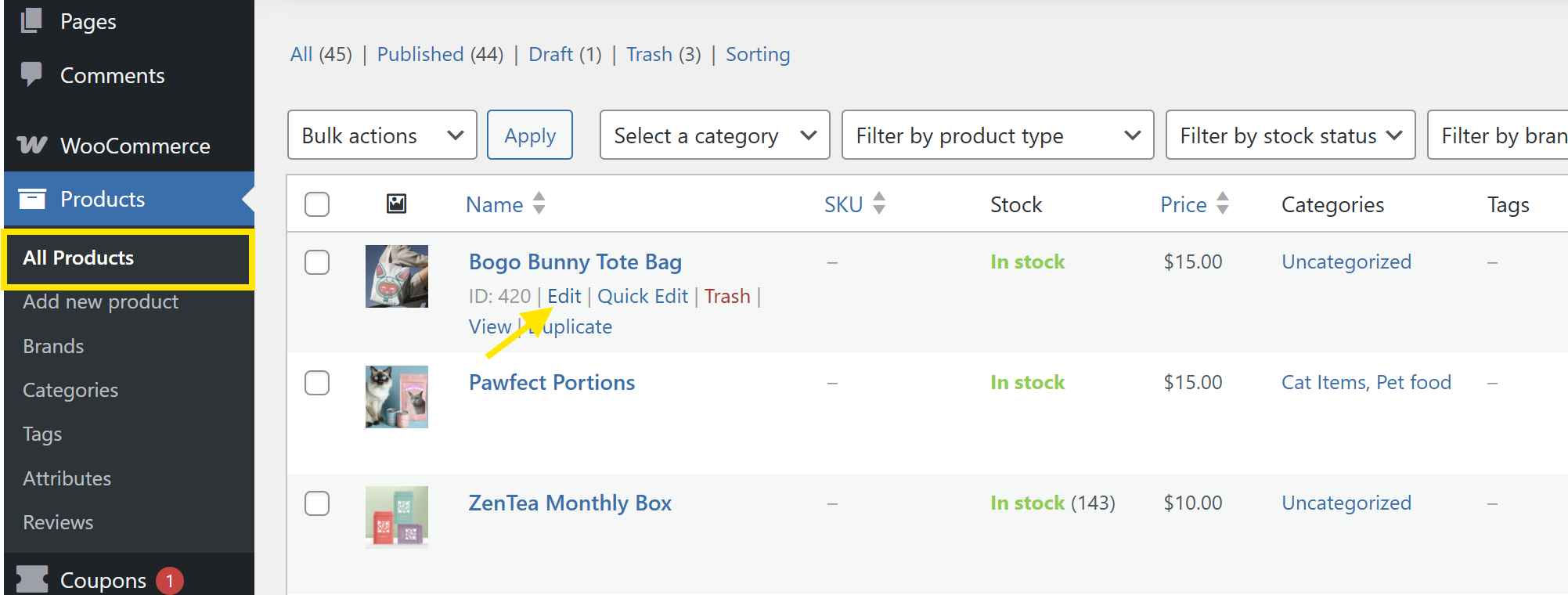
From your WordPress dashboard, head to WooCommerce > All Products and click Edit on the product you want to edit.
Scroll down to the Product Data section and head to the Inventory tab. If you’re not managing stock levels manually (i.e., “Manage stock?” is unchecked), you’ll see the Stock Status section. From here, you can choose “On backorder.”
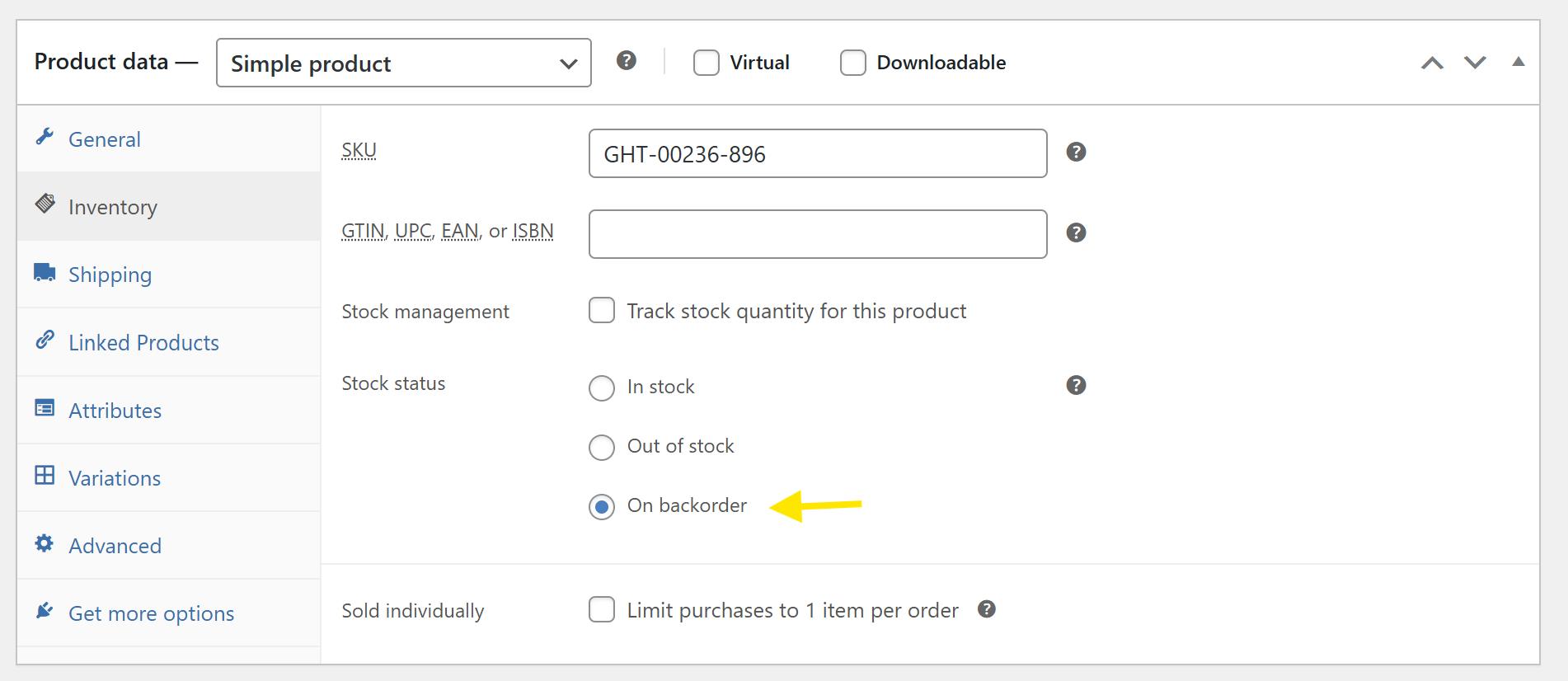
💡 This option is useful if you’re not tracking stock quantities and simply want to continue accepting orders while restocking. It shows the product as available for purchase, with the expectation that it will be fulfilled once inventory is replenished.
Method 2: Enable stock management for full control
If you want more options, you can also check the Manage stock? setting to enable stock management at the product level. This unlocks the Allow backorders? dropdown, where you can choose between three options:
- Do not allow: If you select this, the product will be marked as out of stock once inventory hits zero.
- Allow, but notify customer: The product remains purchasable, and customers are informed that it’s currently on backorder. We recommend choosing this setting.
- Allow: Customers can still place orders, but won’t be notified that it’s on backorder.
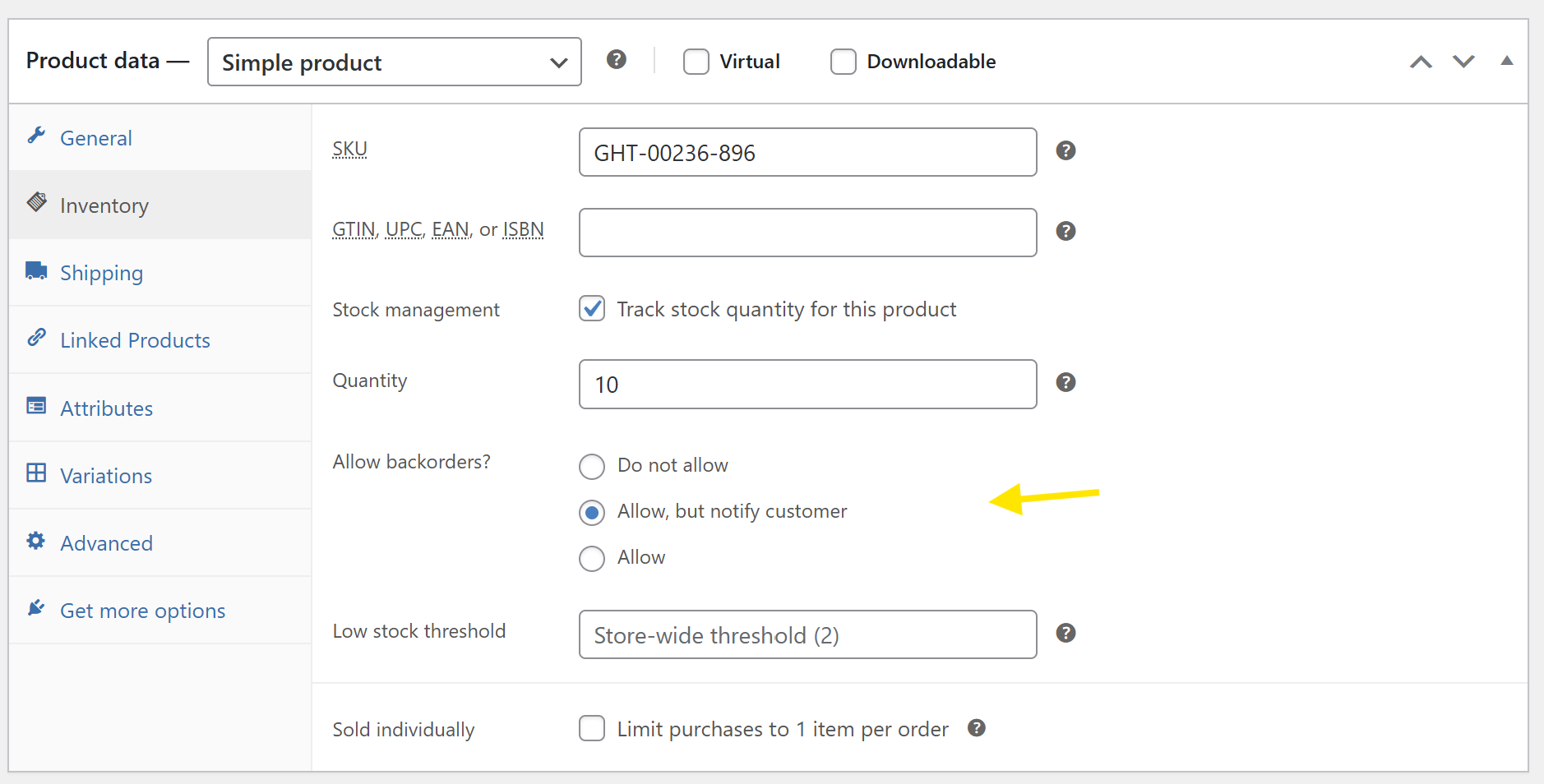
Once you’ve selected your preferred setting, click Update to save your changes. That’s it! Backorders are now enabled for that product. 🎉
How To Turn WooCommerce Backorders Into Sales Opportunities
Stockouts don’t have to stop your momentum. By allowing backorders and pairing it with the right promotional strategies, you can build customer trust, boost conversions, and even increase customer retention. Plugins like Advanced Coupons help you do just that, thanks to powerful features like cart conditions, auto-apply coupons, loyalty rewards, and more.
Here are creative ways to make the most of backorders for your store’s growth:
Incentivize the wait by offering backorder discounts
Customers typically have to wait a little longer for backordered products. One powerful way to reward their patience and keep them engaged is by offering an exclusive discount for backordered items. This can be in a small percentage or fixed discount, or a cashback reward they can use for a future purchase.
With Advanced Coupons, you can create hyper-targeted promotions using cart conditions. These conditions let you specify when and how a coupon applies. This includes the condition “Product Stock Availability Exists In Cart”, which lets you trigger promotions only when backordered items are in the shopper’s cart.
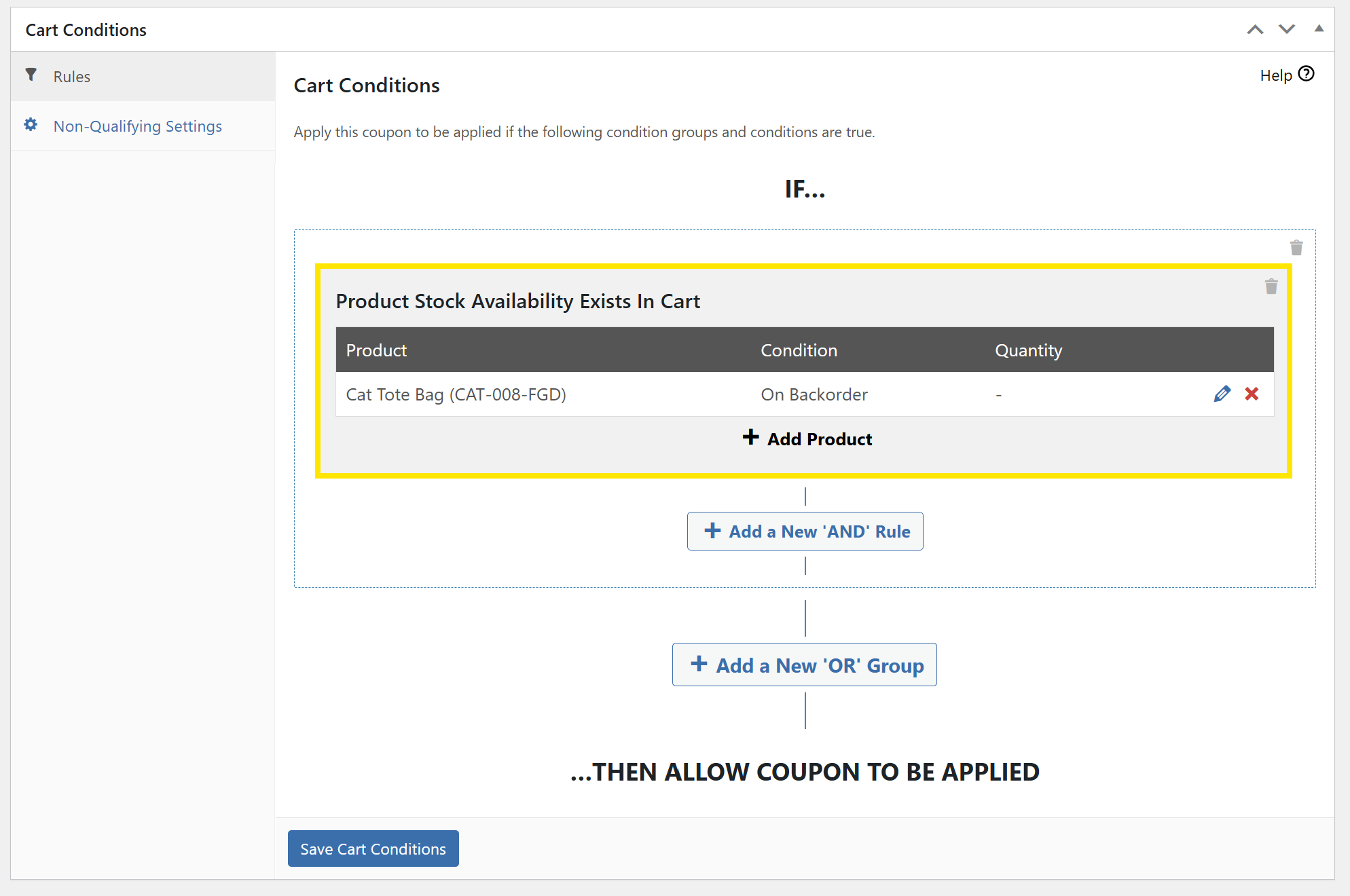
🎯 POWER TIP: You can combine this with other cart conditions like subtotal, customer role, or product categories for more specific targeting, depending on your business goals.
Offer store credit or loyalty points for backorders
This strategy not only incentivizes customers for waiting but also encourages repeat purchases in the future.
Advanced Coupons lets you launch a full store credit system for free in WooCommerce. You can grant store credits manually to customers who purchased a backordered item, or set up promotions like cashback rewards that auto-issue store credits after a set waiting period.
Another powerful way to reward customers is by launching a points-based loyalty program. With Advanced Coupons’ Loyalty Program plugin, you can easily launch a rewards system where customers can earn points when purchasing products, including those on backorder.
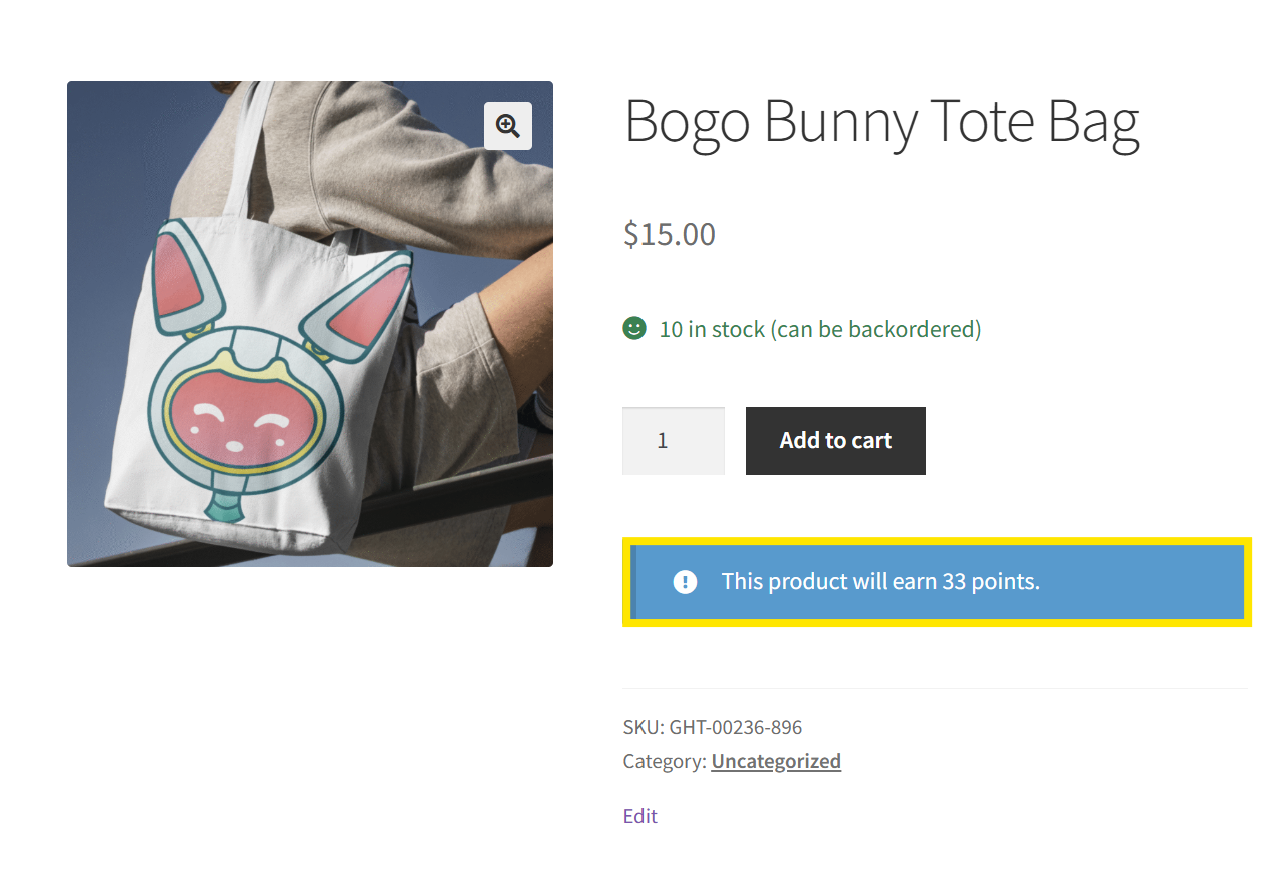
Both of these strategies encourage customer retention, which is important for the long-term growth of your business.
Frequently Asked Questions
What does backorder mean on WordPress?
In the context of WordPress and WooCommerce, a backorder is a feature that allows customers to purchase products even when they’re out of stock. This helps store owners keep sales going while managing temporary inventory shortages. Once the item is restocked, the order is fulfilled and shipped as usual.
Is a backorder the same as out of stock?
No. Products that are “out of stock” cannot be purchased and are marked as unavailable until inventory is replenished. On the other hand, a product on backorder is out of stock but still available for purchase. This allows shoppers to complete their orders even if the item won’t be shipped out immediately.
How long can a product be on backorder?
Most ecommerce platforms like WooCommerce don’t enforce a specific timeframe for how long a product should stay on backorder. However, it’s important to be transparent with customers regarding potential wait times. Consider adding a clear backorder notice on the product page or sending follow-up emails with estimated delivery dates to avoid cancellations.
What are the risks of backordering?
Backorders can help maintain sales momentum and capture customer interest, but there are a few risks to consider:
- Long wait times can frustrate customers and lead to cancellations
- Inventory management can be confusing if stock levels aren’t tracked properly
- Loss of trust if customers aren’t notified that an item is on backorder
- Increased support workload due to order status inquiries or refund requests
To combat these pitfalls, it’s important to communicate and be proactive—update customers about estimated delivery times and offer incentives to reward their patience. You can use tools like Advanced Coupons to craft tailored promotions that apply only when certain conditions are met, such as when products are on backorder.
Wrapping Up
Experiencing occasional stockouts is inevitable in ecommerce, but it doesn’t have to lead to missed sales opportunities. Enabling WooCommerce backorders helps you continue capturing sales, manage customer expectations, and build loyalty even when stockouts happen. In this guide, we covered everything you need to know, including:
- What WooCommerce backorders are and how they work
- How enabling backorders helps
- Step-by-step tutorial to enable backorders in WooCommerce
- Smart strategies to turn backorders into sales opportunities
- Common backorder FAQs
Tools like Advanced Coupons help you take things a step further by turning backorders into sales and retention opportunities. With features like auto-apply discounts, cart conditions, store credit, loyalty rewards, and more, you can create tailored promotions that reward customers and keep them coming back.
We hope this guide helped! Let us know if you have any questions.