
Adjusting loyalty points one customer at a time is slow when you need to reward a whole group, or wipe a bad campaign. Advanced Loyalty Program 1.9.4 adds a Bulk Adjust screen so you can filter customers, preview the change, then queue the work.
This guide walks you through filtering users, picking an operation, setting an increase or a decrease, confirming the run, and watching progress. It is different from a single-customer edit on the Customers tab, which is covered in How To Manage Loyalty Points In Loyalty Program Admin Dashboard.
Prerequisites
- Advanced Loyalty Program 1.9.4 or later is installed and active.
- You are logged in as an administrator (or a role that can manage the loyalty program).
- You know which customers you want to change (role, points range, registration date, or named users).
Open the Bulk Adjust tab
- In WordPress admin, go to Coupons → Loyalty Program.
- Click the Bulk Adjust tab.
The screen loads the last operation status first. If a previous run is still queued or in progress, you see that progress view instead of the filter form. Only one bulk operation can run at a time.
Filter the customers
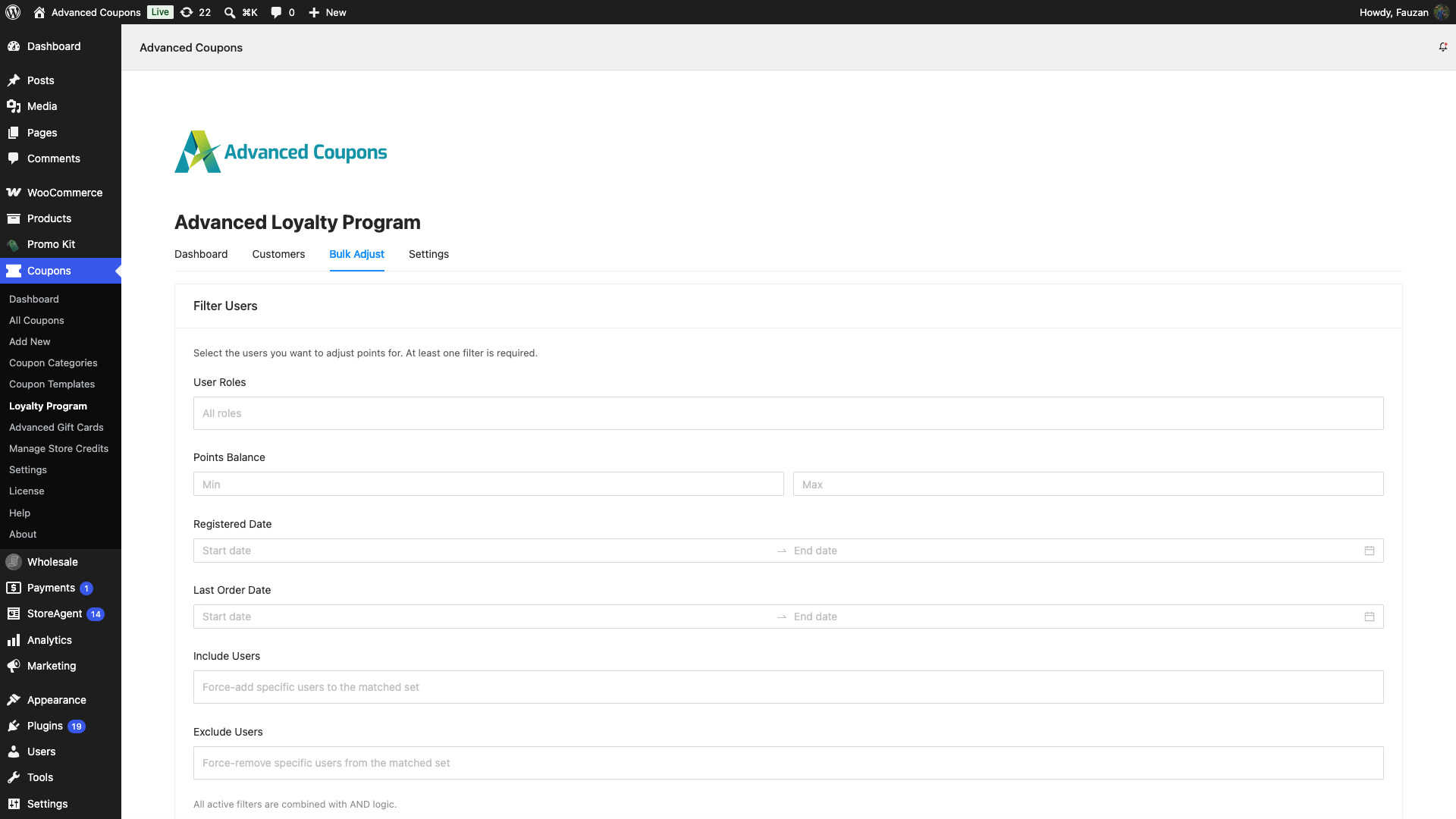
The Filter Users card needs at least one filter. Filters combine with AND logic. You cannot pick a date in the future.
- Set at least one of: User Roles, Points Balance min/max, Registered Date, Last Order Date, Include Users, or Exclude Users.
- Click Preview Users.
The default role picker lists Customer and Subscriber. Use Include Users to force-add people the filters missed. Use Exclude Users to pull people out. Type at least 2 characters in Include Users or Exclude Users to search.
Click Reset Filters if you need a clean start. Confirm with Reset in the pop-up, or Cancel.
Read the preview table
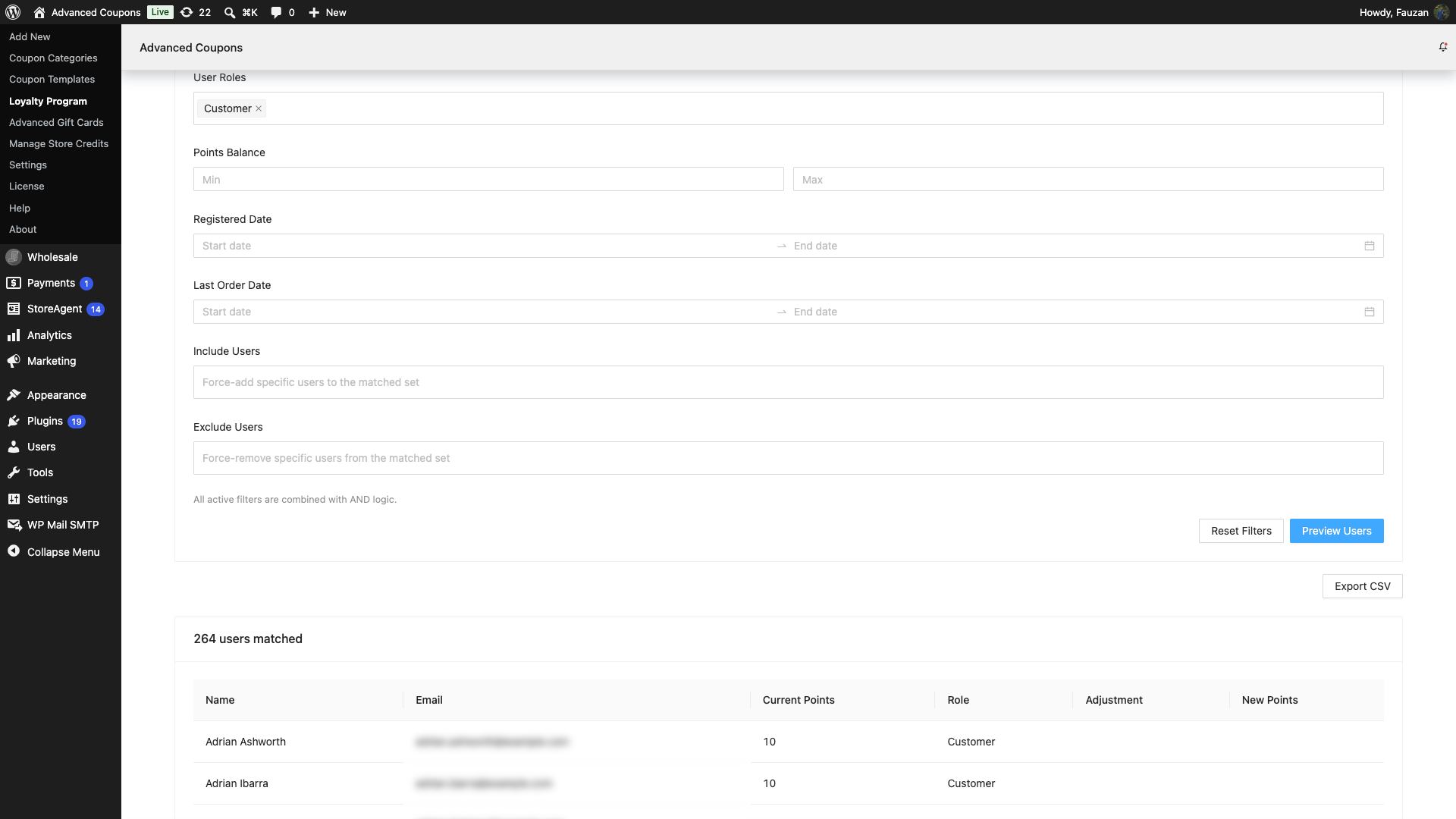
After a successful preview, the table lists Name, Email, Current Points, Role, Adjustment, and New Points. The heading shows how many users matched. If nobody matches, you see “No users matched your filters.”
You can click Export CSV to download User ID, Name, Email, and Current Points for the matched set.
Choose the adjustment
The Adjustment Configuration card appears only after a preview that matched at least one user.
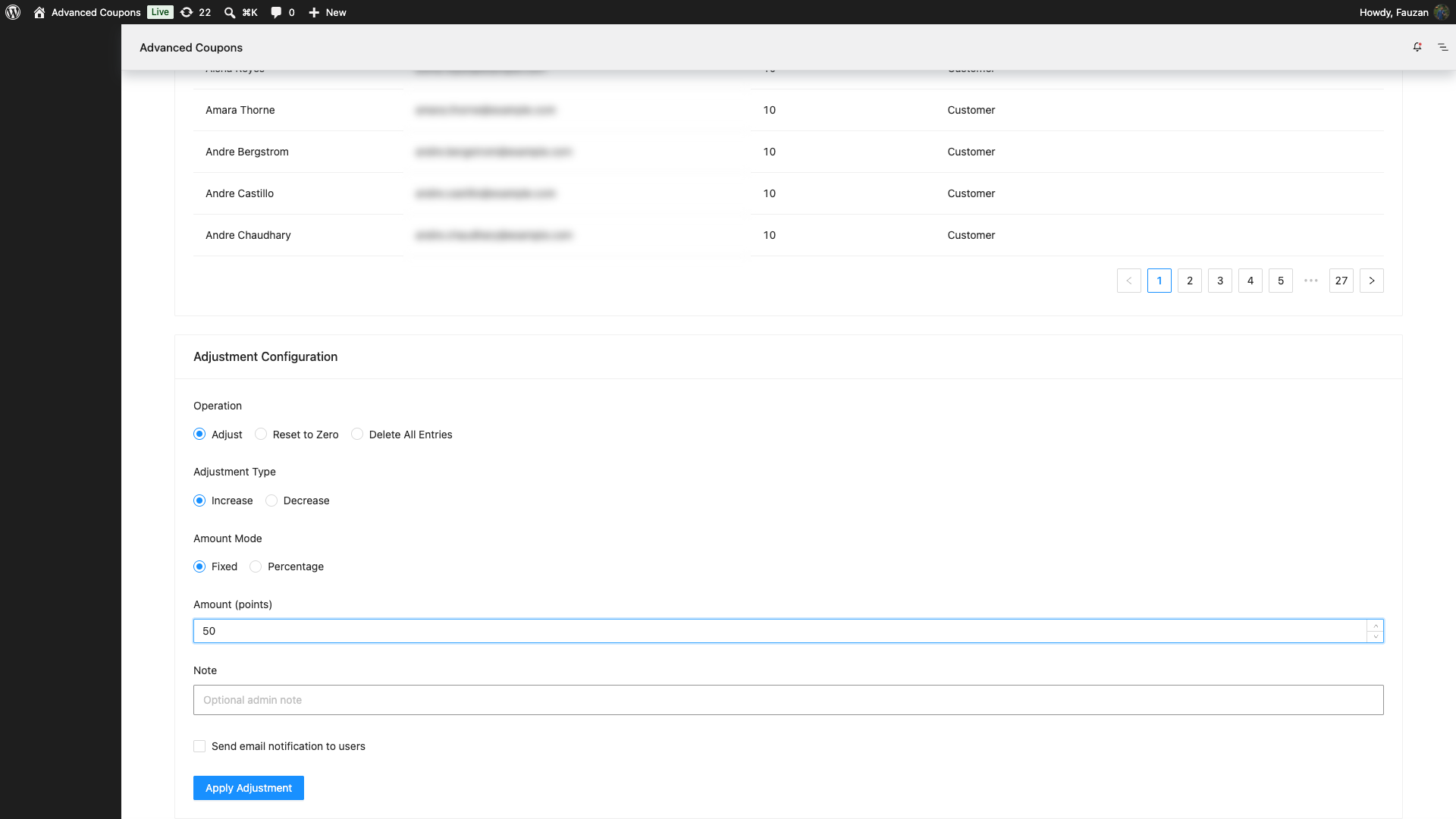
- Under Operation, pick Adjust, Reset to Zero, or Delete All Entries.
- For Adjust, set Adjustment Type to Increase or Decrease.
- For Adjust, set Amount Mode to Fixed or Percentage, then enter an amount above 0.
- For Adjust or Reset to Zero, optionally enter a Note (max 255 characters).
- Optionally tick Send email notification to users.
- Click Apply Adjustment.
What each operation does:
Adjust is the default. Percentage amounts must be above 0 and no more than 100. Percentage rounds to whole points. Customers who would round to 0 points are skipped.
Reset to Zero writes a decrease entry that brings the balance to 0. History stays. Customers already at 0 are skipped.
Delete All Entries permanently removes the points ledger for matched customers. The warning reads: “This action is irreversible.” Delete has no note field and sends no email.
Confirm and run
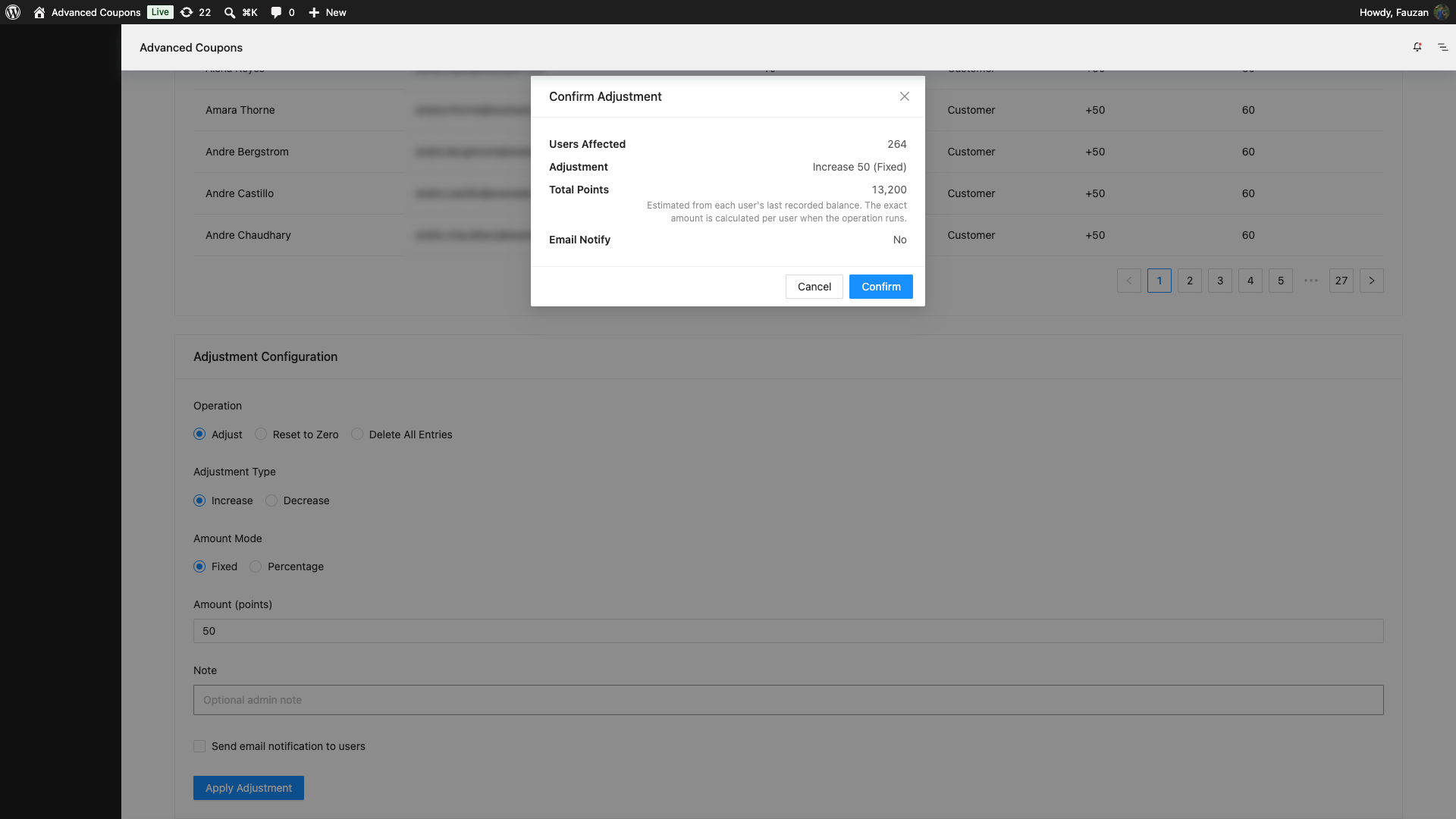
Clicking Apply re-runs the preview with your current amounts, then opens a confirmation modal: Confirm Adjustment, or Confirm: Delete All Entries for delete.
For Adjust and Reset to Zero, the modal lists Users Affected, Adjustment, Total Points, and Email Notify. Total Points is an estimate from each customer’s last recorded balance. The plugin works out the exact amount per customer when the job runs.
For Delete All Entries, the modal lists Users Affected and Operation only. Click Confirm to queue the job, or Cancel.
A success toast says “Bulk adjustment started.” The job runs in the background. You can leave the page and come back.
Watch progress
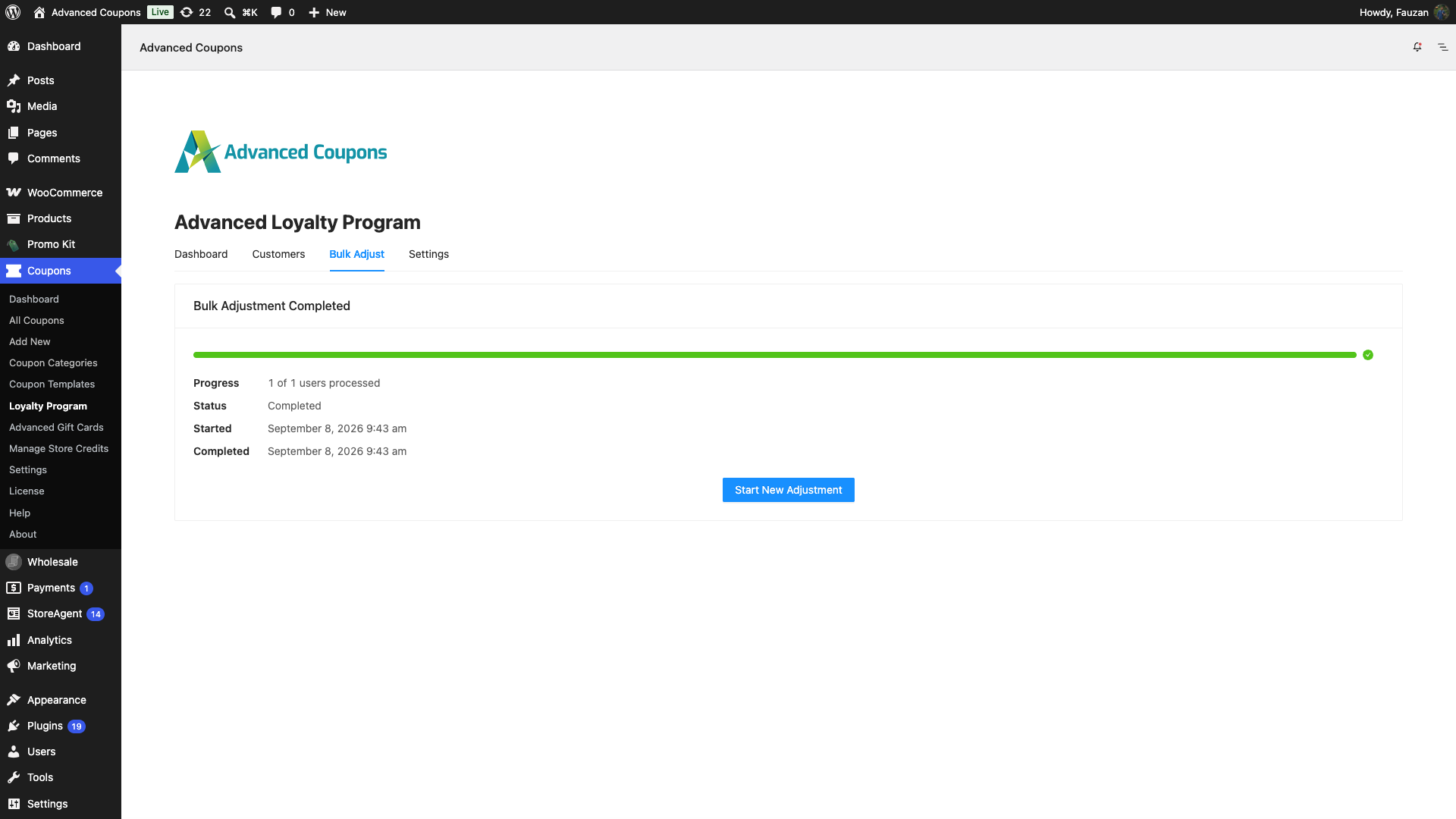
While it runs you see Bulk Adjustment Queued or Bulk Adjustment In Progress, with Progress, Status, Started, and processed counts. Polling refreshes about every 5 seconds.
When it finishes you see Bulk Adjustment Completed or Bulk Adjustment Failed. Click Start New Adjustment to clear that record and return to the filter form. You cannot start another bulk job until you dismiss a finished one, or until a running one completes.
Troubleshooting
Preview Users stays disabled. Set at least one filter. The tooltip is “Set at least one filter to preview users.”
Min balance cannot be greater than Max balance. Swap the Points Balance numbers so min is less than or equal to max.
“From” date cannot be after “To” date. Fix the Registered Date or Last Order Date range.
Could not verify whether a bulk operation is already running. Click Retry on the status banner. A running job from another tab will block a new start.
Delete looks too dangerous. Use Reset to Zero instead if you only need balances at 0 and want to keep history.
Frequently asked questions
Is this the same as editing one customer on the Customers tab?
No. Customers is one person at a time. Bulk Adjust is a filtered group, previewed, then queued.
Can two bulk jobs run at once?
No. The plugin keeps a single in-progress lock. Wait for the current job, then click Start New Adjustment.
Do percentage decreases go below zero?
Balances do not go negative. Percentage rounding that would apply 0 points skips that user.
Related articles
- How to Manually Adjust Loyalty Program Points
- How To Manage Loyalty Points In Loyalty Program Admin Dashboard
- How to bulk adjust, reset, or delete customer store credits
Need help?
If you have a question or run into any issues, we’re here to help.
- Premium users: Open a support ticket
- Free users: Visit our community forum

