
Fixed gift card amounts ($25, $50, $100) do not fit every shopper. Advanced Gift Cards for WooCommerce lets the customer type or tap their own amount on the product page. That amount becomes the gift card value.
This guide shows how to turn on Let the customer choose the amount on a simple gift card and on one variation of a variable gift card. It also covers min, max, step, default, preset buttons, and how those bounds convert when a currency switcher is active.
For a fixed-value gift card instead, see How to Create Gift Card Product?
Prerequisites
- Advanced Gift Cards for WooCommerce 1.4.3 or later.
- WooCommerce is active.
- You can create or edit products.
Turn on a customer-chosen amount on a simple gift card
- Go to Products → Add New, or open an existing gift card product.
- Set Product data to Advanced Gift Card.
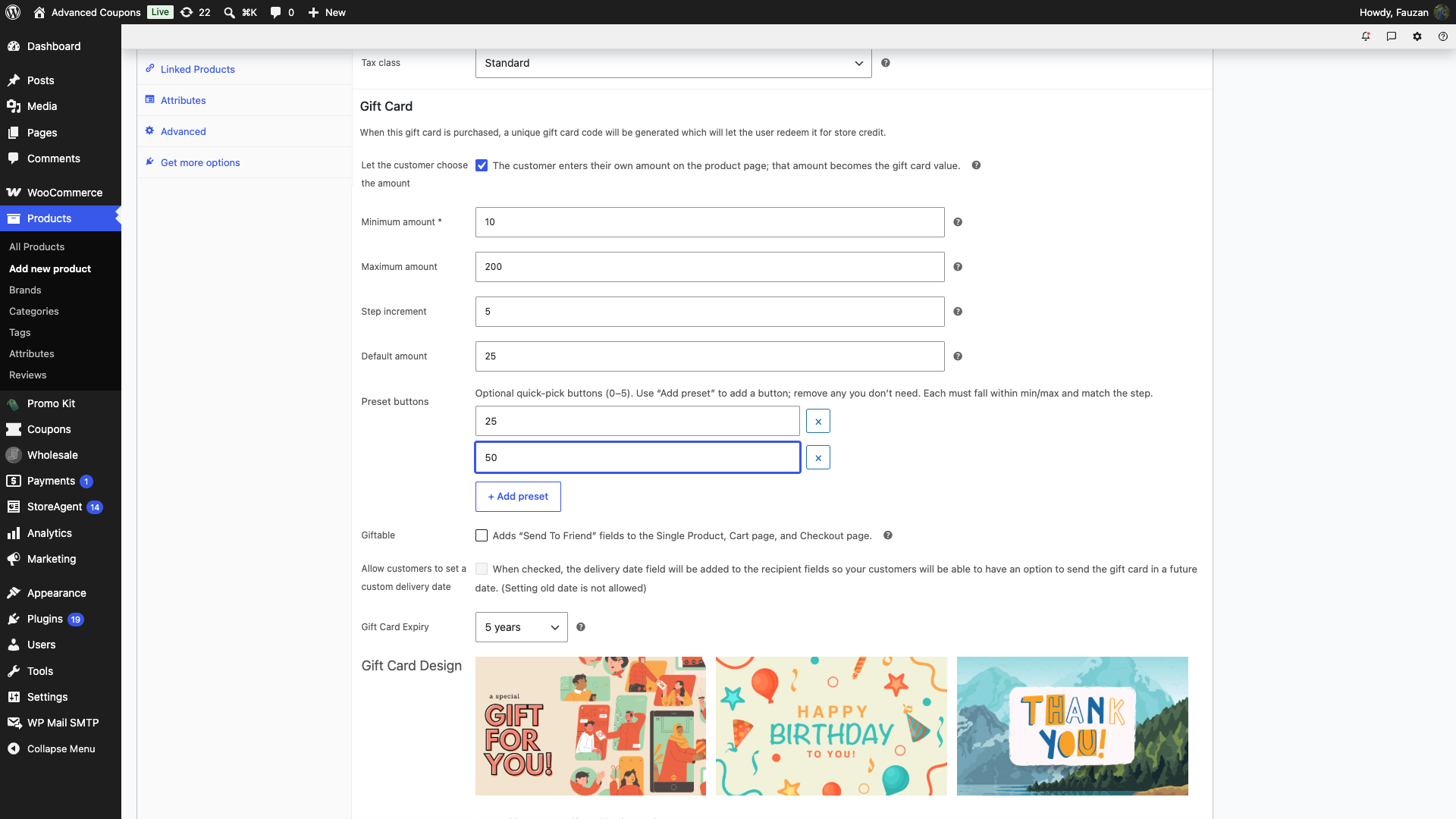
- In the gift card options, tick Let the customer choose the amount.
When this is on, the fixed Gift Card Value field is hidden. The customer chooses an amount within the bounds you set. The minimum becomes the product price.
Set the bounds
- Enter Minimum amount (required). This is the smallest amount a customer may choose.
- Optionally enter Maximum amount. Leave empty for no maximum.
- Optionally enter Step increment. Amounts must step from the minimum. If you leave this blank, the store uses the currency’s smallest unit (for example 0.01 when prices use 2 decimals).
- Optionally enter Default amount. This pre-fills the shopper field. It must sit inside min/max and match the step.
If you enable the checkbox but the min (or other bounds) fail validation, the product save shows an admin error and manual mode stays off.
Add preset buttons (optional)
Preset buttons are quick-picks on the product page. You can add 0–5. Each must fall within min/max and match the step.
- Click + Add preset for each amount you want.
- Type the amount in the new row.
- Click the × control (Remove preset) on any row you do not need.
Save the product
Click Publish for a new product, or Update for an existing one. The gift card settings save with the product.
Use a customer-chosen amount on a variable gift card
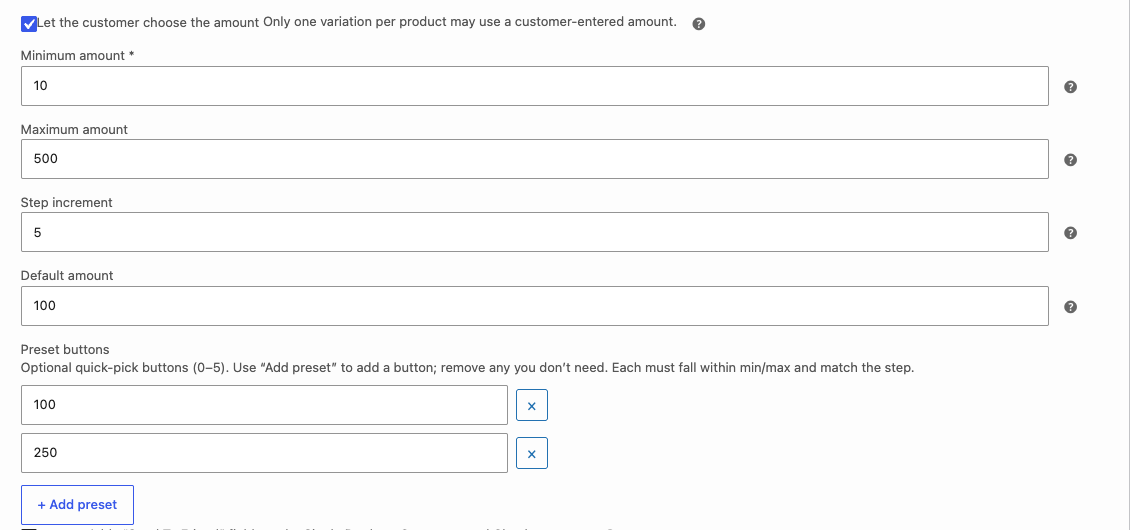
On a Variable Advanced Gift Card, only one variation may use a customer-entered amount. Extra variations that try to enable it are rejected with: “Only one variation can use a manual amount. The extra manual variation was not enabled.”
- Set the product type to Variable Advanced Gift Card and create your variations as usual, as described in the Advanced Gift Cards Getting Started Guide.
- Open the variation that should take a typed amount.
- Tick Let the customer choose the amount on that variation only.
- Fill Minimum amount and the optional max, step, default, and presets.
- Save the variation, then update the product.
On that variation, the minimum becomes the variation price. Other variations can stay on fixed gift card values.
What the shopper sees
On a simple gift card, the product page shows an Amount field. The field’s placeholder shows the accepted range in the store currency, for example “$10–$200”. If you set a default amount, the field opens pre-filled with it. Any preset buttons sit under the field.
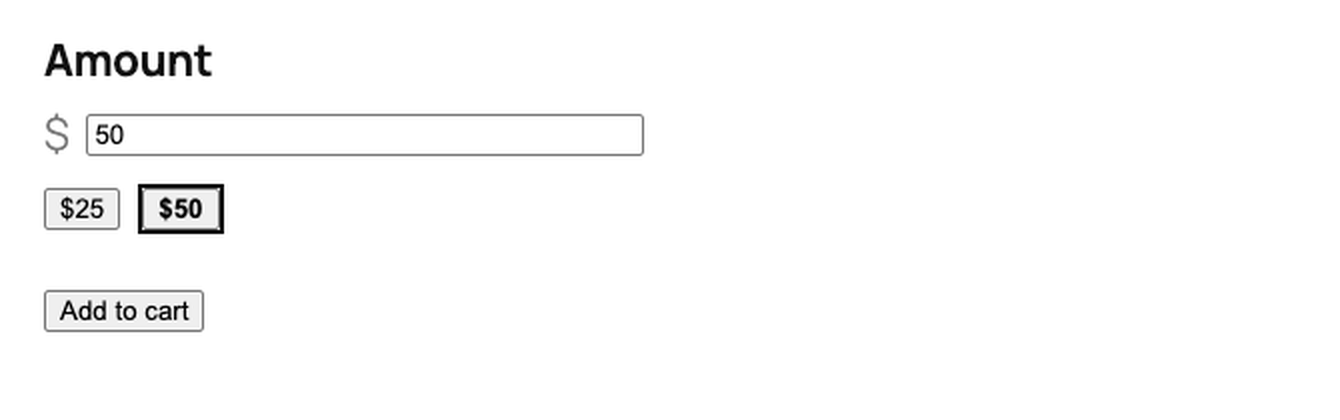
On a variable gift card, the Amount field stays hidden until the shopper picks the variation that has manual mode.
Validation messages the shopper can see. Your own minimum, maximum, and step values appear in place of the amounts below.
- Please enter an amount.
- Please enter a valid amount.
- Amount must be at least $10.
- Amount must not exceed $200.
- Amount must be in increments of $5.
The amount they submit becomes the gift card value at add to cart, then at issuance after purchase.
Multi-currency stores
From Advanced Gift Cards 1.4.3, the min, max, step, default, and preset amounts convert into the shopper’s active currency when a supported currency switcher is active. The plugin uses the same exchange rates as Advanced Coupons, then rounds to that currency’s decimals. The displayed range, the preset buttons, and the amount the store accepts all stay in agreement.
Configure the bounds in your store’s base currency. Test the product page after switching currency. If conversion looks off, check the switcher’s rate and decimal settings rather than editing a second set of gift card fields.
Troubleshooting
The Amount field is missing on a variable product. Select the variation that has Let the customer choose the amount. Other variations do not show it.
I cannot enable it on a second variation. Only one variation per product may use a manual amount. Turn it off on the first variation, or keep fixed values on the others.
The product would not save with the checkbox on. Read the admin error. Minimum amount is required. Default and presets must sit inside min/max and match the step.
Preset amounts the shopper taps are rejected. Re-check each preset against min, max, and step after you change those bounds.
Frequently asked questions
Does the typed amount replace Gift Card Value?
Yes, while Let the customer choose the amount is on. The fixed Gift Card Value field is hidden. The minimum is used as the catalog price.
Can I mix fixed variations and one open amount?
Yes. Keep $25 and $50 as normal variations, and enable the customer-chosen amount on one more variation such as “Custom”.
How many preset buttons can I add?
Up to 5. Each preset must sit inside your minimum and maximum, and it must match the step increment. A preset outside those bounds stops the product from saving.
Related articles
Need help?
If you have a question or run into any issues, we’re here to help.
- Premium users: Open a support ticket
- Free users: Visit our community forum

