
Adding gift cards one at a time is fine for a handful of products. When you need a dozen denominations, or you are moving a store across, the product CSV importer built into WooCommerce creates them all in one pass. This guide gives you the exact column values Advanced Gift Cards for WooCommerce expects, including the one column that decides what each card is actually worth.
What you’ll need
- WooCommerce, with the built-in product CSV importer at Products > All Products > Import.
- Advanced Gift Cards for WooCommerce installed and active. The plugin registers the gift card product types, so it has to be active while the import runs.
- A spreadsheet tool that can save a
.csvfile, such as Google Sheets or Excel.
The gift card product types
The Type column tells WooCommerce which kind of product to build. Gift cards use their own type keys, and you have to enter the key, not the label you see in the product editor.
| Type column value | What it creates |
|---|---|
advanced_gift_card | A fixed-amount gift card, for example a 50.00 card. |
variable-advanced_gift_card | A gift card that offers several amounts as variations. |
variation | One amount under a variable gift card. Set Parent to the parent card’s SKU. |
Typing the display label Advanced Gift Card into the Type column fails the import with Invalid product type. Use the key from the table.
Set the card value, not just the price
This is the step most CSV workflows miss. The Regular price is what the shopper pays at checkout. The gift card value is what the recipient can spend, and it is stored separately. The importer never copies one across to the other.
If you leave the value column out, the cards import and look correct in the products list, but the plugin refuses to issue a gift card when one is bought. Your customer pays and no code ever reaches them. Always include the Meta: _agcfw_gift_card_value column, and match it to the Regular price unless you are deliberately selling a card below face value.
Build your CSV
Here is a minimal CSV that creates two fixed-amount gift cards.
Type,SKU,Name,Published,Regular price,Meta: _agcfw_gift_card_value
advanced_gift_card,GC-25,Gift card 25,1,25,25
advanced_gift_card,GC-50,Gift card 50,1,50,50
Start each gift card column with Meta: and then the key. That prefix is what tells WooCommerce to map the column for you. Keep the space after the colon, as in Meta: _agcfw_gift_card_value, because that form keeps the key exactly as you type it.
You do not need a column for virtual or shipping. Gift cards are always treated as virtual and never ask for a shipping address, whatever the CSV says.
Columns that control the gift card
| Column header | What it sets | Accepted values |
|---|---|---|
Meta: _agcfw_gift_card_value | The amount the recipient can spend. | A number, for example 50. |
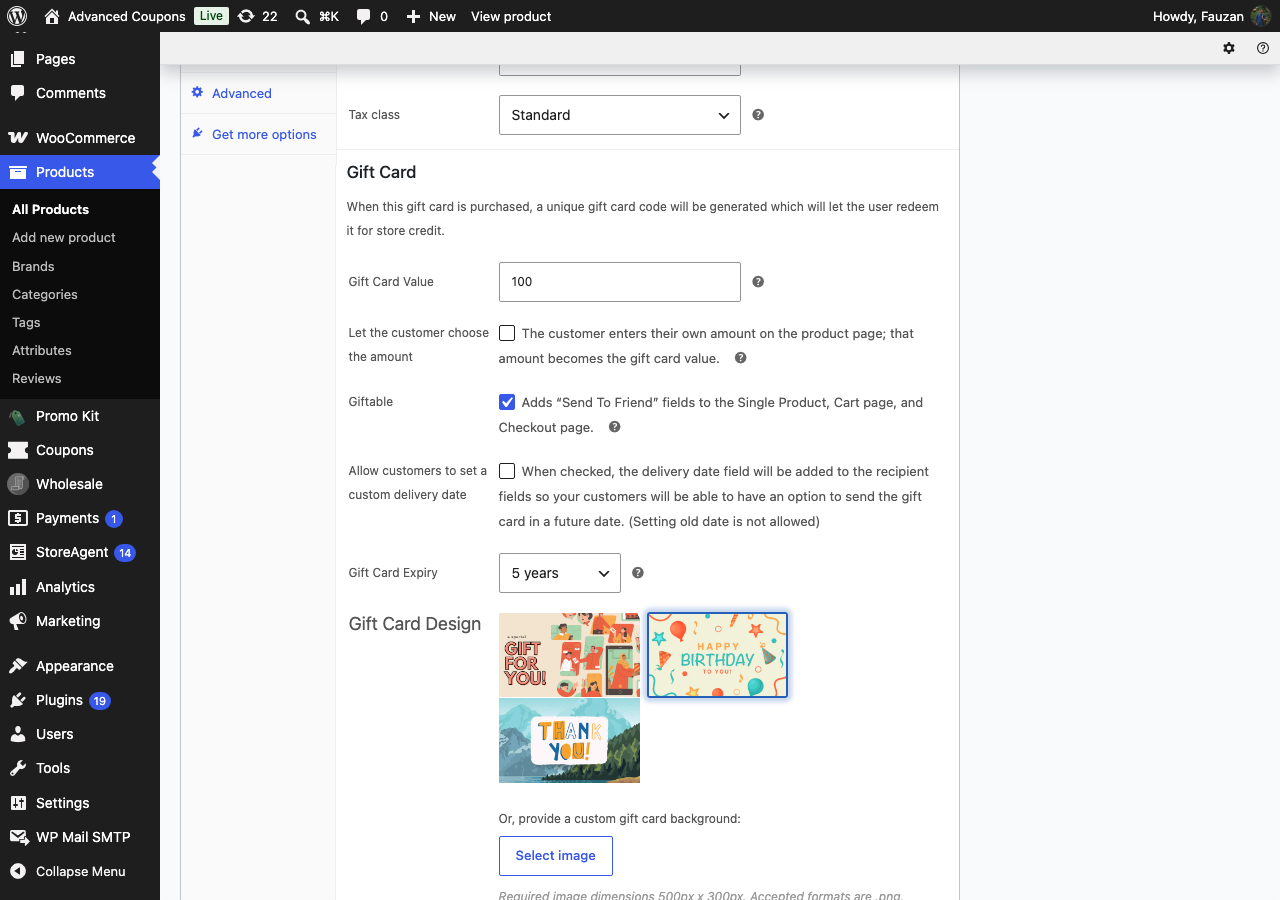
Meta: _agcfw_gift_card_design | Which built-in card artwork to use. | default, birthday, thankyou |
Meta: _agcfw_gift_card_custom_bg | Your own card artwork. | The attachment ID of an image already in your Media Library. |
Meta: _agcfw_expiry | How long the card stays valid. | 5, 4, 3, 2, 1, noexpiry, custom |
Meta: _agcfw_expiry_custom | The expiry period in days, when expiry is set to custom. | A number of days. |
Meta: _agcfw_is_giftable | Lets the buyer send the card to someone else. | yes |
Leave the expiry column out and the card defaults to 5 years, which is the same default the product editor uses. If you set both a design and a custom background, the custom background wins.
For custom artwork, upload the image first at Media > Add Media File, then open it in the Media Library. The attachment ID is the number in the browser address bar, shown as item= in the grid view or post= in the list view. The card artwork is a separate image from the product image, and there is no setting that makes the card reuse the product image. It works the other way around: when a gift card product has no product image of its own, the card artwork is shown in your shop catalog.
Import your CSV
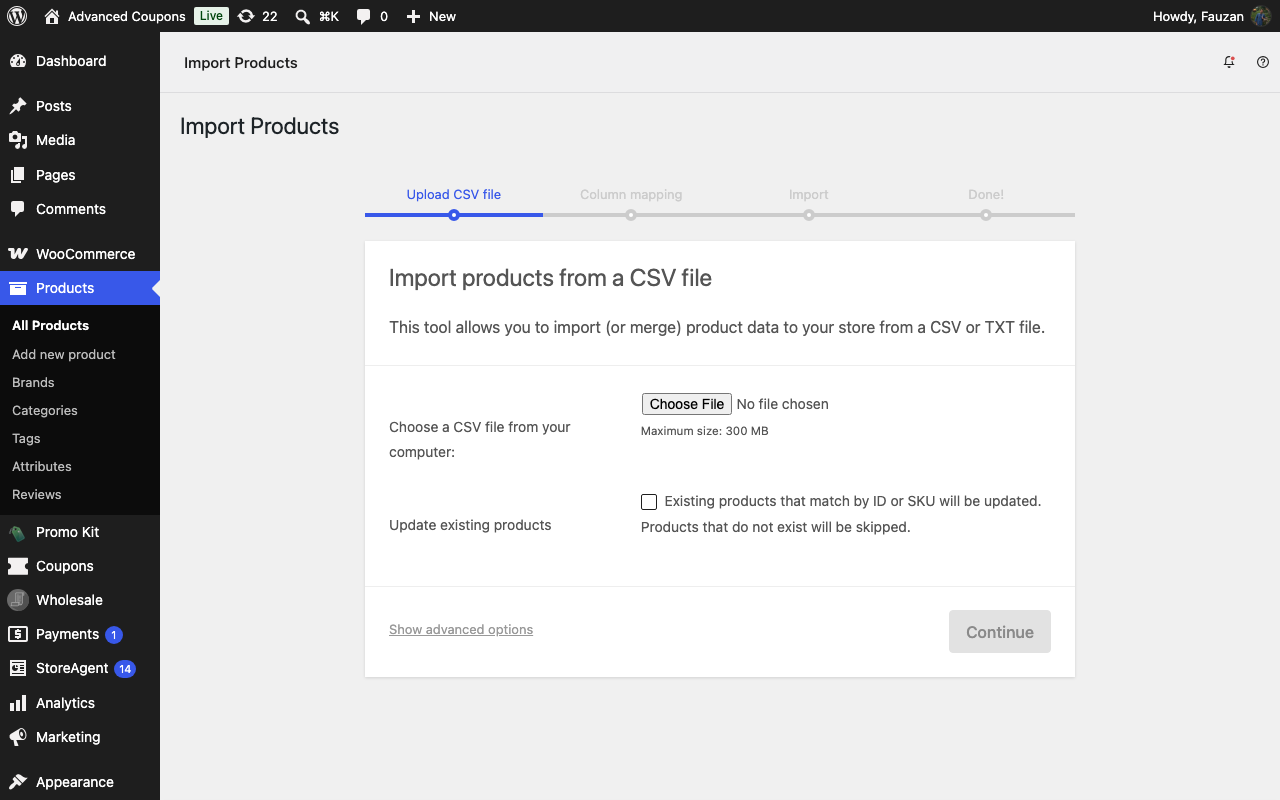
- Go to Products > All Products and click Import.
- Select your CSV under Choose a CSV file from your computer.
- Click Continue.
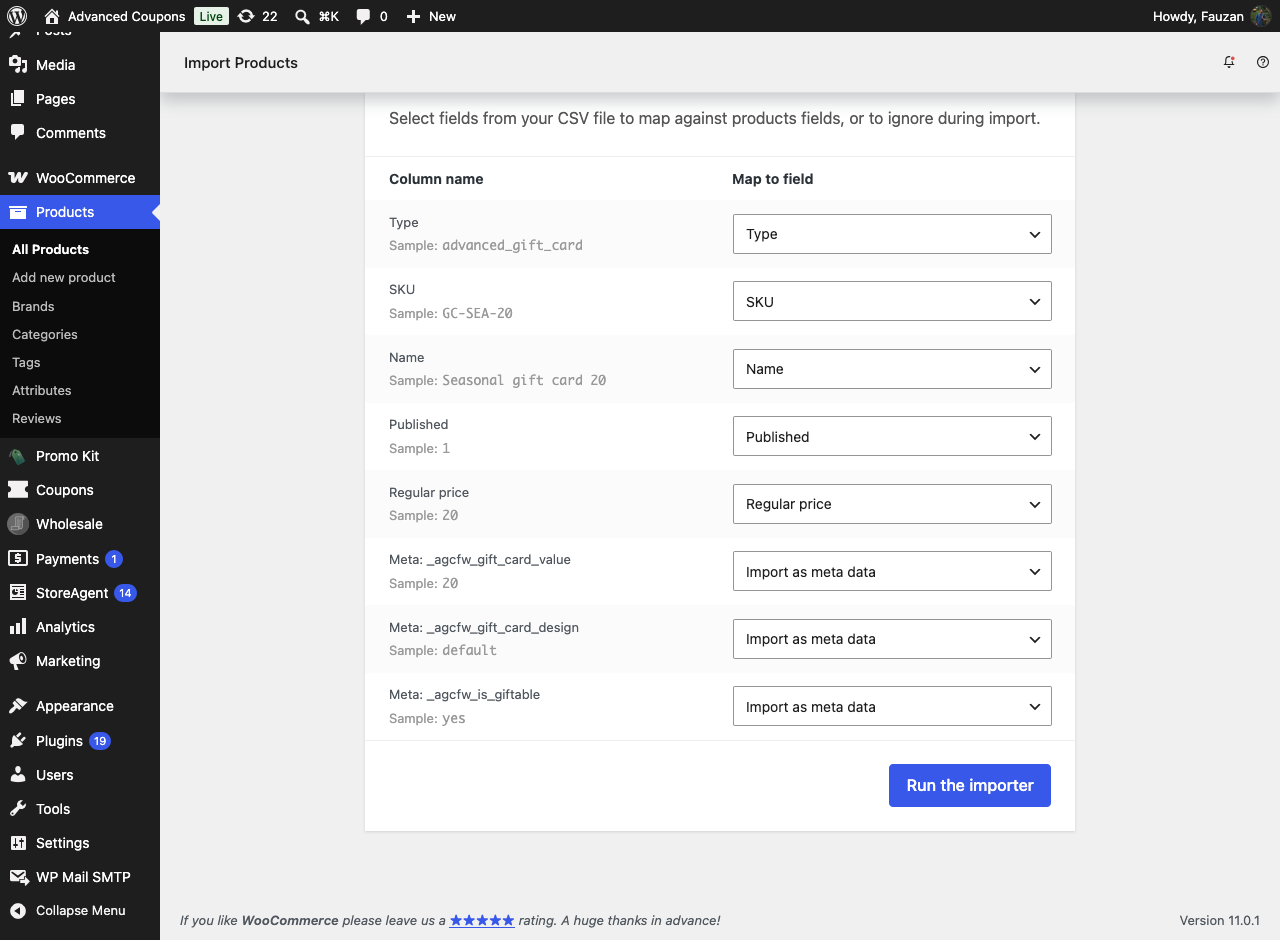
- Check the Column mapping screen. Each meta column should show Import as meta data on the right, and Type should map to Type.
- Click Run the importer.
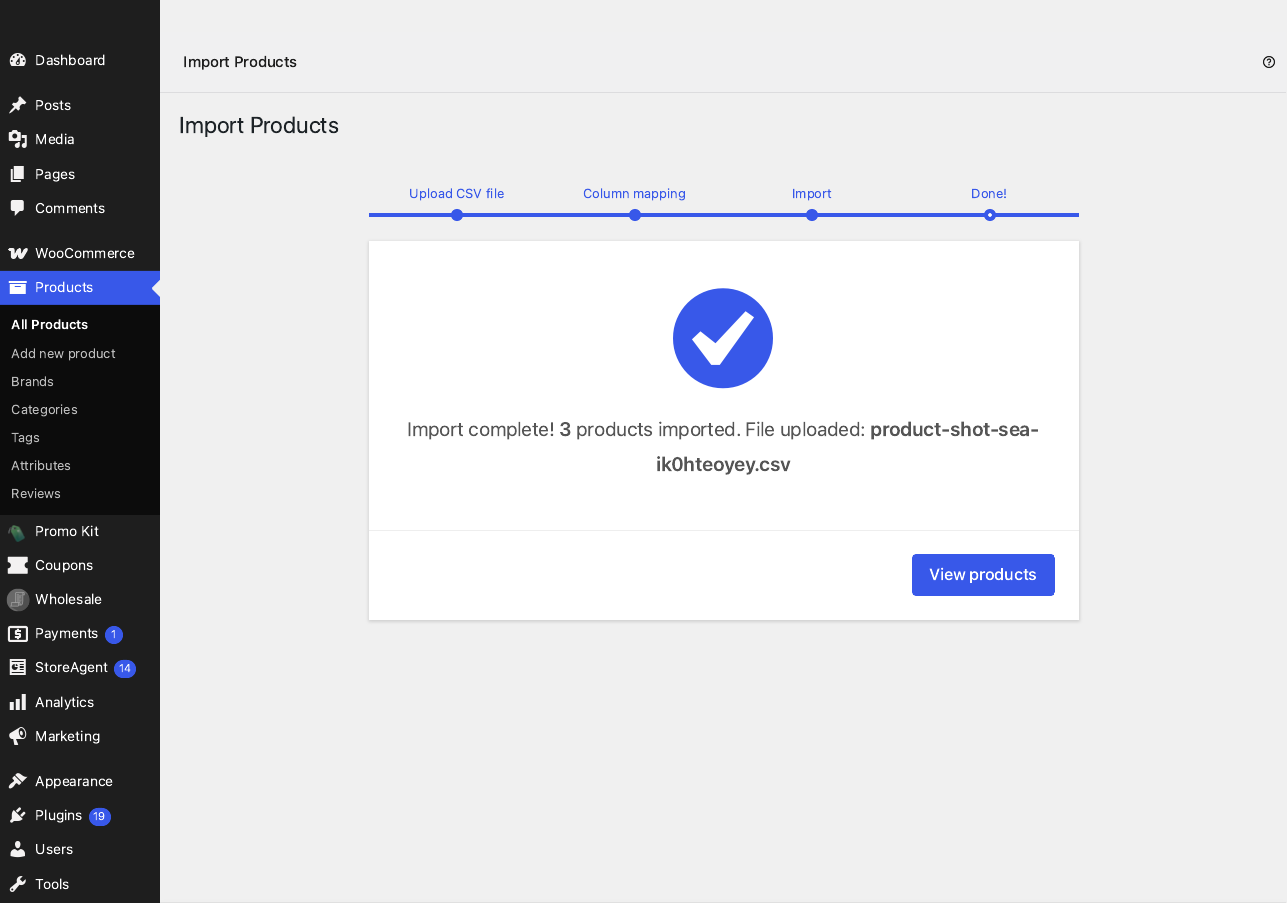
- Open your products list once the import finishes.
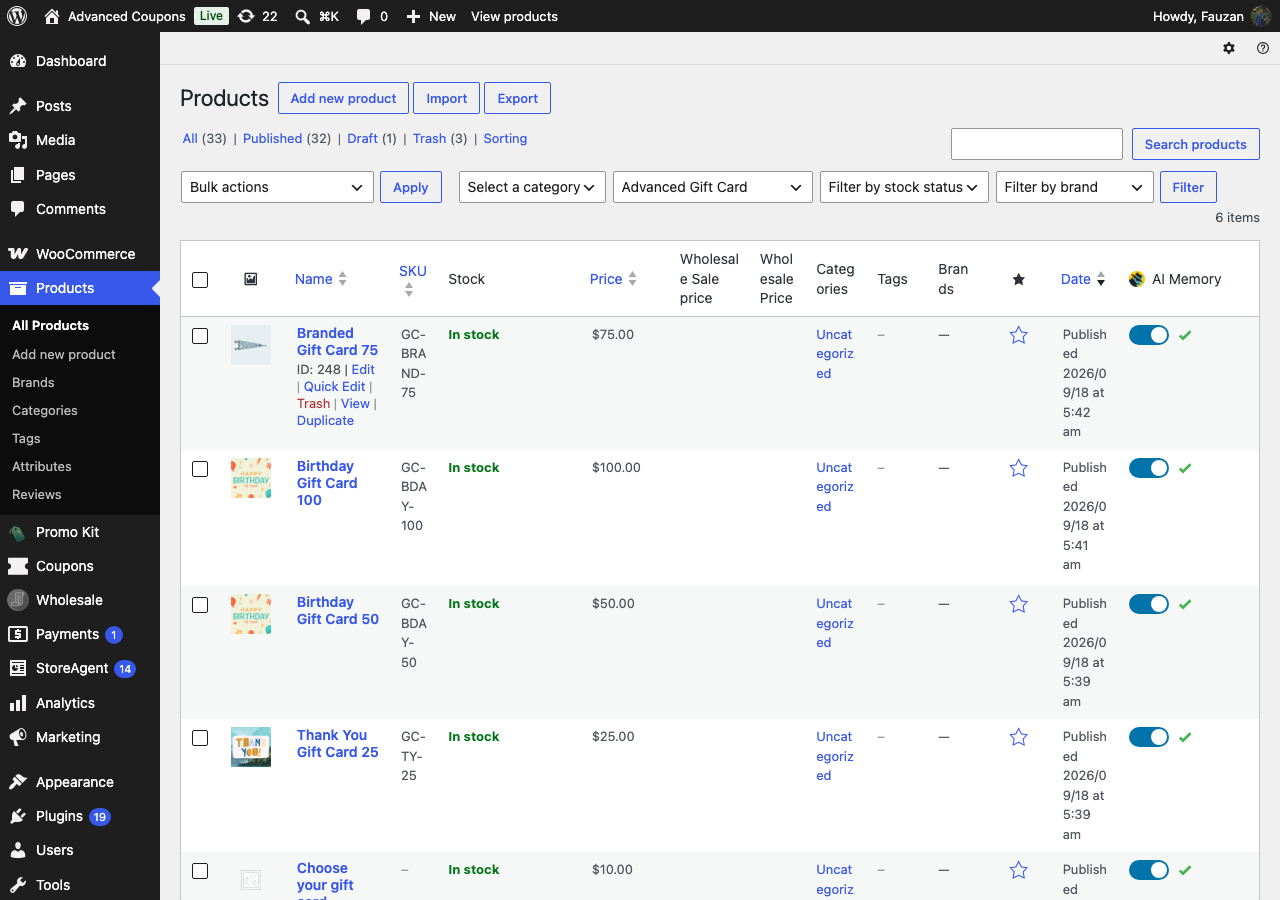
Your new gift cards now appear in the products list. Use the product type dropdown to filter by Advanced Gift Card if you want to see only your cards. Open one and stay on the General tab. The Gift Card section there holds the Gift Card Value field and the card design, so you can confirm both came through.
Offer several amounts on one gift card
A variable gift card gives shoppers a choice of amounts on a single product page. Build it with one parent row and one row per amount. The parent row carries the attribute and its values. Each variation row points back at the parent SKU and needs its own value column.
Type,SKU,Name,Published,Parent,Regular price,Attribute 1 name,Attribute 1 value(s),Meta: _agcfw_gift_card_value
variable-advanced_gift_card,GC-VAR,Store gift card,1,,,Amount,"25, 50",
variation,GC-VAR-25,Store gift card - 25,1,GC-VAR,25,Amount,25,25
variation,GC-VAR-50,Store gift card - 50,1,GC-VAR,50,Amount,50,50
Leave the value column empty on the parent row. The amount lives on each variation, so a shopper who picks the 50 option receives a card worth 50.
Convert existing products into gift cards
If you already have products that should have been gift cards, you can change their type in place. Both paths below keep the existing product, its SKU, and its URL.
Re-import a CSV
This is the option to reach for first, because it needs nothing beyond the importer you have already used.
- Build a small CSV with the SKU of each product you want to convert, a Type of
advanced_gift_card, and aMeta: _agcfw_gift_card_valuecolumn. - Start the import at Products > All Products > Import.
- Tick Update existing products on the upload screen.
- Check the column mapping.
- Click Run the importer.
SKU,Type,Meta: _agcfw_gift_card_value
OLD-SKU-1,advanced_gift_card,40
OLD-SKU-2,advanced_gift_card,60
WooCommerce matches each row to the existing product by SKU and switches its type, leaving the rest of the product data alone.
Use WP-CLI
If you have command line access to your server, or your host runs commands for you, WP-CLI converts a product in a single call. Replace <id> with the product ID and <admin> with an administrator username.
wp wc product update <id> --type=advanced_gift_card \
  --meta_data='[{"key":"_agcfw_gift_card_value","value":"35"}]' --user=<admin>
The value argument matters here for the same reason it matters in a CSV. Changing only the type leaves the card with no value, and a card with no value is never issued. To work through a list of products, loop over the IDs:
Swap in the real value for each card. The loop below uses the same figure for every product, so run it once per group of cards that share a value.
for id in 101 102 103; do
  wp wc product update $id --type=advanced_gift_card \
    --meta_data="[{\"key\":\"_agcfw_gift_card_value\",\"value\":\"35\"}]" --user=<admin>
done
Troubleshooting
The import fails with “Invalid product type.”
Check the spelling in your Type column against the table above. Two things cause this. Either the display label Advanced Gift Card was entered instead of the key advanced_gift_card, or Advanced Gift Cards for WooCommerce was not active when the import ran. WooCommerce only accepts product types that a plugin has registered, so activate the plugin and import again.
The products imported, but no gift card code is issued
The Meta: _agcfw_gift_card_value column was missing or empty, so each card has a value of zero and the plugin will not create a code for it. Fix it with a second import: build a CSV of the affected SKUs with that column filled in, tick Update existing products, and run it. A price on its own never sets the card value.
A meta column shows as “Do not import”
Check the column header for the Meta: prefix. A header like _agcfw_gift_card_value or Gift card value has nothing to tell WooCommerce it is custom data, so the importer leaves it alone. Rename the header to Meta: _agcfw_gift_card_value and import again, or set that row to Import as meta data on the Column mapping screen and carry on.
The Virtual column shows as “Do not import”
Leave it set to Do not import. WooCommerce has no Virtual column in its importer, so there is nothing to map it to. It changes nothing here, because gift cards are always virtual.
A variation imported as its own product
Check the Parent column on the variation row. It has to hold the parent card’s SKU, and the parent row has to be in the same file or already in your store.
Frequently asked questions
Can I change the artwork on gift cards I already imported?
Yes. Run a second import with Update existing products ticked, using a CSV of the SKUs and a Meta: _agcfw_gift_card_design or Meta: _agcfw_gift_card_custom_bg column. You can also change it one product at a time in the Gift Card section of the product’s General tab.
Does this import gift card codes as well?
No. This creates the gift card products customers buy. Issuing the codes themselves is a separate job, covered in How to Create Bulk Gift Card Codes.
What happens if I set a value that is different from the price?
The shopper pays the Regular price and the recipient gets a card worth the value you set. That is how you run a promotion such as a 50.00 card for 45.00. Keep the two figures matched unless you mean to do this.
Need help?
If you have a question or run into any issues, we’re here to help.
- Premium users: Open a support ticket
- Free users: Visit our community forum

