
When a customer asks for a refund, you can return the value as store credit instead of cash. The money stays in your store and the customer can spend it on their next order. This article shows you how to issue a store credit refund from the order screen and where to check it afterwards.
Before you start
- Store credits must be enabled in Advanced Coupons.
- The order must belong to a registered customer, because store credit is held against a customer account.
Issue the refund as store credit
- Go to WooCommerce > Orders.
- Open the order you want to refund.
- Click Refund under the list of products.
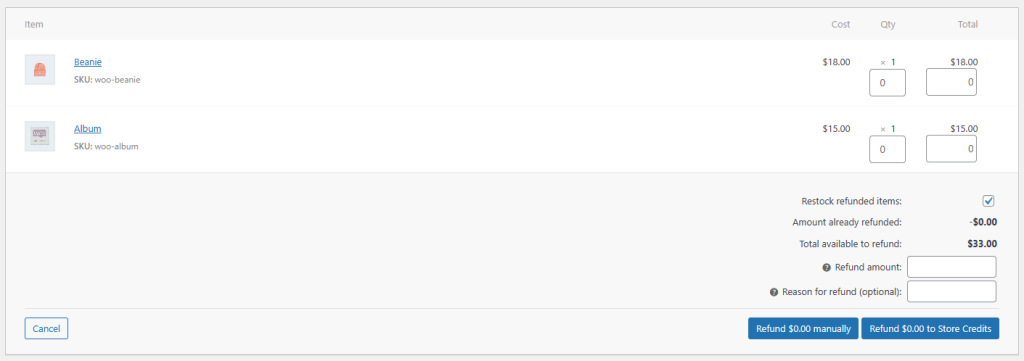
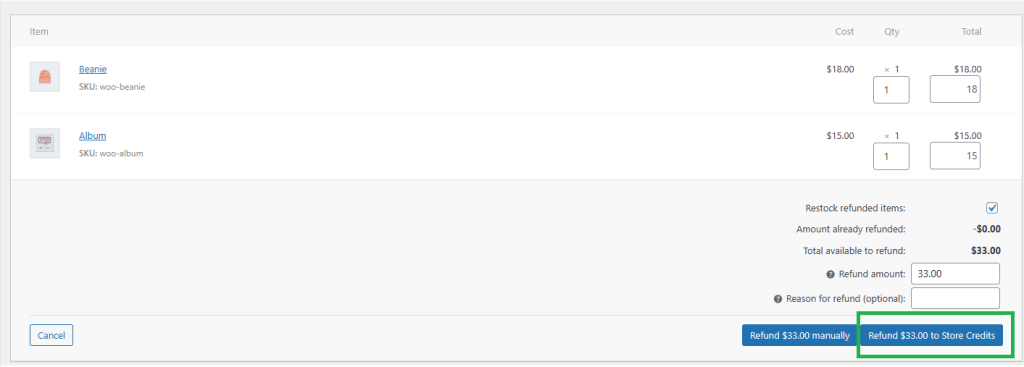
- Enter the amount you want to refund.
- Add refund notes if you need them.
- Click Refund $XX to Store Credits. The button shows the amount you entered in place of $XX.
Check the refund
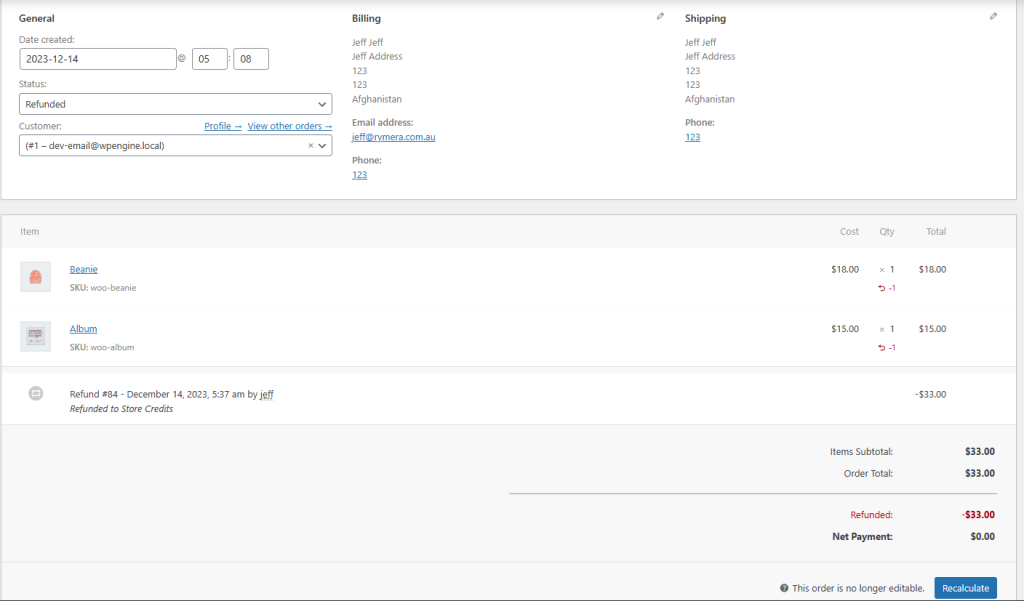
The order status changes to Refunded and the order screen shows the refunded amount.
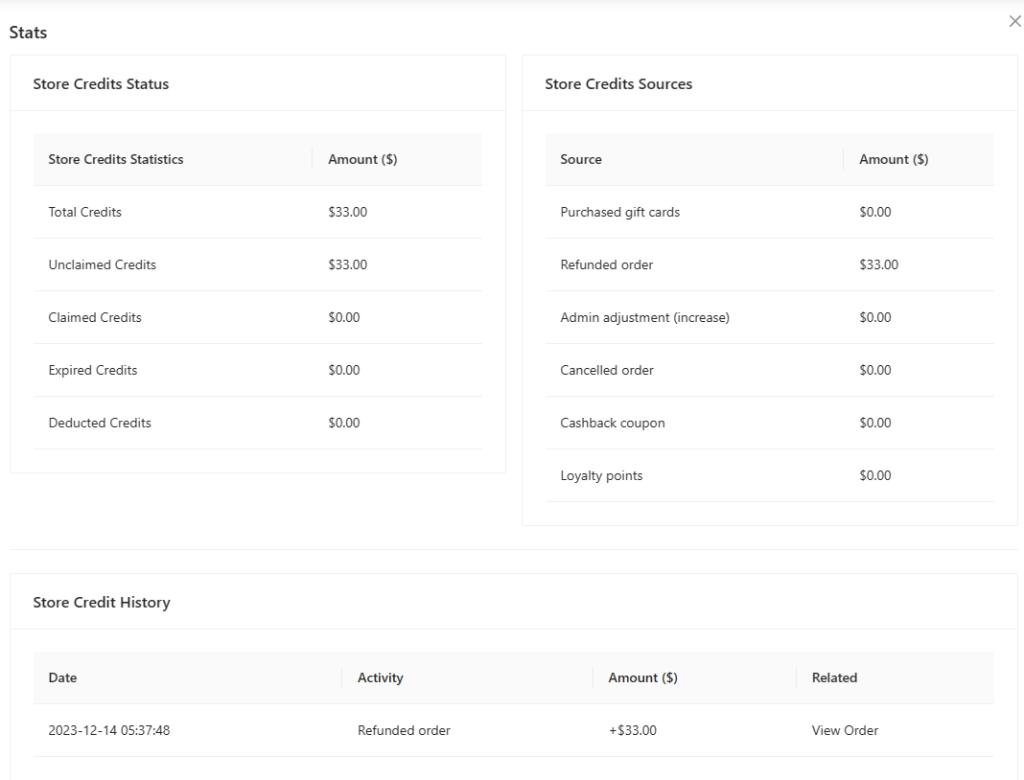
The credit also appears in the customer’s store credit history, so you can confirm it reached their account.
What happens when an order is cancelled
The steps above cover a refund you issue yourself. Cancellation is different: if a customer paid with store credit and the order is then cancelled, the credit goes back to their balance automatically. You do not need to issue a refund as well, and doing so would return the amount twice.
The amount returned is the store credit that was actually applied to that order.
If you are running a version older than 4.7.3, there is a case worth knowing about. When a customer applied and removed store credit several times before paying, usually on the order-pay page, cancelling the order could return more credit than was ever charged. Version 4.7.3 corrected this, so the return is based on the amount held against the order rather than a running total of every apply and remove. If you think a customer ended up with too much credit after a cancellation on an older version, check their balance history and adjust it by hand.
Troubleshooting
The store credit refund button is missing. Check that store credits are enabled under Coupons > Settings > Store Credits, then check that the order has a registered customer rather than a guest.
The customer says the credit has not arrived. Open Coupons > Manage Store Credits and check their balance and their Store Credit History. The entry records the order the credit came from.
You refunded the wrong amount. Adjust the balance from Coupons > Manage Store Credits using Adjust. The adjustment is recorded in the customer’s history.
Need help?
If you have a question or run into any issues, we’re here to help.
- Premium users: Open a support ticket
- Free users: Visit our community forum

