
Loyalty points that never expire lose their urgency. Advanced Loyalty Program lets you expire inactive points, display an expiry date message on the My Points page, and send an optional reminder email before points run out.
Prerequisites
- WooCommerce is installed and active.
- Advanced Coupons for WooCommerce (free) and Advanced Loyalty Program are installed and active, with Advanced Loyalty Program licensed—the free Advanced Coupons base plugin adds the Coupons top-level menu where Advanced Loyalty Program opens.
- Administrator access to WordPress and WooCommerce email settings (for editing the reminder email content).
- New to Advanced Loyalty Program? Start with the Loyalty Program Getting Started Guide.
How to configure expiry, messaging, and reminders
Set the expiry rules
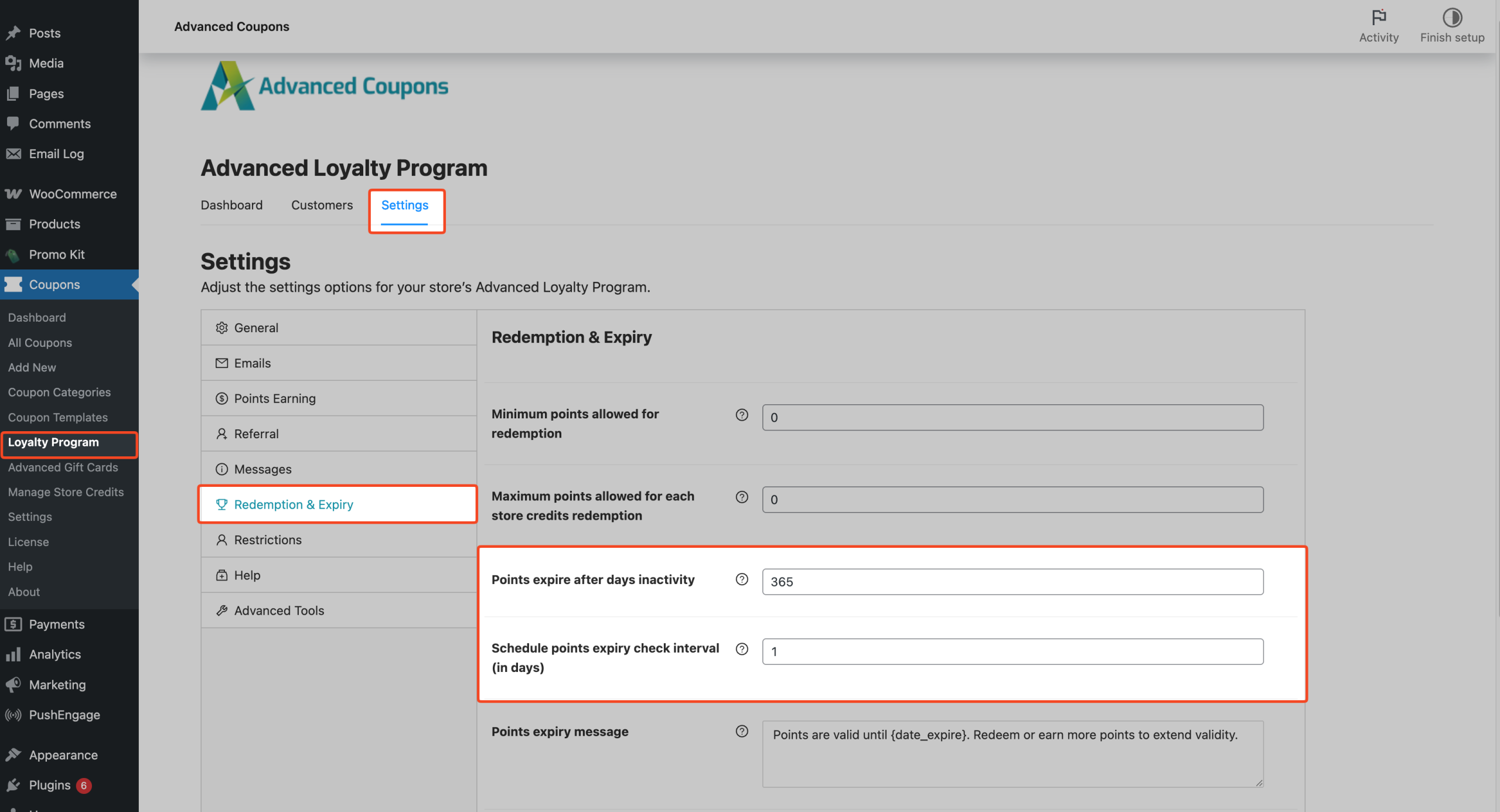
- Go to Coupons → Loyalty Program → Settings in the WordPress admin.
- Open the Redemption & Expiry section in the settings sidebar.
- Set Points expire after days inactivity — default 365. Enter 0 to turn expiry off.
- Set Schedule points expiry check interval (in days) — default 1 (daily). Enter 0 to stop the recurring check.
- (Optional) Edit Points expiry message for the My Points page. Include
{date_expire}where you want the formatted expiry date to appear.
Points expiry message appears when Points expire after days inactivity is greater than
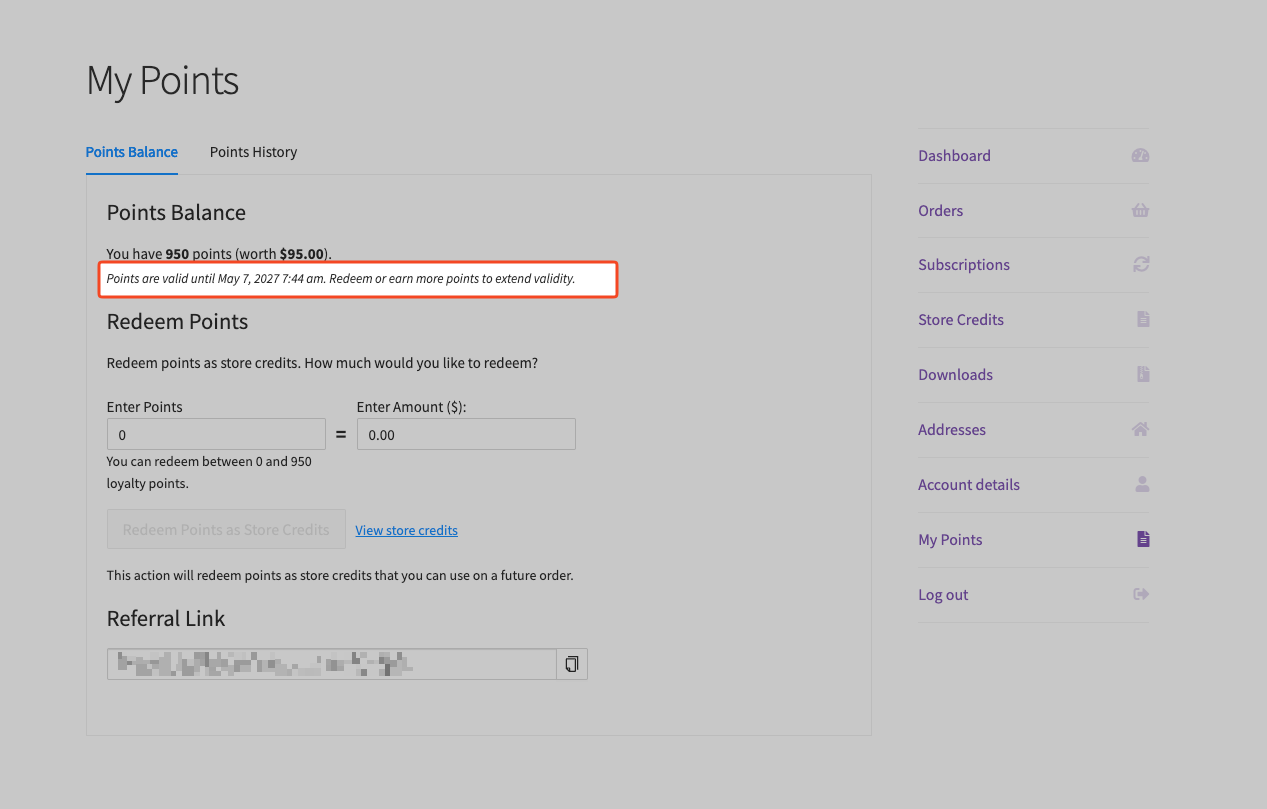
0, the customer has a positive points balance, and there is a calculated expiry date. Leave the field blank to hide the message. Default: Points are valid until {date_expire}. Redeem or earn more points to extend validity.
Each field saves automatically after you change it. Wait for the brief success notice on the field before moving on.
Schedule the reminder email
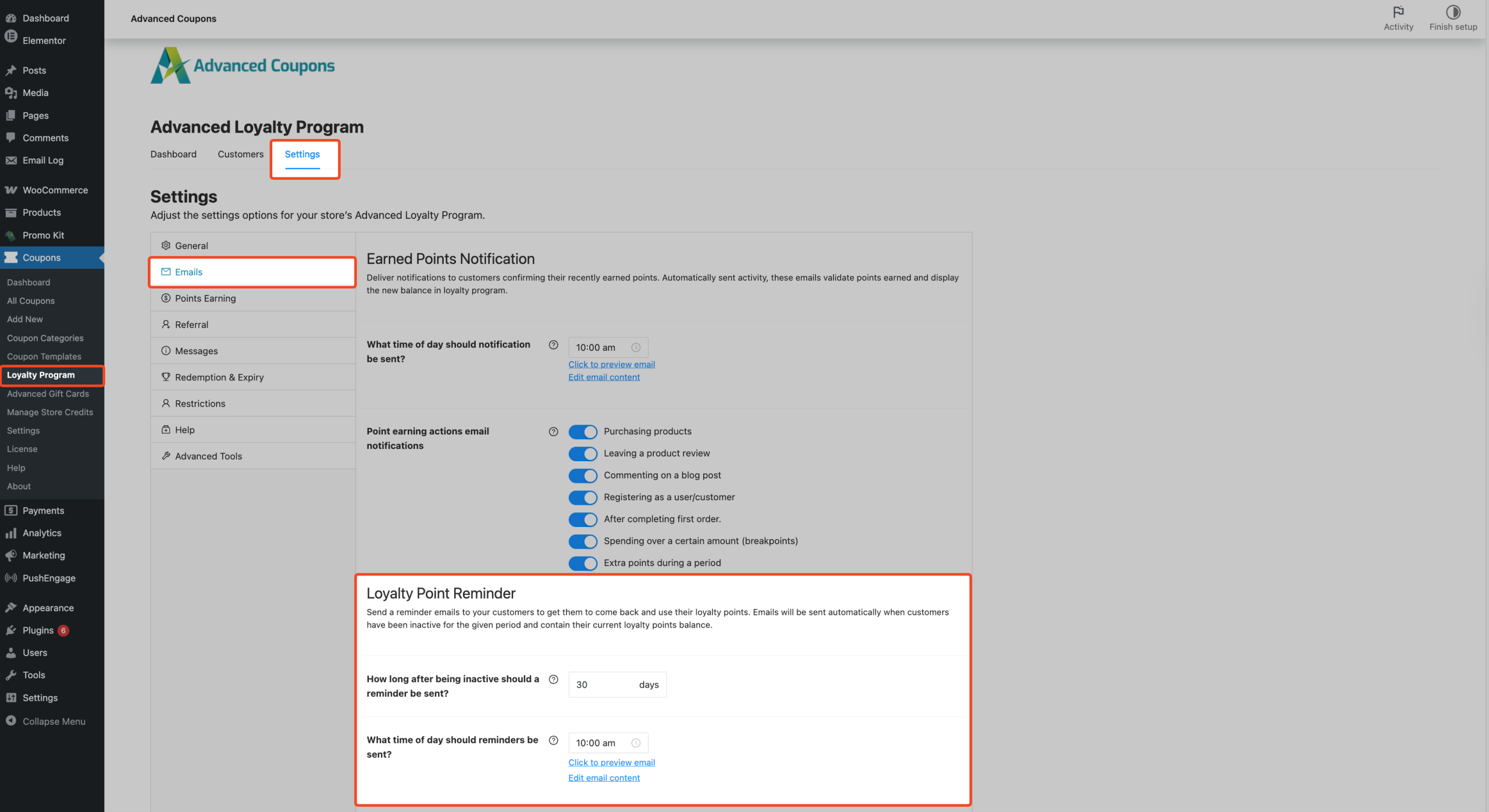
- Click Emails in the same Coupons → Loyalty Program → Settings sidebar.
- Under Loyalty Point Reminder, set How long after being inactive should a reminder be sent? (default 30 days). Earning or redeeming points resets the reminder schedule because those actions update the loyalty points log.
- Set What time of day should reminders be sent? (defaults to 10:00 am store time). Reminders repeat on that schedule while the customer remains inactive and has a positive points balance.
Each field saves automatically after you change it. Wait for the brief success notice in the field before moving on.
Enable and edit the reminder email
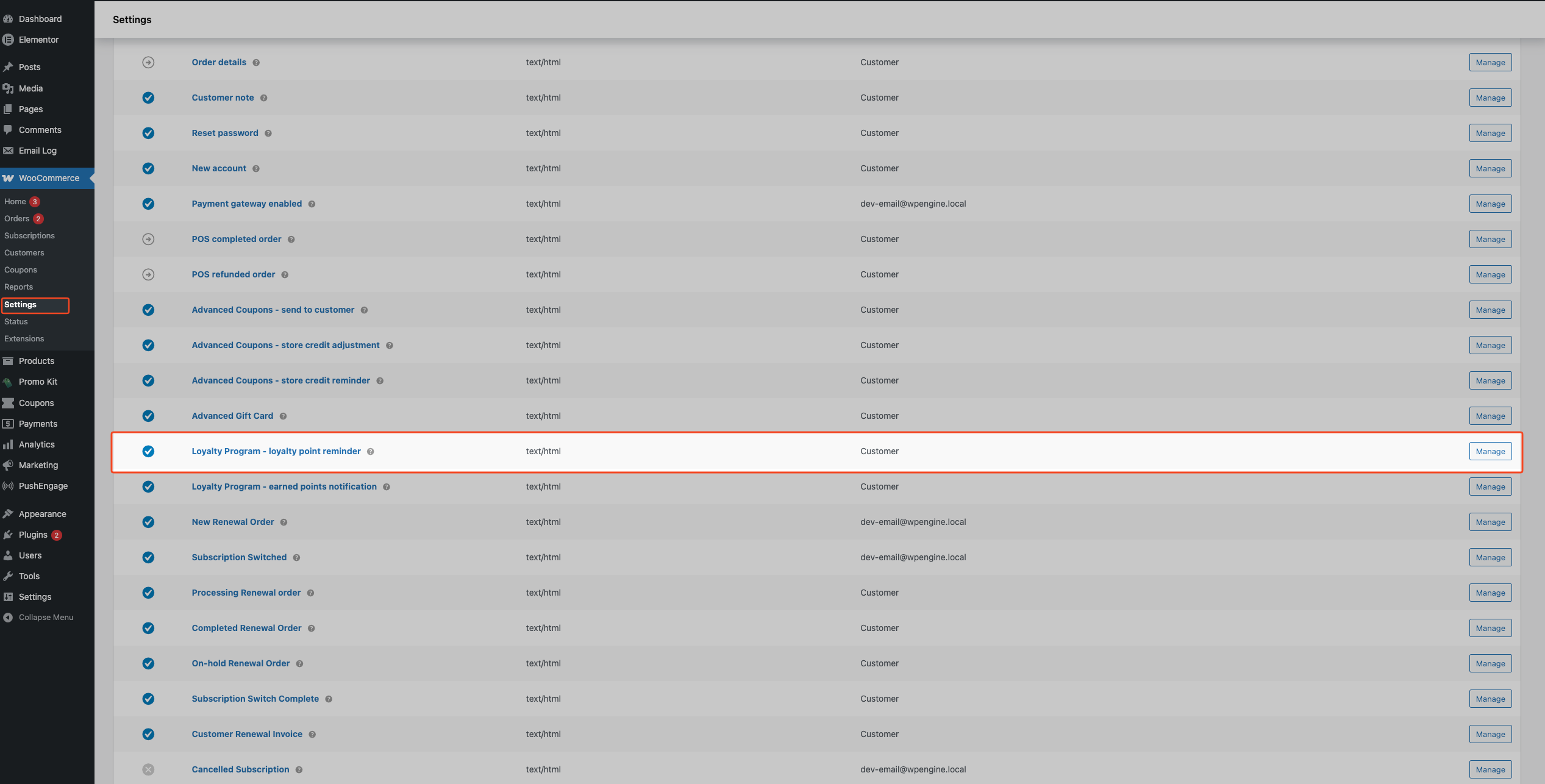
- Go to WooCommerce → Settings → Emails in the WordPress admin.
- Click Loyalty Program – loyalty point reminder in the emails list.
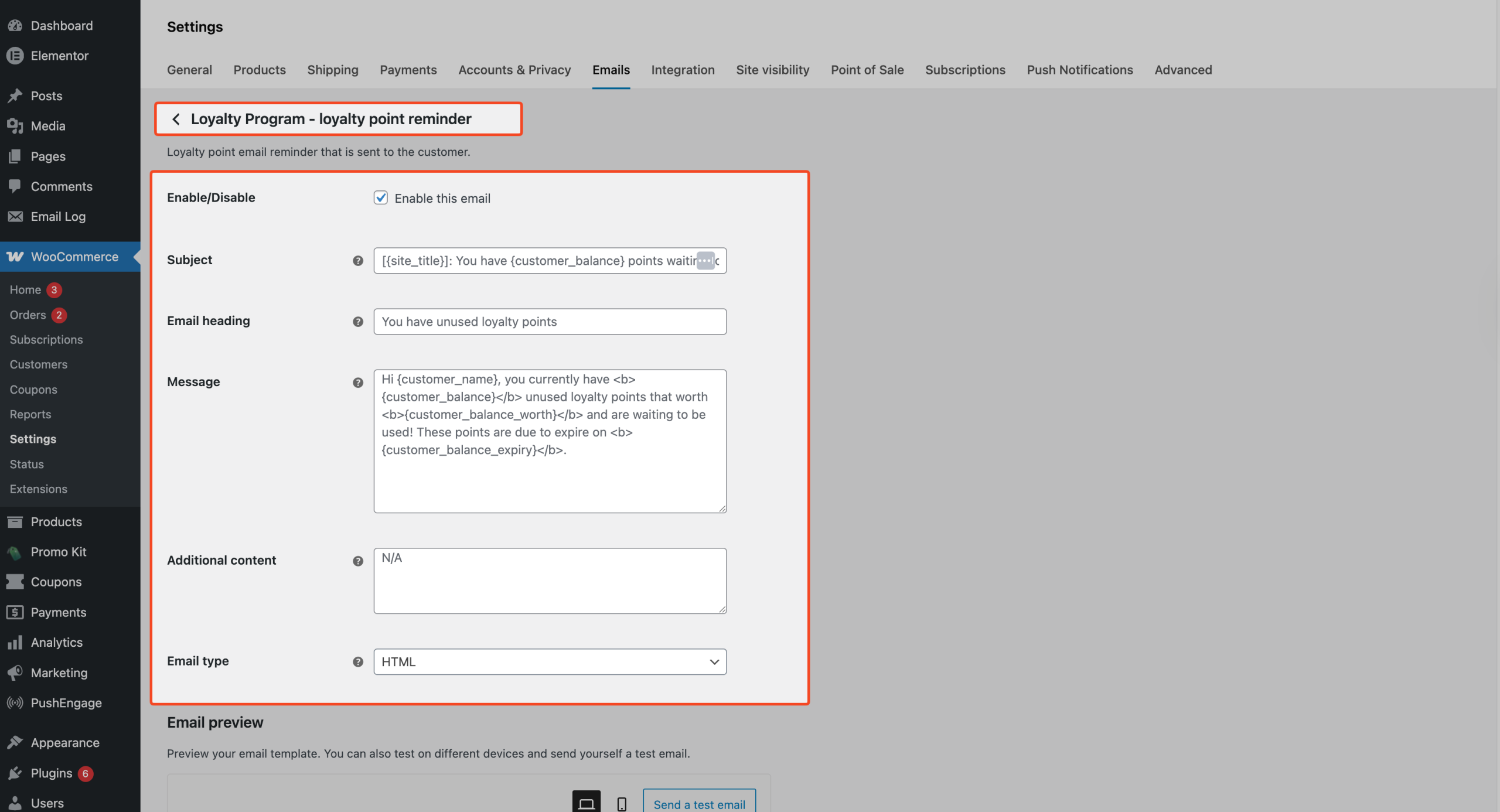
- Check Enable this email to activate the reminder.
- (Optional) Edit Subject, Email heading, Message, Additional content, or Email type as needed. Use the placeholders in the table under What customers see — for example,
{customer_balance_expiry}in the message body shows the formatted expiry date. - Click Save changes.
What customers see
Signed-in customers open My Account → My {Points} (the menu label uses your Points name setting; the default reads My Points). When Points expire after days inactivity is greater than 0, the Points expiry message is not empty, and they have a positive points balance, they see your message with {date_expire} replaced by the calculated expiry date in the store’s date/time format.
If Loyalty Point Reminder is enabled in WooCommerce email settings, customers also receive a reminder email on the schedule you set. The table below lists the available placeholders for these two features.
| Placeholder | Where to use | Resolves to |
|---|---|---|
{date_expire} | Points expiry message (My Points page) | Formatted expiry date |
{customer_balance_expiry} | Reminder email body | Formatted expiry date |
{customer_balance} | Reminder email subject and body | Customer’s points balance |
{customer_balance_worth} | Reminder email body | Monetary value of balance |
{customer_name} | Reminder email subject and body | Customer’s name |
{customer_email} | Reminder email body | Customer’s email address |
Troubleshooting
Points are not expiring on the expected day
Go to Coupons → Loyalty Program → Settings → Help and click Recreate Expire Points Scheduled Action. A success banner reads Scheduled action has been recreated.
If expiry still does not run, confirm that Points expire after days inactivity is not 0 and Schedule points expiry check interval (in days) is not 0. If you set the check interval to 0 earlier, change it to a value above 0, save the field, then run Recreate Expire Points Scheduled Action again.
- On WordPress multisite, the Help section under Coupons → Loyalty Program → Settings only appears on the network’s main site. Run Recreate Expire Points Scheduled Action from that site, or ask your host or agency to do so.
Customers do not see the expiry line on My Points
Check that Points expiry message is not empty, that Points expire after days inactivity is greater than 0, and that the customer has a positive points balance. Remember the {date_expire} placeholder is required wherever you want the date to appear in that message.
Reminder emails are never sent
Verify the email is enabled under WooCommerce → Settings → Emails → Loyalty Program – loyalty point reminder. Reminders only send when the customer still has a positive points balance at send time.
Frequently asked questions
Does earning or redeeming points reset the expiry countdown?
Yes. Advanced Loyalty Program calculates expiry from the customer’s latest loyalty ledger activity (the most recent entry in the loyalty points log). New earning or redeeming activity updates that “last active” timestamp and pushes the expiry date forward.
Is the Loyalty Point Reminder the same thing as automatic expiry?
No. The reminder email nudges customers based on the Loyalty Point Reminder schedule in Coupons → Loyalty Program → Settings → Emails, while Points expire after days inactivity drives the separate background expiry job. You can use either feature alone or both together.
Where can I edit the reminder email wording?
Use WooCommerce → Settings → Emails → Loyalty Program – loyalty point reminder for subject, heading, and body content.
Need help?
If you have a question or run into any issues, we’re here to help.
- Premium users: Open a support ticket.
- Free users: Visit our community forum on the Advanced Coupons support forum.

