WooCommerce sale badge designs can make a bigger difference than store owners realize. When every discounted product uses the same default “Sale!” label, the offer can blend into the product grid instead of giving shoppers a clear reason to pause.
That matters because product pages and product listings already carry a lot of visual information. According to Baymard Institute, many leading ecommerce sites still have “mediocre or worse” product page UX. A generic sale badge can easily become part of that visual noise.
The goal is not to make every badge louder. It is to make each badge more useful. The right design can highlight the type of promotion, clarify the value of the offer, and help shoppers understand why a product is worth checking out. There is data behind why product labels increase conversions, and it is worth reading alongside these designs. Below, we’ll look at 15 badge design ideas, when to use them, and how you can build more intentional product labels with Advanced Promo Kit.
Why Badge Design Matters For WooCommerce Conversions
Sale badges are one of the first things a shopper notices on a product listing page. A well-designed badge acts as a visual shortcut, telling customers “this product deserves your attention” before they even read the title or price.
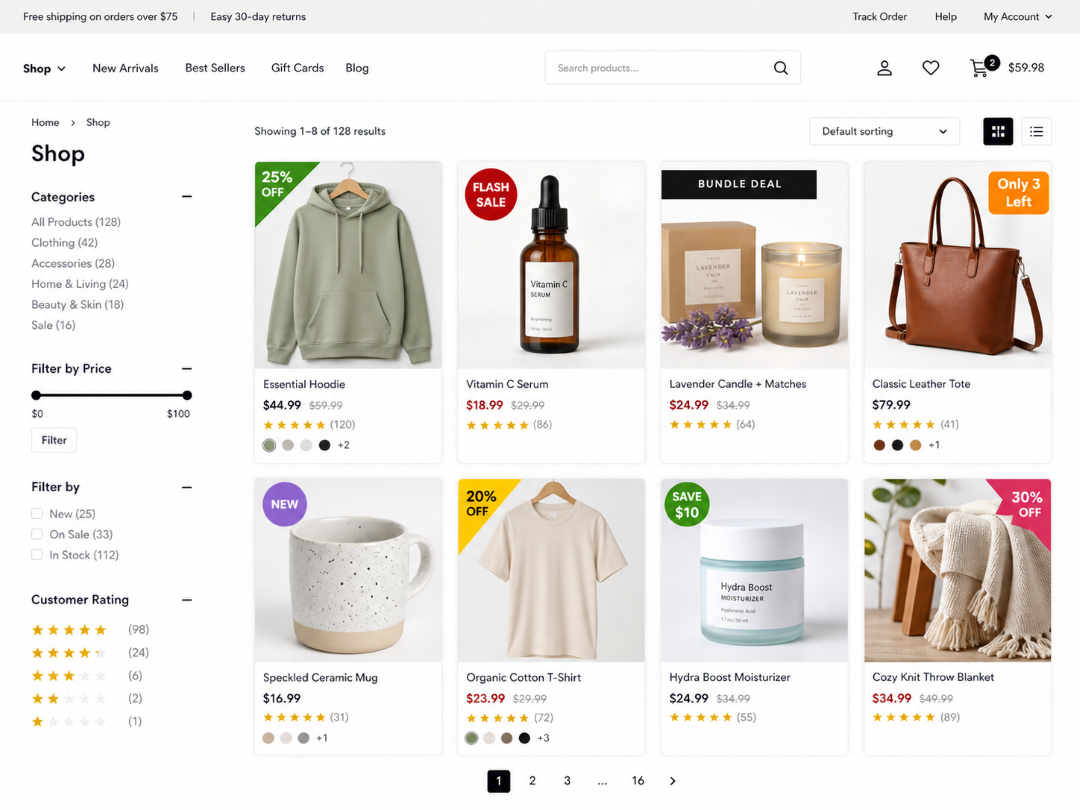
The difference between a useful badge and one that gets ignored often comes down to intent. Generic red rectangles add visual clutter without communicating anything specific. Strategic badge designs communicate the type of promotion, the value on offer, and sometimes even a deadline.
15 WooCommerce Sale Badge Design Ideas To Try
1. Corner ribbon
The corner ribbon is a diagonal banner anchored in the top-left or top-right corner of the product image. It’s one of the most recognized sale badge formats in ecommerce because shoppers already know what it means at a glance.
When to use it: Standard percentage-off sales and sitewide promotions where you want consistent visual branding across all discounted products.
Visual description: A 45-degree diagonal strip in your brand’s accent color, positioned in the top-right corner of the product thumbnail. White text reads “25% OFF” in a bold sans-serif font. The ribbon extends slightly beyond the image edges for a wrapped effect.
Implementation tip: Use Advanced Promo Kit’s dynamic placeholders to show the actual discount percentage instead of a static “SALE” label. A badge that says “30% OFF” gives shoppers more specific context than a generic label, which can make the offer easier to understand at a glance.
2. Circular badge
A round badge overlaid directly on the product image. The circular shape draws the eye naturally because it contrasts with the rectangular product photos surrounding it.
When to use it: Flash sales, limited-time offers, and any promotion where you want the badge to feel distinct from the product image rather than blending into it.
Visual description: A solid circle (60 to 80 pixels in diameter) positioned in the top-left corner with a slight drop shadow. Bold white text on a red or brand-colored background reads “FLASH SALE” in two lines.
Implementation tip: Keep text to two or three words maximum. At thumbnail size, anything longer becomes unreadable. If you need more space for your message, consider the text overlay bar instead.
3. Text overlay bar
A full-width or half-width horizontal bar that sits across the top or bottom of the product image. This format works when your promotion message needs more than a couple of words.
When to use it: Multi-word promotions like “Buy 2 Get 1 Free,” bundle deals, or any offer that requires a short explanation.
Visual description: A semi-transparent dark bar across the bottom third of the product image. White text reads “BUY 2, GET 1 FREE” in uppercase. The bar’s opacity lets the product image show through while keeping text fully legible.
Implementation tip: Use high contrast. Dark bar with white text or light bar with dark text. Avoid low-contrast combinations that force shoppers to squint. For longer offers, write the shortest version of the message first, then trim anything that does not help shoppers understand the deal.
4. Limited-time campaign badge
A limited-time campaign badge highlights a real promotion deadline without needing a live countdown clock. Think “Ends Tonight,” “Final Day,” or “Weekend Sale” placed directly on the product image.
When to use it: Flash sales, daily deals, seasonal campaigns, and other time-sensitive promotions where the deadline is real and specific.
Visual description: A compact rectangular badge positioned in the bottom-right corner of the product image. The badge uses a dark background with high-contrast text that reads “FINAL DAY” or “ENDS TONIGHT.”
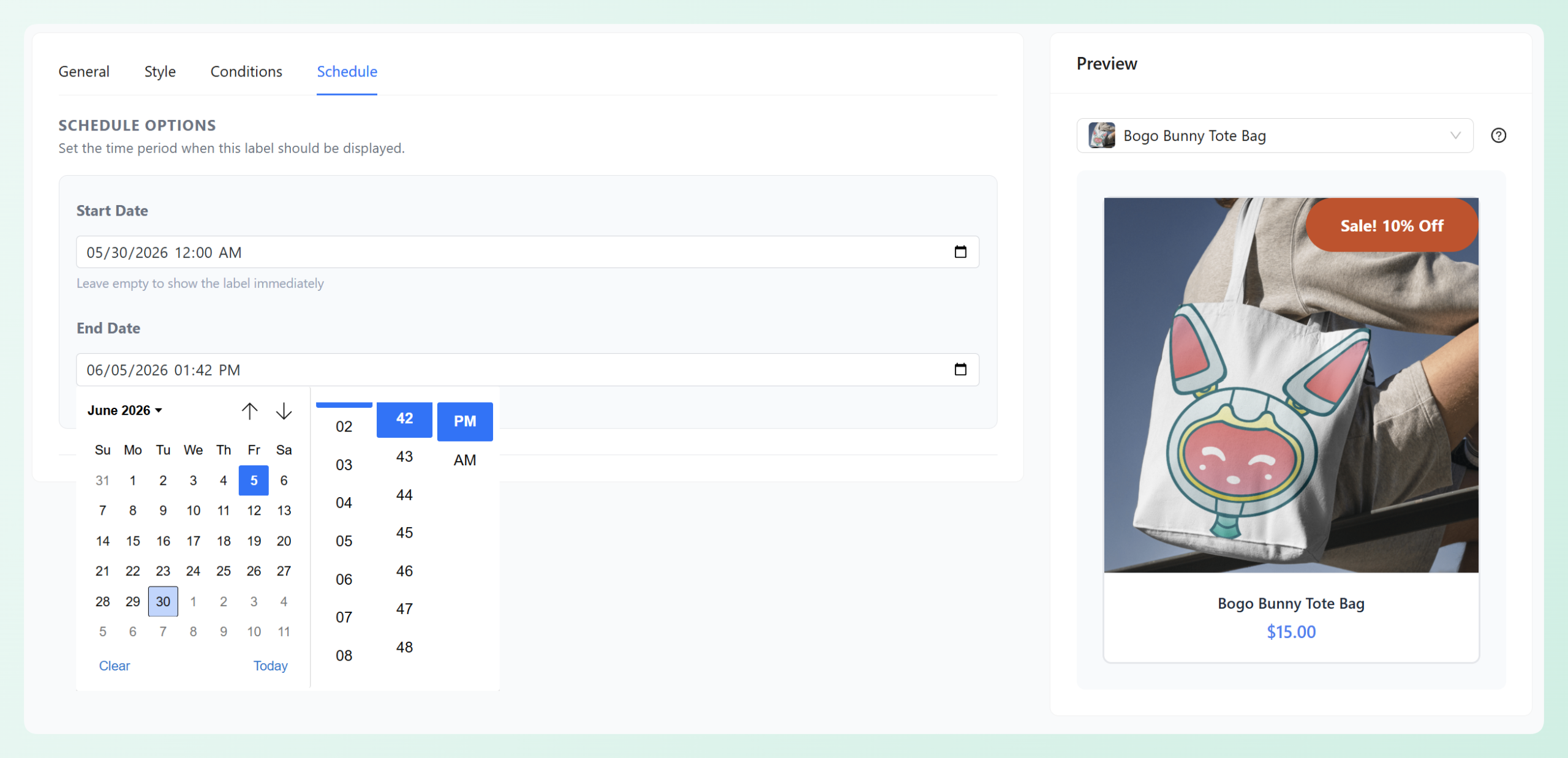
Implementation tip: Use Advanced Promo Kit’s start and end date scheduling so the badge appears only during the active campaign window. If you use a separate countdown timer elsewhere on your store, avoid fake timers that reset on refresh. Shoppers can lose trust quickly when urgency feels artificial.
5. Gradient label
A badge that uses gradient color transitions instead of flat, solid colors. This subtle design choice can make your badges feel more polished and better aligned with a premium store design.
When to use it: Premium or luxury product promotions where a flat red “SALE” badge would clash with the product’s positioning.
Visual description: A rounded rectangular label in the top-right corner using a gradient from deep purple to soft pink. White text reads “EXCLUSIVE OFFER” in a light, elegant font. The gradient gives the badge depth without requiring any shadow effects.
With Advanced Promo Kit, you can customize badge colors and gradients, backgrounds, borders, spacing, shape, and placement, making it easier to create labels that feel consistent with your store’s existing design.
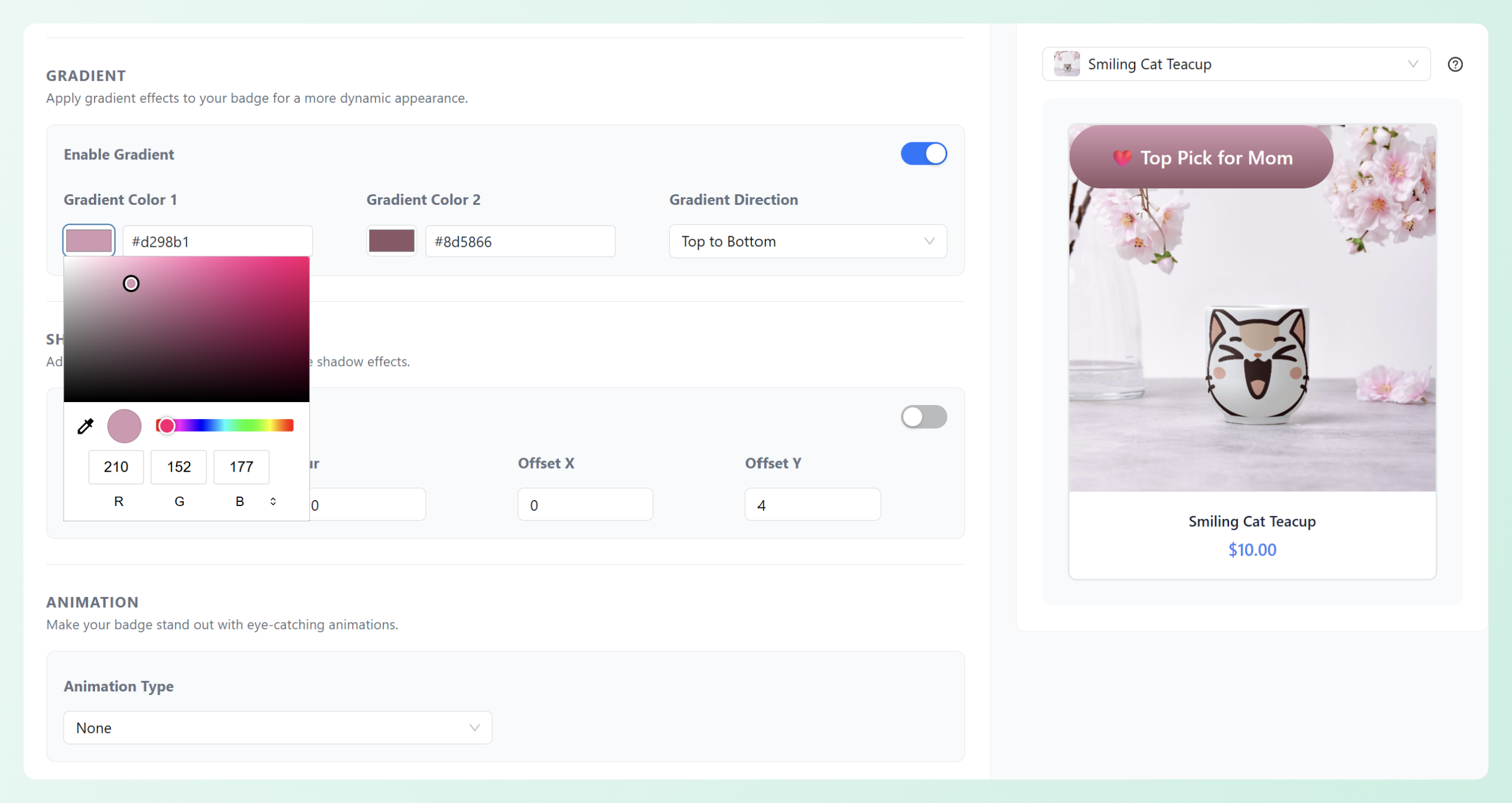
Implementation tip: Match your gradient colors to your existing brand palette. Two adjacent colors from your brand work better than random color combinations.
6. Animated/pulsing badge
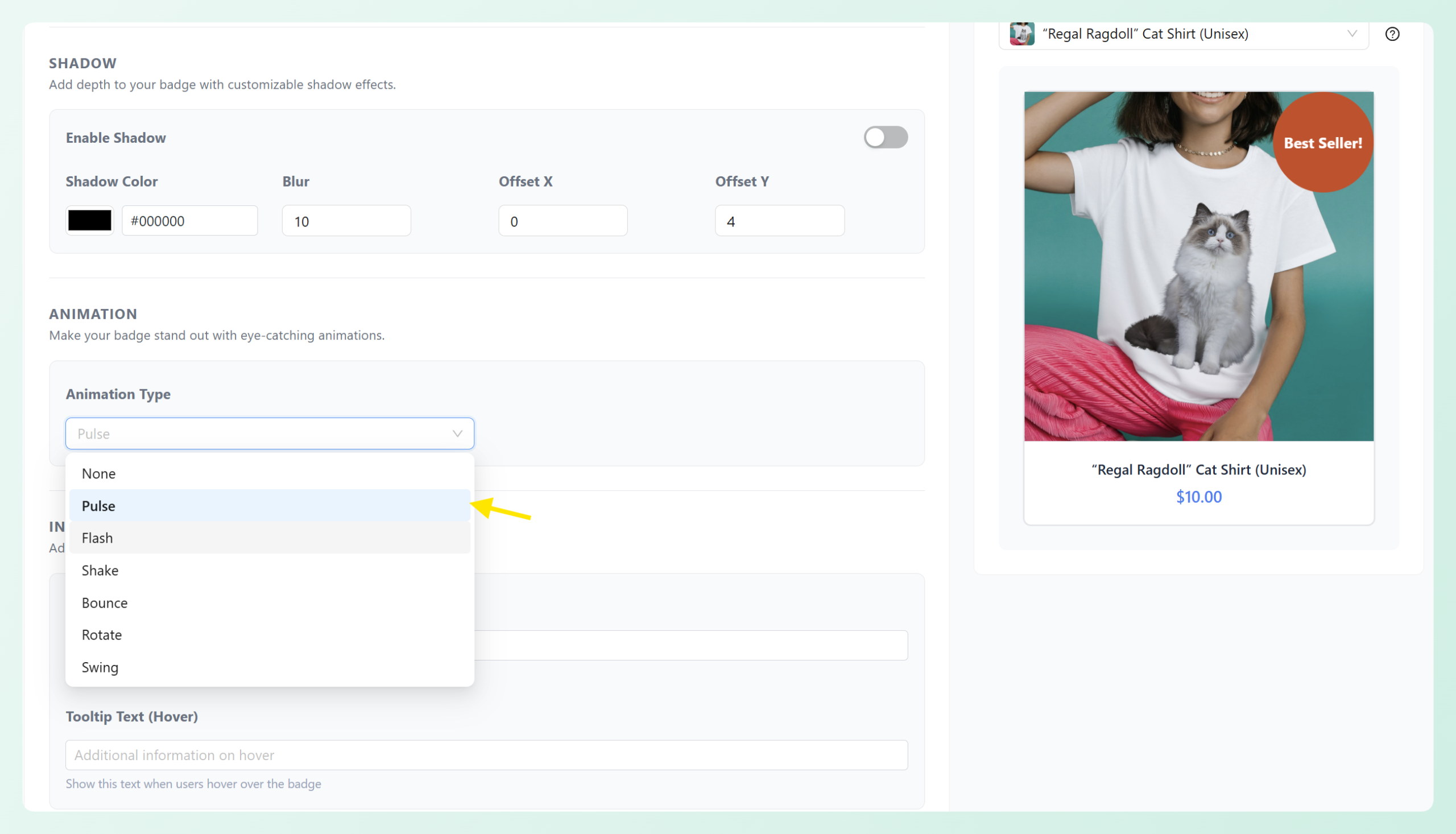
A badge with subtle CSS animation, such as a gentle pulse, a slow bounce, or a shimmer effect that catches peripheral vision. Animation turns a static badge into a motion element that the eye can’t ignore.
When to use it: Hero promotions that deserve maximum attention, such as your biggest sale of the quarter, a product launch, or a doorbuster deal.
Visual description: A circular “HOT DEAL” badge that gently pulses, scaling from 100% to 105% and back over a 2-second loop. The animation is subtle enough to draw attention without feeling distracting on the product grid.
Implementation tip: Use animation sparingly. If every product on the page pulses, nothing stands out, and the effect becomes annoying rather than attention-grabbing. Reserve animated badges for a small number of priority products. Advanced Promo Kit lets you add animation effects to your labels, so you can create movement without needing custom CSS.
7. Minimalist text label
A simple text label with no background shape, no border, no icon. Just styled typography overlaid on the product image. This is the badge for stores that value clean aesthetics.
When to use it: Clean, modern store designs where bold badge shapes feel out of place. Also works well for informational labels like “Staff Pick” or “Editor’s Choice” that aren’t promotional.
Visual description: The words “STAFF PICK” displayed in the top-left corner in a thin, uppercase sans-serif font. No background box or shape. A subtle text shadow ensures readability against the product image.
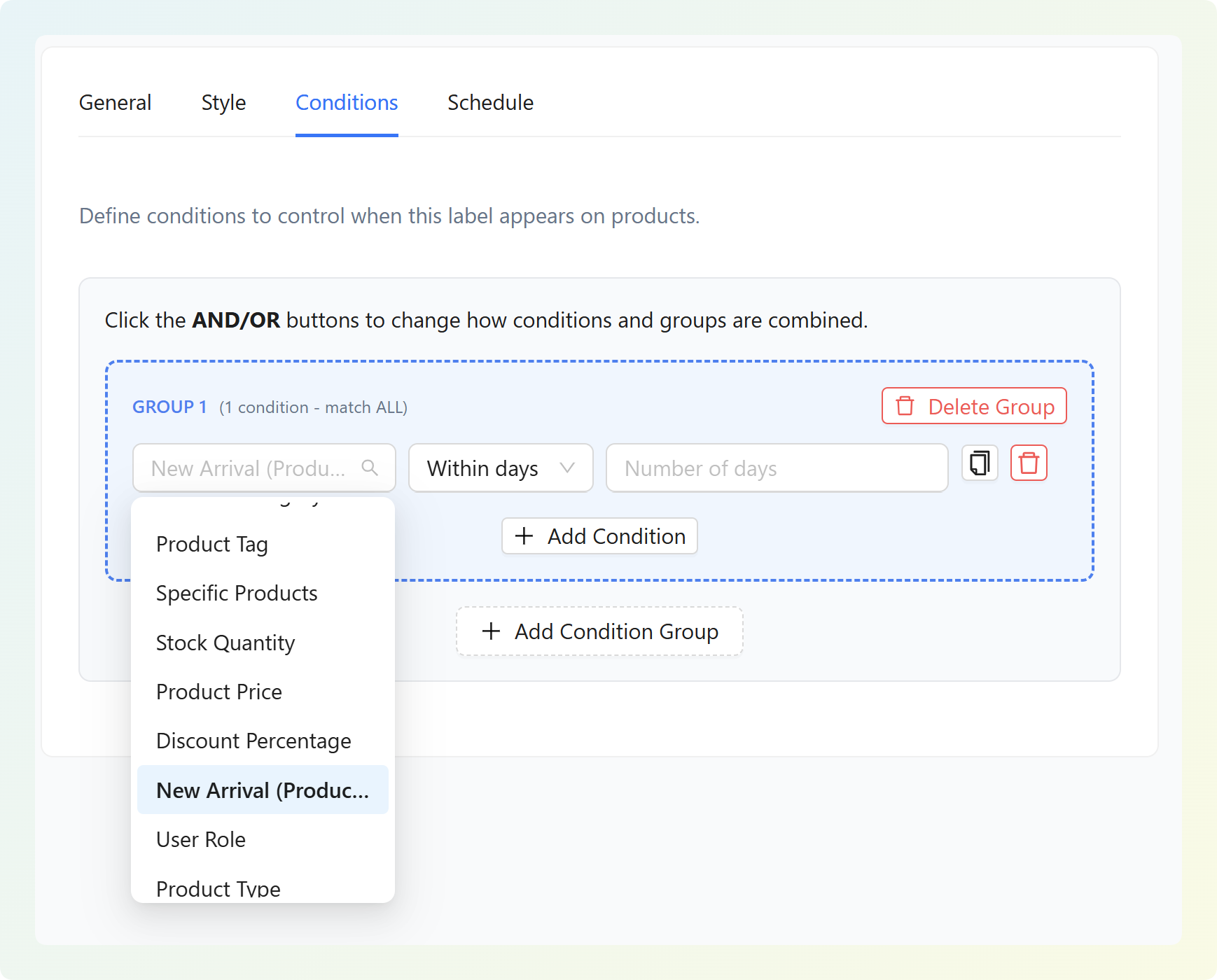
Implementation tip: Minimalist labels pair well with categories like curated collections and editorial recommendations. In Advanced Promo Kit, you can combine this text style with smart conditions based on supported rules like product categories, tags, specific products, or product status.
8. Category-specific badge
A badge design system that varies by product category. Different categories get different colors, icons, or shapes, creating an instant visual taxonomy across your store.
When to use it: Stores with diverse product categories (e.g., clothing, electronics, home goods) that need visual differentiation so shoppers can quickly scan what type of deal they’re looking at.
Visual description: Three products on a grid page each displaying a different badge style. “Clothing” products have a blue circular badge reading “30% OFF,” “Electronics” have an orange rectangular badge reading “TECH DEAL,” and “Home” products have a green ribbon badge reading “HOME SALE.”
Implementation tip: Use Advanced Promo Kit’s rule-based smart conditions to target labels by product category, tag, or specific products. This lets you create separate badge styles for different product groups while keeping the display rules organized in one place.
9. Urgency badge (low stock)
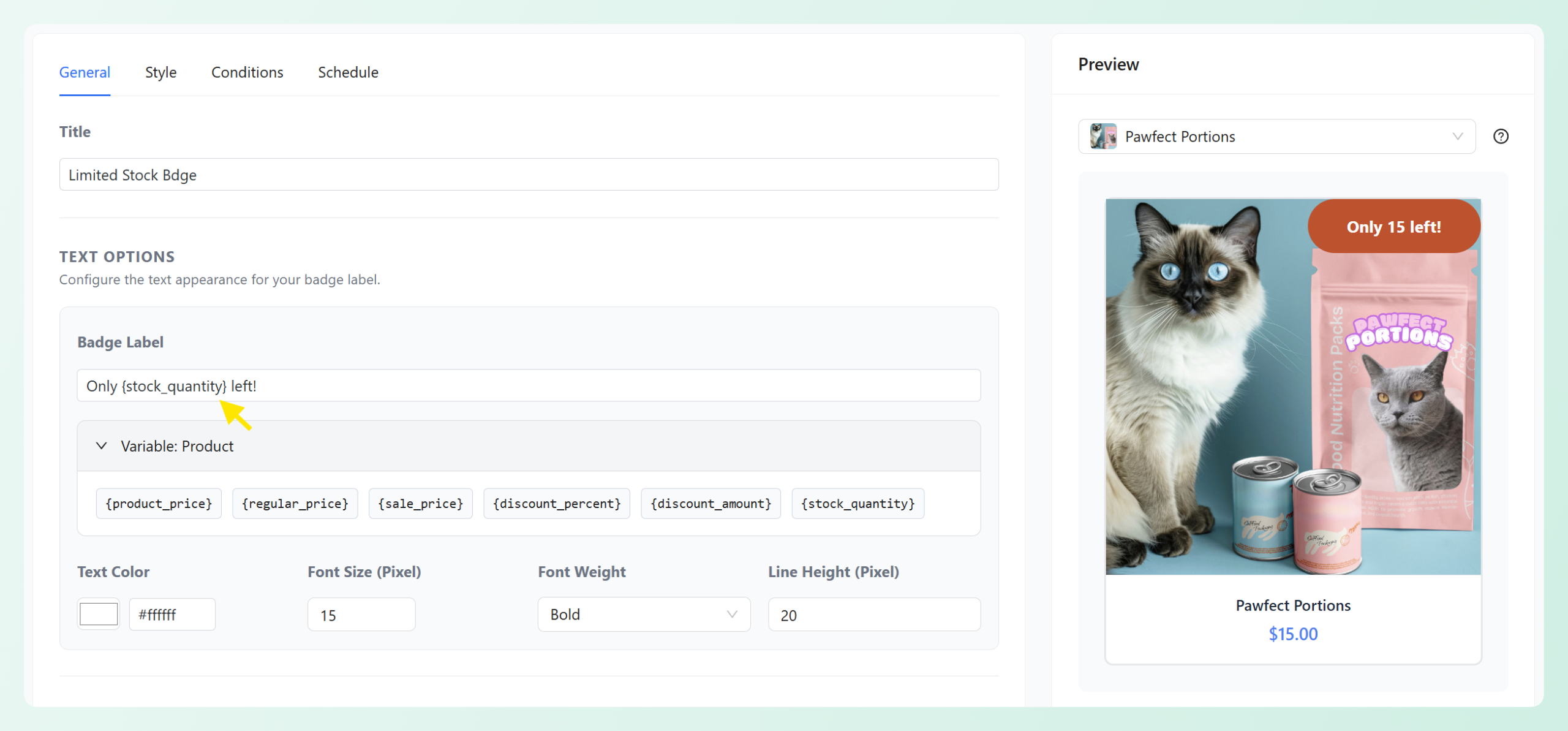
A badge triggered by actual inventory levels that shows real stock data. “Only 3 Left!” is specific, believable, and creates genuine scarcity without resorting to fake deadlines. For step-by-step setup, see our guide on adding stock status badges.
When to use it: Products with genuine low inventory, seasonal items nearing the end of their run, or any product where the stock count is low enough to influence a buying decision.
Visual description: A small, rectangular badge in the bottom-left corner with a yellow/warning background. Text reads “Only 3 Left!” in dark bold font. The yellow color signals urgency without the aggressive feel of red.
Implementation tip: Use dynamic placeholders in Advanced Promo Kit to pull the real stock count into the badge text. This way, the number updates automatically as inventory changes. Never hard-code a fake stock count.
10. New arrival badge
A badge that auto-applies to recently published products, keeping your store feeling fresh and giving repeat visitors a reason to browse.
When to use it: Stores that add new products regularly (weekly or biweekly) and want to highlight what’s fresh without manually tagging every new item.
Visual description: A small, rounded badge in the top-left corner with a mint green background. White text reads “NEW” in a bold, compact font. Clean and unobtrusive.
Implementation tip: Use Advanced Promo Kit’s product age or new arrival targeting to show the badge only on recently added products. This keeps your “New” labels current without manually removing them from older catalog items.
11. Bestseller badge
A badge highlighting your top-selling products. Social proof can influence ecommerce decisions, and a “Bestseller” label tells shoppers that other people have already shown interest in the product.
When to use it: Products that have consistently strong sales numbers. Use it to help shoppers quickly spot popular items while browsing your catalog.
Visual description: A shield-shaped badge in the top-right corner with a gold/amber fill. Dark text reads “BESTSELLER” in uppercase. The shield shape communicates quality and trust.
Implementation tip: If you already group bestsellers using product tags, categories, or specific product selections, use those rules to control where the badge appears. This keeps the label intentional without manually adding the same badge across your entire catalog.
12. Bundle deal badge
A badge promoting multi-product bundles or cross-sell offers. Bundle badges don’t just highlight a discount; they communicate a shopping strategy.
When to use it: Products that are part of a bundle promotion, cross-sell offers, or “frequently bought together” groupings where the combined price is lower than buying items individually.
Visual description: A wide rectangular badge spanning the bottom edge of the product image. A blue gradient background with white text reads “SAVE 20% IN BUNDLE.” The wider format accommodates the longer text that bundle offers typically need.
Implementation tip: Use clear badge copy like “Bundle Deal,” “Save When Bundled,” or “Bundle Offer” for products included in your bundle campaign. You can then use supported targeting rules, such as product categories, tags, or specific products, to control where the label appears.
13. Seasonal badge
A themed badge that matches seasonal promotions, giving your store a festive feel during holidays and major shopping events.
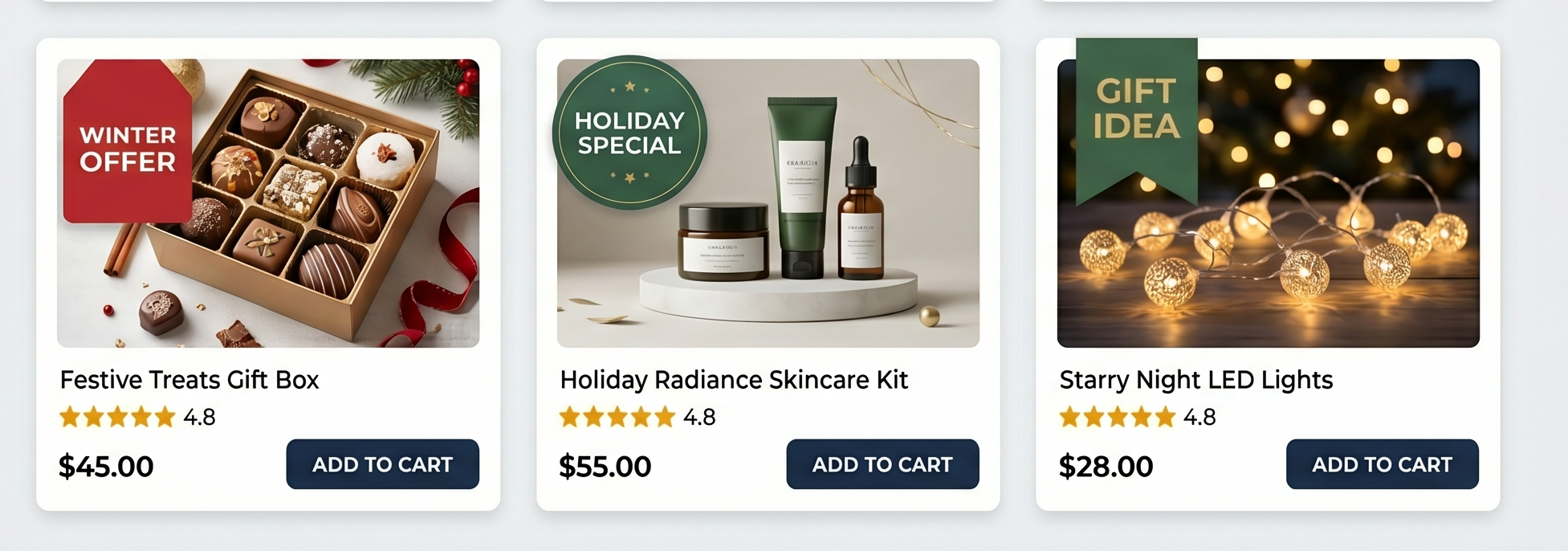
When to use it: Black Friday, Christmas, Valentine’s Day, back-to-school, summer clearance, or any recurring seasonal event.
Visual description: A product badge shaped like a gift tag with a red and green color scheme. Text reads “HOLIDAY SPECIAL” with a small snowflake icon. During summer, the same badge position shows a sun icon with “SUMMER SALE” in warm orange tones.
Implementation tip: Design two or three seasonal badge templates you rotate annually. Schedule them with date ranges in Advanced Promo Kit so they appear and disappear automatically without manual intervention.
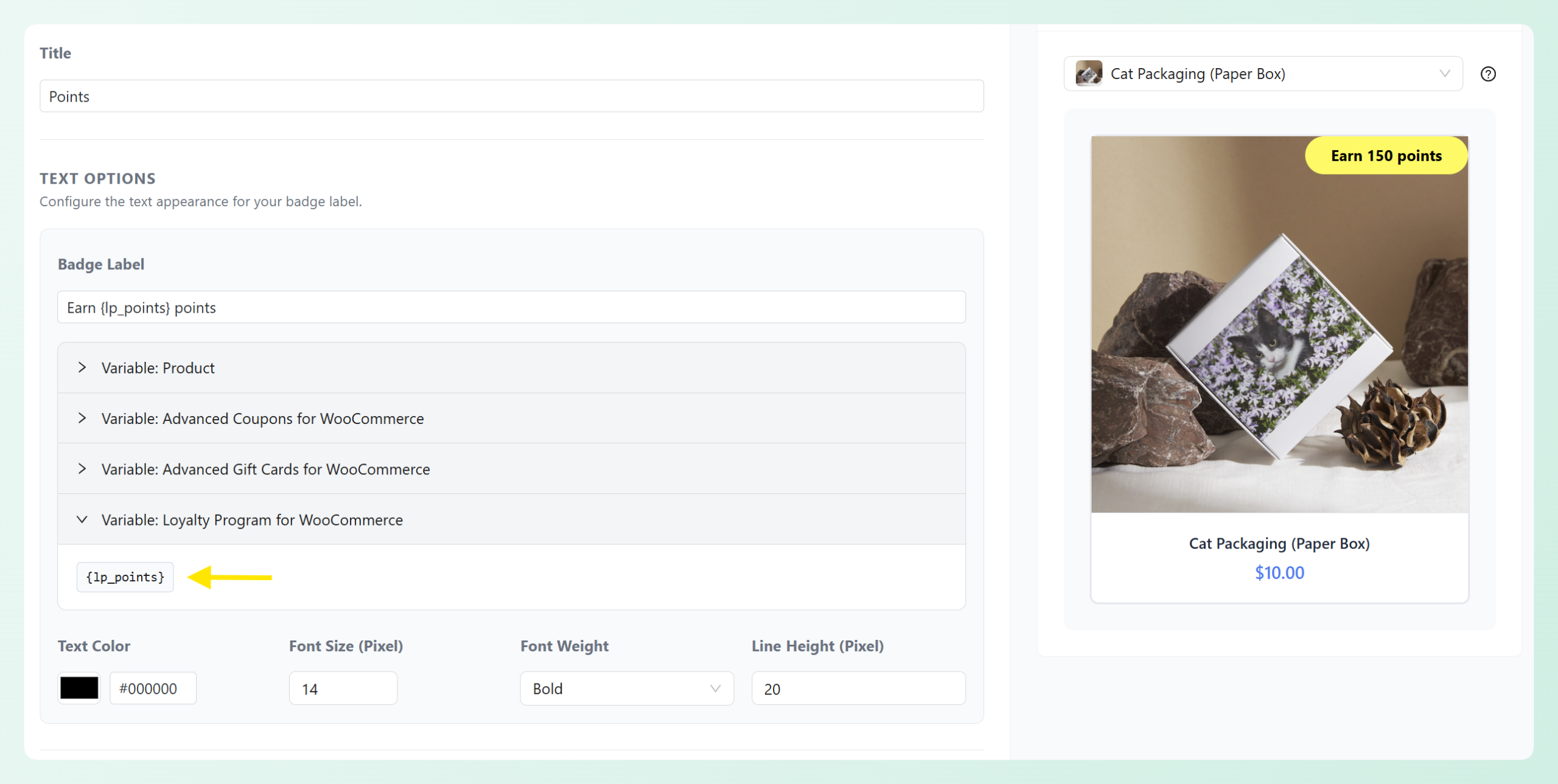
14. Loyalty exclusive badge
A badge visible only to loyalty program members or specific customer segments. Non-members see no badge at all, which creates a feeling of exclusivity that rewards your best customers.
When to use it: Rewarding repeat customers with exclusive deals. Member-only sales, early access promotions, or special pricing for VIP tiers.
Visual description: A sleek, dark badge with a subtle gold border in the top-right corner. Text reads “MEMBER PRICE” in gold lettering. The dark and gold color combination signals premium exclusivity.
Implementation tip: Use Advanced Promo Kit’s user role targeting to control who sees the label. For example, you can show a “Member Price” or “VIP Deal” badge to eligible customer groups while keeping the message hidden from general shoppers. If you’re using Advanced Loyalty Program alongside Advanced Promo Kit, you can also create product labels that highlight points-earning products and make the reward feel more visible before checkout.
15. Custom shape badge
A badge using non-standard shapes like stars, hexagons, shields, or tags. Custom shapes break the visual monotony of rectangular and circular badges and help your store’s badges stand out from competitors.
When to use it: Stores with a strong visual brand identity where standard shapes feel generic. Also effective for special award-style badges like “Top Rated” or “5 Stars.”
Visual description: A star-shaped badge in bright yellow positioned in the top-left corner. Bold black text in the center reads “TOP PICK.” The irregular shape immediately differentiates it from conventional sale badges.
Implementation tip: Custom shapes work best with very short text. One word or a small number is ideal. Anything longer gets lost in the irregular outline.
How To Choose The Right WooCommerce Sale Badge Design
The best badge design depends on what you want shoppers to notice first. A low-stock badge, a new arrival label, and a sitewide sale ribbon all serve different purposes, so they should not look or sound exactly the same.
For urgency-driven promotions, use badges that point to a real deadline or inventory limit, such as “Final Day,” “Low Stock,” or “Only {stock_quantity} Left.” These work best when the urgency is accurate and tied to something shoppers can trust.
For social proof, use labels like “Bestseller,” “Top Pick,” or “Staff Pick” on products you genuinely want to highlight. These badges are most useful when they help shoppers quickly identify popular, recommended, or curated items.
For exclusivity, use member-focused labels such as “VIP Deal” or “Member Price” when your store has a clear customer group or user role that qualifies for the offer.
For broad promotions, simple designs like corner ribbons and text overlay bars are often the easiest to read. They work well for percentage discounts, seasonal promos, and storewide campaigns where clarity matters more than novelty.
📝 Tip: Badge design works best when the message is specific. A clear “25% Off,” “New Arrival,” or “Low Stock” badge gives shoppers more context than a generic “Sale” label on every product.
Ready to try these WooCommerce sale badge designs on your store? Advanced Promo Kit gives you flexible styling, smart rules, scheduling, dynamic placeholders, and label stacking so you can build more intentional product labels without custom code.
How To Build These Badge Designs In WooCommerce
You don’t need to build these badges from scratch. Advanced Promo Kit includes the features that make each of these 15 designs possible, and it ties every badge to your actual WooCommerce promotions.
Here’s how the key features map to the badge categories above:
- Smart conditions power rule-based badges like category-specific labels (#8), low-stock badges (#9), new arrival badges (#10), and member-style labels (#14). You can target labels using supported rules such as products, categories, tags, stock level, product age, user role, and more.
- Scheduling with date ranges helps with limited-time campaign badges (#4) and seasonal badges (#13). You can set labels to appear and expire around real campaign dates instead of manually toggling them on and off.
- Dynamic placeholders help keep badge text accurate for discounts, prices, and stock-related messages. For example, you can use placeholders for discount percentages, discount amounts, sale prices, and stock quantity.
- Styling controls let you customize colors, shapes, font sizes, spacing, placement, and animations so your WooCommerce sale badge designs match your store’s branding.
- Label stacking lets you show more than one label on a product when multiple messages apply. You can also control priority so the most important badge appears first.
For a step-by-step walkthrough of building your first badge, see our guide on how to create WooCommerce custom product badges.
Frequently Asked Questions
How many badges should I display per product?
Stick to one or two badges per product at most. More than that creates visual clutter and dilutes the impact of each individual badge. If a product qualifies for multiple promotions, prioritize the badge that’s most relevant to the shopper’s buying decision.
Do sale badges slow down my WooCommerce store?
Most well-built badge plugins should have a small performance impact when configured carefully, but it still depends on your theme, hosting setup, catalog size, animations, and how many labels appear on each page. To keep things lean, avoid overusing animated badges, keep custom images optimized, and test your key shop and product pages after adding new labels.
Can I show different badges to different customers?
Yes, if your badge plugin supports conditional display rules. Advanced Promo Kit’s smart conditions let you target badges using rules such as user role, product category, stock level, product age, and more. This makes it possible to show member-style labels, low-stock notices, new arrival badges, or other targeted messages only where they make sense.
What badge colors convert best?
Red and orange badges often signal urgency and attract attention on product grids. However, the best color for your store is one that contrasts clearly with your background and product images. A bright badge on a white background may stand out; the same badge on a colorful product photo might disappear. Test your badge colors against your actual catalog images before committing.
Should I use the same badge design across my entire store?
Not if you run different types of promotions. A sitewide “SALE” badge is fine for a blanket discount, but category-specific or promotion-specific badge designs can communicate more useful context. The 15 designs in this article are meant to be mixed and matched based on your promotion calendar.
Start Converting More Shoppers With Better WooCommerce Sale Badge Designs
Badge design isn’t just a cosmetic detail. It can shape how shoppers notice, understand, and respond to your promotions. The 15 WooCommerce sale badge designs covered in this article give you a practical starting point for different promo types, from simple percentage-off sales to member-focused offers.
The design principles here can help no matter which tool you use, but Advanced Promo Kit makes them easier to apply inside WooCommerce. You can create on-brand labels, target them with rules, schedule them around real campaigns, and keep key promo details accurate with dynamic placeholders.
Here’s what to do next:
- Choose one badge style for your next active promotion.
- Keep the badge message specific, such as “25% Off,” “Low Stock,” or “New Arrival.”
- Use rules and scheduling so the label appears only where it adds helpful context.
Ready to put these WooCommerce sale badge designs to work on your store? Get Advanced Promo Kit to start building more intentional product badges today, or grab the All Access Bundle to pair it with Advanced Coupons Premium, Advanced Loyalty Program, and WooCommerce Gift Cards.