Need lots of unique codes for the same deal? Creating them one at a time does not scale. Virtual Coupons is the bulk coupon generator in Advanced Coupons Premium. It creates hundreds or thousands of unique codes that all belong to one coupon, so each person gets their own code and you still manage a single set of rules. This guide shows you how to generate the codes, manage them, change their format, and export them.
When to use virtual coupons
Email sequences. Send each subscriber their own code in a welcome series or an abandoned cart email. Each code works for one order only, even if someone shares it.
Brand ambassadors and affiliates. Create one coupon with the discount you want, and generate one code per ambassador. In Manage virtual coupons, edit each ambassador’s code and set Usage Status to unlimited, so all of their followers can use it. Leave Customer empty, because a code with a customer only works for that one account. Each ambassador gets a unique code, and you change the deal in one place. If an order with an ambassador’s code is cancelled or fails, the code goes back to Pending. Set it back to unlimited.
Events and printed codes. Generate a batch, click Download as CSV, and print one code per card or flyer. Each code works for one order, so a code that someone shares or photographs cannot be used again after the first order.
Before you start
- Advanced Coupons Premium installed and active.
- The Virtual Coupons module turned on under Coupons → Settings → Modules. It is on by default.
Enable virtual coupons and generate codes
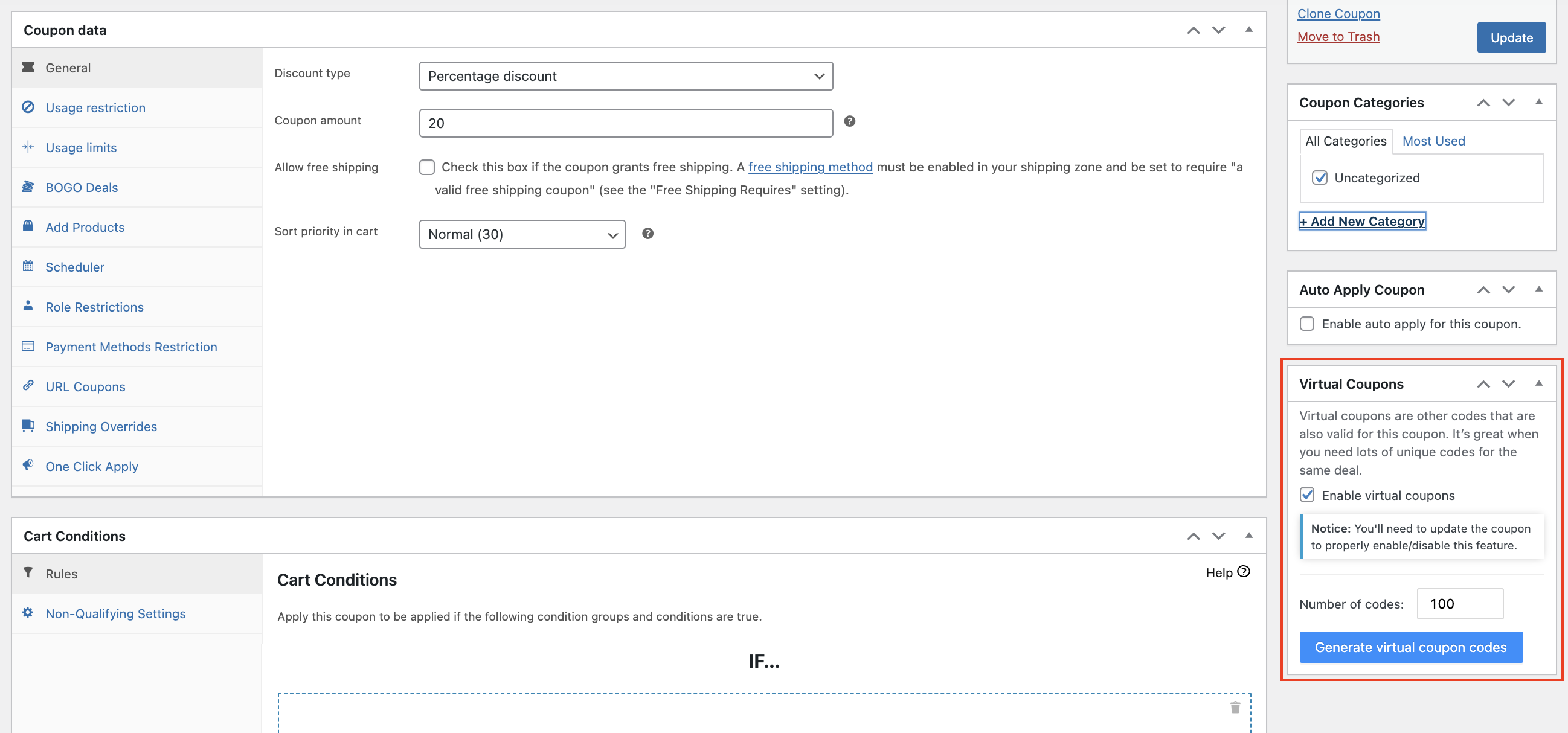
- Go to Coupons → All Coupons and open the coupon. If the coupon is new, click Publish first.
- In the Virtual Coupons box, tick Enable virtual coupons.
- Click Update to save the coupon.
- Enter how many codes you want in Number of codes.
- Click Generate virtual coupon codes.
You can generate up to 10,000 codes in one batch. After a batch is generated, click Copy all new virtual coupon codes to open a list of only that batch. Then click Copy all or Download as CSV.
Each generated code is the coupon code, a separator, and a random string. If you name the coupon welcome, you get codes like these:
welcome-ZHHBZXFBHZwelcome-7USEDJDV5Kwelcome-BTYX6T2MQCwelcome-NBE3N4WTG2
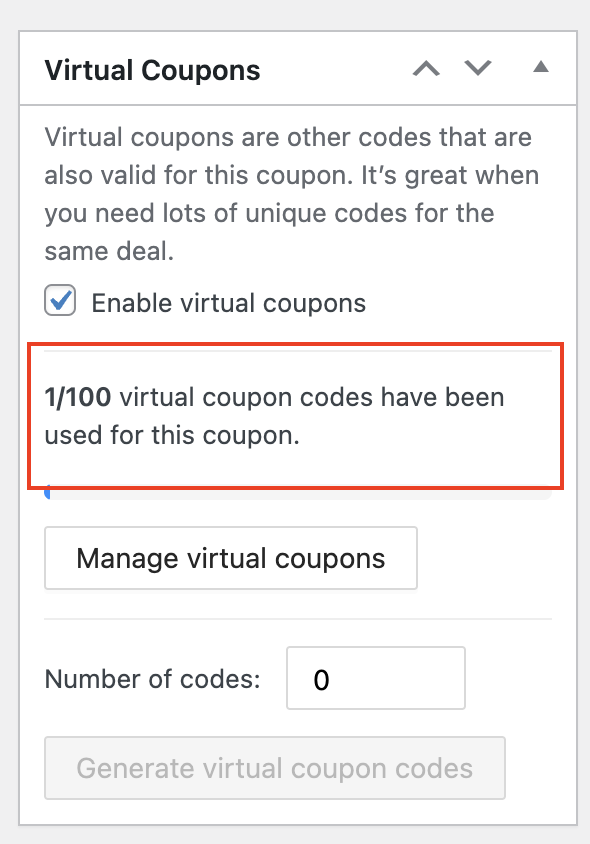
When virtual coupons are on, the original coupon code stops working. Only the generated codes work. The Virtual Coupons box shows how many codes customers have used, for example “3/100 virtual coupon codes have been used for this coupon.”
Manage your virtual coupon codes
Click Manage virtual coupons to see all the codes for this coupon. The button shows after you generate your first codes.
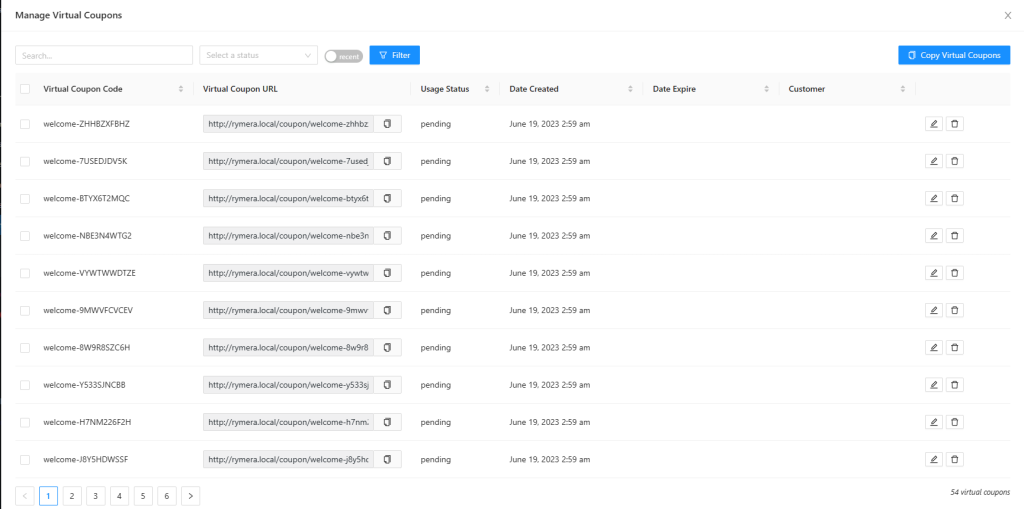
In the list, you can edit these fields for each code:
- Virtual Coupon Code
- Usage Status
- Date Created
- Date Expire
- Customer. When you set a customer, only that customer can use the code, and only while logged in.
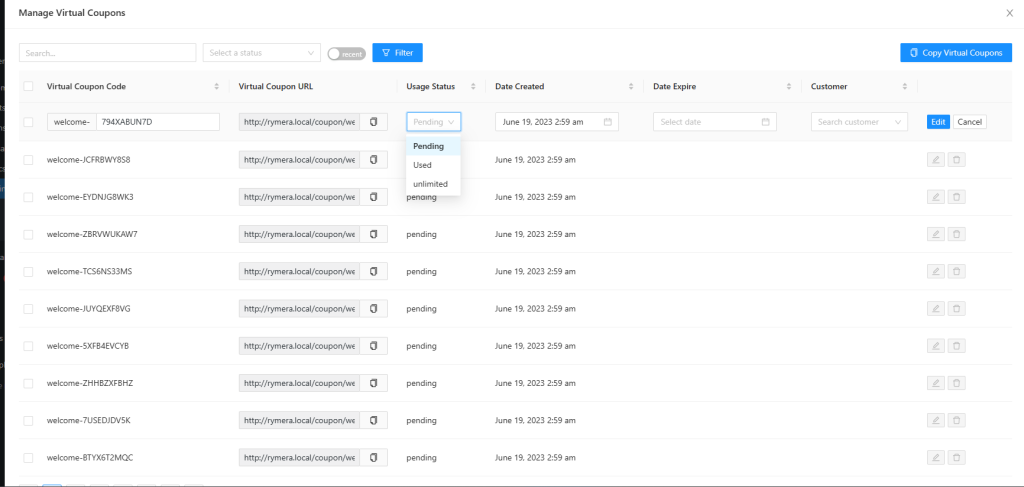
To edit a code, click the pencil icon on its row, change the fields, then click Edit to save.
If you use a custom separator, the code field in the edit row still shows a hyphen after the coupon name. Your codes still use your separator.
Each code has one of three usage statuses:
- Pending: the default. The code is ready to use.
- Used: a customer has used the code. A code works for one order only.
- unlimited: customers can use the code again and again. If an order with the code is cancelled or fails, the code goes back to Pending and then works for one more order only. Set it back to unlimited when that happens.
Change the code format
A virtual coupon code is made of three parts: the parent coupon code, a separator, and a random string. In the example above, welcome-ZHHBZXFBHZ is the coupon code welcome, the separator -, and a ten-character random string.
If your codes are longer than you want, start with the parent coupon code. A coupon named welcome adds eight characters to every code before the random part begins. A shorter coupon name gives shorter codes, and you do not need a snippet for it. Choose the short name before you generate codes. If you rename the coupon later, every existing code changes too, and codes you already sent stop working.
Change the separator
The separator defaults to a hyphen. Add this snippet to your child theme’s functions.php or to WPCode to change it.
add_filter( 'acfw_virtual_coupon_code_separator', function( $separator ) {
    return '_'; // for example welcome_ZHHBZXFBHZ
} );
Change the separator before you generate or send any codes. The separator is part of every code, including codes you already sent. If you change it later, those codes stop working. Always use at least one character. An empty separator can cause an error when customers apply any coupon code.
Change the random part
The random string is ten characters by default, drawn from a character set that leaves out I, L, O, 0 and 1 so codes are not misread when they are spoken or printed. You can change the length and the characters, and add a prefix or suffix.
add_filter( 'acfw_virtual_coupon_generate_code_settings', function( $settings ) {
    $settings['length']     = 6;                                 // default 10
    $settings['characters'] = 'ABCDEFGHJKMNPQRSTUVWXYZ23456789'; // default, excludes I L O 0 1
    $settings['prefix']     = '';                                // added before the random part
    $settings['suffix']     = '';                                // added after the random part
    return $settings;
} );
If you shorten the character set, keep it free of characters that look alike. The plugin does not check new codes for duplicates, and shorter codes or fewer characters make duplicates more likely. Before you send codes, click Download as CSV and check the file for duplicates in your spreadsheet app. To check across coupons, compare only the part after the separator. If two coupons share the same random part, one of those codes can fail at checkout.
Do not use the separator character in the prefix or suffix. If you do, the codes do not work.
The random-part filter only affects codes you generate after the change. The separator and the coupon name are different. They are part of every code, so changing either one changes all existing codes, and codes you already sent stop working.
Copy or download the codes
- Click Manage virtual coupons.
- Click Copy Virtual Coupons.
- Click Copy all to copy the codes, or click Download as CSV to save a CSV file.
Copy all copies every code that matches the current search, status and recent filters, across all pages. Clear the search, the status and the recent switch, then click Filter, to copy every code.
Copied and downloaded codes are in lowercase. Customers can type them in upper or lower case.
You can paste or upload the codes to your email marketing platform, such as Coupon Carrier, Klaviyo, or ActiveCampaign.
Troubleshooting
The Number of codes field does not show.
Publish the coupon first. The Number of codes field only shows on a published coupon. Before you generate codes, tick Enable virtual coupons and click Update. Codes do not work at checkout while virtual coupons are turned off for the coupon.
Codes I already sent say the coupon does not exist.
Check whether the coupon was renamed or the separator was changed after the codes went out. Both are part of every code. Change them back to make the old codes work again.
The original coupon code does not work.
This is expected. When virtual coupons are on, only the generated codes work. Turn off Enable virtual coupons and click Update if you want the original code back.
Frequently asked questions
What happens to a code if the order is cancelled?
The code goes back to Pending, so the customer can use it again. This happens when the order changes to Cancelled or Failed. It also happens to unlimited codes. Check your ambassador codes after a cancelled or failed order, and set them back to unlimited.
Do existing codes change if I change the code format?
It depends on what you change. The length, characters, prefix and suffix only apply to new codes. A new separator or coupon name changes every existing code, and codes you already sent stop working.
Need help?
If you have a question or run into any issues, we’re here to help.
- Premium users: Open a support ticket
- Free users: Visit our community forum