
You can reward a purchase by paying store credit back to the customer instead of discounting the order. The customer spends the credit on their next order, so the money stays in your store. This article shows you how to build a cashback coupon in Advanced Coupons, choose when the credit is awarded, and automate it with cart conditions.
A cashback coupon pays a fixed amount or a percentage into the customer’s store credit balance after the order reaches a qualifying status. To read more about how customers spend that credit, see How to use store credit.
Before you start
- Cashback coupons need Advanced Coupons Premium version 3.5.2 or later. Choosing which order statuses award cashback needs version 3.6.1 or later.
- Cashback coupons only work for logged-in customers. A guest who checks out will not earn store credit.
Create the cashback coupon
- Go to Coupons > Add New.
- Set Discount type to Fixed cashback (store credits) or Percentage cashback (store credits).
- Enter the amount or the percentage.
- Set the Cashback waiting period if you want to delay the credit.
- Publish the coupon.
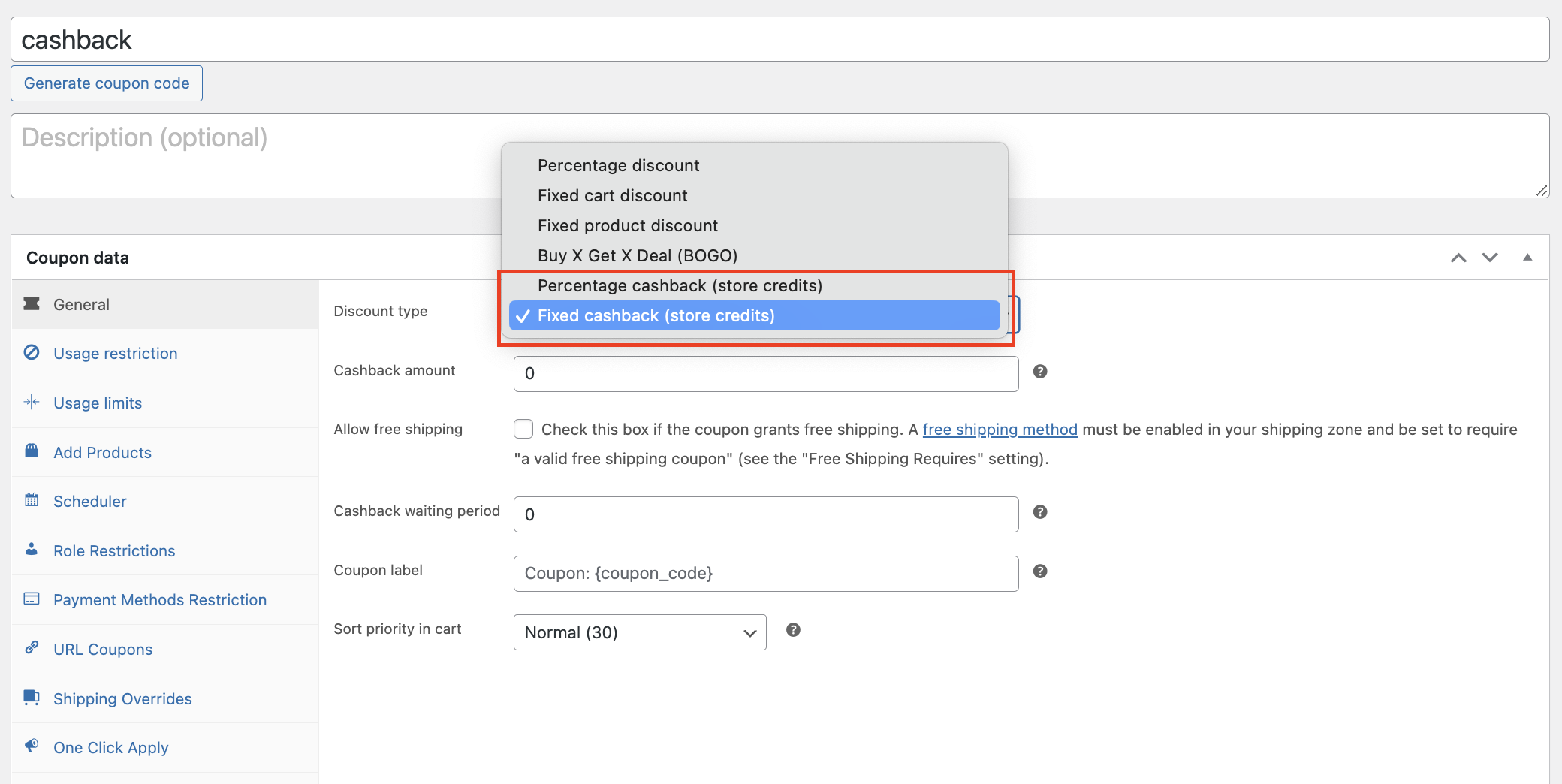
The Cashback waiting period delays when the customer receives the credit after the order qualifies. The default is 0, which awards the credit immediately. A value of 3 awards it three days after the order qualifies.
Worked example
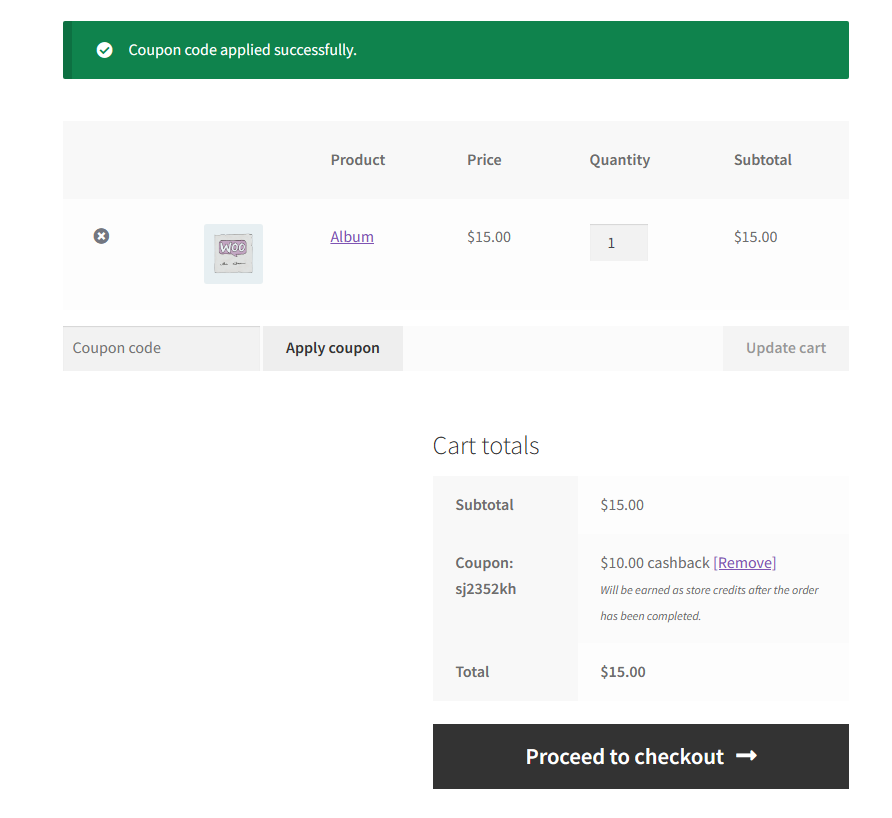
This example uses a $10 cashback with a waiting period of 0.

The customer applies the coupon in the cart or at checkout and sees the cashback confirmed.
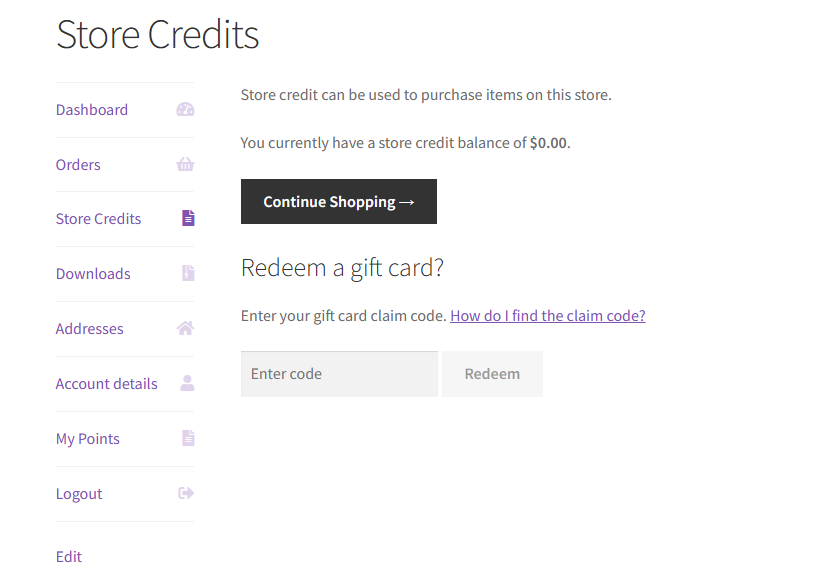
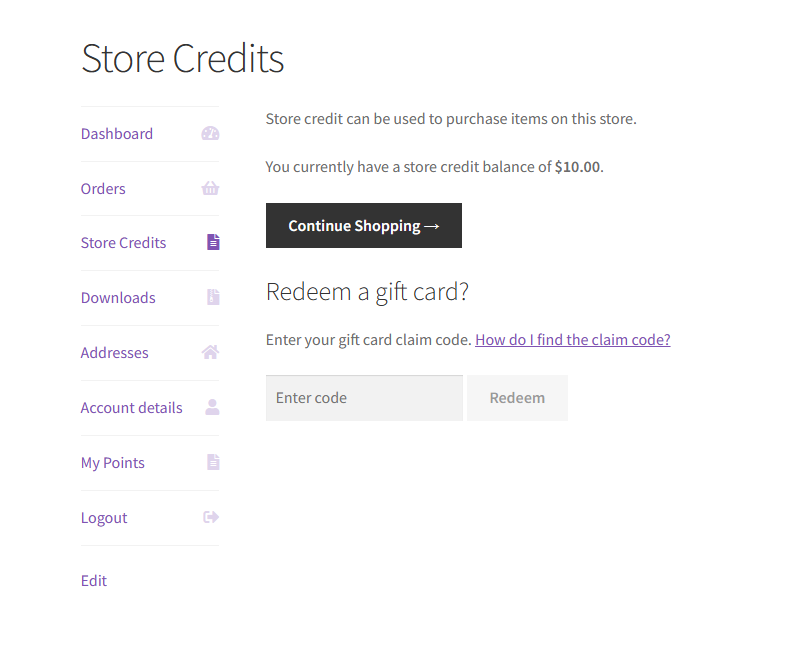
The customer’s store credit balance starts at 0.
Once the order reaches a qualifying status, the $10 is added to their balance automatically.
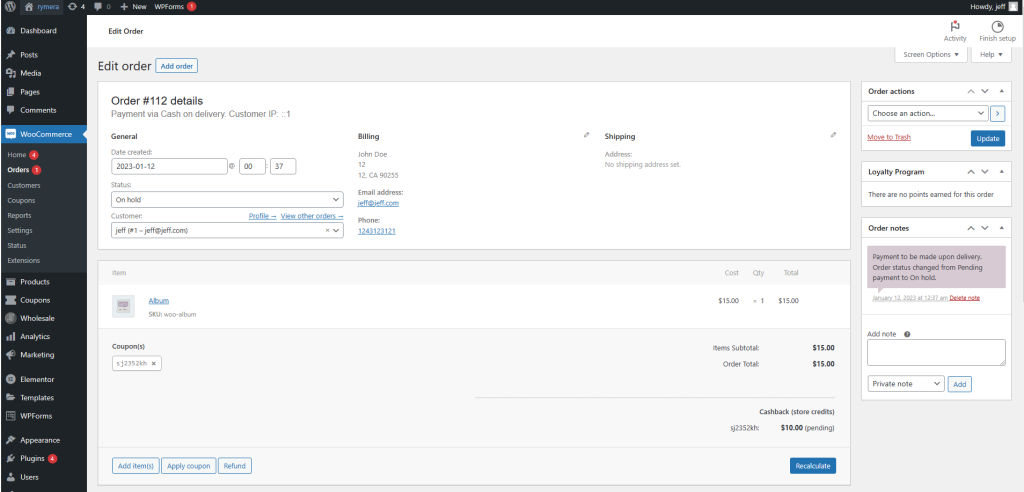
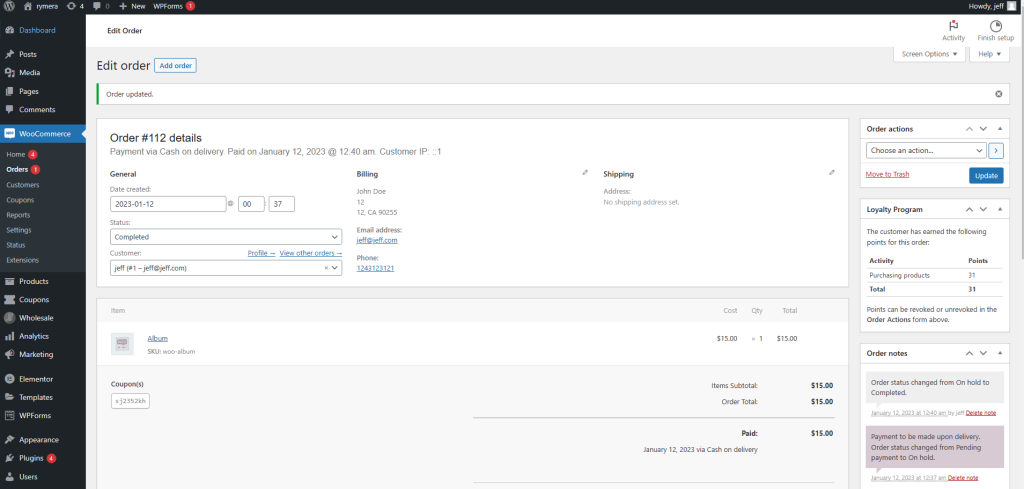
Choose which order statuses award cashback
Since version 3.6.1 you can choose which order statuses award the credit. Before that version, cashback was awarded once payment was made, whether the order was still processing or already completed.
- Go to Coupons > Settings > Store Credits.
- Find Order status(es) for when to award cashback credits.
- Select Completed, Processing, or both.
- Save the settings.

Pair a cashback coupon with the Cart Subtotal cart condition so the cashback stays sensible against the order value. Paying $30 of credit on a $20 purchase looks odd to a customer. How far you take that depends on the promotion you are running.
Automate cashback with cart conditions
You can grant cashback without the customer entering a code, by combining a cashback coupon with cart conditions and auto-apply. Two setups cover most cases.
Grant cashback on orders over a subtotal
- Go to Coupons > Add New and create a coupon.
- Set Discount type to Fixed cashback (store credits) or Percentage cashback (store credits), then set the amount.
- In the Cart Conditions box below the Coupon data section, add the Cart Subtotal condition.
- Set the comparison to MORE THAN and the value to 50, so cashback is granted only above a $50 subtotal.
- In the Auto Apply Coupon box in the right sidebar, tick Enable auto apply for this coupon.
- Publish the coupon.
Do not set Usage limit per coupon, Usage limit per user, Allowed emails, or virtual coupons on an auto-apply coupon. Any of those stops auto-apply from working.
Grant cashback to specific customer roles
- Go to Coupons > Add New and create a coupon.
- Set Discount type to Fixed cashback (store credits) or Percentage cashback (store credits), then set the amount.
- In the Cart Conditions box, add the Allowed Customer User Role condition.
- Select the roles that should earn cashback.
- In the Auto Apply Coupon box, tick Enable auto apply for this coupon.
- Publish the coupon.
The role dropdown lists the roles that already exist on your site. Create the role first, for example a VIP customer role, or use a role your membership plugin adds. The same auto-apply restrictions above apply here too.
Troubleshooting
The customer did not receive any credit. Check that they were logged in when they ordered, because guests do not earn store credit. Then check the order status against Order status(es) for when to award cashback credits.
The credit is late. Check the Cashback waiting period on the coupon. A value above 0 delays the credit by that many days after the order qualifies.
The auto-apply coupon is not applying. Remove any usage limit, allowed emails, or virtual coupon setting from the coupon. Any of those stops auto-apply. Then check that the cart actually meets the cart condition.
Need help?
If you have a question or run into any issues, we’re here to help.
- Premium users: Open a support ticket
- Free users: Visit our community forum

