
Great news for store owners! We’ve made gift card creation and management a lot easier with the launch of our new import gift cards feature. 🎉 Now, you can easily upload unique gift card codes and even auto-generate codes in bulk via a CSV file upload. This update makes it easier to run gift card promotions at scale or quickly distribute codes for giveaways or corporate gifting.
Exciting, right? In this guide, we cover everything you need to know, including how it works, why it matters, and how to get started. Let’s go!
Feature Overview: How To Import Gift Cards Via CSV
Previously, gift cards in WooCommerce had to be created one at a time. While this can work for small batches, it can become incredibly time-consuming when managing large gift card campaigns or giveaways.
Our latest update offers a solution by letting you bulk import gift cards using a CSV file. This means you can now upload multiple gift card codes at once, assign specific values and expiration dates, and even auto-generate codes in bulk.
💡 IMPORTANT: Make sure that you’ve updated to the latest version of WooCommerce Gift Cards to access this new feature.
Here’s how it works:
Import Gift Cards Via CSV Upload
Step 1: Head to the “Manage Gift Cards” section
From your WordPress dashboard, head to Coupons > Advanced Gift Cards > Manage Gift Cards. From here, you’ll notice the new “Import CSV” button. This is where you can upload your CSV file.
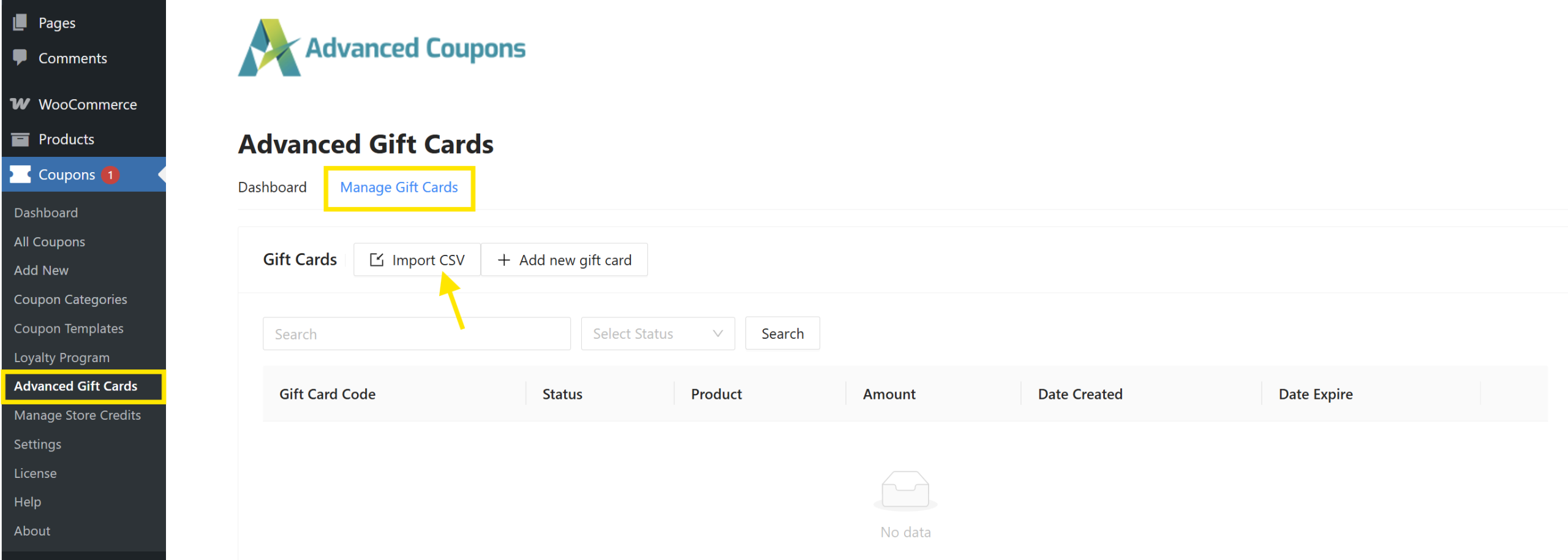
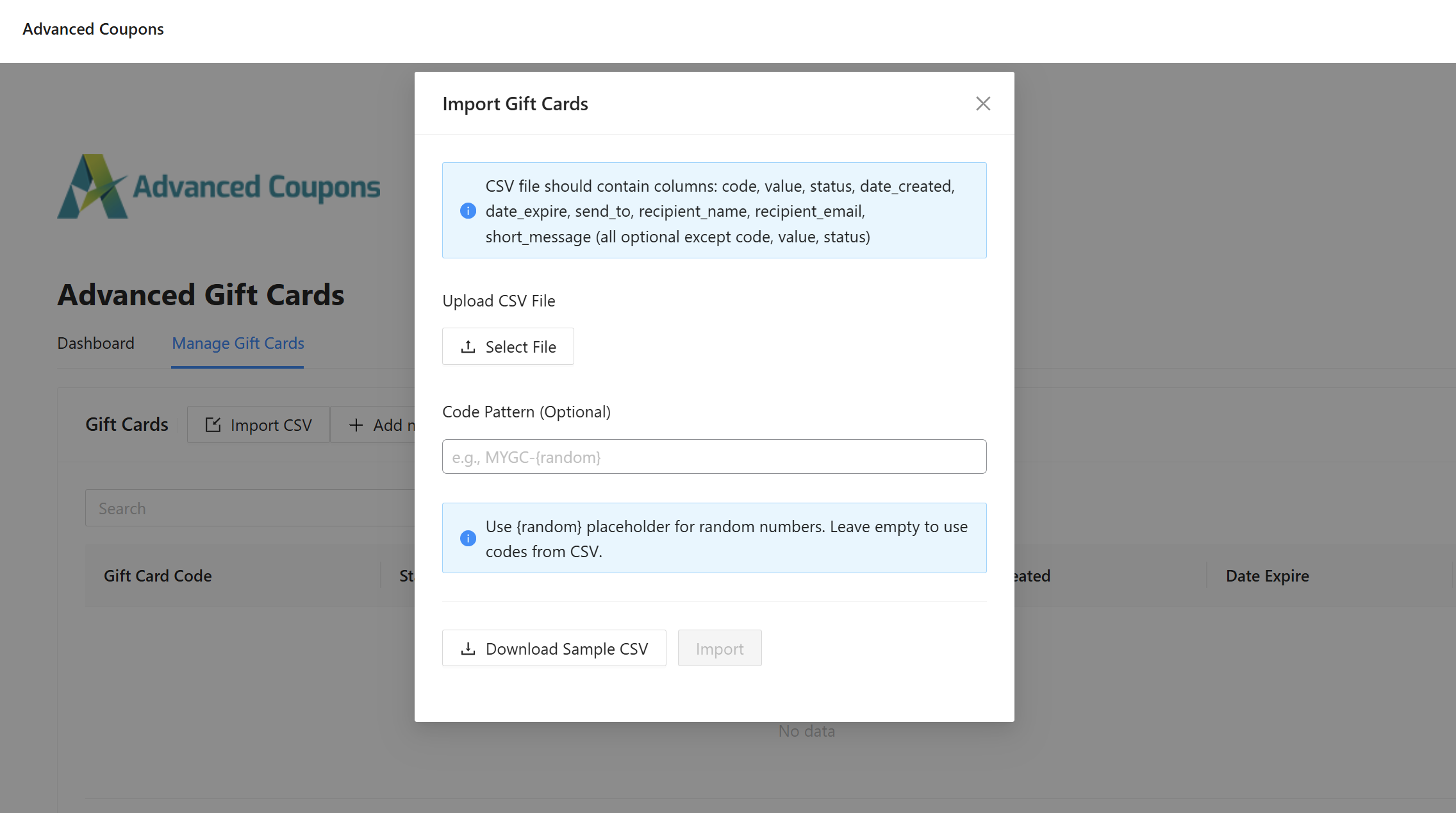
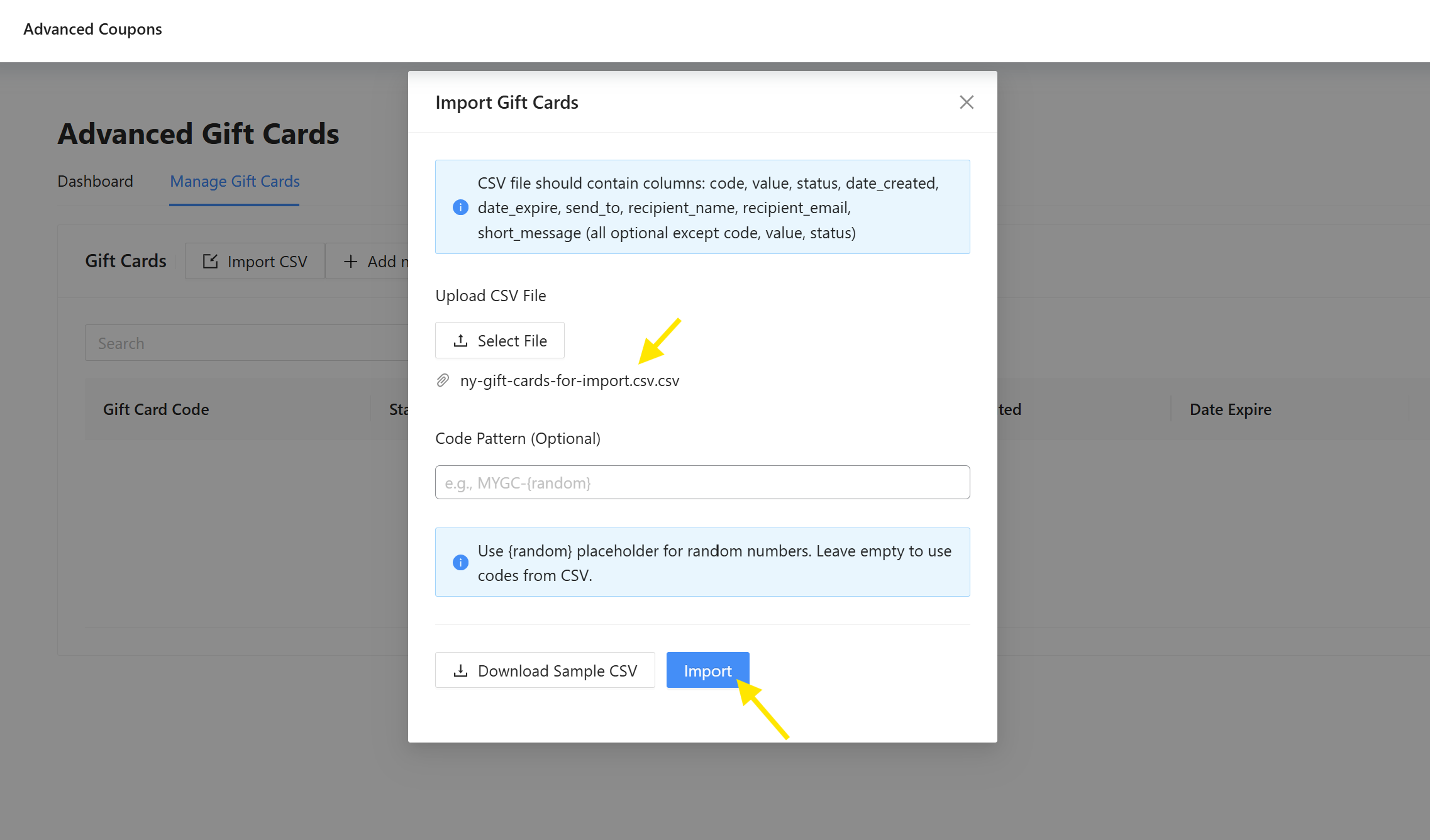
Clicking this button will open the new gift card import settings:
Step 2: Prepare your CSV file
To successfully upload gift cards, your CSV should include the following columns:
- code (required): The gift card code (e.g., VAL-34569)
- value (required): The amount of the gift card (e.g., 100, 150, etc.)
- status (required): The current status (pending, redeemed, invalid, etc.)
- date_created (optional): When the gift card was issued
- date_expire (optional): When it should expire
- send_to, recipient_name, recipient_email, short_message (optional): Great for pre-filling email-ready gift cards!
If you’re using your own codes, make sure each one is unique. This helps avoid duplicates. Check out our sample below:
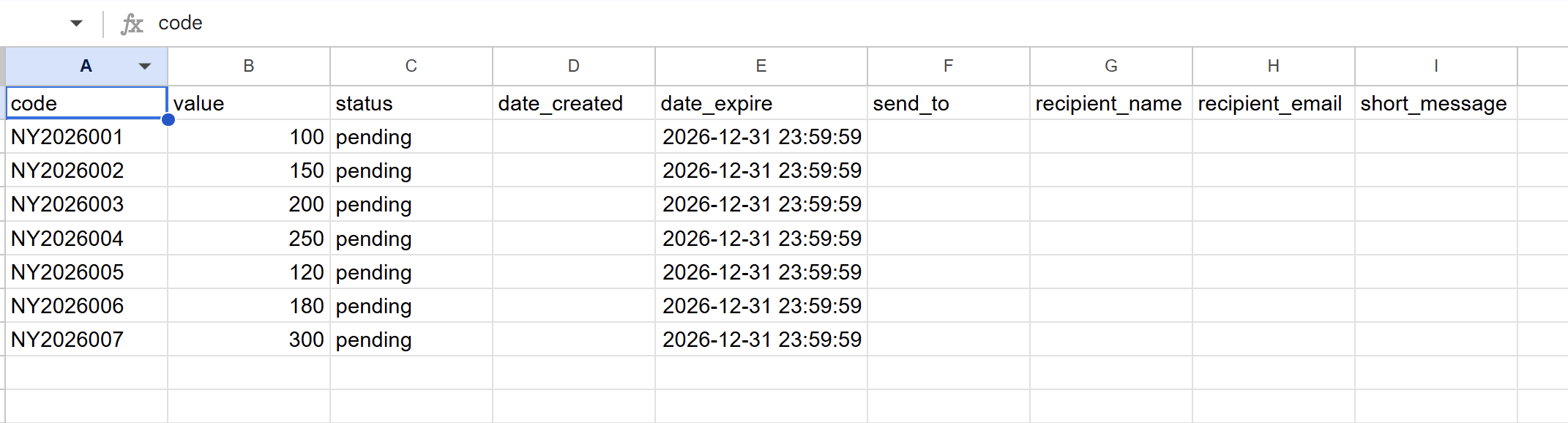
🎯 POWER TIP: Click“Download Sample CSV” from the menu to get a ready-to-use template. This ensures that your file is formatted correctly before uploading.
Step 3: Upload your CSV file
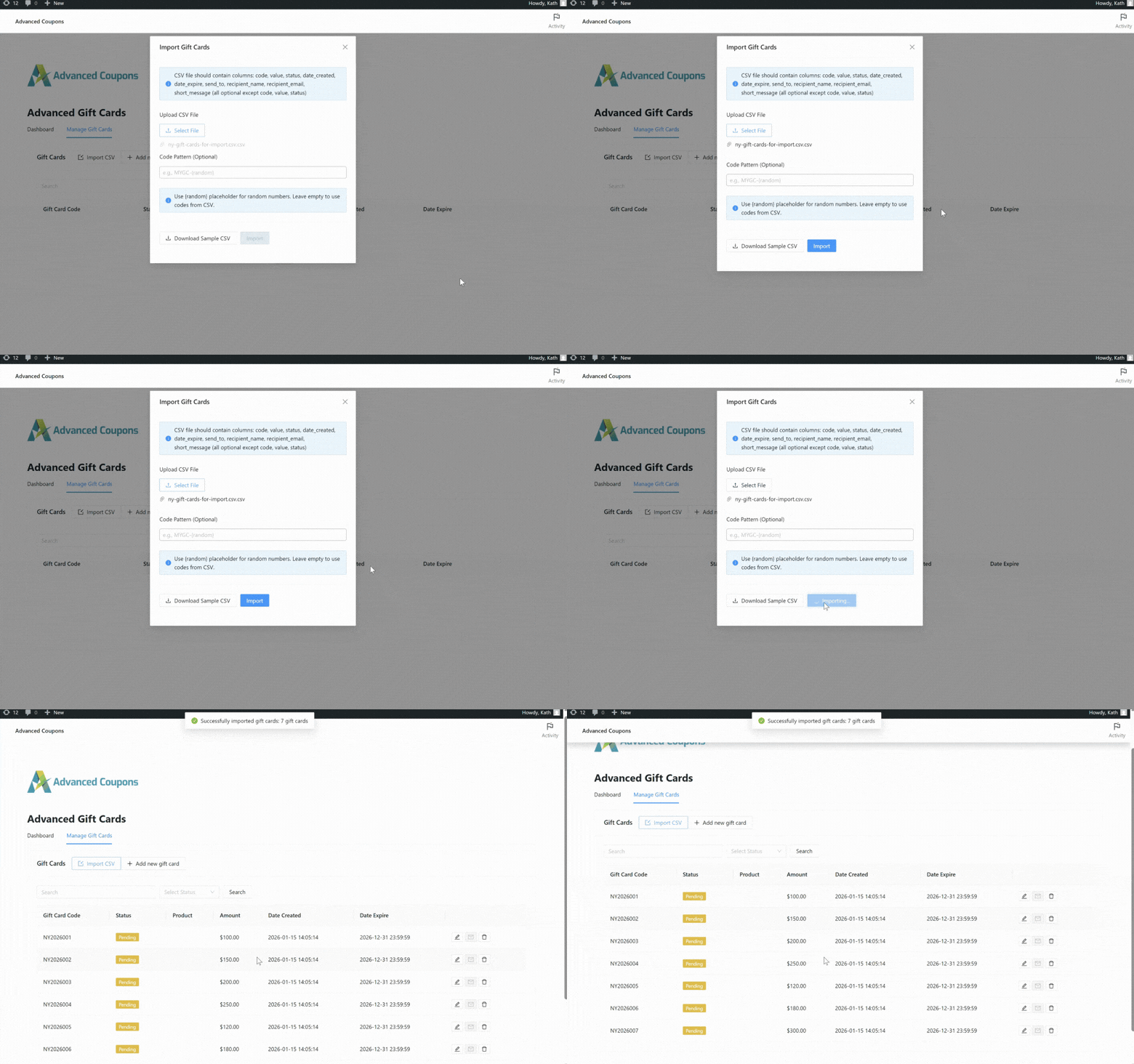
Once you’re done preparing your CSV file, click the “Select File” button to upload it. Once uploaded, hit “Import” to start the import process. The system will notify you once the upload process is completed.
That’s basically it! Your uploaded gift cards will now appear in the “Manage Gift Cards” list, ready for use in your store.
Bulk Generate Gift Card Codes
If you don’t have codes prepared or want to generate a fresh batch of gift card codes for a specific promotion, you can also use the Bulk Generate option during the CSV import.
On the Import page, you’ll notice the “Code Pattern (Optional)” field. This lets you define custom gift card codes using the {random} placeholder. Once filled in, this input will override the codes in your CSV and automatically generate random codes based on the pattern.
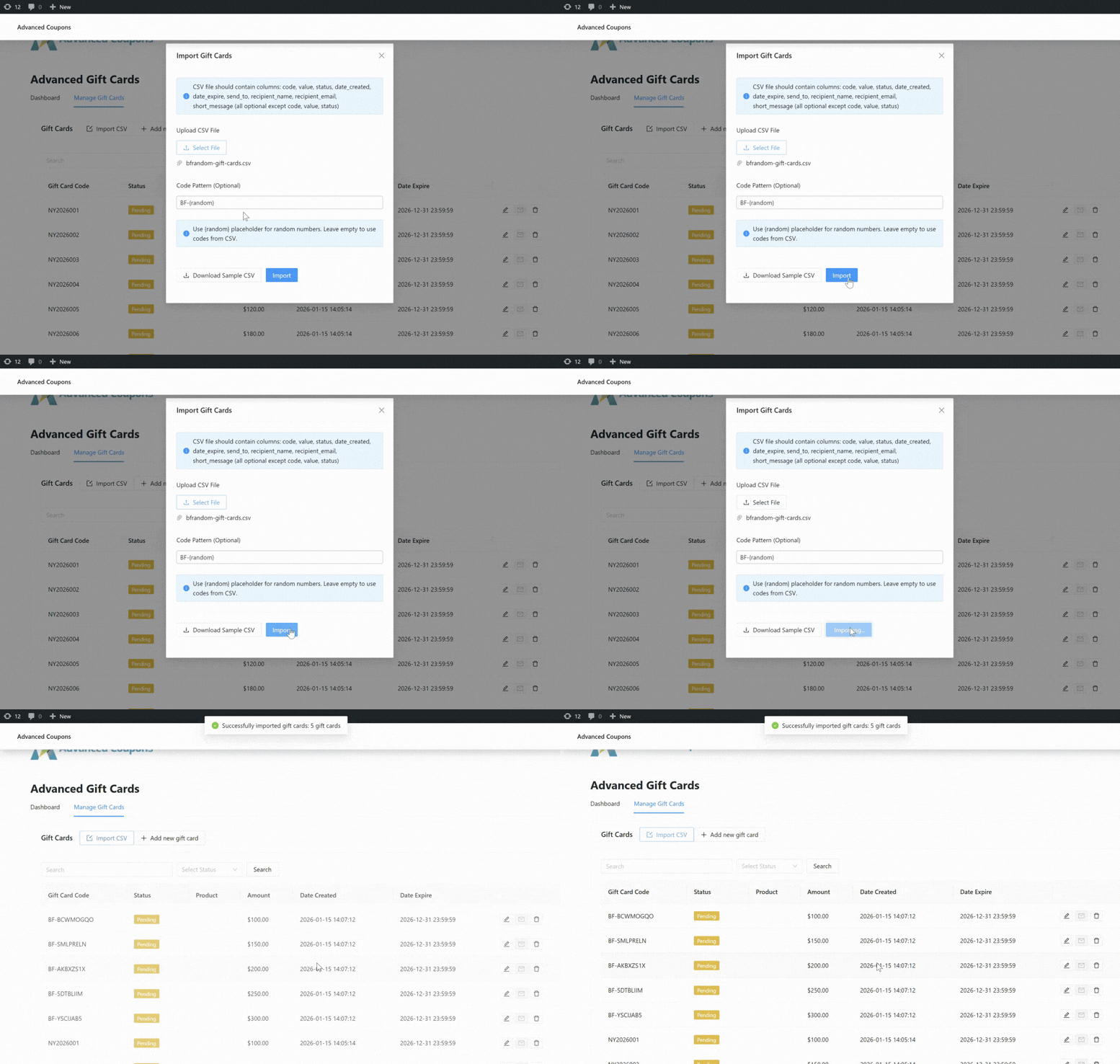
For example, if you enter “BF-{random}”, the system will automatically generate codes like:
- BF-BCWMOGQO
- BF-SMLPRELN
- BF-AKBXZS1X
This is a helpful option if:
- You don’t want to manually create gift card codes
- You’re running one-time gift card giveaways
- You want a consistent code format for a specific gift card campaign
How This New Feature Helps Your Store
The new import gift cards feature unlocks convenience and scalability for WooCommerce store owners like you. Here are just a few key benefits and use cases:
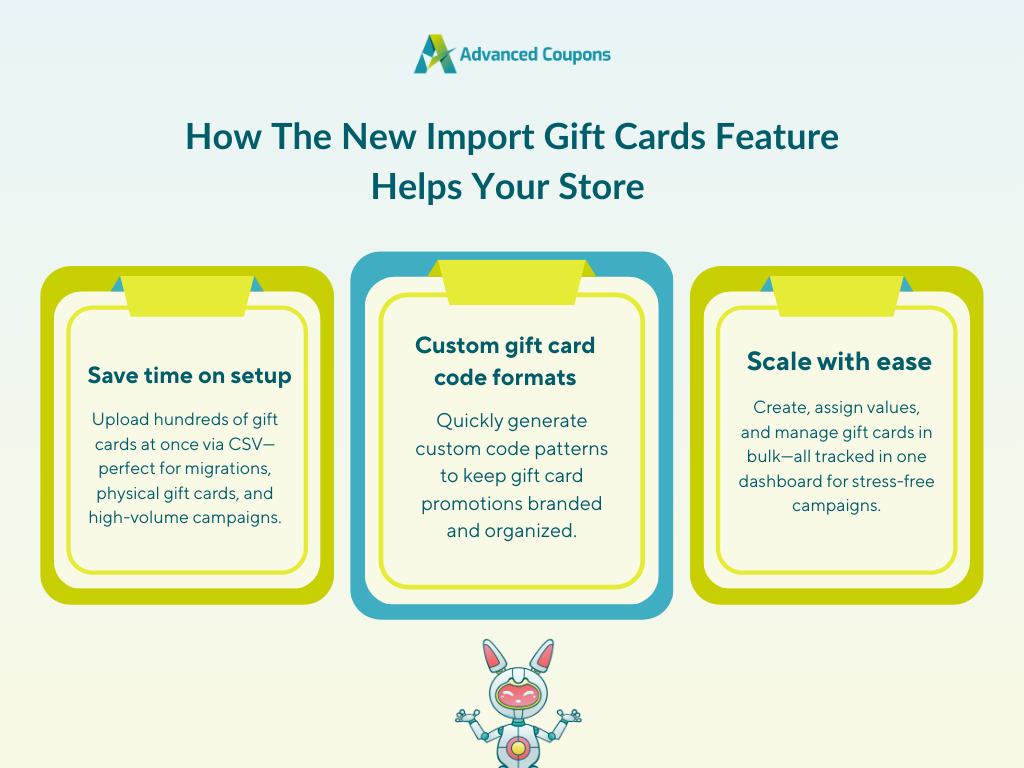
1. Save time by importing gift cards in bulk
Manually creating gift cards can be a headache if you’re launching a large-scale gift card promotion or managing hundreds of giveaways or loyalty rewards! Instead of entering each code manually, you now have the option to upload them all at once using one CSV file.
This is especially helpful if you’re:
- Transitioning from another system and need to migrate existing codes
- Managing pre-printed physical gift cards that already have unique codes
- Running campaigns where different codes have different values or conditions
It’s a simple time-saving feature that can make a huge difference, especially during busy periods like Black Friday or holiday sales.
2. Easily customize gift card codes to match your campaign
This new feature also allows you to automatically bulk generate gift cards with custom codes. Using the “Code Pattern” field, you can set custom code formats that match your promotion.
For example:
- XMAS-{random} for holiday campaigns
- WELCOME-{random} for new customer offers
- LOYALTY-{random} for gift card loyalty rewards
Having this option makes it easier for you to maintain a consistent feel across gift card promotions and keep codes organized by theme, campaign, or season.
3. Run large-scale gift card promotions with ease
The new gift card import feature makes large-scale gift card promotions simple by letting you:
- Upload hundreds (or thousands) of gift cards in one go
- Assign specific values and expiration dates to each code
- Use set formats that align with your campaign messaging
- Pre-fill recipient fields if you’re sending the gift cards out directly
These capabilities are especially helpful when you’re distributing gift card codes to corporate clients, loyalty program members, or giveaway winners. Even better, WooCommerce Gift Cards makes managing these codes easy. Once uploaded, your gift cards automatically appear in the Manage Gift Cards section, letting you track usage, expiration, and status in one dashboard.
Frequently Asked Questions
Can I import gift cards that already have pre-generated codes?
Yes. If you already have a list of gift card codes, you can import them directly using the import gift card feature via CSV upload. Just make sure to include your codes in the code column of your CSV file. This is an easy way to migrate existing gift cards or launch gift card campaigns using the codes you’ve prepared ahead of time.
Can I set different values or expiration dates for each gift card in the CSV?
Yes! The new import gift card feature supports pre-assigning custom values and expiration dates per gift card. Simply enter the desired gift card amount in the value column and the expiration date in the date_expire column.
How do I format my CSV file for gift card import?
Your CSV file should include at least three required columns: code, value, and status. You can also include optional columns such as date_created, date_expire, send_to, recipient_name, recipient_email, and short_message. These optional fields are useful if you’re sending gift cards directly to recipients. To make things easier, you can download a sample CSV file to use as a template.
Wrapping Up
The new import gift cards feature gives you a faster, more scalable way to manage and create gift card promotions in WooCommerce. In this complete guide, we walked you through:
- How to import gift cards using a CSV file
- How to bulk generate gift card codes automatically
- Key benefits of this new feature
- Common questions around formatting and setup
New to gift card marketing? WooCommerce Gift Cards allows you to easily create and sell digital gift cards in your store. This gives you an additional stream of revenue and encourages happy customers to share your brand with friends and family.
Hope this article helped! Let us know if you have any questions about this update. 😊