
If you want shoppers to see how many loyalty points they are on track to earn before checkout—including on the cart, checkout, and product pages—you configure the wording under Coupons → Loyalty Program → Settings → Messages.
The Advanced Loyalty Program plugin powers those previews, including guest-specific templates, the {points}, {earning_threshold_amount}, and {coupon_code} tokens. It also controls how the message appears on classic WooCommerce templates versus the WooCommerce Cart and Checkout blocks.
Prerequisites
- WooCommerce is installed and configured.
- Advanced Coupons for WooCommerce (free base plugin) and Advanced Loyalty Program are installed and active.
- Admin access to WordPress (for example, logged in as an administrator).
- The loyalty program is already configured. If you still need to set it up, follow the Loyalty Program getting started guide first.
How to open the Messages settings
- In WordPress admin, go to Coupons → Loyalty Program.
- Open the Settings tab.
- In the settings sidebar, click Messages.
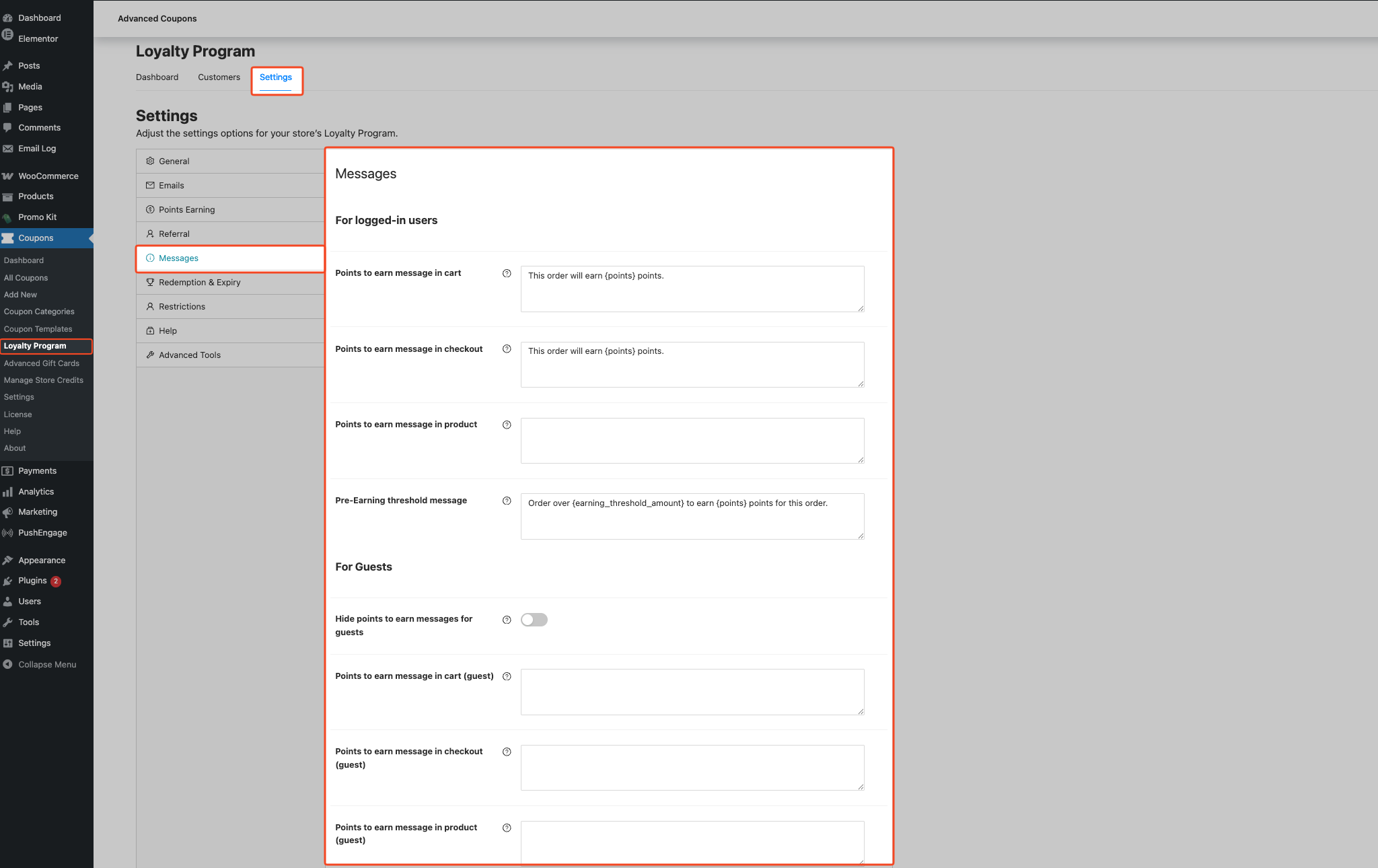
The Messages screen is grouped into For logged-in users, For Guests, and Custom Labels, matching the section labels you see on the screen.
How to enable earning previews for logged-in customers
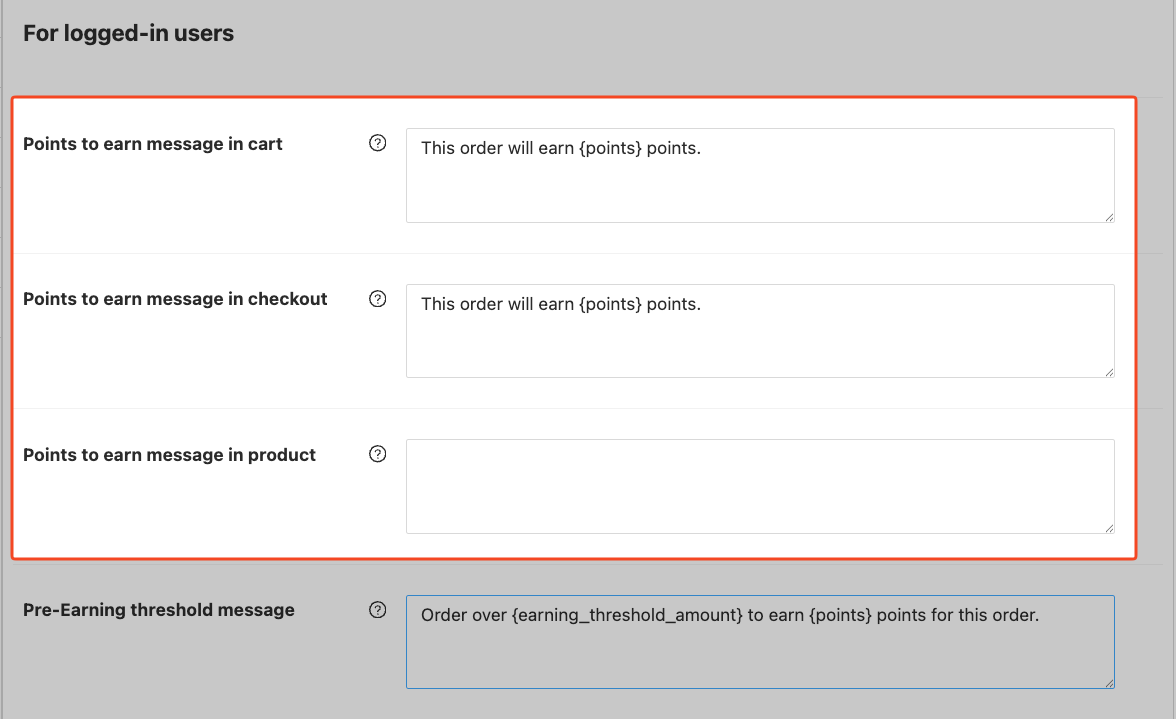
These text areas drive cart, checkout, and single-product previews for signed-in shoppers whose role is allowed to earn points.
- Under For logged-in users, click the Points to earn message in cart field.
- Type the message you want on the cart page.
- Click the Points to earn message in checkout field.
- Type the message you want on the checkout page.
- Click the Points to earn message in product field.
- Type the message you want on single product pages.
Use {points} in each message where the calculated points total should appear. Leaving the product message blank disables the product-page preview. For cart and checkout, a blank saved message can still fall back to the Pre-Earning threshold message, so clear that field too if you want to remove all below-threshold wording.
What happens on the storefront:
- Classic cart — the plugin outputs the message as a WooCommerce notice above the cart.
- Classic checkout — the plugin outputs the message above the checkout form; it updates automatically when cart totals change.
- Block cart and checkout — the plugin renders the message in the order totals area as a totals-style row, next to the cart totals.
- Product page — the message appears in the product summary for eligible products and updates for variable products.
How to set the pre-threshold (below minimum) cart message
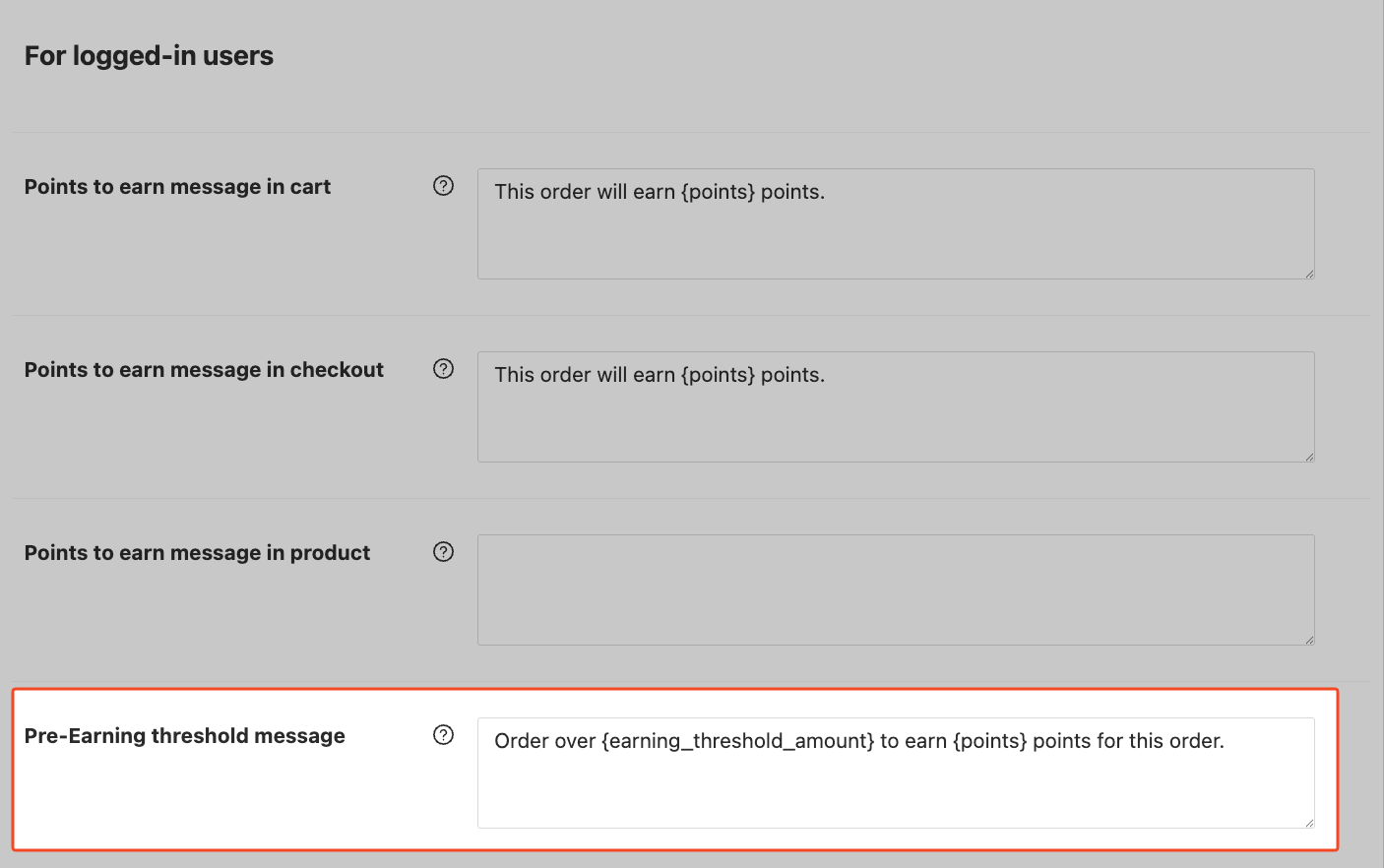
When the cart total is below your configured minimum spend for earning points, the plugin switches to the Pre-Earning threshold message instead of the normal cart/checkout wording, so customers still see helpful guidance.
The minimum spend itself is not on the Messages screen: set it under Settings → Points Earning → Minimum threshold to earn points so the pre-threshold message has a real threshold to compare against.
- Still under Messages, click the Pre-Earning threshold message field.
- Type the message you want shoppers to see when the cart is below the earning threshold.
- Leave this field blank if you don’t want a below-threshold message.
You can use {earning_threshold_amount} for the minimum earning threshold, formatted as a price in your store’s currency. You can also use {points} for the points the current cart would earn if the threshold were met. The plugin wraps both substituted values in bold markup for this message.
How to configure guest messages
Guests follow the same preview logic as logged-in users unless you hide them or override the copy.
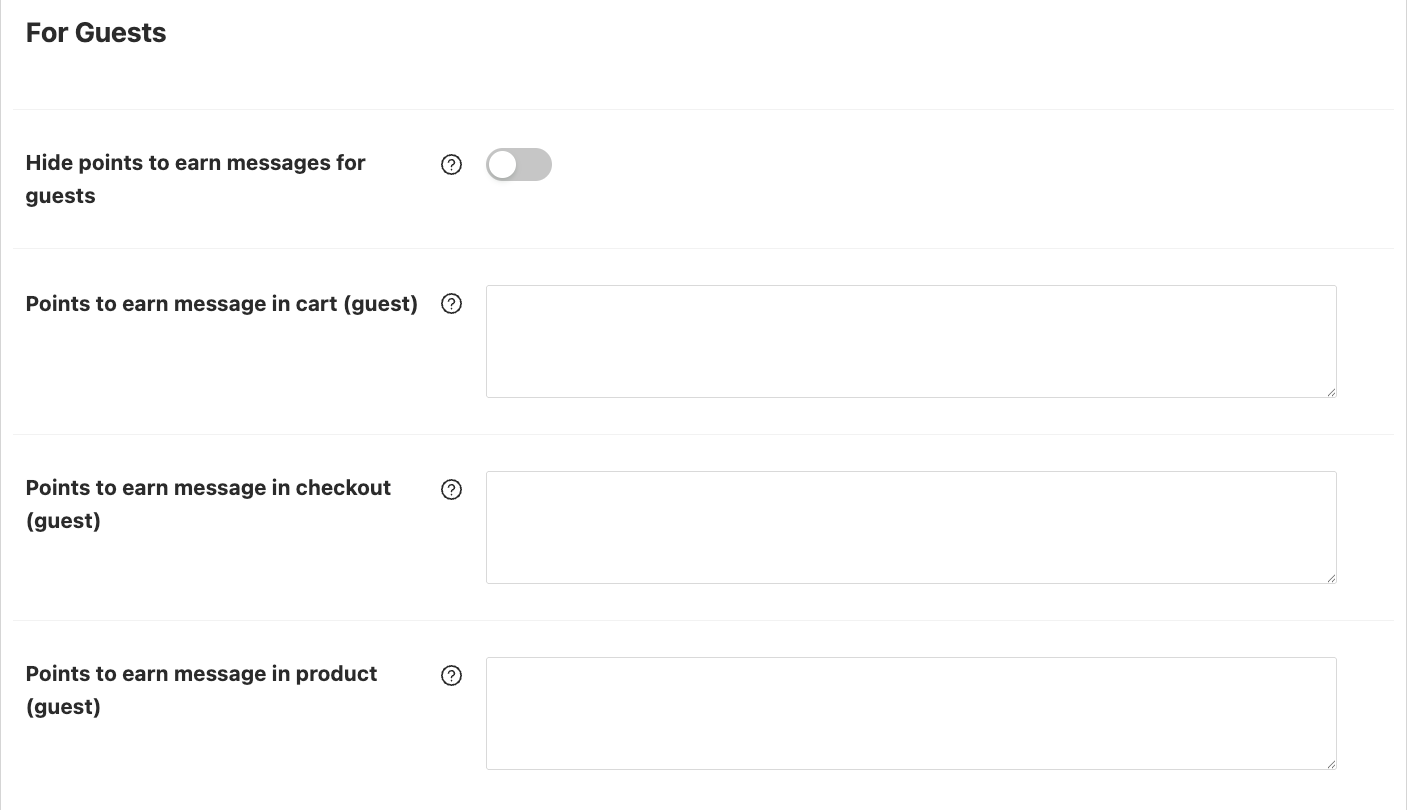
- To hide previews from guests, check Hide points to earn messages for guests. Leave it unchecked (the default) to show previews to guests.
- Click the guest message field you want to customize.
- Type the guest-specific message.
The guest fields are Points to earn message in cart (guest), Points to earn message in checkout (guest), and Points to earn message in product (guest). When a guest field is left blank, the plugin falls back to the matching For logged-in users message.
How to customize the loyalty coupon label in totals
Under Custom Labels, the Coupon Label text field changes how applied loyalty coupons read in cart and checkout totals (only coupons tied to the loyalty program).
- Click the Coupon Label field.
- Type your pattern, using
{coupon_code}where the live coupon code should appear. - Refresh the cart or checkout page on the storefront.
The default placeholder text in the UI suggests Coupon: {coupon_code}. The Coupon Label field saves automatically in the Loyalty Program admin app.

Troubleshooting
I don’t see any earning preview on the cart or checkout
Check each item below — any one of them can prevent the preview from showing.
- Guests — If Hide points to earn messages for guests is checked, guests don’t see any earning previews. Uncheck it to restore them.
- Roles — Confirm the tester’s role isn’t excluded under Settings → Restrictions → Disallow points accumulations for roles. A role that can’t earn points won’t see the preview.
- Store credit or loyalty coupon — When Settings → General → Disallow earning points when a store credit discount is applied on cart is enabled, the plugin hides the preview while store credit or a loyalty coupon is in the cart. Turn that setting off, or remove the store credit or loyalty coupon, to see the preview again. See Advanced Coupons: How To Use Store Credit (Setup Guide) for applying store credits at checkout.
- Nothing to earn yet — If the cart would earn 0 points (empty cart, all earning actions turned off, or products excluded from earning), the plugin outputs no message. Add qualifying products to the cart to trigger the preview.
- Blank message fields — If Points to earn message in cart or Points to earn message in checkout was saved blank, the plugin falls back to the Pre-Earning threshold message (if one is set) or shows nothing. Re-enter copy in those Messages fields to restore the preview.
The product page never shows a preview
Points to earn message in product must be non-empty, Purchasing products must be enabled under Points Earning, the product must be allowed to earn points (per-product and category rules), and Hide points to earn messages for guests must be off if you’re testing as a guest.
Below-threshold messaging never appears
Confirm Settings → Points Earning → Minimum threshold to earn points is greater than zero, and that the Pre-Earning threshold message field isn’t blank. Remember, the preview also disappears when the calculated points for the cart are zero (nothing to earn), because the plugin doesn’t output an empty “0 points” banner.
Frequently asked questions
Do {points} and {earning_threshold_amount} work in the guest cart message?
Yes — guest cart, checkout, and product messages support {points} the same way as logged-in templates. The {earning_threshold_amount} token is intended for the Pre-Earning threshold message, which applies when the cart is under the earning threshold.
Does the custom coupon label affect normal WooCommerce coupons?
No. The Coupon Label setting only relabels coupons that the plugin treats as loyalty coupons (those carrying the loyalty user meta).
Can I place the product message elsewhere?
The default hook is the product summary. Theme developers can also output the [lpfw_single_products_points_earned_message] shortcode where needed (see What Shortcodes Can I Use in Advanced Loyalty Program?).
Why does checkout hide the preview when my cart still shows it?
The most common reason is a template mismatch: the cart page uses classic WooCommerce and shows the preview as a notice, while the checkout page uses the Checkout block and shows it in the order totals area instead. If both use the same template, check guest vs logged-in state, the Disallow earning points when a store credit discount is applied on cart setting, and whether the cart is calculating any points at all.
Available placeholders
Quick reference for the tokens used across the Messages screen:
| Placeholder | Where it works | What it resolves to |
|---|---|---|
{points} | Points to earn messages (cart, checkout, product) for logged-in and guest customers, and the Pre-Earning threshold message | The calculated points the current cart/product would earn. Wrapped in <strong> automatically in the Pre-Earning threshold message; left as plain text in the other fields. |
{earning_threshold_amount} | Pre-Earning threshold message only | The minimum earning threshold, formatted as a price in your store’s currency. Wrapped in <strong> automatically. |
{coupon_code} | Coupon Label (under Custom Labels) | The live coupon code of an applied loyalty coupon, substituted into your label pattern at render time. |
Need help?
If you have a question or run into any issues, we’re here to help.
- Premium users: Open a support ticket
- Free users: Visit our community forum on WordPress.org

