
Customers who can’t tell whether they earned points (or who forget they have a balance) generate avoidable support tickets. Advanced Loyalty Program ships four transactional emails to close that gap: an earned points notification that confirms points after a qualifying activity, a loyalty point reminder that nudges inactive customers about an unused balance (including the calculated expiry date in the default copy), a points adjustment notification that confirms a manual balance change, and a reward claim confirmation that sends the customer their new coupon code each time they claim a reward with their points.
This guide covers where to schedule and toggle each send inside the Loyalty Program admin, how all four emails connect to WooCommerce’s email editor, how customers opt out of the emails they do not want, and how to override the templates from your theme.
Prerequisites
- WooCommerce is installed and configured to send mail from your store (SMTP or host mail as you normally would).
- Advanced Loyalty Program 1.8.4 or later is active. The Emails settings section and the two WooCommerce email types were added in 1.8.4. The per-action toggles under Point earning actions email notifications came later, in 1.8.8, so use 1.8.8 or later if you want to control emails per earn action.
- 1.9.2 or later if you want customers to opt out of loyalty emails with an Unsubscribe link or the Email Preferences tab.
- 1.9.4 or later if you want the points adjustment notification, sent when an admin uses the Bulk Adjust tool. See How to bulk adjust loyalty points for many customers.
- 1.9.5 or later if you want the reward claim confirmation, sent when a customer redeems points for a reward.
- Advanced Coupons (free) is active, so the Loyalty Program admin app is available under Coupons → Loyalty Program.
How to configure loyalty email timing and triggers
Open the Emails settings
- Log in to WordPress as a store administrator.
- Go to Coupons → Loyalty Program.
- Click the Settings tab.
- Open the Emails section.
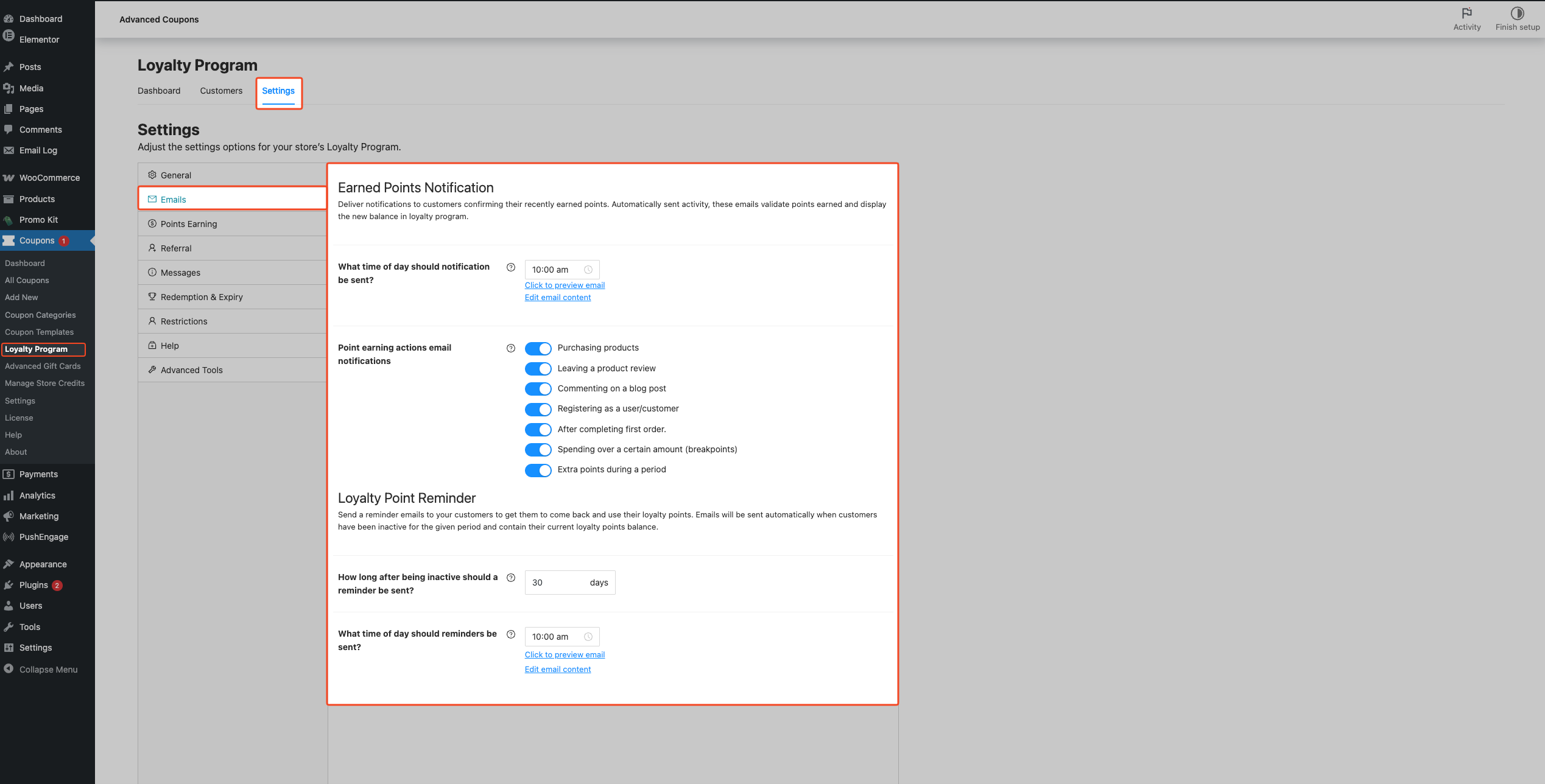
This screen saves each field on its own as you change it. A short confirmation notice appears in the corner after each change, for example “What time of day should notification be sent? successfully updated”. There is no global save button to click.
Schedule when earned-points emails go out
- Under Earned Points Notification, set What time of day should notification be sent? to the clock time you want the plugin to dispatch earned-points emails. This uses your store timezone from the WooCommerce general settings.
Choose which earn actions trigger emails
These toggles map to the ways customers earn points, which you configure elsewhere in the Loyalty Program settings. Turning a toggle off stops the email for that action. It does not stop the points from being earned.
- Under Point earning actions email notifications, turn each action toggle on or off. The plugin sends an earned-points email only for actions whose toggle is on.
- Purchasing products
- Leaving a product review
- Commenting on a blog post
- Registering as a user/customer
- After completing first order.
- Spending over a certain amount (breakpoints)
- Extra points during a period
Schedule the inactivity reminder
- Under Loyalty Point Reminder, set How long after being inactive should a reminder be sent? in days.
- Set What time of day should reminders be sent? to the clock time you want reminders dispatched.
The on-screen tooltip describes inactivity in terms of order activity. The plugin also re-anchors the reminder to loyalty point ledger updates, covered under How loyalty point reminders are timed below, so treat this value as your reminder delay window rather than a strict order-inactivity count.
Preview or edit each email template
- Use Click to preview email beside either block to open a browser preview tied to your own user record.
- Use Edit email content to jump straight into the WooCommerce email editor for that email type, where the subject, heading, body, and related options live.
This screen only has blocks for the earned points notification and the loyalty point reminder. The points adjustment notification and the reward claim confirmation have no block here. Edit them in WooCommerce → Settings → Emails, covered in the next section.
When to use each setting
- Once-a-day frequency cap: set What time of day should notification be sent? to a single store-local time (for example 10:00 am). Each customer gets at most one earned-points email for that scheduled window; if multiple earns arrive before send time, only the latest earn is sent and earlier ones are dropped (see How earned points notifications are sent below).
- High-volume / fast-cycling store: keep How long after being inactive should a reminder be sent? short (7–14 days) so customers hear about an unused balance before they forget the store.
- Considered-purchase / slow-cycling store: a longer window (30–60 days) avoids reminding customers who simply haven’t reached their next buying cycle.
- Quieter program: turn off the toggles under Point earning actions email notifications for low-value earns (for example Commenting on a blog post) and leave only the high-signal ones (for example Purchasing products and After completing first order.) on.
How to customize each email in WooCommerce
- Go to WooCommerce → Settings → Emails.
- Open Loyalty Program – earned points notification, Loyalty Program – loyalty point reminder, Loyalty Program – points adjustment notification, or Loyalty Program – reward claim confirmation from the list (each row title matches that string exactly).
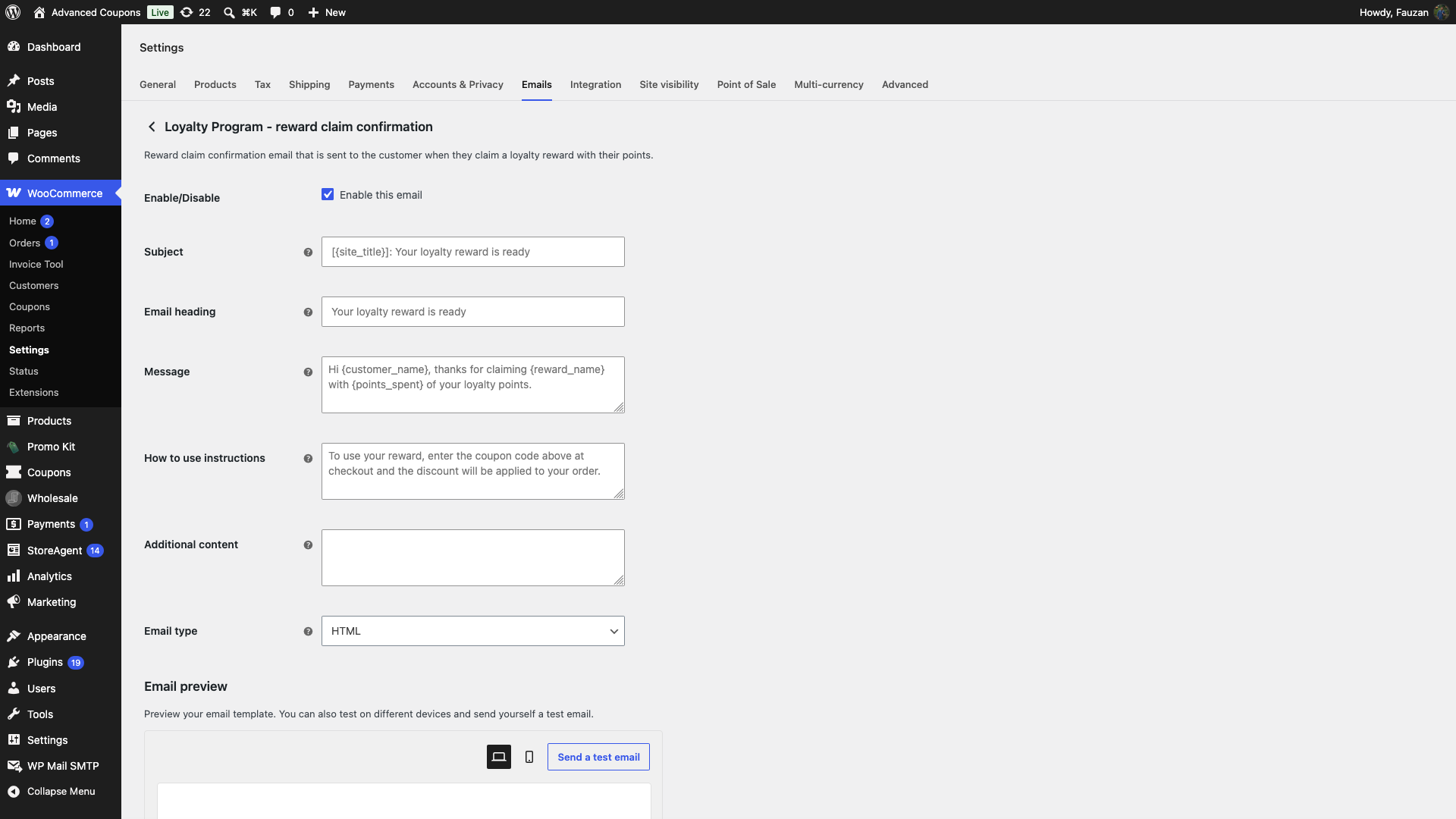
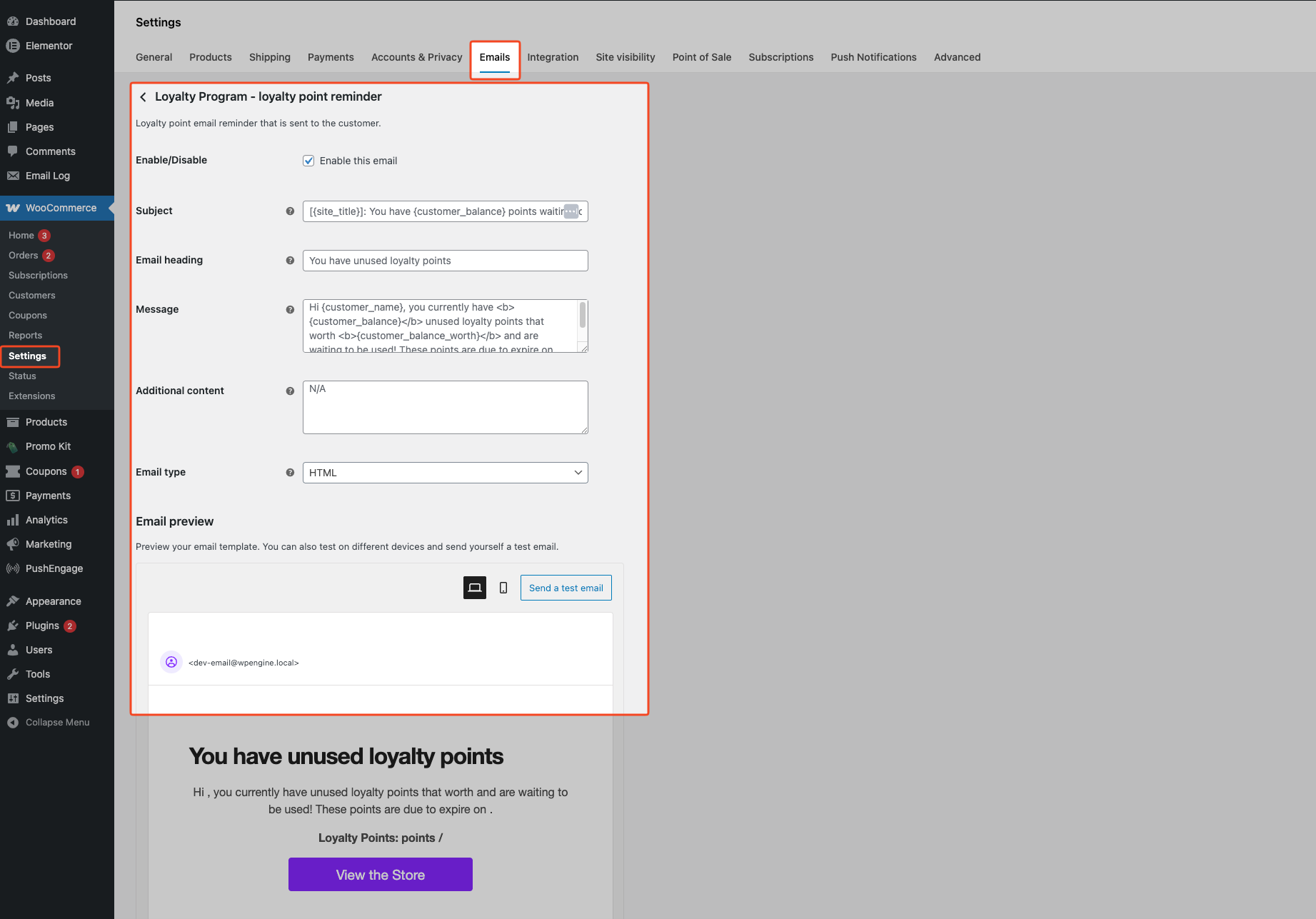
- Check that Enable this email is ticked. All four emails are enabled by default, so untick it only if you do not want that email to go out.
- Edit Subject, Email heading, Message, Additional content, and Email type as needed. See Available placeholders below for the tokens each email accepts.
- The reward claim confirmation has one extra field, How to use instructions. Use it for the text that tells customers how to use their coupon code. It appears below the reward details in the email.
- Click Save changes.
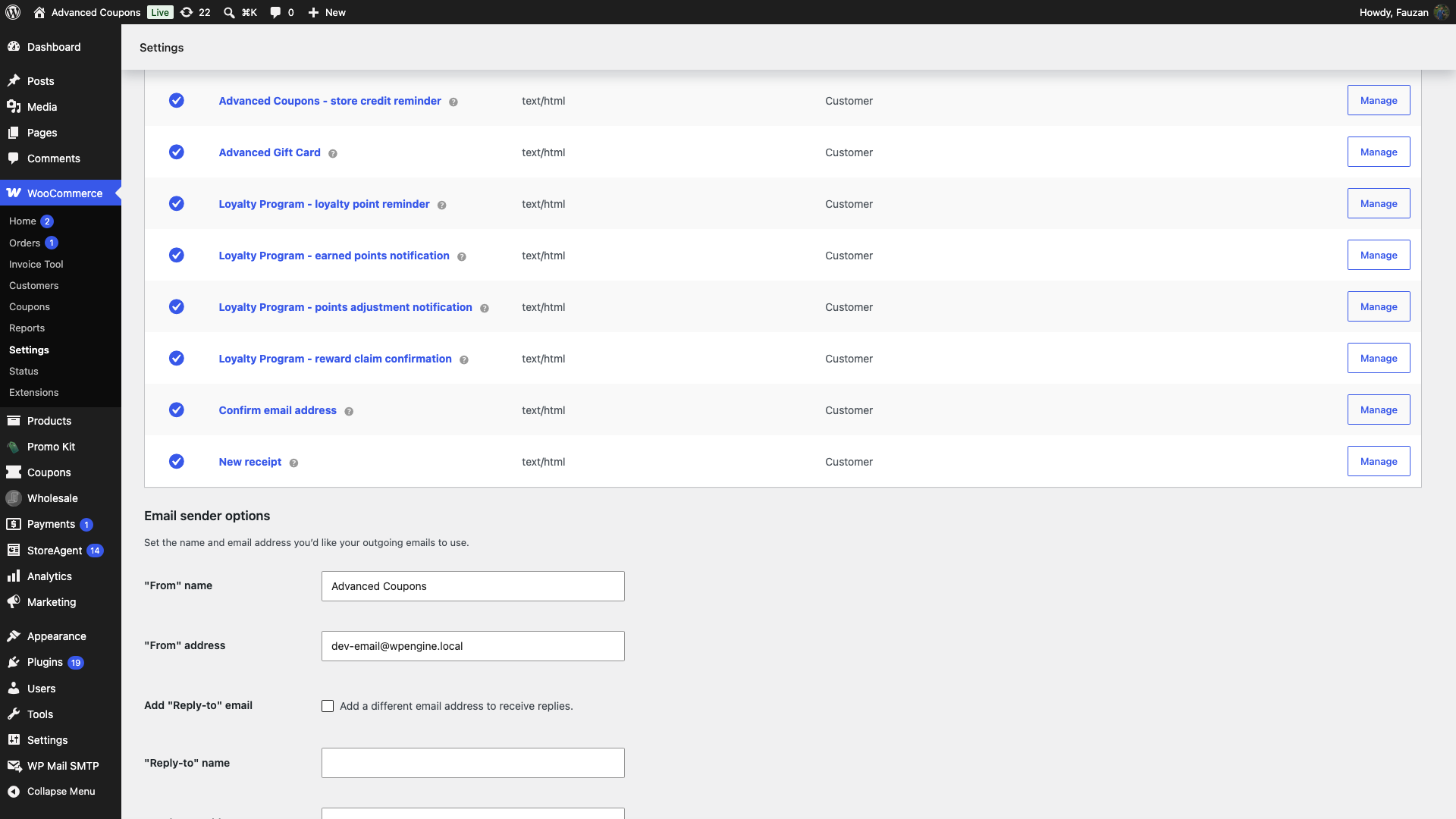
There’s no separate recipient field on any of these screens. At send time, the plugin sets the recipient to the customer’s WooCommerce account email in code.
Out of the box, the customer-facing subject lines are “[{site_title}]: You have earned {customer_earned_points} points!” for the earned-points notification, “[{site_title}]: You have {customer_balance} points waiting to be used!” for the inactivity reminder, “[{site_title}]: Your loyalty points balance has been updated” for the points adjustment notification, and “[{site_title}]: Your loyalty reward is ready” for the reward claim confirmation. Override any of these by typing your own copy into the Subject field on that email’s screen.
How earned points notifications are sent
- When a new earn loyalty point entry is created, the plugin checks that the Loyalty Program – earned points notification email is enabled in WooCommerce and that the corresponding toggle under Point earning actions email notifications is on for that earn action.
- If both checks pass, the plugin queues a single Action Scheduler job on the hook
lpfw_earned_points_notification_trigger(groupLPFW) for your configured What time of day should notification be sent? time. If another earn for the same customer arrives before that run, the pending job is cancelled and replaced, so customers don’t get spammed; the queued payload always reflects the latest scheduled earn for that window. - At send time, WooCommerce loads the Loyalty Program – earned points notification template, fills the placeholders from the customer’s balance and the queued earn details, and sends the email as long as Enable this email is on, and the customer has a valid email address.
How loyalty point reminders are timed
- Whenever a loyalty point entry is created or updated for a customer, the plugin checks that Loyalty Program – loyalty point reminder is enabled in WooCommerce, then schedules
lpfw_loyalty_point_reminder_trigger(groupLPFW) for the number of days set in How long after being inactive should a reminder be sent?, at What time of day should reminders be sent?. The plugin cancels any previous pending reminder for that customer first so only one future reminder stays queued. - When the job runs, the customer must still have a positive points balance. If the balance is zero or less, the send stops with no email.
- The default Message copy mentions points due to expire on
{customer_balance_expiry}. That date comes from your store’s loyalty balance and expiry rules, which you configure separately under Coupons → Loyalty Program → Settings → Redemption & Expiry (see How to set up loyalty point expiration). Scheduling itself is driven by the reminder delay and time fields above, not by the expiry cron.
How points adjustment notifications are sent
- From Coupons → Loyalty Program → Bulk Adjust, when an admin increases, decreases, or resets one or more customers’ points and ticks Send email notification to users before applying the change.
- The plugin fires
lpfw_points_adjustment_notification_triggerfor each affected customer immediately. There is no daily schedule for this email. WooCommerce then sends Loyalty Program – points adjustment notification if that email is enabled. - The email is not sent for a Delete All Entries run, and not sent when a customer’s adjustment resolves to no actual change, for example resetting a balance that is already zero.
How reward claim confirmations are sent
- When a customer claims a product reward or a coupon reward with their points, the plugin creates a new single-use coupon for that claim. The coupon only works for the email address on the customer’s account.
- The email goes out straight away on every claim, so there is no schedule to set. WooCommerce sends Loyalty Program – reward claim confirmation if that email is enabled and the customer’s user account still exists.
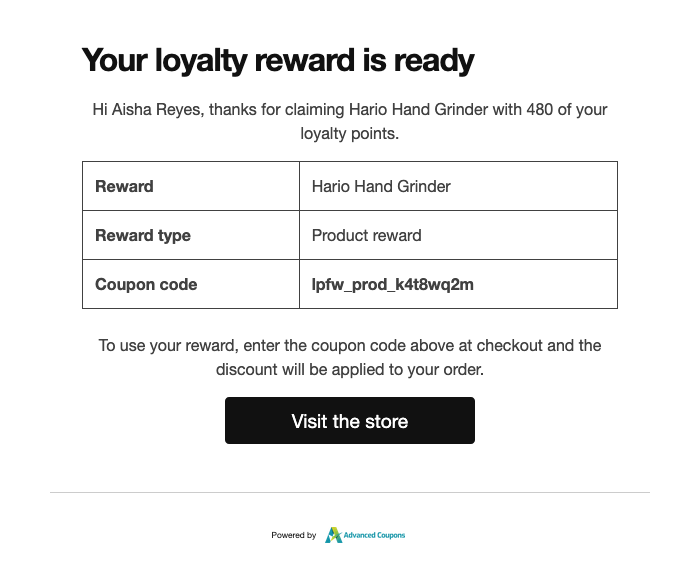
- The email shows your Message text, then a table with the Reward, Reward type, and Coupon code. Below the table are your How to use instructions text and a Visit the store button that links to your shop page.
- Out of the box, the heading is “Your loyalty reward is ready” and the message is “Hi {customer_name}, thanks for claiming {reward_name} with {points_spent} of your loyalty points.”
- This email is a receipt for the claim. It has no Unsubscribe link and no switch on the customer’s Email Preferences tab, so customers cannot opt out of it.
How customers opt out of loyalty emails
Customers can stop the earned points notification, the loyalty point reminder, and the points adjustment notification without contacting you. They have two ways to do it.
- Unsubscribe link: the footer of each of these three emails reads “Don’t want to receive these emails? Unsubscribe. You can re-enable them anytime from your account preferences.” One click on Unsubscribe turns off that email for that customer. They do not need to log in.
- Email Preferences tab: in My Account → My Points → Email Preferences, customers turn each email on or off with its own switch: Loyalty point reminder emails, Earned points notifications, and Points adjustment notifications.
The tab only shows a switch for an email you have enabled in WooCommerce. If all three emails are turned off, the tab does not appear. After a customer opts out, the plugin skips that email for them, including a reminder that was already queued. They can switch it back on from the same tab.
The reward claim confirmation is not part of this. It always goes to the customer while it is enabled in WooCommerce.
Template overrides and preview
Preview
- From Coupons → Loyalty Program → Settings → Emails, use Click to preview email beside either block. The link opens an admin-ajax preview in a new tab using a preview nonce tied to your user.
HTML and plain templates
- Override the HTML templates by copying the plugin files into your theme:
wp-content/plugins/loyalty-program-for-woocommerce/templates/emails/earned-points-notification.php→yourtheme/woocommerce/emails/earned-points-notification.phpwp-content/plugins/loyalty-program-for-woocommerce/templates/emails/loyalty-point-reminder.php→yourtheme/woocommerce/emails/loyalty-point-reminder.phpwp-content/plugins/loyalty-program-for-woocommerce/templates/emails/points-adjustment.php→yourtheme/woocommerce/emails/points-adjustment.phpwp-content/plugins/loyalty-program-for-woocommerce/templates/emails/reward-claim.php→yourtheme/woocommerce/emails/reward-claim.php - Plain-text versions follow the same pattern: copy from
templates/emails/plain/earned-points-notification.php,templates/emails/plain/loyalty-point-reminder.php,templates/emails/plain/points-adjustment.php, andtemplates/emails/plain/reward-claim.phpintoyourtheme/woocommerce/emails/plain/…. - For a quicker copy, open the email in WooCommerce → Settings → Emails. Under HTML template, click Copy file to theme to copy the file into your active theme, or View template to read it first.
To disable a flow later, clear the relevant toggles in Point earning actions email notifications, untick Enable this email for that WooCommerce email type, or both.
Available placeholders
You can use these tokens in the Subject, Email heading, Message, and Additional content fields, and in How to use instructions on the reward claim confirmation. They are replaced with the customer’s own values when the email is sent. Each email only accepts its own token set. A token from a different email does not resolve.
All four emails also accept the standard WooCommerce tokens {site_title} (your store name, from the WordPress site title), {site_address}, {site_url}, and {store_email}.
Earned points notification and loyalty point reminder
{customer_name}: the customer display name.{customer_email}: the customer account email address.{customer_balance}: their current points balance.{customer_balance_worth}: that balance as a currency amount.{customer_balance_expiry}: when the balance expires, if you have expiry turned on.
Earned points notification only
{customer_earned_points}: the points earned in the action that triggered the email.{customer_earned_points_worth}: those earned points as a currency amount.{customer_earned_points_action}: the action they earned the points for, for example a purchase or a product review.
The inactivity reminder does not accept the three earned-points tokens, because there is no single triggering action behind it.
Points adjustment notification
{customer_name},{customer_email},{customer_balance}, and{customer_balance_worth}: same meaning as above, using the customer’s balance after the adjustment.{customer_adjusted_points}: the number of points changed in this adjustment.{adjustment_type}: the operation performed, for example increased, decreased, or reset.{adjustment_note}: the optional admin note entered for this Bulk Adjust run.
Reward claim confirmation
{customer_name}and{customer_email}: same meaning as above.{reward_name}: the product title for a product reward. For a coupon reward, it is the code of the coupon you set up as the reward, not the new code the customer receives.{reward_type}: Product reward or Coupon reward.{coupon_code}: the single-use coupon code generated for this claim.{points_spent}: the number of points the customer redeemed for the reward.
Troubleshooting
Customers aren’t getting earned points emails
Open WooCommerce → Settings → Emails and confirm Enable this email is on for Loyalty Program – earned points notification. Then open Coupons → Loyalty Program → Settings → Emails and confirm the matching action toggle is on under Point earning actions email notifications. In WooCommerce → Status → Scheduled Actions, search for lpfw_earned_points_notification_trigger in group LPFW to confirm a send was queued and completed. If only one customer is missing the email, ask them to check that Earned points notifications is switched on in their Email Preferences tab.
The loyalty reminder never arrives
Confirm Loyalty Program – loyalty point reminder is enabled under WooCommerce → Settings → Emails, and that the customer still has a points balance above zero when the job runs. Inspect lpfw_loyalty_point_reminder_trigger in WooCommerce → Status → Scheduled Actions (group LPFW). If jobs stay Pending, your site cron or Action Scheduler queue is not processing. Check WP-Cron health and your host cron configuration. If only one customer is missing reminders, ask them to check that Loyalty point reminder emails is switched on in their Email Preferences tab.
Customers aren’t getting the points adjustment email
Confirm Send email notification to users was ticked on the Bulk Adjust screen before the adjustment was applied, and that Enable this email is on for Loyalty Program – points adjustment notification under WooCommerce → Settings → Emails. This email is never sent for a Delete All Entries run or for an adjustment that resolves to no actual change. It is also skipped for a customer who switched off Points adjustment notifications in their Email Preferences tab.
The reward claim confirmation never arrives
Confirm Loyalty Program – reward claim confirmation is enabled under WooCommerce → Settings → Emails, and that the claim completed. A completed claim adds the new coupon to the Reward Coupons list on the customer’s My Points page. This email has no opt-out, so if one customer never receives it, check their account email address and spam filtering instead.
Placeholders look empty in previews
Preview with a real customer account that has point activity, or adjust Subject and Message copy so missing optional placeholders are acceptable. Some placeholders only fill in when the customer has activity history, for example the latest earn used in previews.
The Email preview panel on the reward claim confirmation screen in WooCommerce shows the customer name, the points, and the three reward rows as blank, because no real claim sits behind the preview. A real claim fills them in.
Frequently asked questions
Does the reminder email fire exactly when points are about to expire?
No. The send time is controlled by your How long after being inactive should a reminder be sent? and What time of day should reminders be sent? settings after each point ledger update. The default message includes the calculated {customer_balance_expiry}, but expiry itself is configured separately under Coupons → Loyalty Program → Settings → Redemption & Expiry.
Can I send a one-off reminder to one customer?
Yes. Open Coupons → Loyalty Program → Customers, locate the customer row, and click Remind. The plugin opens a Send a Reminder modal with Preview and Send buttons. The manual reminder runs alongside the automated schedule. If the customer switched off Loyalty point reminder emails, the plugin does not send the manual reminder either.
Where are the WooCommerce email option records stored?
WooCommerce stores each email’s fields under standard option keys: woocommerce_lpfw_earned_points_notification_settings, woocommerce_lpfw_loyalty_point_reminder_settings, woocommerce_lpfw_points_adjustment_notification_settings, and woocommerce_lpfw_reward_claim_settings. Do not edit these directly. Always use the WooCommerce email editor so values stay validated and serialized correctly.
Need help?
If you have a question or run into any issues, we’re here to help.
- Premium users: Open a support ticket
- Free users: Visit our community forum on the Advanced Coupons plugin’s WordPress.org support page.

